
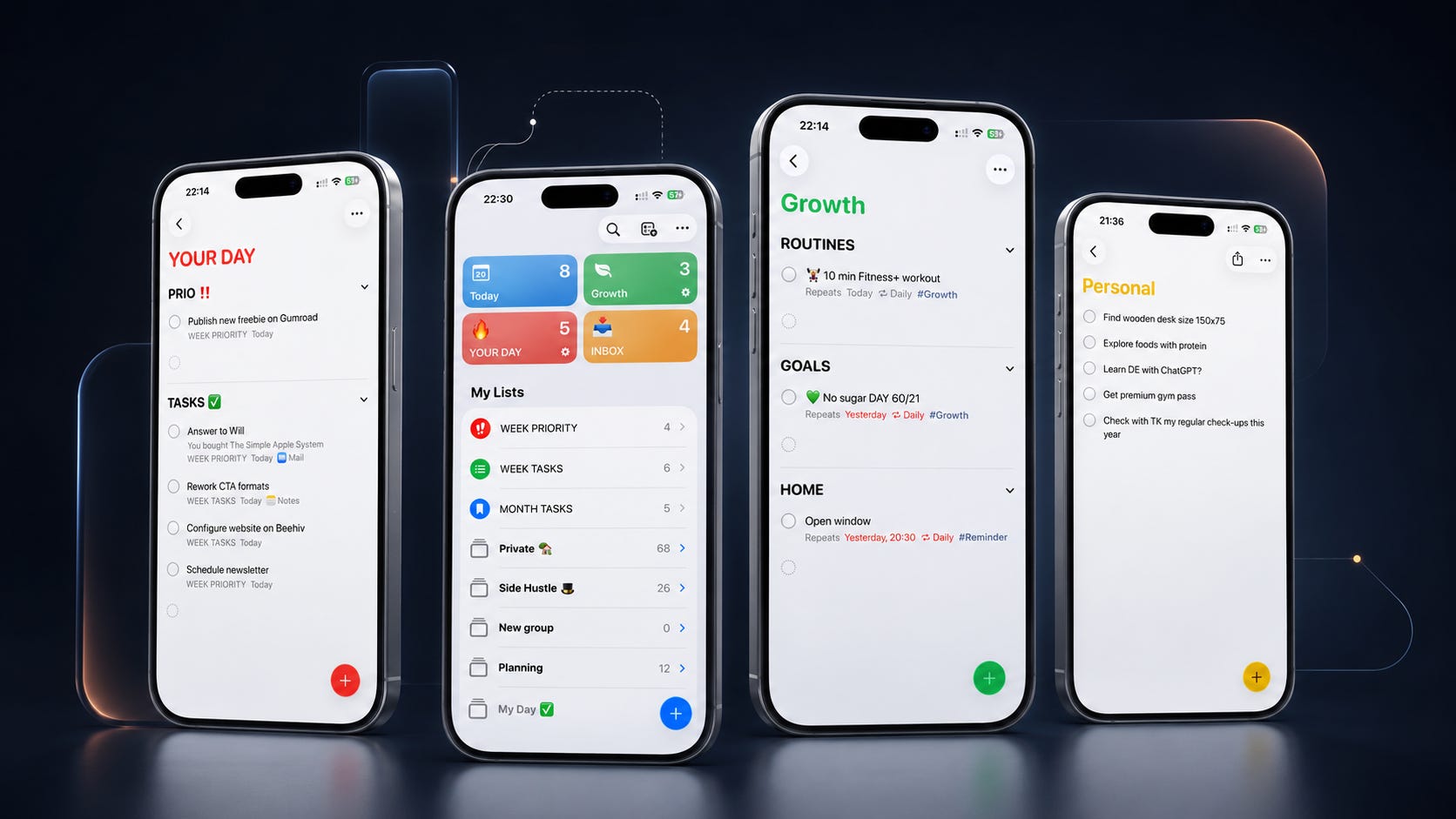
On Medium I show regularly what’s possible in Apple Reminders — Smart Lists, sections, tags, different custom views. But often people asks me what is my real setup that I actually use every day.
So in this story I want to share exactly what I use, step by step, on iPhone, iPad, and Mac. You don’t need to copy this exactly. But if you’d rather skip deciding and just build the same thing I use, here it is.
This setup is more than a system. It’s a reflection of how I want to live.
Look, your brain isn’t built for storing things to do — it’s built for thinking. That’s why Inbox matters more in Apple Reminders than any other list. The moment something new shows up, it gets captured. Nothing stays in my head.
Category lists work like drawers at home:
Cables go in one drawer.
Socks in another.
Cutlery has its place.
The same logic applies to tasks — family life, my son, our next trip, all have a dedicated list. Folders group them further: one click, and I see everything inside that area, properly structured.
This isn’t about doing more, or doing it faster. It’s about doing the right things, at the right time — sometimes even less, but better.
That’s the whole reason Week Priority exists, and why Your Day has a Prio section at all. Sections, groups, tags, Smart Lists — they’re only worth using if they help you focus on what matters. Nothing more.
So here is my exact Apple Reminders setup I trust:
Everything new goes into one place: Inbox. Tasks, ideas, links, a message I need to reply to. I don’t sort while capturing. I just capture.
Set your default list to Inbox: Settings → Apps → Reminders → Default List → Inbox.
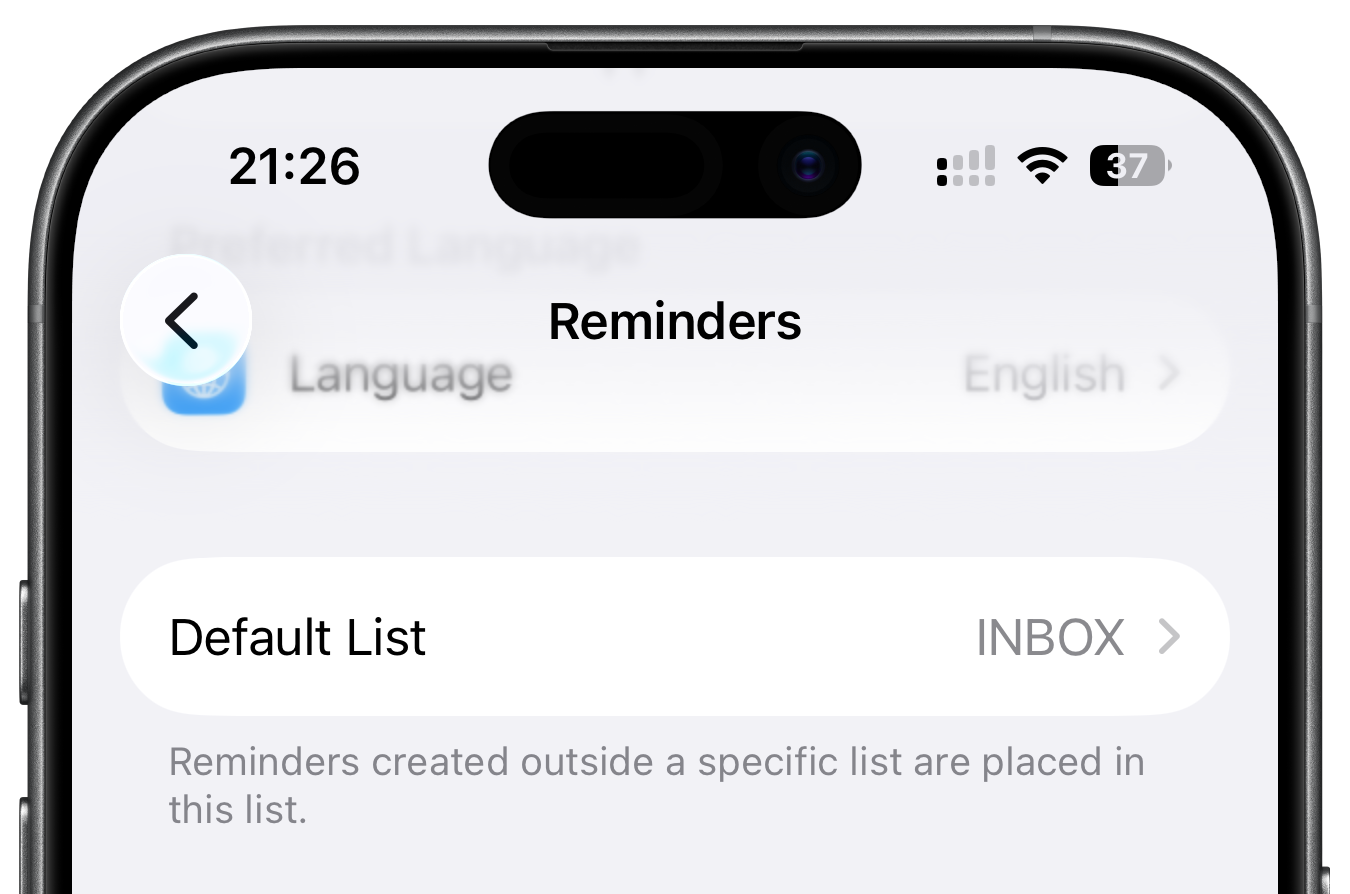
This makes Inbox the place Siri sends everything when you say “Hey Siri, remind me to…”.
Fast capture only works if everything lands in one predictable spot.
Create Standard Lists (not Smart Lists) for any area, or category, of your life. It can be:
Family
Ideas
Vacation
Car
Project X
Garage.
Anything where you know you’ll have tasks related to one topic.
They can also be temporary — areas that only matter for a while. When I was moving into my new home, I created a list called “New Home” to keep all related tasks in one place.
Later, I created another one called “Renovation” to track everything that needed to be done. Once it’s done, I simply delete the list. You get the idea.
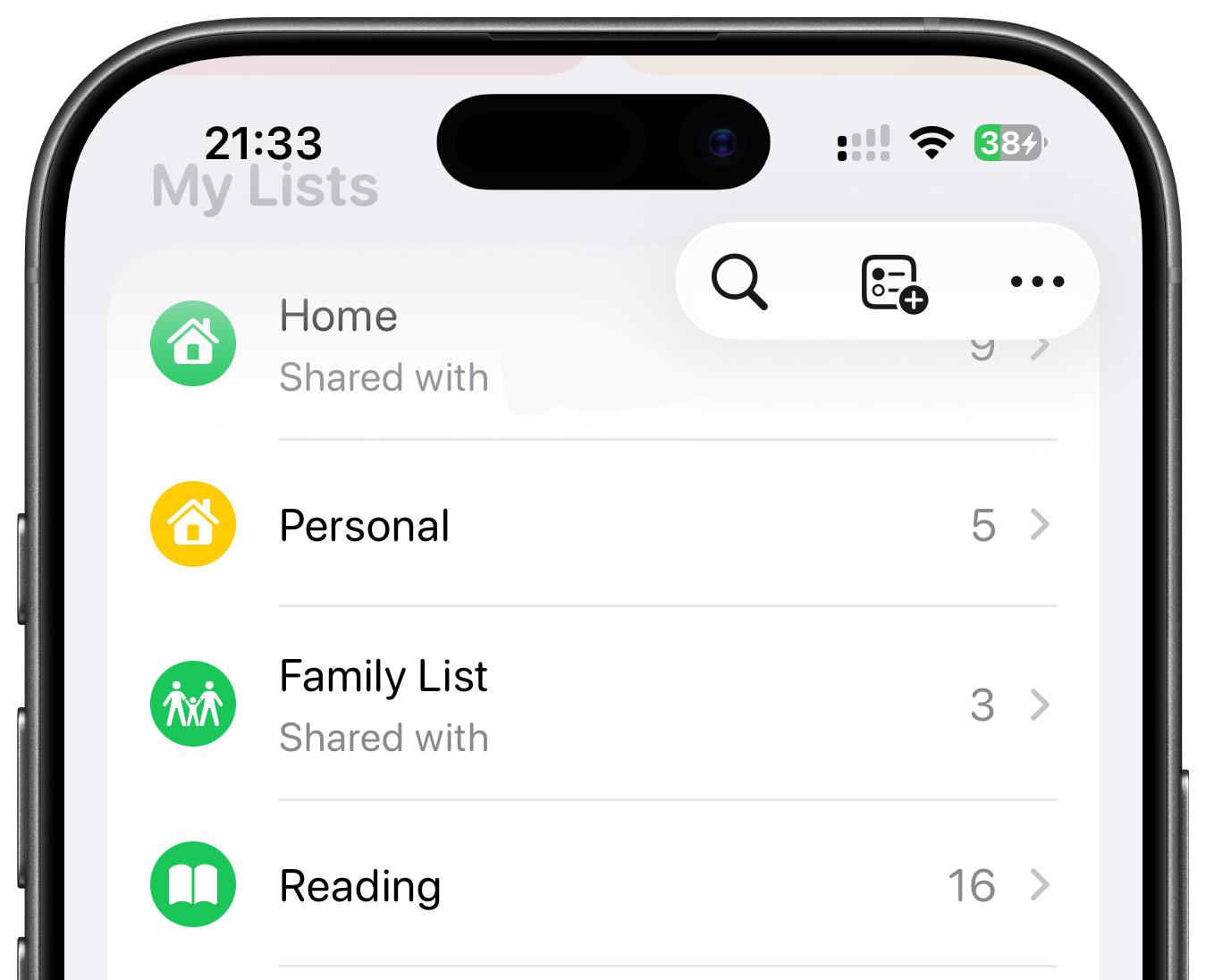
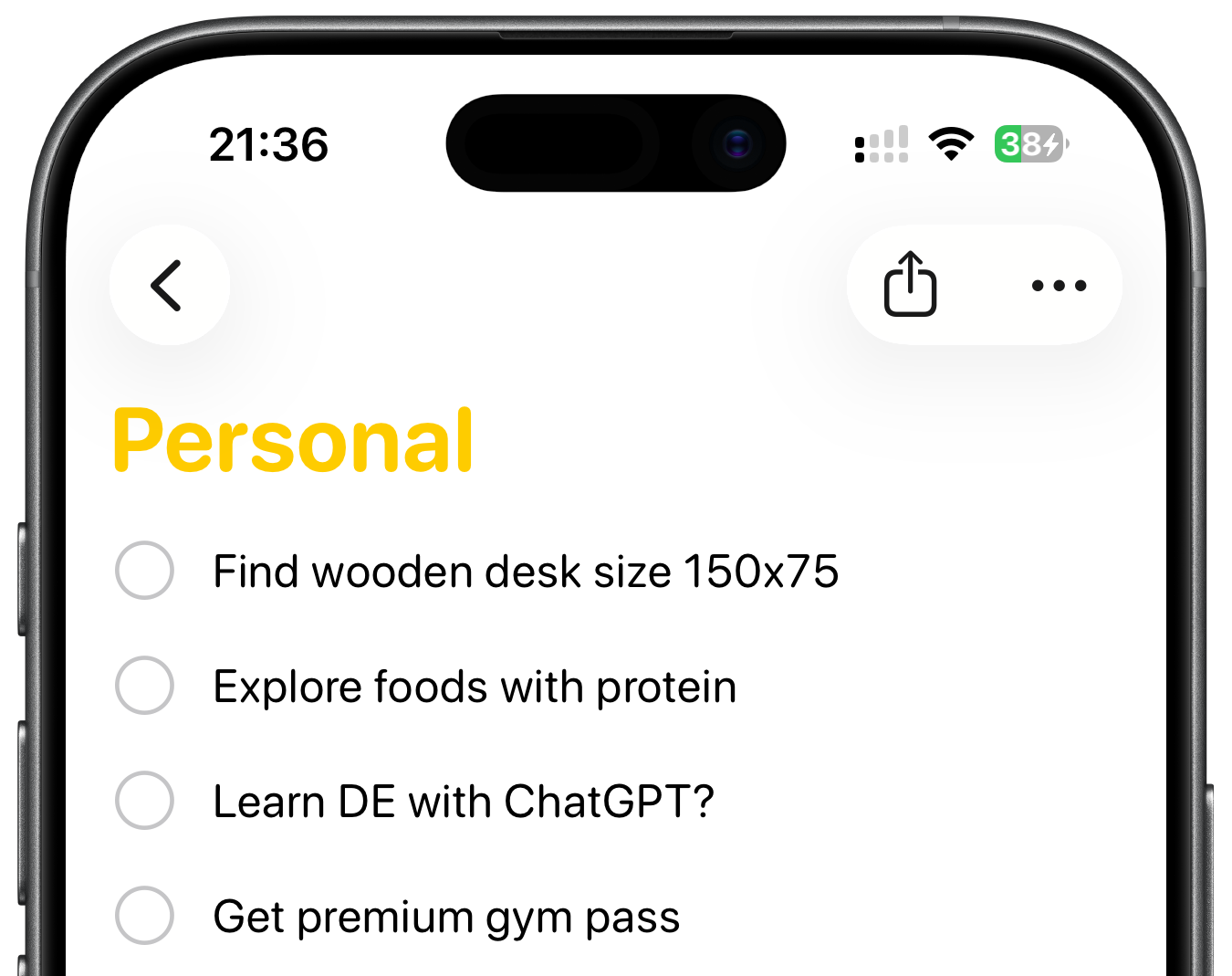
Now group them into folders (Groups). Start with 2–3 folders. I like this approach because folders act as containers that let you bundle related lists together by theme.
On iPhone/iPad: tap and hold a List → drag it onto another list → name the New Group → tap Done
On Mac: click File → New Group → enter a name → drag lists into the group
In my case, that’s mainly Side Hustle and Private — it keeps the two areas separate. Add lists inside only when a category actually needs its own space — don’t pre-build ten empty lists on day one.
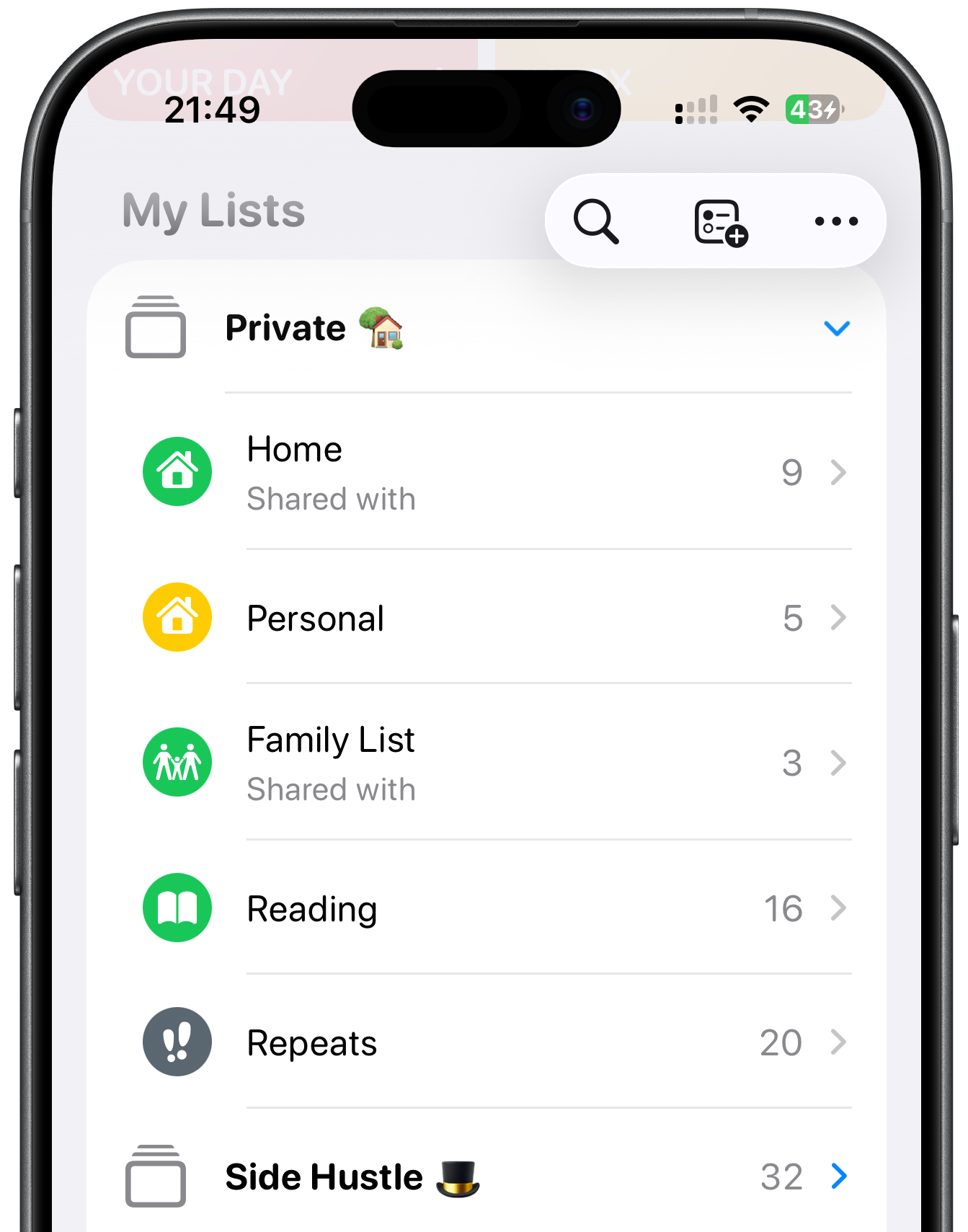
Also create a “Repeats” list for recurring tasks — birthdays, car service, paying tax, but also habits and routines. You’ll need this list for the Smart List setup later.
You can add Tags to individual reminders if you want extra filtering.
Outside the folders, sitting at the top level, I keep three flat lists. This is my execution engine — where the actual work happens:
Week Priority — 2–3 most important tasks
Week Tasks — everything else for the week
Month Tasks — things to do this month
These aren’t inside a folder on purpose. I want them visible immediately, without an extra tap to open anything.
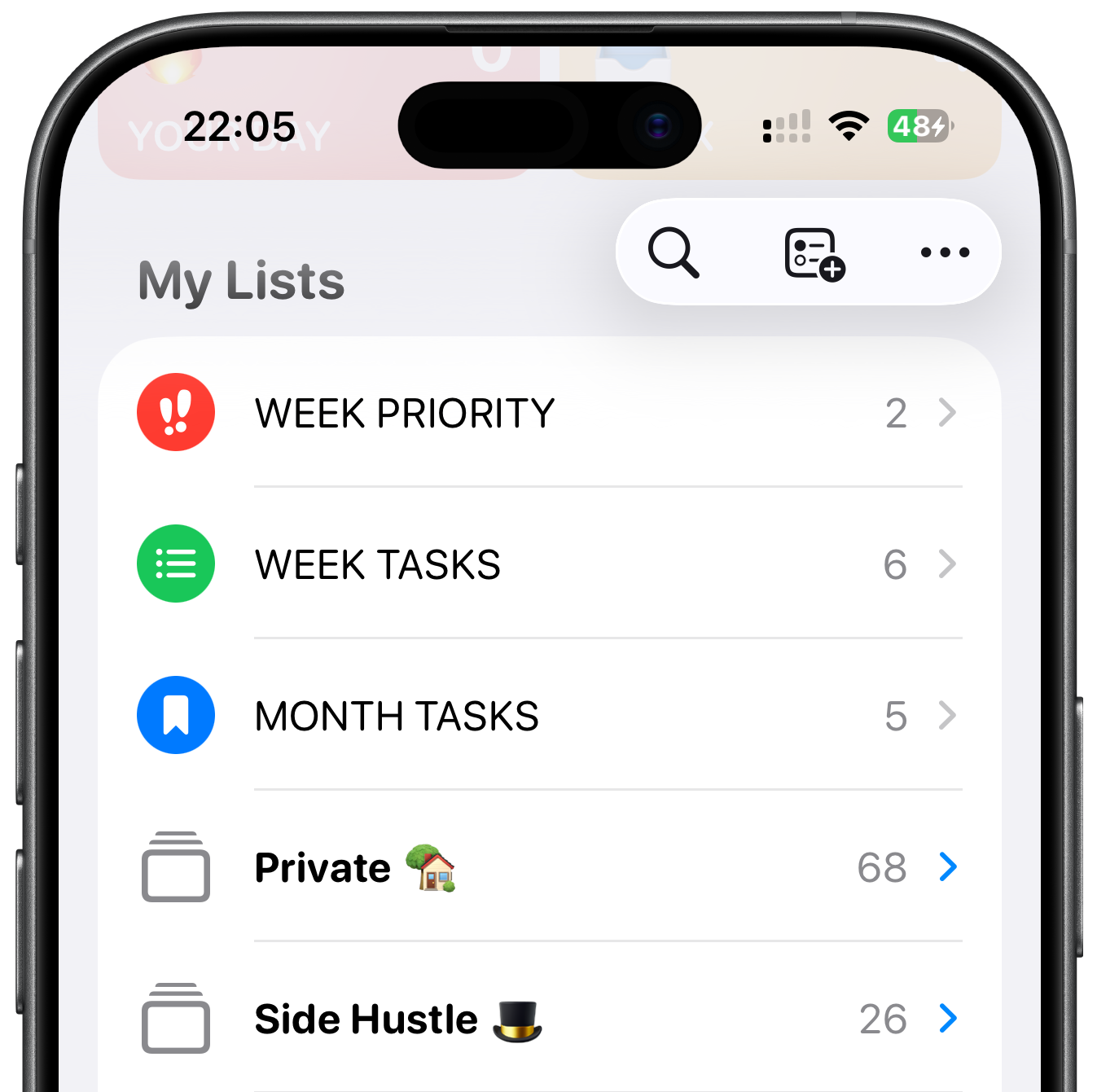
Tap Add List
Name them Week Priority, Week Tasks, Month Tasks.
There’s one thing about Apple Reminders I don’t love: the default Today list. Apple’s Today view shows everything due today, regardless of what’s a priority and what’s just routine.
So I built my own version using two custom Smart Lists that separate priorities, routines, and everything else.
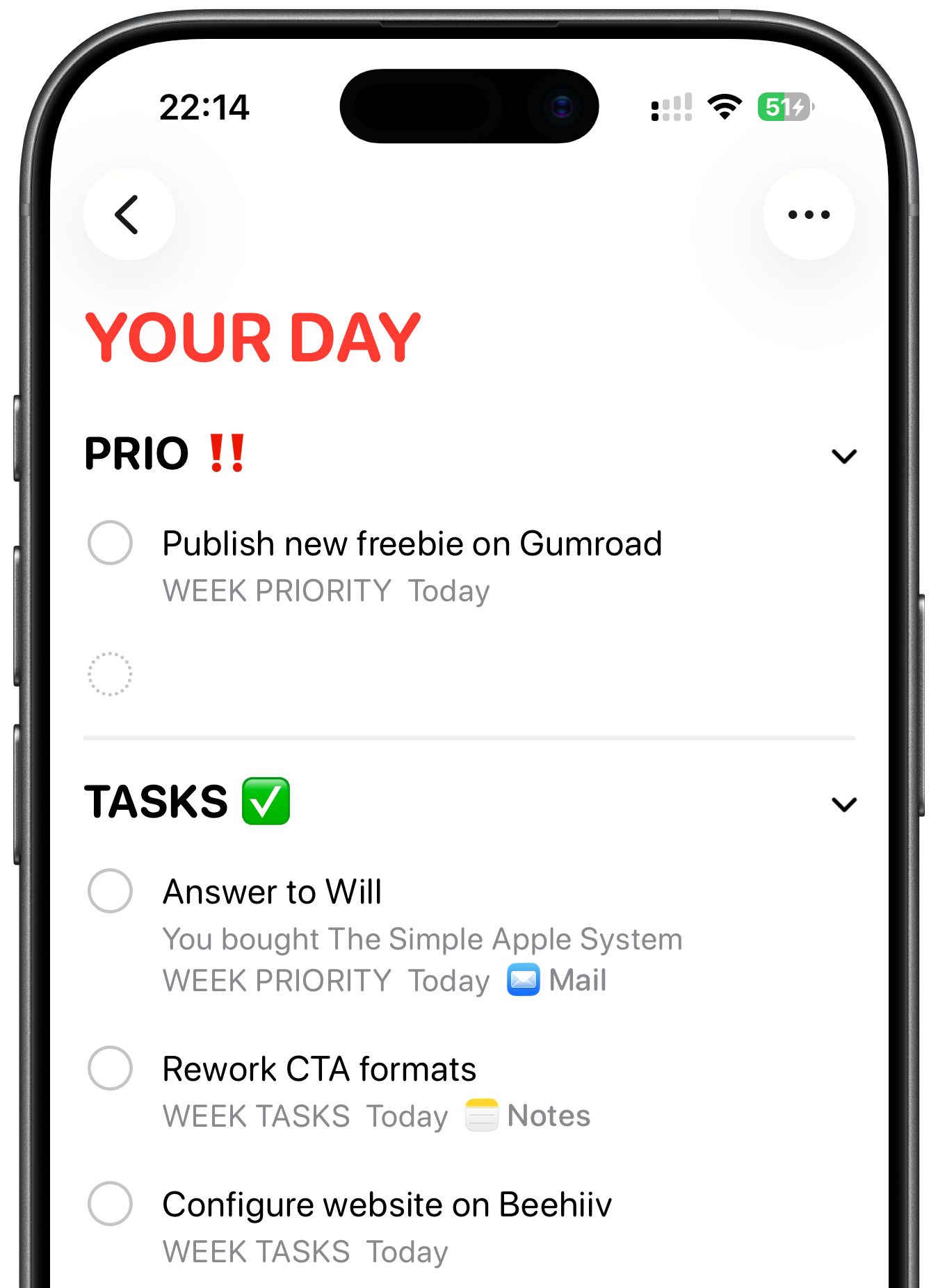
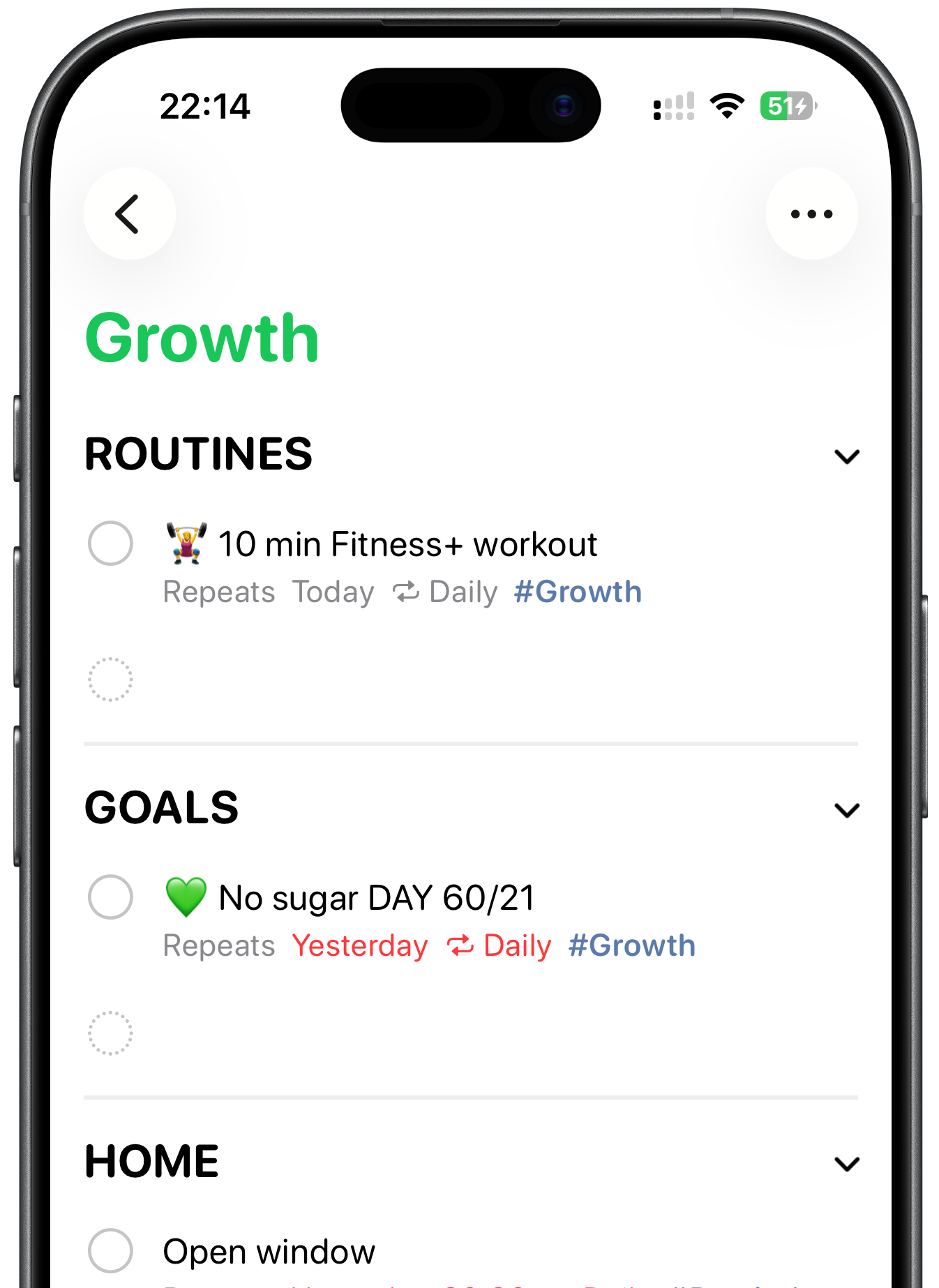
Tap Add List
Set List Type to Smart List
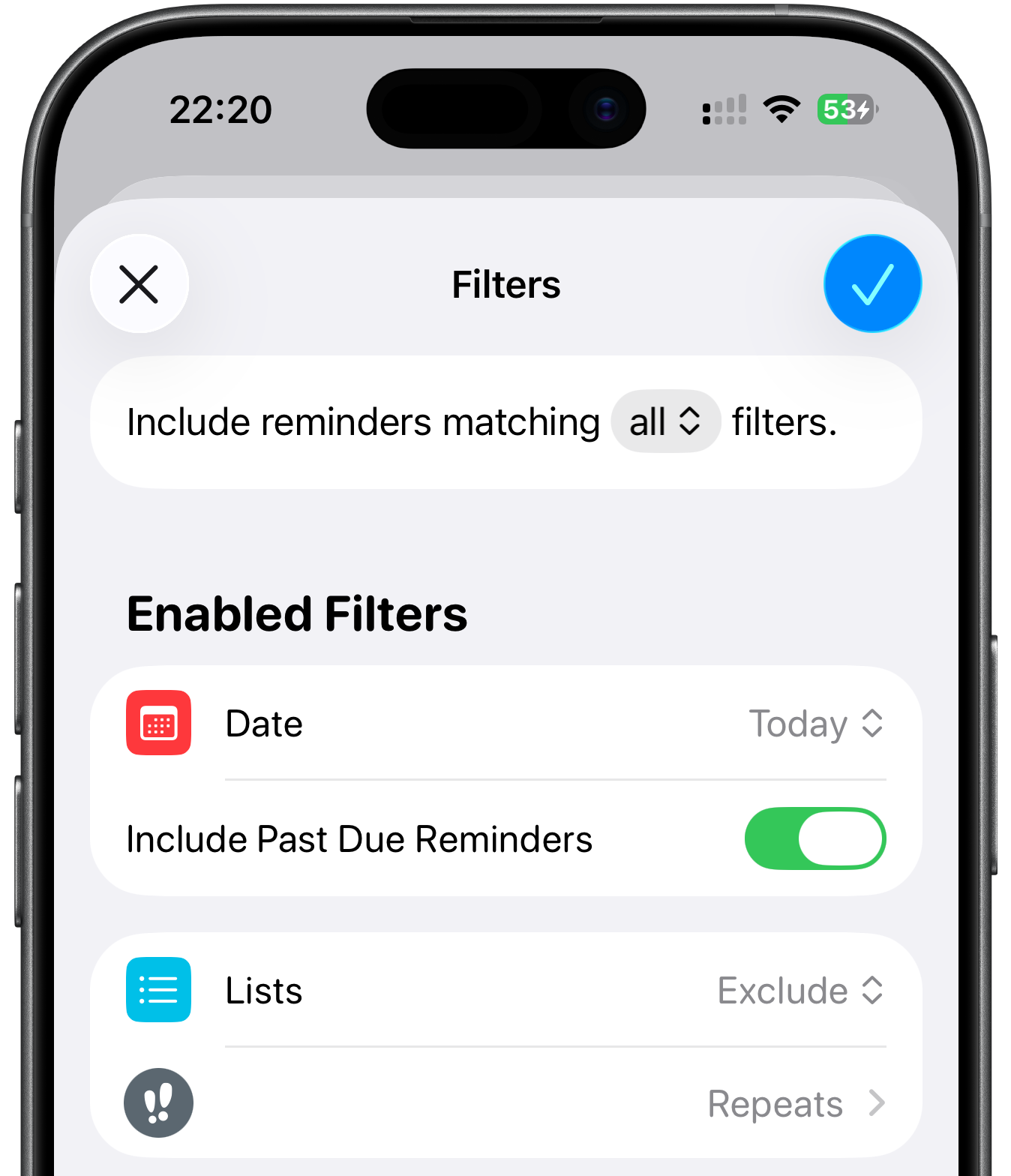
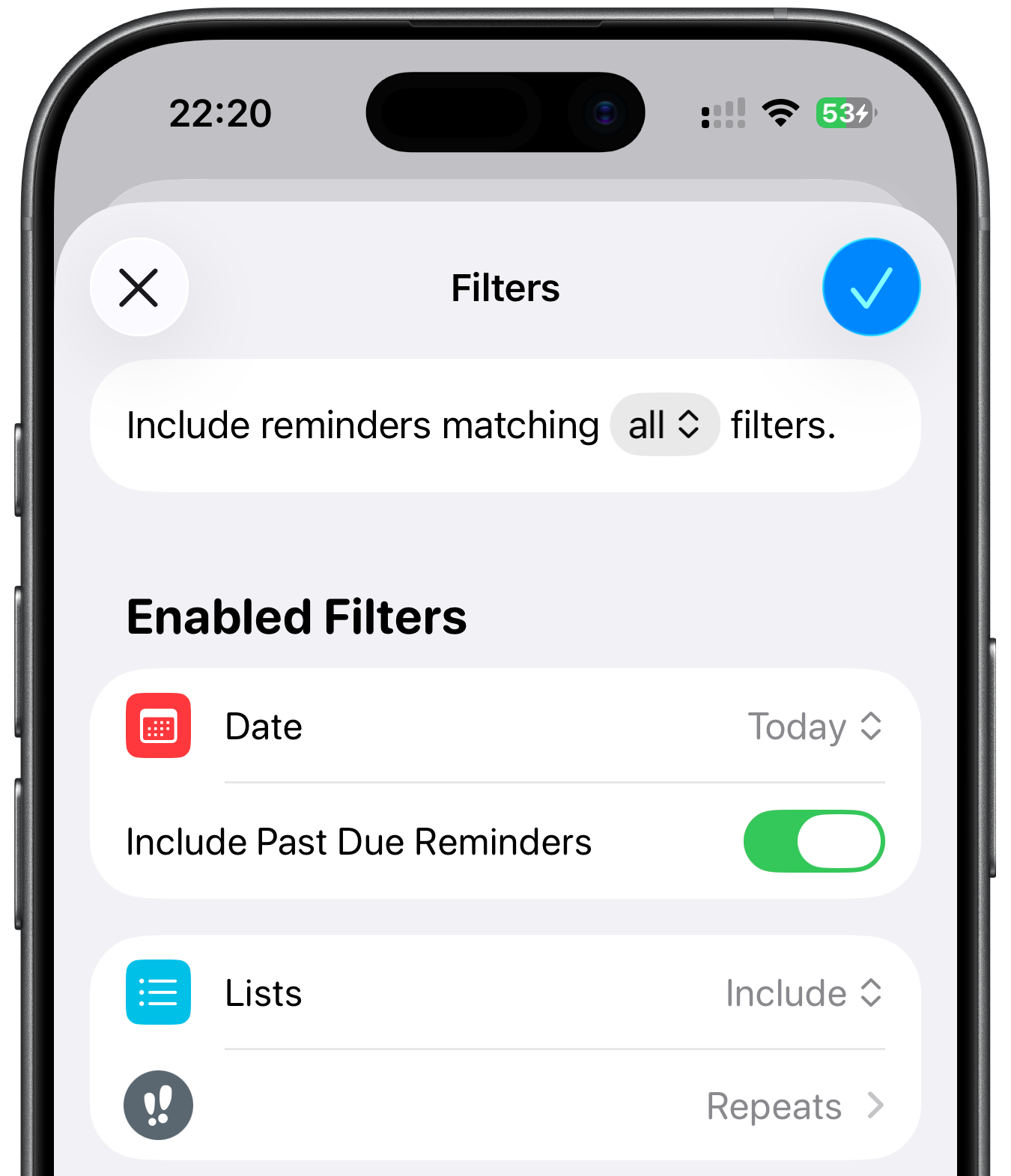
Create two Smart Lists with these filters:
Your Day — Date → Today (Include Past Due) + Exclude your Repeats list. Shows today’s tasks minus anything recurring.
Growth — Date → Today (Include Past Due) + Include selected list → Repeats. Shows only habits and recurring tasks.
Next, add sections inside each one:
On iPhone/iPad: open the list → three dots in the top right → New Section
On Mac: open the list → Add a new section in the top right corner
Your Day → Prio, Tasks
Growth → Routines, Goals, Home
I like Sections as they give me even better organization. Once you move a recurring task into a Section inside Growth, it keeps appearing there the next day too.
In Your Day, I manually move any new task due that day into Prio. And that’s the point — it forces you to intentionally choose your priorities. One, maybe two, per day, not more.
On iPhone/iPad: touch and hold the list you want to pin → tap Pin from the menu
On Mac: right-click the list → choose Pin List
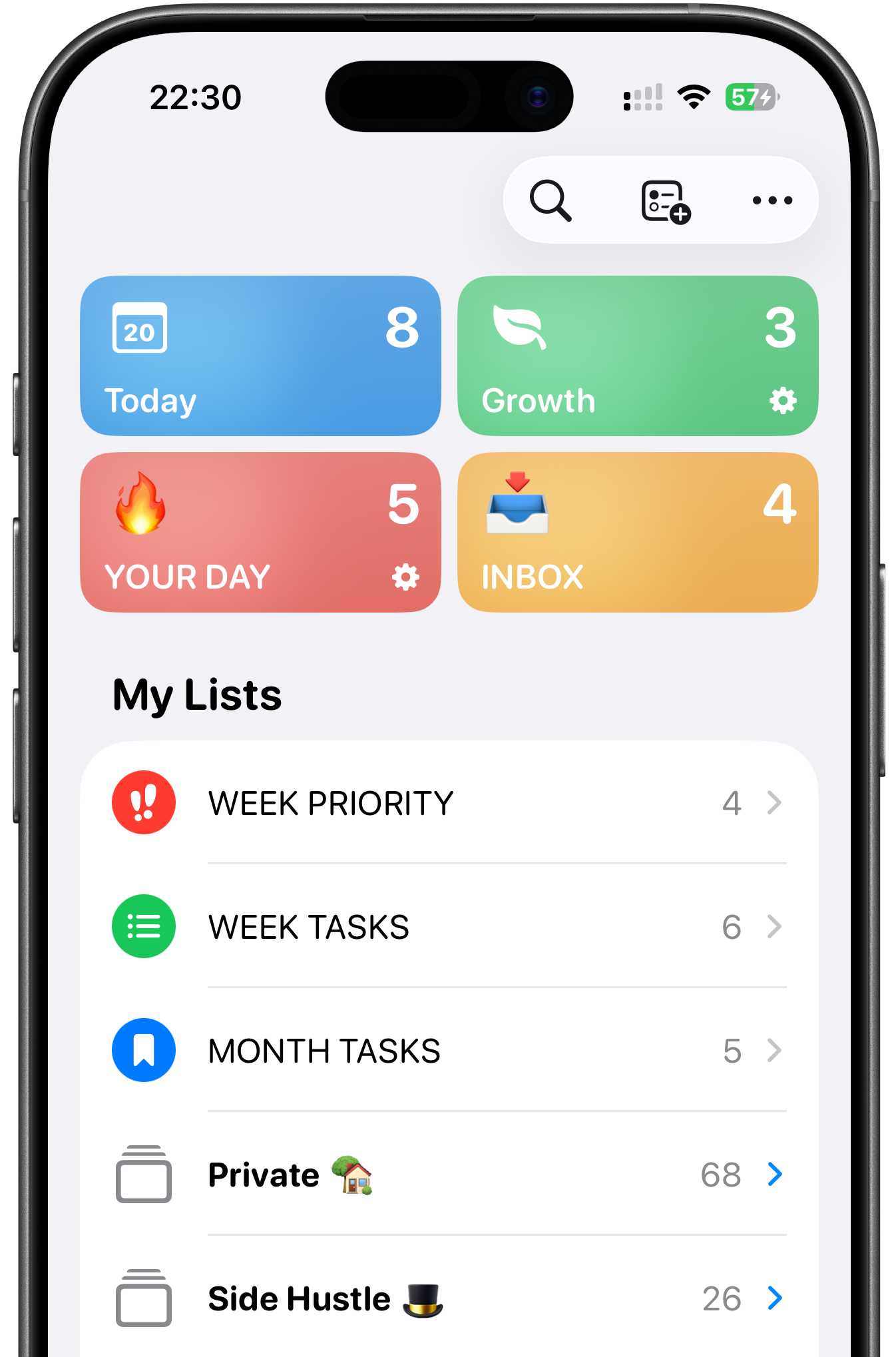
Now, at the top of Apple Reminders, you’ll have four lists for daily use:
Today — Apple’s default list, showing everything due today
Your Day — shows today’s tasks minus anything recurring
Growth — shows only habits and recurring tasks
Inbox — where you capture everything new
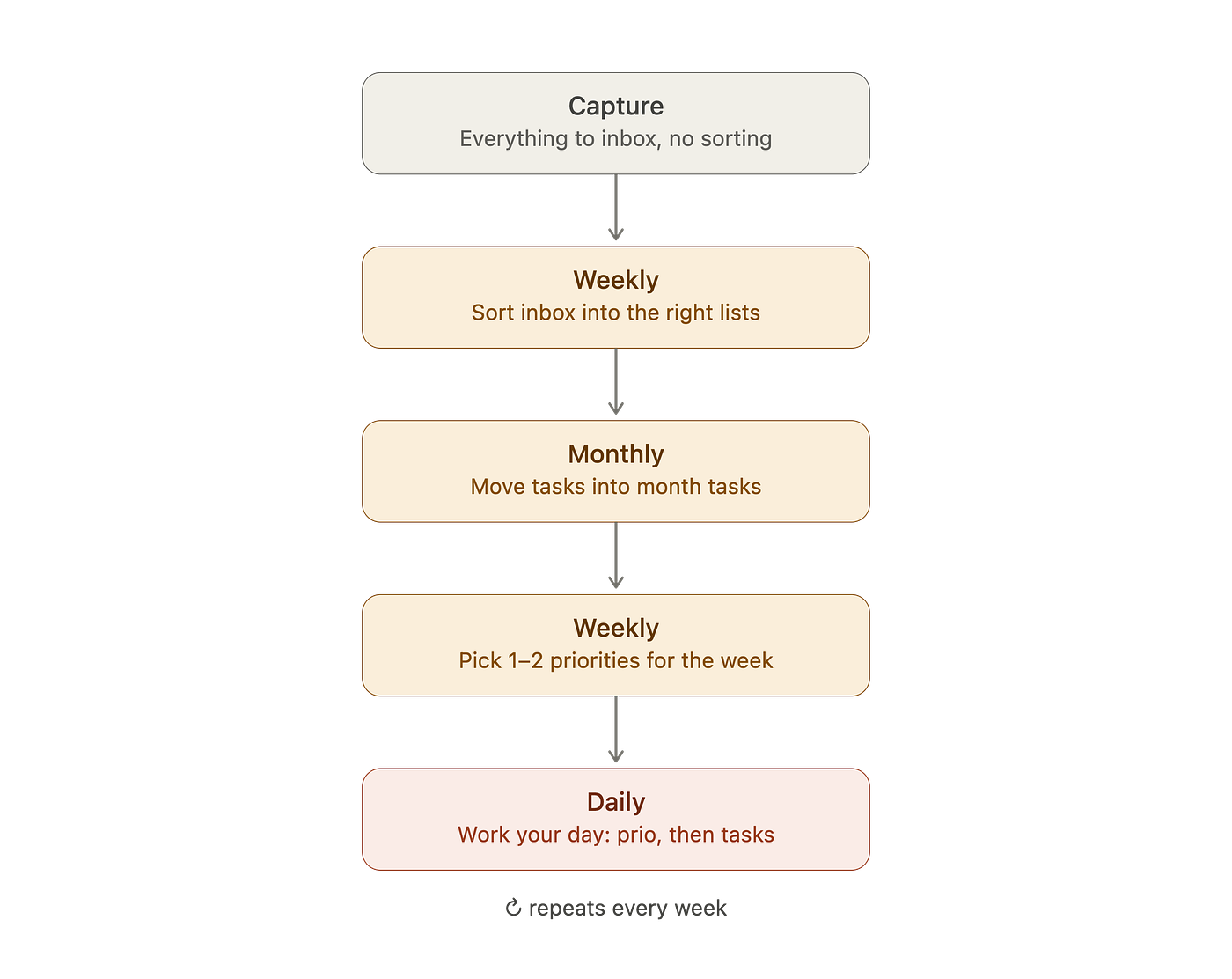
Capture everything to Inbox, all week, no thinking
Once a week — empty Inbox into the right folder lists or one of the three time-based lists directly
Once a month — review and move a few things into Month Tasks
Every week — move from Month Tasks into Week Tasks, pick 2–3 for Week Priority
Every day — open Your Day, move 1–2 tasks to Prio first, then Tasks
If you want the full guide — Apple Notes, Reminders and all features I use — it’s all in one place. 61 pages, no extra apps needed. The Simple Apple System →
Don’t be afraid to experiment with lists beyond groceries and work tasks. Renovating the garage? Make a list. Planning a short family trip? Create one and share it. Running a podcast or newsletter as a side hustle with a friend
Add sections, switch to column view, manage the whole project right there. Once it’s done, delete the list. Nothing has to be permanent.
What I love most about Apple Reminders is that it lets me outsource remembering. When I’m playing with my son, I want to be there with him. Present at that moment — not thinking about what I still need to do that evening. I’m not trying to build a complex productivity system. I’m trying to reduce friction.
And that’s really why Apple Reminders — simplicity. Fewer tools, less friction. Everything goes there first, because I don’t want to remember things. I want a reliable place to put everything, and let the app remember for me.
Thanks for reading!
-Robin
Footnote: All screenshots made on my iPhone 16 Pro, edited with Shareshot app. Text written fully by author (human), edited with Grammarly to correct any spelling or grammar mistakes.
No posts
Comments
Nothing yet. Say the first thing.
Sign in to join the conversation.