
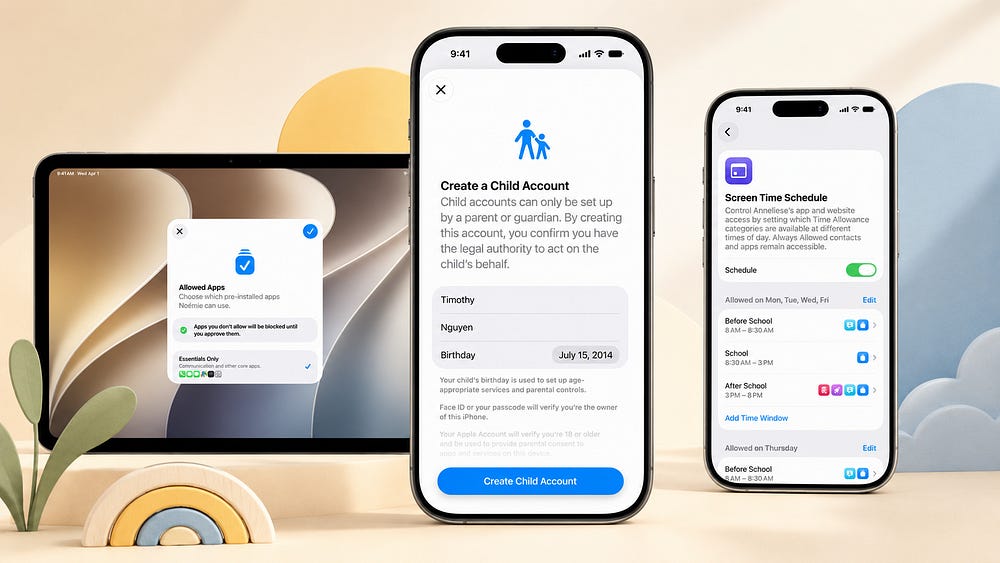
After WWDC, I was impressed by what Apple announced with the new OS 27 updates. For me, the most interesting parts were Shortcuts, Safari, Mail, and everything connected with the new Siri AI. I already wrote a short WWDC report about that here.
But there was another part of the announcement that some users may have ignored. Apple’s improved approach to child safety.
As a parent, I’m especially sensitive to this kind of features. Technology is already part of our everyday life, and if my child is going to use it, I want the tools around it to be simple, clear, and built properly.
And honestly, the fact that Apple keeps improving accessibility and child safety gives me another reason to stay inside this ecosystem.
Every parent who has ever given a child their first phone, iPad, or computer knows this strange moment.
On one side, there is excitement. Your child gets a tool for learning, communication, creativity and entertainment.
On the other side, a few red lights immediately turn on in your head.
What will they watch?
Who will they message?
How much time will they spend in front of the screen?
What Apple really did here is take existing parental control tools and rebuild them so they appear at the moment when parents actually need this — during the first setup of a child’s device.
The new setup process works that if a device is meant for a child, the parent should be involved from the beginning. Not three days later, when the child has already downloaded half of the App Store.
In the new Setup Assistant, Apple asks a simple question: Is this device for a child or for an adult?
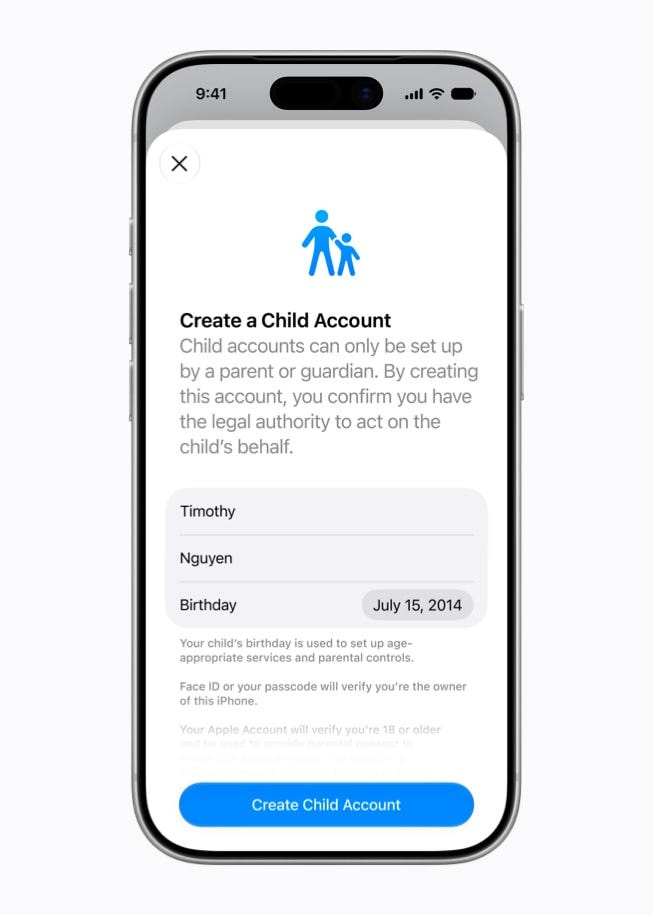
If you choose child, the system immediately guides you through connecting the device to your family. And this is the key point. From that moment, the iPhone, iPad or Mac becomes a device for a specific child andmanaged by a specific parent or guardian.
Apple is very clear about this. The best way to start safely is to create a child account.
This account enables age-appropriate protections, including limits on adult websites, filtered App Store content, and restrictions for movies, music and other media.
This matters because the responsibility moves to the parent. The parent enters the child’s name and age, then creates the account.
After that, there is a parental consent step. Apple wants to make sure the account is being created by an adult, so the parent can confirm it with Face ID. Only after that is the child account created.
And already at this point, before the child even gets the device in their hands, the basic protection is active.
After creating the child account, the system moves to the next step — choosing which apps the child can access.
Apple calls this a gradual approach. The idea is simple. You do not throw a child into the full, unlimited world of apps on day one. You start with a safer set and expand access over time.
They can choose only the basic apps, mostly communication apps like Messages, FaceTime, and Phone.
They can choose a recommended set that combines communication apps with selected apps for learning, creativity, and simple entertainment.
Or they can manually choose specific apps.
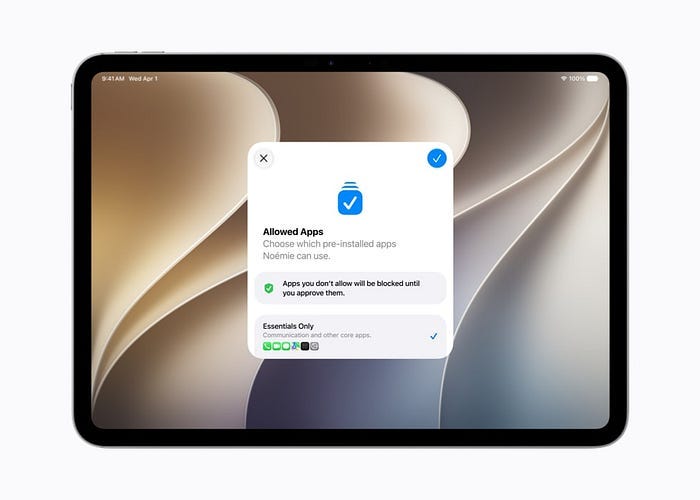
And here comes one of the most important parts. If the child wants to download an app outside the approved list, they need to ask for permission.
The Ask to Buy mechanism is not only about paid apps. Parents can also approve free apps and in-app purchases.
The child finds an app in the App Store and tries to download it. They confirm with Touch ID or Face ID. Then an extra step appears, asking the parent for approval.
The parent gets a notification, opens the app page, checks the description, age rating, and the reason behind that rating. Only then do they decide.
This is a good solution because parental control is not reduced to a blind yes or no. The parent actually gets context.
The new feature that got my attention the most is Ask to Browse.
Until now, a lot of parental control discussions focused on apps. But children do not live only inside apps. A huge part of the internet still happens in the browser.
The new mechanism is very simple.
If a child tries to visit a website that is not on the approved list, Safari does not open it immediately. Instead, the child sees a screen asking for permission. They can send a ready-made message to the parent with the link.
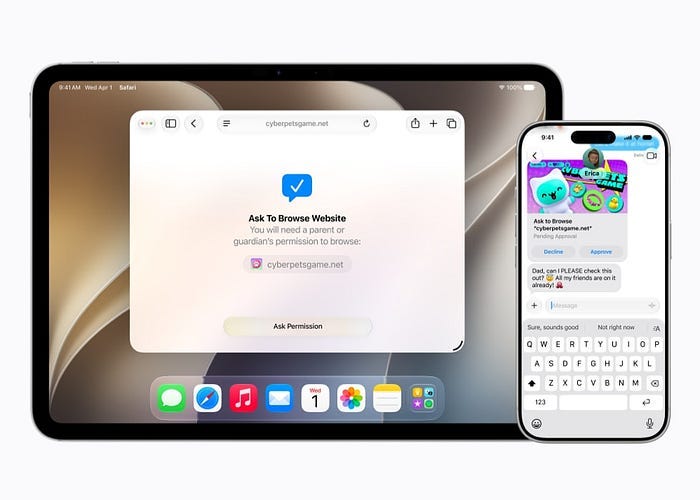
The parent receives it in Messages, can open the website on their own device, check what it is, and only then approve or reject access.
This feels like a small feature, but I think it is one of the most practical ones. Because again, it gives the parent context.
Another important part is Communication Safety. Apple clearly understands that parents do not only care about what a child sees. They also care about who the child talks to.
The new settings allow parents to approve new contacts before the child can start communicating with them normally.
If a new number messages the child, the child needs to ask the parent to approve the contact and add information about who this person is. For example, “Tim from soccer.”
The parent sees the number, the suggested contact name, and can decide whether to accept that person.
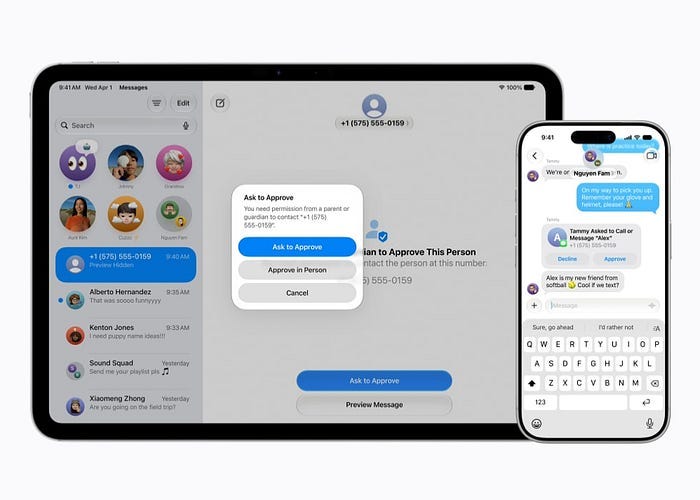
There is also an interesting preview mechanism. If the parent does not know who is messaging, they can go to the child’s device, enter the Screen Time passcode, and preview the first message before approving the contact.
Apple is also expanding this feature.
Until now, it focused mainly on detecting nudity in photos and videos. Now the protection is expected to expand to graphic content and violence.
The system can step in when a child receives gore or violent content, but also when the child tries to send it.
That second part is especially important.
In the world of kids and teenagers, peer pressure can be huge. Sometimes the problem is not only that a child sees something. Sometimes the problem is that someone is pushing them to send something they should not send.
A system-level intervention at that moment can be the extra “stop and think” the child needs.
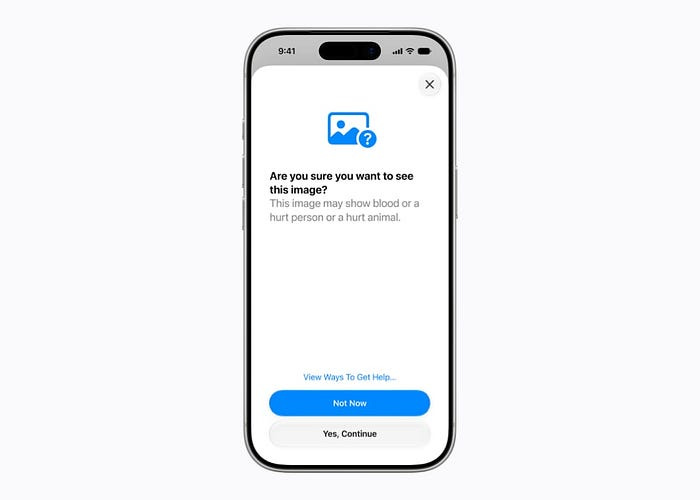
Apple says that in selected countries, children can also report this type of content directly to Apple, and the feature is planned to expand globally.
The biggest problem with classic screen time limits is that they are usually too rigid.
One hour for everything?
Blocked after 8 PM?
It sounds simple, but family life is rarely that simple.
A school day looks different from a weekend. A weekend looks different from a holiday. A sick day is different again. The new time limits are meant to be more flexible.
Parents can set a combined time limit for selected app categories like games, entertainment and social media. Apple also shows research-based recommendations that can help parents choose a starting point.
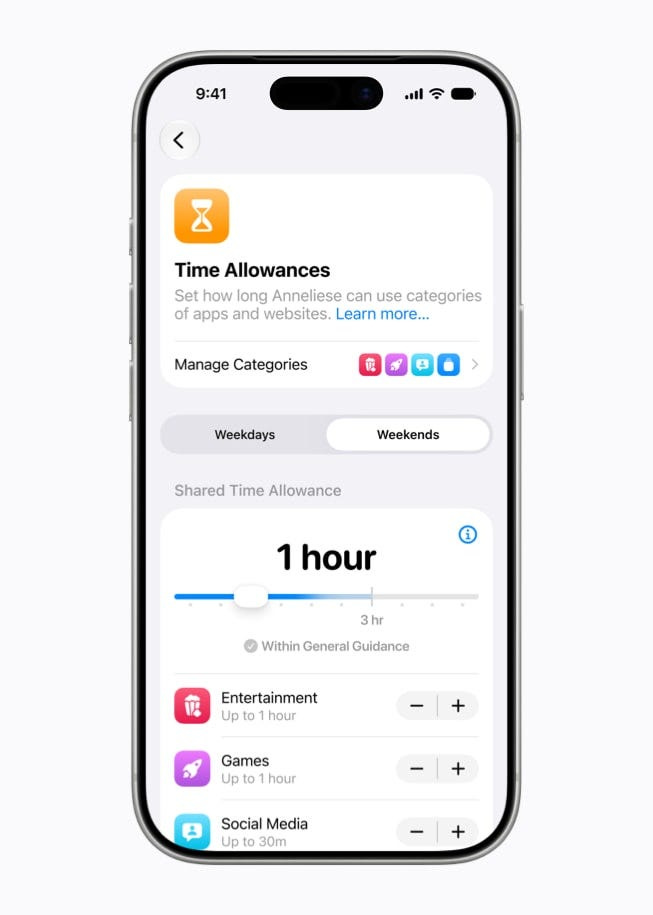
The new schedules let parents adjust app access to specific parts of the day. During setup, the parent can define when the device is generally available, for example from 8 AM to 8 PM.
Then there are school hours. During that time, access to entertainment, games, and social media can be paused automatically, while apps needed for learning and communication remain available.
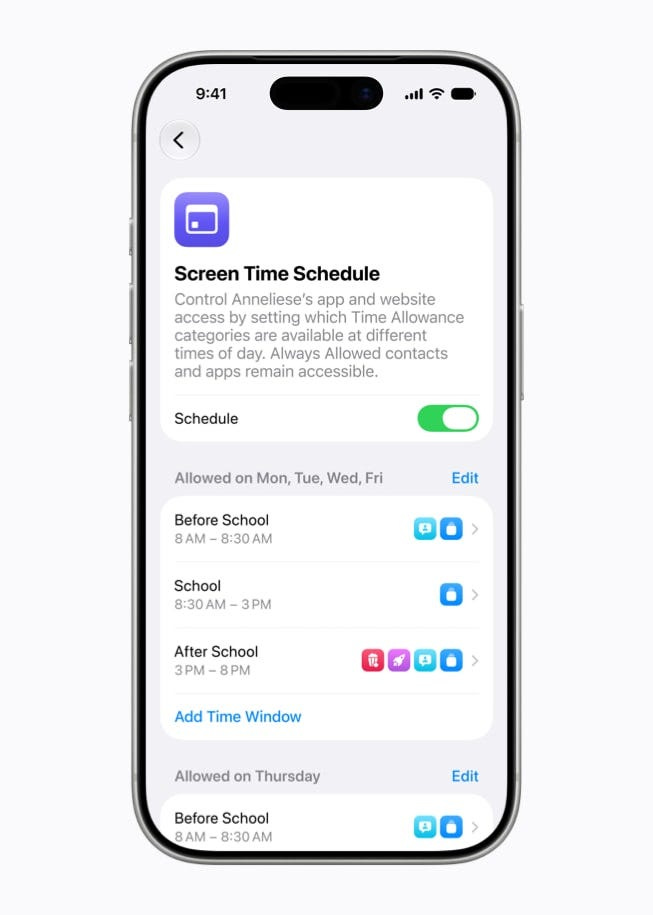
Parents can also create extra blocks, like sports practice, after-school activities, family dinner or an evening without screens.
In the Screen Time panel, the whole day is visible as a clear schedule. You can quickly see when the child has access to specific app categories.
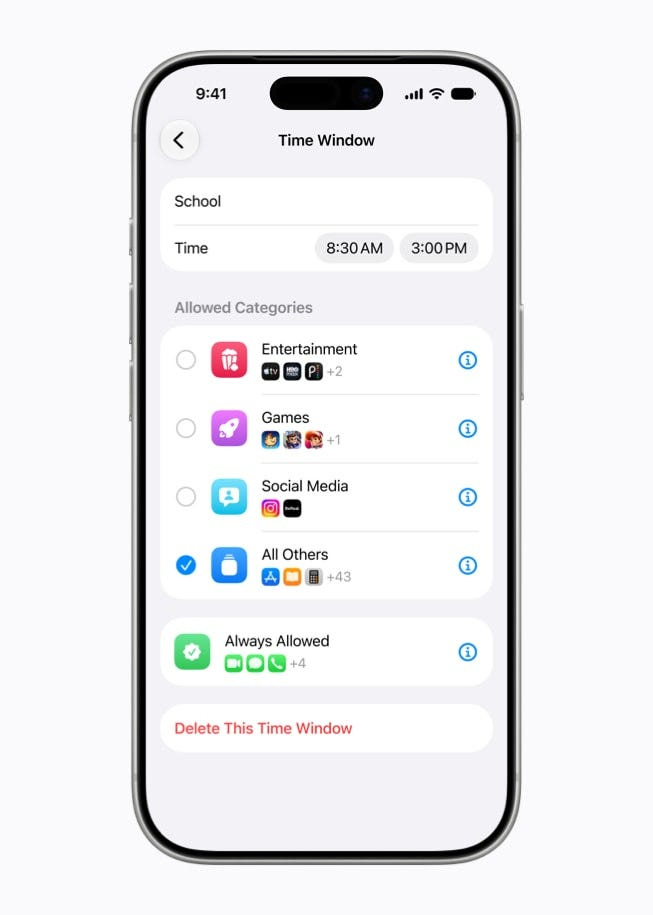
If Wednesday is a shorter school day, you can create a separate plan for Wednesday. If weekends should work differently, you can set that too.
There is also an instant pause feature. From their own iPhone, a parent can pause app access for one hour or until a specific time. On the child’s device, apps become dimmed and require parental approval.
At the same time, parents can still leave access to important contacts and apps, so the child can reach them when needed.
Every parent knows that children can be incredibly creative. Sometimes too creative.
They look over your shoulder. They analyze fingerprints on the screen. Classic.
That is why Apple is adding a notification when the Screen Time passcode is used. If the Screen Time passcode is entered on the child’s device, the parent gets notified. If the child learns the code and tries to change something, the parent will also know.
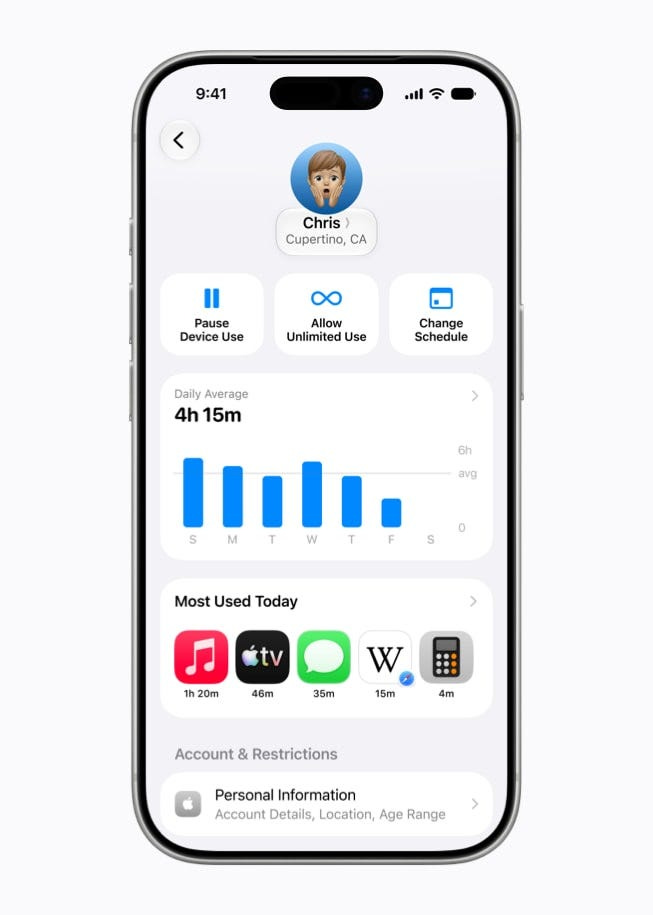
All of this is connected through a redesigned Screen Time panel.
From one place, the parent can check how the child uses the device, which apps are opened most often, what the limits are, and what the schedule looks like.
For older children, if they use Apple Cash or Apple Card, parents may also see balance and recent transaction information.
What I like most here is the philosophy. Apple is not telling parents to set everything once and forget about it forever.
It is saying — start safely, then expand access when the child is ready.
A nine-year-old does not need the same access as a thirteen-year-old. A thirteen-year-old should not have the same restrictions as a six-year-old.
Every child is different. Every family has different rules, routines and boundaries. Apple gives parents tools they can adjust instead of forcing one model of parenting.
The new features will be available in iOS 27, iPadOS 27, and macOS 27 updates, which means they should work across iPhone, iPad, and Mac.
That is important because children often use more than one device. Limits set on only one device stop making sense very quickly.
btw. If you are using Apple ecosystem I made a practical guide for Apple users who don’t want another productivity app. Just Notes, Reminders and a system that actually fits a busy life.
If that’s something for you, get it here: The Simple Apple System →
Thanks for reading,
-Robin
Footnote: All screenshots are from Apple Newsroom . Text written fully by author (human), edited with Grammarly to correct any spelling or grammar mistakes.
No posts
Comments
Nothing yet. Say the first thing.
Sign in to join the conversation.