
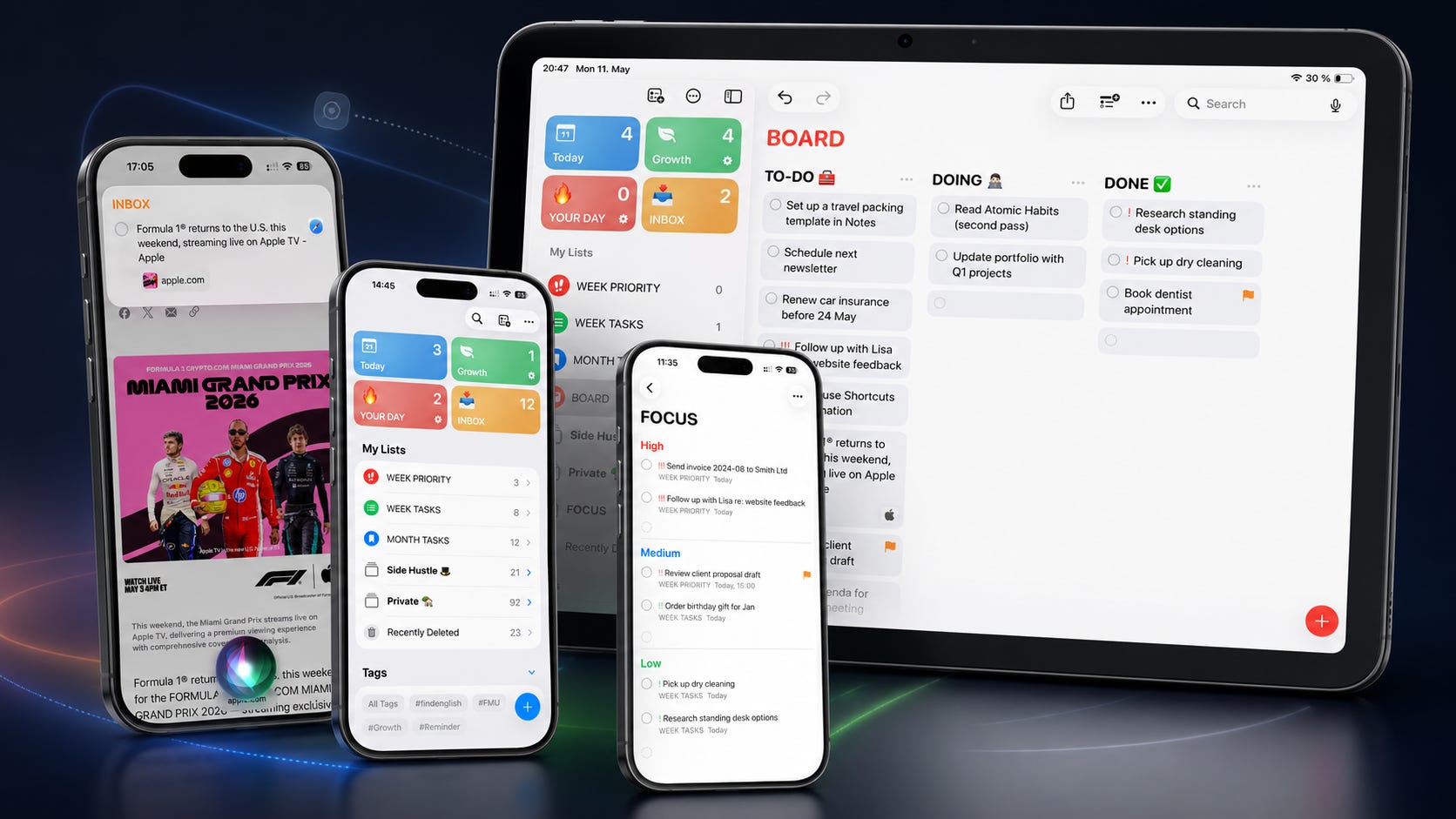
Apple Reminders is one of those apps most people already have, but still don’t really use.
Maybe they add groceries. Maybe a doctor appointment. Maybe one random task they will forget anyway.
For everything else, they usually install another productivity app like Todoist, Notion, Things 3 or TickTick.
I get it. I did the same for years.
But Apple Reminders can do much more than most people think. When I read discussions about Apple Reminders online, I often see people saying things like, “It’s way better than I expected.”
And honestly, I agree.
I don’t use Apple Reminders because it is perfect. I use it because it is already there, it syncs across my Apple devices and it is simple enough that I actually keep using it.
In this story, I’ll show you how I use Apple Reminders beyond basic to-do lists.
Apple Reminders is my daily activity manager. Without it, I’m lost.
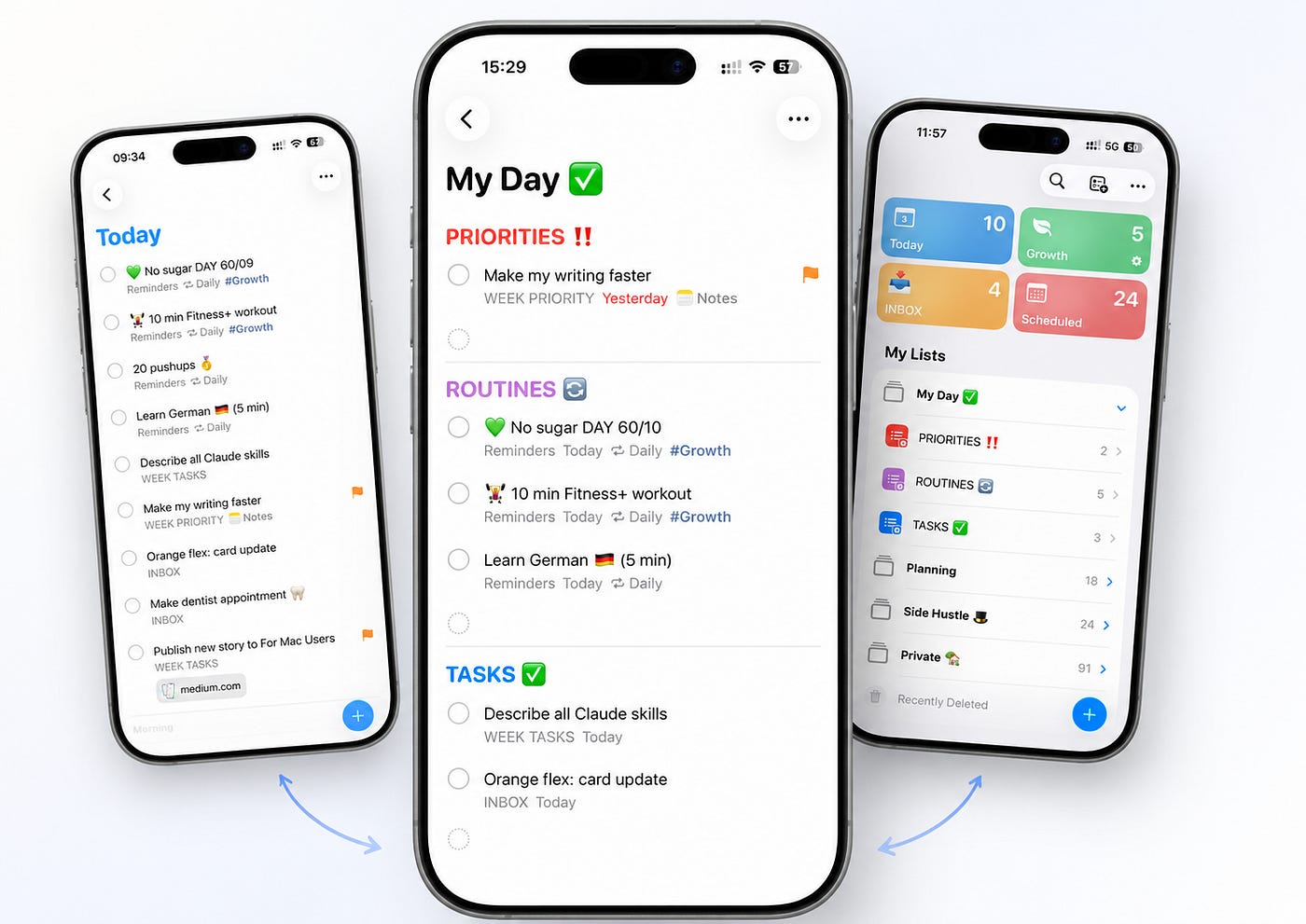
I track weekly priorities, business tasks, personal appointments, ideas, small routines and things I don’t want to keep in my head.
This is not a complicated productivity system. I don’t want that. I want one reliable place where I can put things and trust that I will see them again later.
Here are the 9 ways I use Apple Reminders.
Reminders is where my day starts. I open it every morning. I look at what is there. I move a few things around. I make a small plan.
Over time, I built a simple setup that covers home, work and side projects. Here’s how it is organized:
Anything new goes here.
Ideas. Tasks. Small things I remember while walking, working, cooking, or doing something completely unrelated.
I don’t try to organize everything immediately because that is how systems become annoying. I just capture things first. Once a week, I clean the Inbox and move tasks into the right lists.
I use folders for bigger areas of life. For example, I have folders like “Private” for personal stuff and “Side Hustle” for my business.
Each folder has multiple lists inside.
What I like about folders is that when you click on one, you can see all reminders from every list inside that folder. It gives me a quick overview without opening every list one by one.
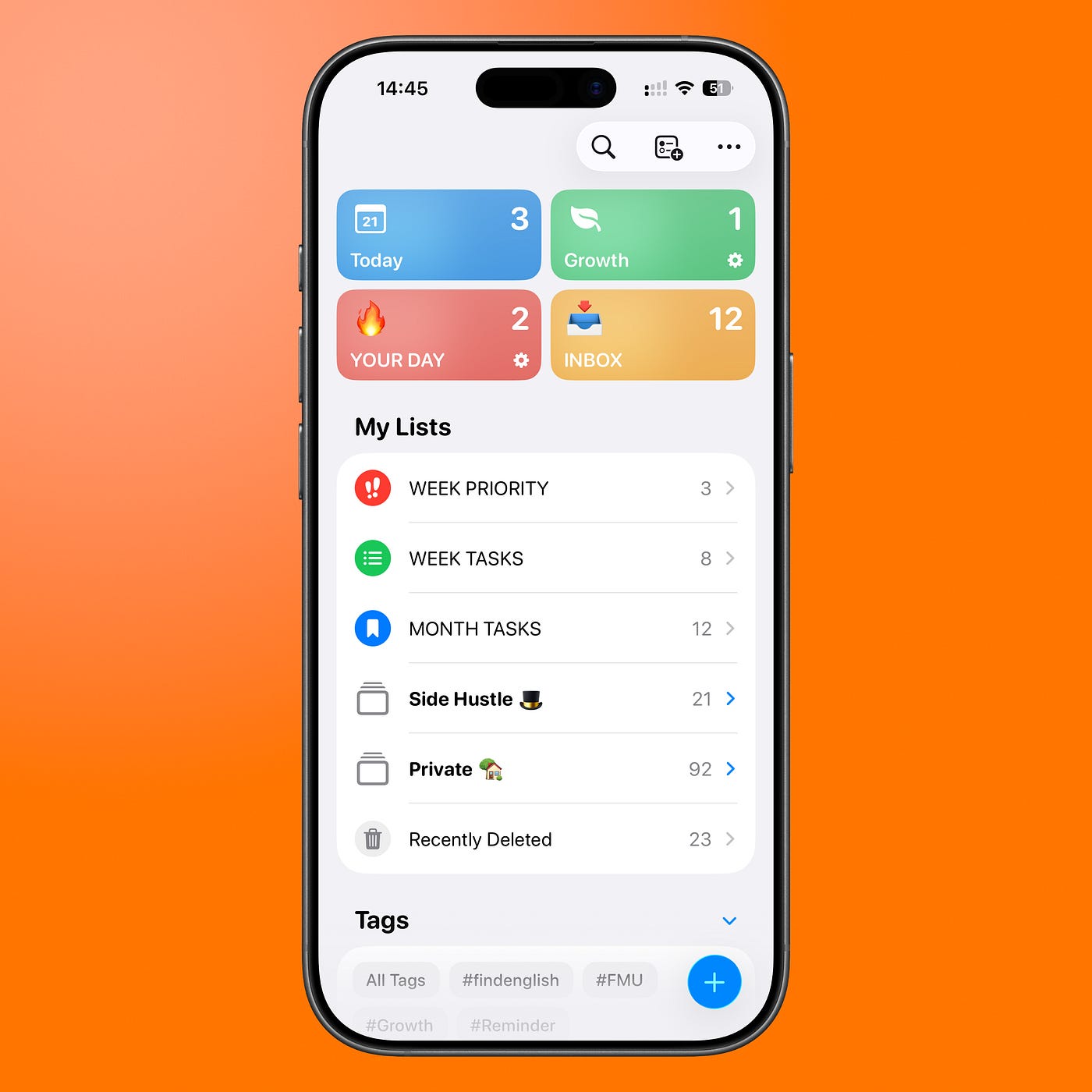
I also keep a few lists that are based on time. These are the lists I use to plan ahead and keep things under control.
Growth for daily habits, challenges, and learning
Month Tasks for things I want to do this month
Week Tasks for things I want to do this week
Week Priority for the 1–2 tasks that matter most
This is probably the simplest part of my Apple Reminders setup, but it is also the part that makes the biggest difference.
Instead of staring at one endless list, I know what belongs to this week, what can wait, and what is actually important.
I eventually moved most of my business plans and improvements into Apple Reminders.
A lot of creators manage this kind of thing in Notion, spreadsheets, or some bigger dashboard. I tried that too, but for small business tasks, Apple Reminders is usually enough.
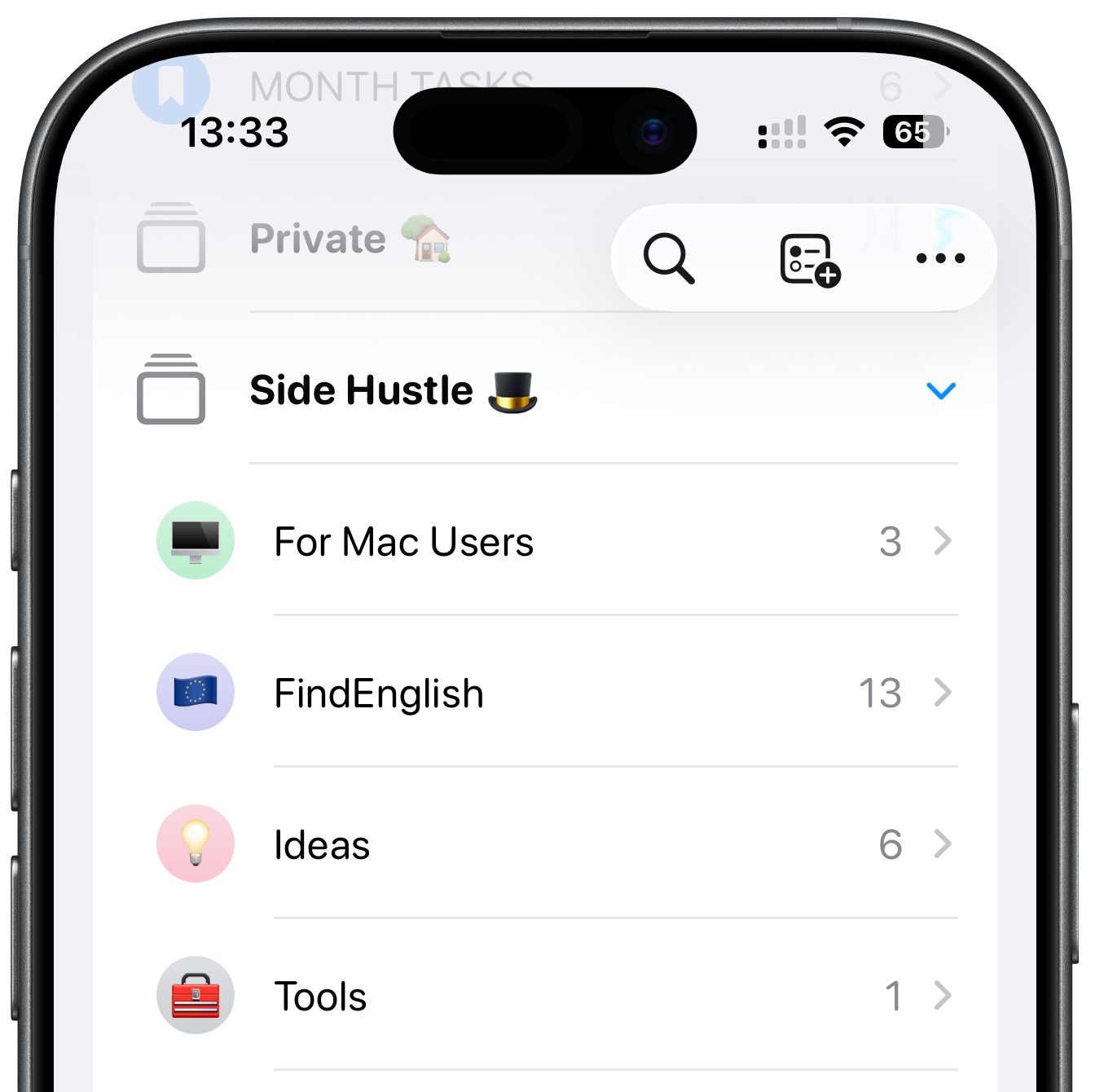
I created a folder with lists for different areas of my business:
ideas
newsletter
products
writing
things to test later
Most of these tasks start as rough ideas. Maybe I see something useful online. Maybe I think of a better CTA. Maybe I notice something I should improve in an old article.
I don’t want to decide immediately what to do with every idea. I just save it first. Then, once a month, I review these lists and decide what is actually worth doing.
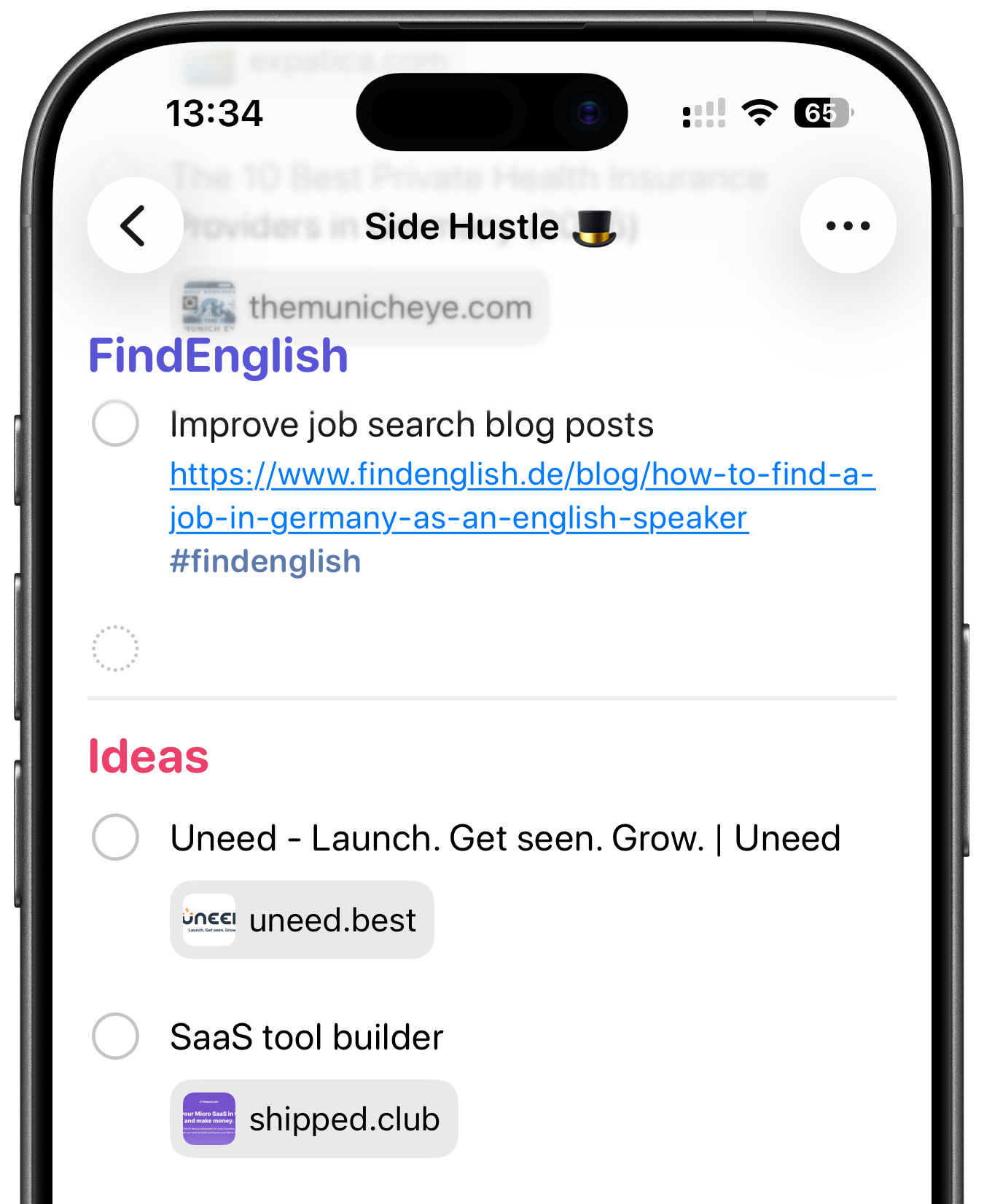
This is important because not every idea deserves action. Some ideas only look good for five minutes.
The best way to set up Apple Reminders for productivity is not to create more lists. At least not for me.
For me, the most useful part is having one clear priority list.
I don’t really use the built-in Today view in Reminders as my main view. It shows everything due today, which sounds helpful, but it can quickly become chaos.
Instead, I built my own Today list.
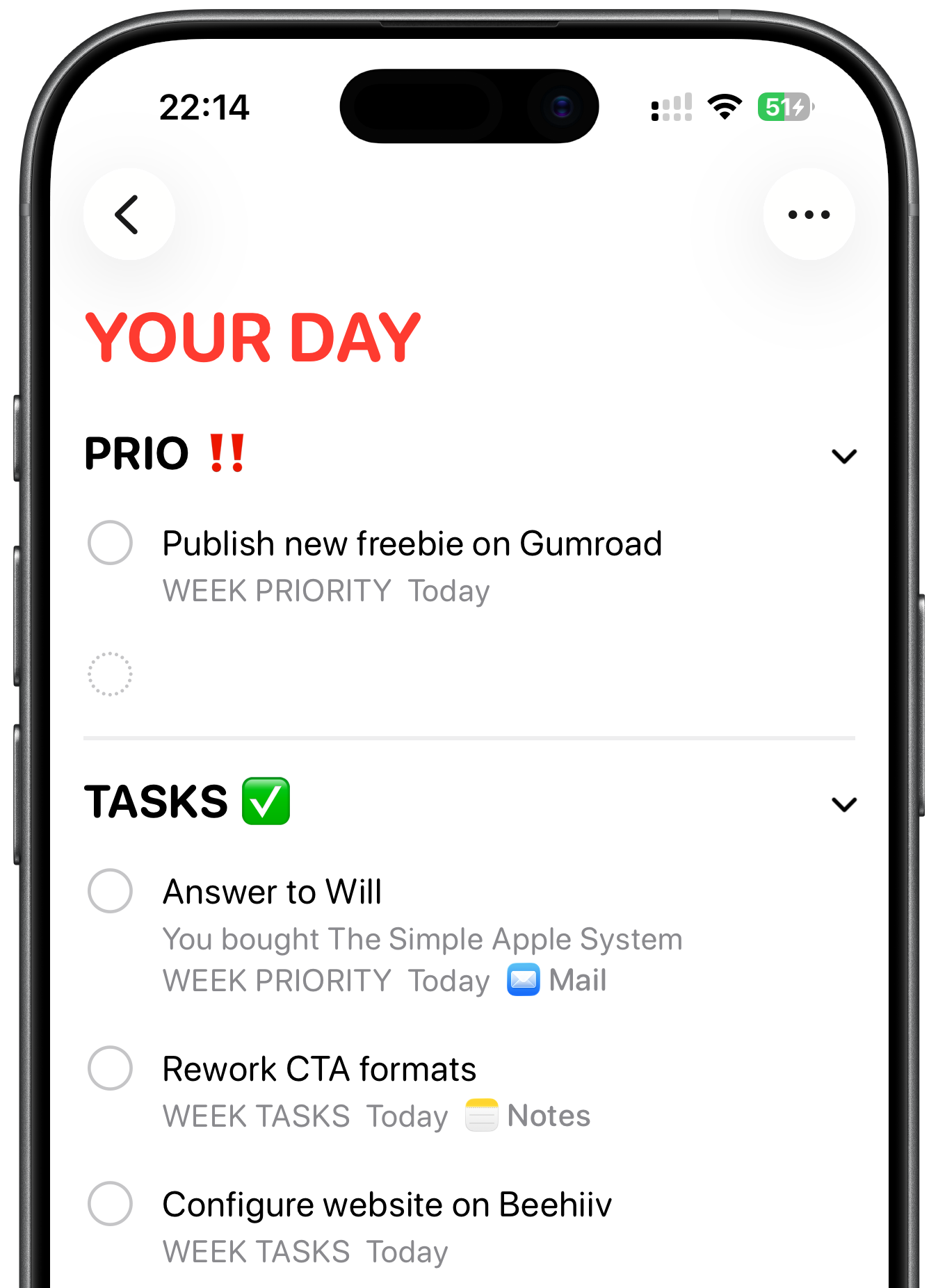
I created a list called Your Day.
I added two sections: Priority and Tasks.
Each morning, I open Your Day list first.
Then I choose one task as my absolute priority.
The rest goes into Tasks.
That one priority task is the one I’ll feel good about finishing, even if nothing else gets done. And yes, sometimes I still ignore it and do something easier first. I’m human.
btw. If you like you can use my exact Apple Reminders Setup here.
Apple Reminders is also useful for content creators because you can attach notes, URLs, and files to individual reminders.
I don’t love Safari’s built-in Reading List. For me, it became a black hole. I saved things there and almost never came back.
So when I find an article I want to read later, I send it to Apple Reminders.
Tap the share icon in Safari.
Choose Reminders.
Add it to the right list.
Done.
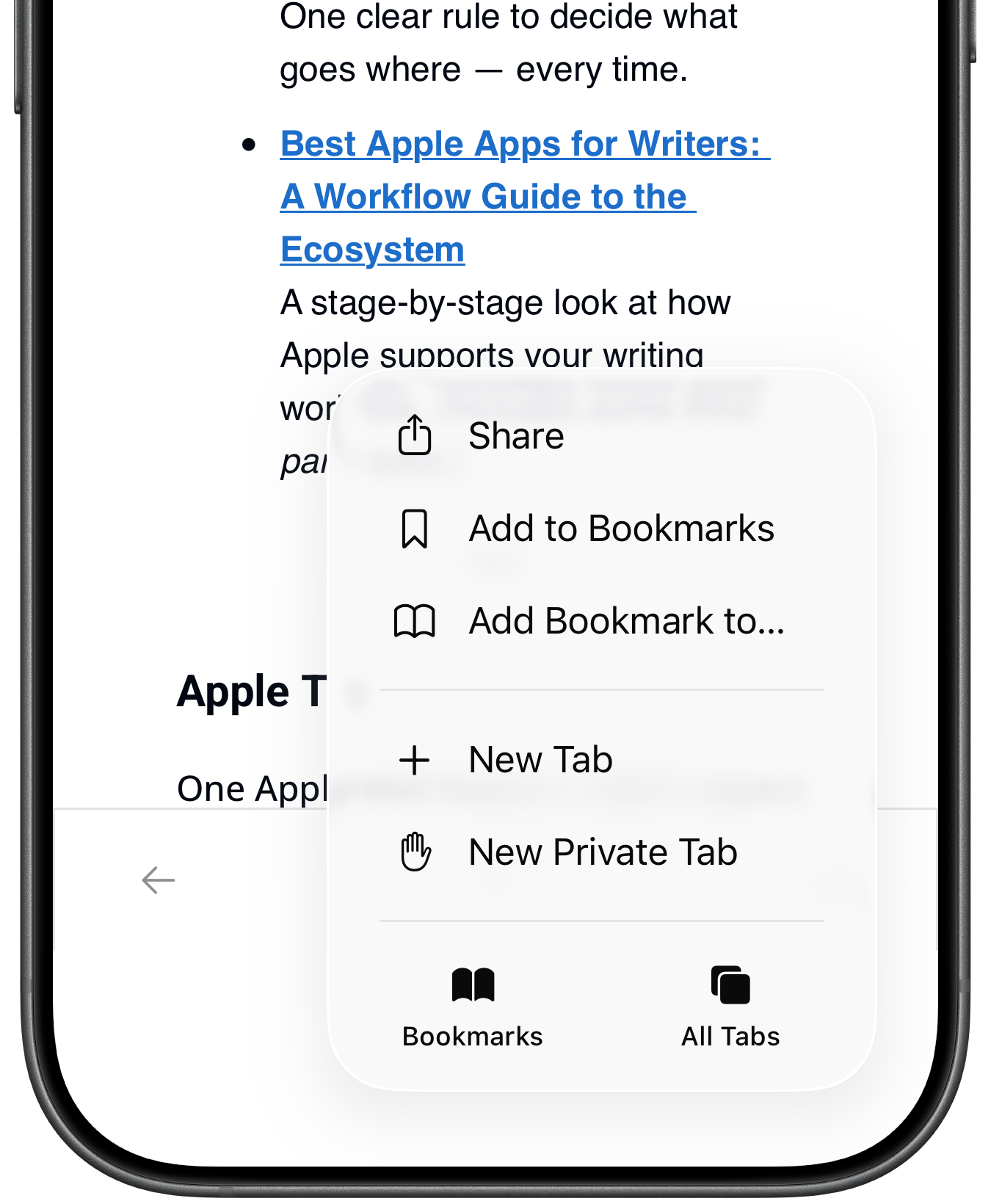
Most saved links go into my default Inbox first. Later, I move them into proper lists. I also keep a list called Ideas. That’s where I save:
tools to test
article ideas
newsletter ideas
interesting examples I may want to use later
This works better for me because Apple Reminders turns a saved link into something actionable.
One of my favorite hidden Apple Reminders features is Column View. It turns a normal reminders list into something that feels more like a simple Kanban board.
This is useful for project management, especially if you don’t need a big project management app.
You can organize tasks in different ways, but one of the easiest setups is time-based.
Month
Week
Today
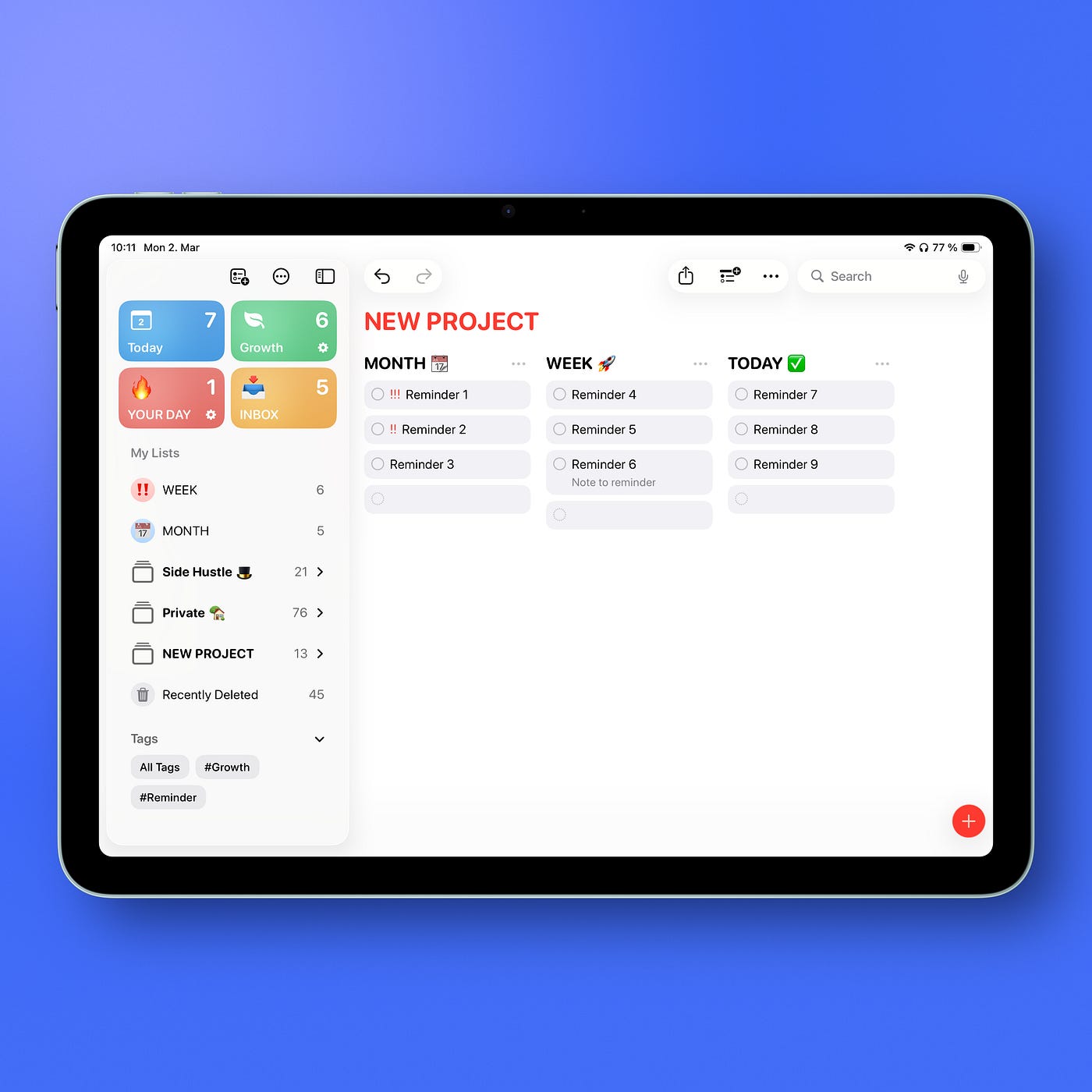
Now you can move tasks from left to right as they become more relevant.
To Do
Doing
Done
This works well for bigger projects because you can see progress instead of just checking things off and watching them disappear.
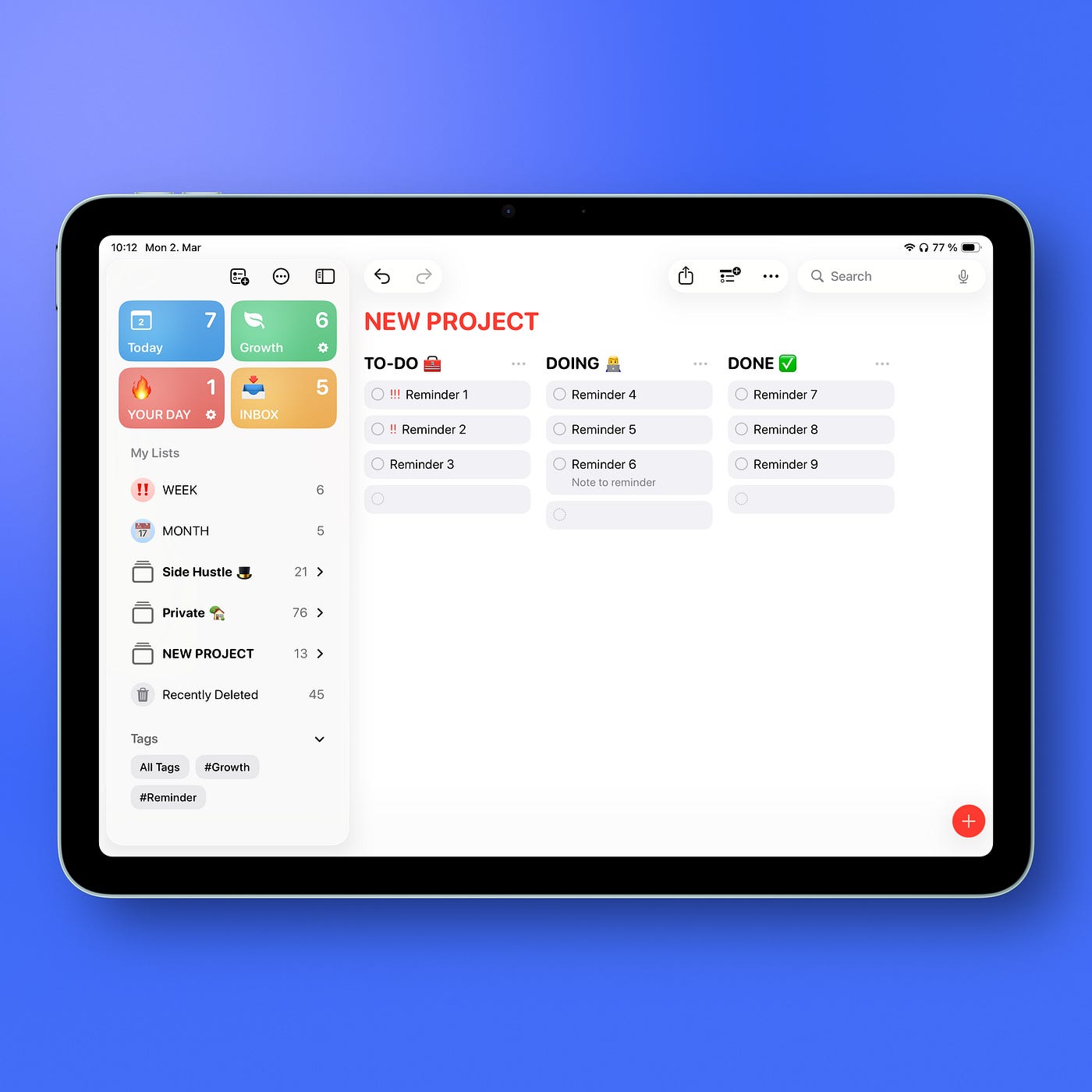
For small personal projects, writing projects, content plans, or home tasks, this is often enough.
Apple Reminders location reminders are useful when a task only matters in a specific place.
You can create a reminder that appears when you arrive somewhere or leave somewhere.
remind me when I get home
remind me when I leave work
remind me when I arrive at the supermarket
remind me when I get into the car
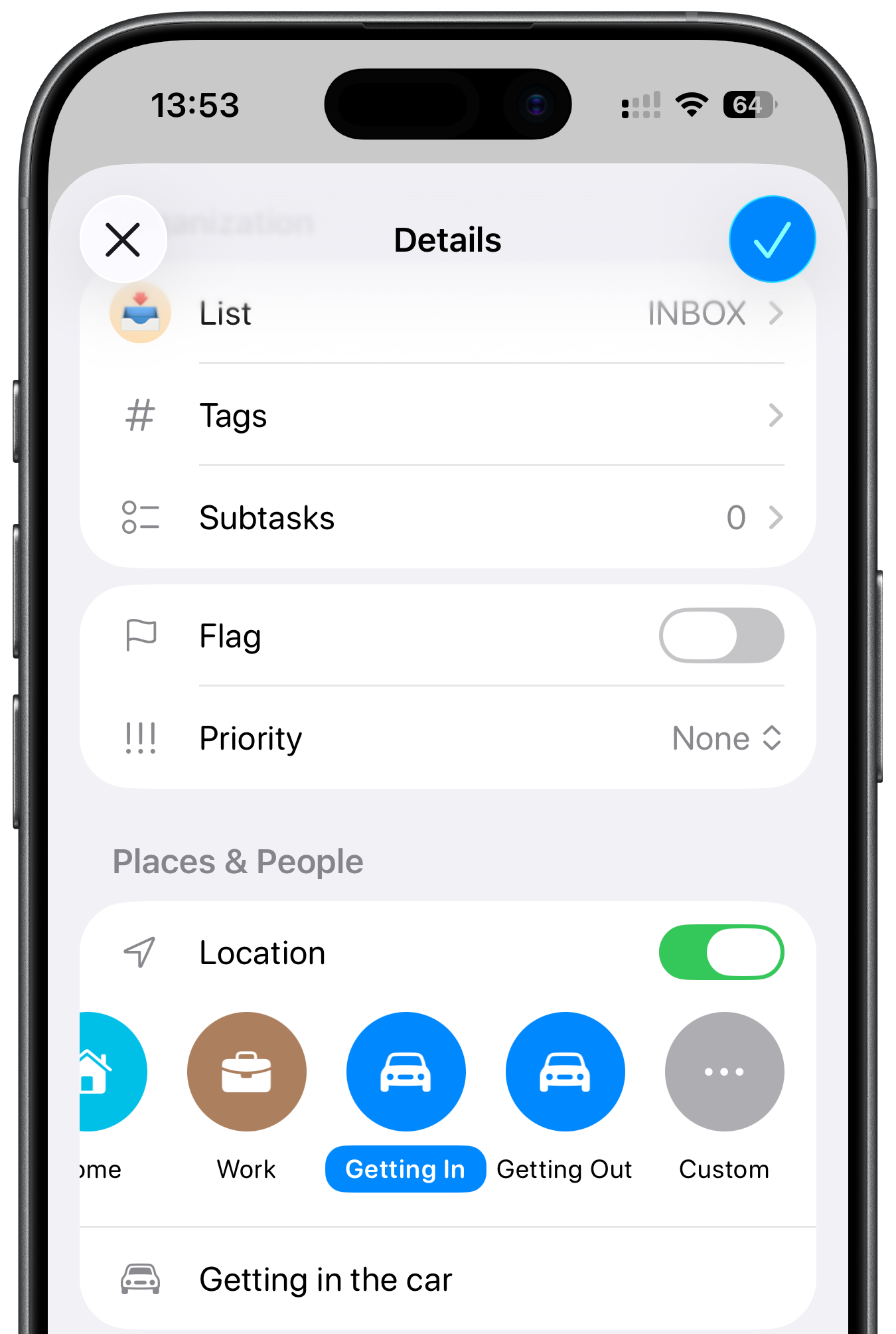
This is much better than setting a random time. Some tasks don’t belong to a time. They belong to a place. And that is where location-based reminders make sense.
Smart Lists are one of the most useful Apple Reminders features if you want more automation without making your setup complicated.
A Smart List automatically collects reminders based on rules.
tags
due date
priority
list
location
flag
completed status
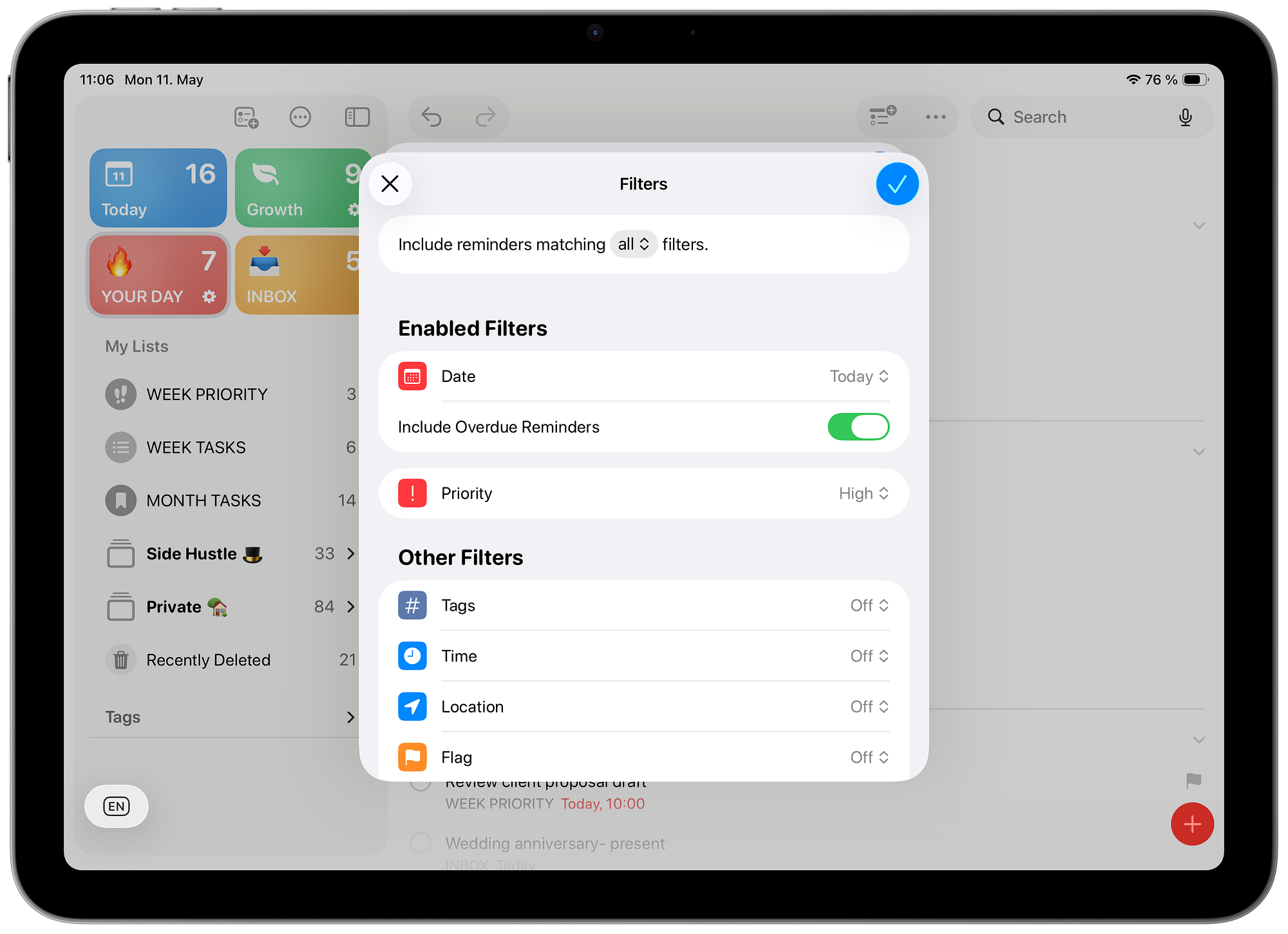
For example, you can create a Smart List that shows only high-priority tasks from all your lists. Or one that shows everything connected to your side hustle.
This is useful because you don’t have to move every task manually. The task stays where it belongs, but Smart Lists give you another view.
Yes, you can use Siri with Apple Reminders. And it works better than many people expect.
Whenever I think of something, I want to capture it fast. I don’t want to unlock my phone, open the app, choose a list, and type everything perfectly.
a Reminders widget on my iPhone
Siri voice commands
The basic version is simple: “Remind me to…”
You can also say things like: “Remind me tomorrow morning to call the dentist.”
This is where Apple Reminders becomes really useful. Capture is fast, and I don’t have to keep small tasks in my head.
For more complex tasks or longer descriptions, I still use Apple Notes.
Apple Notes is where I keep detailed plans, brainstorms, project outlines, and reference material. Apple Reminders is where I keep actions.
This is the simplest rule I use: Reminders are for actions. Notes are for thinking.
The nice part is that you can connect both apps.
You can link a specific Apple Note directly inside a Reminder. So if I have a task like “Review new course idea,” I can attach the Apple Note where I already wrote the full outline.
Open the note in Apple Notes.
Tap the share button.
Choose Reminders.
Add the reminder.
Now the task and the context are connected.
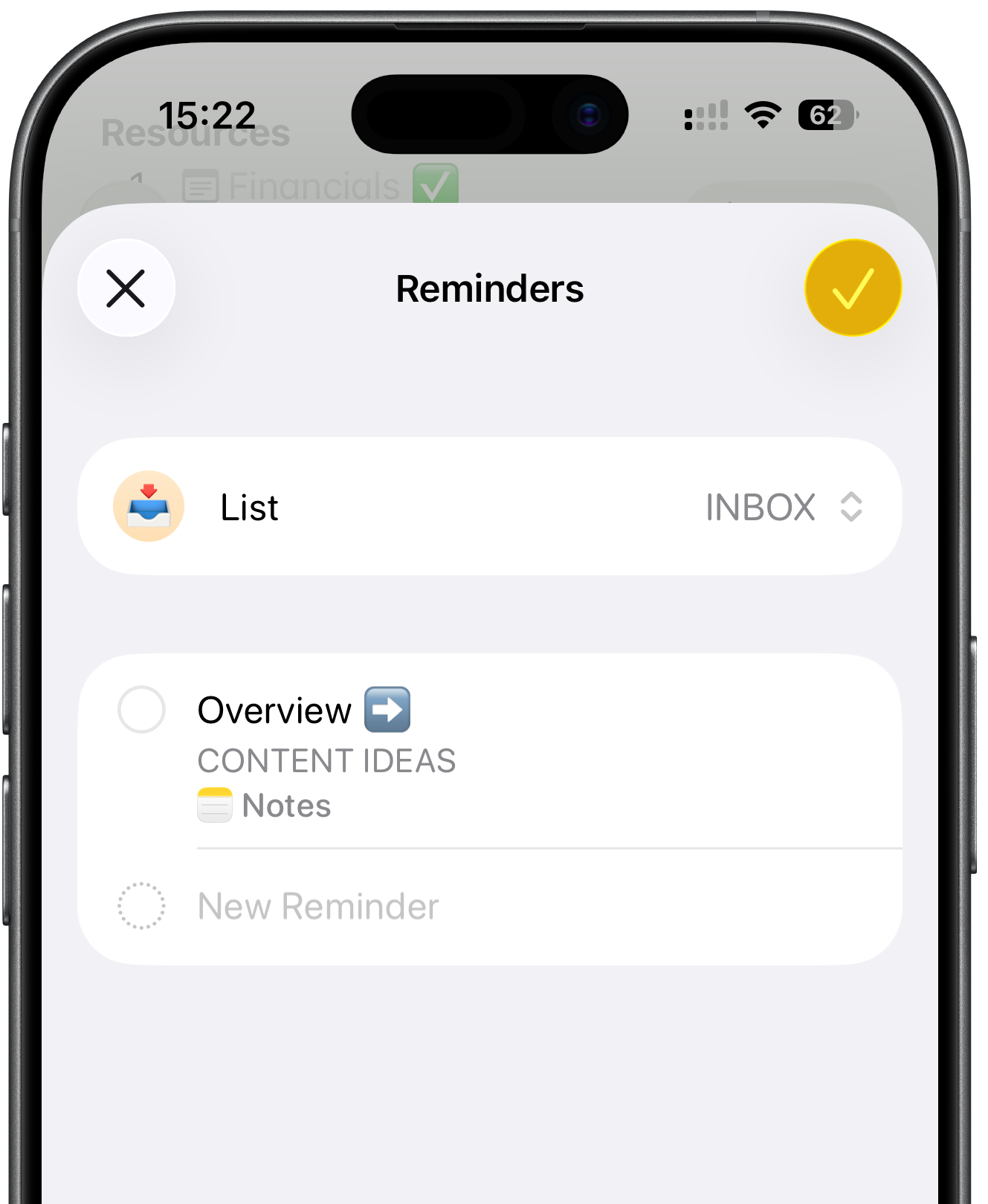
This is one of those small Apple ecosystem features that does not look impressive in a keynote, but it is very useful in real life.
People often ask me if they can use Apple Reminders instead of Todoist.
I think it is the common comparison because Todoist is probably the most popular task manager for regular users.
Like Apple Reminders, Todoist lets you create projects, filters, recurring tasks, reminders, and labels. It is a very good app.
But for many Apple users, the question is simple: Should you pay for Todoist, or use Apple Reminders for free?
For me, Apple Reminders is enough.
It has lists, sections, tags, Smart Lists, recurring tasks, location reminders, shared lists, Siri capture, widgets, and very good sync across Apple devices.
That covers most of what I need.
Todoist is still better if you work across many platforms, use Android or Windows, collaborate with teams, or need a more advanced task management system.
But if you live mostly inside the Apple ecosystem, Apple Reminders gives you more than enough. And it is already on your iPhone, iPad, and Mac.
Apple Reminders is not just for groceries and doctor appointments.
You can use it to organize your life, plan your week and manage business tasks.
And if you want the full setup — Apple Notes, Reminders and a simple weekly workflow — it’s all in one place. 70 pages, no extra apps needed: The Simple Apple System →
Thanks for reading.
— Robin
Footnote: All screenshots made on my iPhone 16 Pro and iPad Air, edited with Shareshot app. Text written fully by author (human), edited with Grammarly to correct any spelling or grammar mistakes.
No posts
Comments
Nothing yet. Say the first thing.
Sign in to join the conversation.