
Series: Part 1: Introduction & Motivation | Part 2: Understanding MCP | Part 3: The Agent Loop | Part 4: Inside the Codebase | Part 5: Operations & Extending | Part 6: Running It Yourself | Part 7: Observability | Building a Local AI Agent in Go -- Bonus: Agent Setup & Usage Guide | GitHub
Check the code on GitHub. Let me know if and how you are using it in your projects.
In Part 4 we walked through every file in the codebase. Now let’s cover what happens once the code is running: how to extend it with custom tool servers, manage the LLM backend, and run the full system end-to-end.
Two related concerns split off into their own parts so each can be covered in depth:
Pointing the agent at any LLM endpoint — Lemonade, LM Studio, vLLM, Ollama, OpenAI / Groq / Together / DeepSeek, Gemini, Anthropic — lives in Part 6: Running It Yourself, which comes next.
Observing the loop — verbose logs, web dashboard, SSE events, OpenTelemetry traces and metrics — lives in our final part of this series Part 7: Observability. Where the operational fixes below would call for
-vtraces or dashboard inspection, this part forward-references Part 7 instead of duplicating it.
With the boundary set, let’s start with the principle that shapes every tool server we build.
When you need to give your agent new capabilities, you have two choices:
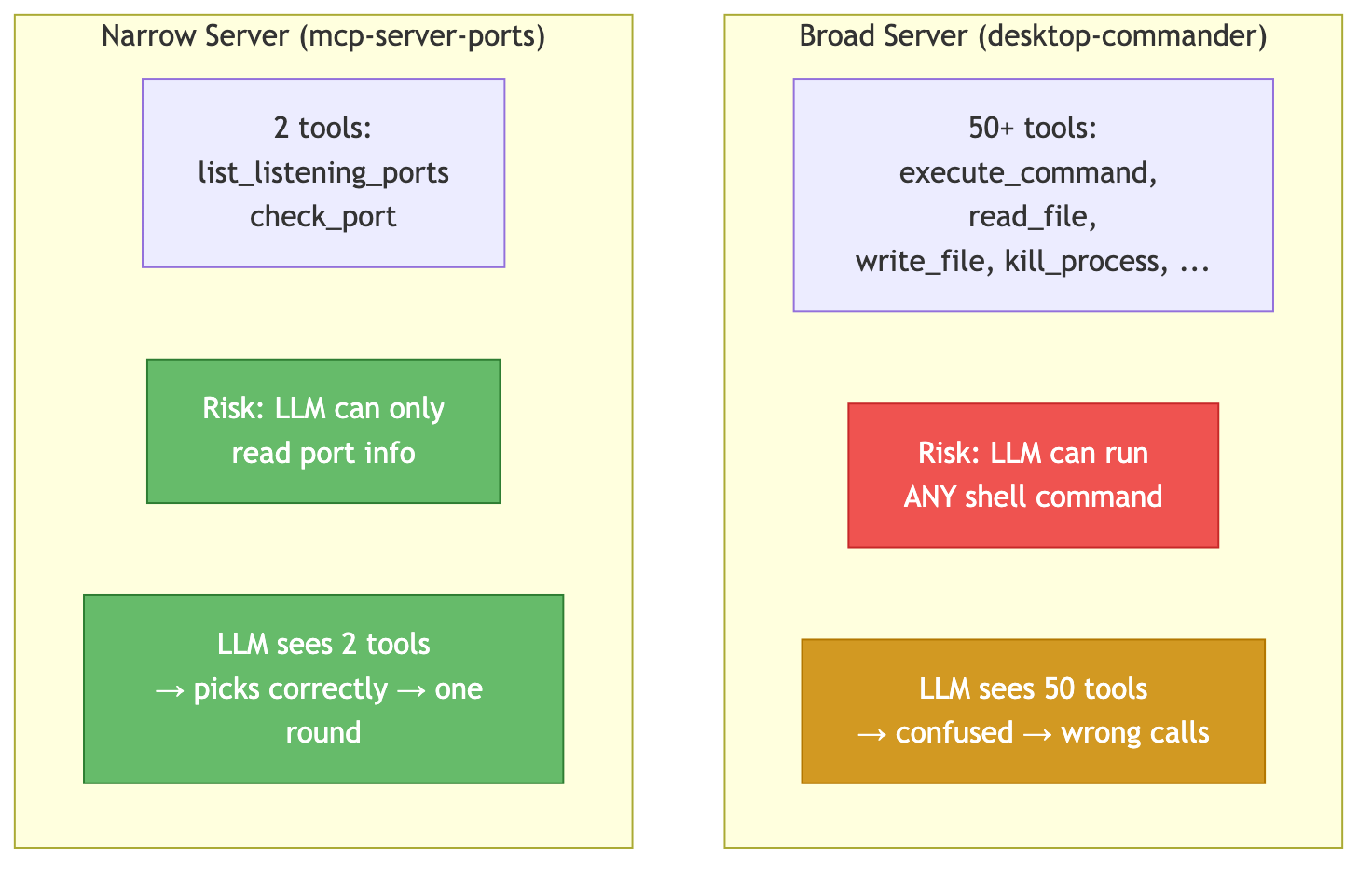
Security: A narrow server has a minimal attack surface. mcp-server-ports reads /proc and runs ss -- it cannot execute commands, write files, or access the network. Even if the LLM hallucinates a malicious tool call, the worst case is a benign port lookup. You know exactly what you want and keep the scope narrow. This is the experience factor.
LLM quality: Each tool definition adds ~500 bytes to the prompt (schema + description). Twenty tools consume ~10K tokens just in schemas. With a 32K context window and 4K base prompt, that leaves only 18K for conversation. Narrow servers keep the context budget tight.
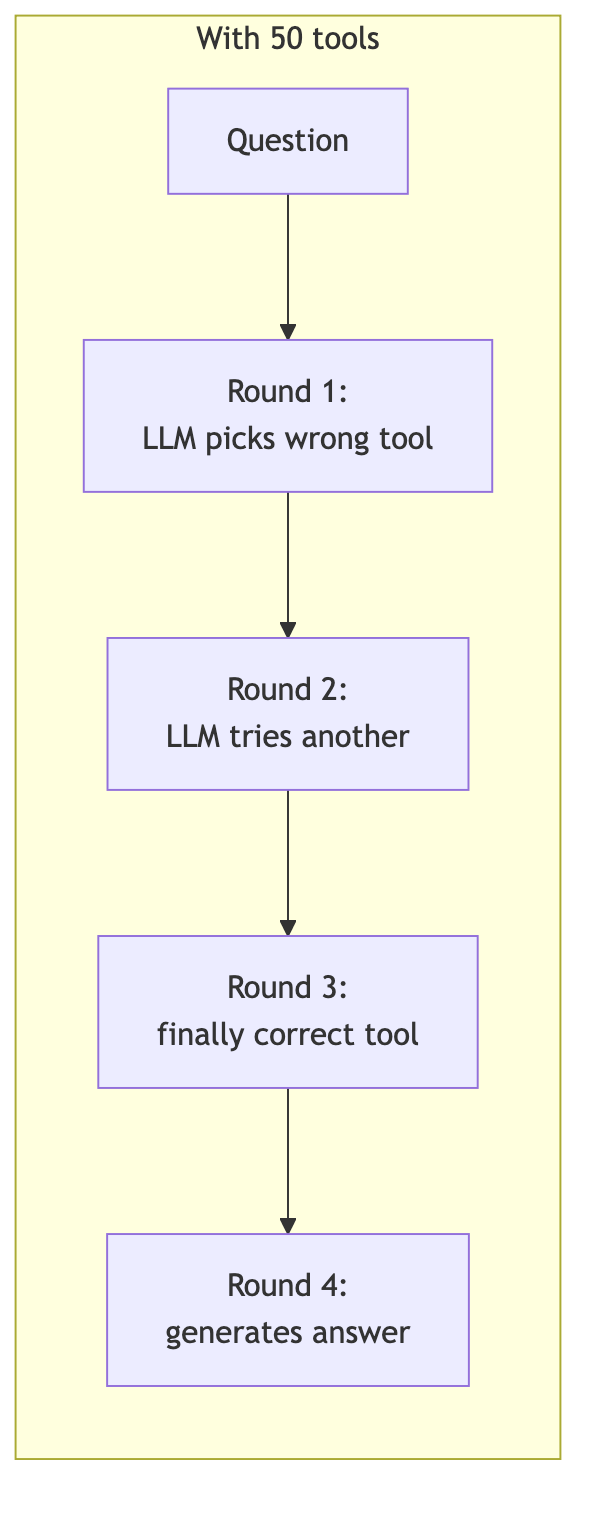
Compound effect on the loop:
Our reference narrow server is ~500 lines of Go with zero dependencies. It supports two transports: stdio (local) and SSE (network).
The core logic is transport-agnostic -- handleRequest() is shared:
go
func main() {
    transport := flag.String("transport", "stdio", "stdio or sse")
    port := flag.Int("port", 4100, "HTTP port for SSE")
    flag.Parse()
    switch *transport {
    case "stdio": runStdio()       // Read JSON-RPC from stdin, write to stdout
    case "sse":   runSSE(*port)    // HTTP server with SSE event stream
    }
}
// Shared between both transports -- this is where the tool logic lives.
func handleRequest(req jsonRPCRequest) jsonRPCResponse {
    switch req.Method {
    case "initialize":   return initResponse(req.ID)
    case "tools/list":   return toolListResponse(req.ID)
    case "tools/call":   return handleToolCall(req.ID, req.Params)
    default:             return errorResponse(req.ID, "method not found")
    }
}
The tool implementation reads from /proc instead of executing shell commands:
go
func resolveProcesses(ports []portInfo) {
    // 1. Read /proc/net/tcp to get socket inodes per port
    // 2. Scan /proc/*/fd/ to find which PID owns each inode
    // 3. Read /proc/PID/comm for the process name
    // No exec.Command, no shell, no risk.
}
Local use -- the agent spawns it as a subprocess:
json
{"type": "stdio", "config": {"command": "../mcp-servers/ports/mcp-server-ports"}}Network use -- remote MCP clients connect via SSE:
bash
./mcp-server-ports --transport sse --port 4100
# Remote clients connect to http://host:4100/sse
The SSE transport follows the MCP specification: GET /sse returns an event stream with an endpoint event pointing to POST /message?sessionId=... for sending requests. This means any MCP client (CrewAI, AutoGen, etc.) on any device can use the server over the network.
One domain per server -- ports, git, database, not “system utilities”
Read-only when possible -- return information, don’t modify state
No shell execution -- parse data directly from
/proc, files, or APIsClear tool names --
list_listening_portsnotrun_commandMinimal input schema -- fewer parameters = fewer LLM mistakes
Structured output -- tables and labeled fields, not raw command dumps
Self-contained descriptions -- tell the LLM “the result is complete, no further lookups needed”
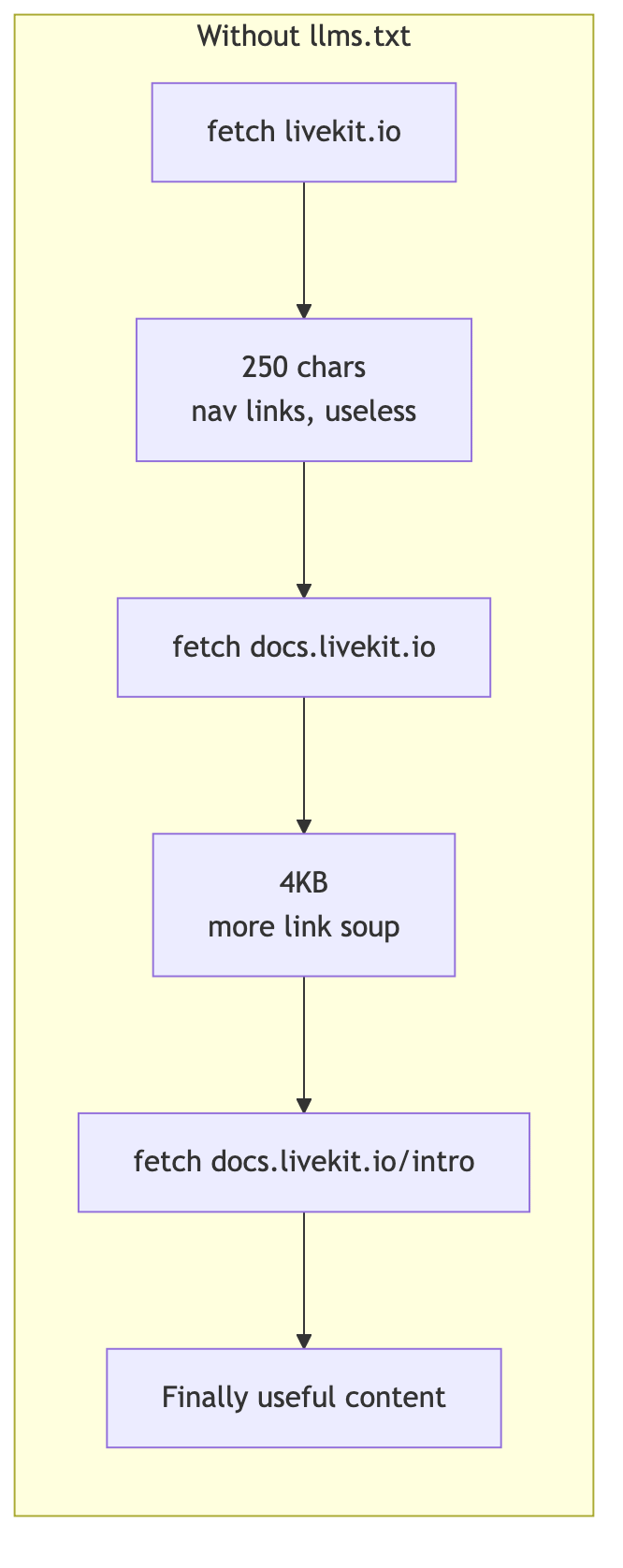
Some websites now provide a /llms.txt file -- a curated summary of their content, optimized for AI consumption. It’s like robots.txt but instead of telling crawlers what to avoid, it tells LLMs what’s important.
Example: https://livekit.io/llms.txt returns 68KB of structured markdown -- a complete overview of LiveKit’s architecture, APIs, SDKs, and deployment guides. Compare that to scraping the homepage, which yields 250 chars of navigation links.
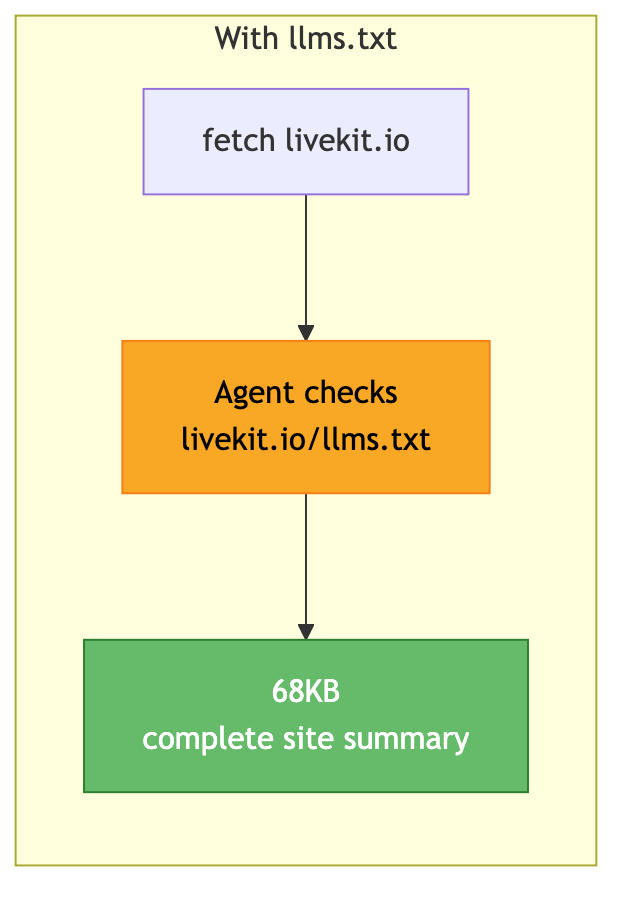
The agent supports three llms.txt modes:

The agent caches results per domain -- no repeated lookups.
Note: The llms.txt features is a two sided sword these days as it allows or at least helps Agents to build clones of whatever is described. Multiple open source activities, sites are in danger of loosing their financial support (commercial support etc.) as a result. So many things are changing at the same time …
This whole series started as a sole Lemonade server-based project. Later it has been extended to support a slew of other endpoints. Lemonade turned out to be a very important tool for AMD aficionados and using one of these (really) hot Ryzen AI Max+ 395 boxes is now way smoother process than it was before. (Check my AMD related articles). I am a big fan of those AMD boxes and use them next to my DGX Spark - not a slouch either of cause.
A quick reality check before the operational details, because the AMD path still has sharp edges that the NVIDIA path doesn’t. This chapter matters if you want to use the Lemonade server and in specific on a capable AMD system. In addition the server turns out to be pretty useful even for multi-modal models - worthwhile checking out if you want to use AMD hardware.
In comparison to an NVIDIA box like the DGX Spark (also 128 GB of memory) I still felt a usability gap on the AMD side. Most AI tools are notoriously NVIDIA-centric -- CUDA is the default everywhere -- and the AMD-driver support for relatively new hardware like the Ryzen AI Max+ 395 is still a bit lacking. When using LM Studio, for example, you are still forced onto the Vulkan driver instead of ROCm. Vulkan works, but it’s the generic graphics path; ROCm is the AMD equivalent of CUDA and is what you actually want for sustained LLM throughput.
This is one of the reasons Lemonade matters on AMD: it ships a llama.cpp build configured for the right backend (ROCm where supported, Vulkan as a fallback) without forcing you to figure out the driver matrix yourself. If you’re on NVIDIA or Apple Silicon, you can mostly skip this section -- CUDA and Metal “just work” with every backend in the wild. If you’re on AMD, expect to spend time in driver-land at least once before things settle down.
The tool schemas + system prompt consume ~4K tokens. The default Lemonade context of 4096 leaves zero room for conversation. This was the single most confusing issue during development -- streaming returned empty, non-streaming hung, and the error was buried in an SSE body the Go library couldn’t parse.
Always start with 32K context:
bash
lemonade-server serve --ctx-size 32768The start-lemonade.sh management script (part of the code repo) handles this:
bash
scripts/start-lemonade.sh start              # 32K context by default
scripts/start-lemonade.sh config ctx-size 65536  # change (restarts server)
scripts/start-lemonade.sh status             # check health + loaded model
scripts/start-lemonade.sh load Qwen3-8B-GGUF # switch model (skips if already loaded)
scripts/start-lemonade.sh stop               # graceful shutdown
Important: Context size is a server-level setting (--ctx-size flag). The model load API does NOT change it. The script handles this correctly by restarting the server when you change context size.

Models are cached in ~/.cache/huggingface/. First download takes time; subsequent loads are instant.
On capable AMD hardware the Lemonade server shines with a competitive performance. You can start the server using our lemonade-related management script:
bash
./start-lemonade.sh start
start-lemonade.sh — Lemonade Server Manager
─────────────────────────────────────────────
  start [model]    Start server + load model
  stop             Stop the server
  restart [model]  Restart with optional model
  status           Show health + loaded model
  list             List available models
  pull <model>     Download a model
  load <model>     Load a model
  config [param]   Show/change config (e.g. ctx-size)
  test             Run smoke tests
  help             Full help with examples
─────────────────────────────────────────────
═══ Starting Lemonade Server ═══
[INFO]  lemonade-server lemonade-server version 10.5.0
[OK]    Server already running at http://localhost:13305
═══ Loading Model: Qwen3-Coder-30B-A3B-Instruct-GGUF ═══
[INFO]  Loading Qwen3-Coder-30B-A3B-Instruct-GGUF (context: 32768 tokens)...
[OK]    Model Qwen3-Coder-30B-A3B-Instruct-GGUF loaded successfully
Now the server is running, has loaded the configured model and the UI is available at http://localhost:13305.
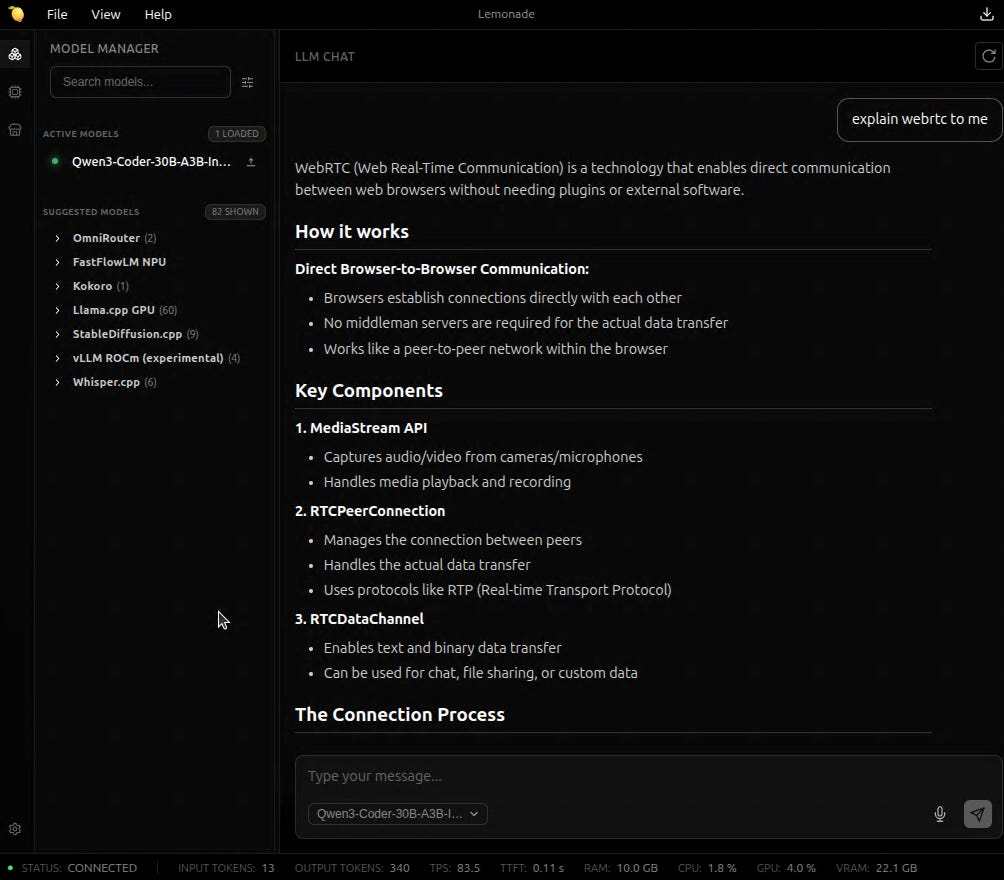
Its a bit hard to read but we get 83.5 token/s back using Qwen3-Coder. The device used was a GMKtec Evo-2 with AMD Ryzen AI Max+ 395 and 128 GByte shared RAM. Side note: Bought last year that device nearly doubled its value in the meantime. Different story. Verdict: No reason to hide behind a NVidia DGX Spark. We will use our own web ui soon, which supports debugging and other features.
bash
./start-lemonade.sh status
start-lemonade.sh — Lemonade Server Manager
─────────────────────────────────────────────
  start [model]    Start server + load model
  stop             Stop the server
  restart [model]  Restart with optional model
  status           Show health + loaded model
  list             List available models
  pull <model>     Download a model
  load <model>     Load a model
  config [param]   Show/change config (e.g. ctx-size)
  test             Run smoke tests
  help             Full help with examples
─────────────────────────────────────────────
═══ Lemonade Server Status ═══
[OK]    Server is running at http://localhost:13305
  Version:  10.5.0
  Status:   ok
{"all_models_loaded":[{"backend_url":"http://127.0.0.1:8001/v1","checkpoint":"unsloth/Qwen3-Coder-30B-A3B-Instruct-GGUF:Qwen3-Coder-30B-A3B-Instruct-Q4_K_M.gguf","device":"gpu","last_use":298535,"model_name":"Qwen3-Coder-30B-A3B-Instruct-GGUF","pid":13457,"recipe":"llamacpp","recipe_options":{"ctx_size":32768},"type":"llm"}],"max_models":{"embedding":1,"image":1,"llm":1,"reranking":1,"transcription":1,"tts":1},"model_loaded":"Qwen3-Coder-30B-A3B-Instruct-GGUF","status":"ok","version":"10.5.0","websocket_port":9000}
Everything above is Lemonade-specific. If you’re pointing the agent at a cloud API, the operational model flips:
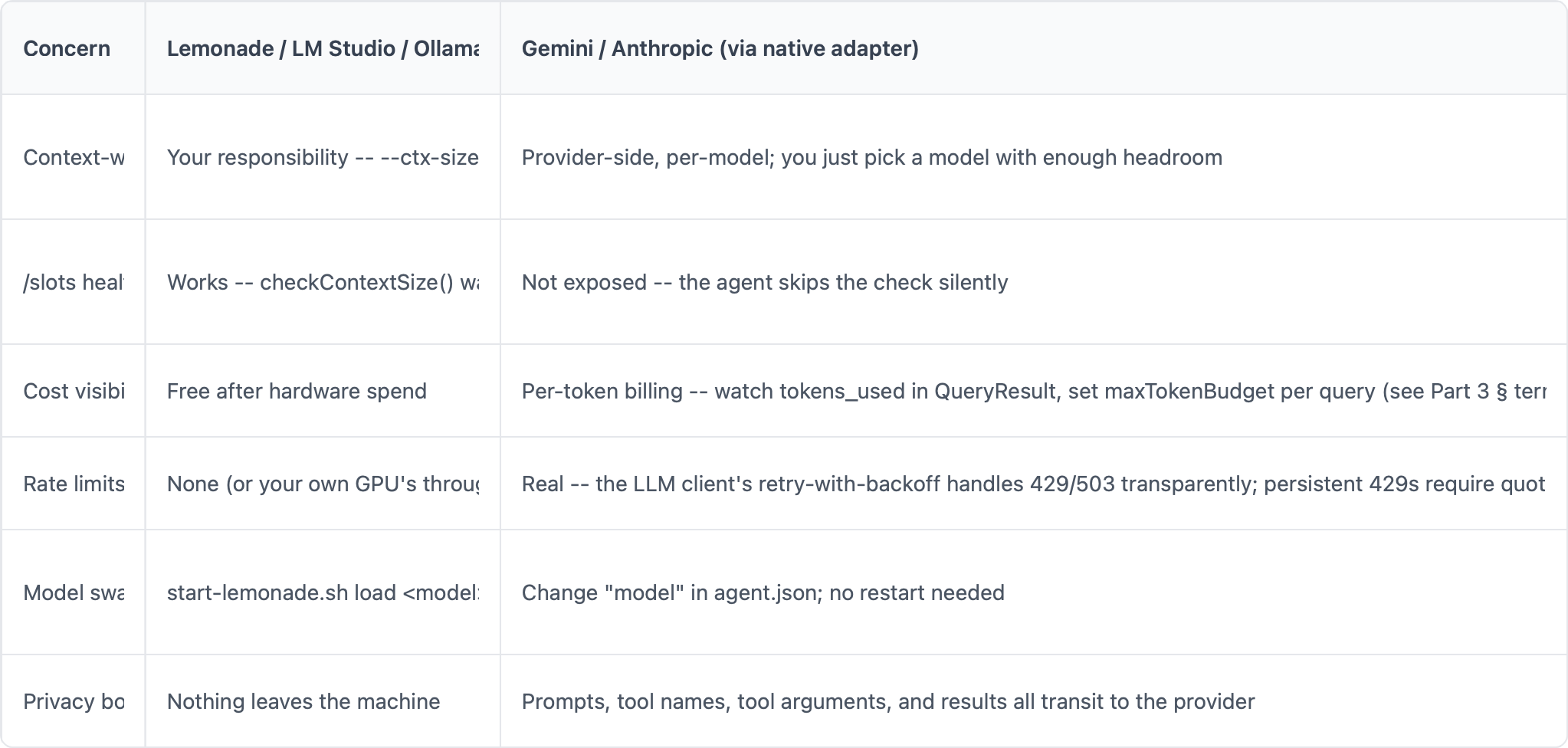
Now we use the same agent.json, the same MCP tool servers, the same REST API and the same dashboard. Only the backend line changes. This allows anyone to swap in and out providers, local systems and a great variety of models. One can also compare the performance of the same model running on different providers (surprises guaranteed) .
bash
# 1. Build
cd go-agent && make build
# 2. Start Lemonade Server
cd .. && scripts/start-lemonade.sh start
# 3. Build the ports server
cd mcp-servers/ports && go build -o mcp-server-ports .
# 4. Run the agent (in another terminal)
cd ../../go-agent
./llm-agent -v -stream -web localhost:3131
For pointing the agent at a different backend (LM Studio, vLLM, Ollama, OpenAI, Gemini, Anthropic), see Part 6. To watch the run live in a browser or stream OpenTelemetry traces, see Part 7.
Now, as kind of a teaser lets start the agent with some observability with Prometheus metrics already activated to have some more fun. We will also be able to send metrics to a OTLP/HTTP receiver (Jaeger or any other OTel receiver waiting on the other end for example) We will cover that topic in chapter 7.
bash
cd go-agent && ./llm-agent -v -web localhost:3131The server starts and shows some info:
ℹ Prometheus metrics enabled → http://localhost:3131/api/v1/metrics
llm-agent dev
Model:    Qwen3-Coder-30B-A3B-Instruct-GGUF
Endpoint: http://localhost:13305/api/v1
Provider: openai
Tools:    text
Servers:  4 configured
MCP:      mcp-server-ports (../mcp-servers/ports/mcp-server-ports)
Verbose:  enabled
Web:      http://127.0.0.1:3131
API:      http://127.0.0.1:3131/api/v1/query
MCP SSE:  http://127.0.0.1:3131/mcp/sse
  Starting MCP server: @playwright/mcp@latest ...
  ● MCP  starting @playwright/mcp@latest
  ℹ @playwright/mcp@latest: filtered 23 → 6 tools
    + browser_press_key
    + browser_type
    + browser_navigate
    + browser_take_screenshot
    + browser_snapshot
    + browser_click
  ← MCP  @playwright/mcp@latest: browser_press_key, browser_type, browser_navigate, browser_take_screenshot, browser_snapshot, browser_click
  ℹ @playwright/mcp@latest ready (6 tools, 884ms)
  Starting MCP server: @modelcontextprotocol/server-filesystem ...
  ● MCP  starting @modelcontextprotocol/server-filesystem
    + read_file
    + read_text_file
    + read_media_file
    + read_multiple_files
    + write_file
    + edit_file
    + create_directory
    + list_directory
    + list_directory_with_sizes
    + directory_tree
    + move_file
    + search_files
    + get_file_info
    + list_allowed_directories
  ← MCP  @modelcontextprotocol/server-filesystem: read_file, read_text_file, read_media_file, read_multiple_files, write_file, edit_file, create_directory, list_directory, list_directory_with_sizes, directory_tree, move_file, search_files, get_file_info, list_allowed_directories
  ℹ @modelcontextprotocol/server-filesystem ready (14 tools, 694ms)
  Starting MCP server: mcp-server-fetch ...
  ● MCP  starting mcp-server-fetch
    + fetch
  ← MCP  mcp-server-fetch: fetch
  ℹ mcp-server-fetch ready (1 tools, 318ms)
  Starting MCP server: server-3 ...
  ● MCP  starting server-3
    + list_listening_ports
    + check_port
  ← MCP  server-3: list_listening_ports, check_port
  ℹ server-3 ready (2 tools, 2ms)
Tools:    23 loaded
Type your message, or /quit to exit, /clear to reset conversation.
Press Ctrl+C to cancel a running query.
>
You are now ready to ask the first question via the prompt.
  ── round 1 [2 messages, ~1.1K]
  → LLM  POST /chat/completions model=Qwen3-Coder-30B-A3B-Instruct-GGUF msgs=2 tools=23 ctx~1.1K
    http-body: {"model":"Qwen3-Coder-30B-A3B-Instruct-GGUF","messages":[{"role":"system","content":"You are a helpful local AI assistant with web browsing, file, and fetch tools.\n\n## Web Search\nTo search the web, navigate to Google and read the results:\n1. `browser_navigate` to `https://www.google.com/search?q...
  → HTTP POST /api/v1/chat/completions (14804 bytes)
  ← HTTP 200 200 OK (content-type: application/json)
  ⚠ parsed 1 text-embedded tool call(s) from content (toolCallStyle=text)
  ← LLM  1 tool_call(s) finish=stop 5.043s
    ╰─ ttft=0s prompt=4153 completion=24 total=4177 tok/s=4.8
  ⚡ TOOL check_port {"port":3000}
  → MCP  check_port → server-3
  ← MCP  check_port: 175 chars (115ms)
  ← TOOL check_port (175 chars, 115ms)
    result: Port 3000 is in use:
  Protocol: tcp
  Address:  *:3000
  State:    LISTEN
Note: Process info not available (port is owned by another user). Run with sudo for full details.
  ── round 2 [4 messages, ~1.3K]
  → LLM  POST /chat/completions model=Qwen3-Coder-30B-A3B-Instruct-GGUF msgs=4 tools=23 ctx~1.3K
    http-body: {"model":"Qwen3-Coder-30B-A3B-Instruct-GGUF","messages":[{"role":"system","content":"You are a helpful local AI assistant with web browsing, file, and fetch tools.\n\n## Web Search\nTo search the web, navigate to Google and read the results:\n1. `browser_navigate` to `https://www.google.com/search?q...
  → HTTP POST /api/v1/chat/completions (15182 bytes)
  ← HTTP 200 200 OK (content-type: application/json)
  ← LLM  text (565 chars) finish=stop 2.127s
    ╰─ ttft=0s prompt=4246 completion=125 total=4371 tok/s=58.8
    content: Port 3000 is currently in use. It's listening on all addresses (`*:3000`) and is in a `LISTEN` state, which means a process is waiting for incoming connections on this port.
However, I cannot see whi...
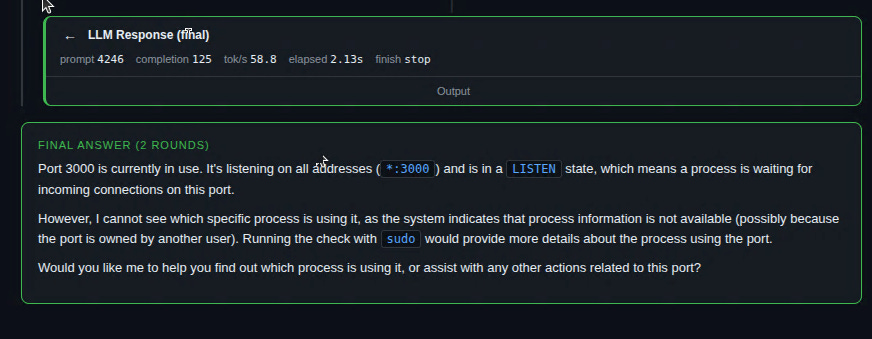
Port 3000 is currently in use. It's listening on all addresses (`*:3000`) and is in a `LISTEN` state, which means a process is waiting for incoming connections on this port.
However, I cannot see which specific process is using it, as the system indicates that process information is not available (possibly because the port is owned by another user). Running the check with `sudo` would provide more details about the process using the port.
Would you like me to help you find out which process is using it, or assist with any other actions related to this port?
Our port check MCP returned that port 3000 is used indeed. But even better we can use the Web UI (localhost:3131) to gain even more insights. Let’s play with it a bit:
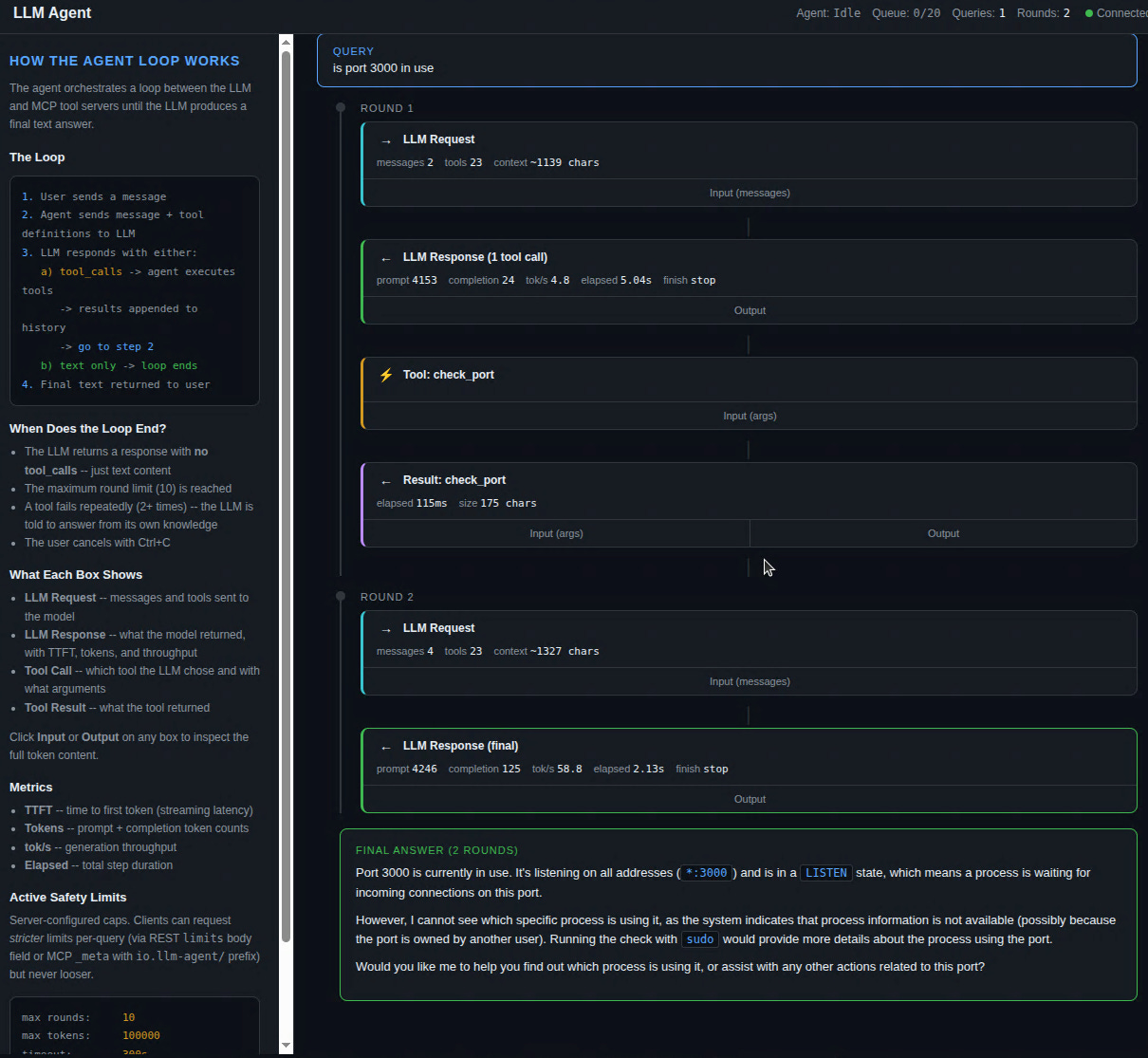
Now we can look at the input and output of our port MCP tool. Just click in the respective buttons:
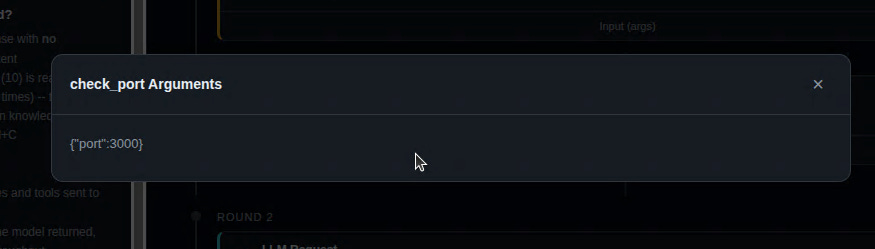
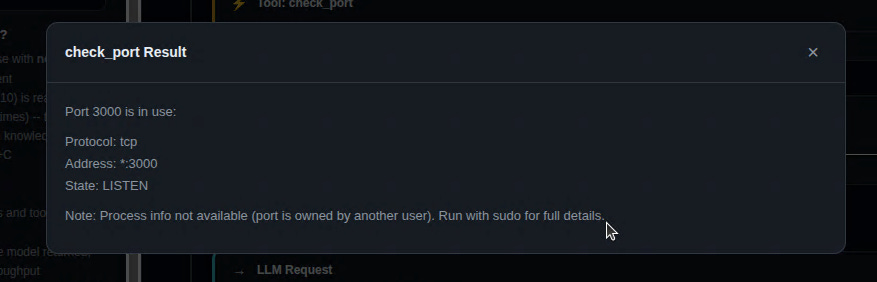
The final info covers the token stats and our result of cause:
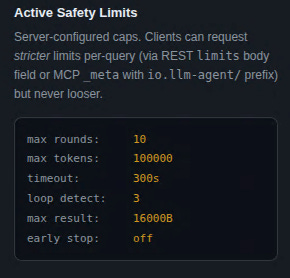
We can also ask if a port range is in use, be aware that we configured the loop to stop after 10 rounds max.
Try it with a lower and higher port range like:
which port between 8079 and 8084 is in use. vs.
which port between 8075 and 8090 is in use
Also be aware that the word “between” helps the LLM to figure that we are talking ranges. Now check the Prometheus metrics:
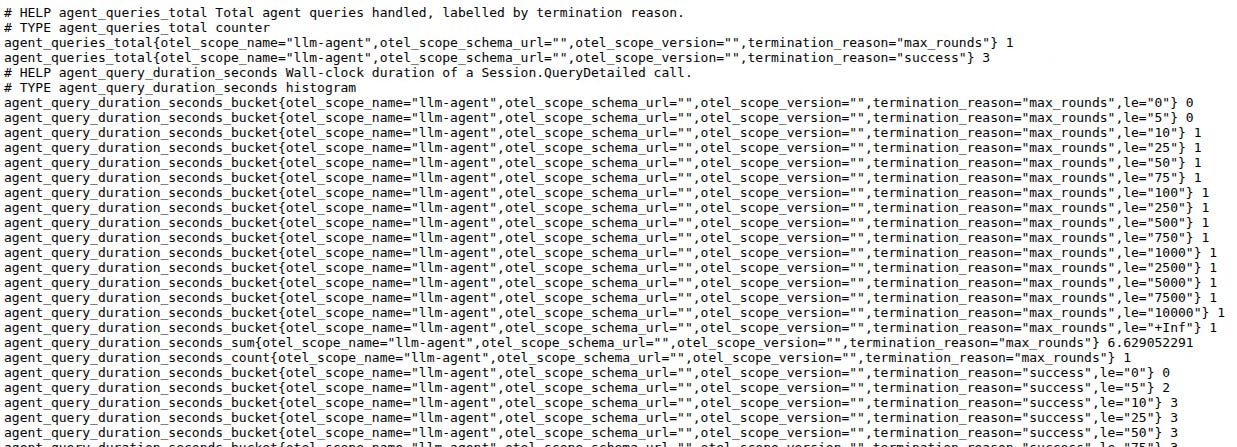
There are a lot of interesting data points - we will cover this in part 7.
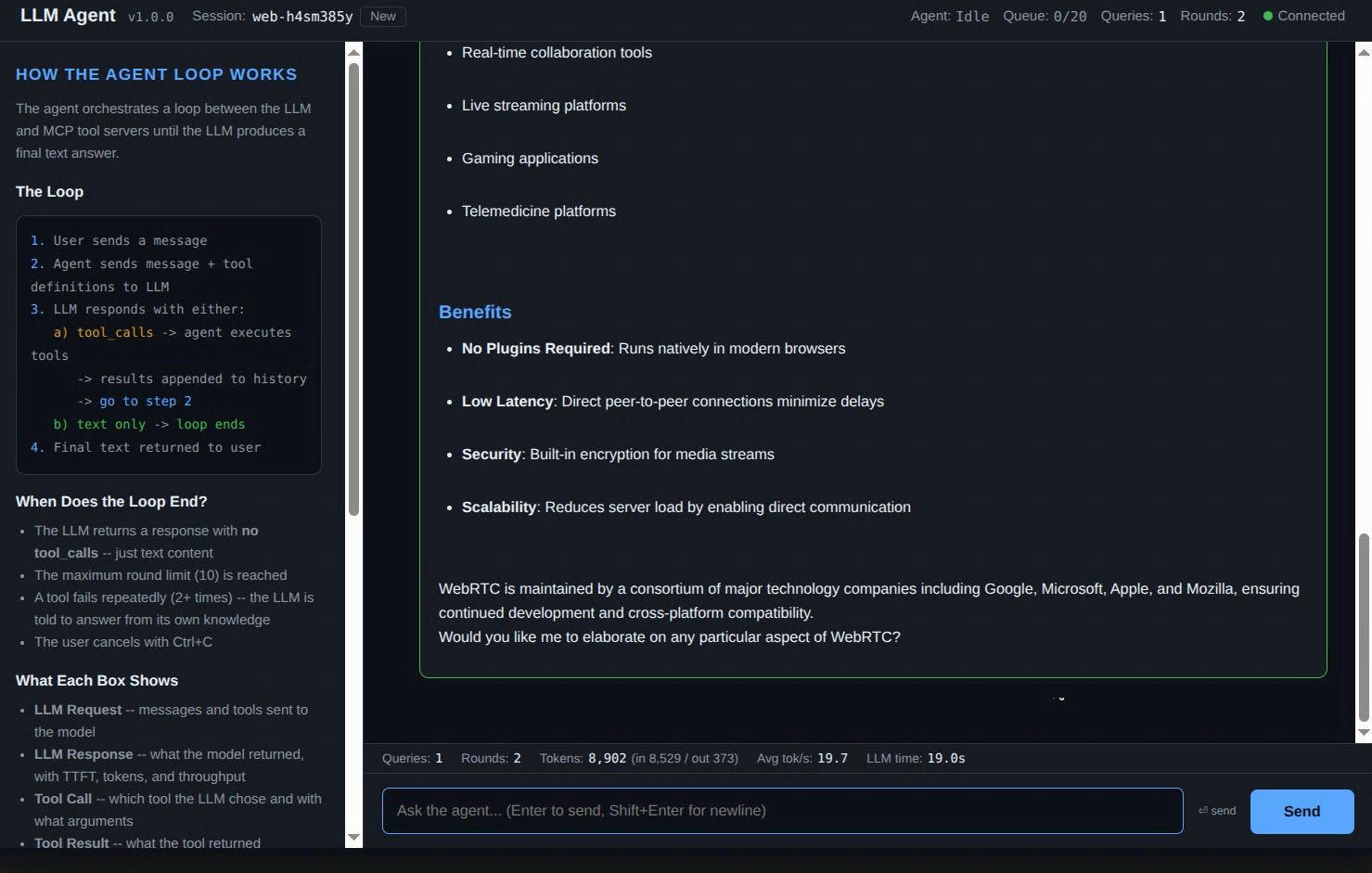
Just as a comparison of using the Lemonade chat UI vs. our Agent web ui. The Lemonade UI responded briefly, based on the model-internal training with 83 Token/s:

Our Web UI:
and while running:
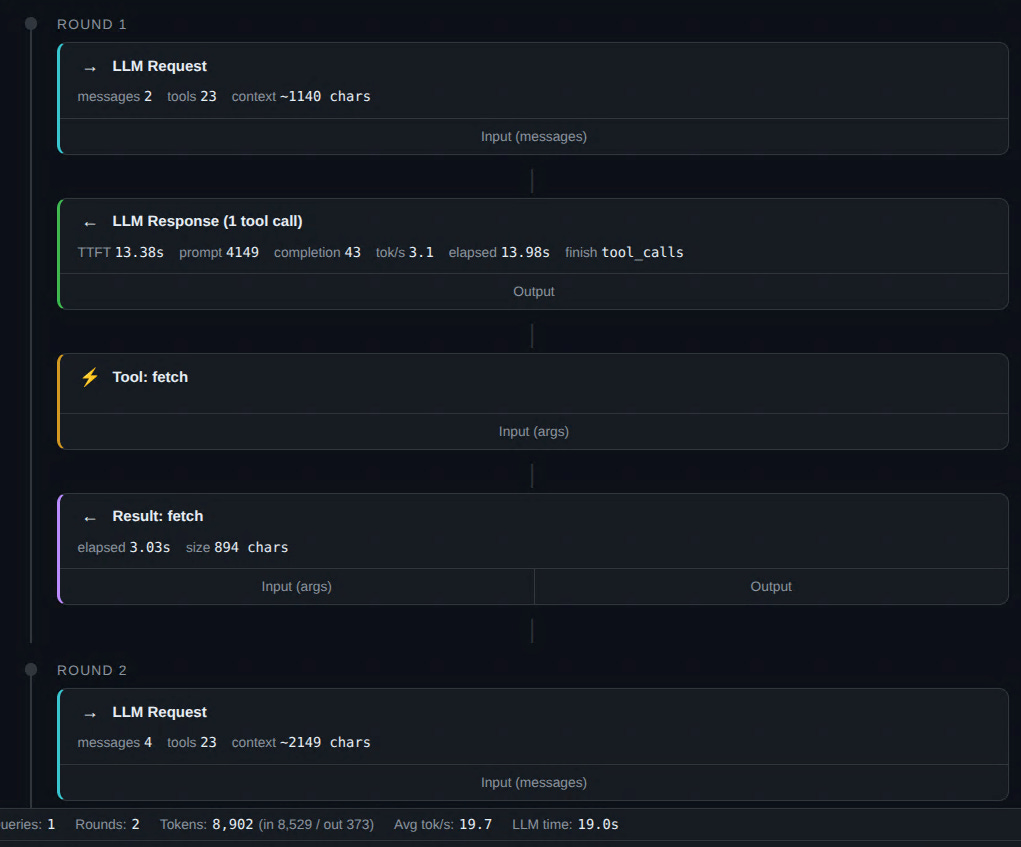
So our agent system slowed down the response. Why is that? well, our agent went out to the brave internet world, scraped webrtc.org and then generated a way more detailed result. Input tool parameter for web fetch:
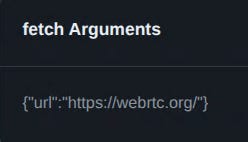
An the result:
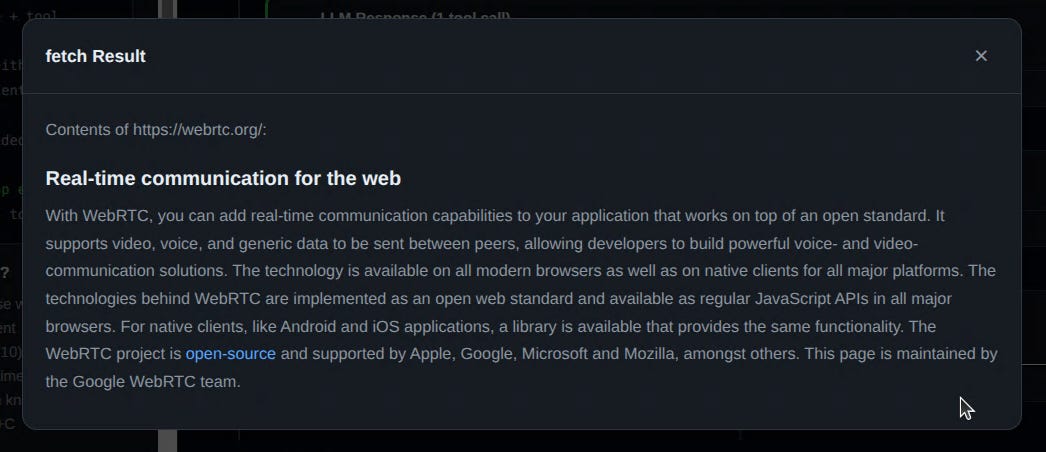
See, thats why we use Agents and tools. Easy, right? If you see from the web fetch result there is a lot of room for improvement, like digging deeper. Feel free to experiment and improve the sources.
> is port 3000 in use?Agent appends
"is port 3000 in use?"to the message historySends history + 23 tool definitions to Lemonade Server
LLM decides to call
check_portwith{"port": 3000}Agent looks up
check_portin toolMap → routes tomcp-server-portsMCP server reads
/proc/net/tcp, finds port 3000 is listeningReturns:
"Port 3000 is in use:\n Protocol: tcp\n Address: *:3000\n State: LISTEN"Agent appends tool result to history, sends back to LLM
LLM generates:
"Yes, port 3000 is currently in use. It's listening on TCP..."No more tool calls → loop ends → answer displayed
Part 7 shows what this same query looks like as live dashboard events and OpenTelemetry traces.
Want to give the agent a new capability? Write a narrow server:
Pick a domain (e.g., Docker containers, DNS lookups, system load)
Define 1-3 focused tools with clear names and a tight
inputSchema— the agent enforces it before dispatch (see Part 4 §validate.go)Implement the three MCP methods (
initialize,tools/list,tools/call)Build it, add to
agent.json, restart the agentThe LLM can now use your tools
See mcp-servers/ports/main.go for a complete reference implementation, and the Pre-dispatch Gates section of Part 3 for how validation and optional HITL approval interact with your new tool.
A pattern that the MCP gateway makes basically free: other agents can call yours as a tool. The agent’s -web mode exposes two MCP transports (/mcp/sse + /mcp/message for the legacy SSE protocol and /mcp for Streamable HTTP), and external orchestrators — CrewAI, AutoGen, Claude Desktop, another instance of this agent — can connect to either and call one of two things:
agent_query— a meta-tool that takes natural language, runs the full LLM loop inside your agent (its model, its MCP servers, its safety limits), and returns the final answer. From the caller’s perspective it looks like any other MCP tool; under the hood it’s a full reasoning cycle.Any of the underlying raw tools —
check_port,fetch,browser_navigate, etc. — invoked directly without going through the loop.
The operational shape this enables: one agent on a beefy local machine (Lemonade + your private MCP servers) acts as a tool provider for a fleet of cloud-hosted orchestrators. The cloud agents stay cheap and stateless; the local agent does the expensive reasoning over private data. The MCP gateway in web_mcp.go handles the wire protocol; the rest of the loop doesn’t know or care that the request came from another agent. See Part 7 for how those gateway calls show up in traces (they appear as ordinary agent.run spans).
Most failures fall into one of two buckets at this layer: the backend isn’t reachable, or the configuration is wrong for the backend you’re talking to. Loop-shape issues (the LLM looping on a tool, the dashboard going blank, traces stopping mid-query) are visibility problems first — see Part 7 for those investigation patterns.
Symptom: the agent hangs, or the first token takes forever.
Run with
-vand look for the→ LLMmarker. If it’s there but no← LLMfollows, the backend hasn’t responded yet — likely an unreachable server or a model still loading.Check backend health directly:
curl http://localhost:13305/api/v1/modelsfor Lemonade, or your provider’s status page for cloud APIs.For local backends, run
scripts/start-lemonade.sh status— a model that failed to load surfaces here with a clear error.If responses eventually arrive but slowly, you’re probably CPU-offloading. Verify the model’s GPU offload setting against your free VRAM.
Symptom: model loaded, but every query errors immediately.
99% of the time this is the context window. The default Lemonade context (4096) leaves no room after tool schemas + system prompt; see the Context Window note above and restart with
--ctx-size 32768.The second most common cause is a model name mismatch. Compare what
scripts/start-lemonade.sh statusreports against themodelfield inagent.json— case and quantization suffixes matter.
Symptom: works against Lemonade, fails against Gemini / Anthropic / OpenAI.
Check the model name first. Each provider uses its own conventions:
gemini-2.5-flash,claude-sonnet-4-5,gpt-4o. The agent passes the string verbatim, so a typo fails silently with “model not found”.Verify the API key is being picked up:
./llm-agent -vechoes the resolved provider at startup. If it shows “not-set” against a cloud endpoint, setLLM_API_KEY(orGEMINI_API_KEY/ANTHROPIC_API_KEY).Tool schemas that work on local models sometimes trip cloud validation — vendor-specific quirks like
additionalProperties: falserequirements. To see exactly what the provider rejected, watch the relevant OTel span in Part 7; the response body lands on the span as an attribute.
Symptom: the LLM keeps calling tools and hits max_rounds.
This is usually a tool-description problem rather than a configuration one — see Part 3 § termination heuristics for the failure-spiral logic and Part 7 for how to inspect
tool_call/tool_resultevents round by round.For a quick numerical answer:
scripts/agent-cli.sh metrics-summary(orcurl /api/v1/metrics | grep tool_calls) shows which tools are returning errors most often.tool_calls_total{tool="...",status="error"}climbing relative to the success counter is the metric to chart.
This is the audience-facing view -- the layers a user, an operator, and an external agent each see. For the file-by-file map of how those layers are implemented, see Part 4 § architecture diagram.
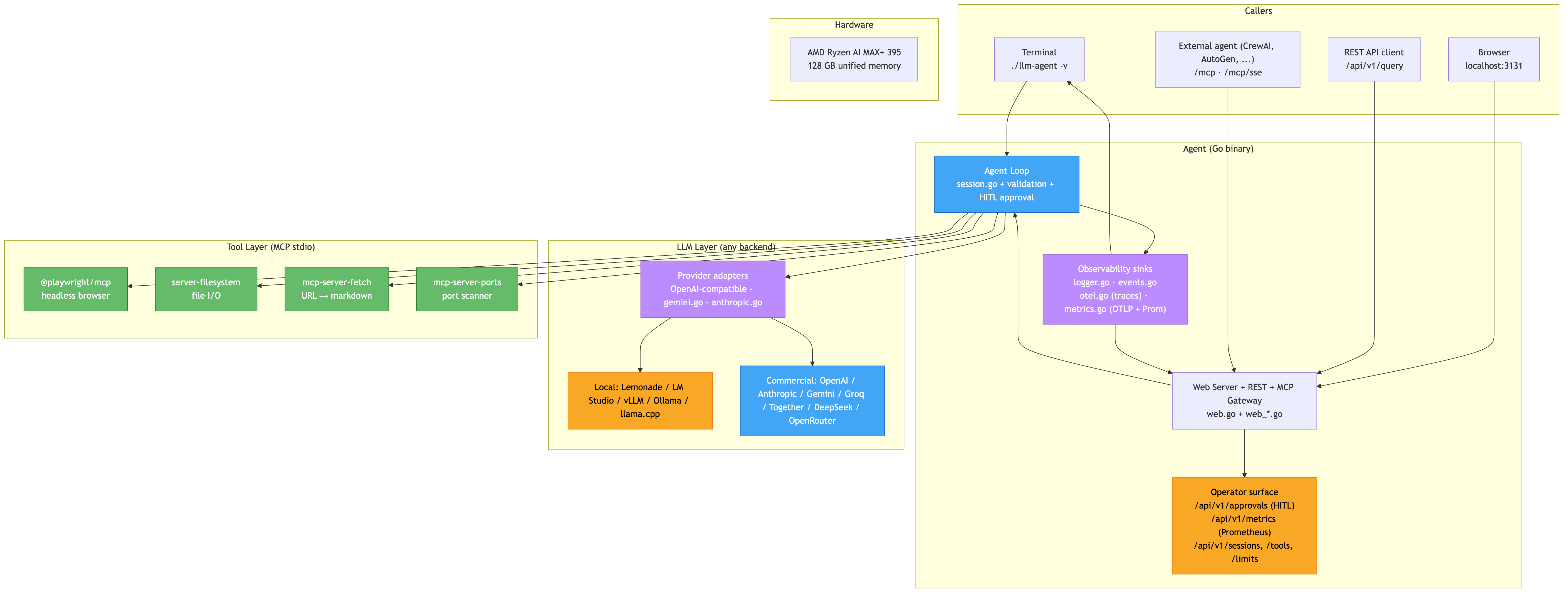
Four caller paths in, three observability sinks out, and one symmetric MCP gateway that lets the agent be both a tool-consumer (downward through stdio) and a tool-provider (rightward to external agents).
Multi-agent orchestration -- multiple agent loops coordinating on complex tasks (the
agent_queryMCP meta-tool is the foundation)Streaming output -- show the LLM’s response as it generates, token by token
NPU offloading -- use the XDNA 2 NPU for specific inference workloads
Voice interaction -- use Lemonade’s audio models for speech-to-text
More provider adapters -- Cohere, AI21, and other LLM APIs
The agent has three native provider adapters today (go-agent/llm.go): the OpenAI-compatible client (which covers Lemonade, LM Studio, Ollama, vLLM, llama.cpp, OpenAI itself, Groq, Together AI, Mistral, DeepSeek, and any other endpoint that speaks the OpenAI chat-completion shape), gemini.go for Google, and anthropic.go for Claude. Provider is auto-detected from the endpoint URL. Swap with a config field -- no code changes.
Previous: Part 4: Inside the Codebase
Well, if you want to dig deeper, need more insights as part of a workshop or want to elevate the Apache code covered in this series into a production ready grade, then lets get in touch via email: ai-consulting@smarttechlabs.de.
Copyright (C) 2026 By Smarttechlabs.de - All Rights Reserved
This article is part of a seven-part SmartTechLabs blog series on building a practical LLM agent system in Go. The goal is not to hide the complexity behind another black-box framework, but to make the moving parts understandable: agent loops, tool execution, MCP servers, local and remote LLM endpoints, OpenAI-compatible APIs, observability, and operational concerns. The example system supports local runtimes such as LM Studio, Ollama, Lemonade, vLLM, and llama.cpp, as well as cloud providers like Gemini and Anthropic. It is designed to run across AMD, NVIDIA, and Apple Silicon environments, from developer workstations to potentially lightweight edge deployments.
At SmartTechLabs, we help companies understand what LLMs and agent systems can realistically do, how they can be integrated into existing software and infrastructure, and where the operational, architectural, and governance boundaries are. Our consulting work covers GenAI workshops, technical enablement, architecture reviews, prototyping, integration with enterprise systems, and hands-on implementation support. This blog series is based on material from our GenAI workshops and is intended for teams that want to move beyond demos and start building reliable, observable, and maintainable AI-enabled systems.
Thanks for reading all parts so far! The full source is available in the repository. If you build something with it, I’d love to hear about it.
No posts
Comments
Nothing yet. Say the first thing.
Sign in to join the conversation.