
ok so i get this question probably twice a week now, and i’ve been putting off answering it properly, because every time i sit down to write it out i realize the real answer isn’t a simple yes or no.
somebody in my chat said it best. she told me she’s obsessed with connectors but she’s been hesitating to connect her email, because she’s nervous about the amount of info it would be able to see. and honestly that is the truest version of what everybody is asking me, y’all are just usually too polite to say it that plainly!!
and real quick, in case connectors are new to you, a connector is just the thing that lets one of these tools reach into an app you already use, so your gmail or your google calendar or your photos, instead of you copying and pasting stuff into it yourself. you turn it on once, in the settings, and it stays on until you turn it off.
so i finally went and checked. all four of the big ones, claude, chatgpt, gemini and copilot. and what i figured out is that there are three completely separate things we’re scared of, and we have all mashed them together into one big scary feeling that makes us do nothing.
here are the three, and i’m going to take them one at a time.
the first one is what it can see when you just type something into the box. the second one is what it can see once you actually connect your email to it. and the third one, which is the one almost nobody brings up, is whose computer you happen to be sitting at while you do any of it.
that third one is the one nobody is talking about, and tbh it’s the one i would worry about the most. i’m not a security person, so none of this is me telling you what’s safe, it’s just what i found when i went looking and how i personally use it.
who i am, a working mom of two with a full-time 9-5 that i’m not quitting. i’m 14 years into a corporate career and i say that up front because most working mom advice is some version of just stay home with the kids, and tbh that isn’t real life for most of us. we need the job, the money, the insurance, the 401k, the paycheck that pays for the childcare that lets us go do the job. ai is also literally my day job, which is the only reason i have any business writing this instead of just having a bad feeling about it like everybody else. everything i build here is for the version of this where you keep your job and still get your life back!
this is the fear you have before you’ve connected anything at all. you go to type “my daughter has a dentist appointment thursday, she’s 4 and she’s at [school]” and your hand just stops over the keyboard, because you’ve never actually been told where that sentence goes.
so here is the honest version. what you type goes into that conversation with you. whether it goes anywhere beyond that conversation comes down to one single setting, and that setting is switched on for you right now unless you have gone in and turned it off yourself.
it’s called something a little different in each one, so here they all are.
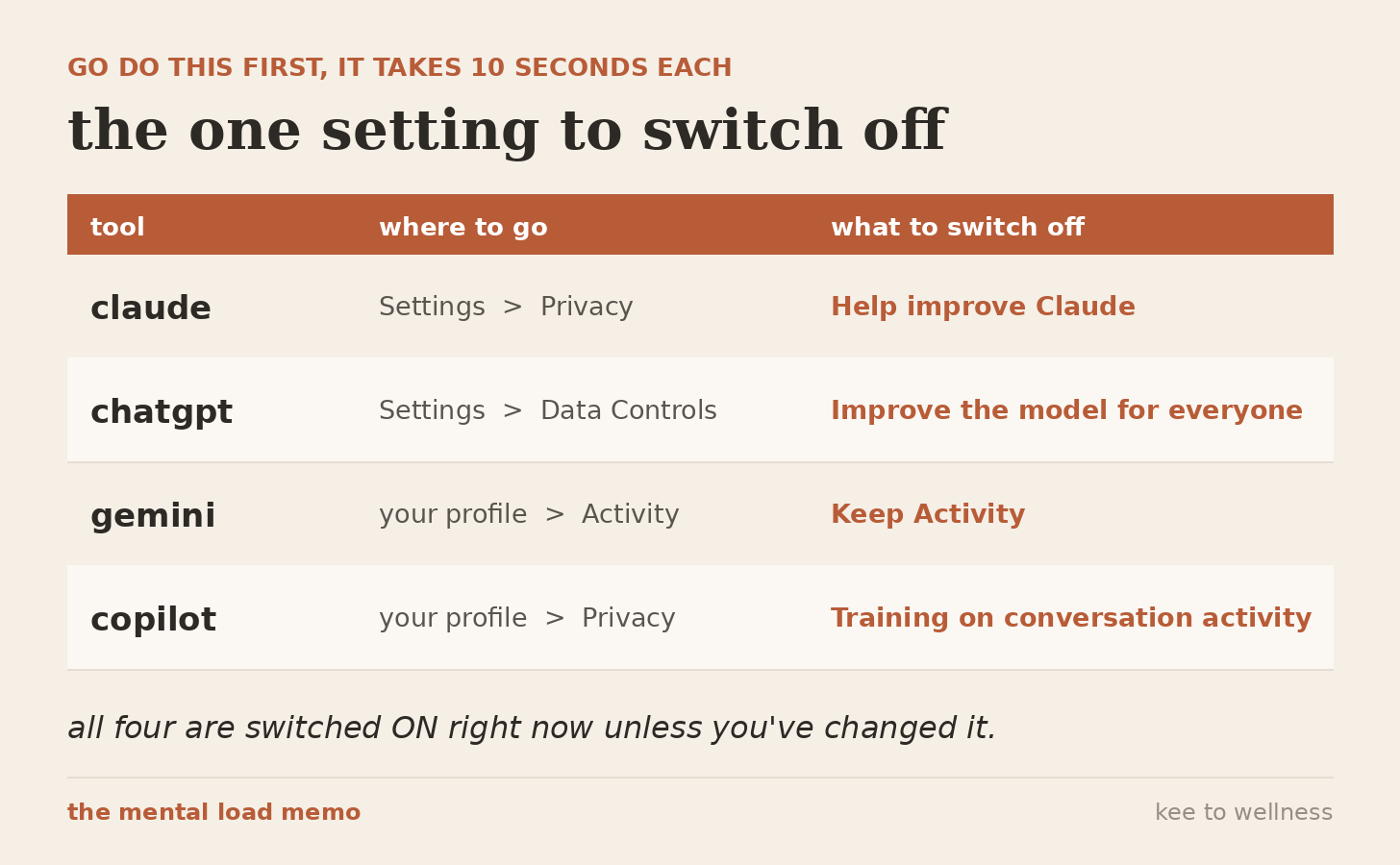
all four of them are on by default, all four of them take about ten seconds to change, and i would genuinely go do this right now before you read the rest of this post!!
turning it off stops your future conversations from being used to train the thing, and it shortens how long they hang onto them. what it does not do is delete anything from before you flipped it, and it does not mean nothing is stored anywhere at all. and it does not apply to your work account, because that one is controlled by your company and not by you.
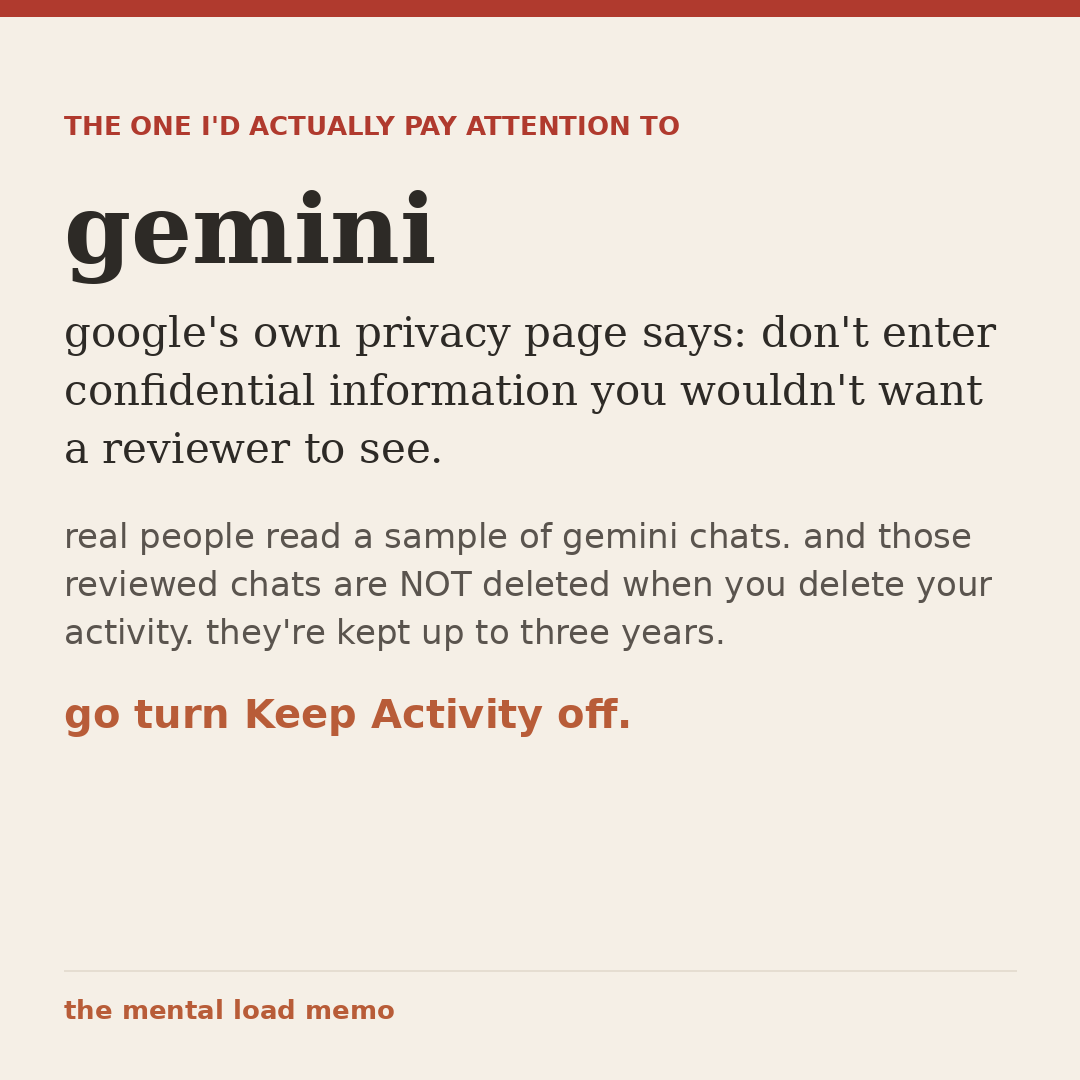
the one i would actually pay attention to here is gemini.
google’s own privacy page says, in their words, don’t enter confidential information you wouldn’t want a reviewer to see. and they mean that literally, because real human beings read through a sample of gemini conversations to check the quality of the answers.
here’s the part that got me. those reviewed chats do not get deleted when you delete your activity. google keeps them for up to three years. and since last september they also feed a sample of your uploads into it, so that’s the files and the photos you share, not just the words you type.
i’m not telling you to stop using gemini. i’m telling you to go turn Keep Activity off, and maybe don’t upload the pdf with your kid’s information on it 🤷♀️
and then the practical thing i personally do, which is not sophisticated in the slightest. i use my kids’ first initials instead of their names. not because i think something bad happens to their names, but because it costs me absolutely nothing and now i never have to think about it again. that’s the whole rule i go by. if a thing costs you nothing, just do it, and then stop spending brain space on it.
this is the one my chat was actually asking me about. you go to connect your gmail, and google throws up a permission screen that says this thing can send email on your behalf, and everybody reads that and closes the tab immediately. i did the exact same thing the first time i tried!!
so here is what i found out. that permission screen is describing what the connection could technically do at google’s level. it is not describing what is actually switched on and running in front of you. those are two very different things, and nobody ever explains the gap between them, so let me just show you where it is.
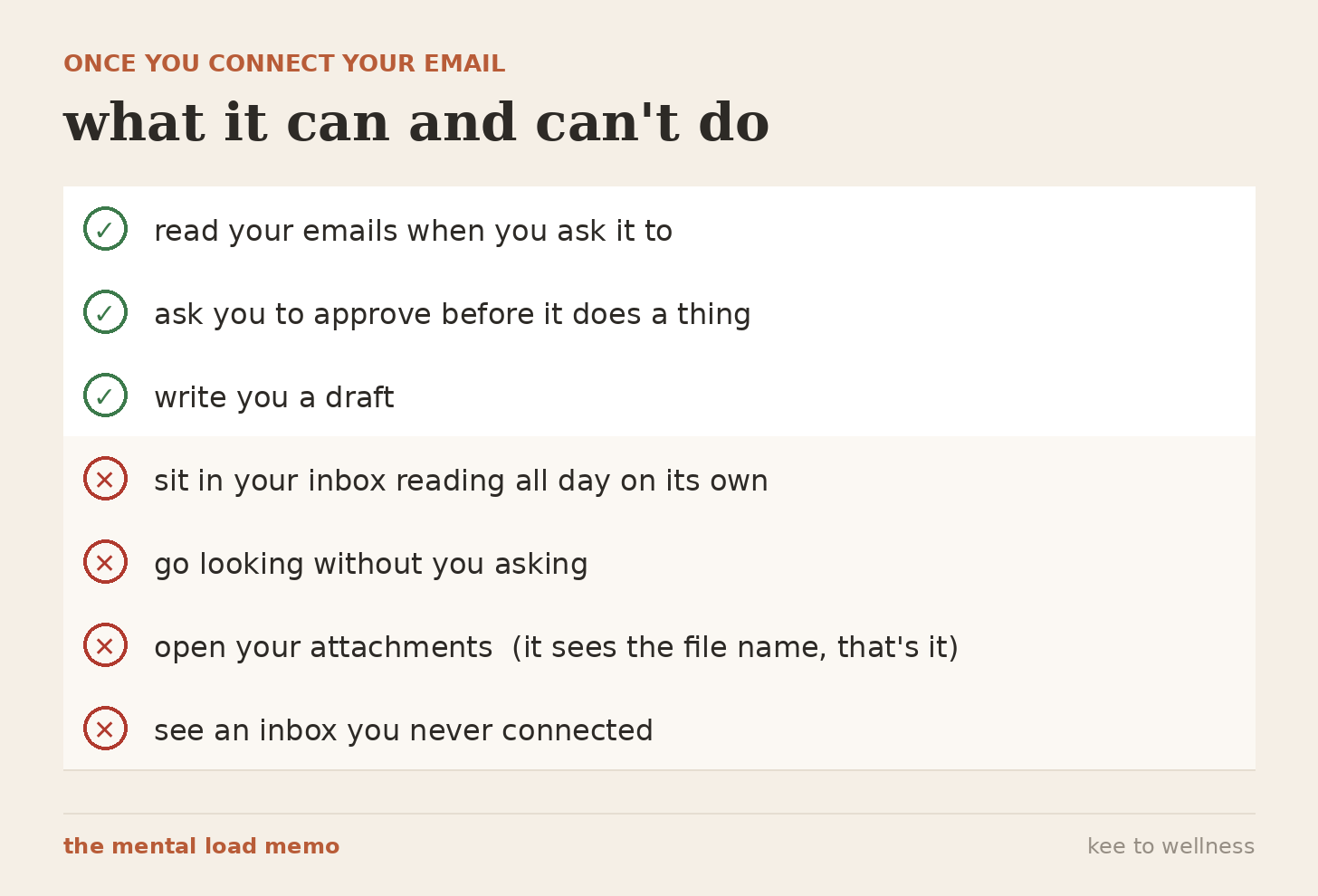
on the sending thing specifically, mine has only ever written the draft and dropped it into my gmail drafts folder for me to go read and send myself, and in months of using it nearly every day it has not once sent something on its own or even offered to. i would still go read your own permission screen before you connect anything though, because that is your call to make and not mine!!
the attachments one genuinely surprised me, and honestly it’s the answer to the fear most of us actually have. it can see that a file is attached and it can see what the file is called, and that is where it stops. it cannot open the pdf. which matters because the thing you don’t want anybody reading is almost always the attachment. the bill, the statement, the test result, the letter from the school you haven’t opened yet.
and whatever it does pull in stays inside that one conversation. if you delete the chat, that information goes with it. there is not a folder somewhere getting fatter every week with your whole life in it.
ok this one. this is the one nobody is talking about, and the wild part is that it has almost nothing to do with AI at all.
there are three separate doors your company could be looking through, and here is the thing that surprised me most when i went digging: they only need one of them. not all three. any single one on its own is enough.
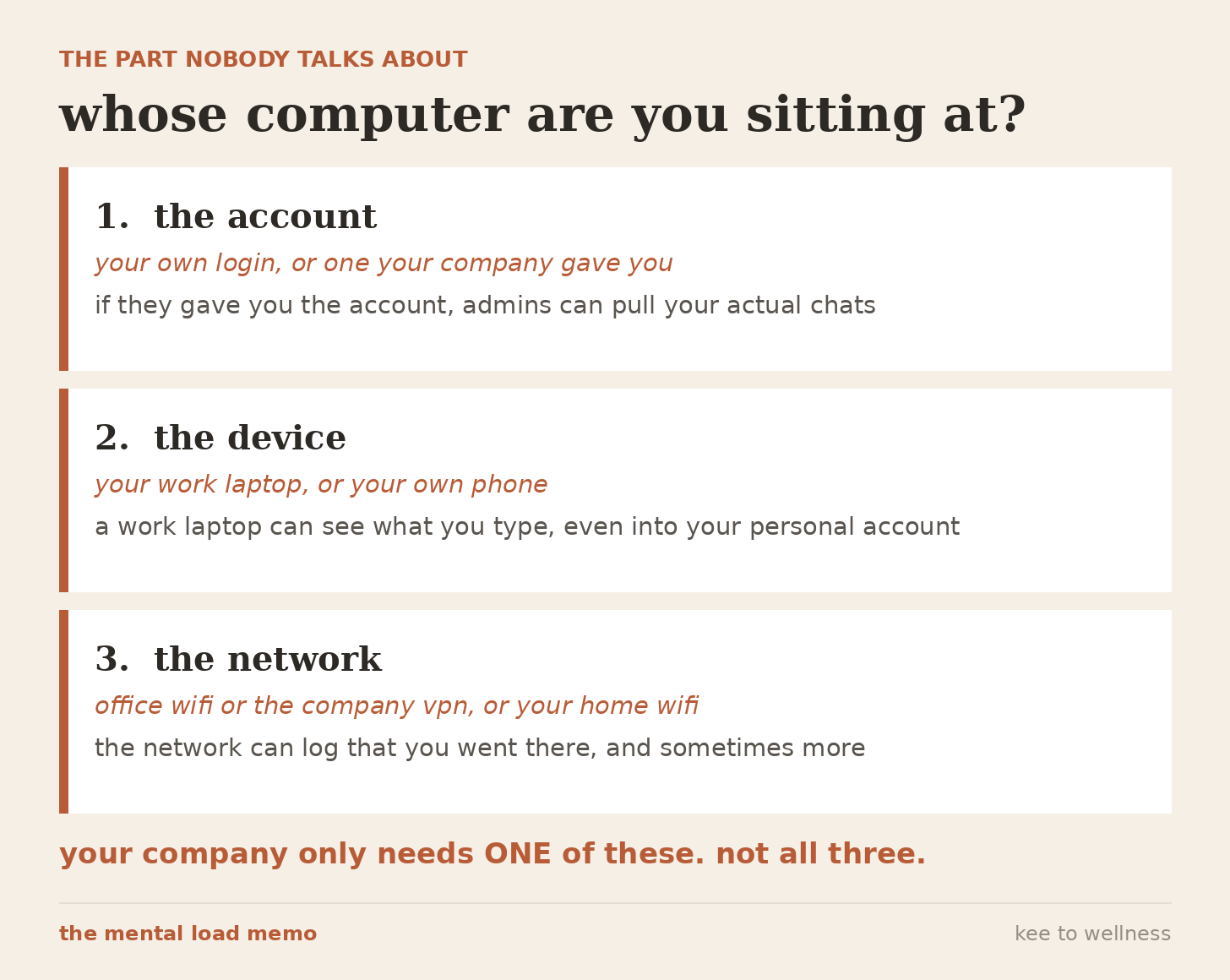
so when somebody asks me whether it’s safe to put their kid’s name in there, a lot of the time the real question sitting underneath it is will my boss see this. and that is a completely different question with a completely different answer, and it’s one you can actually go find out instead of guessing at.
and incognito does not help you here, i’m sorry. i know that feels like it should be the answer. incognito only stops your own browser from saving your history, it does not hide anything from software your company installed on the machine itself.
the free fix is this. your own phone, on your own cell data, signed into your own account. that is the one combination where not a single one of those three doors belongs to your employer. that’s genuinely it, that’s the whole trick, and it costs nothing.
this is also the actual reason i have never connected my work inbox, and it is not the reason people assume. it isn’t that i think something bad would happen. it’s that my work inbox isn’t really mine. there is other people’s information sitting in it, customer things and coworker things and a message somebody sent me at 9pm assuming that exactly two humans would ever read it, and that is not my call to make on their behalf. and then separately from all of that, your company almost certainly has a written policy about this, and going and reading it takes less time than worrying about it does.
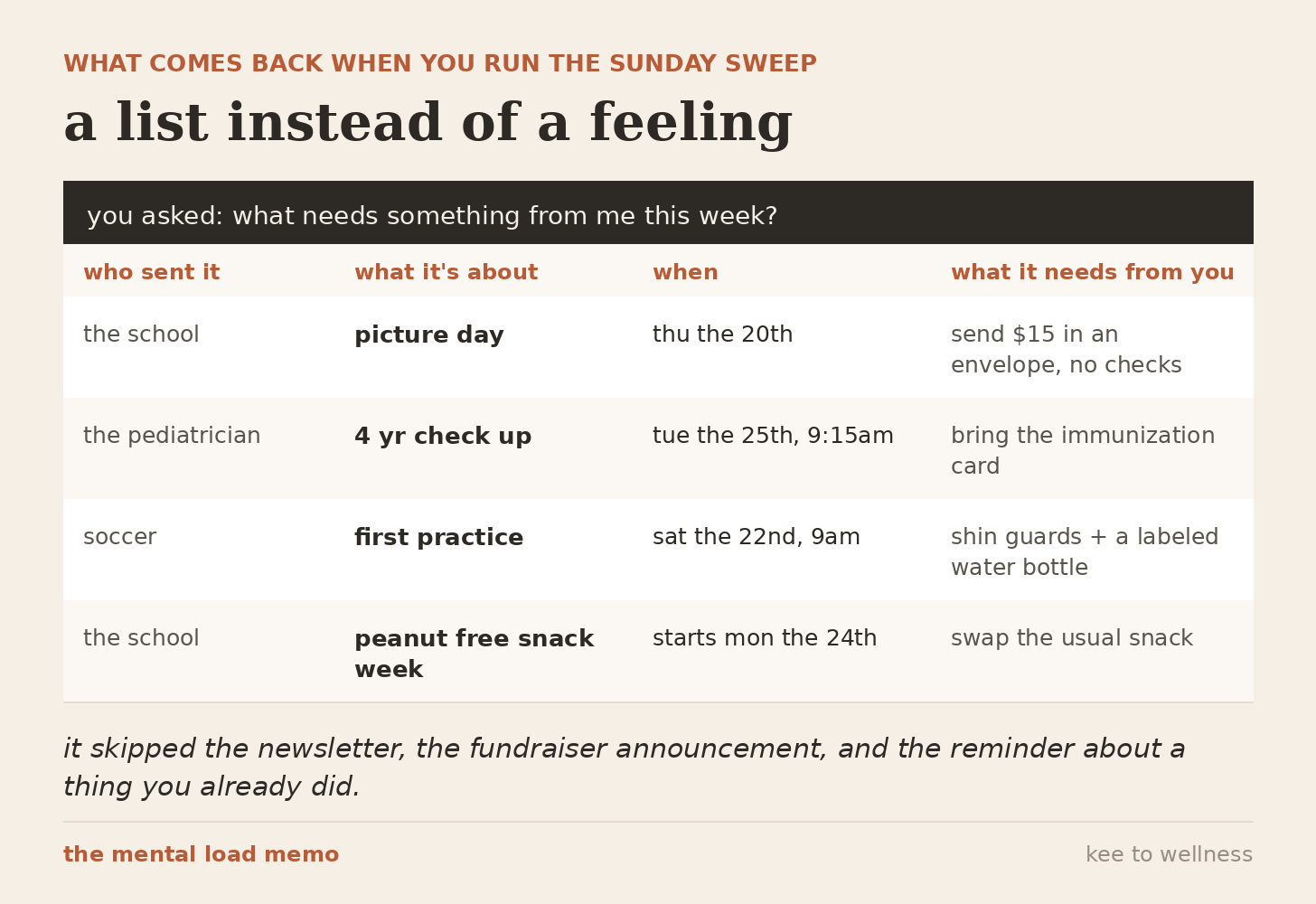
this is the one i actually run every single week, and it’s the whole reason i connected my email in the first place. sunday thing, about a minute, and it is single-handedly the reason i stopped missing school stuff lol.
[search my email from the last 7 days for anything from the school, the pediatrician, or any activity, camp, or team. list only: who sent it, what date it’s about, and what it needs from me. skip anything that’s just an announcement with nothing to do. if there’s an attachment you can’t open, tell me the file name so i can go look at it myself.]
what it actually does: it pulls the three senders that generate basically every single calendar entry in our house, and then it strips out everything that isn’t a date or a task. i get back a short list instead of a vague feeling that i’m forgetting something.
hot tip 1: name the senders out loud, like actually type out the school and the doctor. if you just ask for “anything important” you get a summary of your entire week and your entire personality, but if you name three sources you get back those three sources.
hot tip 2: put the time window in there every single time, so say 7 days and not “recently,” because it reads recently WAY differently than you and i do.
hot tip 3: ask for what it needs FROM you, not for what it says. an email that needs nothing from you isn’t information, it’s just noise, and deleting the noise is the entire job here.
and that’s the whole free answer plus the whole free system. if you read to right here, go flip the setting off, paste that prompt in on sunday and never give me a single dollar, then you got exactly what you came for and i am genuinely glad about it!!
if you want the full setup version of everything i run on top of it, that’s the working mom’s ai playbook, start to finish.
upgrading is basically the cheat code for everything i build here. for less than one target run, you get the stuff i don’t put on instagram:
how i stopped re-typing my kids, my school, my store and my whole week into a text box every single sunday, the folder that fixed it, every click, both tools, fifteen minutes one sunday and never again,
the three searches i actually run on my own inbox, typed out exactly as i type them, with the tips that took me MONTHS to figure out,
what i do with the camp packet when it can’t open the pdf (this one took me way too long to land on and it’s stupid simple),
every guide and system from the memo, the entire archive, unlocked the second you upgrade
the members chat, bonus prompts, and the stuff i don’t put anywhere else
the full setup is below, every step, every screenshot, the whole build.
Comments
Nothing yet. Say the first thing.
Sign in to join the conversation.