
I’ve been using MidJourney for a while now. It’s become my go-to for all of my brand assets, including the artwork used for this newsletter. But, I realised this week that I’ve only really been scratching the surface of what it’s capable of.
As always, feel free to jump ahead to the news.
I am not sponsorted or afiliated with Midjourney in any way.
MidJourney is an AI image and video generator, but I pretty much only use it for image generation. As with any AI image generator, you submit a text prompt, and it will create an image based on your description. A lot of people use MidJourney through their integration with Discord, but I prefer to use their web app for the full set of features.
What I particularly like about it, and what makes it different from other AI image generation tools, is the set of features for stylistic control. Using the same ‘style references’ will produce the same output style every time. This makes it super easy to make all of your images look cohesive and like they’re part of a set with the same signature style.
When you write a prompt, you can add images to the ‘Style Reference’ section. Local images can be manually uploaded, but MidJourney-generated images can also be used by clicking the ‘use style’ button next to it. This will capture the style but not the content of the images. For example, this prompt:

Gave me these outputs:
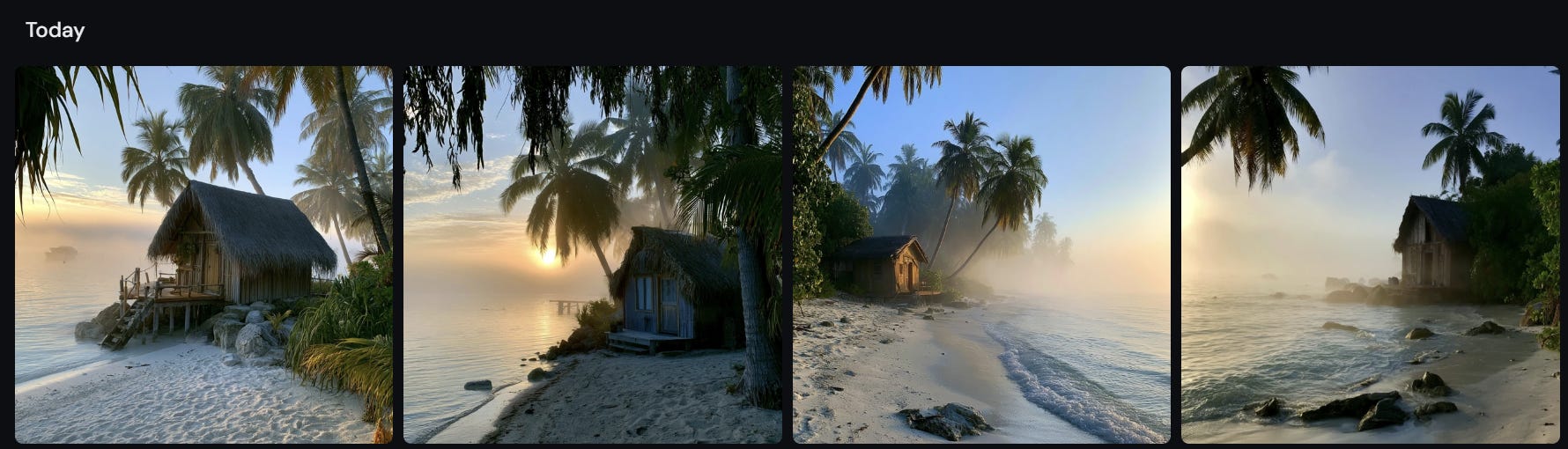
You can make small adjustments to the output style by adding and changing the reference images. When you find a set of images that consistently generate images that you like, add them all to a moodboard in MidJourney. Now, instead of uploading the set of images to every prompt, you can add the moodboard reference code to the prompt instead.
Here’s that same beach hut prompt but in the style of The Clique.
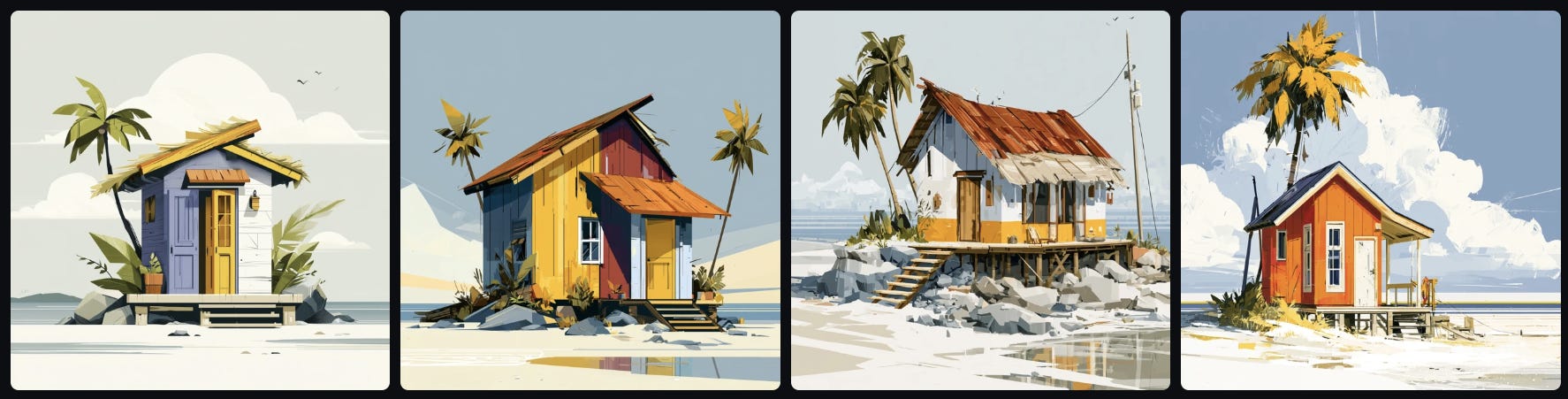
If you don’t already have a specific style in mind, you can use MidJourney’s Style Creator to customise a new one.
Start by submitting a prompt, and MidJourney will show you a variety of images that match. Choose the ones you like, scroll down, and repeat.
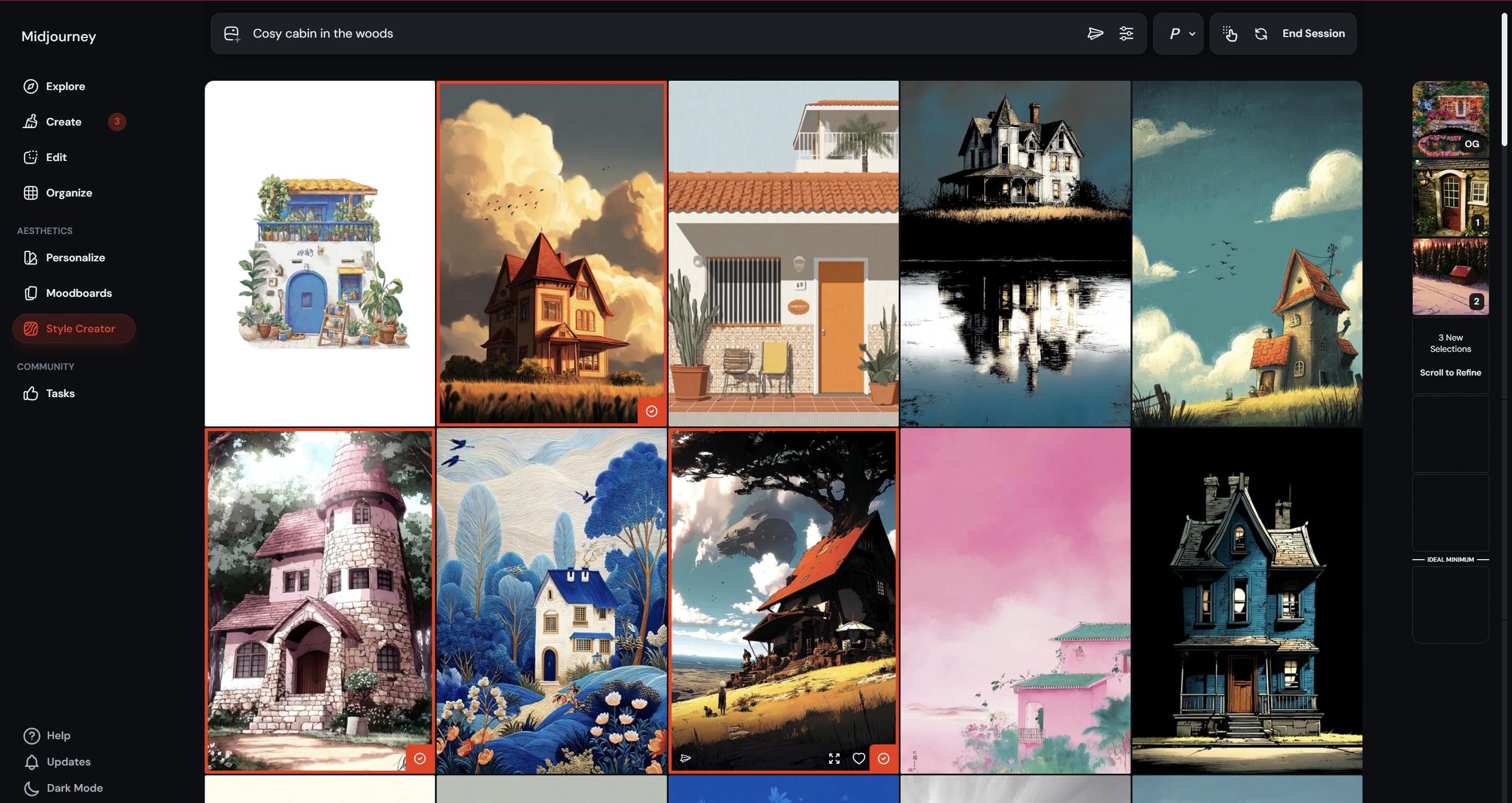
As you scroll, MidJourney will start to show you more and more relevant images to fine-tune the style. With every few images you select, Midjourney will generate a new sample output using the style you’ve established. (See the right-hand side below.)
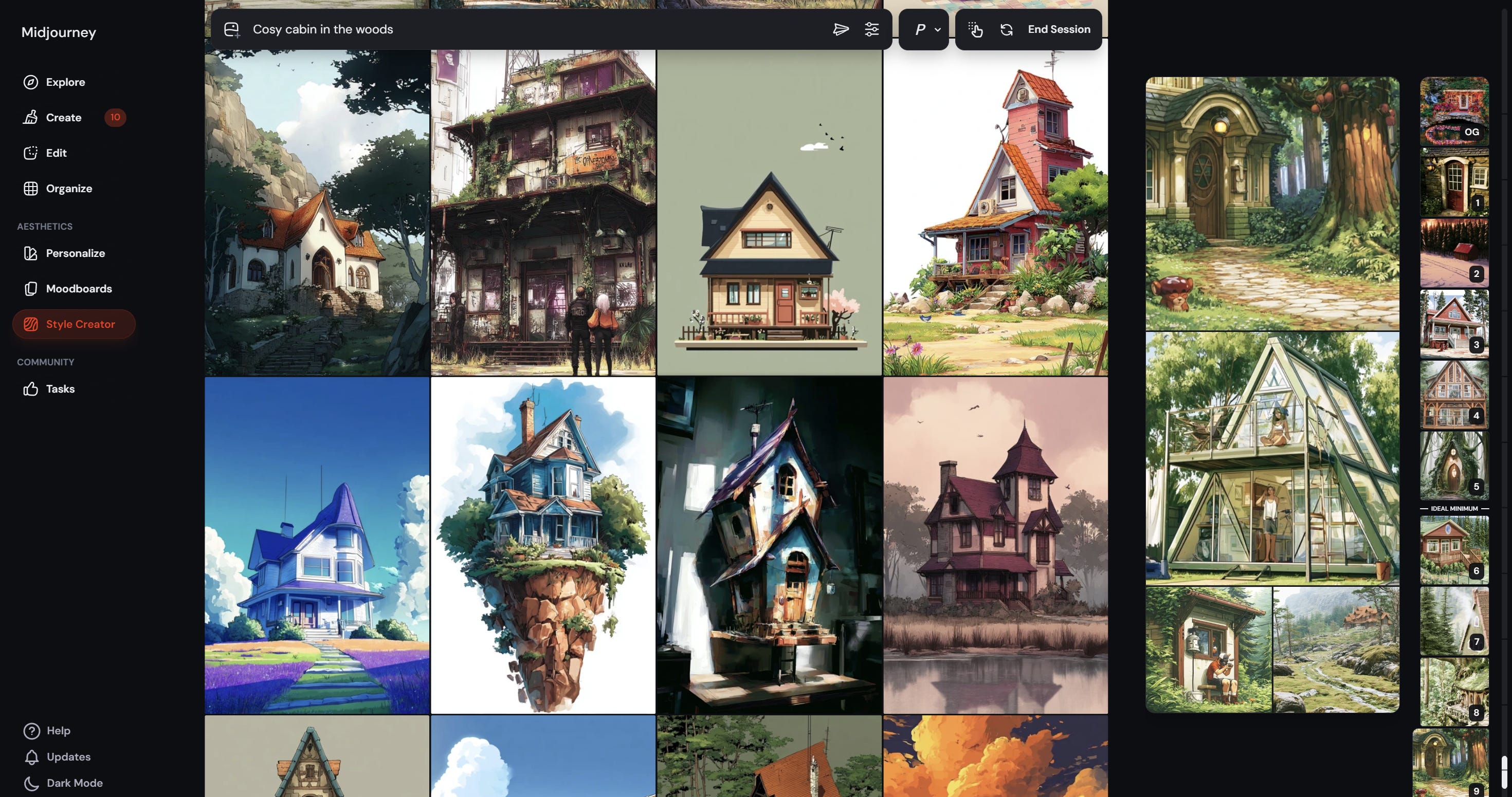
When you’re happy with the style, go back to the ‘Create’ page, and you can see all of the sample images it’s generated through this process. (MidJourney generates batches of 4 images at a time.)
Choose a set that you like and click on the style reference number on the right-hand side. This will copy the reference number to your prompt. You can now use this style in any future prompts. Here’s our beach hut example from earlier, but using this new style code:
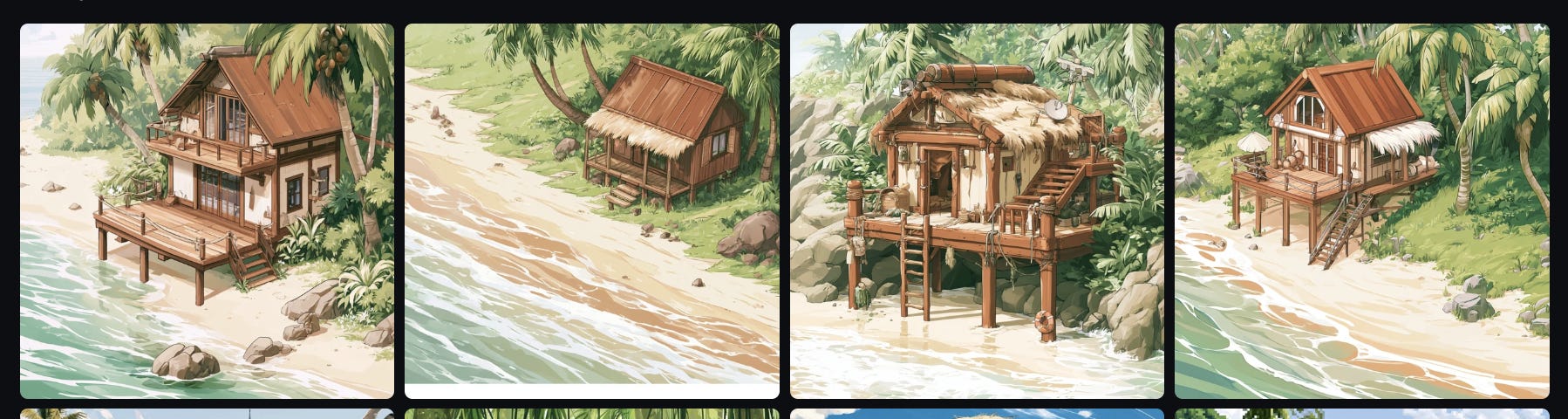
As well as style references, MidJourney has image references, which influence the contents of the output, and Omni references, which ensure consistent characters and objects between generations.
Hitting the up arrow on your keyboard will auto-fill the prompt bar with the previous prompt and settings so you can easily tweak and rerun it.
Midjourney also has Customisation Profiles, which fine-tune an image to your personal taste. It’s
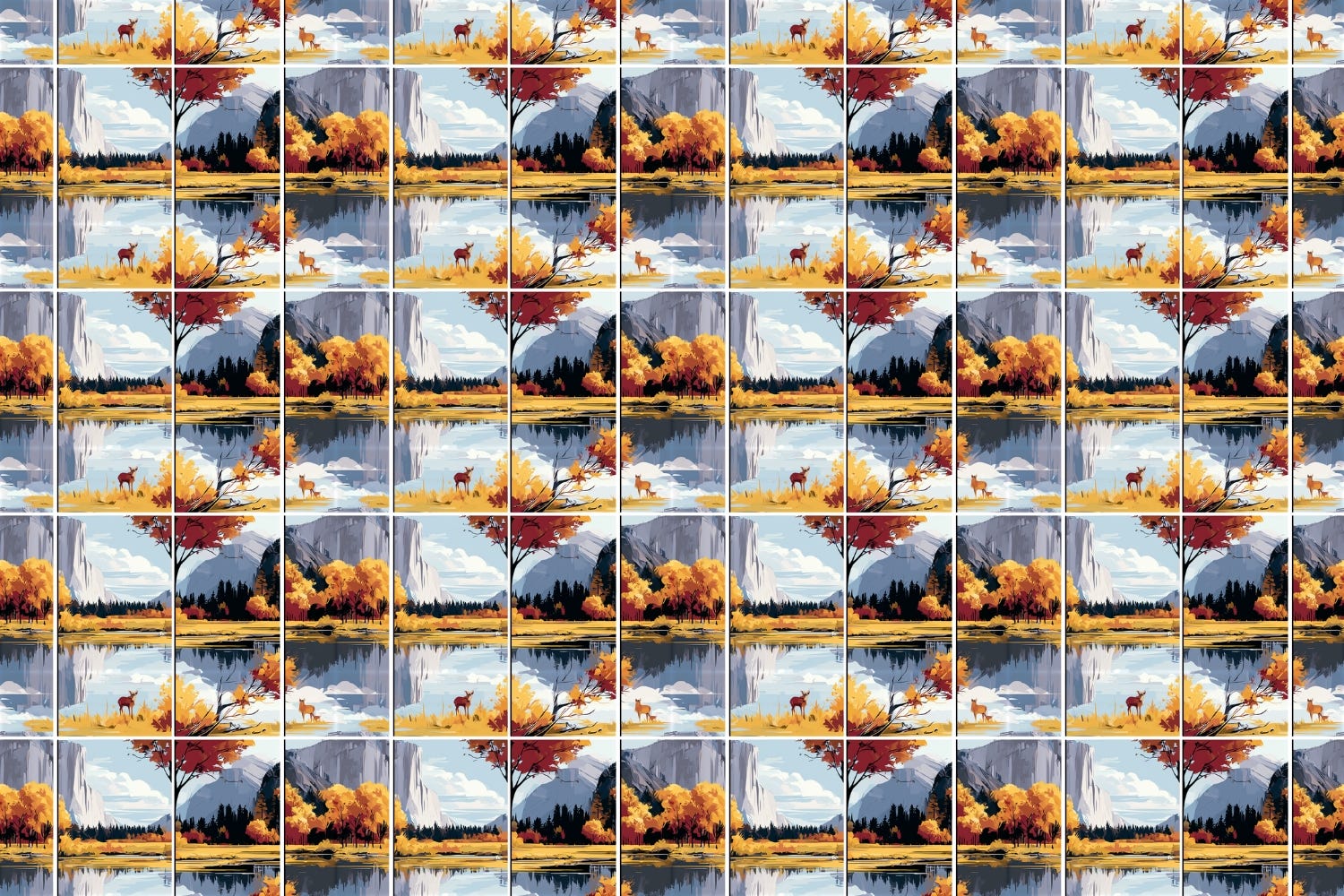
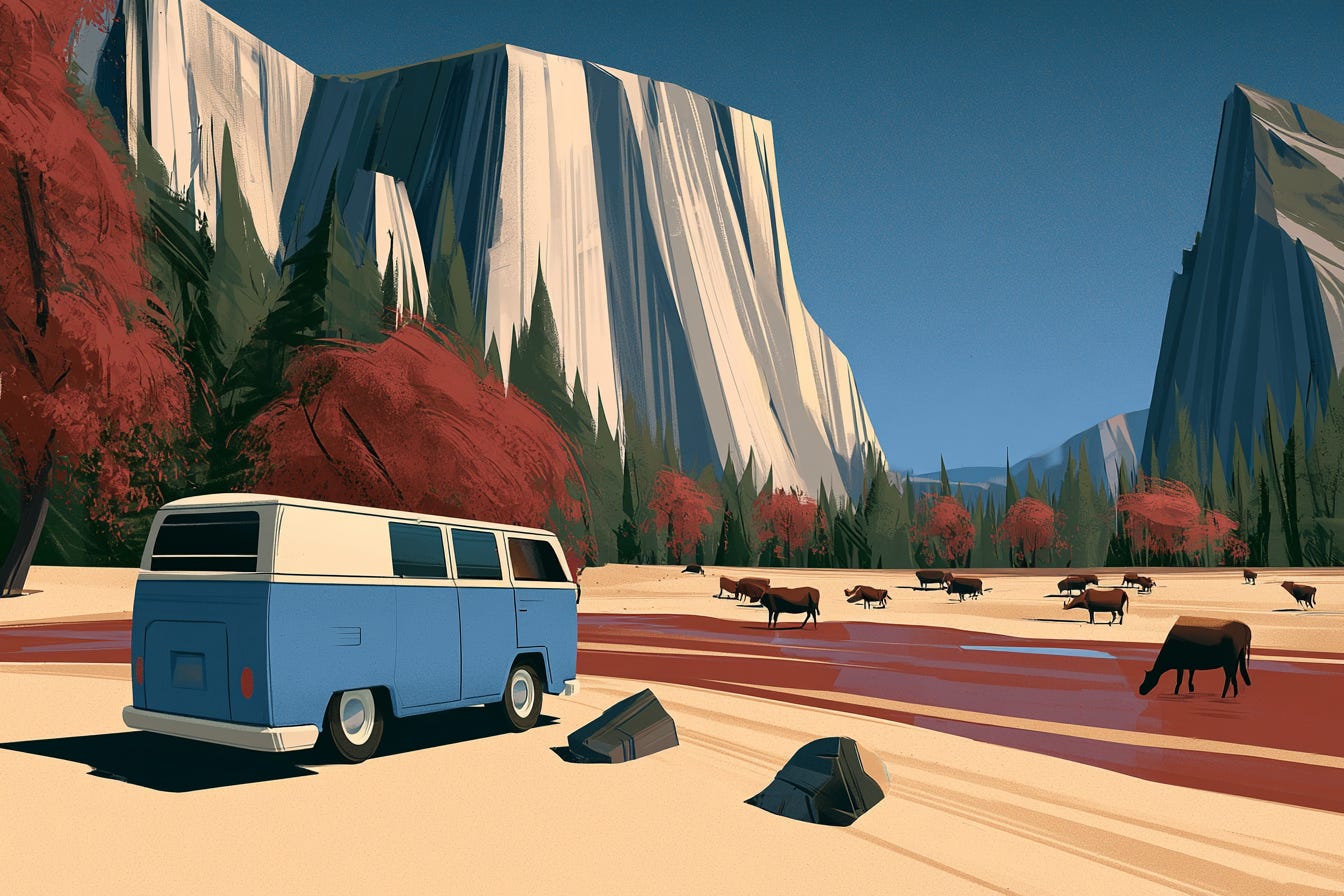
There are lots of other parameters you can use to influence the randomness of the output and how stylised it is. Some interesting ones include ‘--tile’ to make the image tileable, and ‘--weird ‘ (followed by a value between 0 and 3000), which makes images quirky and unconventional.
Example of a tiled image (Well, actually, I put 16 of them together here to illustrate the point)
Same prompt as above, but with ‘--weird 1500’
Senate testimony alleges Anthropic’s Mythos breached almost all NSA classified systems within hours, in an authorised red-team exercise
SpaceX acquires AI coding platform Cursor in a $60 billion all-stock deal
OpenAI plans to deploy ChatGPT to more than 3 million Pentagon personnel through GenAI.mil in July
OpenAI’s o3 Deep Research model helps identify diagnoses in 18 previously unsolved rare paediatric disease cases
Midjourney moves into medical hardware with plans for an ultrasonic full-body scanner
Meta pauses its employee keystroke-tracking programme after an internal error exposes sensitive data company-wide
Americans spend more than 700 million hours on AI companion apps, twice what they spend on dating apps, Sensor Tower reports
Google DeepMind publishes a layered AI control roadmap to protect against misaligned agents
Anthropic disputes the government’s order suspending Fable 5 and Mythos, calling the benchmark used to assess them unworkable
Major tech companies cited AI to justify tens of thousands of layoffs in 2026
Apple’s iOS 27 brings AI into bills, calendars and passwords through an overhauled Siri, due in beta this September
Anthropic launches Claude Tag, an always-on AI teammate for Slack that accesses channel history to help teams
Anthropic will require government ID and biometric verification from consumer subscribers flagged for policy violations, starting July 8th 2026
47% of US singles view AI in dating negatively, with 40% unwilling to date companion-app users, Match Group finds
Meta launches its own-brand smart glasses at $299, stepping out from the Ray-Ban partnership
Google DeepMind invests $75 million in A24 to develop AI tools for film production
Meta’s Oversight Board calls for stronger protections for ordinary people against sexualised deepfakes
Claude Opus 4.7 completed robot programming tasks 37 times faster than an unaided human team in Anthropic’s Project Fetch
Thanks for making it this far,
James
Go on, share it… you know you want to 👇
No posts
Comments
Nothing yet. Say the first thing.
Sign in to join the conversation.