
Flyweight chat UI with embedded web frontend, Ollama response streaming, conversation history, and Wikipedia API integration. Directly usable as Firefox chat panel, no dependencies needed.
From the many available LLM (here, Ollama in particular) chat frontends, most come with a considerable own tech-stack or require handling Docker containers. Just for straight-forward occasional use on desktop setups, both can become inconvenient, i.e., given the low requirements at hand.
This project aims to provide a ready-to-use lightweight alternative:
- Single-source Python script that requires no external dependencies or files.
- Fully embedded web server and frontend.
- Interfaces with a locally running Ollama instance.
- Apart from standalone operation, tested as Firefox AI chat sidebar provider:
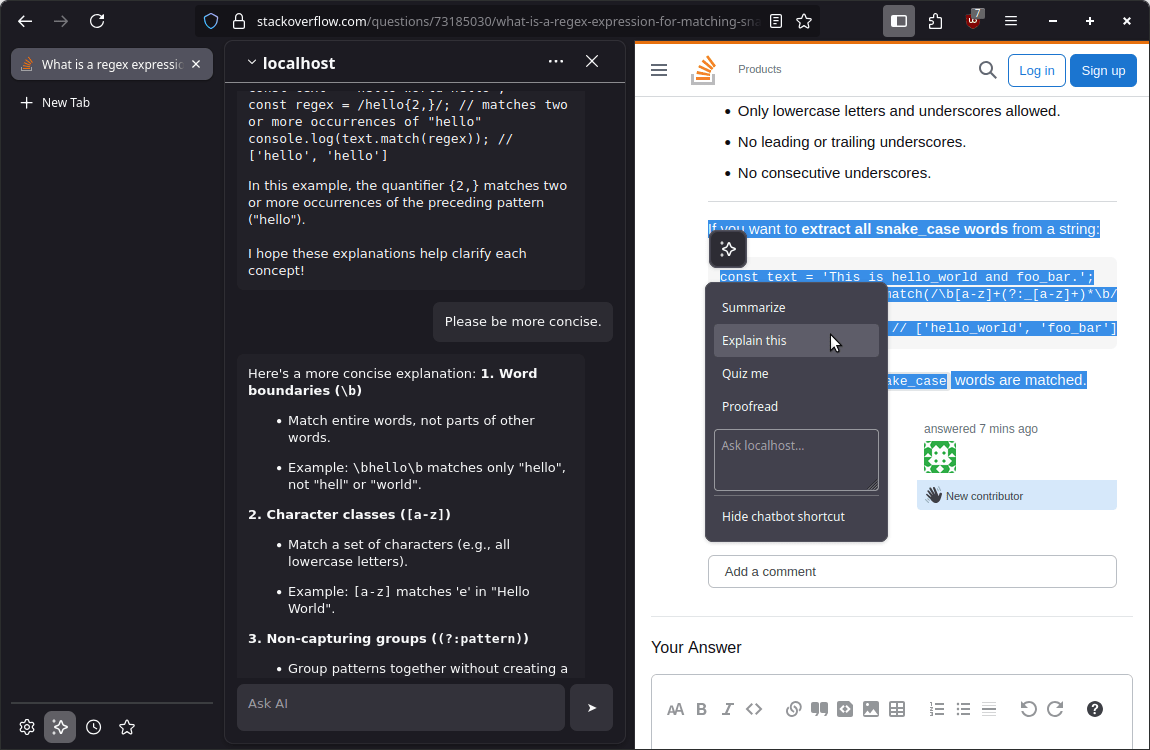
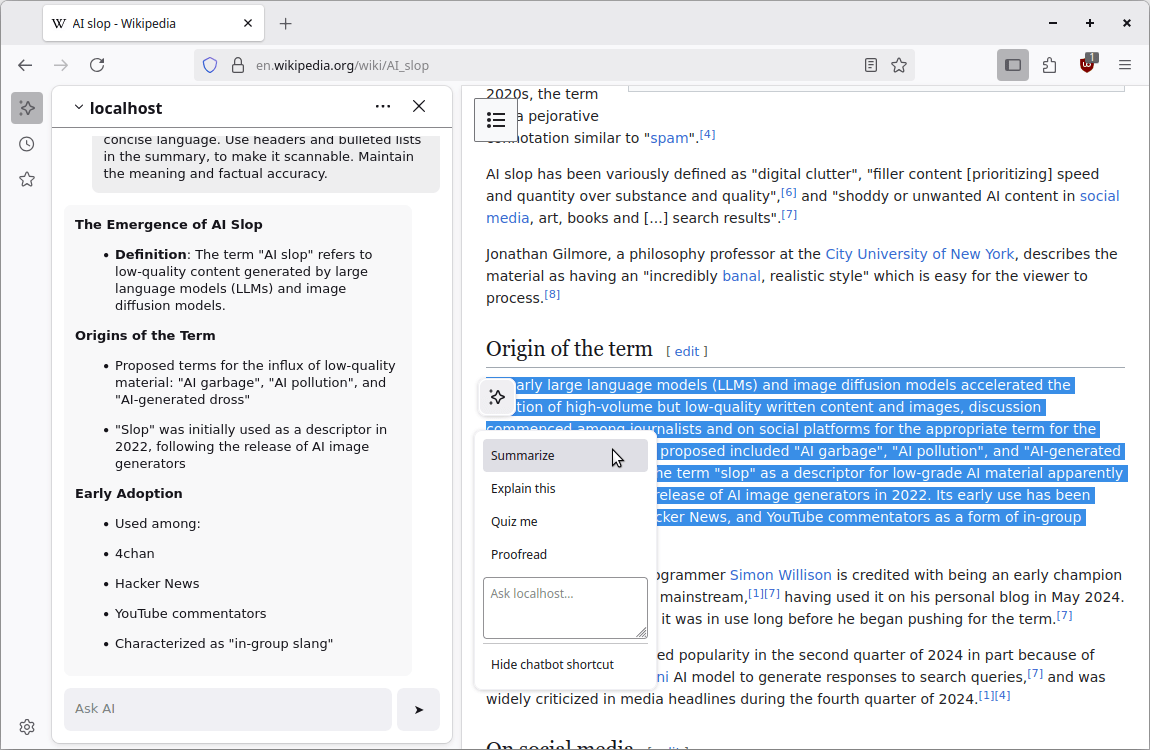
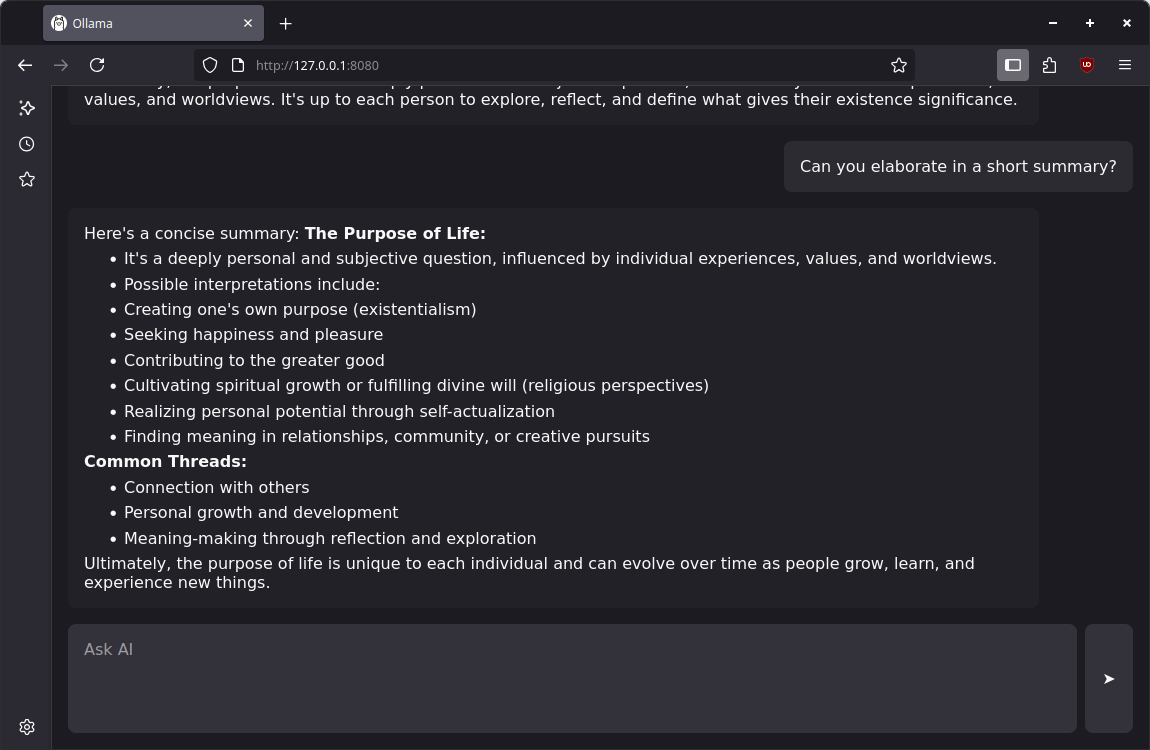
- Optional Wikipedia search API integration for “agentic” tool calling to retrieve additional, authoritative information.
- Real-time response streaming of model outputs, for interactive results.
- Conversation history to maintain context across multiple sessions/tabs, optional thinking mode, custom system prompt.
- Minimal installation, idle, and runtime overhead.
- Can accept systemd sockets, for lazy startup on demand.
Local Firefox AI Chat Panel Configuration
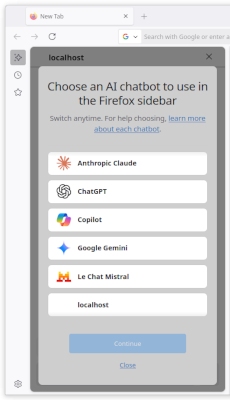
As initial motivation and in addition, mini-ollama-ui is directly compatible with the Firefox AI chat sidebar.
This panel does not directly integrate APIs – instead, it (merely) posts prompts to an embedded web page, for a native-like extension without need for any other dependencies or browser addons.
The option to choose a local provider must be enabled first, though:
- To configure,
browser.ml.chat.hideLocalhostatabout:configneeds to be toggled tofalse. - For more control on the host or if the local port 8080 is already taken, the
http://localhost:8080URL can be configured viabrowser.ml.chat.provider.
Apart from being accessed from browser context actions by this means, the prompt frontend URL can be used directly for longer conversations, too.
Usage & Installation
As the script comes with an own webserver and embedded assets, no installation is required – it can just be started when needed from anywhere.
usage: mini-ollama-ui.py [-h] [--verbose] [--ollama-url URL] [--model NAME] [--thinking]
                         [--localhost] [--port PORT] [--systemd]
Minimal ollama UI.
Featuring embedded web frontend, response streaming, wikipedia search tools, and conversation history.
No external dependencies or files are required.
options:
  -h, --help        show this help message and exit
  --verbose         enable debug logging (default: False)
  --ollama-url URL  ollama API base url (default: http://127.0.0.1:11434/)
  --model NAME      ollama model to use (default: llama3.1:latest)
  --thinking        enable model thinking mode (default: False)
  --system PROMPT   custom system prompt (default: None)
  --tool-lang LANG  wikipedia language such as "en" or "de" (default: None)
  --localhost       bind to localhost only (default: False)
  --port PORT       port to bind to (default: 8080)
  --systemd         use inherited socket for systemd activation (default: False)
Note that Ollama must also be running and have the corresponding model available.
When a language is specified, the model may use https://{tool-lang}.wikipedia.org/w/api.php as “tool” to retrieve additional information, such searching for links or fetching article summaries.
Systemd Socket Activation
When manual interaction with both services on-demand becomes cumbersome or always running both seems too wasteful, systemd (user-scope) units can be considered.
As listening on an inherited interface is supported, a .socket to just watch the given port would look like:
[Socket]
ListenStream=127.0.0.1:8080
[Install]
WantedBy=default.target
Upon incoming connections, the corresponding service will be started, which also triggers the Ollama unit when necessary:
[Unit]
Description=Mini Ollama UI
After=ollama.service
BindsTo=ollama.service
Wants=ollama.service
[Service]
Type=notify
ExecStart=%h/.local/bin/mini-ollama-ui --systemd --localhost --verbose
All this is doable via user services, without requiring system-wide privileges.
install mini-ollama-ui.py ~/.local/bin/mini-ollama-ui
cp mini-ollama-ui.service mini-ollama-ui.socket ~/.config/systemd/user/
systemctl --user daemon-reload
systemctl --user enable mini-ollama-ui.socket
systemctl --user start mini-ollama-ui.socket
Comments
Nothing yet. Say the first thing.
Sign in to join the conversation.