
The best way to learn is by doing. Most articles about AI coding leave people thinking “Cool, I should try that someday” rather than actually sitting down and building something. That bothers me, because building with AI is the opposite of exhausting; it’s energizing.
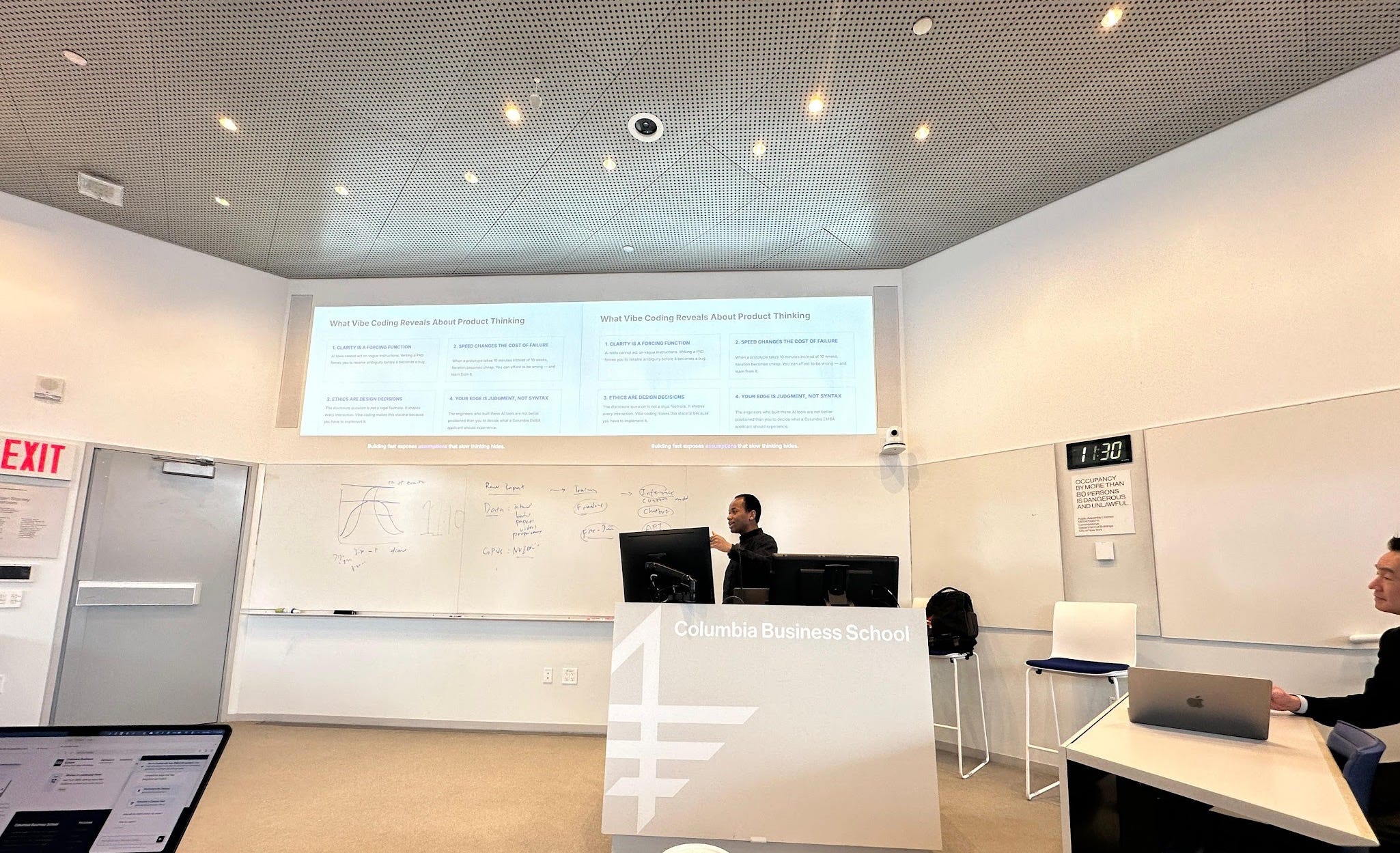
Last week, I taught a class at Columbia Business School where 74 students learned to build chatbots and websites using Claude Code. By the end of the hour, every single person left with a working chatbot they built themselves and a new appreciation for the ideas they could now bring to life. Walking out of that session, I kept thinking about how to make it even more accessible. Because here’s what most people don’t realize: you can build a working app from a device as small as your phone.
That’s what this guide is about. Whether you’ve read the earlier parts of this series or this is your first stop, the goal is simple: take you from zero coding experience to a live app. Let’s dive in!
Before we begin:
You’ll need to make free accounts and apps to make this happen:
Claude App (iOS, Android, Desktop): you'll need a paid tier to access the Code functionality we'll be using
Github : This is where Claude will save your code.
Vercel: This will allow you to connect the code on Github to a service that will deploy it to a live website link others can access.
Step 1: Give your code a home on GitHub
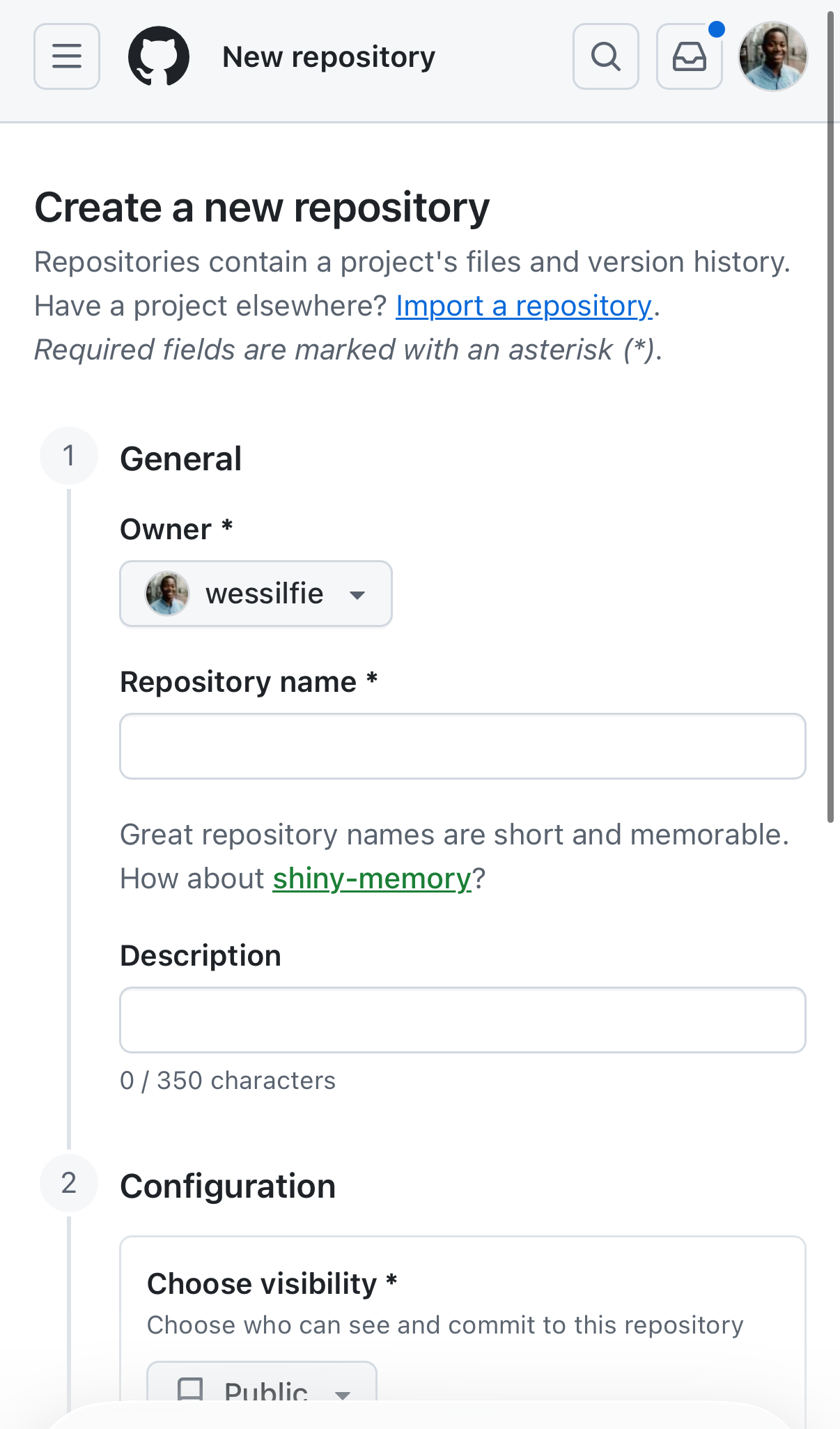
Login into your GitHub account and create a new repository. Pick a name and add a description and whether your code should be publicly available or not through the visibility option. I’d recommend turning “Add README” on as a helpful way to remember the goal of the project and eventually have Claude share how it was built. GitHub will be where you get to save your code and through a system known as git, track changes over time.
Step 2: Write a PRD before you write a single line of code
In Part 1, I talked about getting honest with yourself about what you’re trying to build. In Part 2, we used a PRD mindset to turn a fuzzy idea into something buildable. Do the same thing here, before you ask Claude Code to generate anything.
Your PRD doesn’t have to be long but should answer questions like the following:
What are you building?
Who is it for?
What does v1 need to do?
What is v1 explicitly not supposed to do?
What should the experience feel like?
If you have design references or screenshots of things you like, add those too. Claude Code can use visuals to inform the look and feel of what it builds for you.
Step 3: Build your app with Claude
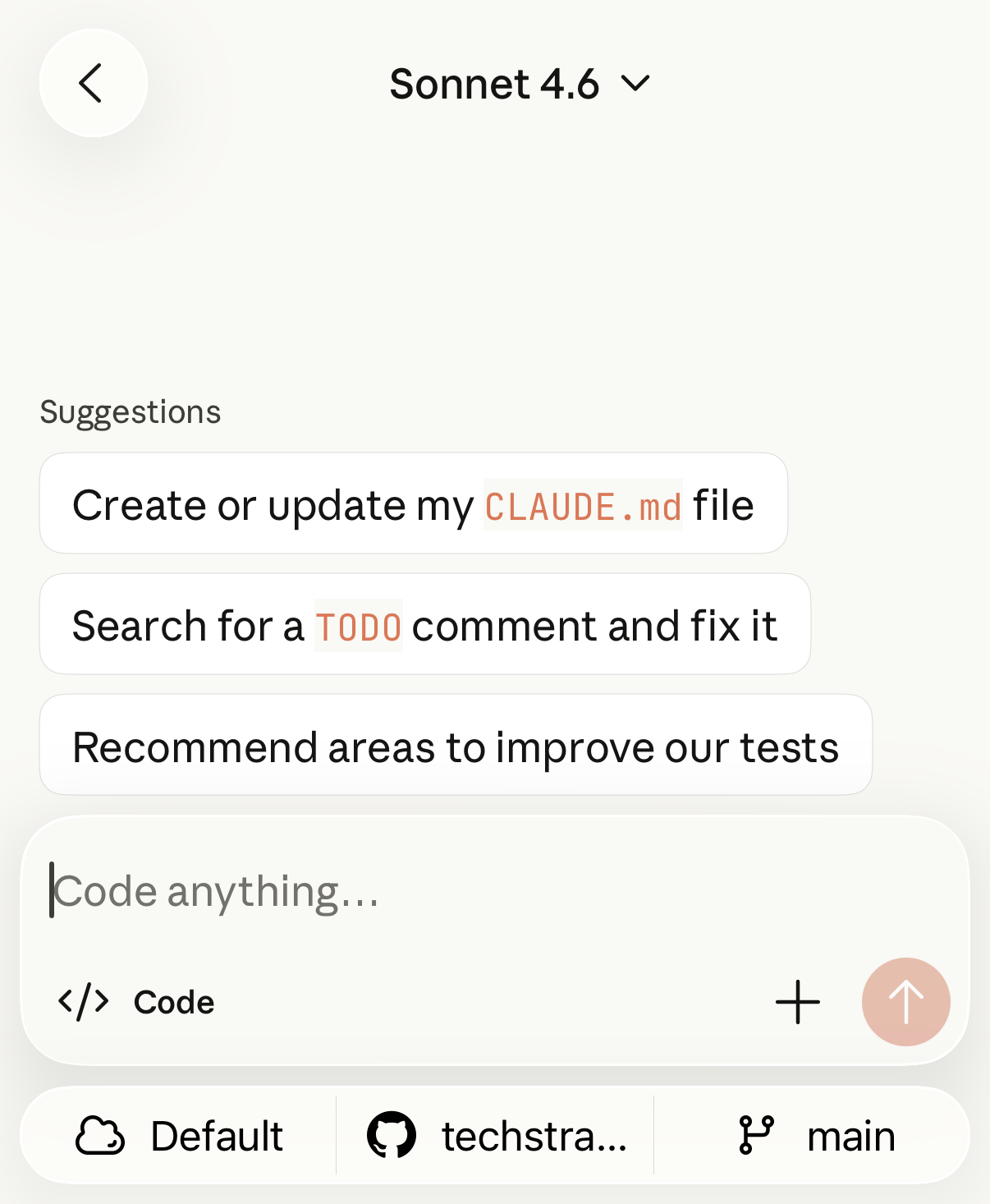
To turn your PRD into a working app, you can use Claude Code’s apps to do so. On the mobile apps, click the hamburger icon in the top left of the app and click into the “</> Code” section. Click the “+” icon in the bottom right to start a new session. You’ll want to ensure you’re on the default environment (cloud) and go to the Github icon and select your project. If your Claude account is not connected to your Github, the app will walk you through the steps needed to connect your accounts. Once that is setup, you can search for your project and select it and leave it on the main branch.
On a desktop open the Claude app and go to the Code tab at the top. Next, click “Select folder” next to the chat box and create a new folder specifically made for the project. AI tools like Claude can delete and edit files so it is extremely important you limit the tool to a folder where you’re ok with this level of risk (hence my recommendation create a new folder per project).
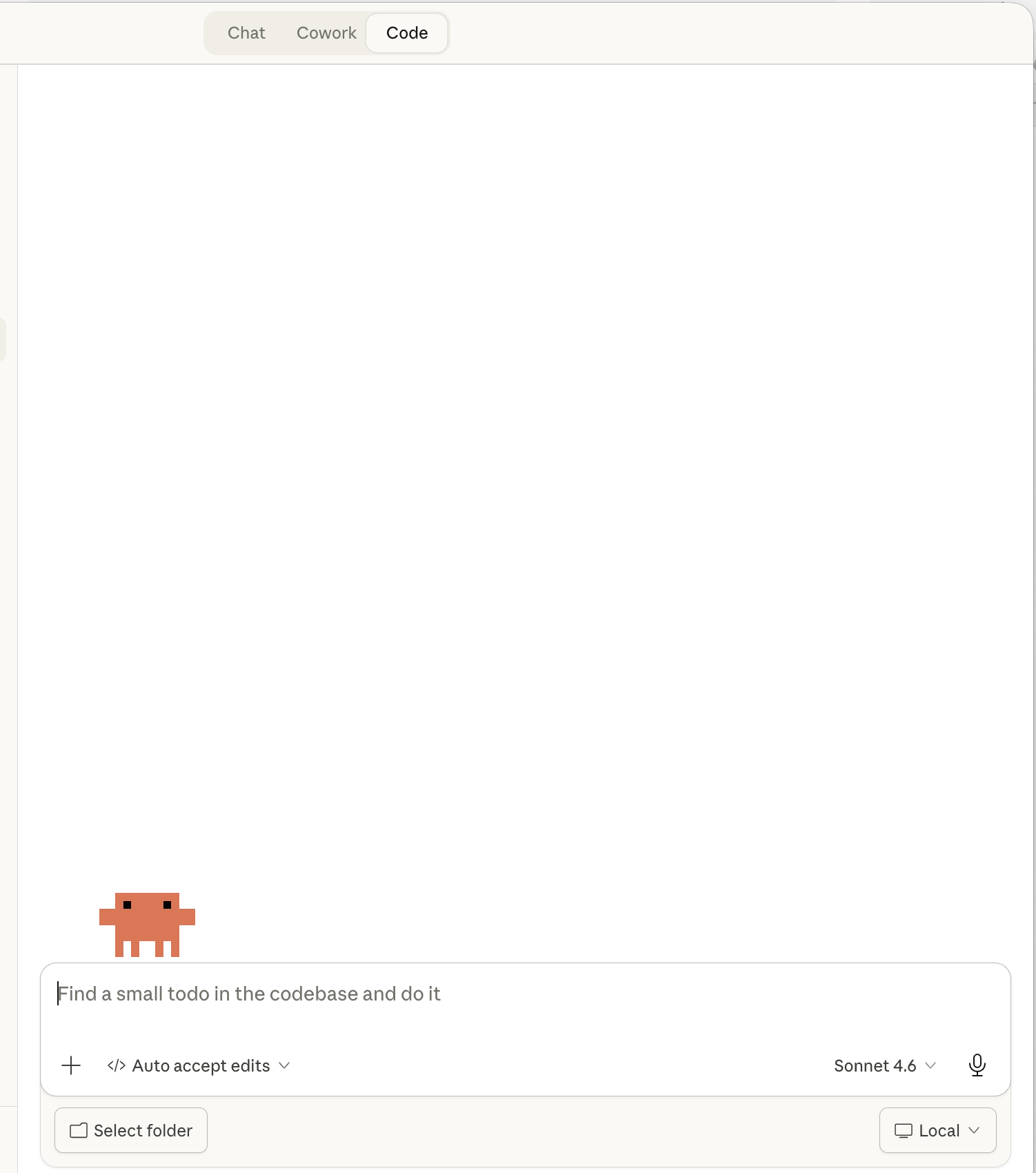
Once setup, you can provide Claude your written PRD and ask it to take that plan and deliver a “next.js project that can be deployed to Vercel.” Next.js is a helpful framework for building interactive websites and developed by Vercel, a platform with a generous free tier.
If you are using the Claude desktop app, you can use Plan mode to have Claude take your PRD and generate a summary of what it will plan to build that you can review and modify before it gets started. At the time of this post, plan mode is not available in the mobile apps.
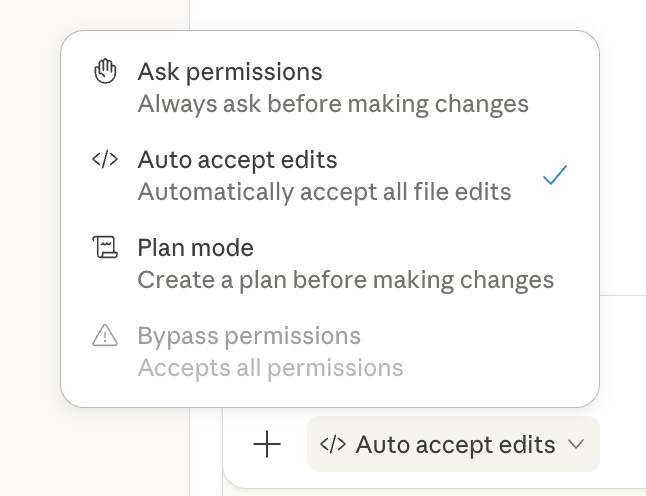
Enter your plan and hit enter and Claude will begin taking your idea and working on writing the code for you. If you want to improve the results, I highly encourage you to give Claude photo examples of designs you like, use Claude Chat to workshop ideas and help with crafting a prompt for Claude Code, and thinking about tradeoffs in the requirements you set (example: should your site . You can set notifications so Claude can notify you when it has completed that work.
While we wait for the code to get written, let’s set up the deployment site so you can have a working link to see the results once Claude finishes building your project.
Step 4: Connect Vercel and go live
We’re going to get your project ready to deploy onto the internet and be visible for yourself and other users. In this guide, we’ll use Vercel, a popular service that can pull your GitHub code and every time there’s a commit run and deploy it and put it on the web at a URL.
Let’s get this setup:
Sign in to vercel.com with your GitHub account or make an account and give Vercel access to your Github repositories.
Click the “+” and select Project.
Name the project, connect it to your Github repo (You should see it select “Next.js” as the Application Preset)
Click “Deploy”
Vercel will then look to your main/master branch of the GitHub repo and when it detects new code is live, it will run the code, and if there are no errors, deploy it to the internet and give you a [projectname].vercel.app link. From that point on, your publishing loop becomes: update code, push, site updates.
Congrats, you’ve shipped a new project to the web just like that!
Step 5: Continue iterating and shipping your site.
You now have a complete system for building and publishing from anywhere, including your phone. Write new PRDs when you want to add or change something, ask Claude Code to implement them and deploy to main, and Vercel handles the rest.
Over time, you can go further: connect a database, add user accounts, build new integrations. The foundation is the same.
AI tools like Claude are making it possible for anyone to build. I hope this guide gives you the push to finally try out that idea you’ve been sitting on. If you build something with it, I’d love to hear about it. Just reply to this email or drop a comment below.
No posts
Comments
Nothing yet. Say the first thing.
Sign in to join the conversation.