

In Part 4 of this series I will extend the PyQt Text File Viewer to display descriptions of non-printable ASCII characters and the codes of Unicode characters. These are the first three parts.
A Text File Viewer in PyQt Part 1 - create a window, menu and toolbar, and show a message when these are selected.
A Text File Viewer in PyQt Part 2 - show an open file dialog and show the selected filepath.
A Text File Viewer in PyQt Part 3 - display basic text of selected file.
This project consists of two Python files, filecont3.py and pqtfv04.py, which build on the earlier code. There are also two small graphics files for the toolbar buttons and these three text files for testing:
shakespeare.txt - an ASCII-only file containing a piece from Shakespeare’s Henry V. As he died in 1616 the copyright on his work has now expired!
unicode.txt - a small collection of Unicode characters, actually a few emojis which I like. This is a UTF8 file so uses the minimum number of bytes needed for each character. However, as the characters in the file all have high Unicode codes they use 4 bytes each so the 11 characters take up 44 bytes.
unprintables.txt - all the ASCII characters which are not intended to displayed or printed. ASCII was originally created for teleprinters and included a number of control characters many of which are rarely if ever used these days. In fact this file could be the only time you’ll ever encounter them.
You can clone or download the files from the GitHub repository which is used for all of the files in this series.
This is filecont3.py which has been extended to process the contents of a file and add annotations.
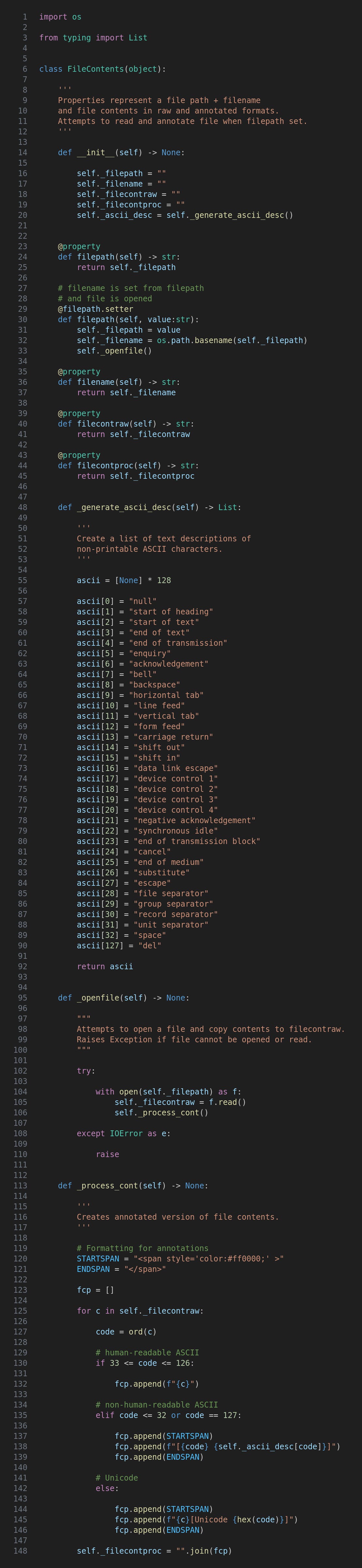
There is now a backing variable called _filcontproc and corresponding property getter for processed and annotated text, and _ascii_desc which I will explain when we get the the _generate_ascii_desc function
This function was called in __init__ to initialise a list of descriptions for non-printable ASCII characters, the list indexing corresponding to the ASCII codes.
The _openfile function now calls _process_cont which I will describe next.
This function is central to the extended functionality in this version. Firstly a pair of constants are created to bookend the annotations - they will look familiar if you know a bit about HTML and CSS. I have just set the color to red but additional or different formatting can be used. Then an empty list is created for the processed content.
Next the raw content is iterated and the ASCII/Unicode value retrieved for each character using ord. What happens next depends on this value:
Human-readable ASCII - just show the character
Non-human readable ASCII - show the description from the _ascii_desc list in a span
Unicode - show the code in a span
Finally the list is joined into a string for the application to display.
The desktop application code in pqtfv04.py is essentially the same as before so let’s go straight to running the program with this terminal command.
python3 pqtfv04.py
These are the windows running on Linux Mint with the Cinnamon desktop. As the appearance is OS dependent yours might look slightly different but will work in the same way.
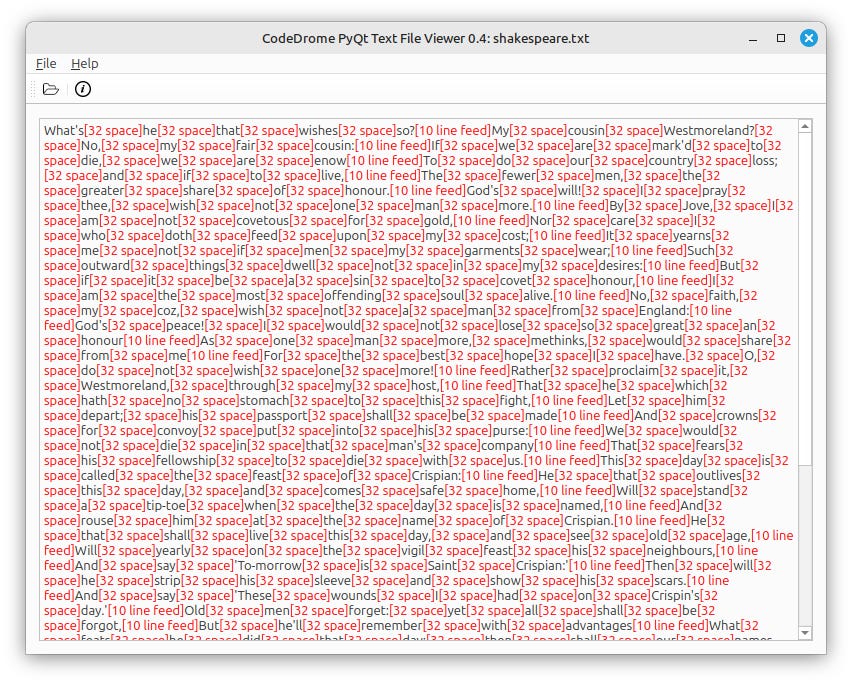
Firstly this is shakespeare.txt (the St. Crispin’s Day speech from Henry V), an ASCII-only file. As you can see the spaces and line feeds are replaced with red text.
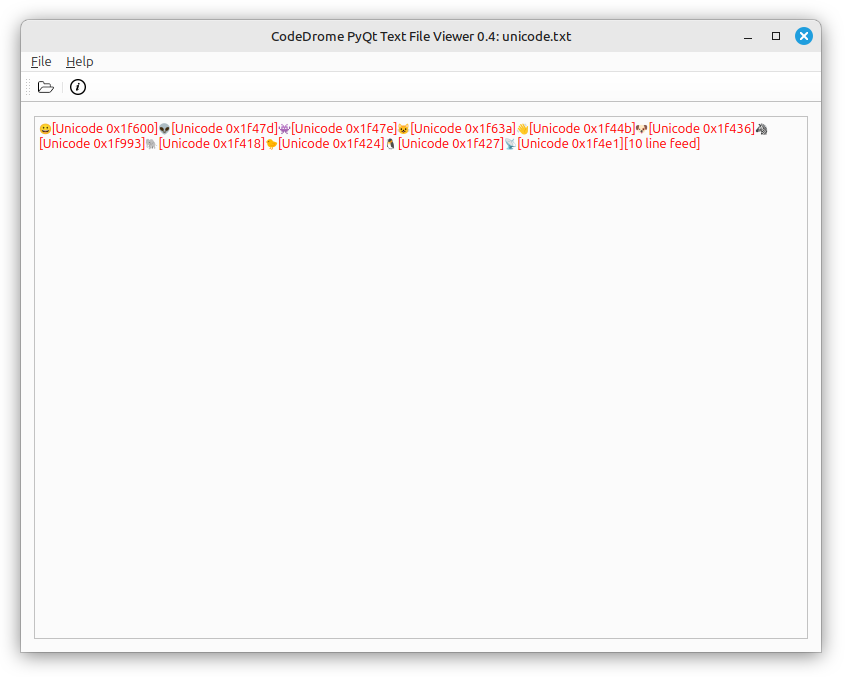
The unicode.txt file has a few emojis which I chose more or less at random and which are now suffixed with the codes in hexadecimal.
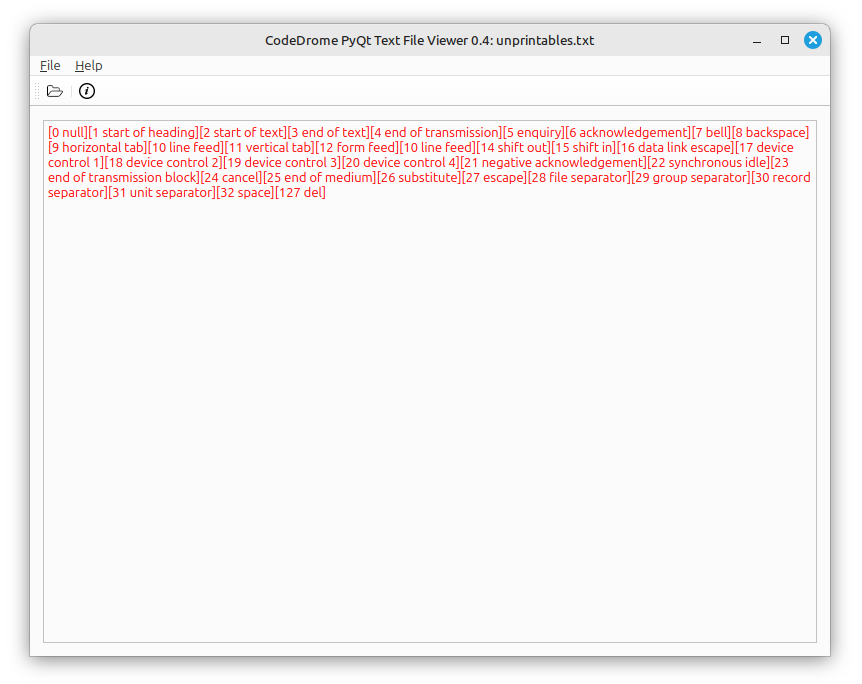
The characters in unprintables.txt are the ASCII control characters and space, and their descriptions are now shown.
We have now reached a point where the application, although very simple, has a practical use in examining the exact contents of a text file including any “invisible” characters. I have a few ideas for further enhancements which I will implement and document in future articles.
For updates and random ramblings please follow me on Bluesky.
No AI was used in creating the code, text or images in this article.
Comments
Nothing yet. Say the first thing.
Sign in to join the conversation.