
Let’s Celebrate National Clean Out Your Computer Day!
This year February 9 was National Clean Out Your Computer Day. This is one of those goofy days that you can find on those “Every day is a holiday” calendars. This one allows me to mention some very important computer maintenance items that most people overlook. All of these things are fairly simple but can make a big difference in the performance of your computer.
Unnecessary and temp files – Just by using your computer on a regular basis your computer will start to accumulate files that you really don’t need or want. These are temp files created during updates and installs. Sometimes these are removed by the process that created them but many times they are not removed and just sit there taking up space. Also, many people are not aware that if you delete a file, it doesn’t really get removed from your computer, it goes into the recycle bin and it will stay there until you empty the recycle bin. This can be helpful if you accidentally delete something. You can go to the recycle bin and retrieve it. I have worked on computers that ran out of space due to these types of files. Windows has some built in tools to help solve this issue, but I like a free program called CCleaner which does a better job at this. They have a “Pro” version also, but the free version does enough.
Desktop – It is very easy to use your desktop for file storage since it is right there, so you don’t have to go looking for all of your files, but when your desktop is full of files and other icons it is easy to miss a new icon that just shows up one day. This happens a lot when you get adware or sometimes even malware. If your desktop is only holding a few shortcuts for programs, it is easy to find those pesky adware icons so you can remove the adware before it causes you problems. I can certainly help with this if it happens.
Backup – Are your files only on your computer? Do you use cloud services like iCloud, OneDrive, Google Drive, or Dropbox? This is a good time to verify any backup. I can also help with this and get you set up with a good local or online backup if needed. If your files are in the cloud, it is important to know that cloud services are not backups but syncs. Here is a video that explains the difference -
ANTI-VIRUS – First of all, do you know what anti-virus you are using? This is a very important question since the biggest phishing scams involve fake receipts for antivirus. These scammers will send a fake invoice for hundreds of dollars and the only information on the email is a contact phone number. They use very large amounts hoping you will get upset by it and call the number to complain. Once you call, you will connect to a very nice and helpful person who will handle all of this for you. They simply need to get on your computer to remove their product. Once on your computer they can do many things to steal from you. If you know that you do not have this particular program, it is harder to scam you. As I have stated before, never call the number in the email. If it looks like you paid something you shouldn’t have paid, the best thing to do is call your bank to dispute the charge. Of course, you can also look online, and you will see that there was no charge. But there are other reasons to check your anti-virus. Sometimes malware is successful at getting on your system and the first thing it will try to do is turn off your anti-virus. So, it is important to check it occasionally to make sure it hasn’t expired, is on, and running a daily scan.
So, there it is, how you can celebrate National Clean Out Your Computer Day! As always, I am available if you need help with any of these items or anything else computer related.
These Simple Things Can Lock You Out of Your Computer
I have talked about these things before, but now I have a program to help you make sure these things are in your control so that you will not get locked out of your computer or lose data. The things I am talking about are System Restore and Drive Encryption.
System Restore is a great tool that Microsoft has had for years, but recently I have run across many computers where this tool is turned off by default so unless you check this regularly you may not have access to this tool when you need it. This tool comes in handy when your computer gets stuck in the startup process and can’t continue. This sometimes happens due to an update or just because something didn’t shut down correctly. With system restore you can actually go back to before the issue and restore your settings to that time which fixes the issue. It only affects Windows and settings; it does not touch any documents or other data so it can be safely used regardless of how much data has changed since the last restore point.
Drive Encryption is there to protect you in case your computer is stolen. Unless the thief has your password, they can’t access the hard drive. Even if they remove the drive and try to connect it to another computer, they won’t be able to access it. They will then need a 48-character key, so it is virtually impossible to break into an encrypted drive. This is great unless you have a problem and your drive thinks it has been tampered with. It might require this key from you. If you are not aware of this encryption or don’t know your key this could be a real problem. I have even seen where Windows turns on this encryption without the user being aware of it.
Here is a video that talks about these:
For my business clients I have software that ensures these tools are working properly and that we have the key in case it is needed. I recently started a program for individuals that will do the same thing along with a few other things to make sure your computer is always running smoothly.
This program is my Semi-Annual Compute Maintenance Program. When I set this up, I come to you in person the first time to make sure everything is running correctly and then I schedule a “tune up” remotely every six months after that. You service your car a couple of times a year and you should do the same for your computer.
If you want more information about this program give me a call.
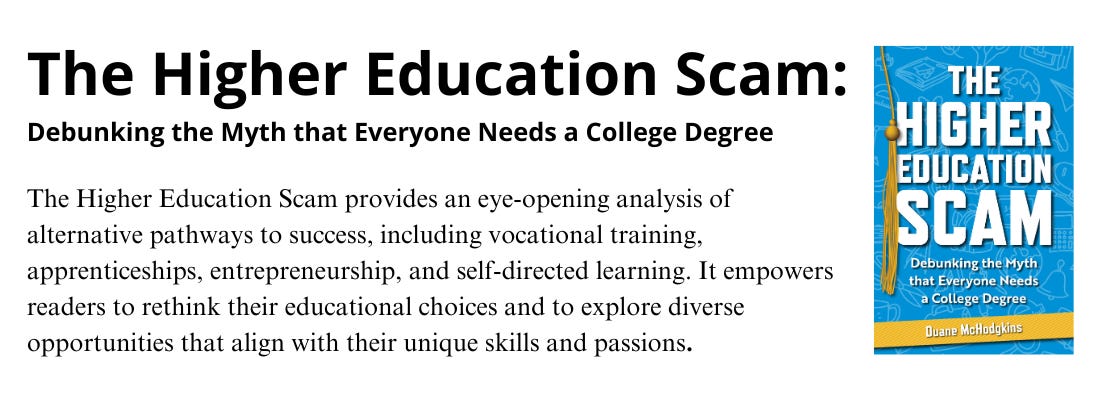


It is time to have "the talk" with your aging parents.
The talk about how to avoid becoming a victim of scams. Email Scam Busters is your monthly resource to let you and your parents in on the latest scams they should look out fo
Subscribe to Email Scam Busters
Thanks for reading Call Duane! Subscribe for free to receive new posts and support my work.
Comments
Nothing yet. Say the first thing.
Sign in to join the conversation.