
The above video demonstrates how the wearable chat-based interaction design works:
Press a button (or launch a shortcut) and speak the query.
Tap to let it know I am done (because sometimes I want to pause or think during my questions, but it can also auto-submit after a pause).
Then it processes and returns a spoken response (also option to present visually if you prefer quiet mode).
As an added bonus, I have it text me a conversation history for future reference.
This makes it easy to do research while walking and listening to podcasts.
Unfortunately there isn’t a native ChatGPT Apple Watch App yet, which would probably make this faster and quite a bit easier to get set up.
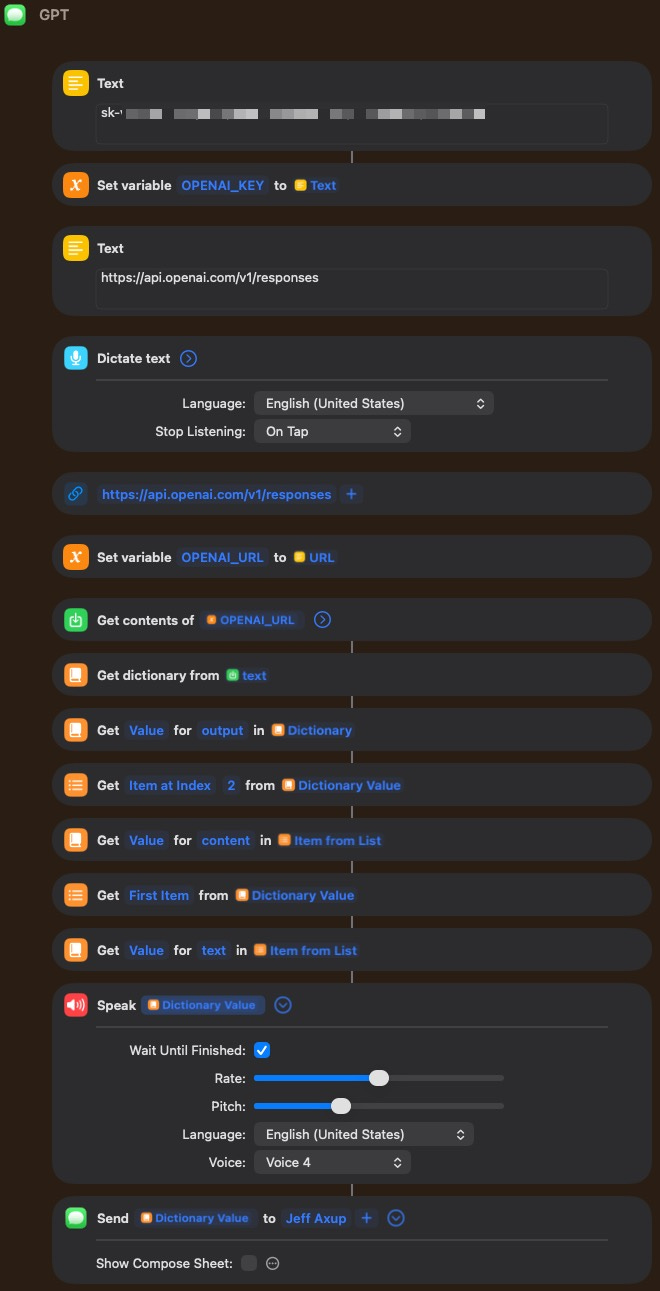
Go to the ChatGPT API page and set up your API access and get your API key. You could probably do this with other AI models that permit API access, but I have only tested this with ChatGPT.
On your Mac desktop (or possibly on your iPhone), go create a new shortcut called something like “GPT”. On the right side should be a pane where you can search for actions to add.
a) Enter your full API key as a Text object.

b) Set a variable to the key text. (Typically the object from the prior step is automatically inserted as your target object, which is typically what you want. Choose ‘Clear’ if it defaults to something you don’t want and it should revert.)
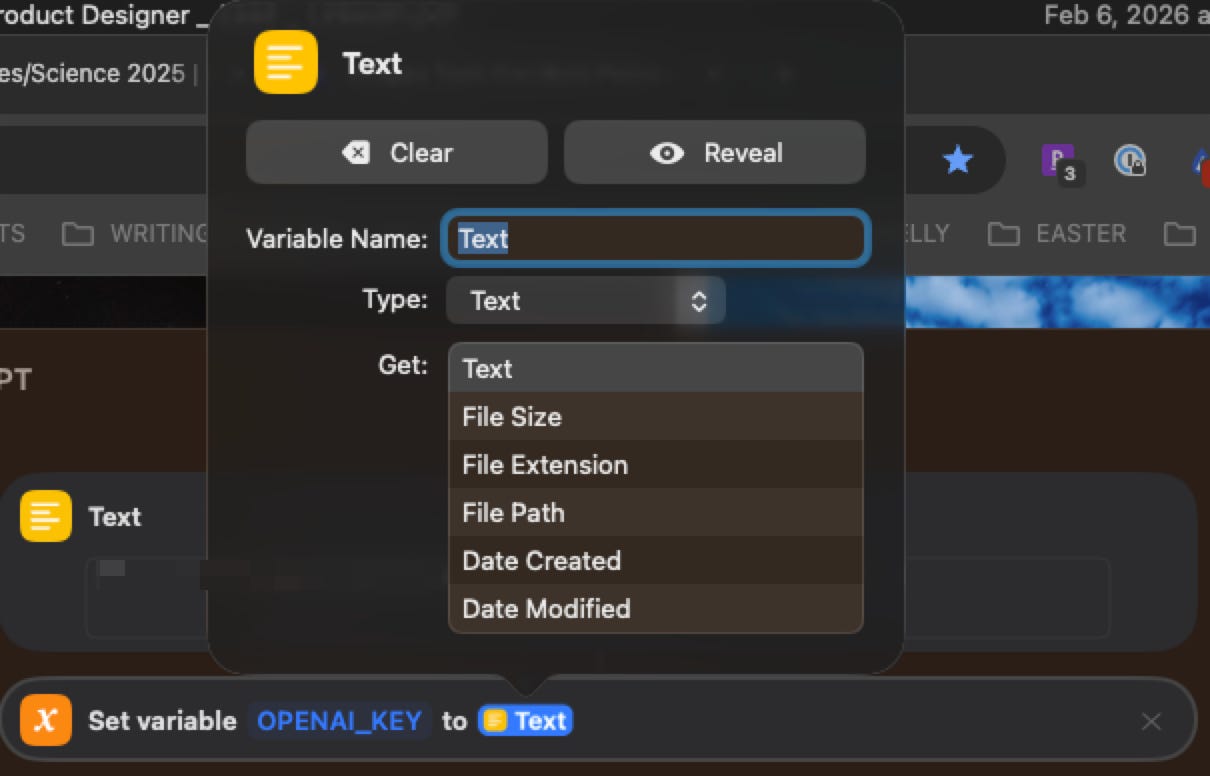
c) Add a Dictate Text action.
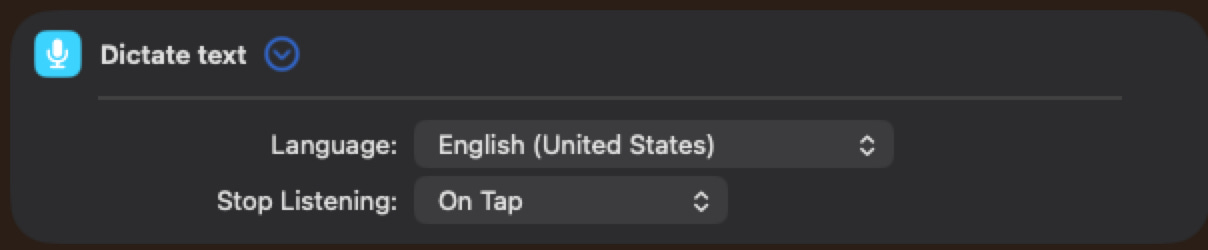
d) Add a URL object and paste in the URL.

e) Add a new variable by setting it to the URL object.
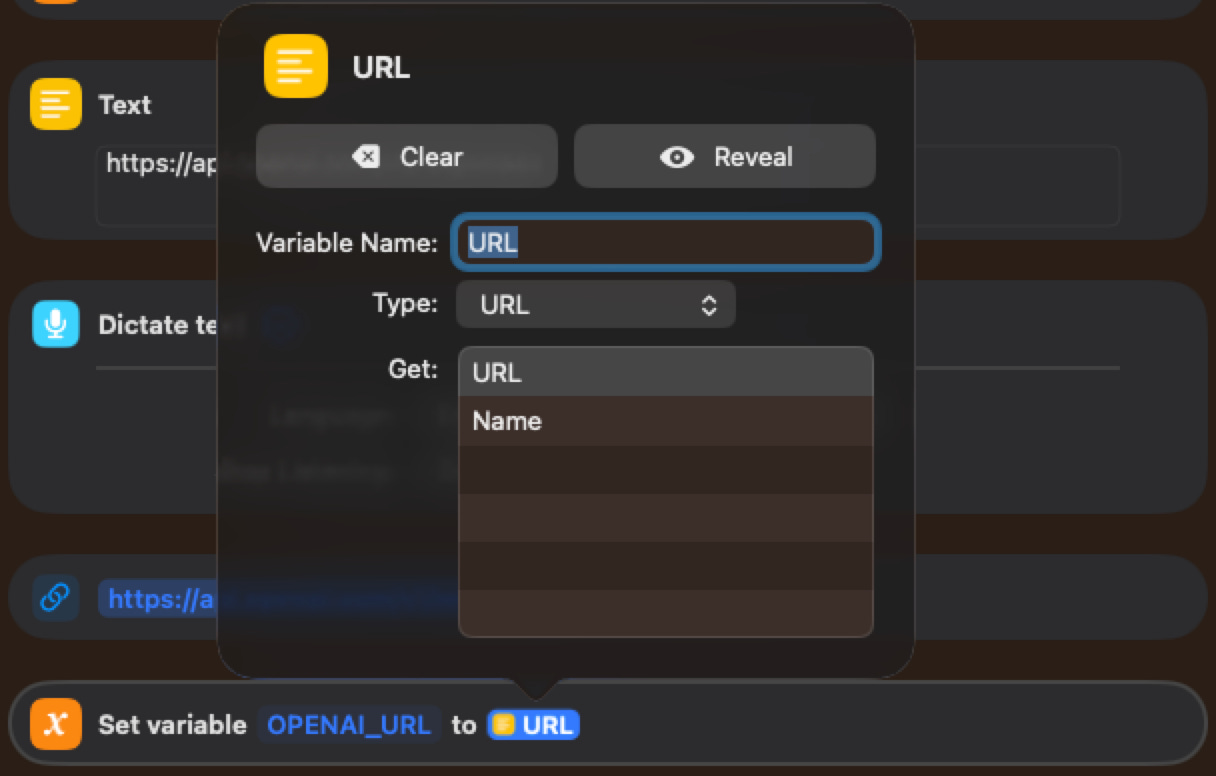
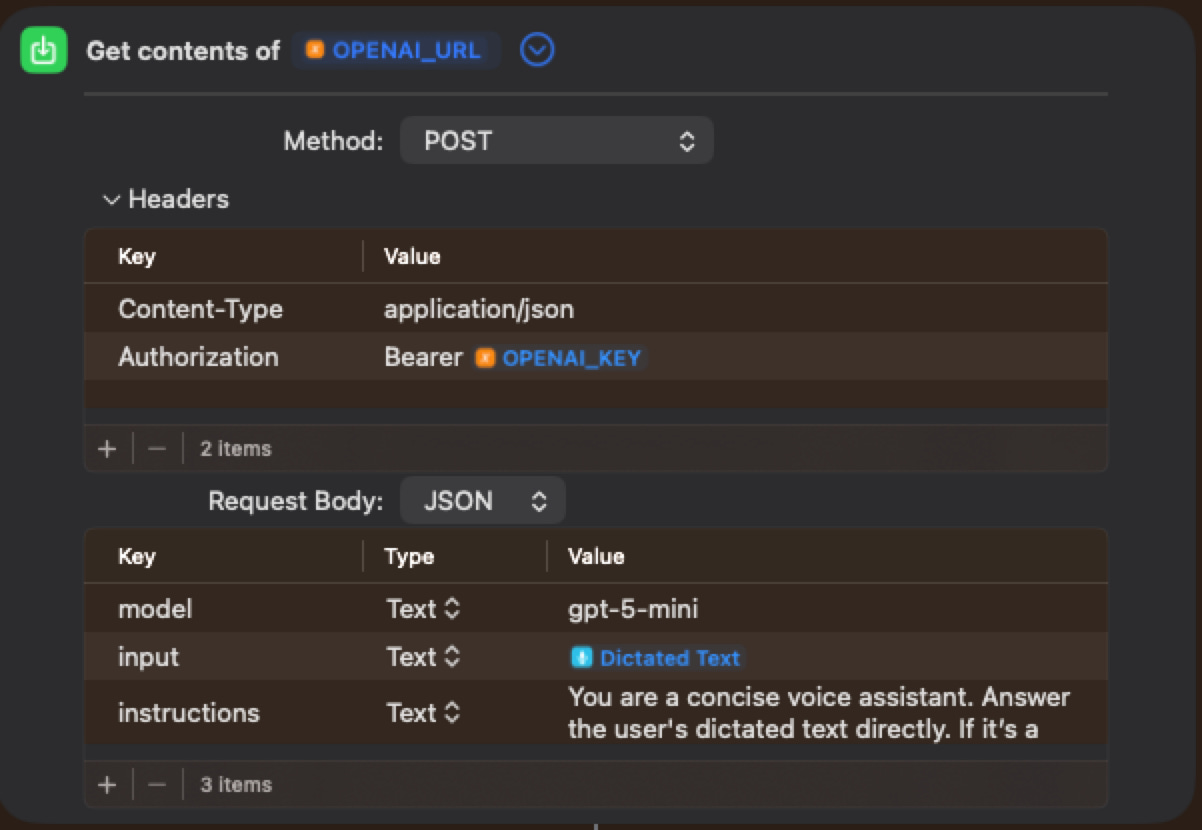
f) Get the contents of the the Open AI URL. This is where it queries the API. The blue objects are selected objects, not text. You can start with gpt-5-mini, but you might want to upgrade to larger model later for better quality results. The full prompt instructions are: “You are a concise voice assistant. Answer the user’s dictated text directly. If it’s a command, do it. If it’s a question, answer it. If it’s ambiguous, ask one short clarifying question.”
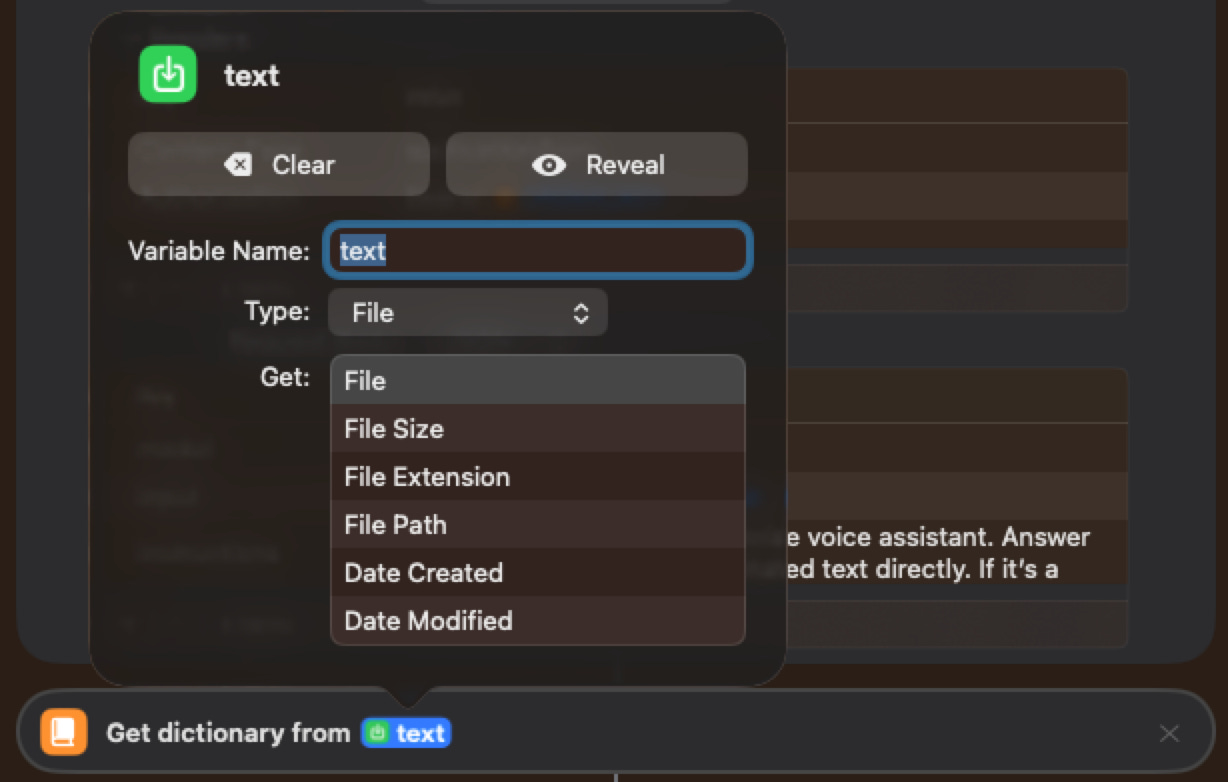
g) Get the dictionary from the query response above.
h) Get the second index item from the dictionary.
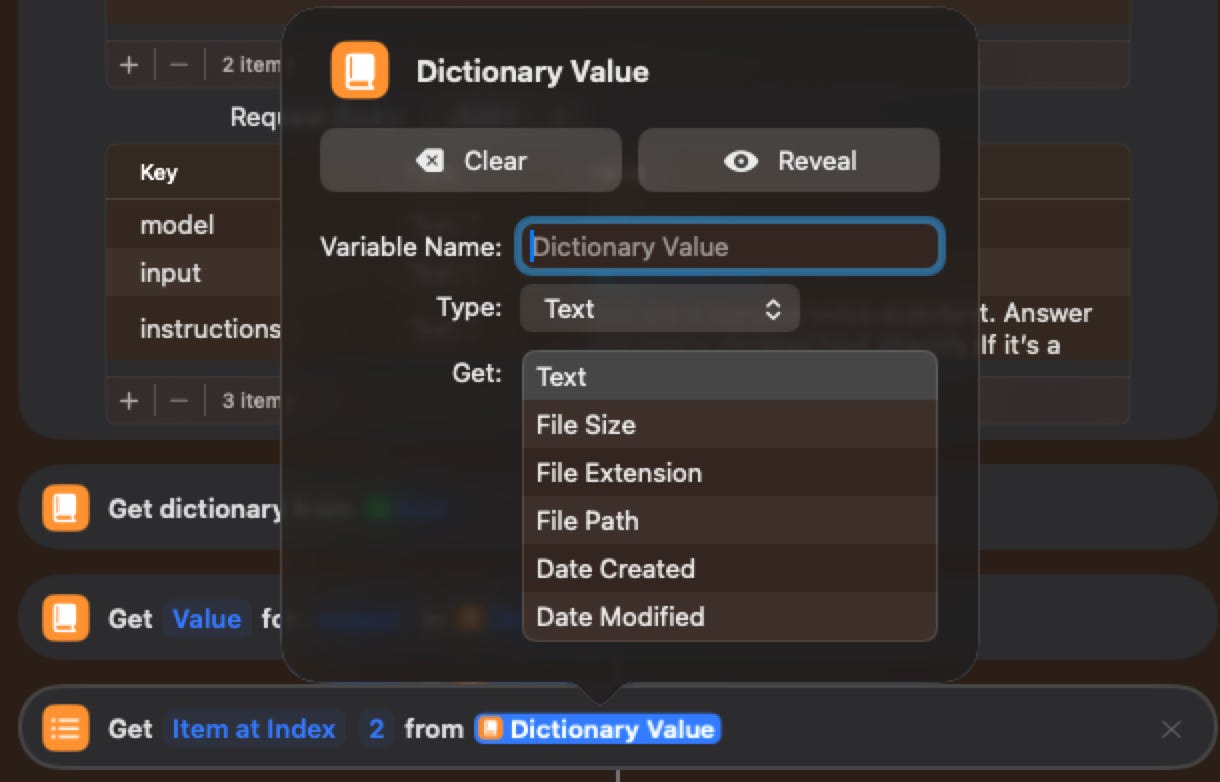
i) Get the value from the item in the list.
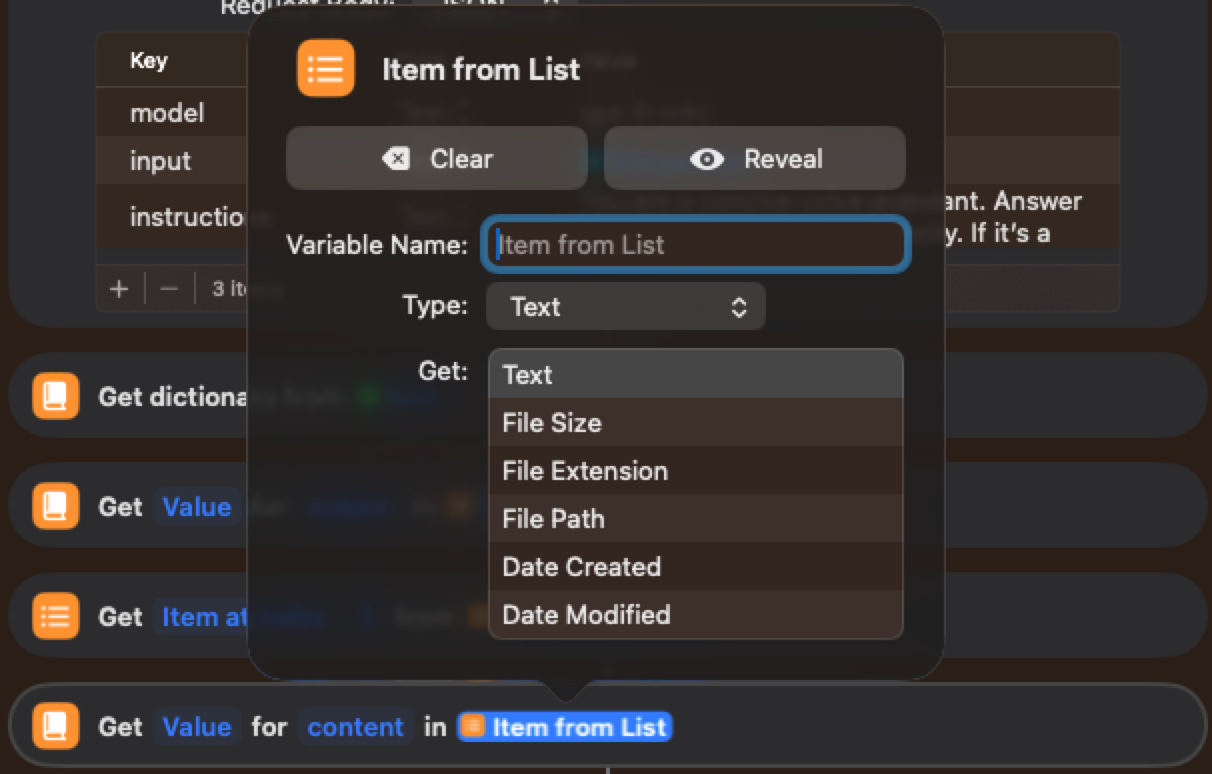
j) Get the first item from the dictionary value.
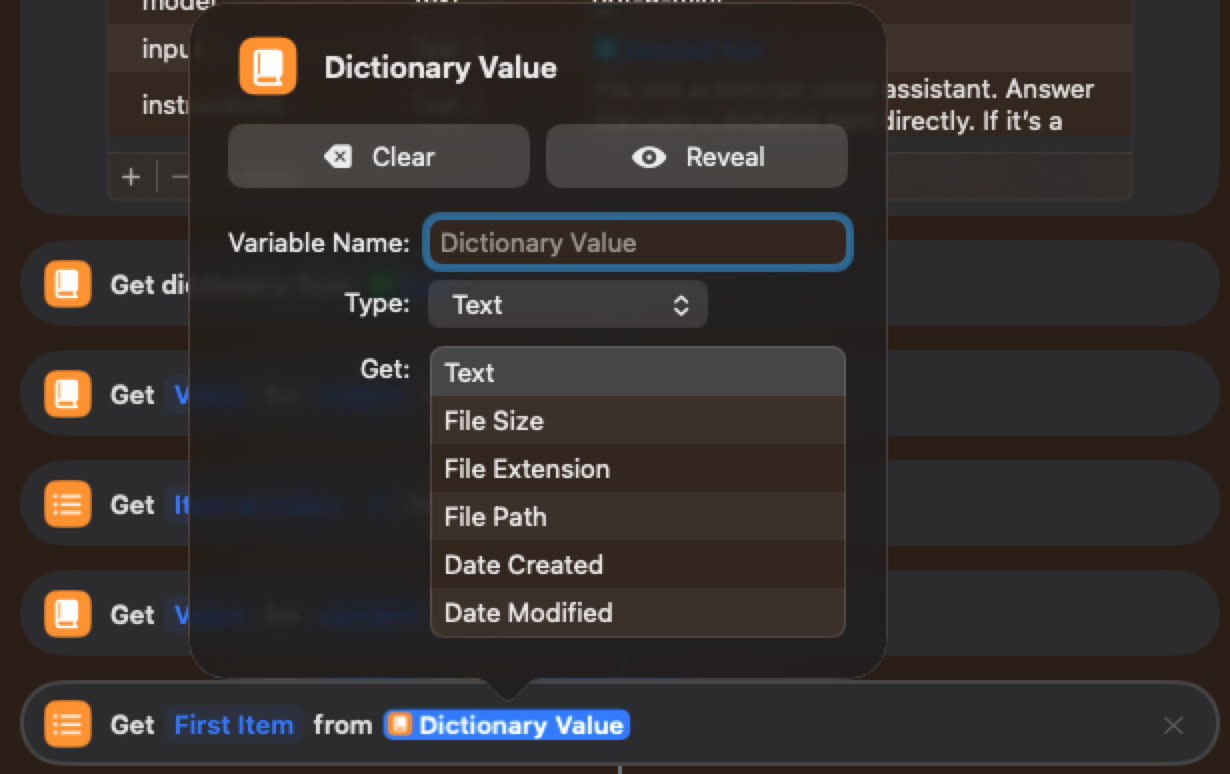
k) Get the value from the item.
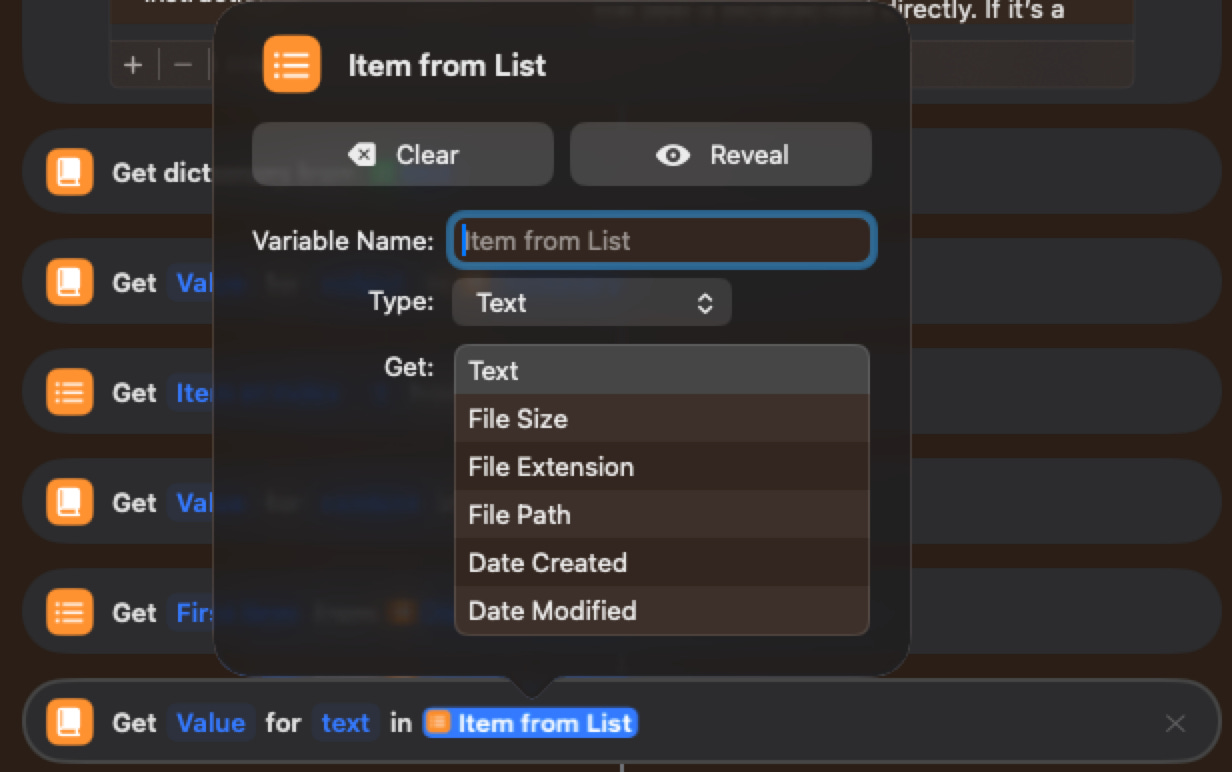
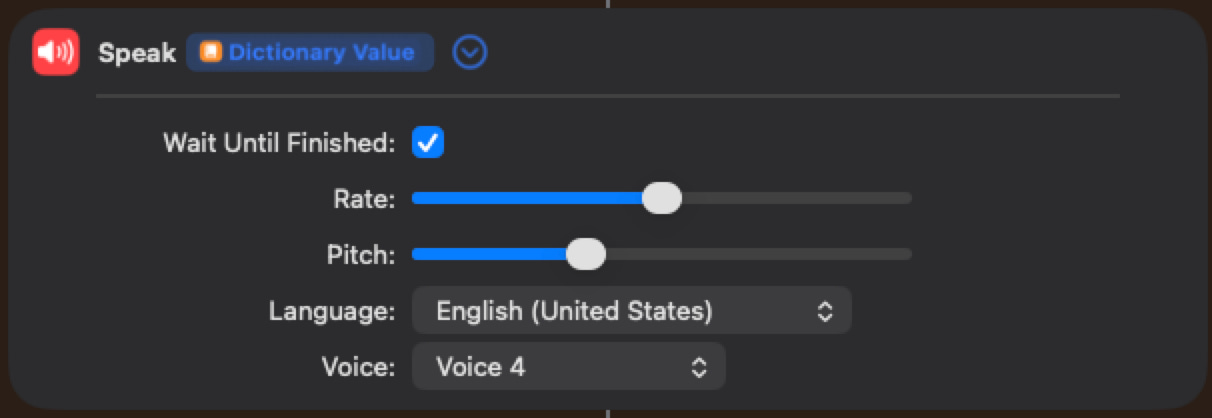
l) Speak the result and wait until finished.
m) Optional: send the result to yourself as an iMessage.

Tips:
Be careful of “magic” objects. When you type, sometimes objects pop up to select. The green, yellow, blue and black ones are different. Sometimes you actually want text, not the object itself.
You can add a “Quick Look” object step anywhere in the flow for debugging. This will take the current information it is processing and print it to the screen for review.
You can also theoretically append your results to Mac notes and iCloud files, but I find them to intermittently fail due to permissions problems.
If you get stuck, just ask ChatGPT who can guide you through the steps, although it doesn’t understand all of the UI details and doesn’t know which sub-options are needed.
There should be an option to Run/Play your script. Try that to ensure there aren’t bugs. If there are, ask ChatGPT.
Go to Settings on your Apple Watch. Select ‘Action Button’. Choose action: “Shortcut”. Under Shortcut, choose “GPT” (or the name of your shortcut).
Try clicking your action button and it should launch the script. Alternatively you can go to the Shortcuts app on your watch, or customize a corner of your watch face to launch this particular shortcut.
You could use Siri instead. However, I have found Siri to be severely underwhelming and it often just redirects to ChatGPT on the phone or provides links to Wikipedia. I like to be able to get longer responses, choose better models, and keep a history for later research.
The Ultra 3 is starting to bridge the gap into a more powerful and long-lived wearable computer. Being able to tie it into a large LLM model and have it output feedback through several different modalities including screens, external APIs, and earbuds, is powerful. I have even wired the accelerometers to control my desktop mouse with hand movements. It isn’t hard to imagine a more seamless product which includes a faster personal assistant that could be utilized in parallel with real-world work tasks.
Jeff Axup holds a Ph.D. in Interaction Design and a B.S. in Computer Science. He has 30+ years of design experience, starting with high-school newsletters on a Macintosh SE. Jeff is a UX professional with prior experience as a Director, R+D Manager, Principal Designer and Startup Founder, across of a range of security, enterprise, wearable, and AI domains. He has personal interests in the areas of: AI, algorithmic trading, sci-fi, e-MTB, kayaking and international travel.
No posts
Comments
Nothing yet. Say the first thing.
Sign in to join the conversation.