
With the release of Android Studio Dolphin, we see a major upgrade to the Logcat functionality within Android Studio. Without a doubt, Logcat is one of the most useful tools for an Android developer. Whether it be getting more information regarding a crash or debugging an unexpected behavior, putting some helpful log statements into the codebase is often our first step of action to get a better understanding of what is going on. With these new changes, parsing the logs and getting down to the actual issue is now a better experience in my opinion.
Here are some major changes to Logcat:
Redesigned view of how the logs are displayed
Option to switch between Standard and Compact view when consuming logs
Filtering the logs through a key-value search
In this post, I’ll share a few of the search queries I have used in my projects.
The logs shown in this post are only an aid for development purposes and shown in the debug variant of the application.
Useful Logcat Queries
Targeting a package id
package:mineThis is a basic query that is easy to forget if you are coming from an older version of Android Studio. Adding this to your query will gather logs from your app’s package only. I’ll keep using this parameter for the remainder of my examples to limit my search and construct queries that I can copy/paste right into my IDE.
Filtering through log levels
package:mine level:warnSimple enough. However, without the drop-down in the earlier versions of Android Studio, it is often easy to forget the levels. The levels that Logcat supports are verbose, debug, info, warn, error and assert. I appreciate the changes made to the UI that makes it easier to recognize each level.

Observing logs from a tag or two.
package:mine tag:LifecycleLogThis is one of my favorite features. The key-value queries now allow us to get more out of Logcat. In this case, I can easily target a particular tag to pinpoint an issue. In the example below, I can also target multiple tags to get a better idea of an overall feature. I see logs as a trail of a user’s journey and being able to separate the logs to it’s own functionality can better paint a picture of where the issue actually lies (UI, business logic or backend services).
package:mine tag:AuthenticationLog tag:NetworkServiceLog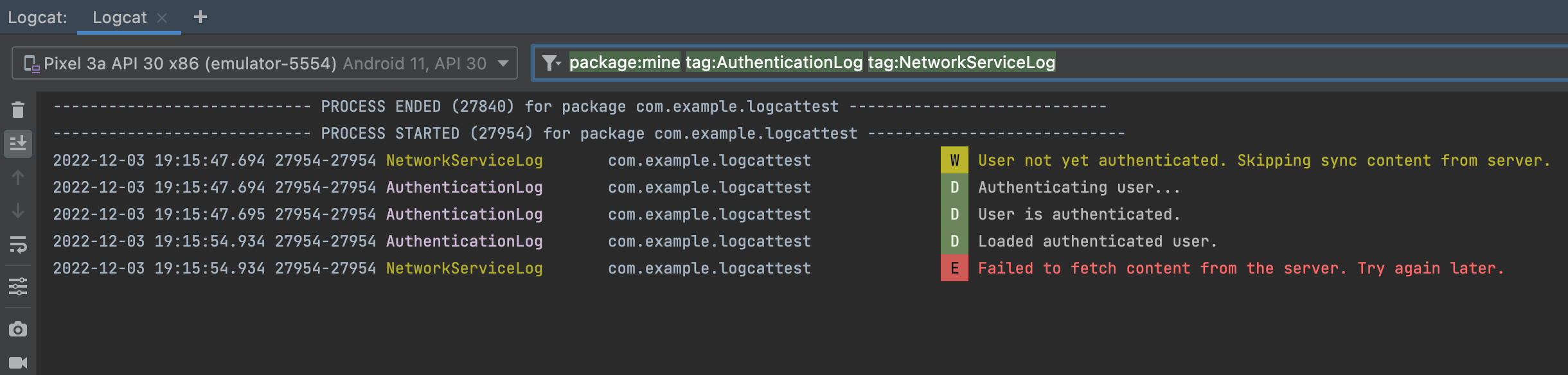
Upgrading our search key for more flexibility
package:mine -tag:UserActionLogLikewise, when trying to remove noise from these logs we can easily ignore a particular tag like in the example above. Another neat feature is that we can use regular expression to filter out the tags. In the example below, I want to get all of the logs from tags that end with “Log”. The exclude and regular expression queries work with other keys such as message and package.
package:mine tag~:Log$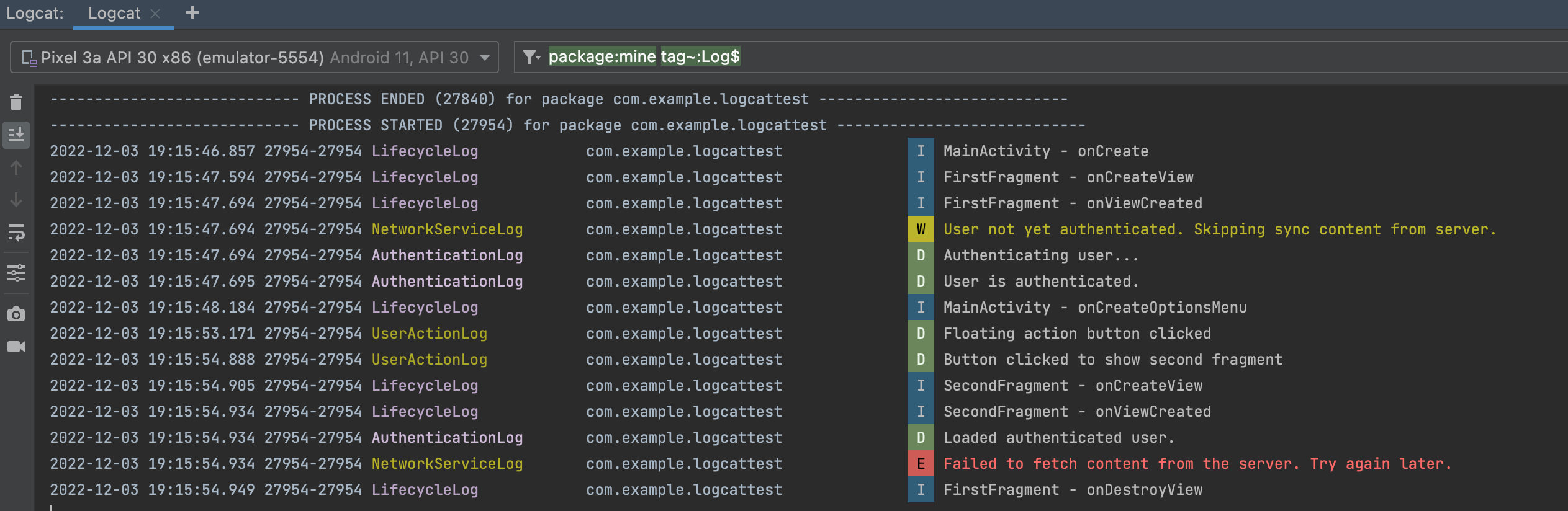
Targeting a particular message
package:mine message:fetchWe can filter the logs to search through a particular content in a message.

Showing logs based on time
package:mine age:12mThere is also an option to get logs based on the timestamp. In this case, only the logs captured in the last 12 minutes will be shown. This is perfect if you are debugging a feature for a long period of time and ensuring that you are not looking at stale information.
Comments
Nothing yet. Say the first thing.
Sign in to join the conversation.