
Let’s continue our iOS 27 WWDC explorations.
This feature is still in beta and might change before the final release.
Apple added a new UIKit API called UISceneClosureConfirmation, and UIWindowScene now exposes a closureConfirmation property for assigning it.
Even if your app is written in SwiftUI, scene management still goes through UIKit under the hood. That is why this API matters for SwiftUI apps too: the UI state may live in SwiftUI, but the close confirmation is attached to the underlying UIWindowScene.
When a scene is about to close, some apps need a chance to confirm that action first. The most obvious example is unsaved work. A SwiftUI text editor, document-style flow, or form-heavy screen may need to warn the user before the window disappears.
That is where this API becomes interesting. Instead of treating scene closure as an event you only react to after the fact, UIKit gives SwiftUI apps a lower-level scene hook for explicit close confirmation.
UISceneClosureConfirmation is a UIKit scene API, but it can be useful in SwiftUI apps that support multiple windows.
The important part is the boundary: SwiftUI owns the visible state and editing flow, while UIWindowScene owns the close-confirmation hook.
Conceptually, it fits a very familiar UX problem:
the user closes a scene
the SwiftUI view still has unfinished or unsaved state
the app needs to confirm whether closing should continue
That is especially relevant in multi-window environments, document-style SwiftUI apps, and any workflow where closing a scene can throw away user progress.
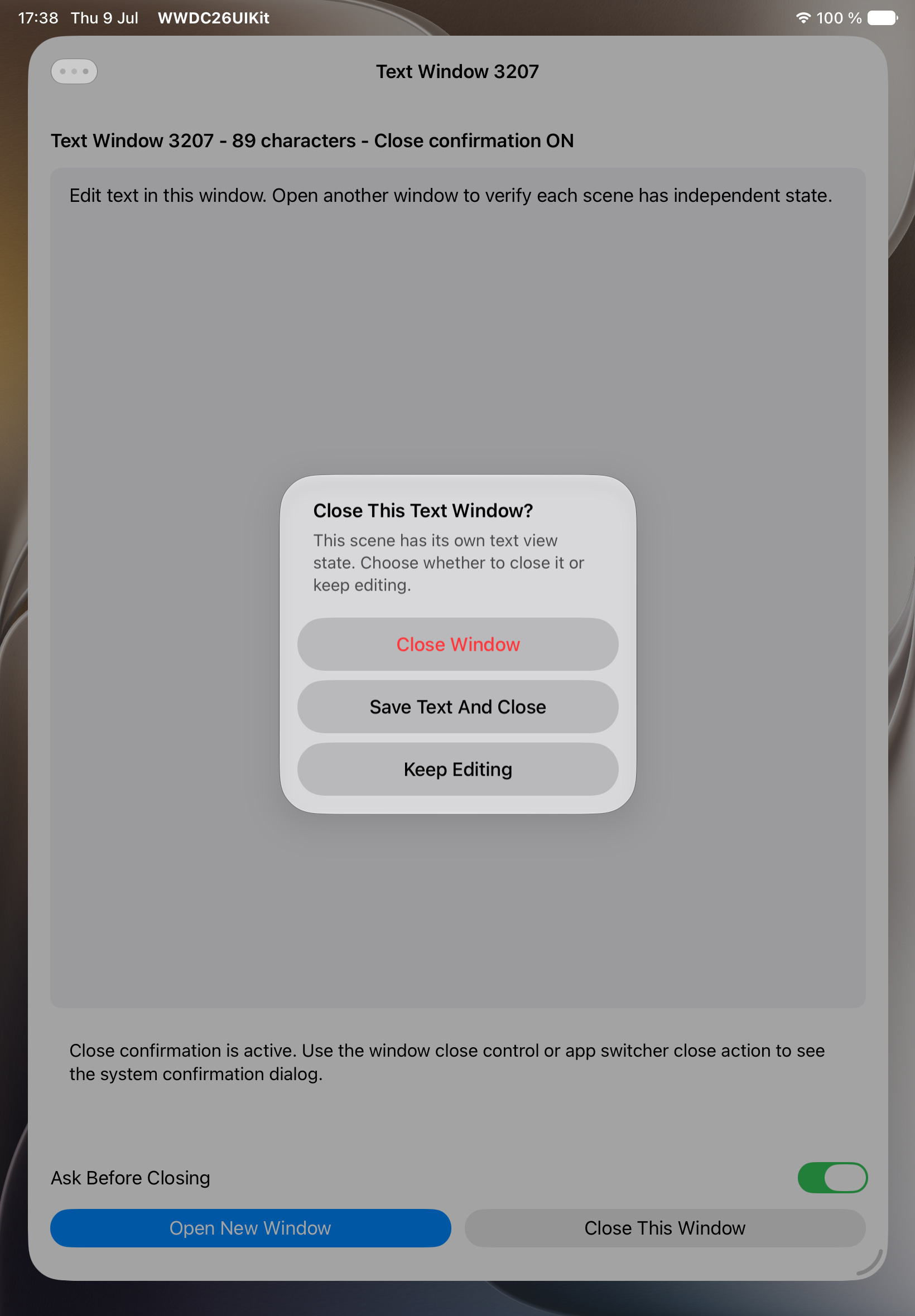
In SwiftUI apps, this is easy to miss because most of the UI is described in views and state. But the close action itself still belongs to the scene.
Without a dedicated scene-close hook, teams often end up mixing SwiftUI state, UIKit lifecycle callbacks, and custom coordination around window state.
A dedicated close-confirmation API is better because it makes the intent explicit.
Instead of saying:
“Maybe this scene is disappearing, let’s try to intercept it.”
you can say:
“This scene may be closed, and here is how the app wants to confirm that.”
That is cleaner both architecturally and from a UX point of view.
This API makes the most sense when closing a scene could lose meaningful user work.
Examples:
SwiftUI text editors with unsaved changes
drawing or note-taking apps
multi-step forms
draft creation flows
SwiftUI document-style workflows
window-specific editing contexts on iPad
If closing the scene is harmless, then confirmation is usually unnecessary. But if closing it can silently discard progress, confirmation becomes part of responsible UX.
To test scene close confirmation properly, make sure the app supports multiple scenes.
In Info.plist, enable multiple scenes under the application scene manifest. In Xcode this is usually the UIApplicationSceneManifest configuration with multiple scene support enabled.
Without this setup, it is easy to test only the main app window and miss the actual multiwindow behavior where scene closure becomes more visible.
In the sample project, the editable text belongs to a SwiftUI model. The close confirmation is still configured through UIWindowScene, because this is where the system-level scene close behavior lives.
This is not a pure SwiftUI modifier. It is a SwiftUI implementation that reaches into the underlying UIWindowScene to configure close behavior.
Full sample is available here: UISceneClosureConfirmation demo Gist
One important detail is that UIWindowScene has a closureConfirmation property, so the confirmation object is assigned directly to the scene.
The SwiftUI part owns the model state. The UIKit scene part owns the close confirmation.
The important part here is the shape of the flow:
create the close-related actions
read or update SwiftUI-owned state
decide whether the user should keep editing, save, or close
assign the confirmation object to the window scene
The snippet above is meant to show the architecture and usage pattern. The concrete detail you can rely on is that
UIWindowSceneexposes aclosureConfirmationproperty for assigning aUISceneClosureConfirmationinstance.
A few things are worth keeping in mind.
Do not show a close confirmation just because you can. If there is no risk of data loss, the confirmation becomes friction.
The decision should come from meaningful user changes, not from “the screen was opened” or “some state exists.”
The user should immediately understand what is at risk:
unsaved text
unfinished form input
document edits
discarded draft changes
If save itself can fail or open another modal path, keep that flow predictable. The user should always know whether they are still closing or are back in editing mode.
SwiftUI apps can still run into scene-level problems, especially on iPad and in multiwindow workflows. Even when most of the app is SwiftUI, the window and scene lifecycle are still UIKit concepts.
A dedicated scene close confirmation API makes the intent much more visible in code:
this scene can close
this app may need to block closing
this is how the user decides
That is a better model than scattering close-protection logic across unrelated lifecycle callbacks.
UISceneClosureConfirmation looks like a small API, but it addresses a very real UX problem.
Closing a scene is not always harmless. In SwiftUI apps, it can still mean losing edits, abandoning a draft, or discarding user effort. A dedicated confirmation model gives the app a cleaner and more explicit way to handle that.
For SwiftUI developers, the main takeaway is not that this becomes a new SwiftUI modifier. It is that some window-level behavior still belongs to UIKit, and UIWindowScene.closureConfirmation gives you a clear place to configure it.
Apple Developer Documentation: UISceneClosureConfirmation
Apple Developer Documentation: UIWindowScene.closureConfirmation
Apple Developer Documentation: UIWindowScene
Apple Developer Documentation: Supporting multiple windows on iPad
No posts
Comments
Nothing yet. Say the first thing.
Sign in to join the conversation.