

Oh holy Codex … where do I start.
First, let me say this plainly: I am at the beginning of learning this tool. This is not a “here is my flawless expert system for running my entire life through AI” post. It is much more of a “I opened the thing, it broke my brain a little, but I kept tinkering and made it do some genuinely useful work” kind of post.
I continuously refer to AI as a magic act, because so often, it is (not to negate the very real and catastrophic environmental costs of it) To have technology that can connect to your email, your files, your phone, and then just whip up a website, a dashboard, a summary, a presentation — based on a few simple sentences you type, in minutes — is genuinely staggering. 🤯
But before I get into what I actually did with it, let’s back up. Because the most important thing to understand about Codex is that it is not a chatbot.
The plain-English version: Codex is OpenAI's desktop AI agent. It started as a developer tool, but OpenAI has been expanding it for the non-engineers, the knowledge workers, the people who just need things handled. While it looks a lot like ChatGPT, and can do many of the same tasks, it’s also quite different because it can work across your computer, use plugins, connect with apps, generate images, read files, build things, and run automations. It is not just a chatbot sitting in a browser waiting for you to say something clever, think of it more like a coworker, or a very capable buddy, or, depending on how many permissions you hand over, an overbearing mother who looks at your mess and says, "Fine. I'll handle it."
Now, that does not mean it should act without supervision. Dear God, no. But it does mean the mental model is different. With ChatGPT, I usually ask for help with a single piece of work. With Codex, I can ask it to produce the thing, organize the folder, draft the email, build the dashboard, make the spreadsheet, create the visual, summarize the morning, or prepare the briefing. And, while you watch it happen inside the “terminal” (more on that below), it’s mind-boggling.
A few important things to know upfront:
It’s free with a paid ChatGPT account. If you have ChatGPT Plus, Team, or Enterprise, Codex is already included in your subscription.
It’s a desktop app, not a browser tab. You use your ChatGPT login to sign in and then you download it. It lives on your computer, which is what allows it to interact with your local files in ways browser-based tools can’t.
It’s powered by GPT-5.5. OpenAI’s latest model is widely regarded as the strongest all-around AI model available as of this writing. It is optimized specifically for agentic work like this.
It’s genuinely different from a chatbot. Sorry to be repetitive here, but truly understanding this distinction is important.
Here is where I think a lot of us get stuck.
We hear the AI crowd waving their hands enthusiastically saying, “Codex can do everything! It can run your workflows! It can use your tools! It can build whatever you imagine!”
And then we sit down at our desks, open the app, stare at the blinking prompt, and think:
Okay … but what is my grand idea?
What exactly do I need it to do?
This has been one of the biggest surprises of my AI education. The barrier is not always the tool. Sometimes the barrier is imagination under pressure, or as I call AI Block. It’s the strange paralysis that happens when a tool can do so much that you suddenly cannot think of one useful thing to ask it. It’s like being handed the keys to a commercial kitchen when all you wanted was lunch.
For me, the best way around that block has been watching other people use the tool—as in pulling a few You Tube videos and watching. Even if the use case has nothing to do with my life or my work, seeing someone else’s prompt opens a little door in my brain. Oh, wait. I do have something like that. Oh, wait. I do waste time on that. Oh, wait, that thing I keep manually rebuilding every week could probably become a repeatable workflow.
And this is where Codex gets really interesting for communications professionals.
Communications work is full of judgment, nuance, relationship management, institutional memory, audience sensitivity, and context.
It is also full of repetitive assembly work. Pulling coverage, building briefing docs, scanning headlines, drafting first-pass responses, creating content calendars, organizing files, repurposing event materials into five different formats because apparently every channel needs its own precise little rectangle of content, preparing executives before interviews, reading long threads and figuring out what actually matters, following up on the things everyone agreed to but nobody wrote down, and on and on. And, this is where Codex starts to look less like a shiny AI toy and more like a serious operating layer for knowledge work.
I recently attended a private Codex demonstration specifically for communications professionals (many thanks to OpenAI’s Lindsay McCallum Rémy for making that happen) and the use cases were legitimately impressive.
A few that stuck with me:
“Chief of Staff” morning briefing: Set it up once and it checks your Slack, Google Calendar, and Gmail every morning, drafts a priority summary, and delivers it to your preferred Slack thread by 8am. No “@” command needed — just tell it in plain language what you want checked, and if the plugin is enabled, it knows where to look.
Email triage and response: Flag the most urgent emails requiring your attention, draft replies in your voice, and either send them or surface them for your review first.
Executive interview prep: Build a Reporter Briefing document using the “Sites” function before a media interview, pulling from files you already have on hand.
Sites (worth knowing about, even if I can’t fully test it yet): One feature that got my attention during the demo is called Sites — a capability inside Codex (Business and Enterprise accounts only for now) that lets you build a living, shareable microsite that your team can access and update dynamically.
Event logistics: Create a seating chart visual for a media dinner that you can drag and drop guests at the table as RSVPs roll in.
Content calendar: Reference your existing brand files and build out a content calendar directly into a Google Spreadsheet.
Promotional materials: Generate visual and copy assets for an event, sized for multiple placements — television display, social posts, flyers — using a preferred style guide.
Daily news monitoring: Scan relevant headlines on a schedule and deliver a briefing to you by 9am.
**Dear Reader, you may remember that I spent a non-trivial amount of time trying to build my own AI news briefing system with a custom GPT and Zapier. Seeing Codex do a version of that made my earlier workflow feel a little like showing up to a Tesla dealership on a unicycle. 😑
🛠️ What I Actually Did With It
So, I didn’t hand Codex my entire professional life and say, “Good luck, Bestie.” Rather, I started smaller, because that is usually the only way I learn without completely spiraling.
I had it do a few things:
(Work) Built a PR coverage dashboard. I fed it data from a recent company announcement and asked it to build a dashboard to visualize the coverage.
(Work) Organized a chaotic work folder. I had 100+ disorganized folders and files on my desktop that had been driving me crazy for months. I asked Codex to sort through one of the particularly bothersome folders and organize all of it for me into subfolders based on content.
(Personal) Pulled family-friendly dinner recipes from a website I love. I asked it to visit a favorite cooking website (shout out to Jenn Lueke and Jenn Eats Good) and pull only the dinner recipes, filtering for things that would survive contact with two extremely picky kids.
Within minutes, it sorted through the 240 dinner recipes on the site to find 62 saved as “family fit” options. It then reviewed, grouped, and rated each of these 62 recipes according to “Best Bets,” “Solid Weeknight Options,” and “Maybe with Modifcations” categories. From there, it indexed all of them into one document and created a spreadsheet of the recipes in both a sortable fashion and a complete list of all 62 dinner recipes. And, as if that wasn’t enough, as a cherry on top, per my instructions, it then create an organized Google drive folder of all of it for easy access. It is a thing of beauty. 🙌🏻
(Personal) Sent in a prescription refill request on my behalf. I’d been putting off emailing my son’s doctor about a prescription refill, and in between errands on a busy day, I used the mobile function of Codex to draft and send an email requesting a refill request to his doctor, who is accessible through my contacts. The refill was called in all while I was out and about, easy breezy!

The dashboard example was the one that made my comms brain light up first because coverage reports are one of those things that can be either deeply useful or spiritually punishing depending on the format, deadline, and number of screenshots involved. Codex was able to take source material, organize it, and turn it into something more useful and visually-appealing than a pile of links.
When you first open Codex, you’ll hit some terms that aren’t immediately obvious. Here’s the plain-English translation:
Skills: Reusable workflows or capabilities. If you repeatedly do the same multi-step thing, you can build a Skill so you don’t have to re-explain it every time. There are also some pre-installed Skills available out of the box.
Plugins: The connections to your external tools — Gmail, Slack, HubSpot, etc. This is where you give Codex actual access to work inside your other apps.
Automations: Instructions for “when” to do something such as “Every weekday at 8am, check my email and send me a briefing.”
Projects: A way to organize work around a specific goal, using your actual computer files and folders as the source material.
Terminal: The text-based control panel for more advanced tasks.
Harness: The defined sandbox space where Codex is allowed to operate. (More on this in the safety section below).
The important thing is that these pieces work together. Skills teach it how. Plugins tell it where it can work. Automations tell it when. Projects give it context. Permissions tell it how much freedom it has.
⭐ Bonus Tips:
If you are inside Codex and want to see extra options, type `/` in the prompt bar. A menu appears with all kinds of skills, tools, and option
.It is basically an instant grocery list of capabilities, and I wish I had known it existed earlier.Also, the plugins/skills area confused me at first. Plugins show up in the sidebar, and from there you can toggle into skills. Once I found it, it made more sense.
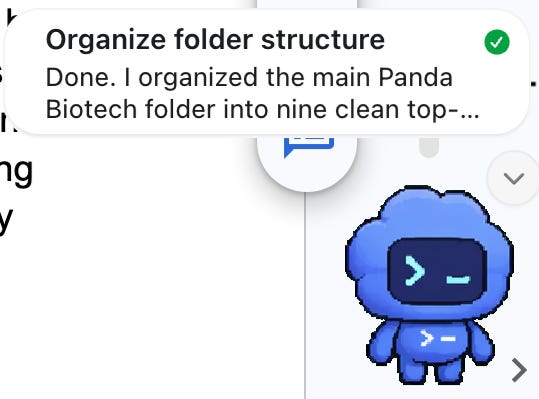
The `/pet` command is also delightful. If Codex is working on something that may take a while, it can create a little floating status companion in the lower right corner of your screen so you can keep working elsewhere while it updates you or asks for input.
You know I’m going to tell you when things didn’t work.
The mobile setup was genuinely a whole thing. One of the cooler Codex capabilities is that you can connect to it from your phone. So, you can be away from your desk and still ask it to do work based on what you’ve connected. In order to enable this, you have to set up multi-factor authentication first and that process sent me down a rabbit hole that I was not prepared for on a Tuesday afternoon. I ended up using the Authy app to sort it out, which worked, but the whole thing was not fast or intuitive (for me, at least).
Mobile requires your computer to be awake. I learned this while driving to North Carolina to pick up my daughter from camp, when I tried to use Codex from my phone and nothing happened. My laptop was idle at home. It seems obvious in retrospect, but happy to share my foibles in case it helps you.
The plugin/skill navigation is not intuitive at first. I noted this above but reiterating here. Plugins appear in the sidebar and skills are found under Plugins. Don’t go on a egg hunt looking for them as I did.
🦺 A Word on Safety (Please Read this Part)
Which brings me to the part where we need to talk about safety. Giving an AI agent access to your email, your contacts, your files, and your calendar is not a casual decision.
Should we worry about sharing so much information with an agentic tool? Yes, absolutely. Any technology that can access this level of your information deserves a healthy amount of suspicion. Not panic or avoidance, but serious caution.
This is especially true for communications professionals because we often sit near sensitive information: executive plans, employee issues, legal reviews, confidential announcements, customer stories, media strategy, crisis scenarios, board materials, and all the other things that should not be casually pasted into a tool.
A few practical guardrails I’m using and recommend:
In Codex Settings > General Permissions: Do not enable “full access.” Limit what it can see.
In Codex Settings > Configuration > Approval Policy: Enable “untrusted.” This means Codex will always ask your approval before taking action. Adds a step, and it’s worth it.
In ChatGPT Settings > Apps > App Preferences: Find “ask permission” and set it to always ask.
Create a Sandbox folder: Make a new, isolated folder on your desktop — name it something like “Codex Testing” — and use that as the designated space for files you want Codex to access. This keeps it from scanning everything on your computer.
Treat every output as a draft until a human has reviewed it.
That last one really matters.
Codex can do a lot, but it cannot take accountability
If it sends the wrong email, moves the wrong file, misreads the tone of a reporter note, or produces a briefing with a missing fact, that is still on you.
Codex is not a shinier chatbot. It’s a different category of tool entirely, and once you understand that distinction, things start to click.
The tasks that used to eat a significant chunk of your day are now things you can describe in a sentence and walk away from. And, the real skill is not prompting anymore. Just a little while ago, knowing how to write a decent prompt felt like a competitive advantage. Now, that is table stakes.
The next skill is learning how to delegate to AI systems, which sounds simple, but it’s not. Delegating to a person requires clarity, context, expectations, feedback, and trust. Delegating to AI requires all of that, plus guardrails, permissions, review paths, and a very clear understanding of what good looks like.
You have to know the work well enough to break it apart.
You have to decide what can be handed off and what cannot.
You have to define what “done” means.
You have to carefully inspect the result.
You have to build enough confidence to try again and again until you get it right.
This is why Codex feels so powerful and so intimidating. It asks us to stop thinking of AI as a place we go for answers and start thinking of it as something we manage, which is a big shift.
Codex isn’t perfect, but I do think it’s one of the clearest signals yet for where work is going. And, as intimidating as Codex (or any agentic work can seem,) I would rather be the person learning it now, than the person pretending the shift isn’t happening.
Pick one thing on your desk right now that you’ve been avoiding. Maybe it’s the folder of files that needs organizing, or the email you’ve been drafting in your head for three days, or the briefing doc you keep meaning to put together.
Download the Codex desktop app, connect one plugin you actually use (Gmail is the easiest starting point), and ask it to handle that one thing.
Don’t try to build a daily morning briefing automation on day one. Don’t connect six plugins. Just one task, one plugin, twenty minutes.
Then come back and tell me how it went in the comments.
You Beta Believe It is a newsletter for communications professionals mastering AI and integrating new technologies. Enjoyed this issue or learned something new? Please pass it along!
Comments
Nothing yet. Say the first thing.
Sign in to join the conversation.