
My dog saw all the shortcuts I built for myself and started feeling left out, so I made one for her too.
Now every walk we take gets added to her own little dashboard.
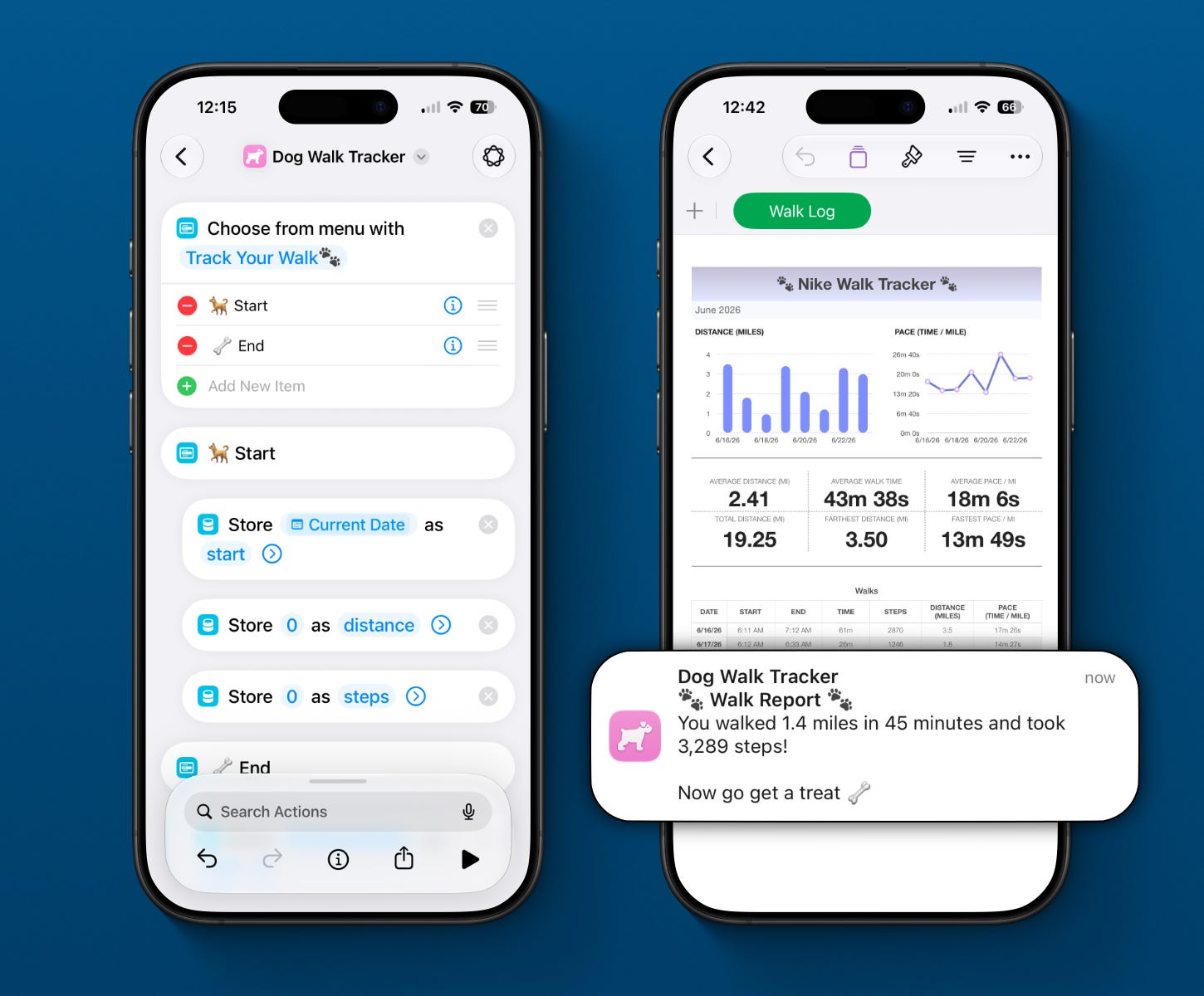
My iPhone records the distance, total walk time, and my step count. Then when we finish my dog gets a walk report like she just wrapped up her shift. She’s hitting her daily goals, and now basically has better performance analytics than I do.
That dashboard exists because of a change in iOS 27: Shortcuts learned how to store information between runs.
Your Shortcuts finally started keeping records. So your automations can build systems that hold onto information from one run to the next.
These new actions let a Shortcut save information, retrieve it later, and remove it when it’s no longer needed.
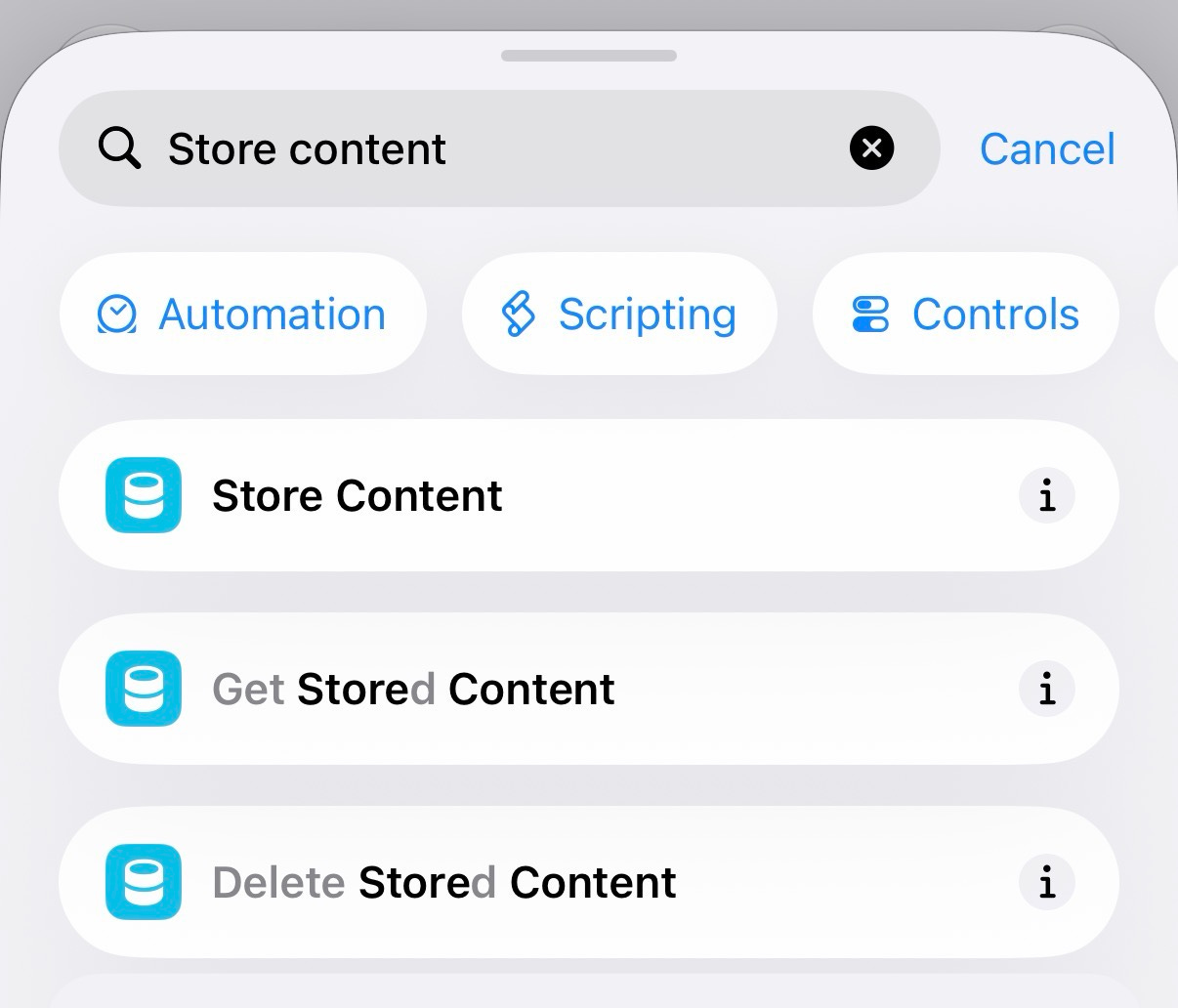
Store Content saves information under a name you choose. It handles dates, text, lists, even images, whatever your workflow needs down the line.
Get Stored Content finds what you saved by name and hands it back.
Delete Stored Content clears it out when the job’s done.
Every stored item is saved using a name.
The name is the label your Shortcut uses to find it later. Choose something you’ll recognize, like lastWorkout, parkingSpot, instagramLink, or dailyTargets.
Using the same name replaces the previous value.
Store Content only keeps one value for each name. If you store new content using an existing name, the old value is replaced with the new one.
Select information to access storage and add or edit there.
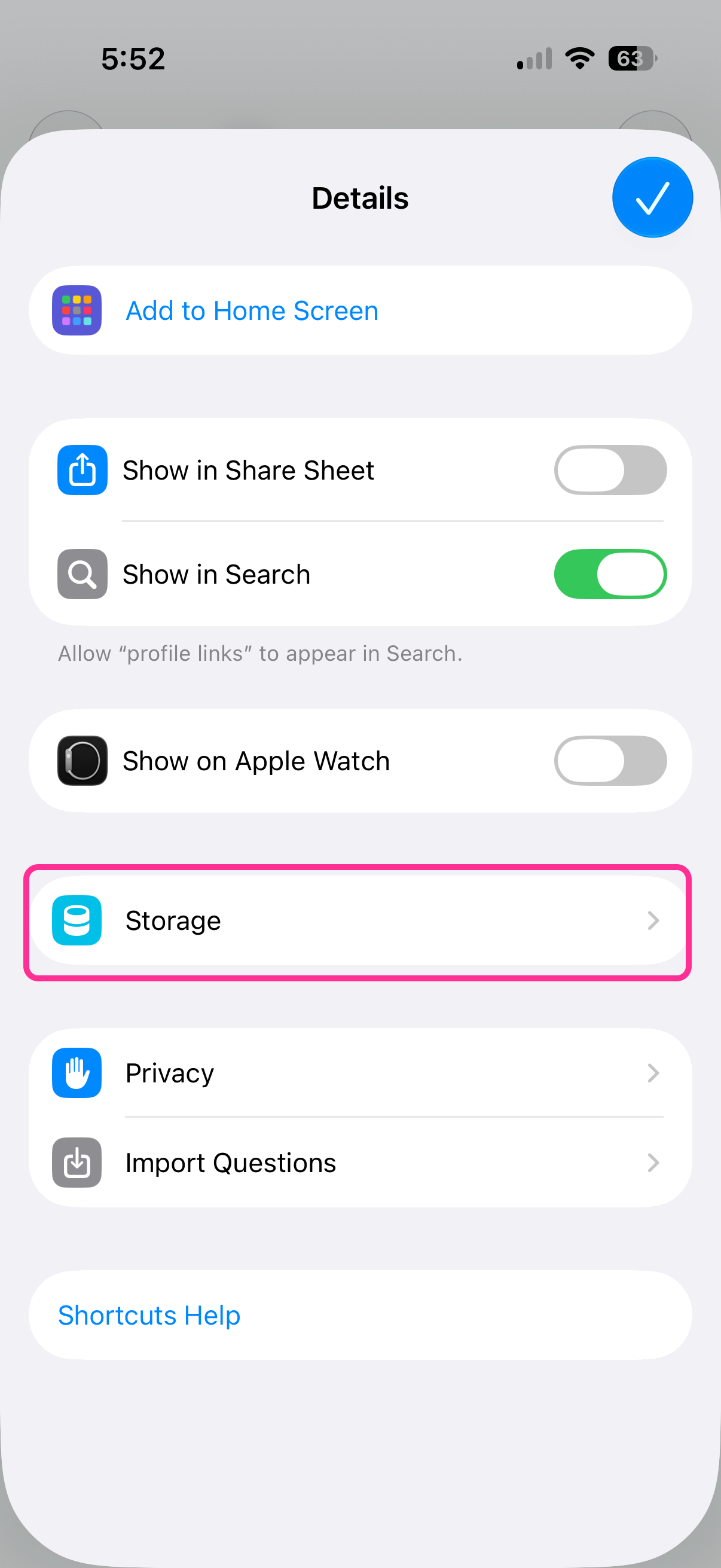
Use the storage inside the shortcut to review any stored values and save your own manually.
Turn on Global Value when other Shortcuts need access.
By default, stored content belongs inside the Shortcut that saved it. Turn on Global Value to use it across your Shortcuts.
Get Content Stored as a Global Value.
If the content was saved as a Global Value, make sure that’s is also turned on when using Get Stored Content.
Global Values let one Shortcut share information with another.
For example, one Shortcut reviews today’s calendar and uses AI to decide your top priorities for the day. It stores those priorities as a Global Value named dailyTarget.
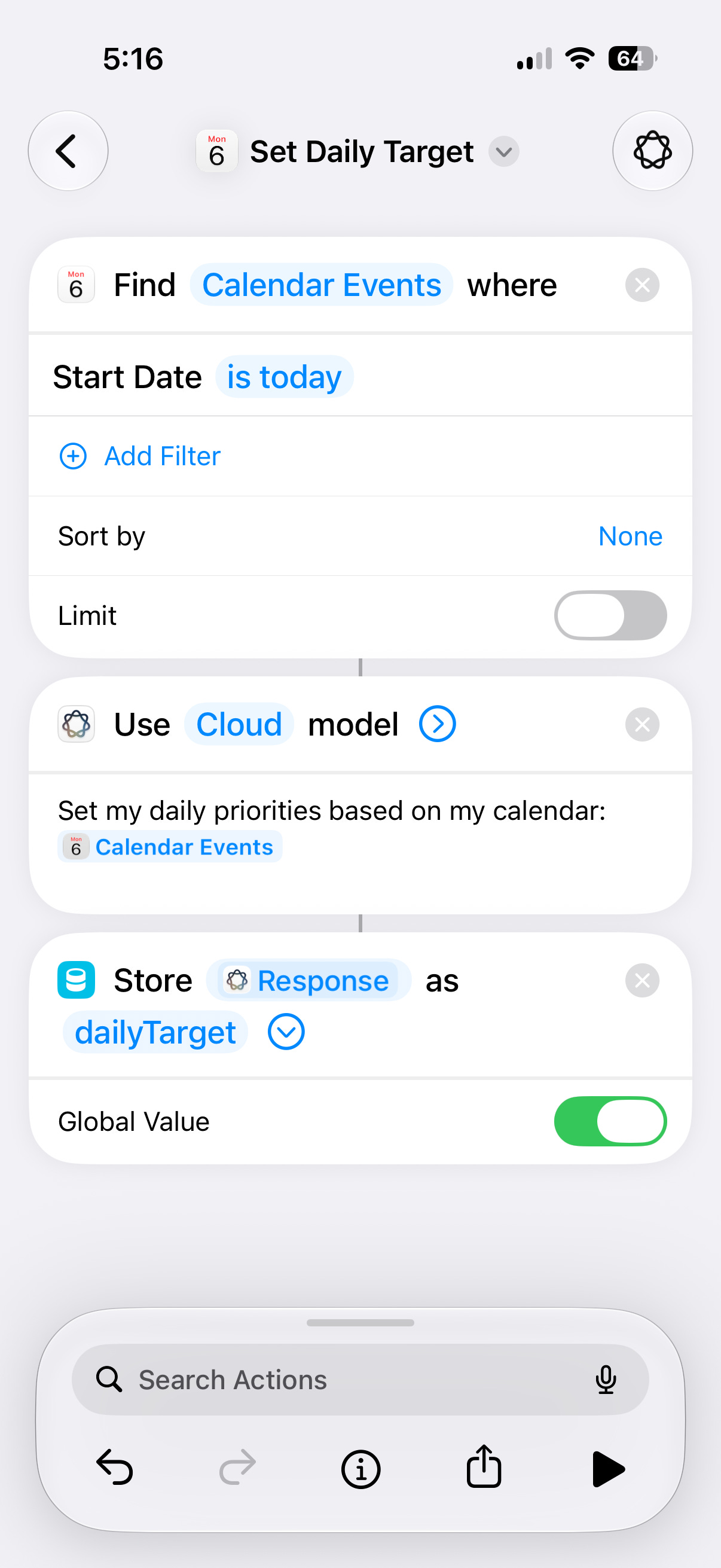
Later, a different Shortcut retrieves that same value, looks at your open reminders, and uses AI again to decide which three tasks deserve your attention first.
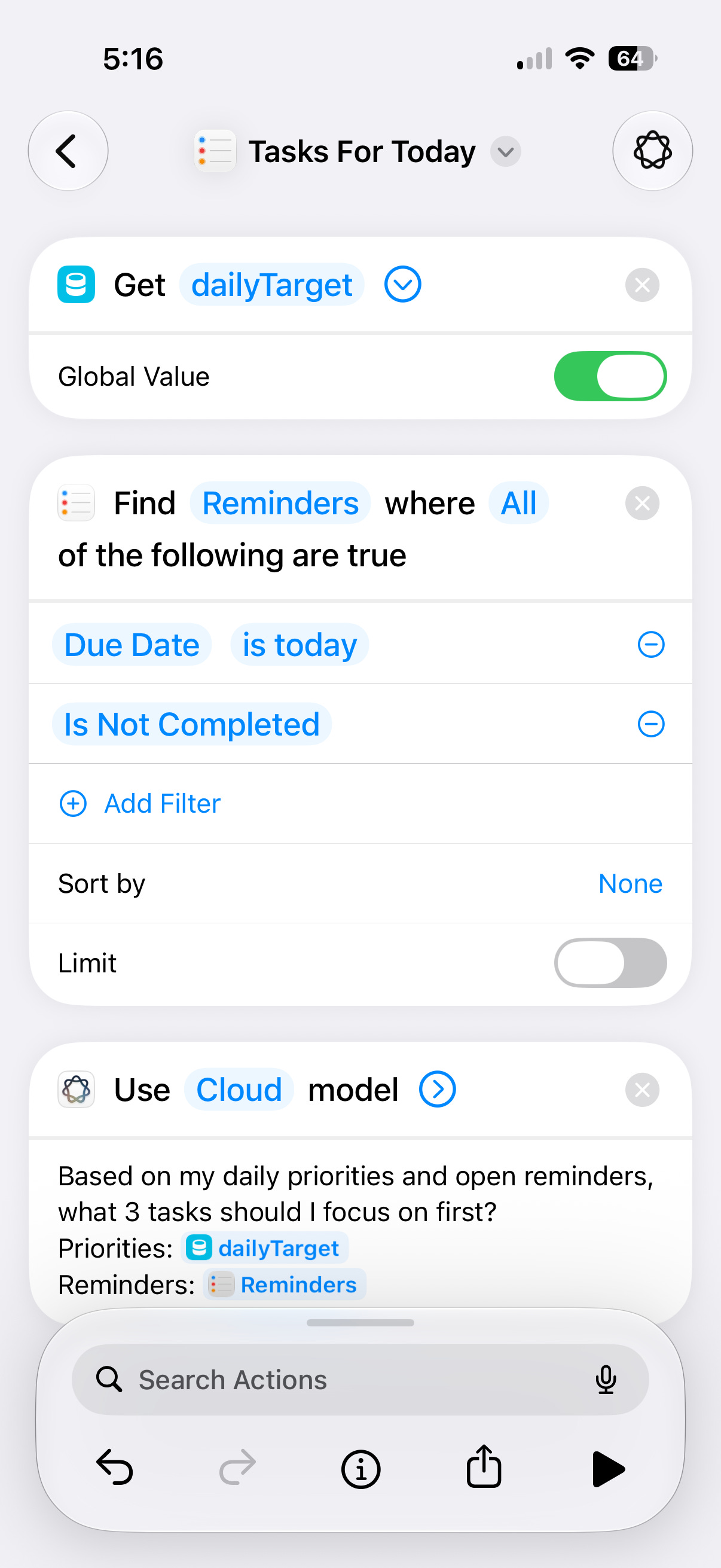
Instead of every Shortcut starting from scratch, they work together. One Shortcut creates the information, another builds on it.
This works with much more than daily priorities. One Shortcut could store meeting notes, travel plans, AI prompts, project status, or anything else another Shortcut needs later.
Your clipboard holds whatever you copied last, and that’s its whole personality. This shortcut turns it into a working history you control.
It starts with a menu that lets you save or copy something:
To save something you’ve copied:
Get Clipboard
Choose where it goes
Store Content
To get it again later:
Choose a saved item
Get Stored Content
Copy to Clipboard
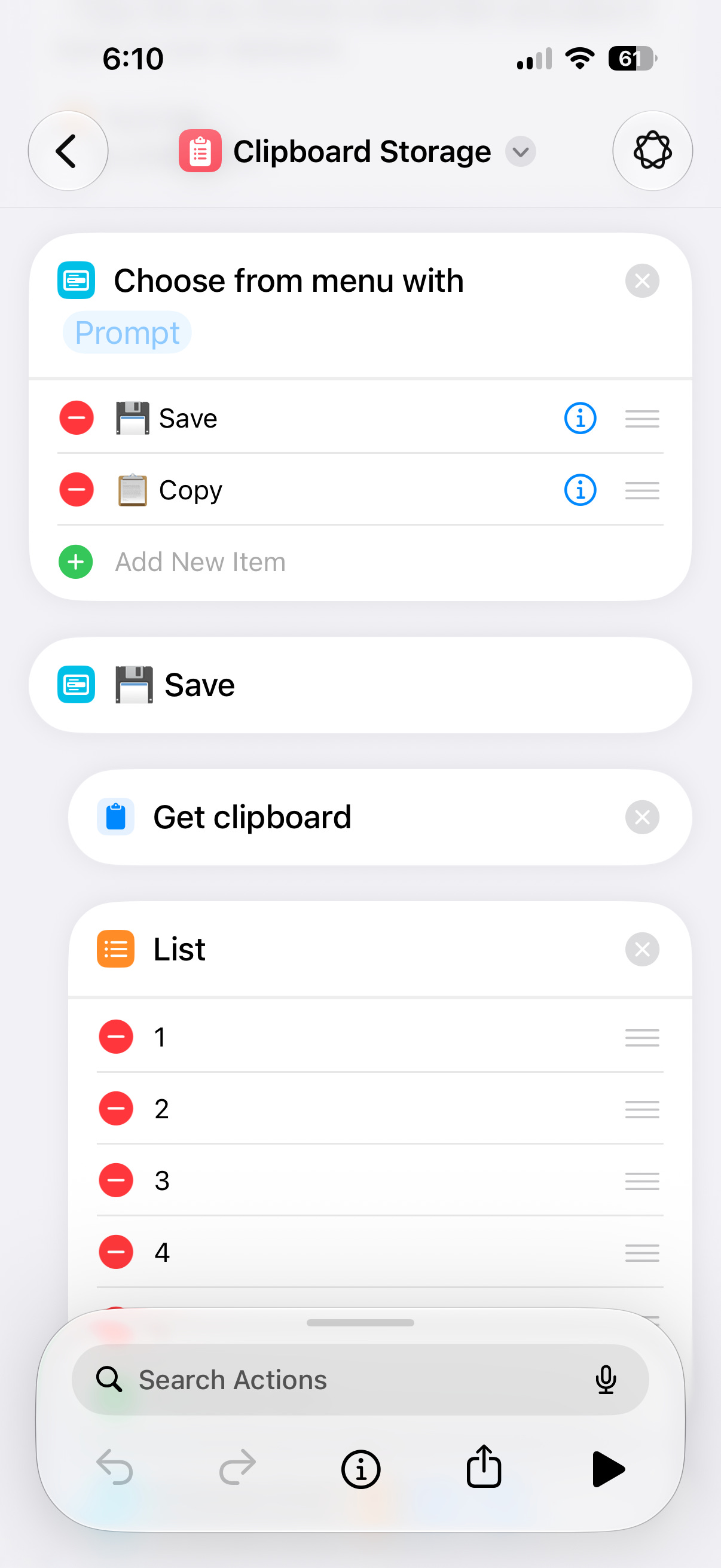
When you want the deluxe version, add a View option with Get Stored Content plus Show Content, and a Clear option with Delete Stored Content.
From here you can save snippets you copy all day, keep a whole lineup of clipboard entries, stash code, store your go-to replies, and basically build your own text storage vault.
Download the Clipboard Storage Shortcut
Someone asks for your LinkedIn and suddenly you’re opening the app, tapping through your profile, and hunting for the share button like it moved. You send that same link out at every networking event, so store it where your Shortcuts can grab it.
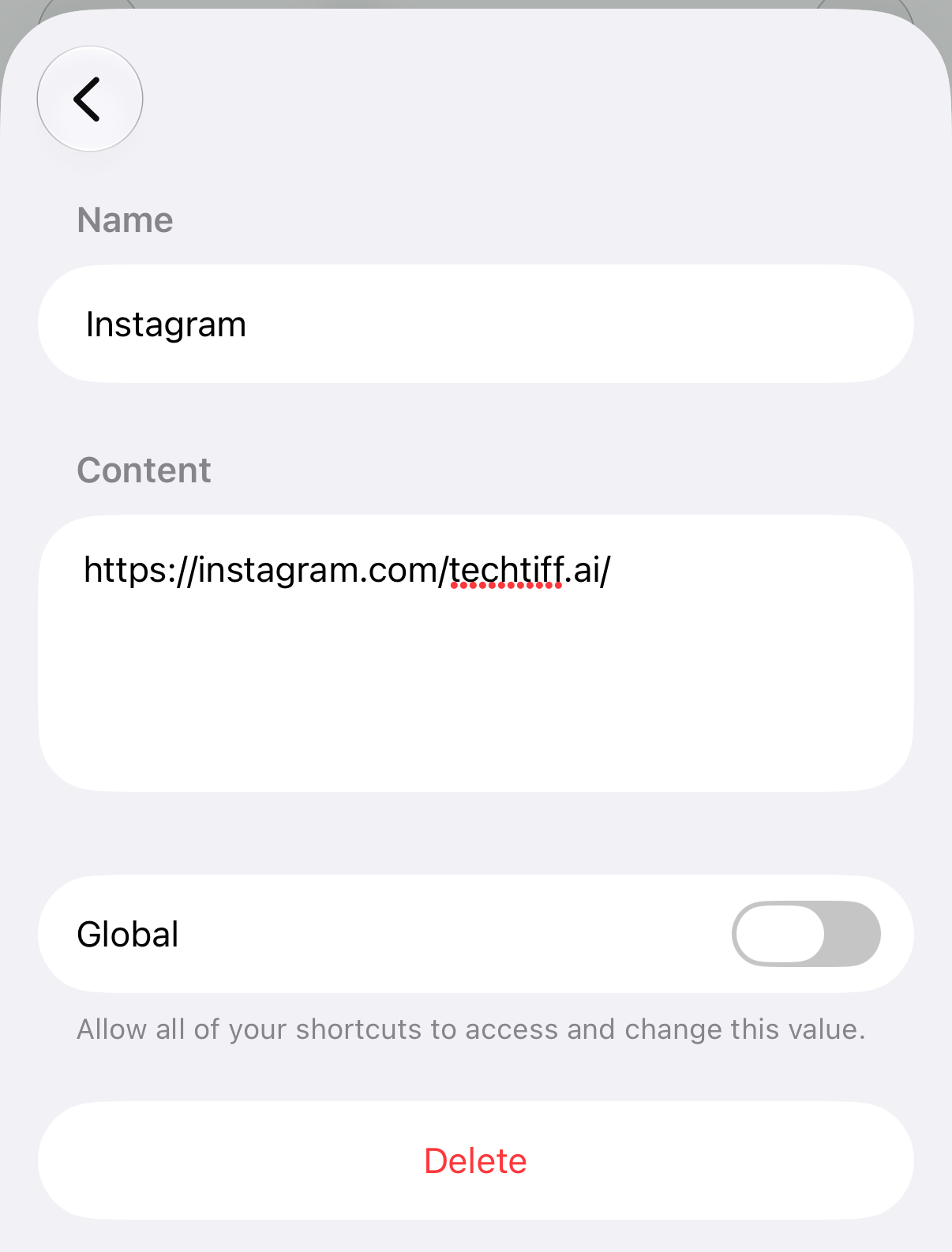
Start by adding your links in the shortcut storage under information (the “i” at the bottom of the screen). Use names you’d recognize, like Instagram or LinkedIn.
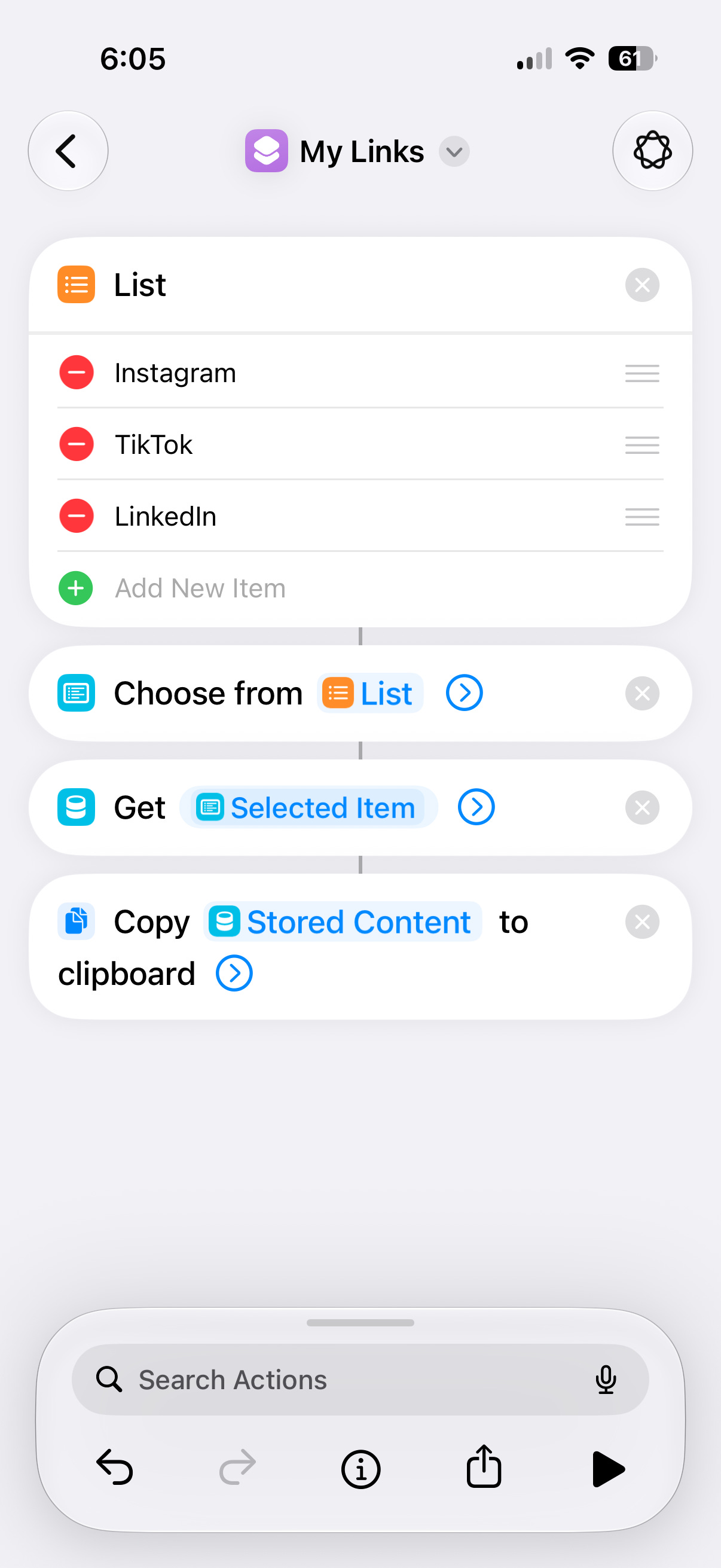
Then build the shortcut with 4 actions:
List - use this to list the same names you saved in your storage.
Choose from List - so you can pick the link you need
Get Stored Content - grabs what you saved using the selection from the list
Copy the stored content to your clipboard
If you’re using Global Variables, turn that toggle on so the item is accessible from any shortcut, not just this one. Check your stored content list any time you want to confirm what’s global and what isn’t.
Beyond social links, this works for Wi-Fi passwords, brand colors, company info, or any prompt you reuse constantly.
Run the shortcut every time you try a new spot, and it grabs your location and stores it alongside your rating.
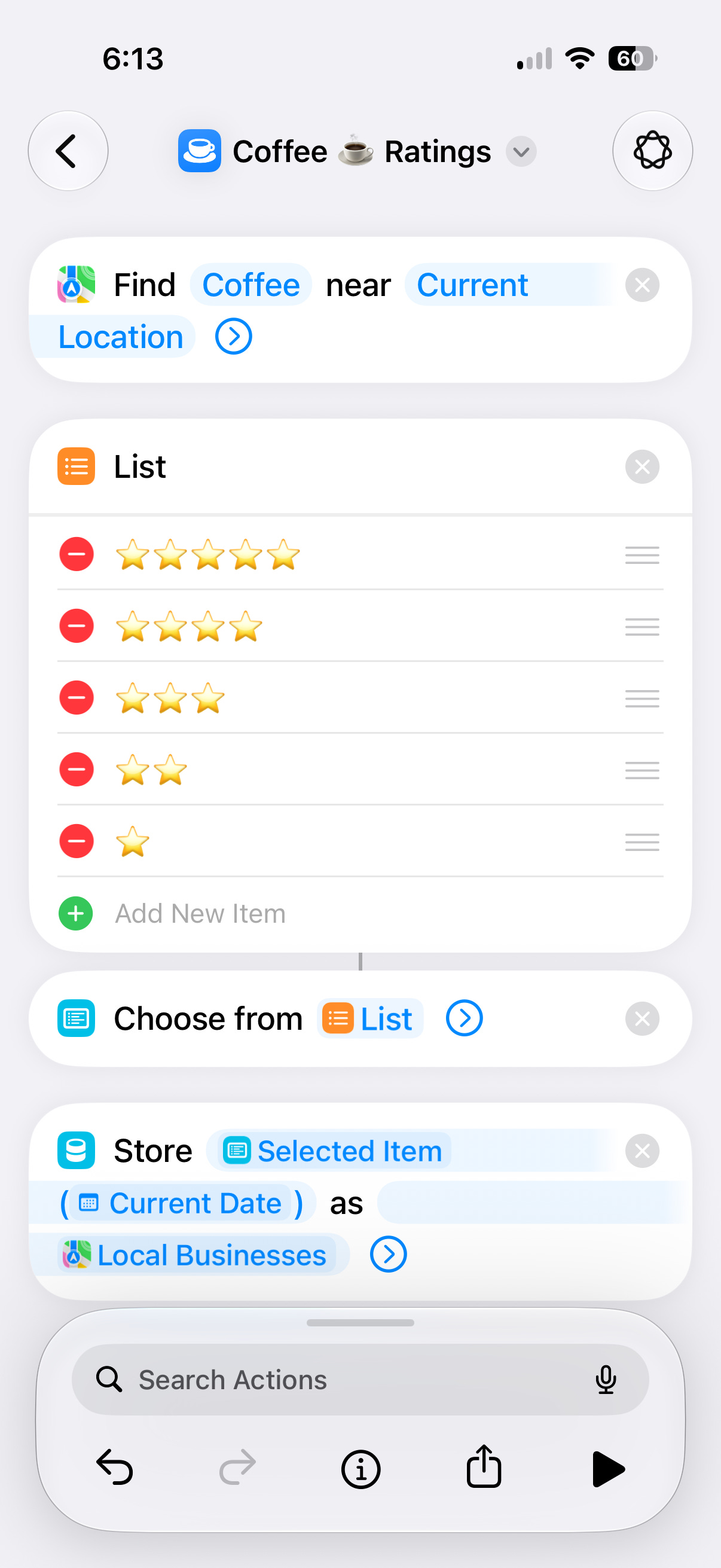
Over time you’ve got a running log you built without opening a spreadsheet once.
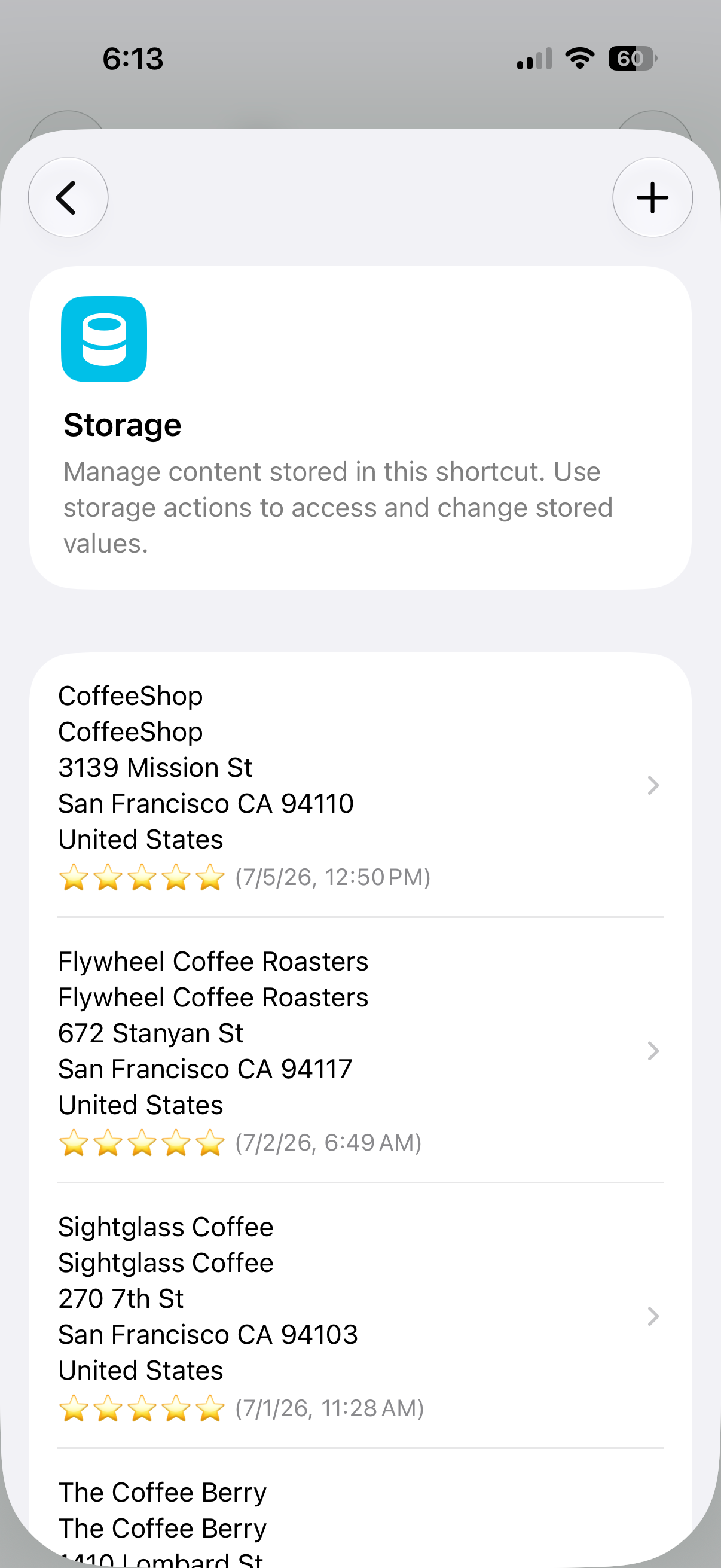
Same structure works for plant watering, dog walks, medication logs, inventory, expenses, workout history, daily mood, or tracking progress on a project.
Now your shortcut remembers what happened, keeps track of the details, and puts that information to work. It stores data, updates it over time, and keeps it ready whenever your automations need it.
The biggest job of all goes to your AI setup. Store your AI instructions as Global Values, meaning your prompts, your writing style, and your automation settings live under names every Shortcut can read.
Every Apple Intelligence or ChatGPT-powered Shortcut you build starts with the same information, because you handed it the same context you’d give a new hire on day two. You set it up in your own words and every automation on your phone speaks them back.
So it basically learned how to keep track of the things you actually want it to remember.
Give it a job and let it keep track of the information you need. The actions are live in the developer beta today.
iOS 27 works on iPhone 11 and newer. It’s in developer beta right now, with public beta landing later this month.
To get it:
Available now: Register as an Apple developer for free at developer.apple.com/register
Coming soon: Sign up for the public beta at beta.apple.com once it’s live
Once you’re signed up, open your iPhone and go to Settings → General → Software Update → Beta Updates.
If you’re building with Shortcuts, the Shortcuts Vault gives you more than 50 iPhone and Mac shortcuts to explore, customize, and build on, with free updates as I add new ones.
Comments
Nothing yet. Say the first thing.
Sign in to join the conversation.