
(Don’t have a Medium membership? Click here to read free.)
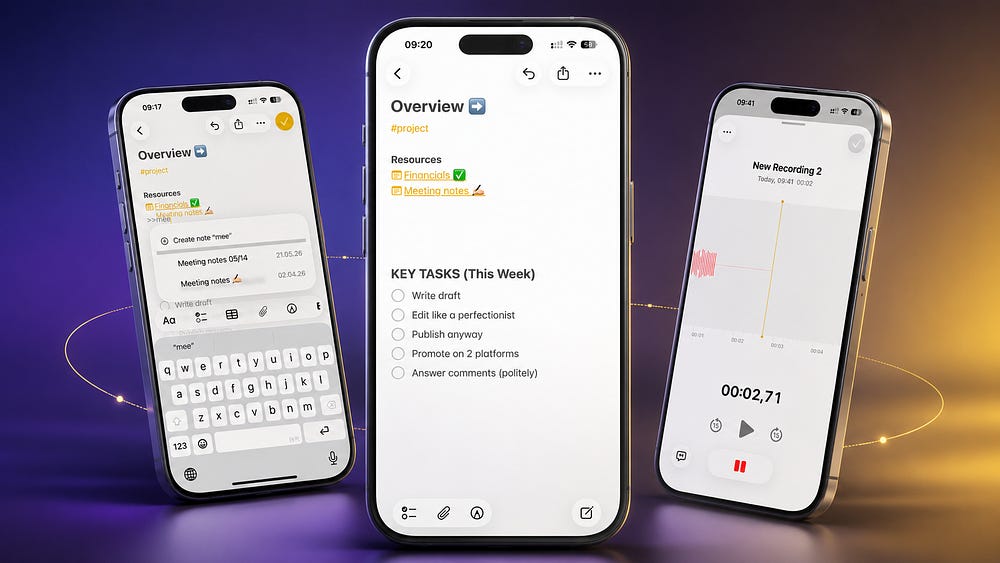
Apple Notes is my second brain. It’s where I store ideas, plan projects, capture goals, and keep track of family stuff.
I love it for one simple reason: it just works. It’s fast, minimal and synced across everything I own:
iPhone
MacBook
iPad
Wherever I am, my notes are right there with me thanks to iCloud. So here are the 5 Apple Notes features I use the most, and how they help me stay organized across my iPhone, MacBook, and iPad.
All screenshots made on iPhone 16 Pro iOS 26.5, edited with Shareshot app. Text written fully by author (human), edited with Grammarly to correct any spelling or grammar mistakes.
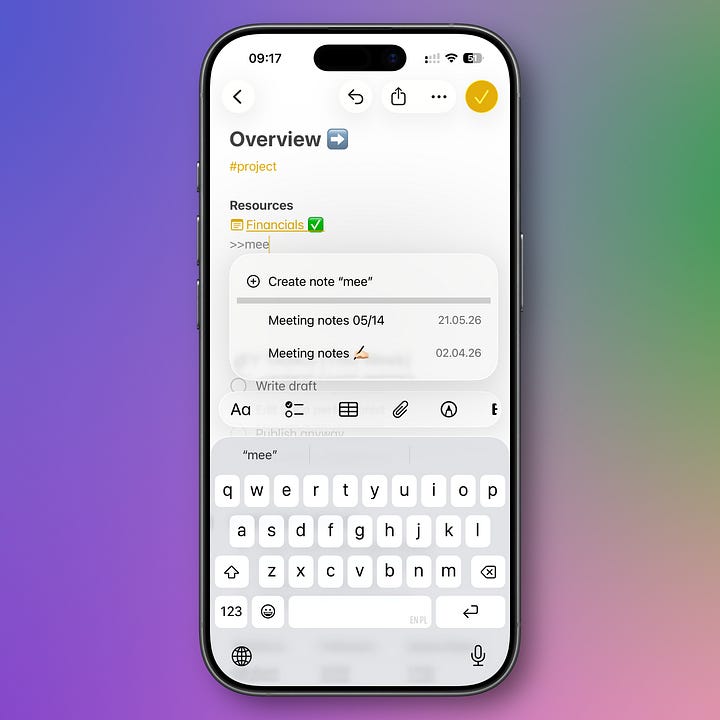
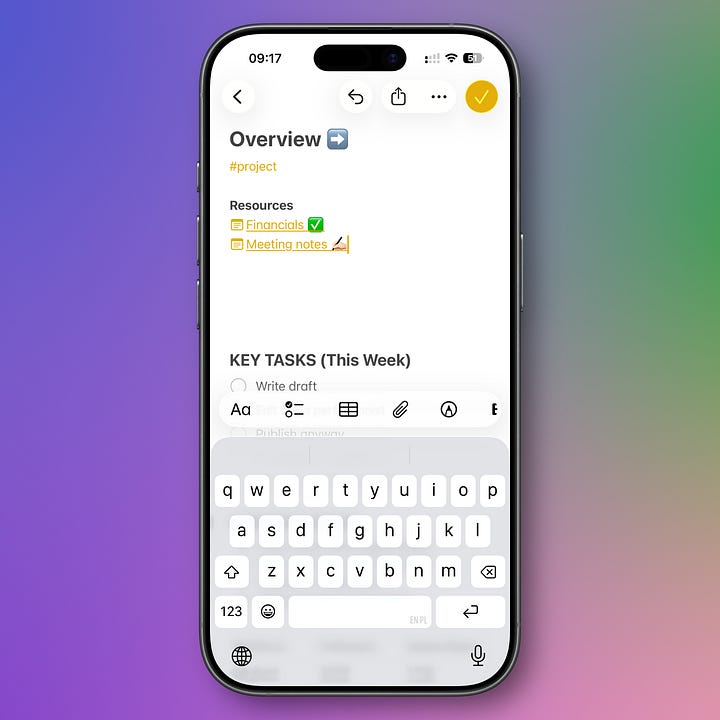
This is a game-changer if you work on projects. You can link one note to another — so you can jump between related ideas without digging.
In the note where you want the link, type >>
Start typing the title of the note you want to link to
Select it from the list
This is actually the best way (maybe except tags and Smart Folders) to find any notes you need. I don’t link all of them, just the most important ones or these I use often.
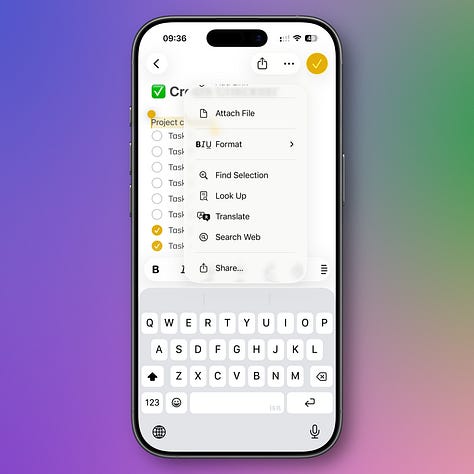
This is the feature I use often. Apple Reminders is my main productivity hub. But for deeper project work, I need Apple Notes.
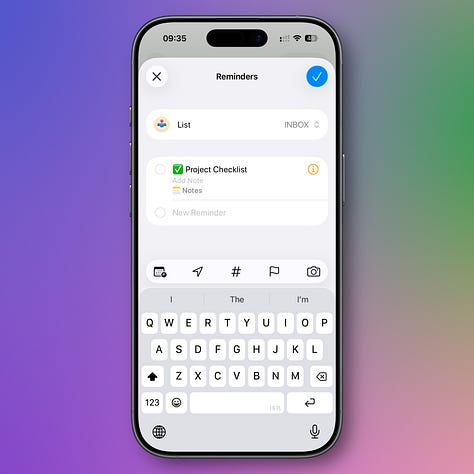
So I like to create a Reminder, like work on this project for 30 minutes, with a direct link to a note.
Highlight the text in your note
Tap Share
Choose Reminders
You can change the title and choose a list
Now your task has a shortcut to the full context with just one tap.
Btw. if you like, you can check how I use Apple Reminders here (I’m sharing my full setup)
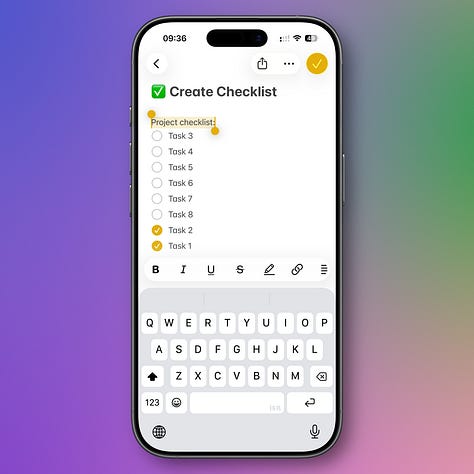
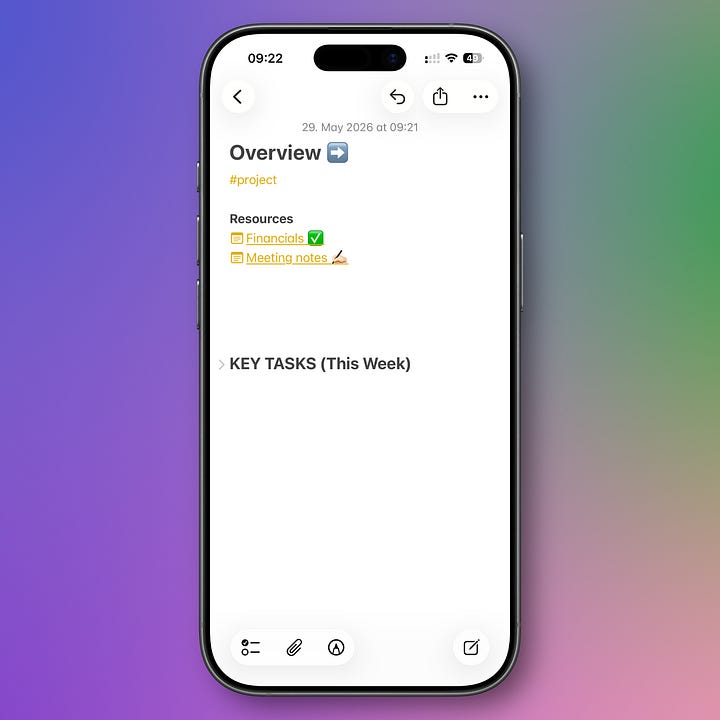
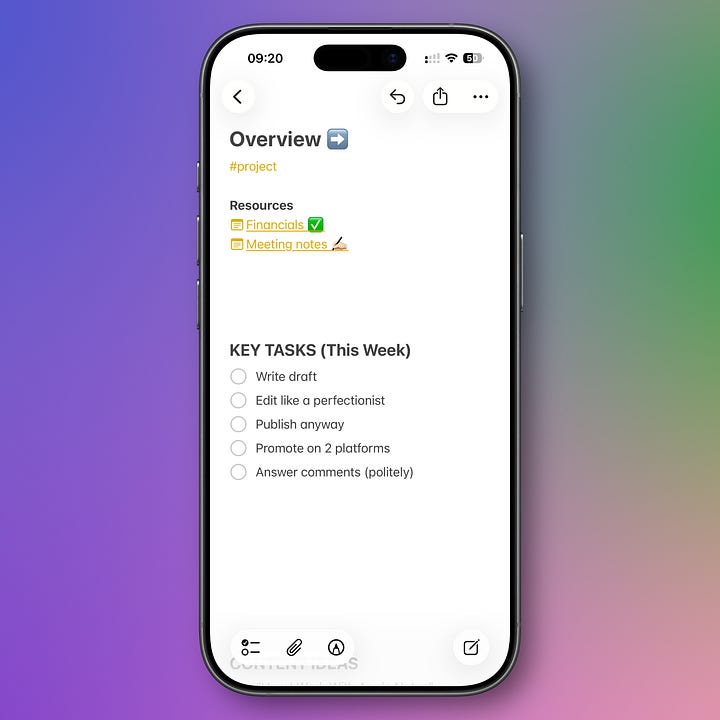
When a note gets long, I break it up with headings. This makes it easier to navigate. And you can even collapse the content with sections.
Select the text you want as a heading
Tap the Aa icon in the toolbar
Choose Heading
In all my notes I use some structure options for better experience: headings, checklists, bullets, hashtags and even add attachments (scans, PDFs, images)
btw. I just launched The Simple Apple System. If you use Apple Notes and Reminders but still feel messy, this guide can help.
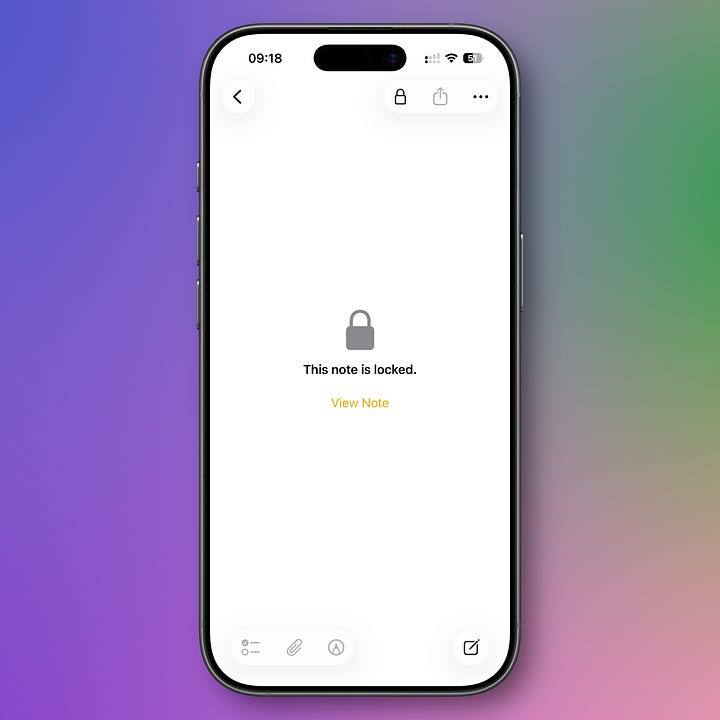
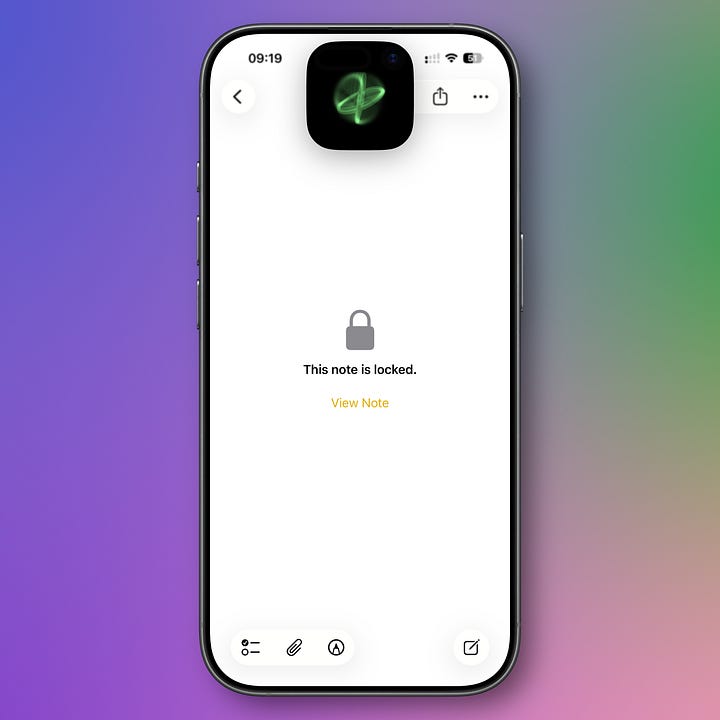
I used to keep passwords in Notes — but now I use Apple Passwords for that. Still, I have admin notes with sensitive data — like bank info and addresses. That I want to keep private.
Tap three dots in the right corner
Choose Lock Note
Enter your password (or use Face ID)
Use Face ID or Touch ID to unlock the note.
Please remember: Apple doesn’t have access to locked notes and can’t help you access them if you forget your locked note password. So make sure you remember it.
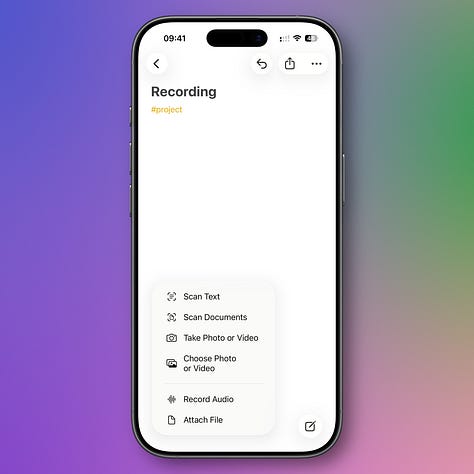
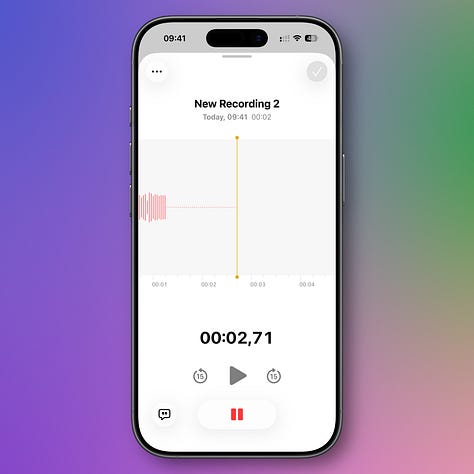
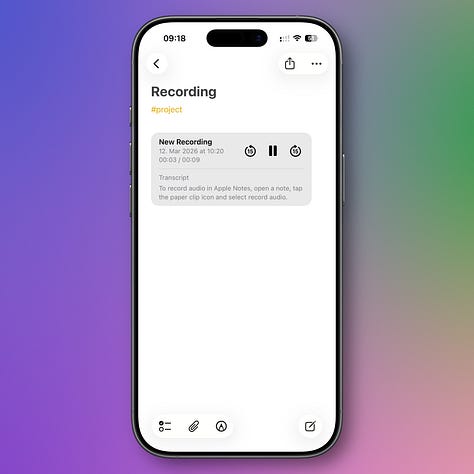
Sometimes I’m on the go and get a big idea. Instead of typing it all out, I just record it.
Tap Record Audio in a new or existing note
Start recording
Tap stop when done
Press Done
You can even see a transcript of your recording. Super handy if you want to copy it into text later.
You don’t need fancy tools if you are an Apple user. You just need something simple that works every time you need it.
For me, that’s the built-in Apple apps: Notes for ideas and Reminders for tasks. They are simple, reliable and powerful enough to cover all of your needs (or most of them, at least).
Thanks for reading, Robin
P.S. If you liked it, I share more stuff about Apple native apps and ecosystem in my short weekly newsletter here.
No posts
Comments
Nothing yet. Say the first thing.
Sign in to join the conversation.