
RaceClocker is a versatile software system for manual race timing. Because manual timing can sometimes be prone to human error, we always recommend having a backup system in place, such as additional timekeepers with stopwatches, a video recorder at the finish line, or having a second shadow RaceClocker race.
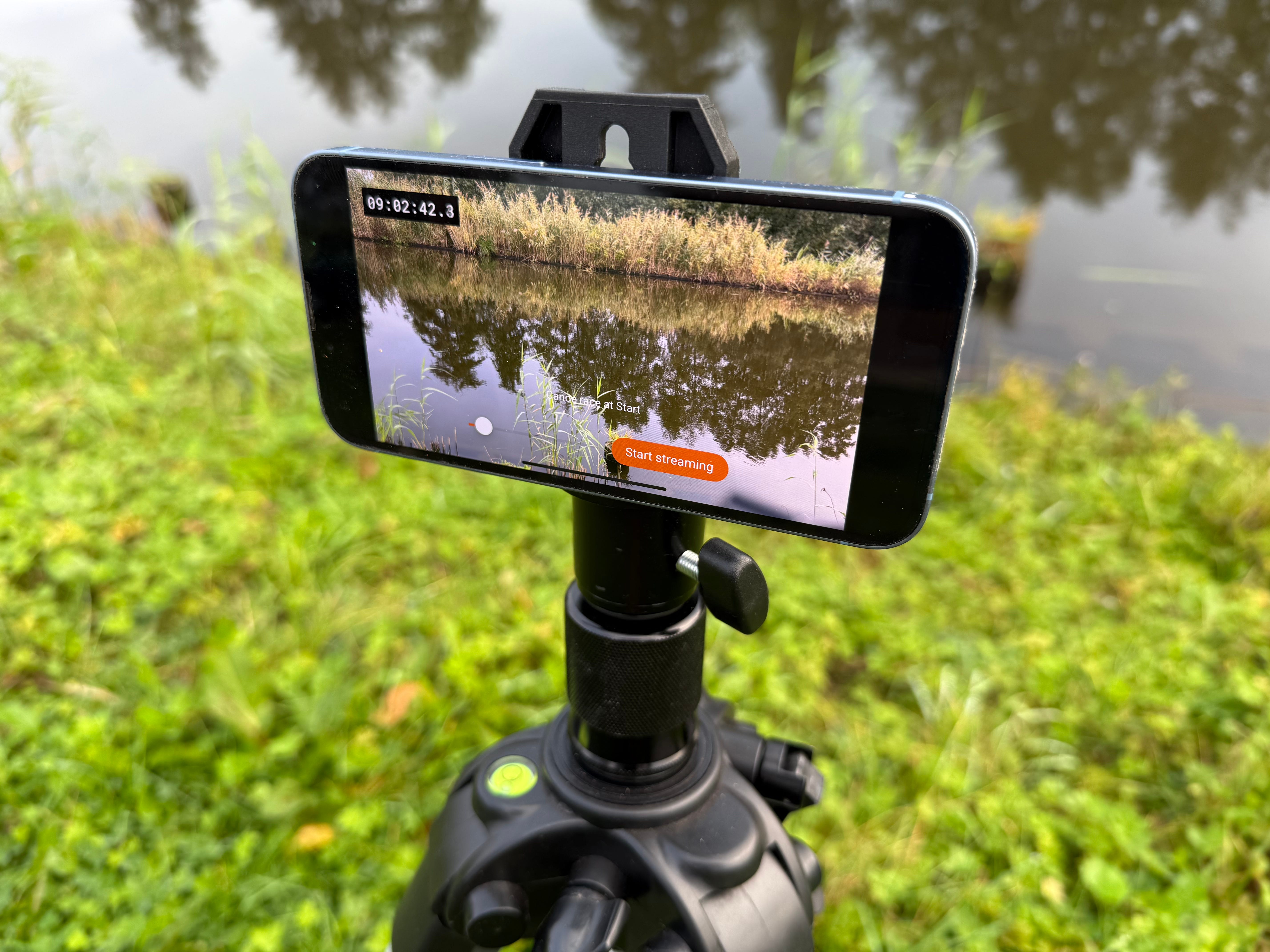
To make manual timing even better, we’ve added an innovative component to the RaceClocker timing system: the RaceClocker Finish Cam app for iPhone. It can be used in two main ways:
as Backup video solution, it records a synchronised video feed at the finish line to verify and adjust manual time stamps after the race.
for Remote timing, enabling timekeepers or the race director to create time stamps remotely, without being physically present at the race course. All you need is an iPhone on a tripod at the finish line with power and an internet connection.
First, install the Finish Cam App. The app is currently created for iOS only and can downloaded on your phone from the App store.
Next, open the Timers tab in your RaceClocker Dashboard. In addition to the usual timer links, you’ll find a new “Open Finish Cam app” button.
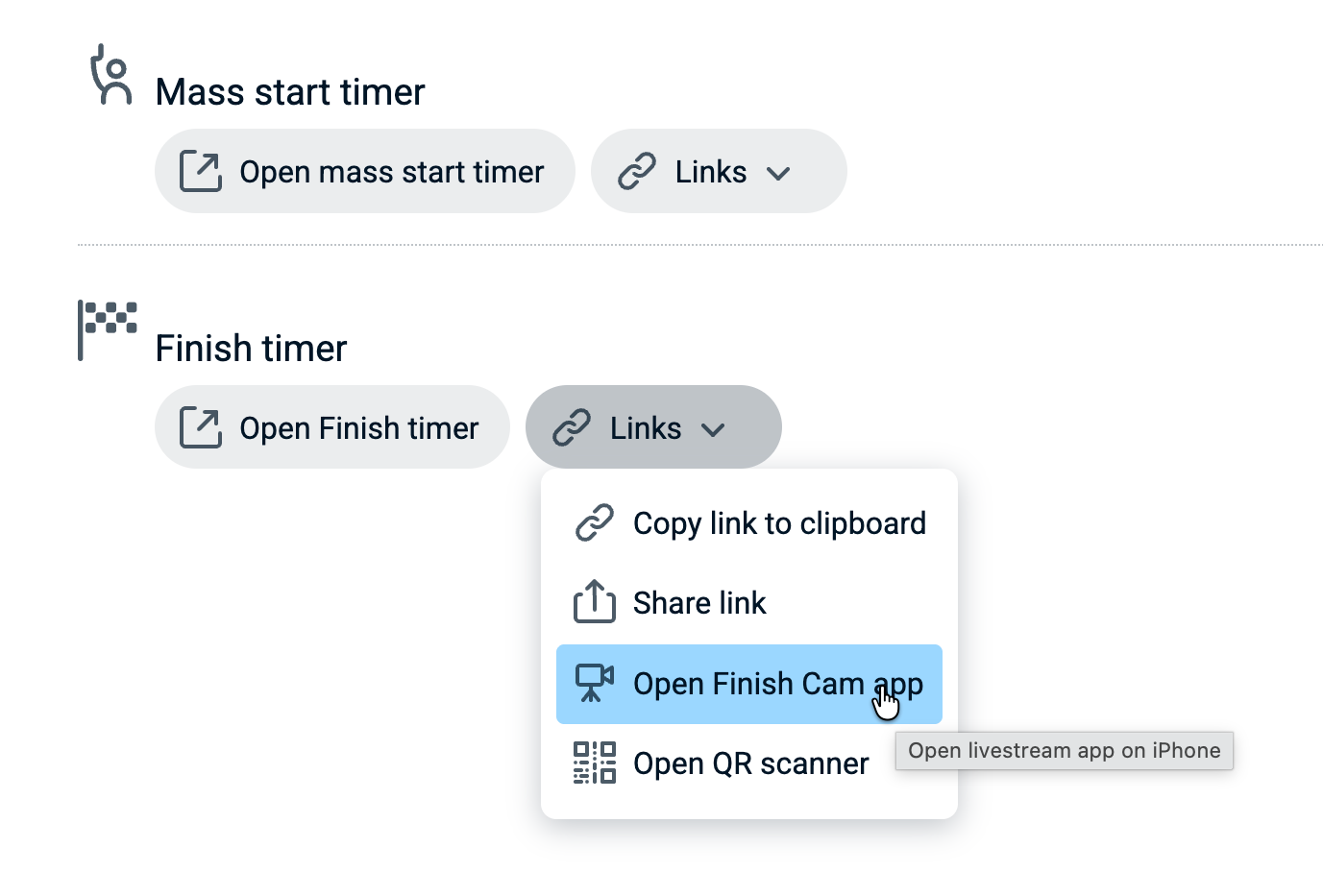
Tapping this button on your iPhone opens the Finish Cam app for that timing point.
The app uses the same 16-character timer key as in your timer links e.g.
https://raceclocker.com/finishcam/?timerkey=abcdefgh01234567.The link is also copied to your clipboard automatically so you can easily share it with others.
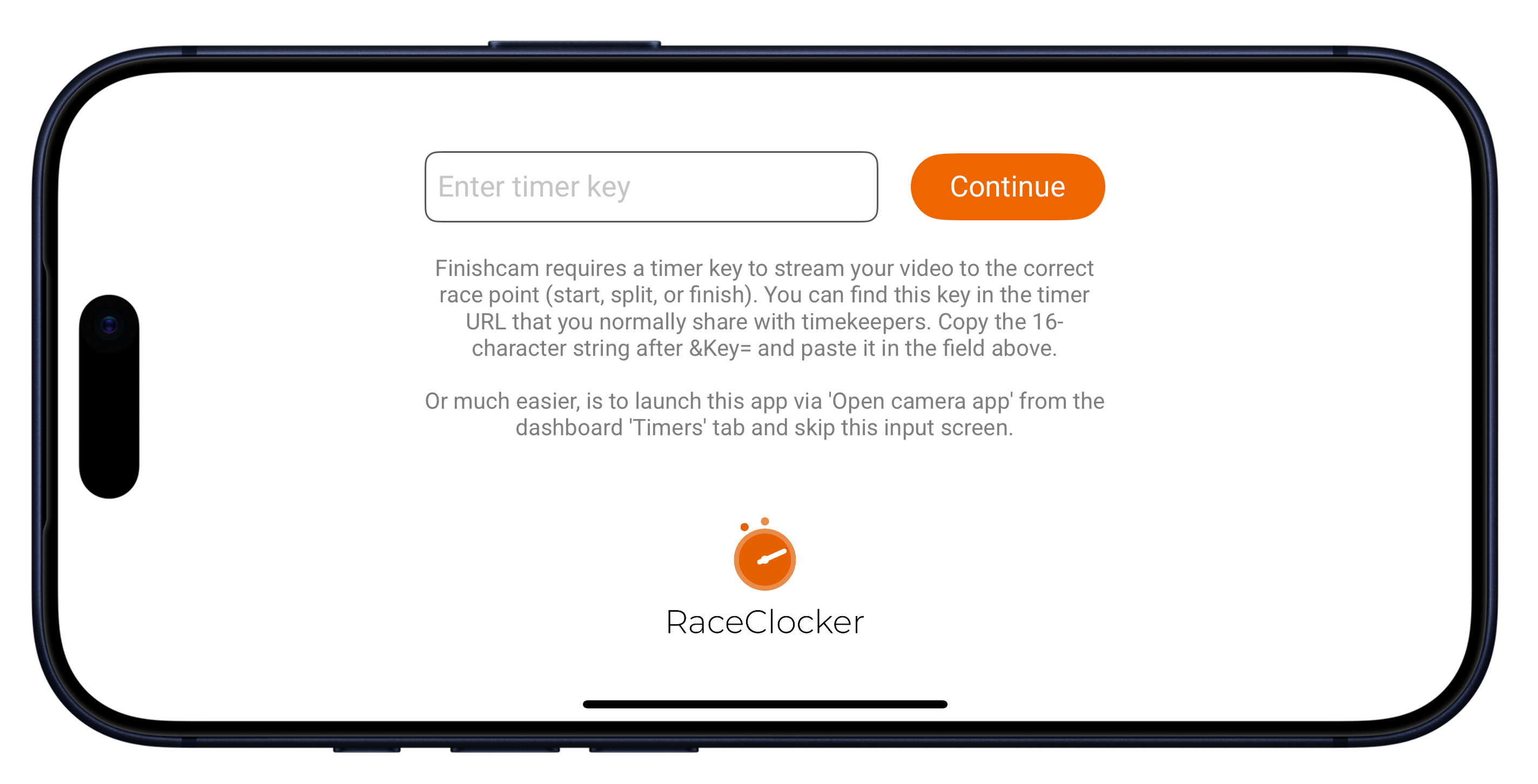
Alternatively, if you open the app directly from your phone’s home screen, you can manually enter or paste the 16-character timer key to connect.
And then start streaming. Once the timer key is verified, the camera view opens.
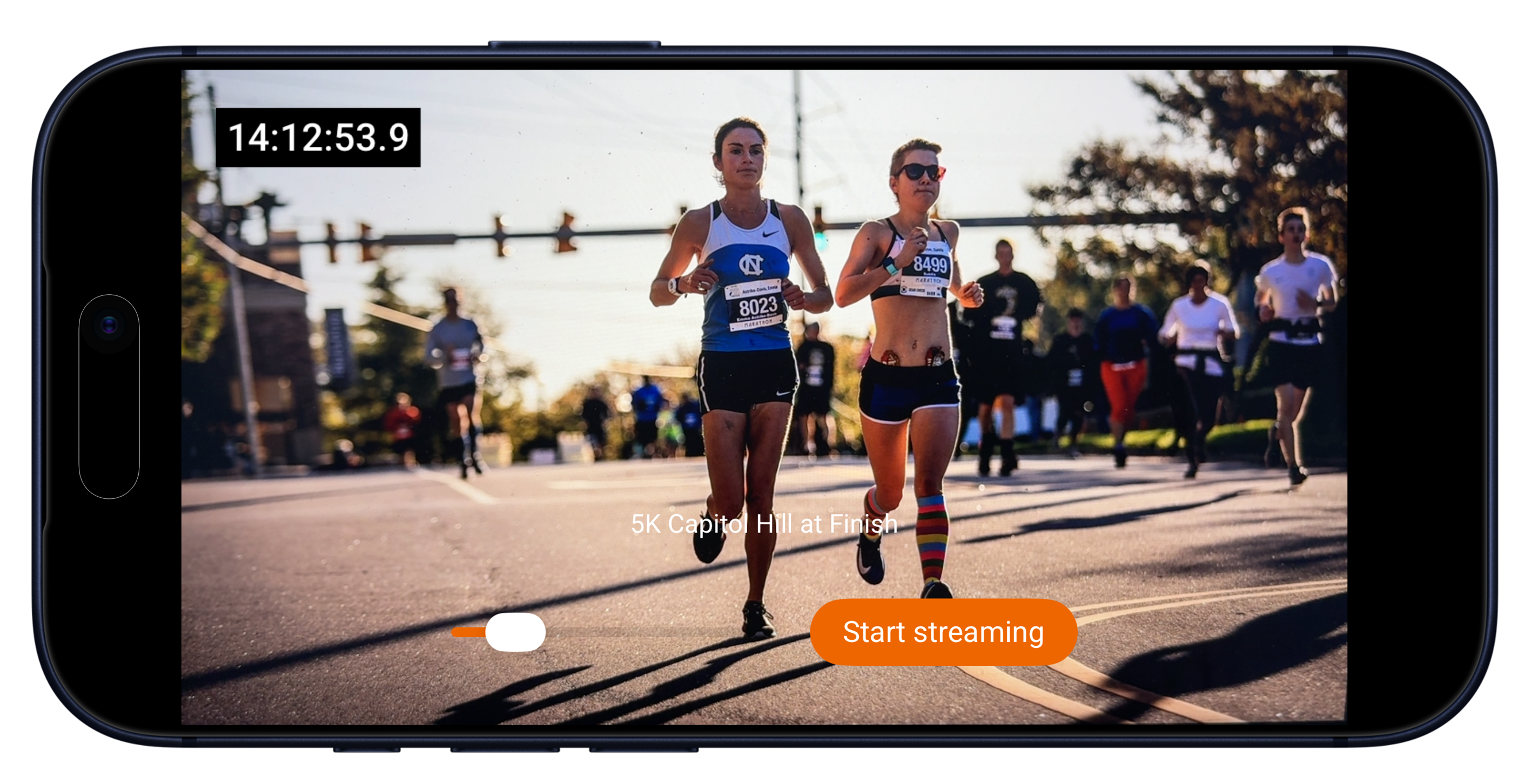
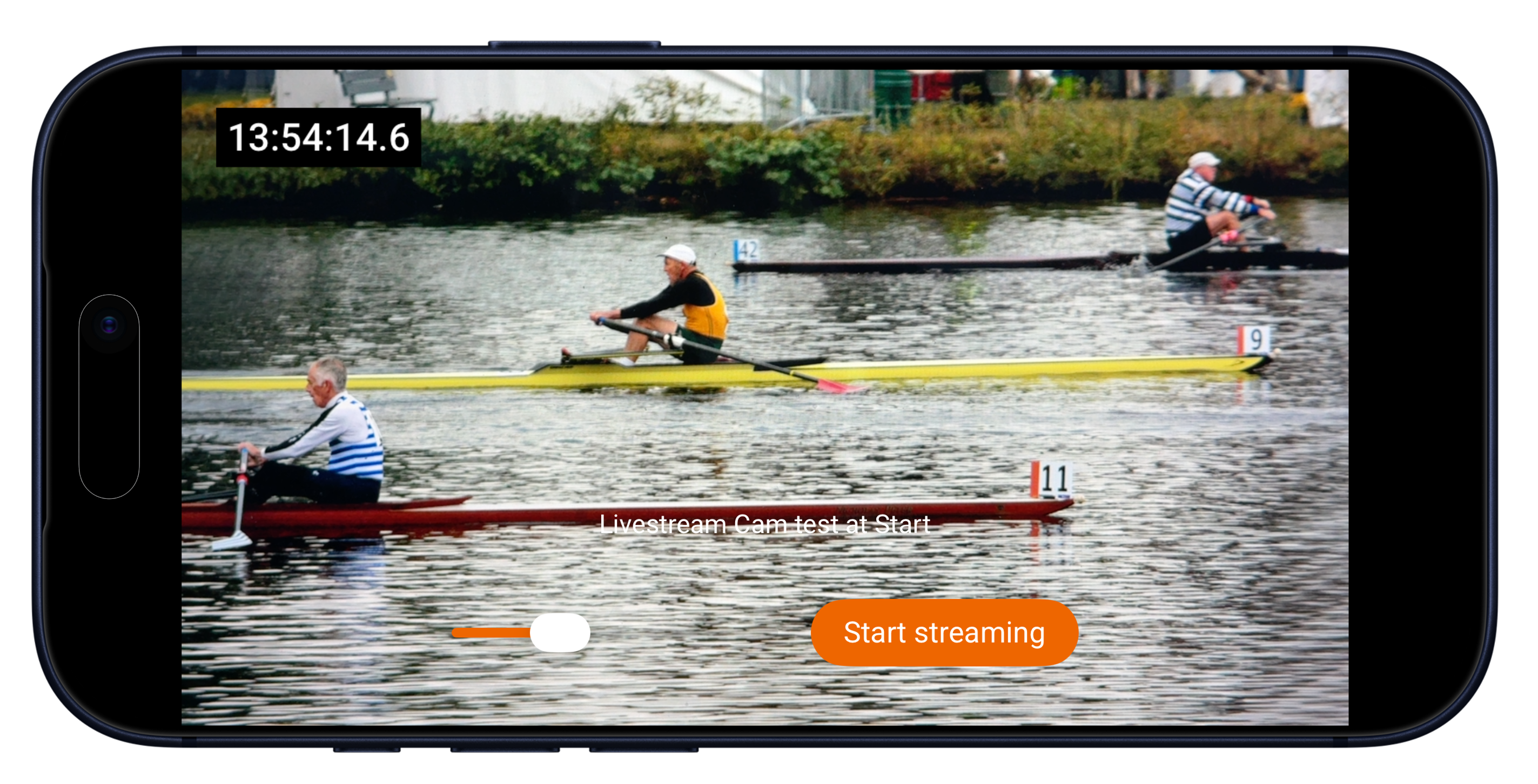
Use the slider to adjust zoom and tap anywhere to focus on that point.
The on-screen clock is synchronized with the RaceClocker race server.
Tap ‘Start Streaming’ to begin sending the live video feed to our video server.
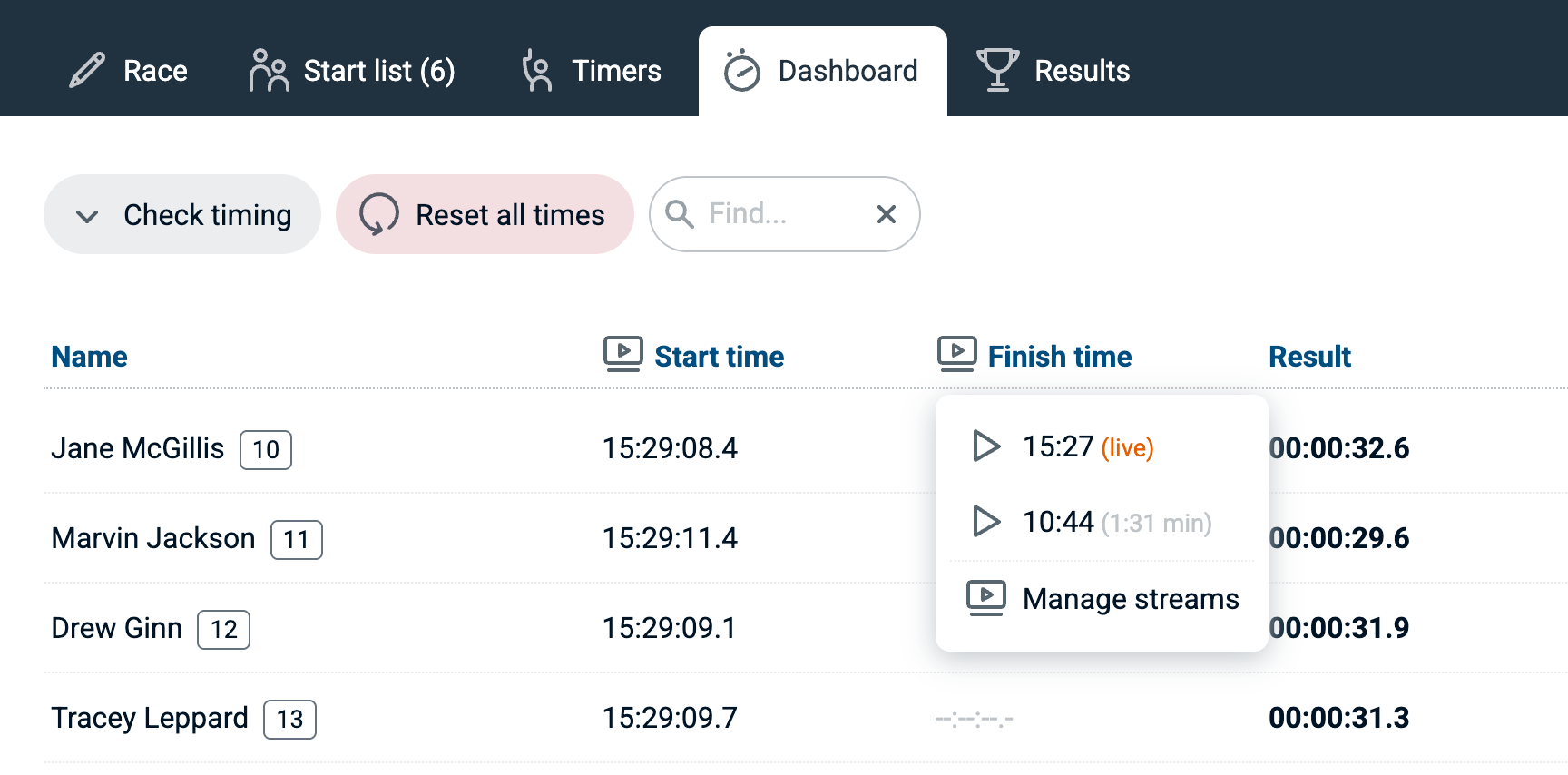
Streams typically become available in the dashboard after 15–20 seconds. Make sure to refresh the page in order to see the live stream menu and open the video player.
When video streams (either live or recorded) are available for your race, a video icon will appear in the header of the relevant timing point (start, finish, or split). Clicking the icon opens a menu with all available videos, identified by start time and duration (or “live” if streaming).
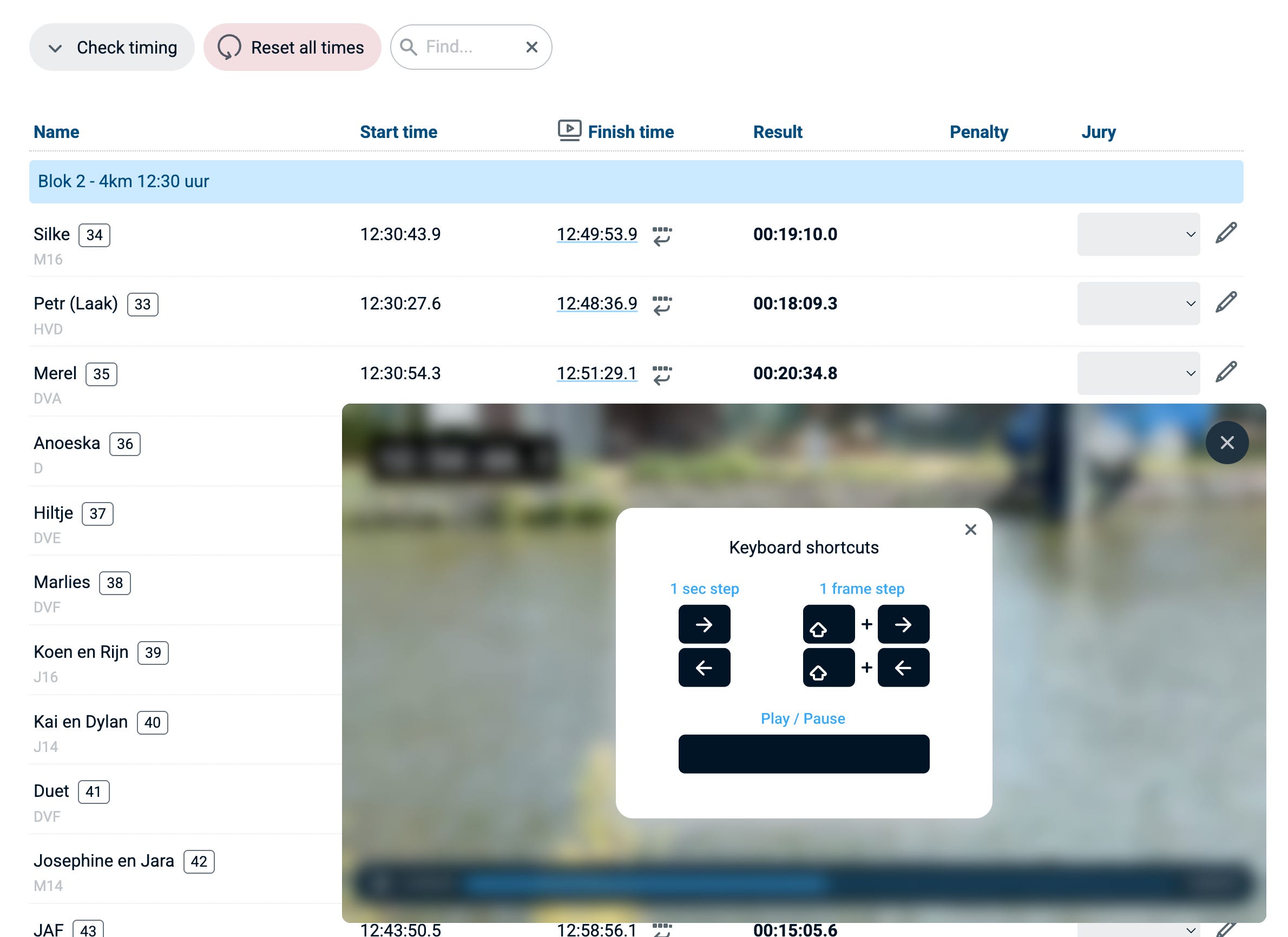
The video player appears as a draggable overlay on your RaceClocker dashboard. Keyboard shortcuts make reviewing easy:
Space bar – Play/pause
Arrow keys – Move 1 second forward/backward
Shift + Arrow keys – Move 1 frame forward/backward
When a video is loaded, time stamps that are present in the dashboard become clickable links. Clicking a time stamp jumps the video to that moment, allowing you to check and fine-tune accuracy. Play the video below for an example.
Once you’ve set the exact moment a participant crosses the line, you can grab the video time directly into your time stamp list via the small icon next to the time. This significantly improves timing precision and consistency.
Finish Cam can also be used as a primary timing tool. Race directors can watch the live stream remotely, pause when a participant crosses the line, and record the time directly in RaceClocker.
Keyboard shortcuts and the search filter make it quick to find the correct participant and confirm times efficiently.
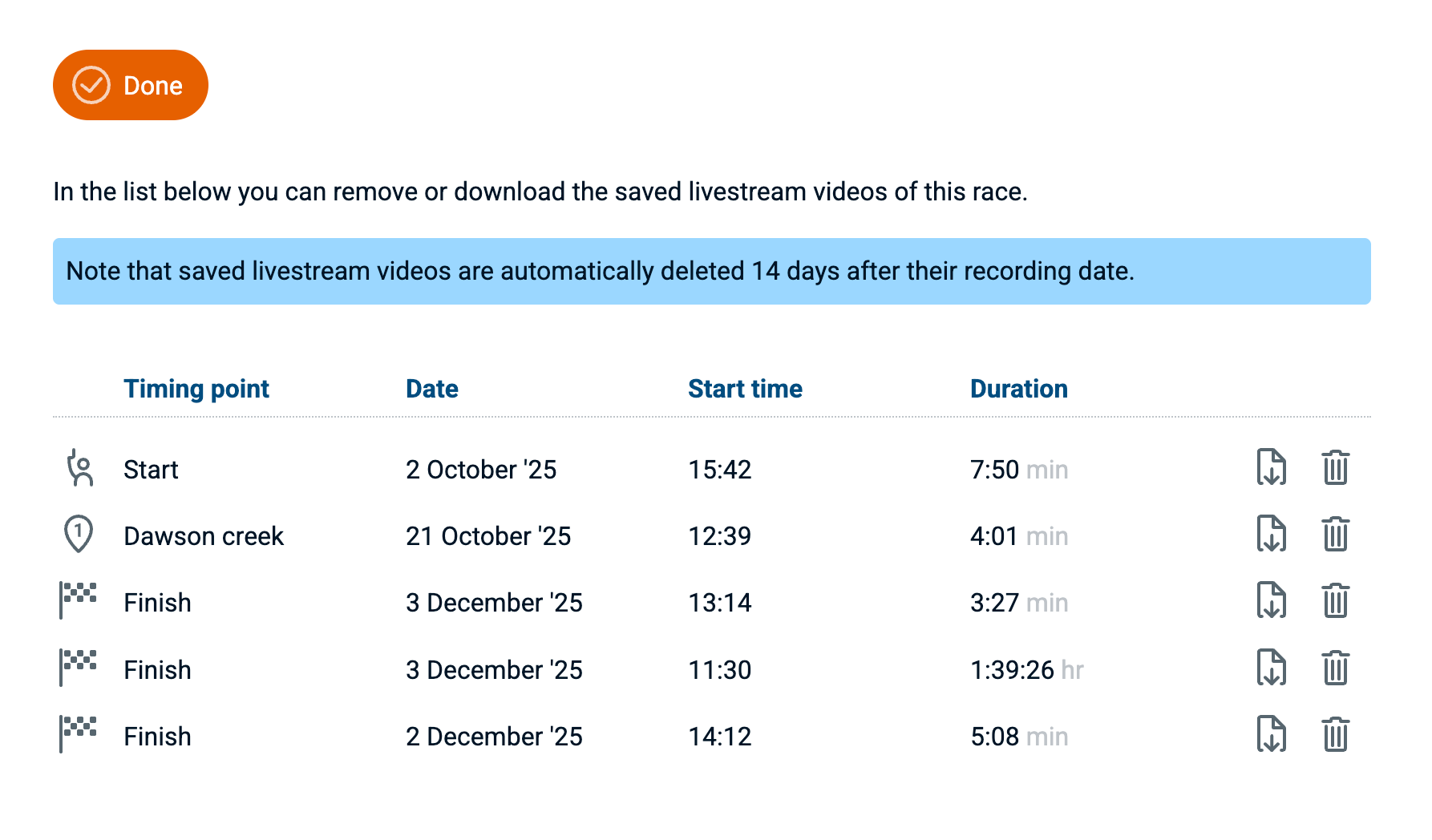
On the video menu there’s also an entry point to the video management page. From here streams you no longer need can be removed - or you can download streams as an .mp4 file to your own device. Note that at some point we will auto-delete videos that are 2 weeks or older.
The RaceClocker Finish Cam app for iPhone is available on the Apple app store. The app can only be used in combination with our Premium subscription plan. You’ll find the app store link as well as as other info via the ‘Timers’ tab in the RaceClocker dashboard.
A short tutorial video is included in the RaceClocker video tutorial showcase on Vimeo
#Happytiming

No posts
Comments
Nothing yet. Say the first thing.
Sign in to join the conversation.