
Google Analytics MCP is an experimental open-source server from Google that enables AI assistants and large language models to interact directly with Google Analytics through the Analytics Admin API and Data API. It provides a set of tools that allow users to:
Retrieve Google Analytics account and property information.
View property details and configuration settings.
List linked Google Ads accounts.
Run standard Google Analytics reports.
Run funnel analysis reports.
Access real-time analytics data.
Retrieve custom dimensions and custom metrics configured in a property.
Built in Python and designed for integration with Gemini, Claude, and other MCP-compatible clients, it helps developers and analysts bring Google Analytics insights directly into AI-powered workflows, making data exploration and analysis faster and more accessible.
Setting up Google Analytics MCP is relatively straightforward. You need to enable access to your Google Analytics data, configure the required credentials, and connect the server to an AI client such as Gemini and Claude. Once everything is in place, you can start asking questions about your analytics data in natural language and receive insights directly from your AI assistant.
Although Google Analytics MCP is primarily designed for personal use and local deployments, its Python-based architecture also makes it suitable for deployment on shared infrastructure such as servers, containers, or cloud environments. In this post, I will show how to deploy it on Google Cloud Platform (GCP), allowing teams, applications, and AI assistants to securely access and share Google Analytics data through a centralised service.
To deploy Google Analytics MCP in GCP, you can use Cloud Run to make the service centrally available and accessible over HTTP. Since Google Analytics MCP is designed to run locally, it communicates through stdio, which is used to exchange messages between the MCP server and local clients such as Gemini CLI and Claude Desktop. Cloud Run, however, runs containerised applications that expose HTTP endpoints.
To make the MCP server compatible with this environment, I will introduce two small but important changes: adding a web entry point and packaging the application as a container image.
The first change is implemented in the main.py file, where the existing MCP server is wrapped in a Starlette web application and exposed over HTTP, making it suitable for deployment on Cloud Run.
When supported by the installed MCP version, the application uses Streamable HTTP via the /mcp endpoint. This modern stateless transport is particularly well suited to cloud environments because each request is processed independently, allowing Cloud Run to scale efficiently and distribute traffic more effectively. To maintain compatibility with older MCP versions, the application can automatically fall back to Server-Sent Events via the /sse endpoint, which provides a persistent streaming connection between the client and the server. A lightweight /healthz endpoint is also included so Cloud Run can verify that the container is healthy and ready to serve requests:
The second change is the creation of a container image using Docker. Cloud Run deploys applications as containers, so the Google Analytics MCP server and its dependencies must be packaged into a single deployable artefact.
The Dockerfile installs the application and its dependencies, and configures main.py as the application entry point. This provides a simple and reproducible way to build and deploy the MCP server while keeping the container image small and easy to maintain:
With the web entry point and container image in place, deploying Google Analytics MCP to Cloud Run becomes a straightforward process. The remaining steps follow the standard GCP workflow: building the container image, storing it in Artifact Registry, and deploying it to Cloud Run.
To make the deployment commands easier to reuse, we will first define a set of environment variables that will be referenced throughout the deployment process:
Enable the required Google Cloud APIs:
Create an Artifact Registry repository to store the Docker image:
Build and push the image using Cloud Build:
Next, deploy the container image to Cloud Run. For testing purposes, you can use --allow-unauthenticated to expose a public endpoint. For production environments, it is recommended to use --no-allow-unauthenticated and restrict access through IAM permissions:
Once the service has been deployed, verify that it is running correctly by calling the health check endpoint:
You can connect Gemini or Gemini to the live URL:
For Gemini, you can also add it directly to ~/.gemini/settings.json:
Claude can also connect to the deployed service using the MCP Remote proxy. Add the following configuration to your Claude Desktop configuration file:
Once connected, your AI assistant can access the same Google Analytics tools available in a local deployment, but through a centrally managed and persistent cloud endpoint that can be shared across users, applications, and environments:
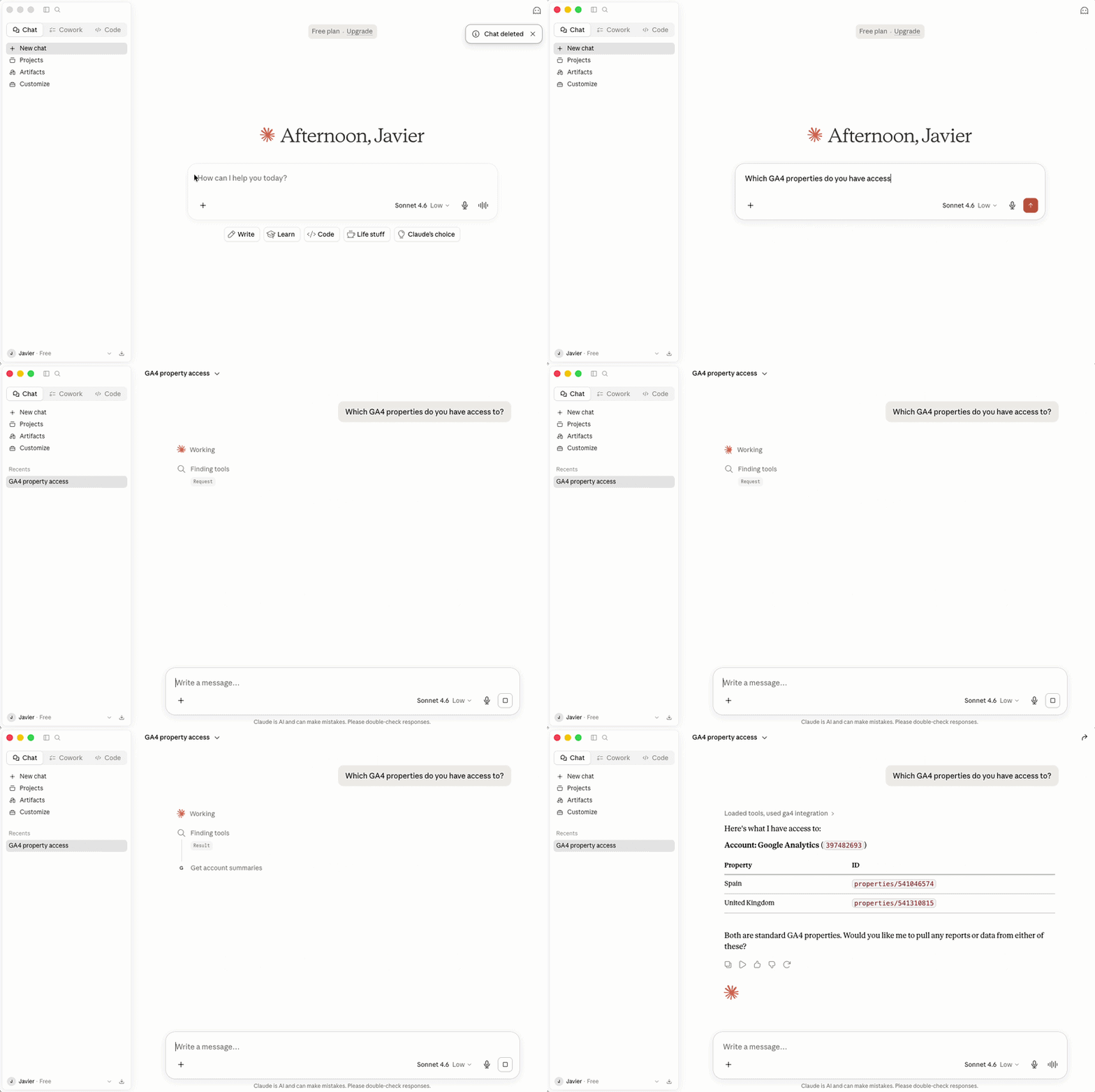
Important: Before running any queries, make sure the Cloud Run service account has at least Viewer access to the required Google Analytics account or property. This can be configured from the Google Analytics Admin settings by adding the service account email as a user.
Google Analytics MCP makes it easier to interact with Google Analytics data using natural language through AI assistants and MCP-compatible clients. While it is typically used as a local development tool, deploying it on Cloud Run transforms it into a shared, centrally managed service that can be accessed by multiple users, applications, and AI assistants.
The changes required are minimal, consisting of a web entry point and a container image, but they enable a much more scalable deployment model. Whether you are building internal tools, automating reporting workflows, or enabling conversational analytics across your organisation, this approach provides a simple and practical foundation for bringing Google Analytics data into cloud-based AI workflows.
Original repository:
https://github.com/googleanalytics/google-analytics-mcp
Updated repository:
https://github.com/pozueco/google-analytics-mcp/
Starlette:
Streamable HTTP Transport:
https://modelcontextprotocol.io/specification/transports
Server-Sent Events (SSE):
https://developer.mozilla.org/en-US/docs/Web/API/Server-sent_events
Cloud Run documentation:
https://cloud.google.com/run/docs
Model Context Protocol (MCP):
https://modelcontextprotocol.io
Google Analytics Data API:
https://developers.google.com/analytics/devguides/reporting/data/v1
No posts
Comments
Nothing yet. Say the first thing.
Sign in to join the conversation.