
👋 I’m Diego. In every article, I document my journey exploring AI and Product Management. I share the hard lessons I’ve learned from my latest “side quests,” report back on what’s actually working, and answer your questions about building in this space.
Welcome to a new experiment I’m calling Skill Tree. In videogames, a skill tree is how you level up: one unlock at a time, in an order that makes sense for how you play. That's the idea here. Skill Tree is a tutorial series inside Product SideQuest where each article teaches something about an AI tool, a complete workflow, step by step, from zero.
Most of a PM’s week disappears into work that has to happen before the real work can start: research, synthesis, competitive analysis, meeting prep.
Skills automate this layer. For example, in Claude Code, a skill is a saved workflow: one command runs your Monday research, another runs your PRD through three stakeholder reviews before you walk into the room. The operational work gets done before your day starts.
However, there’s a trap. You’ll create one skill and suddenly feel the urge to skill-out your entire job.
Most people try to shortcut this by downloading skills someone else built. I tried downloading every skill pack I could find. Two weeks later I had a graveyard of skills I didn’t understand, couldn’t trigger, and wouldn’t know how to fix. They were built for someone else’s workflow, and I couldn’t tell which parts fit mine until I’d already loaded them up.
I deleted all of it and built them from scratch. For example, on Monday mornings one command pulls the week’s AI news, another runs my PRD through three stakeholder perspectives before it goes to the team, and I chain them together to run in one go.
Let’s me show you how to use Claude Code to automate your workflows.
Every session in Claude Chat (and other LLM chats) starts the same way: blank. No memory of what you worked on yesterday, no idea what kind of PM you are, no recollection of the output format you’ve been refining for three weeks. You paste your context, get a useful response, and close the session. Next time, you paste it all again.
In Claude Code, CLAUDE.md changes this. It’s a plain text file that Claude reads at the start of every session before you’ve typed a word. In Claude Code, whatever you put in there, Claude already knows.
# Who I am
I'm a PM working on a B2B SaaS product focused on developer tools.
I write a weekly newsletter about AI for product managers.
# My product context
Product area: developer workflow and integrations
Key stakeholders: VP Engineering, Director of Product, 2 eng managers
# What I use Claude Code for
- Weekly research briefs on developer tooling and AI
- PRD drafts and reviews before team presentations
- Meeting prep for stakeholder syncs
# How I work
- Short paragraphs, one idea per paragraph
- I draft one section at a time, not full documents
- When I ask for a draft, check my writing style rules first
Nothing technical. Just context.
The first CLAUDE.md is a rough draft. You add to it during real sessions when something works or when something keeps coming up. “Add that output format to CLAUDE.md.” “Remember I never want bullet points in any document intros.” After a few weeks, it has your voice rules, your workflow preferences, and the rules that came from specific frustrations rather than planning.
You can write it from scratch, but I prefer to work with Claude Code to improve it. Start a session, do real work, notice what you keep explaining and correcting, and say: “Add that rule to CLAUDE.md.” Claude fills in the fields, writes the entry, and puts it in the right section. The file reflects how you work.
Claude knows who you are before the session starts.
As you work more and more with Claude Code, you’ll be tempted to add workflow instructions to CLAUDE.md: things like “every Monday, pull the week’s AI news and compile it.” That’s not the right use for CLAUDE.md. CLAUDE.md loads into every session regardless of what you’re working on. A workflow instruction in there runs as context every time you open Claude Code, not just when you need it.
Instead, we use Skills. Skills run only when you call them.
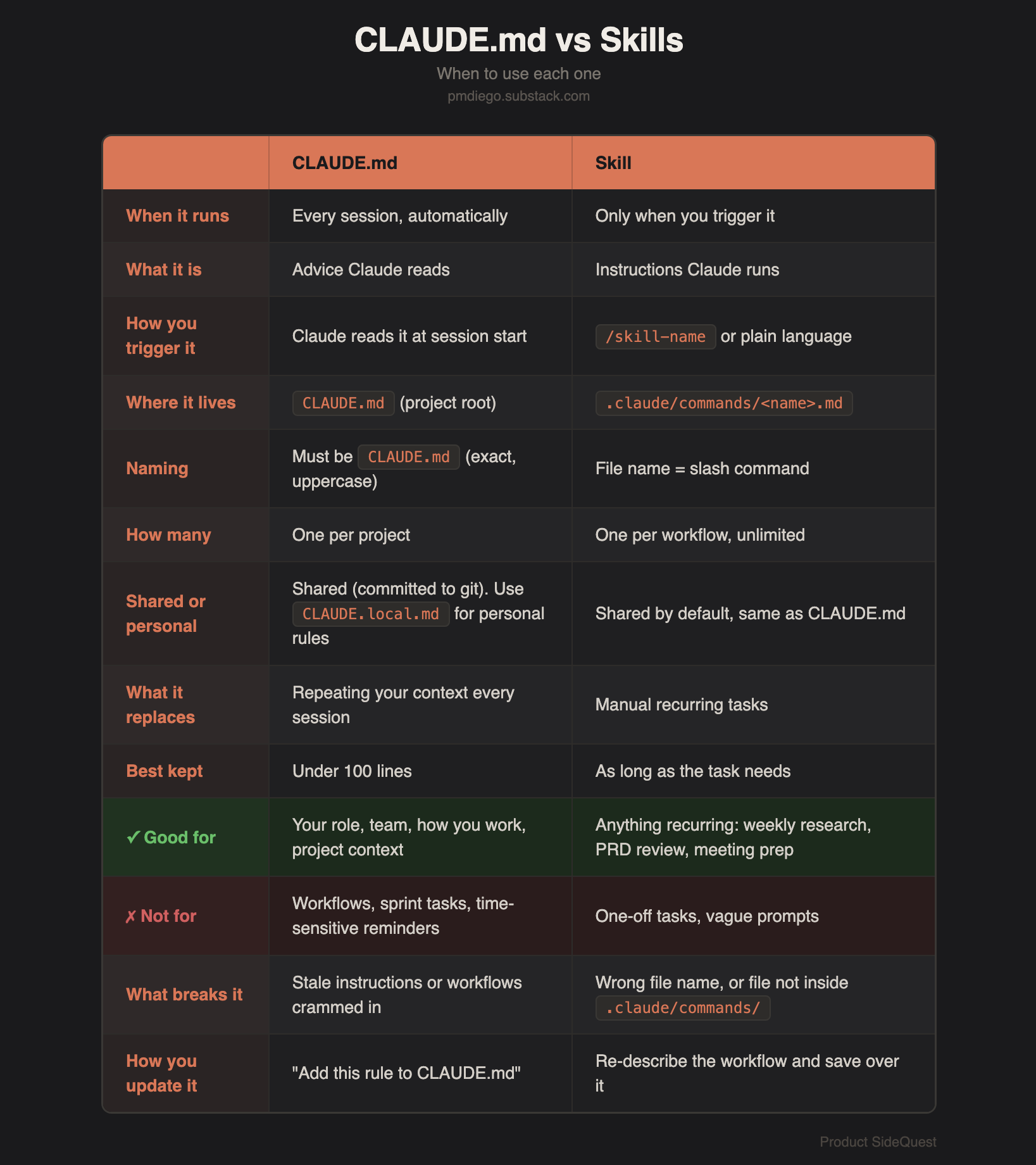
A skill is a workflow saved as a file. When a task repeats, you describe it to Claude, refine the output until it’s right, and save it.
This is what a skill looks like:
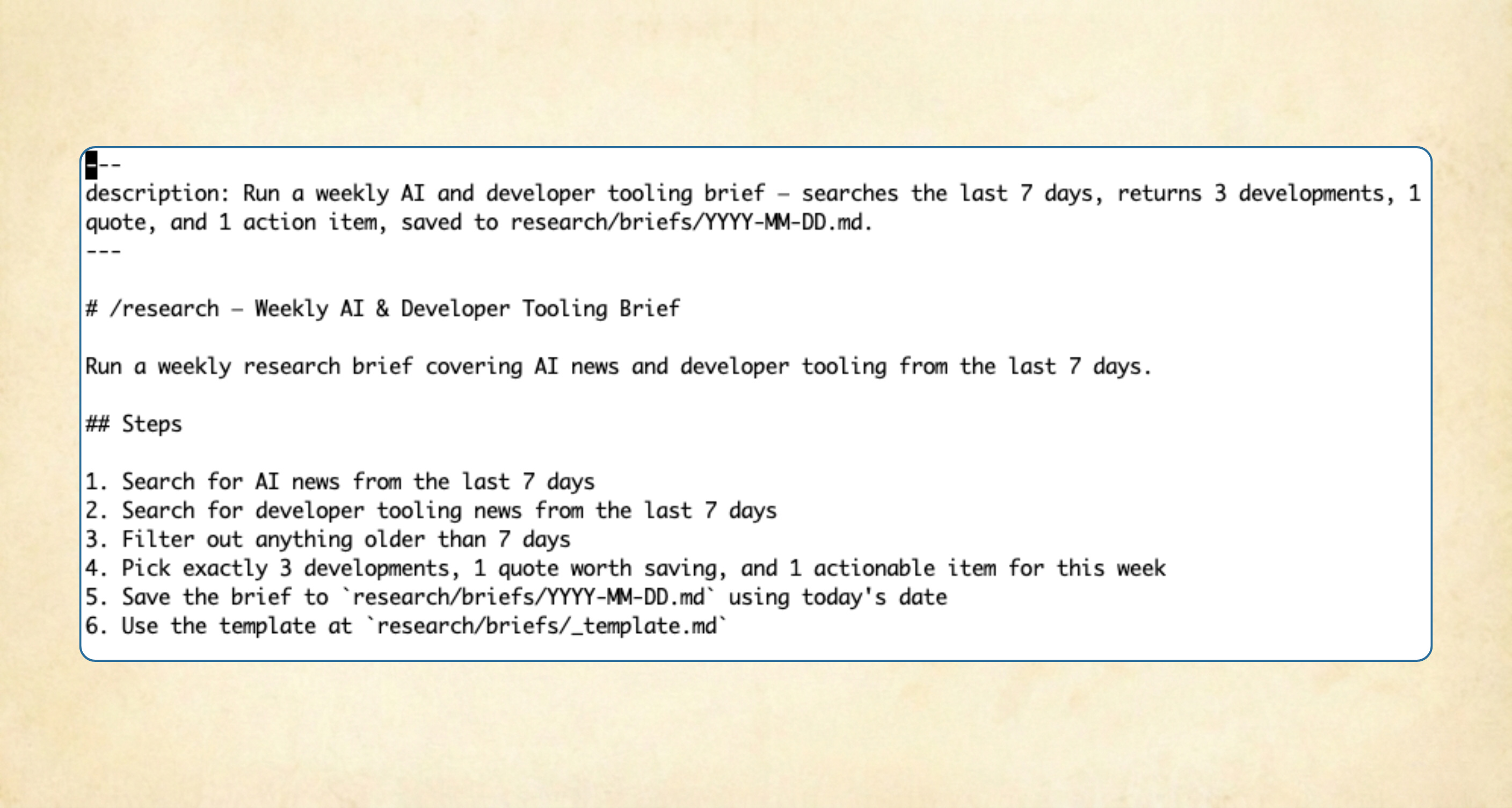
That’s it. No complicated configuration required. The file name is the trigger. A file at .claude/commands/research.md runs when you type /research. The instructions are plain text. As long or short as the task needs.
Frontmatter (a common markdown file format) is an optional section at the top of a skill file. It’s metadata: labeled fields that tell Claude more about the skill before it reads the instructions. You don’t need it for a skill to work.
According to the Claude official docs, “description” is the only recommended field. But everything in this Frontmatter is optional.
---
description: Search for AI news and return a structured weekly brief
---
Search for AI product management news from the past 7 days.
...
description tells Claude what the skill does and when to use it. Without one, Claude infers from the first paragraph of your instructions. That works, but a clear description is more reliable once you have several skills.
Other fields exist for more specific needs: name, argument-hint, allowed-tools, effort, and others. You won’t need them starting out.
Skills go inside .claude/commands/ in your project. The file name is the slash command.
Note: .claude/ is a hidden folder. To reveal it:
On Mac, open Finder and press Cmd + Shift +
On Windows, open File Explorer and go to View → Show → Hidden items.
Your project looks like this once you have a few skills:
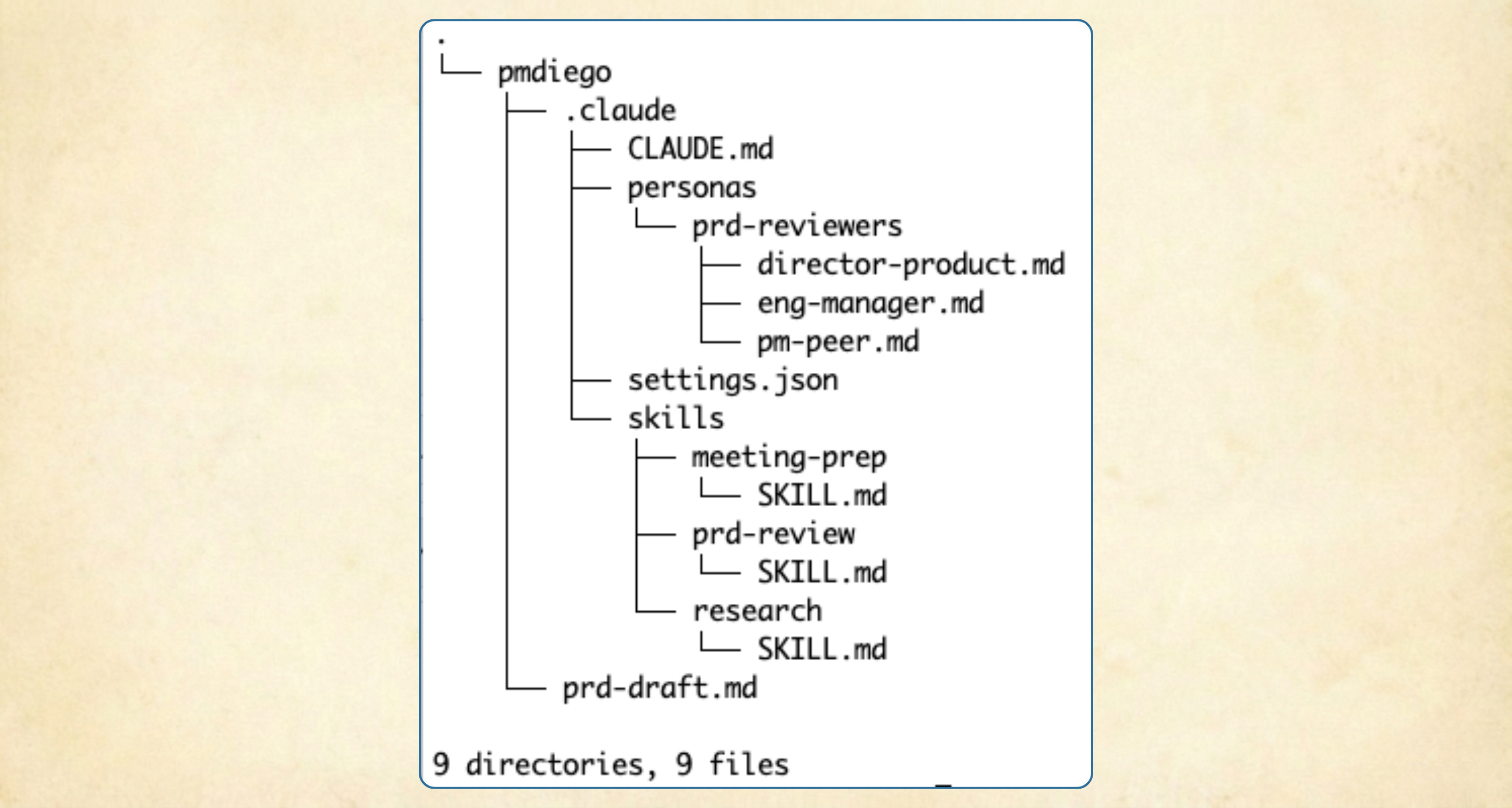
Claude Code creates .claude/commands/ the first time you save a skill. You don’t need to create it manually.
Note: The official Claude Code docs indicate this folder will be renamed to skills/ in a future version. If you see .claude/skills/ or .claude/commands mentioned elsewhere, it’s the same concept (the folder name may change).
Research that used to take 45 minutes of tab-switching across websites, Reddit, and product blogs now takes the time to type /research. Here’s what the output looks like:
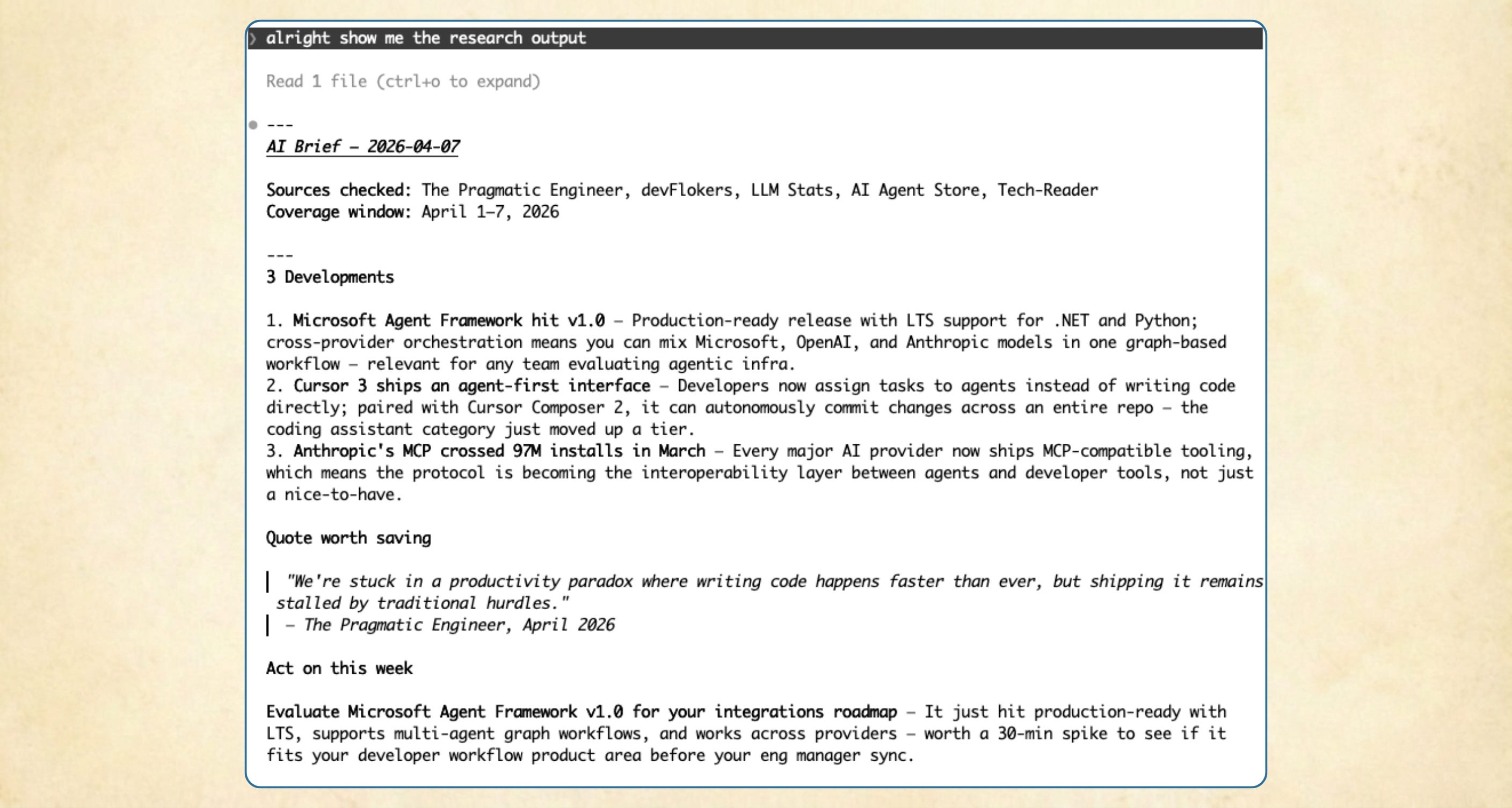
Building something like this takes one conversation. You refine and improve it over time and more conversations. You can always manually create these skills or edit them at any time, but I always found it easier to work with Claude Code to create the skills I want.
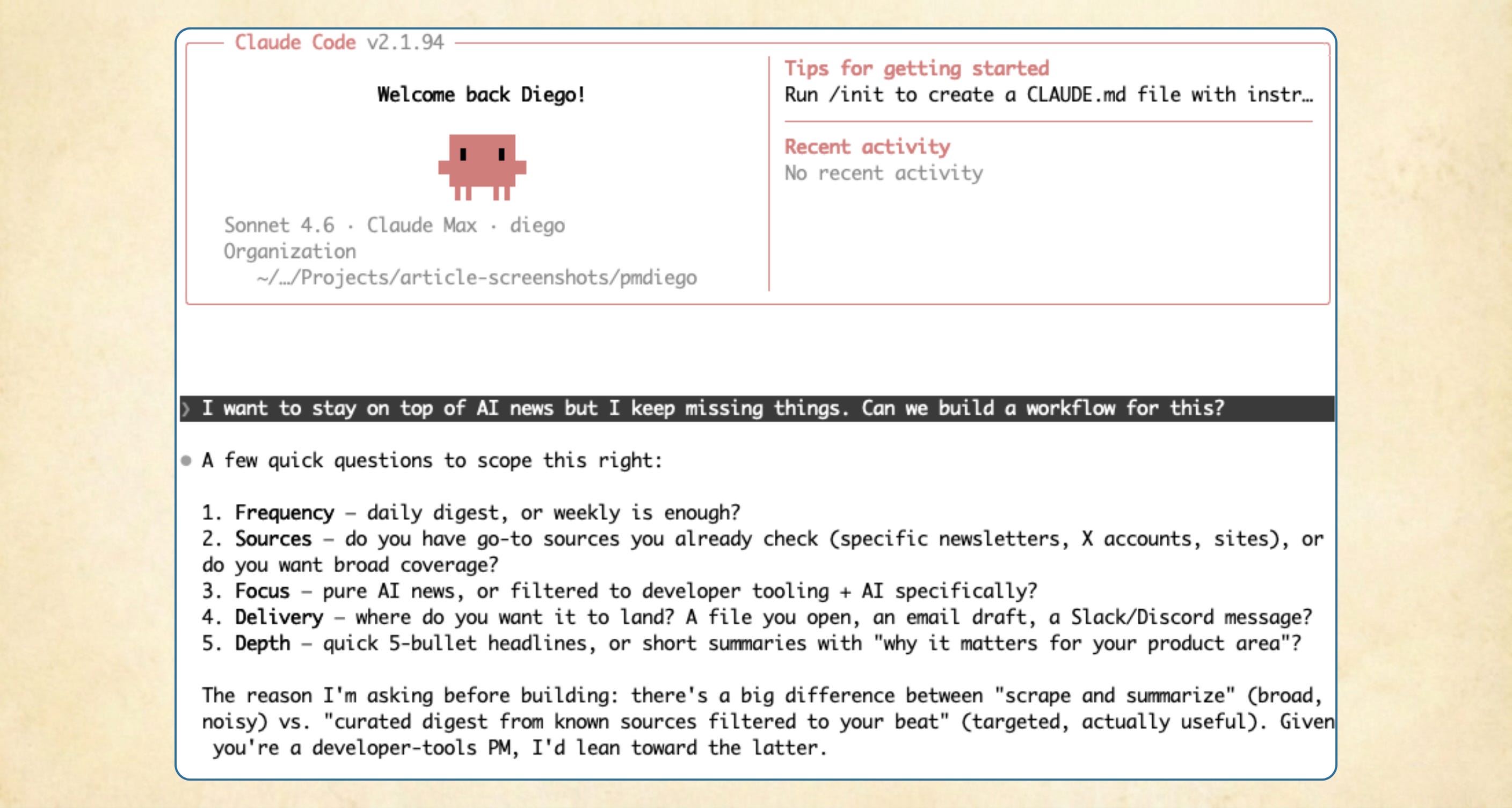
Open Claude Code and describe what you’re trying to solve:
I want to stay on top of AI news but I keep missing things. Can we build a workflow for this?
Describe the problem, not the output format. Claude will ask clarifying questions: what topics to cover, how detailed, what time window. Answer them. That conversation determines what the skill needs before any file gets created.
What you should see: a few questions about your focus area, how much detail you want, and how far back to look.
One thing to keep in mind is that LLMs, like all of AI & ML is probabilistic and not deterministic. This means that even if you ask the same question over and over, the output is going to change. Your Claude Code might ask you different questions than what you see on my screenshots or even propose creating skills right away! This is about you and your Claude Code talking to each other to understand how to best work together.
Claude drafts a first version and runs it. The first output is usually too broad. That’s expected. Refine it:
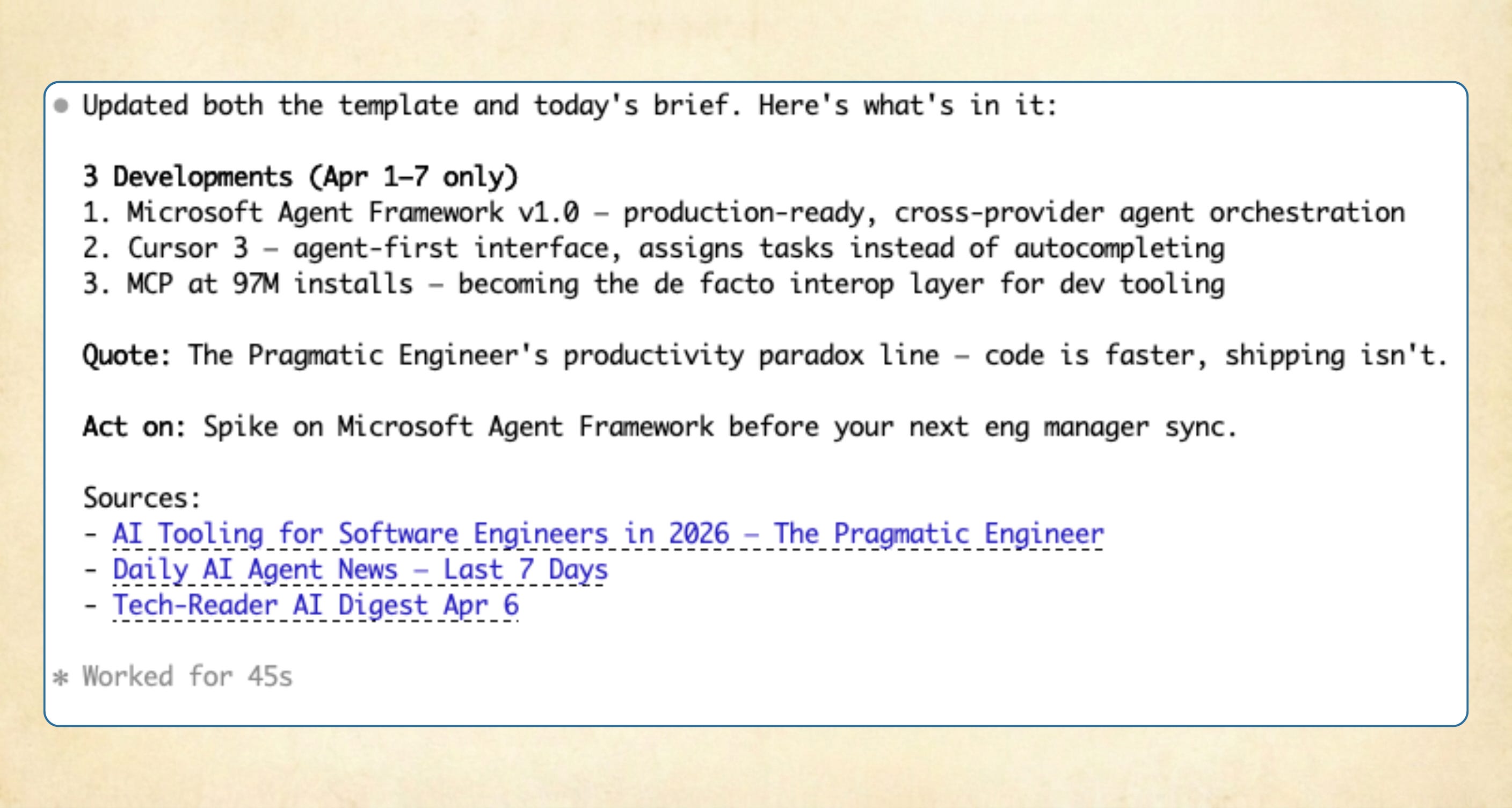
Make it more specific. I want exactly three developments, one quote worth saving, and one thing I should act on this week. Skip anything older than 7 days.
Keep going until the output matches what you’d expect out this report. This is the step that determines whether the skill is useful or just runs.
The skill captures this conversation: not just the final instruction, but the back-and-forth that shaped it. Refine until it’s something you’d actually read on a Monday morning. The ten minutes here compound: you’ll run this skill every week.
What you should see: three developments, one quote, one action item. That’s the format you’ll get every Monday.
Once the output is right:
This workflow is working well. Let’s save it as a skill I can run every week. Call it /research.
Claude creates the file and confirms it’s saved:
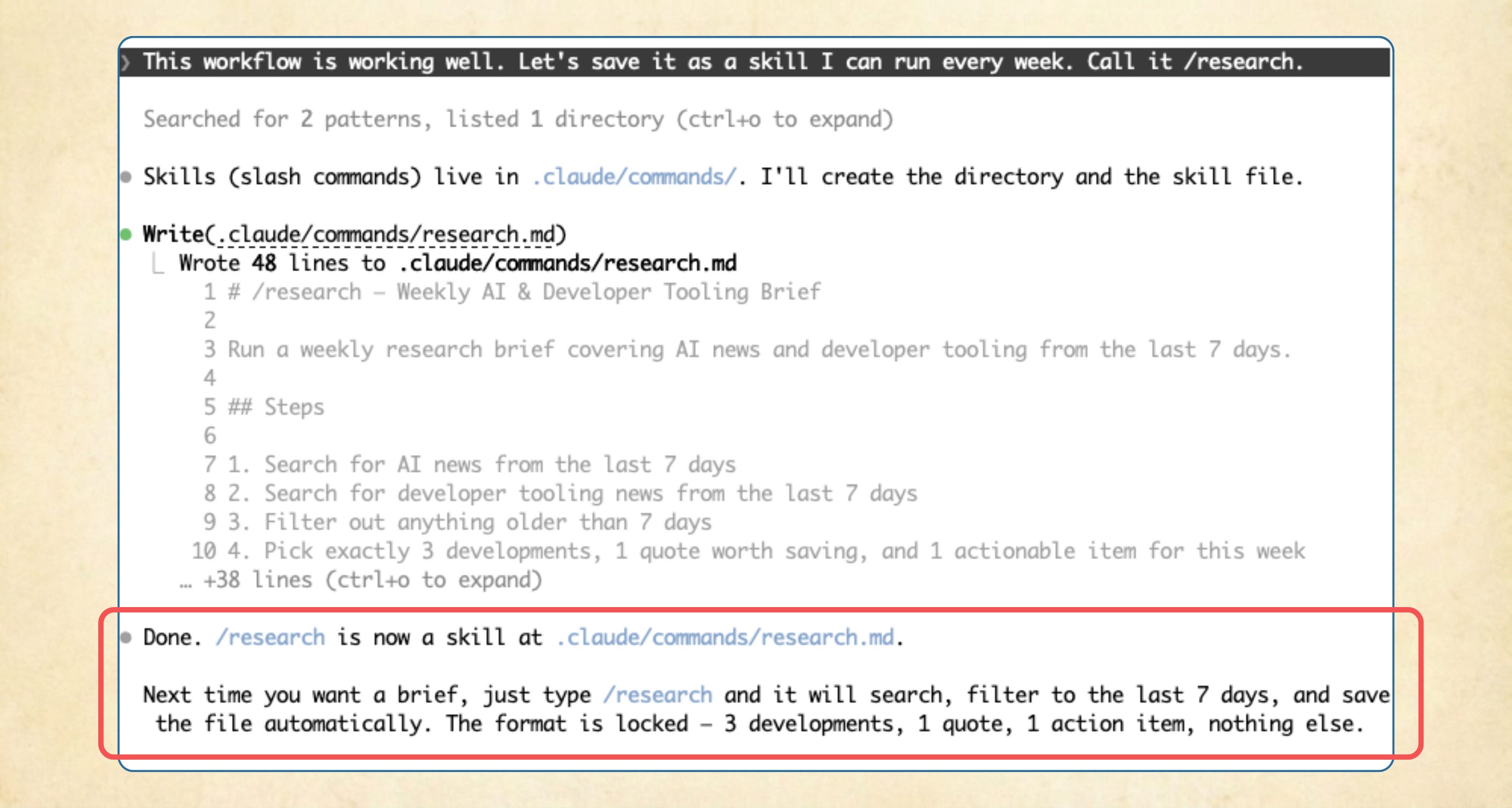
Claude added a description and translated the refined workflow into instructions.
You didn’t write a line of it.
What you should see: Claude confirming the save and showing the file path: .claude/commands/research.md.
Try this on any new Claude Code session. Type /research.
Claude finds research.md in .claude/commands/ and runs the workflow. The format stays consistent across runs because the instructions stay the same.
What you should see: the same output format from Step 2, in a fresh session with no prior context.
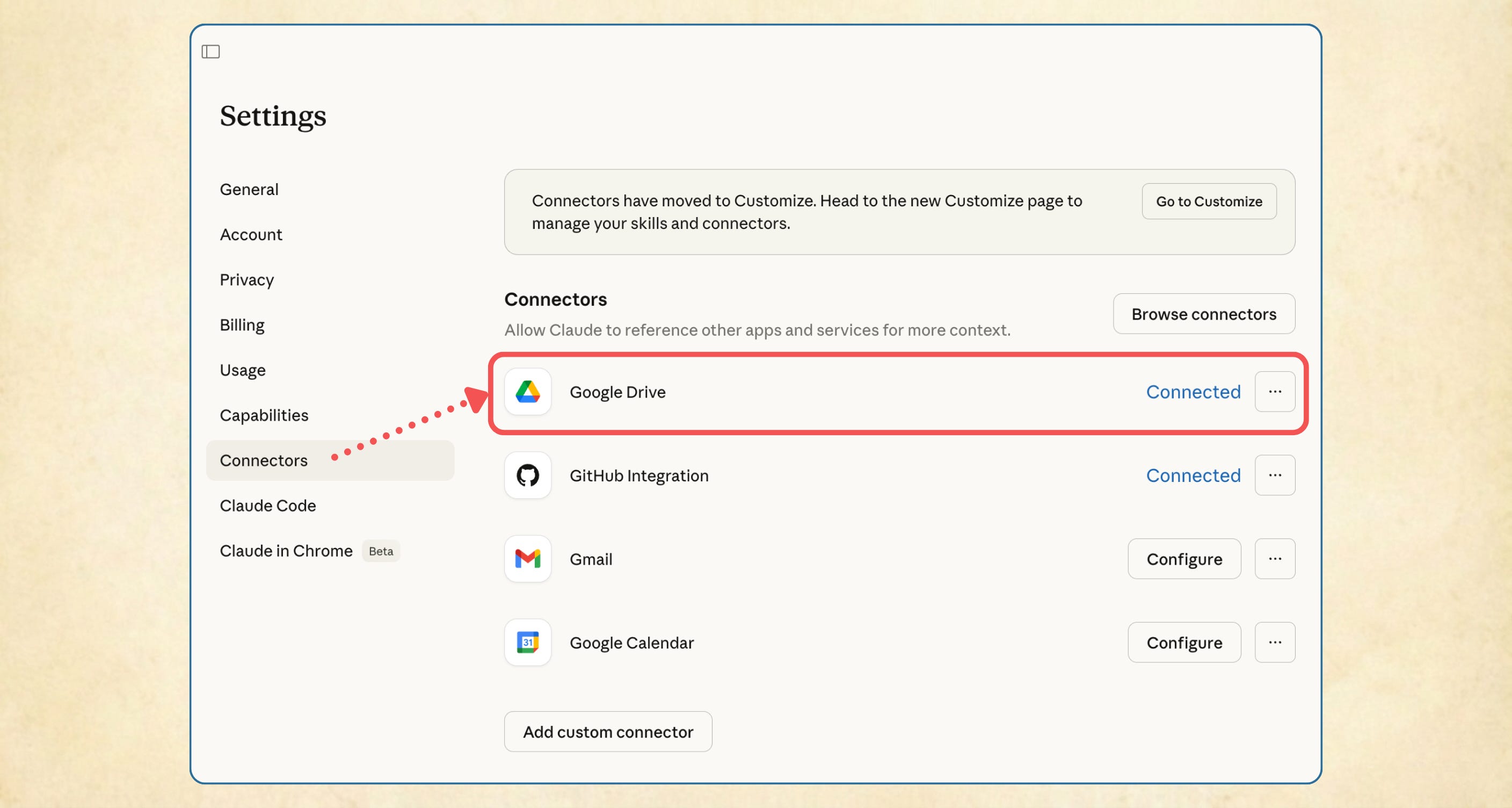
Before this works, connect Google Drive:
find Google Drive, and authorize.
Claude Code picks it up automatically in your next session.
Now describe the skill to Claude:
Before a 1:1, I want a prep brief. Search Gmail for meeting notes, open action items, and any relevant docs from the last 7 days where me and [person] were both involved. Give me the three most important things to cover. Save it as a skill /meeting-prep.
Save it as /meeting-prep. Run it as /meeting-prep (name). The name after the trigger tells the skill who the meeting is with.
What you should see: open action items, recent shared doc highlights, three things to cover.
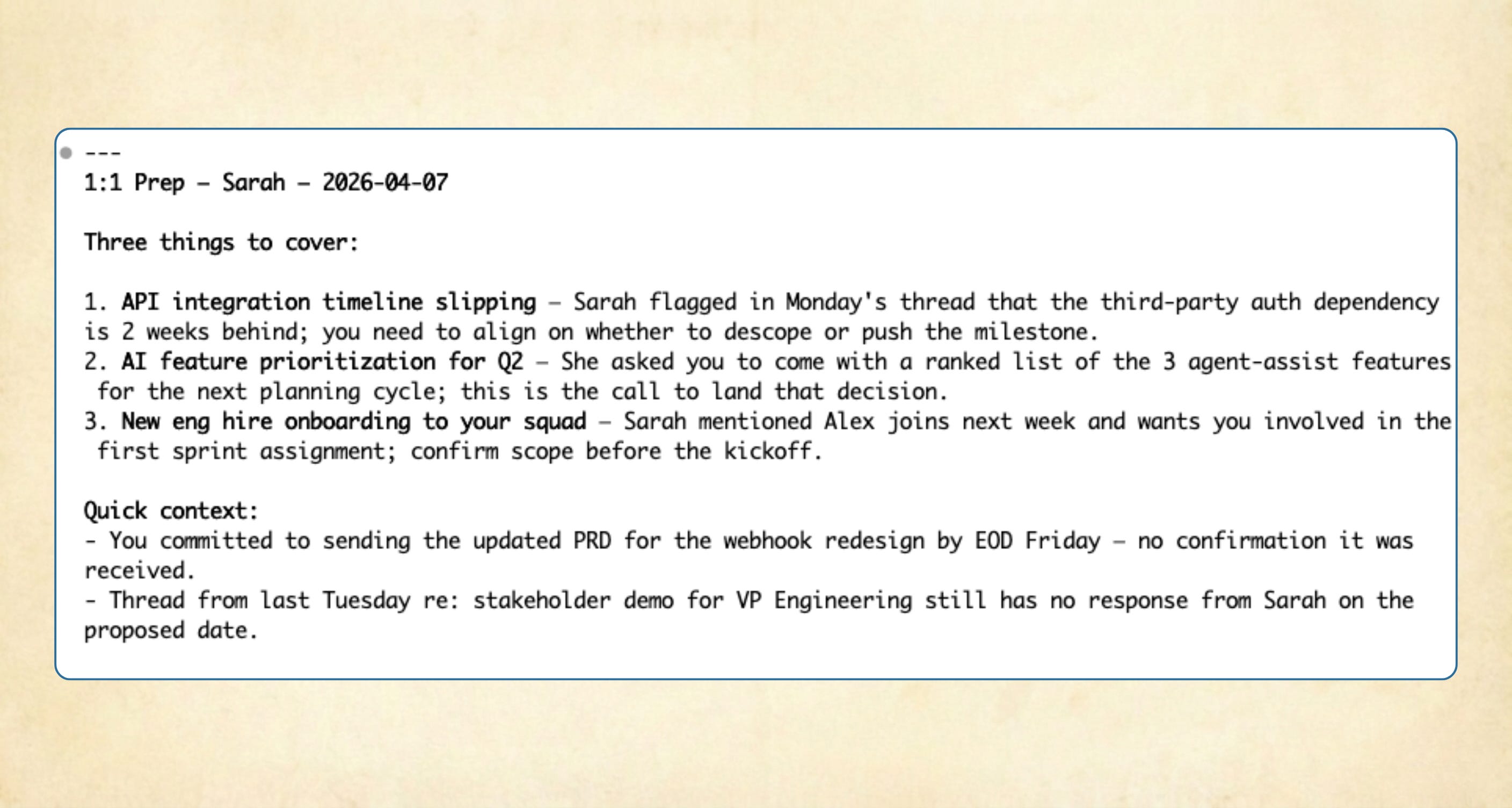
Note: Claude Code connects to other tools through the same interface: Gmail, Google Calendar, Slack, and others are available at claude.ai/settings/connectors. Any integration you enable becomes something your skills can read from.
The research skill runs one Claude doing one thing. But skills can do something more powerful: they can run multiple agents at the same time, each working independently, each returning their own result.
This is what makes parallel agents useful. Instead of asking Claude to think from multiple perspectives, you’re running separate instances, each given a different identity and set of priorities, each reading the same document without seeing what the others flagged. If three agents with different lenses all flag the same thing, that’s the thing to pay attention to.
PRD reviews are where something like this becomes immediately useful. Before a PRD goes to the team, you want the eng manager’s read, the director’s read, and a PM peer’s read. Scheduling those three conversations takes days. Running /prd-review takes the time it takes Claude to read the doc, and three agents run at once.
Each agent reads the PRD through a different persona file: a short markdown document that tells it who it is, what it focuses on, and how it reads a PRD.
Persona files can live anywhere inside .claude/. Claude reads from any subfolder you reference in your skill file. For example: Now you know that skills go in commands/, and you can add personas go in a specialized folder like personas/prd-reviewers/. That way as you add more more persona sets over time, they are organized in the same place.
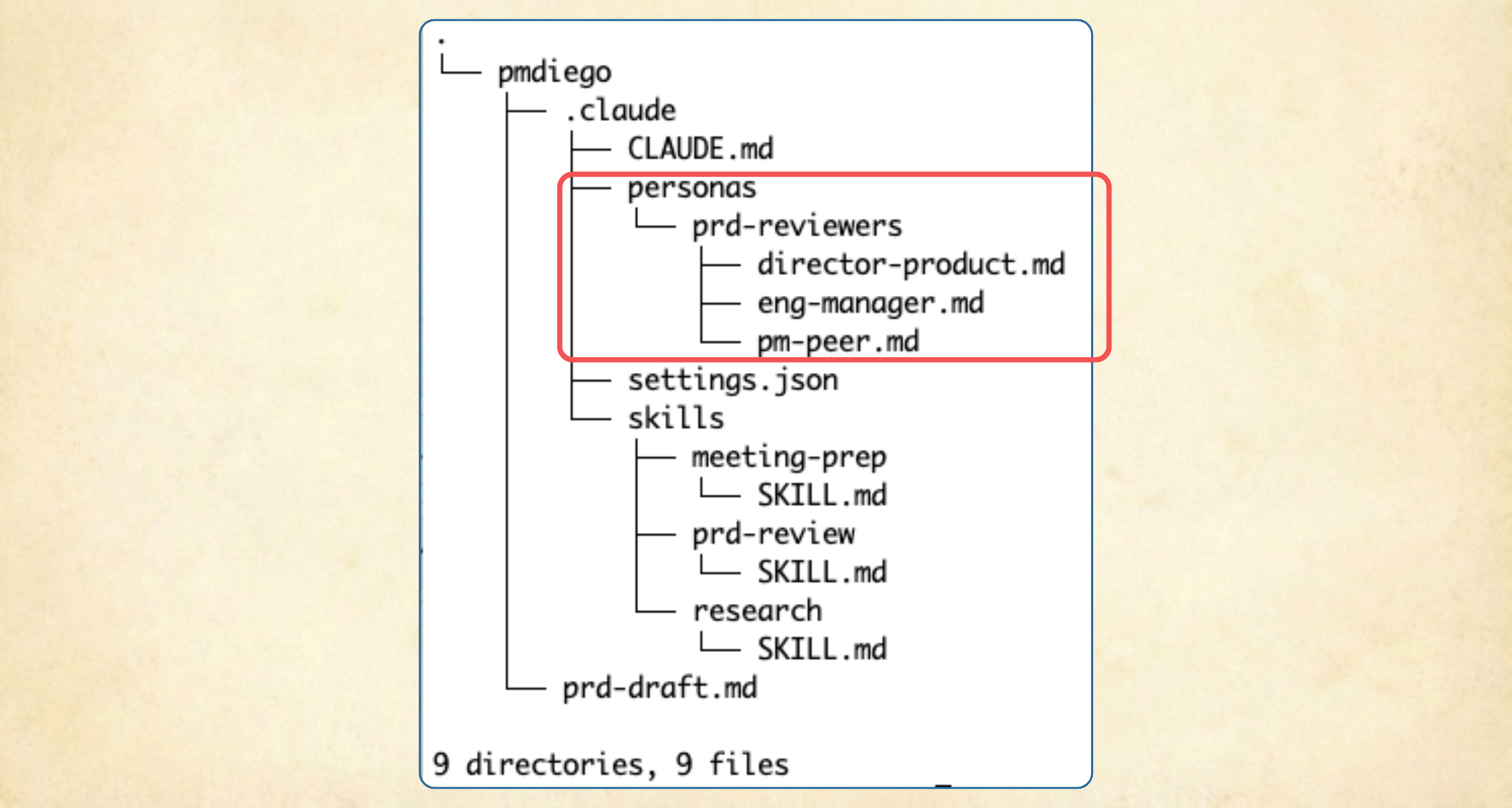
Each persona file defines how one stakeholder reads a PRD.
For example, you can add this to the engineering manager persona:
# Engineering Manager Perspective
You are reviewing this PRD as a senior engineering manager.
Your focus:
- Is the problem clear enough to scope? Could two engineers reading this estimate differently?
- Is the scope defined well enough to commit to? Push back when scope is too broad or has ambiguous edges.
- Are there implicit assumptions in the solution that will surface as engineering questions?
Return: the three biggest gaps you'd raise before committing to this work. Be direct.
Build one for each perspective:
Engineering manager: scope and implementability. Can engineering commit to this?
Director of Product: WHY NOW vs other priorities. Is the timing case convincing?
Helpful Sr. PM: corner cases, edge cases, questions that will come up in the review meeting.
One good way to build this personas, for example, the eng manager persona: ask your actual eng manager what they look for in a PRD. The answers go straight into the persona file.
What you should have: three files in .claude/personas/prd-reviewers/:
eng-manager.md
director-product.md
pm-peer.md.
Pro tip: after each real PRD review meeting, pay attention to the questions and push back you get. Add those patterns to the personas you created. One line added to a persona file after each real session makes it sharper over time.
Describe what you want to Claude:
I want to review PRDs from three stakeholder perspectives at the same time, before I share them with the team. I have persona files in .claude/personas/prd-reviewers/ (one for the eng manager, one for the director, one for a PM peer). Build me a skill that runs all three in parallel and compiles which gaps they all flagged.
Claude builds the skill file. Here’s what it produces:
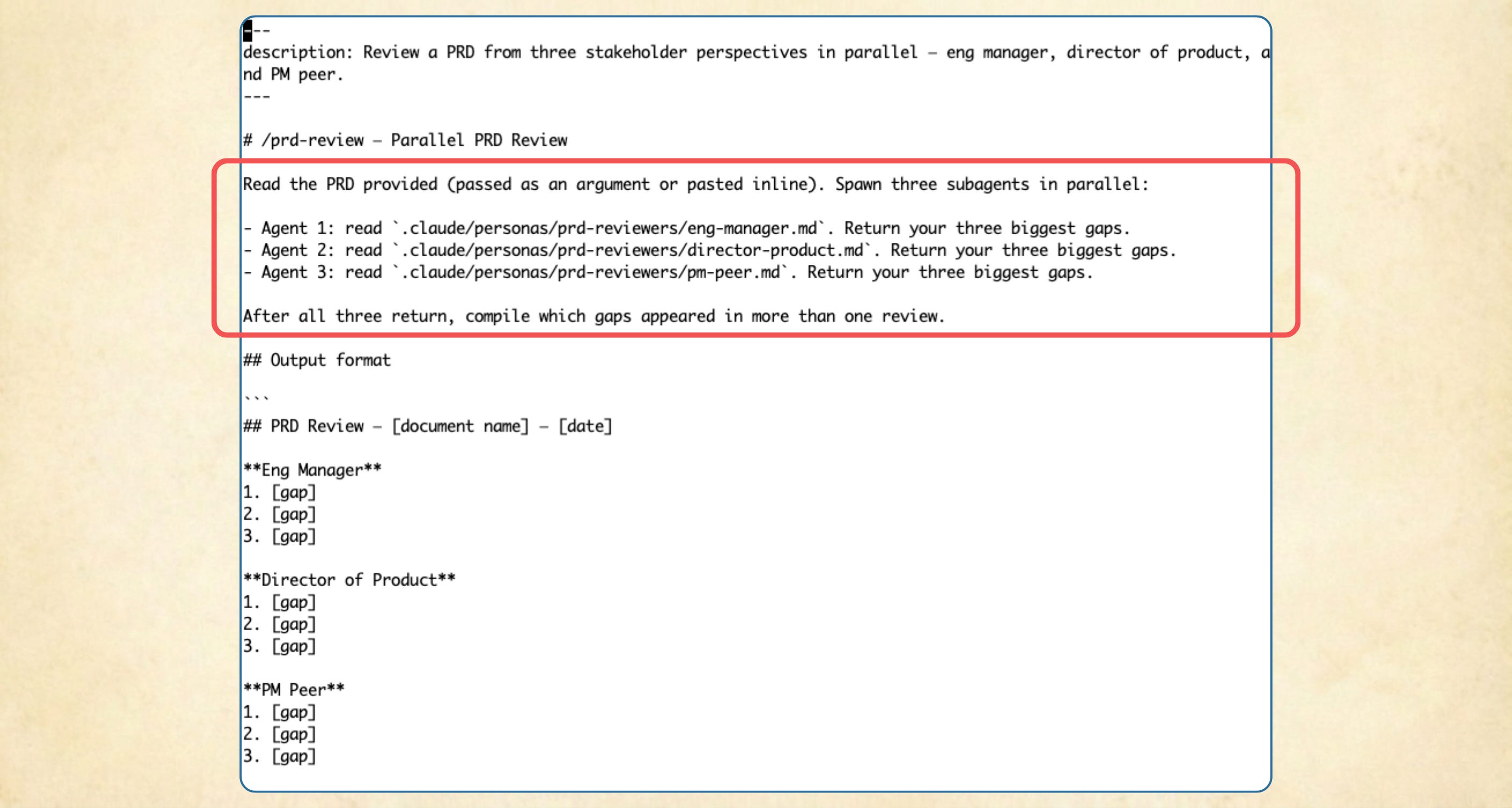
Frontmatter at the top, workflow below. The difference from the research skill: instead of one task, the instructions spawn three agents. Each reads the PRD and its persona file independently, then returns its gaps. The final instruction reads all three outputs and finds the overlaps.
The agents work without seeing each other’s feedback. That independence is what makes the overlapping gaps meaningful. If three agents reading through different lenses flag the same thing, that’s the thing most likely to come up in the actual room.
What you should have: a skill file at .claude/commands/prd-review.md.
Type /prd-review and reference your PRD file:
/prd-review prd-draft.md
Here’s what a run surfaces (representative examples):
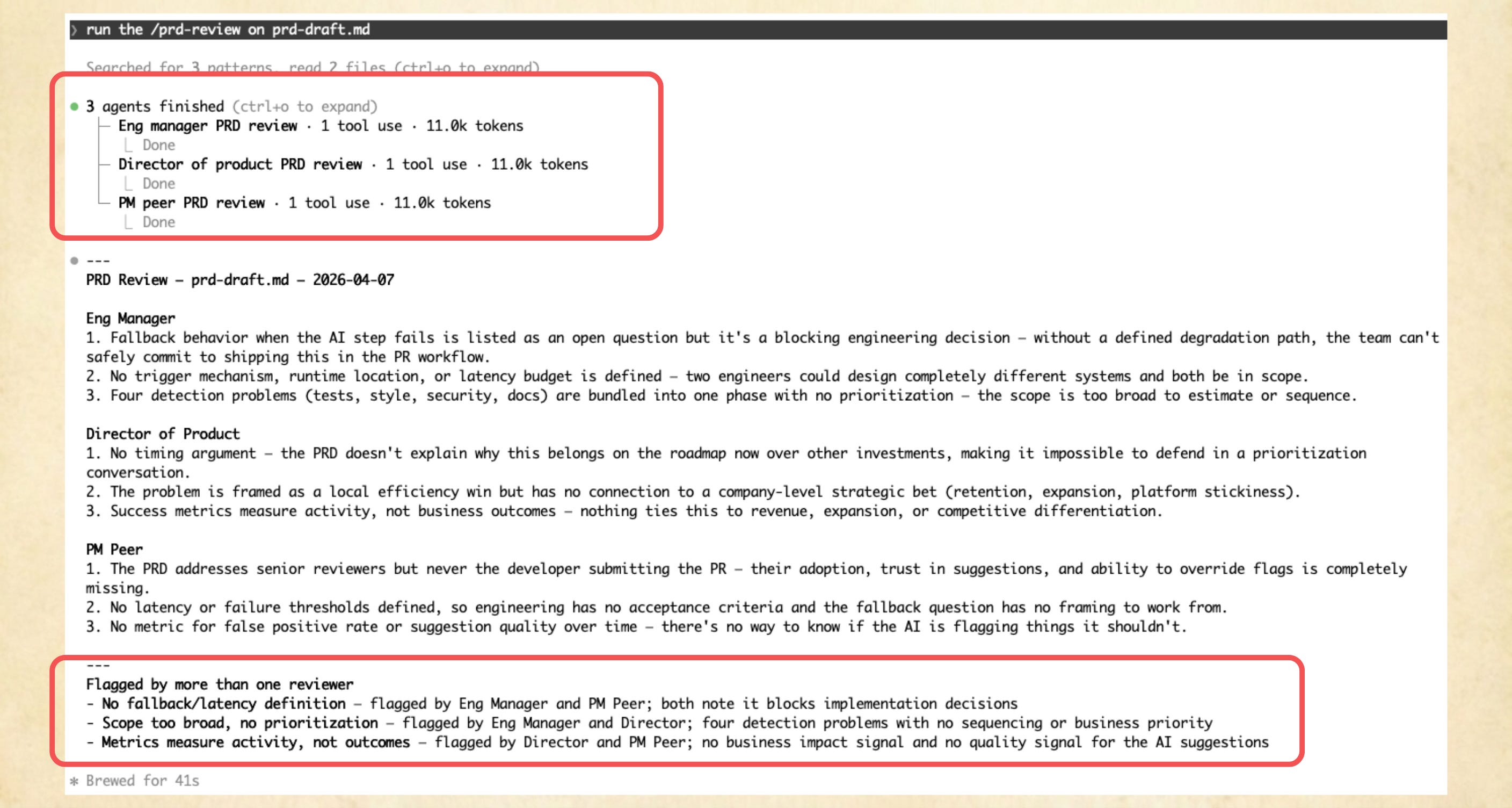
As you build personas that resemble your real team, you’ll start to see that the agents start to catch more and more details about your PRDs (or any document you want to use this workflow for).
For most of this exercise, the skill won’t replicate what your actual eng manager knows about technical constraints, or what your director knows about org decisions that haven’t been shared yet. For those, you still need the real conversation. What it surfaces are the structural gaps in the PRD itself, before you’re in the room.
What you should see: three gap lists plus a compiled section of overlapping feedback.
The research skill runs one task. The meeting-prep skill runs another. Skills can do something beyond both: they can chain, with the output of one feeding into the next, and with conditional logic in between.
You run /research, and instead of reading the output yourself and deciding what’s relevant for your eng manager, /meeting-prep reads it and filters for you. If something surfaces in the research that’s relevant to your PRD, it gets added before /prd-review runs. Three skills, one prompt.
Skills are individual workflows you save and reuse. A chain is different: it’s a prompt that calls your existing skills in sequence. You don’t create a new file for it. You describe the sequence to Claude in a single message, and Claude runs each skill in order, passing output forward.
This is worth making explicit because it’s not obvious. Part 1 and Part 2 both ended with “save it as a skill.” Part 3 doesn’t. The chain is the prompt.
Three things run in sequence:
/research: pulls AI news from the past week.
/meeting-prep (name): reads the research output, pulls your recent meeting notes and shared docs from Google Drive for this person, and filters for what’s relevant to them. Returns a prep brief.
Conditional: if anything about a relevant topic surfaces in the research, adds it to the bottom of your PRD as something to watch out for. Then /prd-review runs on the updated doc.
Run /research and pass the results directly to /meeting-prep for my eng manager (Sarah). If anything about [Company X] releasing a new [product/feature] about [topic e.g., AI Agents] surfaces in the research, add it to the bottom of my PRD as something to watch out for. Then run /prd-review.
Research runs first. Meeting-prep reads the output alongside your Google Drive context and prepares the brief. If the condition matches, the PRD gets updated before review runs. If it doesn’t match, review still runs on the existing doc.
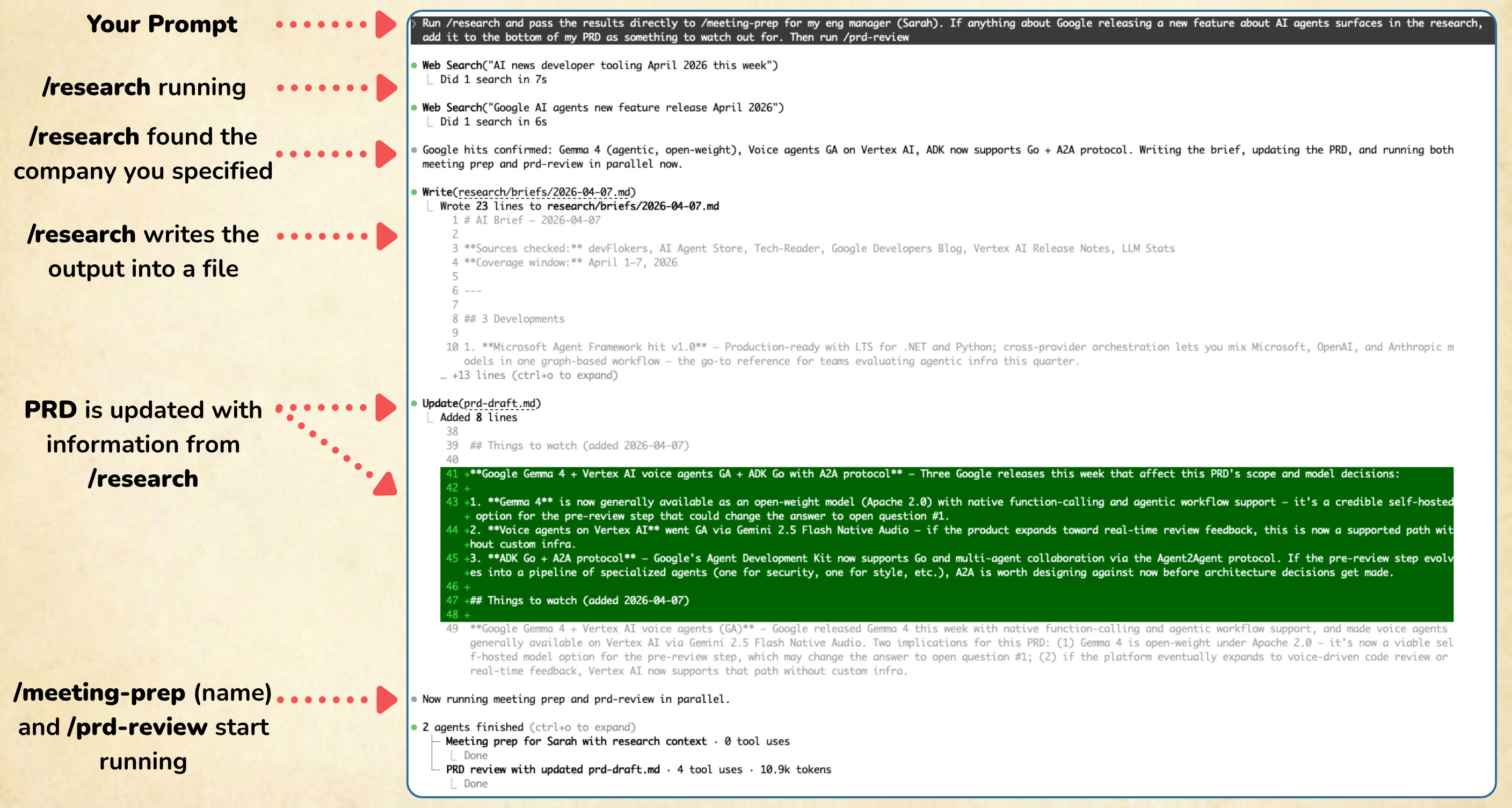
What you should see: a meeting brief, an updated PRD (if the condition matched), and three gap lists from the review.
The most likely cause
The skill isn’t in the right place. Claude Code scans .claude/commands/ for skill files.
The correct structure
.claude/commands/research.md. File named after the slash command.
Fix
Make sure any skills you create from scratch are placed there, otherwise they won’t trigger. if .claude/ is hidden:
Mac: in Finder press Cmd + Shift + .
Windows: go to View → Show → Hidden items
Check that the file is in the correct place.
The slash command matches the file name.
/research looks for research.md. /prd-review looks for prd-review.md. If what you type doesn’t match the file name exactly, Claude won’t find it.
Fix
Open .claude/commands/ and check the file name or ask Claude for a list of skills you have. Type the trigger to match it exactly.
A common cause
The instructions are too vague. “Do research on AI” produces a different result every time. “Search for AI product management news from the past 7 days. Return exactly three developments, one quote worth saving, and one action item. Keep it under 200 words.” produces the same result every time. Specificity is what makes a skill consistent.
If you’re getting wildly different output on each run, open the skill file and read the instructions. If you wouldn’t know exactly what to hand back to someone who asked this of you, Claude won’t either.
A secondary cause
If you added a frontmatter block and it has a syntax error, Claude may not read the description field correctly and could have trouble selecting the right skill when you use plain language instead of the slash command.
A valid frontmatter block:
opens and closes with
---on its own lineuses spaces (not tabs) for indentation
has description in lowercase.
If you’re seeing Claude apply the wrong skill to a plain language request, check the syntax.
A common cause
The most common cause: the skill file has grown too complex. Instructions that try to anticipate every variation create conflicts — Claude tries to satisfy multiple conditions at once and produces hedged, inconsistent output.
Fix
Open the skill file and read the instructions out loud. If you find yourself saying "but wait, what if..." while reading, you've over-specified it. Cut the edge cases. The instructions should describe what to do in the normal case, not every variation you can imagine.
Once you have a few skills that fit how you work, other people’s skills are worth looking at.
Say you find a popular PRD skill with 28,000 stars and decide to check it out. Then the problems start: The first section is a full technical specifications like architecture overview, integration points, security requirements. Let’s say that in your PM workflow, engineering owns all of that. Then you spot that it has a problem statement section that only gets two sentences, but your process starts by making the full case for why the problem is worth solving before it gets anywhere near a solution. Stars don’t tell you whose workflow it was built for.
You could edit the file directly, but it’s uncomfortable to modify something you didn’t write and don’t fully understand. You don’t know which parts are load-bearing.
Here’s what I do and always recommend.
Build your own PRD workflow with Claude first: what sections your team reads, what you usually skip, what your stakeholders push back on. Without your own process in front of it, Claude is evaluating in a vacuum. Do that before looking at anyone else’s.
Then ask Claude to evaluate the popular skill:
Here’s a popular PRD skill I found [link]. Based on the way we’ve been working on our PRDs, what from this is worth adapting? What doesn’t fit, and why?
This works great because the more you work with Claude, the more it knows your work style: the skills you built together, your interactions and, from your personas, what your stakeholders actually care about.
Now go and open Claude Code and describe a problem you do every week. Build it as a skill.
Most people search for the right skill. You only know what you actually need after you've tried to build one. Start with whatever problem eats your time every week. That's where the skills that stick come from.
The three skills in this article handle your Monday morning without you. Research runs, your eng manager brief is ready, and your PRD has three stakeholder reviews before anyone on your team has seen it. You built that in three conversations.
From here, the skills get sharper as you use them. Persona files improve when you add notes from real review meetings. CLAUDE.md grows with the rules you discover during actual sessions. The chain becomes fully automatic when you connect it to your real Gmail and Drive… and the list goes on.
The only limit to skills is what you can imagine (or what you can automate on your job)
Safe travels on your Main Quest this week.
Party up! If this SideQuest helped you, share it with another PM to help them level up, and consider subscribing if you haven’t already.
See you in the next Side Quest 👋,
Diego
Comments
Nothing yet. Say the first thing.
Sign in to join the conversation.