
Once a week Pip delivers a short post with AI tips, copy-paste materials, and work shortcuts made specifically for real estate agents.
No theory, no fluff - just actionable stuff to use right away.
Pip spent this week on LinkedIn.
Specifically, making the carousels - the ones that make you look like the smartest agent in your area.
For a long time these were a pain to make. The hard part was never the ideas, it was getting clean, accurate slides without spending an evening nudging boxes around in Canva.
That part just got solved.
You can now create a carousel post in less that 10 minutes. Pip built a few like this to hone in the process 👇
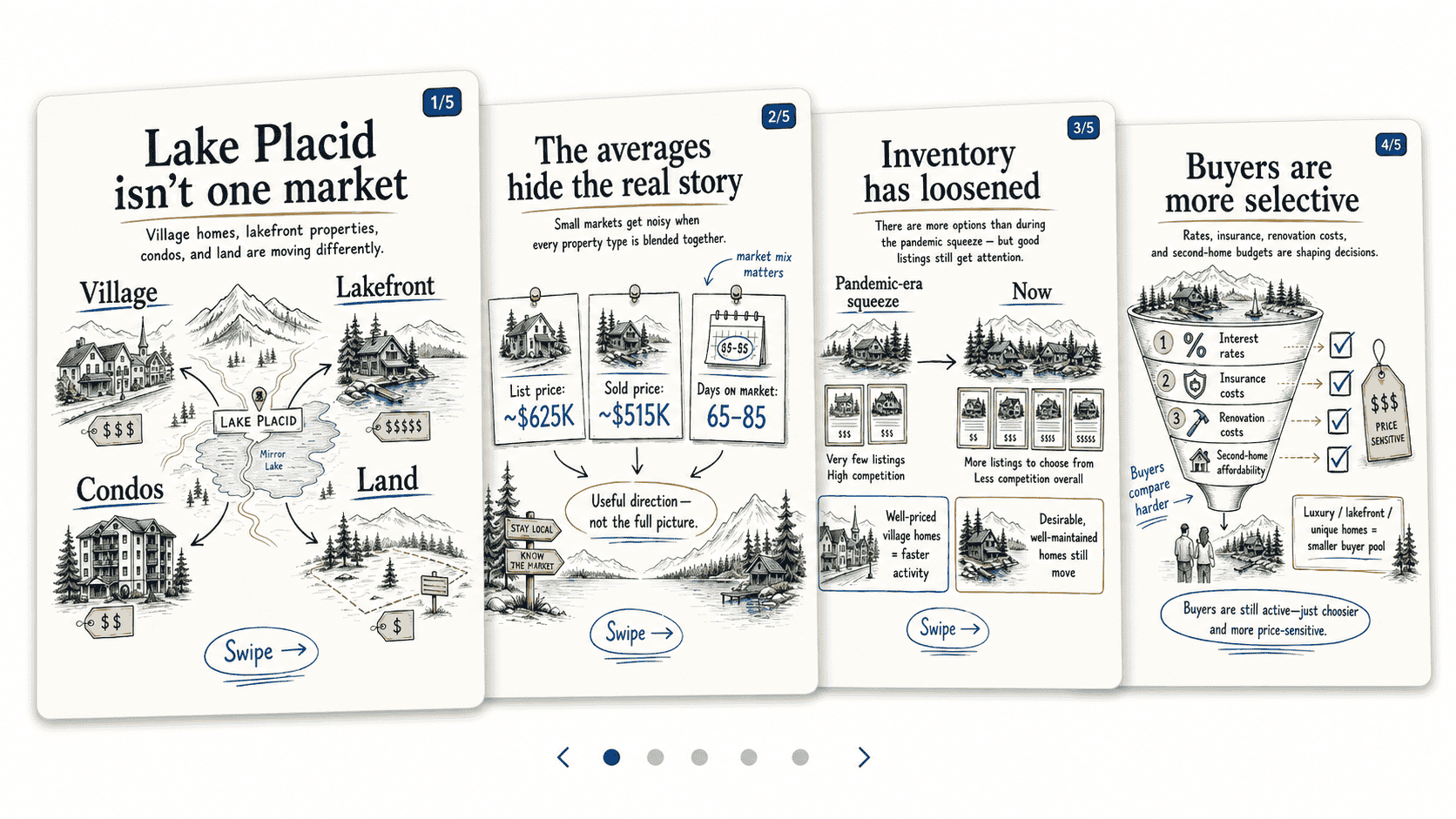
Whole process is explained step by step in today’s delivery.
🧠 Make ChatGPT plan the carousel before it draws a thing
🎨 Turn the research plan into a full slide set
📄 The 30-second step that turns images into a real LinkedIn carousel
Let’s dive in!
No designer, no template subscription.
But first, the one idea that makes this work:
Don’t let AI create the carousel slides until it has planned the content.
Most people open ChatGPT, type “make me a carousel about interest rates,” and get back six slides of pretty noise.
The fix is to split the job in two - first you make AI think, then you make it draw.
That’s Steps 1 and 2.
This is the step everyone skips, and it’s exactly why most carousels look generic.
Before a single image gets made, you get ChatGPT to research the topic, pick the angle, decide how many slides it needs, and hand you a slide-by-slide plan to approve.
Go to ChatGPT, drop in the topic you wish to cover where it says [INSERT TOPIC], and paste this:
I want to create a LinkedIn document carousel for a real estate agent.
Your job in this step is to research, structure, and plan the carousel. Do not generate images yet. Do not define the final visual style yet. This step is only about the message, content, slide count, narrative, and what should go on each page.
Topic:
[INSERT TOPIC]
Instructions:
Create a complete carousel plan from this topic. Do the strategic thinking for me:
- Infer the likely audience.
- Infer the best content angle.
- Infer the likely goal of the post.
- Infer the appropriate agent positioning and tone.
- Decide whether the carousel should be buyer-focused, seller-focused, homeowner-focused, investor-focused, relocation-focused, or general education.
- Decide how many slides the carousel needs.
- Decide what each slide should teach.
- Decide what should appear on each slide.
- Decide what CTA makes the most sense.
- Make reasonable assumptions where needed, but clearly state them.
Research instructions:
- If the topic depends on current market facts, recent data, laws, rates, statistics, or local conditions, research the topic before planning the carousel.
- Use reliable sources and cite them.
- Do not invent statistics, market claims, legal claims, financial claims, or local facts.
- If exact data is unavailable, use careful language such as "appears," "may," "often," "typically," or "based on available indicators."
- Clearly separate facts, estimates, assumptions, and interpretation.
- If the topic is evergreen and does not require current research, say so and proceed without unnecessary research.
Carousel requirements:
- Make it a mobile-first LinkedIn document carousel, not a presentation deck.
- Use one main idea per slide.
- Make the carousel educational, clear, and useful without hype.
- Avoid generic real estate advice unless it directly supports the topic.
- Make every slide understandable without needing a long external caption.
- Build a clear narrative arc: hook, context, explanation, implications, and action.
- Use short, strong headlines.
- Use concise support copy.
- Suggest diagrams, comparisons, maps, checklists, timelines, scorecards, decision trees, callouts, or frameworks when they help explain the point.
- Avoid dense tables, tiny footnotes, fake dashboards, decorative visuals, or anything that would be hard to read on mobile.
Output format:
1. Assumptions (Audience, Goal, Agent positioning, Content angle, CTA direction)
2. Carousel strategy summary
3. Recommended slide count and why
4. Key message / thesis
5. Audience takeaway
6. Slide-by-slide plan. For each slide: slide number, slide role, headline, support copy, visual teaching idea, key labels/callouts/numbers, and CTA or swipe cue if relevant. Include: exact number of slides, final slide-by-slide content, the exact text that should appear on each slide and the visual concept for each slide.
Read what comes back.
This is your one cheap chance to fix things - move slides around, sharpen a headline, cut the fluff - before any images exist.
Tweak it until the plan is right 👨🔬
Now you let it draw!
Paste this prompt, then paste the approved brief from Step 1 underneath where it asks.
See that [INSERT VISUAL STYLE] line? That’s where the general look of your carousel gets decided.
If you don’t have a brand style on hand replace it with “You decide what fits the content the best” and let the AI work its magic!
I want you to generate LinkedIn carousel slide images based on the production brief.
Do not research. Do not change the strategy. Do not change the number of slides. Use the approved production brief as the source of truth.
Production brief:
[PASTE FINAL APPROVED PRODUCTION BRIEF FROM STEP 1]
Brand / visual style:
[INSERT VISUAL STYLE - optional.]
Required format:
- Generate the exact number of slide images specified in the approved brief.
- Use 1080x1350 vertical format for each slide.
- Treat this as a mobile-first LinkedIn document carousel.
- One main idea per slide.
- All slide text must be part of the generated image.
- Each slide must contain the headline, support text, labels, numbers, arrows, diagrams, CTA text, and teaching elements needed to understand that slide.
- A viewer should understand the carousel without reading an external caption.
- Keep text short, large, and mobile-readable.
- Use consistent layout, colors, spacing, visual language, and illustration style across all slides, so every slide feels like part of the same set.
Content rules:
- Use only the approved production brief.
- Do not invent statistics, market claims, brokerage claims, awards, guarantees, or legal/financial promises.
- Do not add tiny citations or footnotes inside the images.
- Do not use dense tables.
- Do not create fake dashboards, fake MLS screenshots, or fake app interfaces.
- Do not add brokerage logos or trademarks unless provided and explicitly requested.
- Do not make purely decorative artwork. The visuals must teach, compare, diagnose, explain, or guide action.
For each slide, follow the approved headline and message, include the key support copy, the planned labels/numbers/callouts/diagrams and CTA, use visual metaphors that clarify the point, and keep it clean and readable in a few seconds.
Generate the full carousel now as separate images, one image per slide.
🎨 No style in mind?
Pip dropped 4 ready-made carousel styles in the Vault - copy one into that line and your slides come out looking designed instead of default. (Link’s at the bottom, like always.)
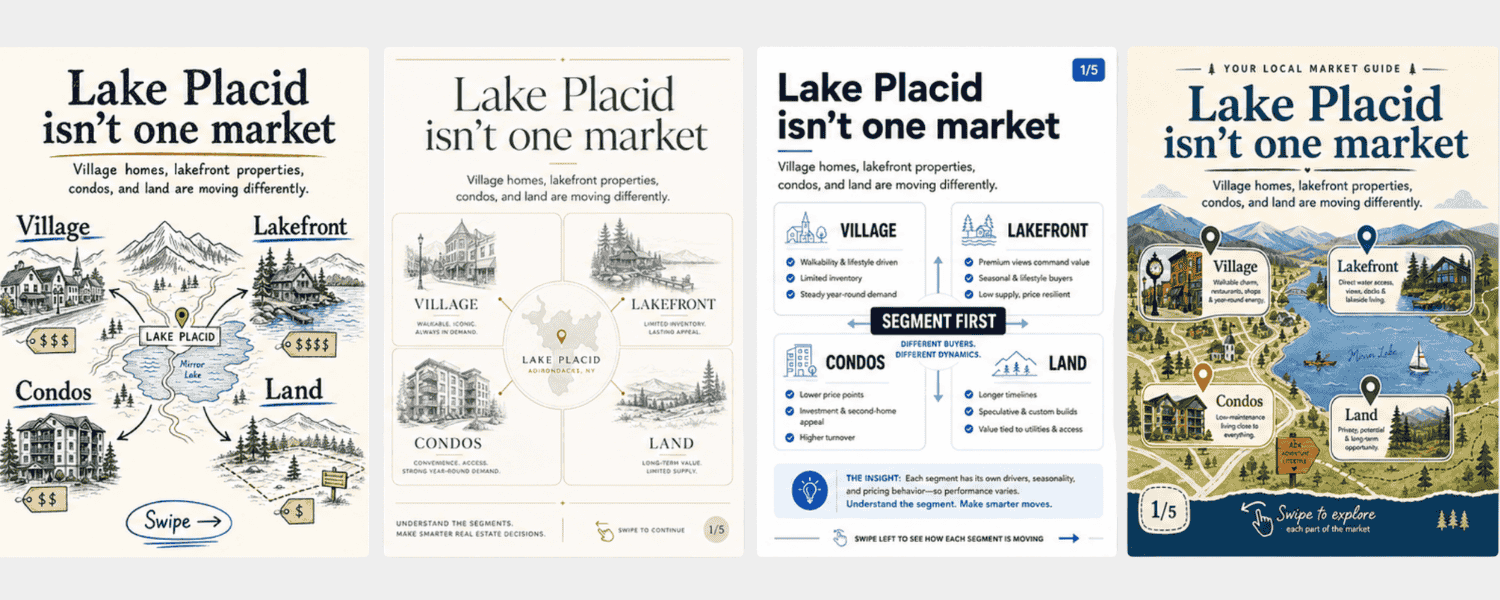
The carousel does the teaching. The post just gets people to swipe.
Ask ChatGPT for a short, punchy LinkedIn post to sit above the carousel - hook the reader and point them into the slides without repeating what’s already on them.
Short wins here.
The job of the caption is the first two lines, before the “...see more” cutoff.
LinkedIn carousels are really just PDFs in disguise. So you turn your slide images into one.
Download your images from ChatGPT and go to the free iLovePDF’s PDF tool and upload them.
This is the important part - set margins to None and page size to Fit so there is no white space around the images.
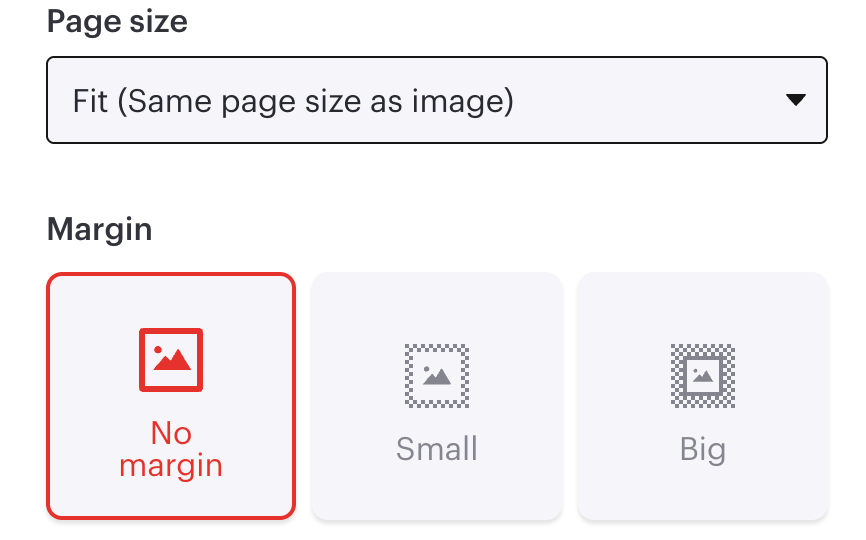
Download the PDF!
Start a new post, paste in your caption from Step 3, click the plus (+) icon, and choose “Document.”

Upload your PDF, give it a title, and post.
That’s it!
You just published the kind of carousel that usually takes a designer and a content person - in about the time it takes to drink a coffee.
💡 Power move: the plan is free, the images aren’t. Because Step 1 hands you the full brief before any slides get made, you fix the structure for nothing instead of burning a dozen image generations on a carousel that was built wrong from slide one.
Plan once, draw once.
And the same slide set isn’t stuck on LinkedIn - post it as an Instagram carousel, or print it as a one-page handouts for your next open house.
One quick note on accuracy - LinkedIn is a professional crowd, and a wrong stat there gets noticed.
That’s why both prompts flat-out forbid invented numbers and force careful, hedged language on anything that isn’t verified.
Let it research, let it cite, and you can post knowing the facts hold up!
Till the next delivery,
Pip

Comments
Nothing yet. Say the first thing.
Sign in to join the conversation.