
Don’t feel like reading, listen to our updates with OpenCharts Comedic Podcast: Listen to Podcast
The last month at OpenCharts has been the biggest run we’ve had since launch. New brand. A whole new product surface for creators. A desktop companion that lives on your Mac and helps you get things done. A morning email that actually saves you time. Stories on the forum. Theo on Telegram. Beautiful new images. And a long list of small upgrades that quietly make every day better.
This post is the tour. Less “what we built,” more “what you can do with it now.” If you’ve been logging in and noticing things look different and feel different, here’s why — and where to go to try the new stuff.
We rebranded. Not a tweak. A whole new brand system.
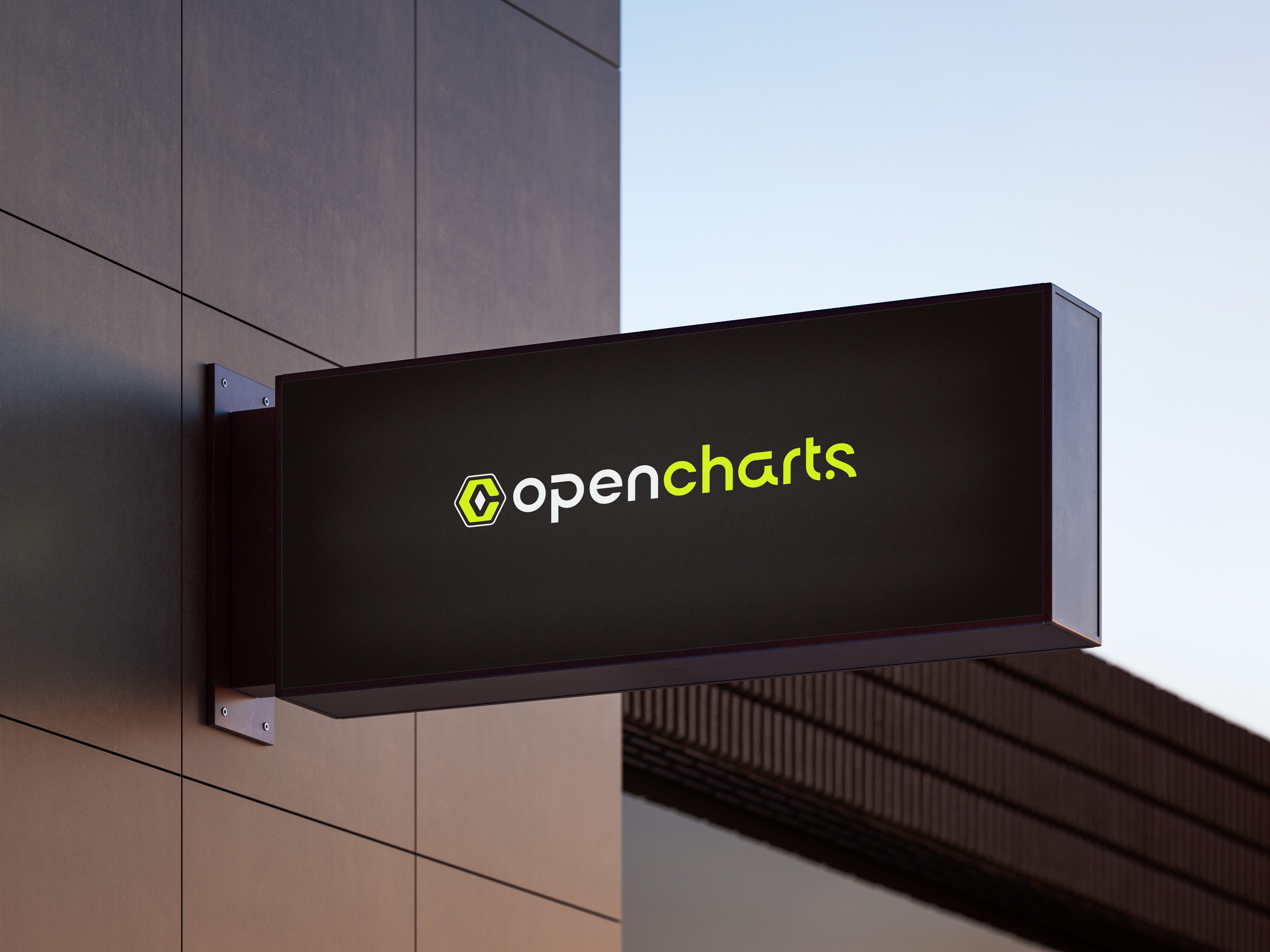
The old palette was warm — cream, blush, brown, amber. The new one is the opposite. Pure white, pure black, eight shades of gray in between, and one piercing neon (#D4FF00) accent. Light mode is now white-and-neon. Dark mode stayed where it was, since it was already on the V3 palette.
Three big things changed at once:
Logo system. Three variants — the hexagonal emblem, the full wordmark (”opencharts”), and the Theo emoji — each available in black, neon, and white. We use them via three components
so the brand is consistent everywhere from the dashboard header to the email footer
Color system. A new 8-step grayscale ramp (Cloud → Smoke → Steel → Space → Graphite → Arsenic → Phantom → Black) plus the neon accent and its softer/stronger cousins. Every Tailwind token now flows from these
PWA + favicons. New favicon, apple-touch-icon, full icon set across every size, and an updated PWA manifest
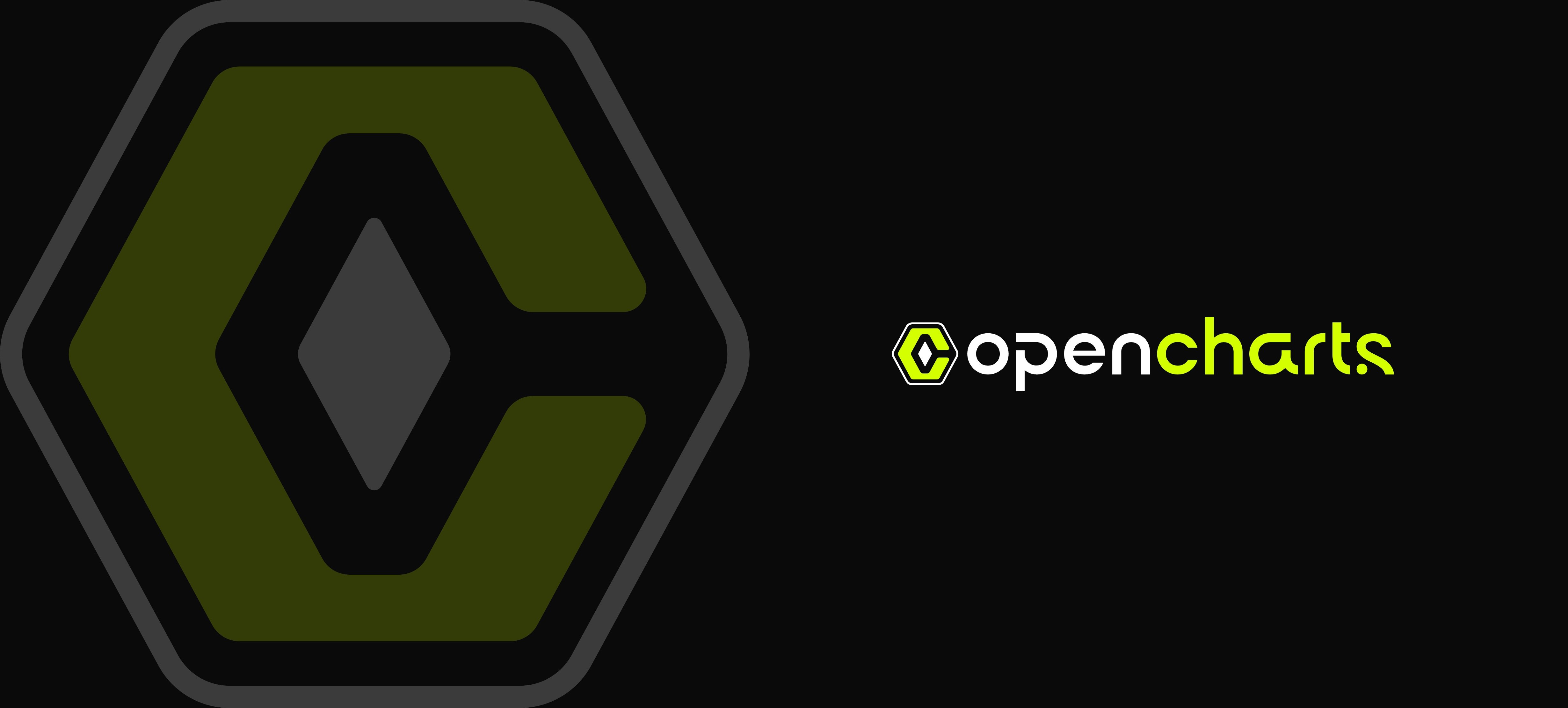
There’s also a proper brand book now (BrandGuideline/OpenCharts.pdf) for anyone who needs to design alongside us.
If you only read one section, read this one.
What used to be the Image Canvas is now the Creator Canvas at /canvas. It’s the same node-graph workspace you already know, but with two new modes living next to it: Video and Podcast. One conversation, three tabs, three different graphs that persist independently.
You drag nodes onto the canvas, connect them to a Result node, and Theo runs the full pipeline behind the scenes.
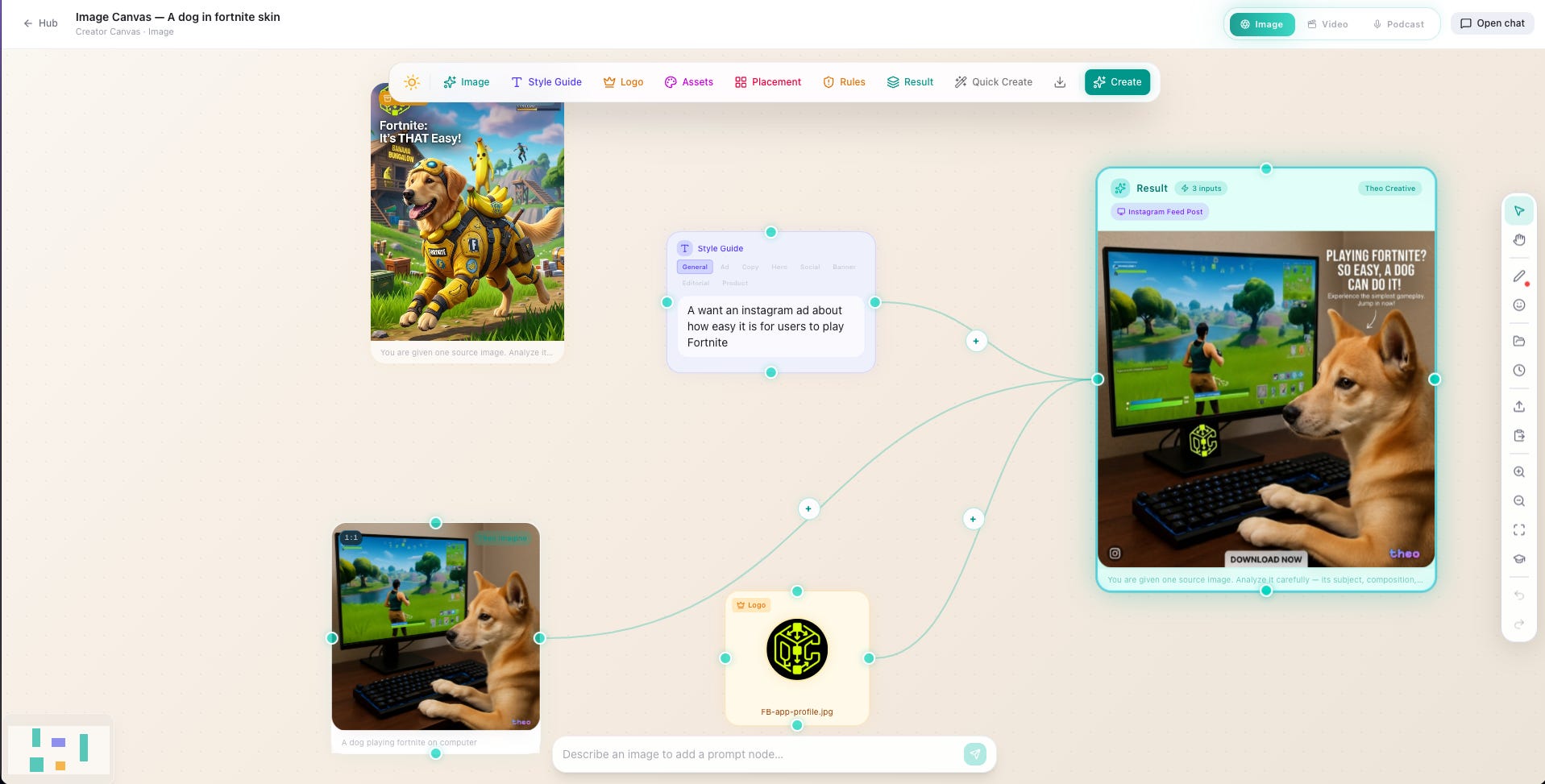
Image mode (the one you already have) — Prompt, Style Guide, Logo, Brand Kit, Assets, Placement, Rules, and Result nodes. You pick a Theo image engine per Prompt node (Photo, Creative, Studio, Type, etc.) and mark connections with priority so Theo knows which input dominates the final image.
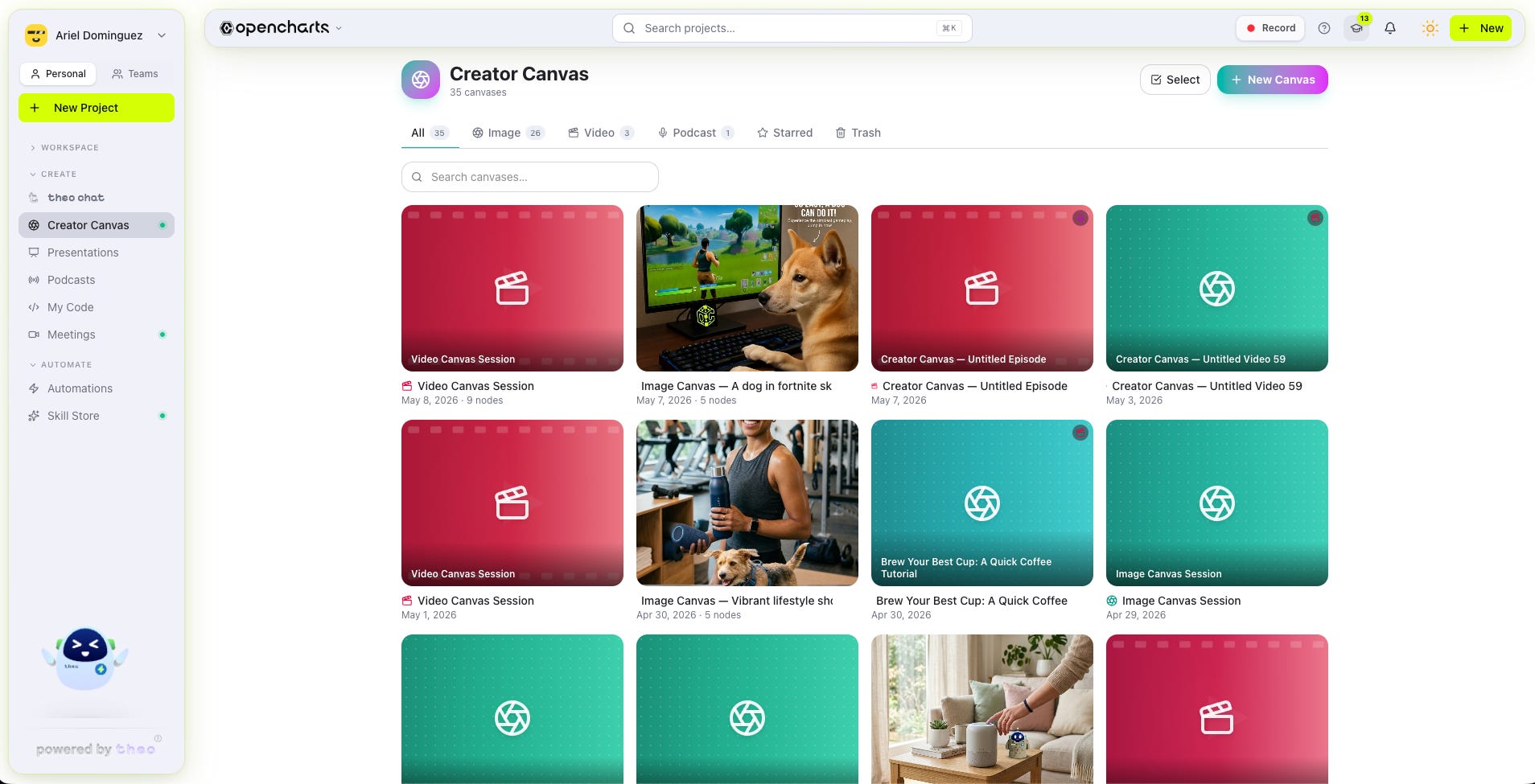
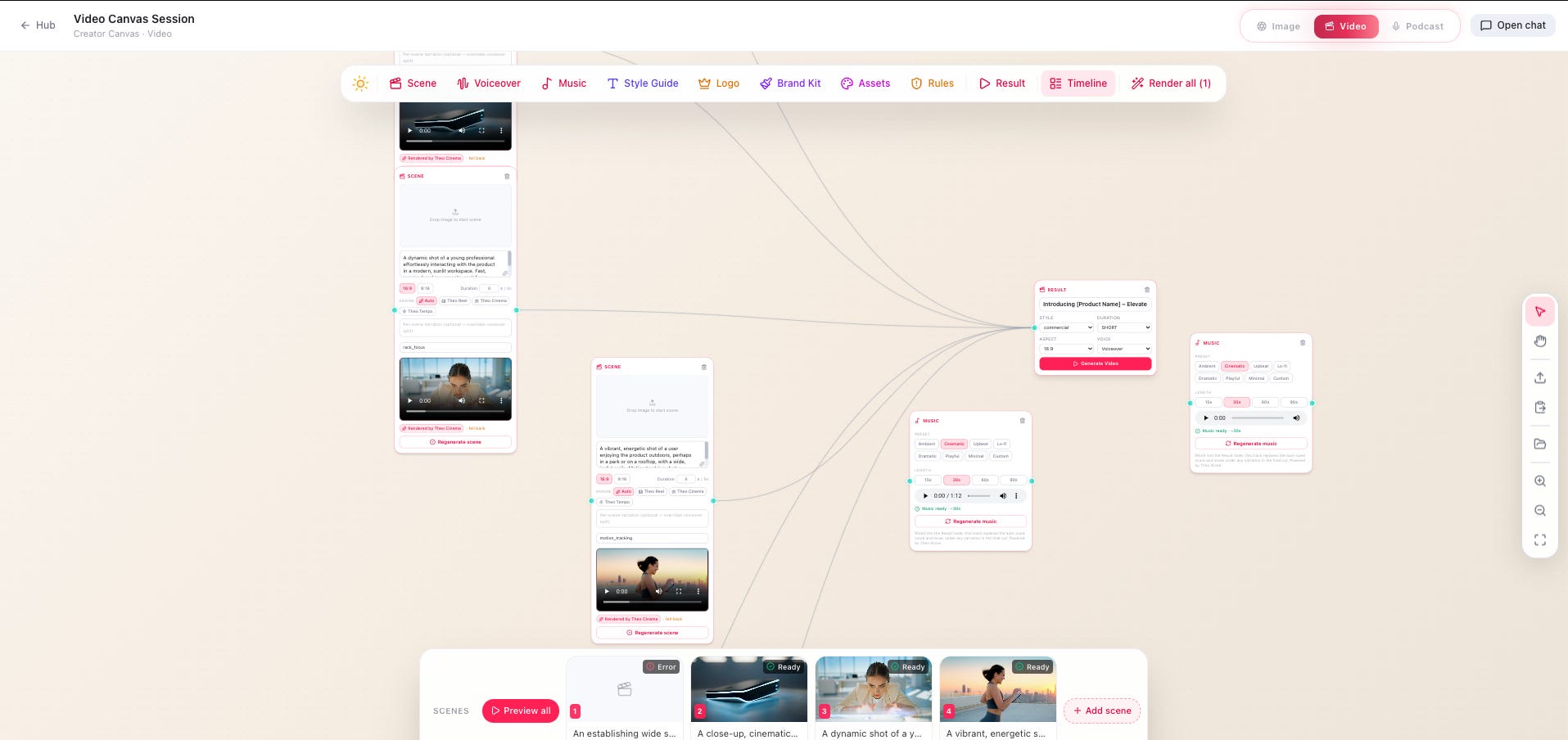
Video mode — each Scene node is a single shot with a prompt, optional reference image, and aspect ratio. Voiceover nodes set narration and a Theo Voice preset. Music nodes generate a background score. Brand and Rules nodes carry over from Image mode so the look stays consistent across shots. Result dispatches the same render pipeline that powers Theo Video Mode and tracks the Inngest job inline.
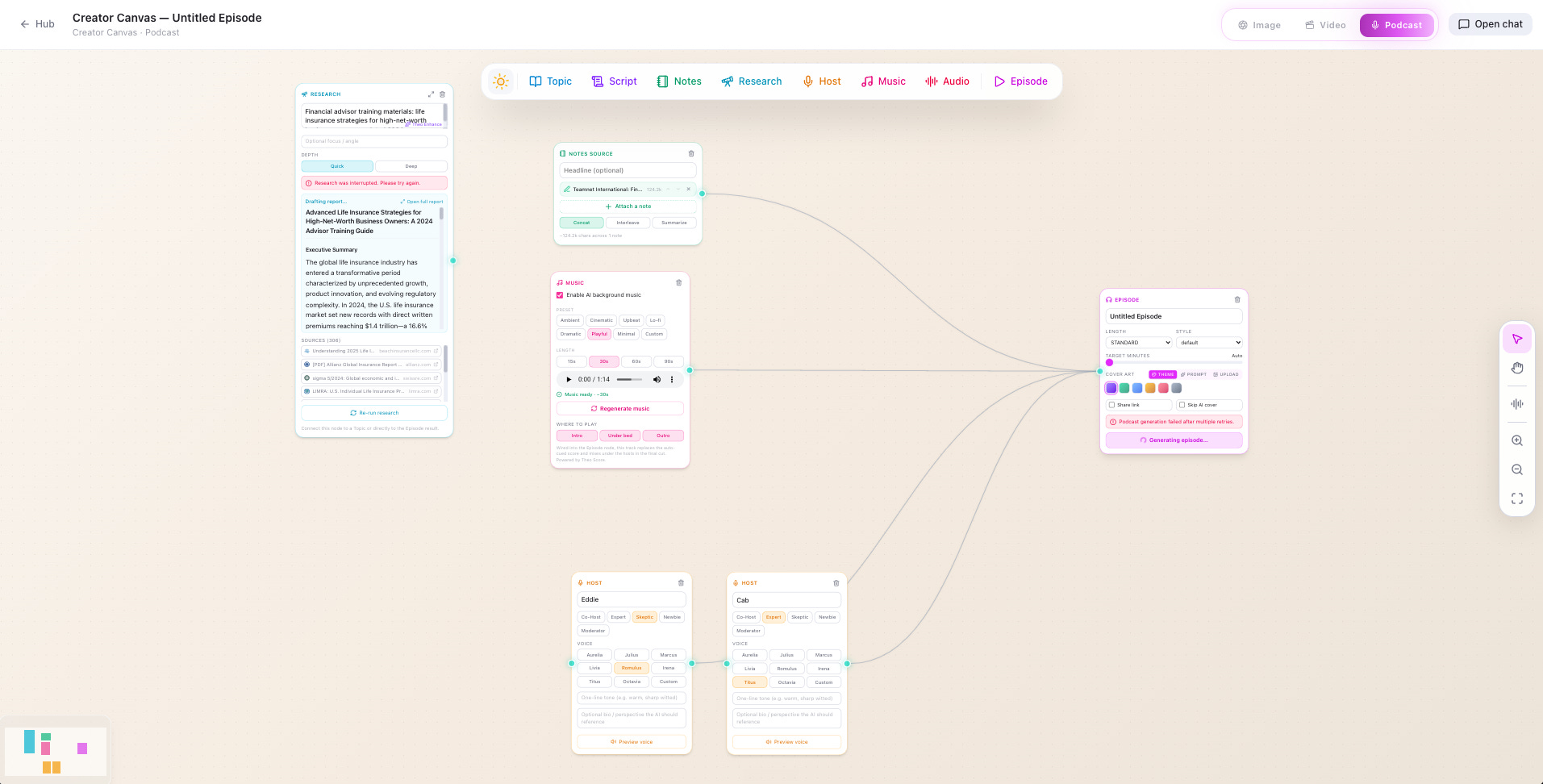
Podcast mode — a totally different node set, built for sound. Topic, Script, Research, Host, Music, Audio, and Episode nodes. The Topic node holds the title, focus, and a rich source-content blob. The Research node runs Theo Deep Research on a query and feeds the synthesized report into the Topic, the Script editor, or directly into the Episode. Host nodes set persona and Theo Voice (default Alex / Sam pair). The Episode node dispatches the existing podcast pipeline, polls for status, then unlocks Listen Now.
Two pieces deserve their own callouts:
Theo Score — the new music engine that powers the Music node in both Video and Podcast modes. Seven curated presets (Ambient, Cinematic, Upbeat, Lo-fi, Dramatic, Playful, Minimal) plus a custom prompt with bpm / density / brightness controls. Preview inline, then connect upstream of the Result/Episode node and the rendered track replaces the auto-cued score in the final cut
Flow Builder — type a prompt in plain language (”make me a 3-shot teaser ad for a new running shoe, 9:16, voiceover by a calm narrator, cinematic music”) and Theo wires the entire node graph for you. Available in all three modes
There’s also a Canvas Hub at /canvas itself — per-mode folders, drag-and-drop to file canvases into folders, multi-select for bulk operations, trash with restore + empty, search. It’s the same dashboard pattern as /code and /projects, just for canvases.
Code Canvas was already the in-browser way to vibe-code an app from a chat prompt. This month it became something close to a real lightweight IDE.
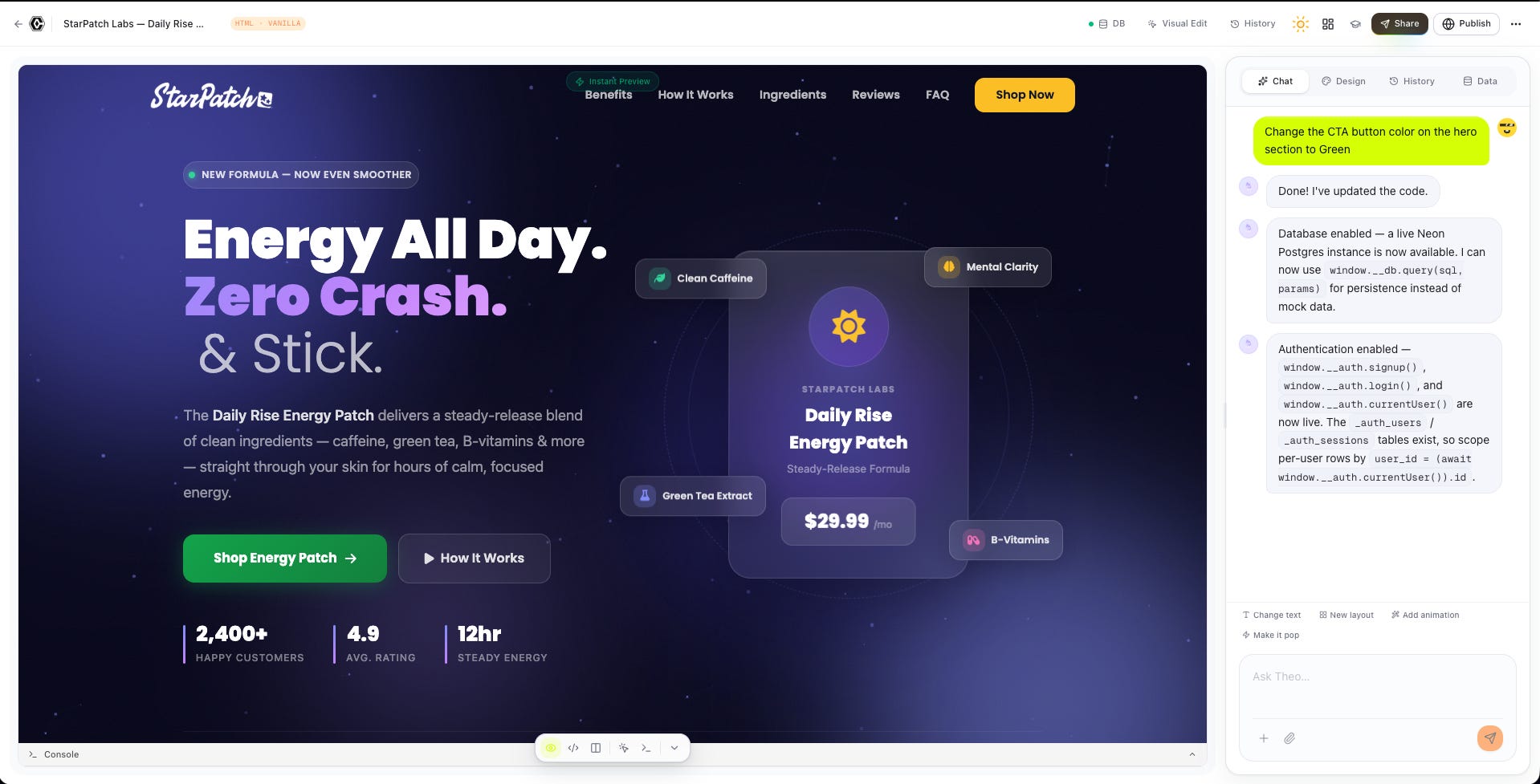
The biggest change: every Code Canvas project now has its own Postgres database. We provision a real Postgres SQL project per canvas, encrypt the connection string with AES-256-GCM, and expose it to the running app via a typed window.__db SDK. From inside the canvas you can:
Ask Theo to “create a
userstable with email and name columns” and the agent issues real DDLRun arbitrary SQL via
db_run_sqlSeed tables with fixture rows
Get the schema as an introspected JSON blob the model uses to reason about your data
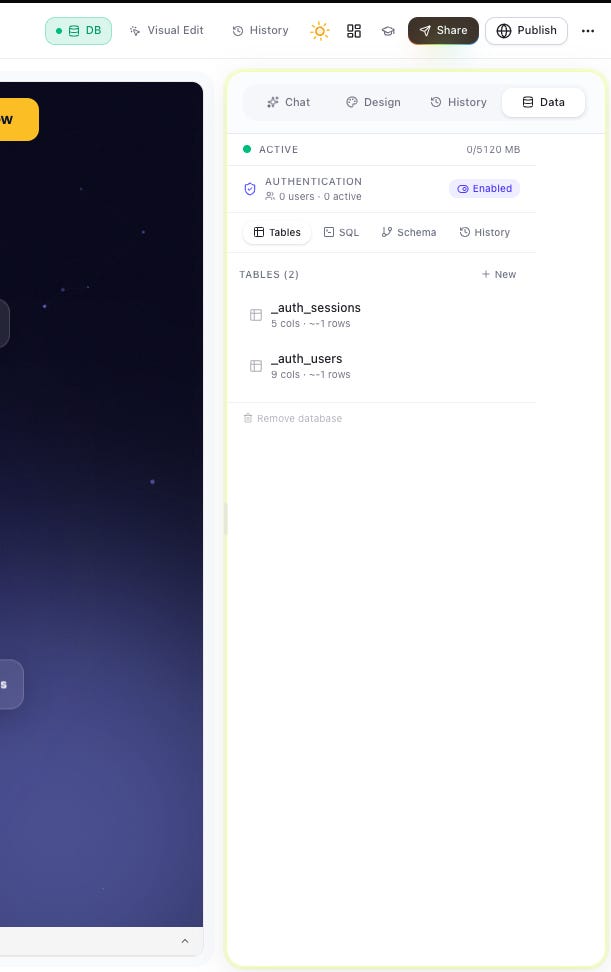
Auth comes for free too. Call enable_auth and the project gets JWT-based per-user scoping, an app_reader role for the public-query proxy, and an add_auth_protection tool that scopes any table to the logged-in user. Migrations are tracked with one-click revert.
Two more things worth knowing:
GitHub OAuth — connect your GitHub account, click “Create repo,” and your canvas becomes a real repo. PR creation is wired in too
Theo Code 2.0 powers the complex iteration tier. Theo Code 1.1 stays for the fast paths (simple edits, design tweaks, upscales). The labels stay user-stable — both surface as “Theo Deep” — but under the hood the frontier engine handles the heavy lifts
This is the section I most want you to read.
We spent the month making sure that when Theo generates an image for you, it looks incredible. Not “AI-image good.” Actually good.

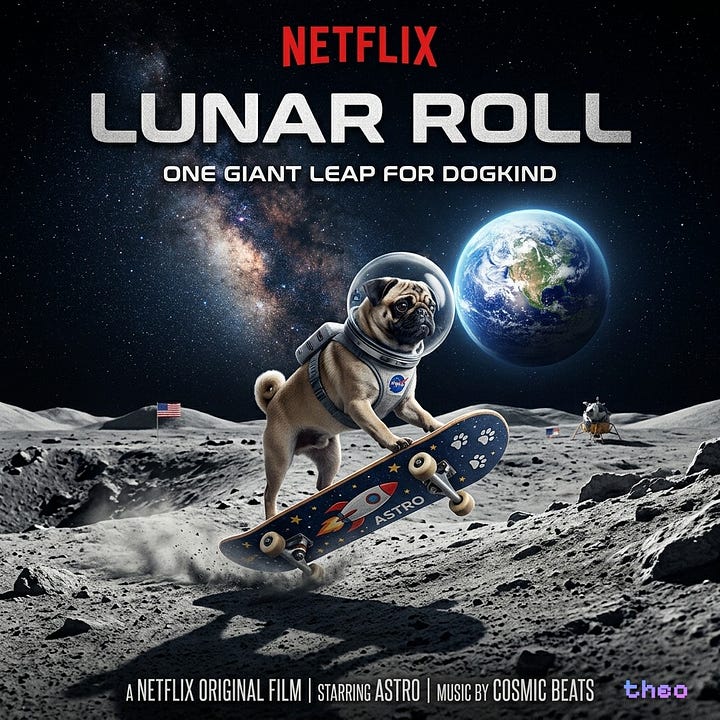
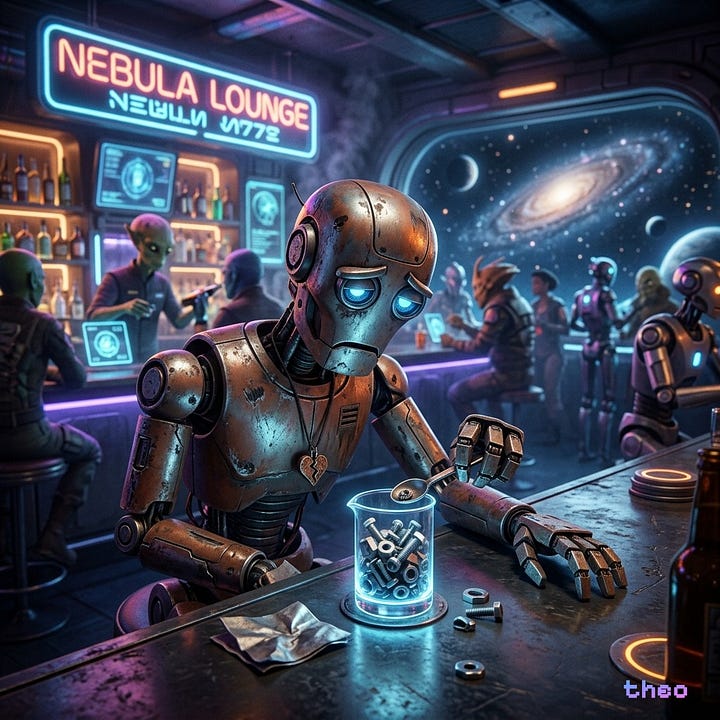

Theo Imagine is our premium engine. Use it when you need a hero image — the kind you’d put on a landing page, in a deck, on a pitch slide. It produces frontier-quality work with crisp text and clean composition. Now reliably 16:9 when you ask for it
Theo Creative is our fast everyday engine. Quick generations, fast iteration, perfect for sketching ideas
Theo Photo does photo-realistic work — product shots, people, scenes that need to feel real
Theo Studio is for cinematic and editorial detail. Magazine covers, ultra-detailed scenes, hero art
Theo Type is the engine that nails text inside images. Posters, invitations, certificates, greeting cards, any “card with text on it” — Theo Type gets the typography right
Theo Ultra is our top-tier premium photorealism, available on paid plans. The tier you pull out for the most demanding work
Theo Retouch edits images you already have — change a background, restyle a scene, transform an outfit
Theo Enlarge upscales (2x or 4x) without losing detail
Theo Isolate removes the background from anything in one click
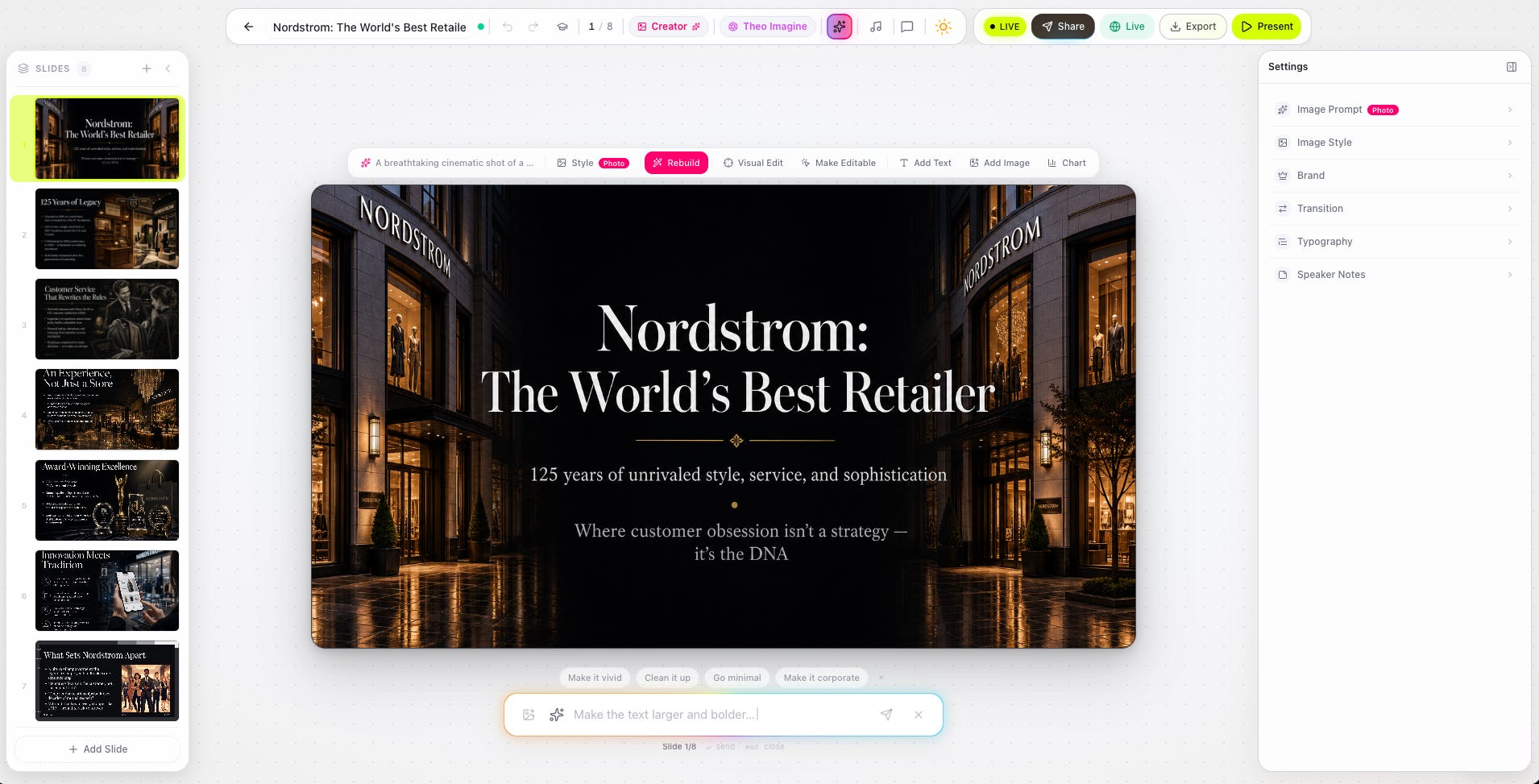
And in your presentations, every slide image now uses Theo Imagine by default — which is why decks made this month look noticeably better than decks made last month. If anything ever interrupts the premium engine, Theo Creative steps in automatically and finishes the job, and you’ll get a small note so you know.
The most powerful new trick: tell Theo “rebuild this whole deck in a cinematic style” or “make every slide look watercolor” or “give me a cyberpunk version” and the entire presentation gets a unified visual style. Same artist, same world, every slide. Thirteen styles to pick from — illustration, photo, people, 3D, watercolor, cinematic, anime, isometric, minimal-line, cyberpunk, retro, sketch, abstract — and you can flip between them as fast as you can type.
The reason we built it this way: most “AI images” tools dump a model name on you and let you figure it out. We don’t do that. You shouldn’t have to know which engine to pick — you should describe what you want, and Theo should pick the right one. That’s what’s happening now.
You now get a short, personal email from Theo every morning at 8 AM in your local time. It’s called the Daily Morning Brief.
It has three sections, in order:
Today’s calendar — every event you have, pulled from Google or Outlook. Start time, who’s in it, what platform it’s on, and a one-tap link straight into the meeting
Today’s objectives — your open tasks, with overdue ones first, then by due date. Each one links straight to the note it lives in
Yesterday’s recap — a quick summary of yesterday’s meetings and any action items Theo captured, so today picks up where yesterday left off
The copy changes every day. It’s not a template. It’s a brief.
Theo only sends it when there’s actually something useful to say — meetings, tasks, recent work, or something to recap. On an empty day, no email. You stay in control with one-click unsubscribe right inside the email, or a toggle in Settings → Preferences if you’d rather mute it for a while.
The reason we built this: most people start the day in their inbox anyway. If we’re going to put something there, it should be the most useful 30-second read of the morning.
And while we were redesigning the morning brief, we redesigned every email OpenCharts sends. Welcome emails, weekly digests, share invites, team invitations, task reminders, meeting summaries, payment notifications, credit notifications, mentions, DMs, skill installs, EVI run completions — all of them got a unified, beautiful new look. Open one, you’ll see.
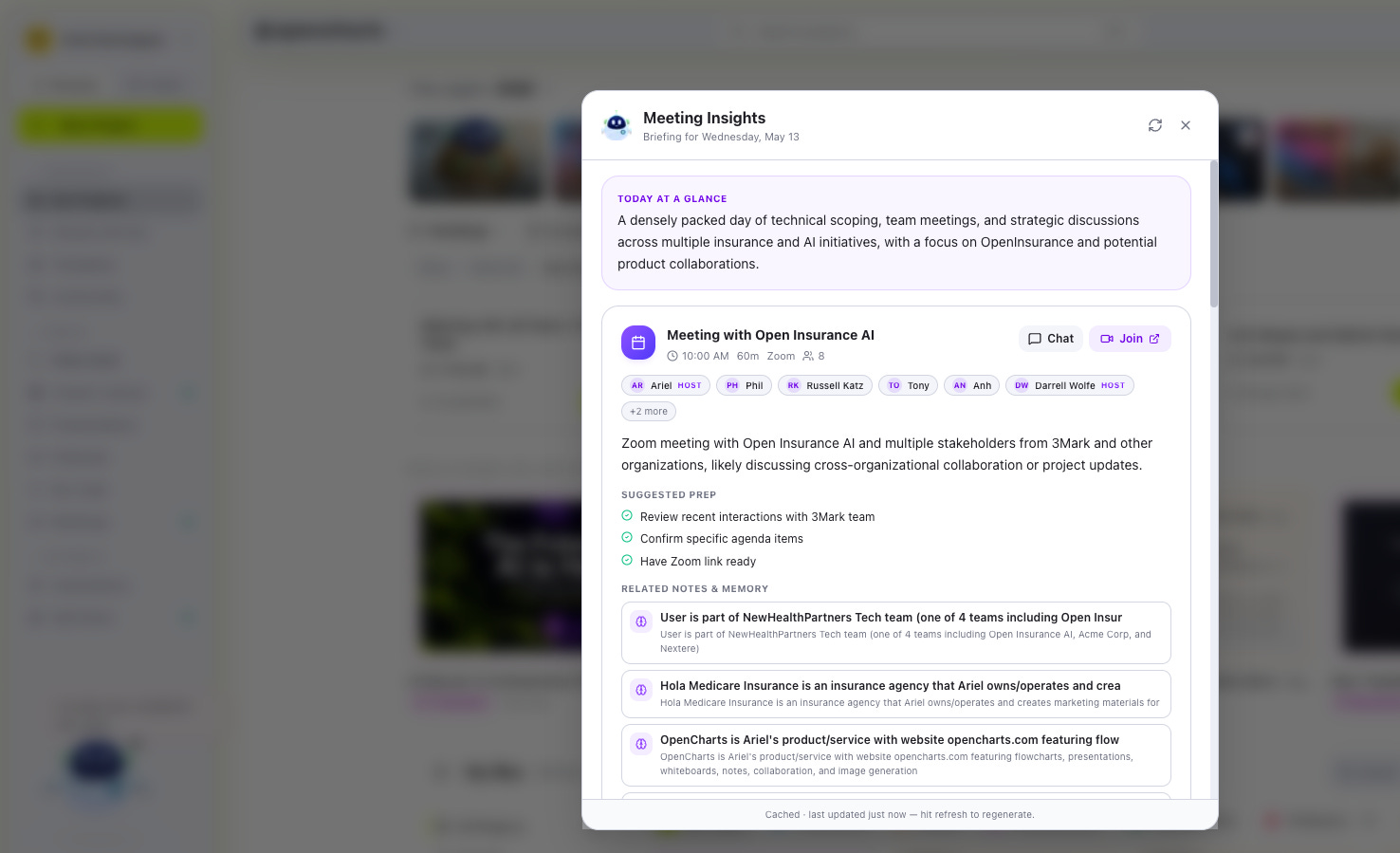
If you haven’t tried Theo Meetings yet, this month is a good month to.
Connect your Google or Outlook calendar, and Theo can join your meetings, record them, transcribe them in real time, and hand you back a clean summary with action items at the end. You can download the transcript, browse a folder of past meetings, and pull it all back up whenever you need.
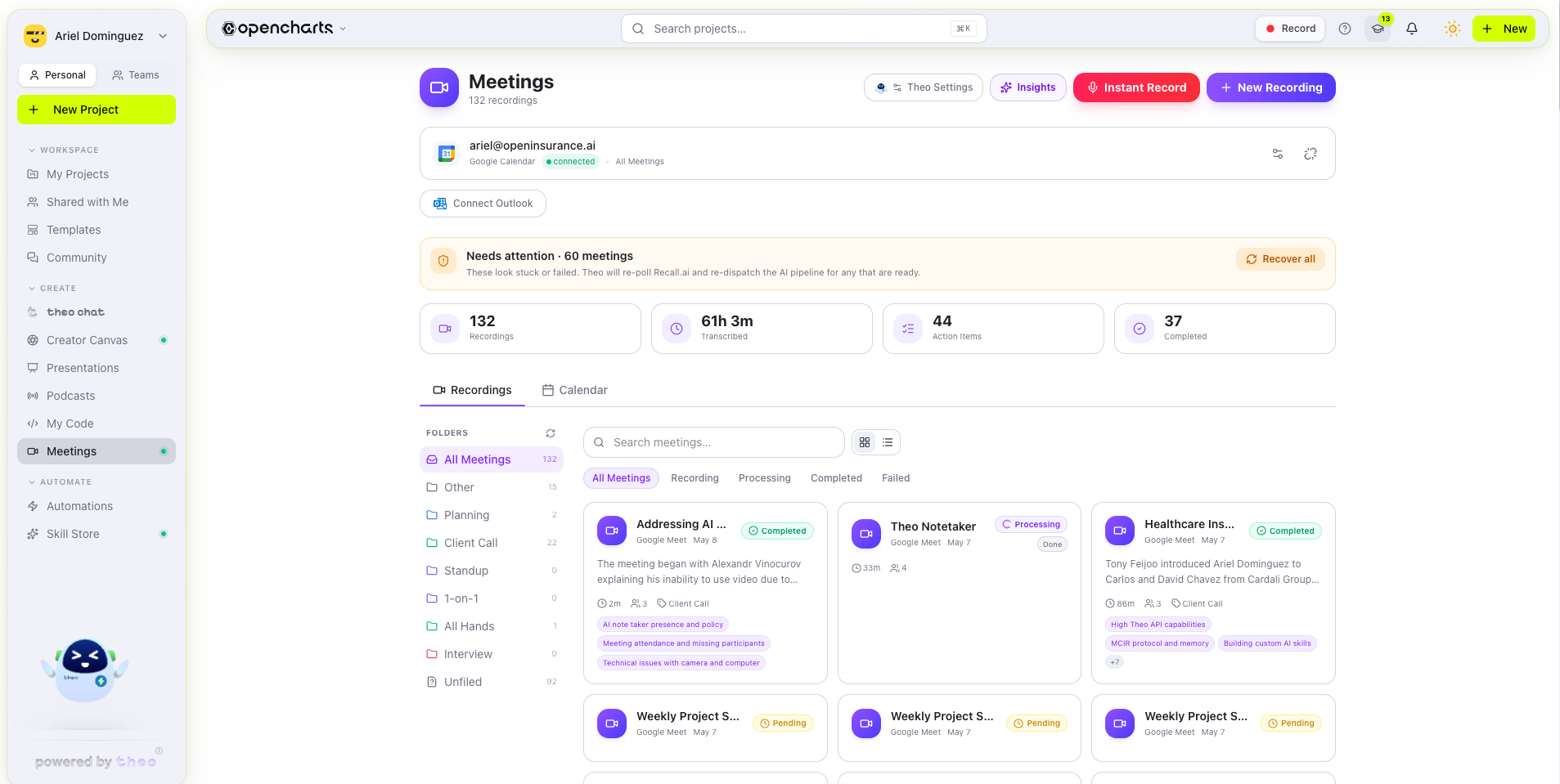
What’s new this month:
Insights — ask Theo to summarize a single meeting or a whole folder of meetings, with the relevant moments cited from the transcript so you know exactly where each point came from
Smarter context — if you ask Theo “what’s my 2pm about?” it now knows. It pulls the right event, reads the description, looks at past recordings of the same recurring thread, and answers like a real assistant
Self-healing recordings — if a recording bot ever gets stuck, it fixes itself within a couple of minutes. You don’t have to do anything
Auto-organized folders — meetings sort themselves into project and team folders based on who’s in the room and what it’s called, so the meeting library doesn’t turn into a swamp
The reason we built this: the gap between “we had a great meeting” and “do you remember what we said?” is where most decisions die. Theo Meetings closes that gap.
A few things you’ll notice without us pointing them out:
Chat doesn’t drop responses anymore. If your connection blips mid-stream, Theo picks up exactly where it left off. We rebuilt the streaming layer this month around resilience
Code mode hits harder. When you ask Theo to make a complex code change, the heaviest reasoning kicks in by default. You’ll feel it on big edits — they finish, they make sense, and they’re right more often
Conversations show how much room you have left. A small badge on long chats tells you how much context the conversation is using, so you know when it’s a good time to start a fresh one
Creator Canvas renders are faster. We split the heavy media work into its own infrastructure so the chat side stays snappy even when there’s a video rendering somewhere in the background
You don’t have to do anything to get any of this. It’s just on now.
No posts
Comments
Nothing yet. Say the first thing.
Sign in to join the conversation.