
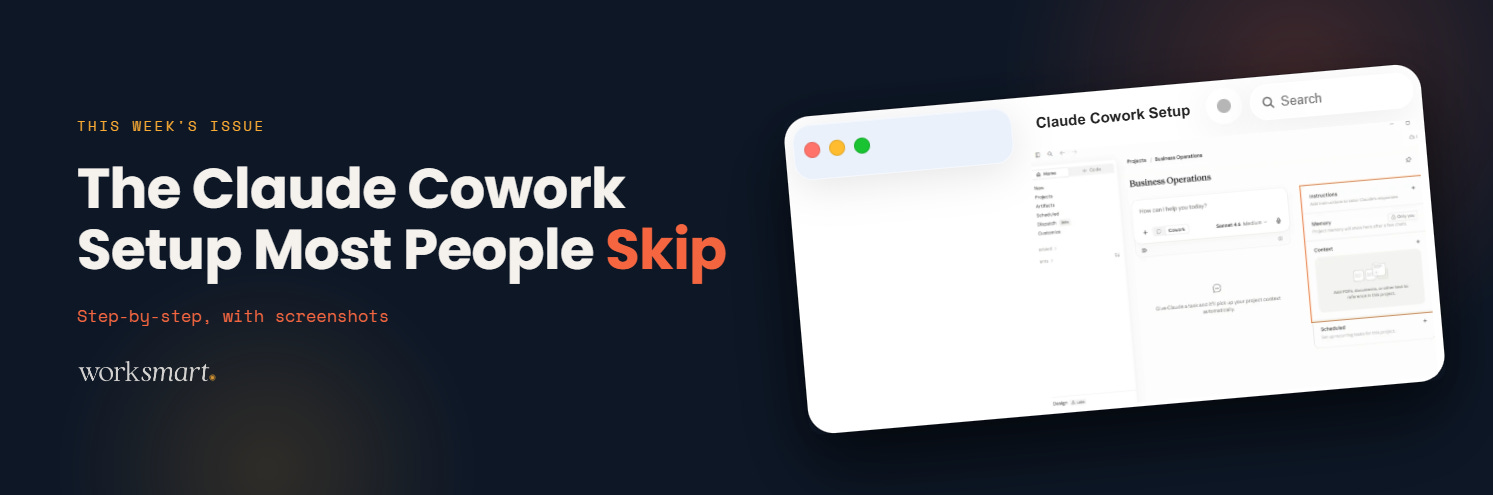
I went through the full Claude Cowork setup this week with one of my direct reports... so if you have Claude Pro but never found the time to set Cowork up, this will walk you through the settings.
Before anything, how to access Cowork
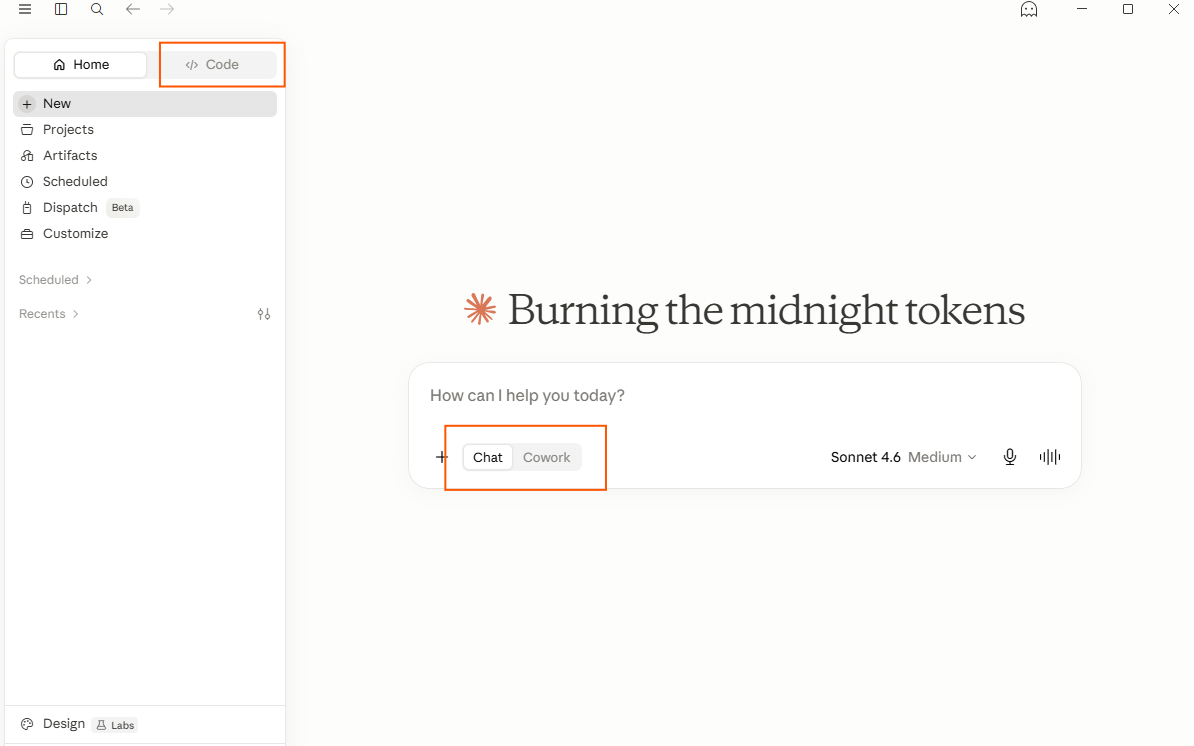
Download the Claude desktop app at claude.com/download and open it. You’ll see three tabs across the top: Chat, Cowork, Code. Click Cowork.
Code has a separate tab while Chat and Cowork live in the Home tab
Connectors let Cowork read your actual apps : Gmail, Google Drive, Slack, Notion and many other apps, instead of working from whatever you copy and paste into the chat.
Click “customize” on the side panel then click “Connectors” . A connector menu opens with the apps available to link.
Connect Gmail. Connect Google Drive. And if you use Slack or Notion, connect those too.
Once they’re linked, you can ask Cowork to pull context from your real work without touching a single file. Check emails from a specific client. Pull the latest doc from a Drive folder. Summarize what happened in a Slack channel this week. Claude reads the source directly.
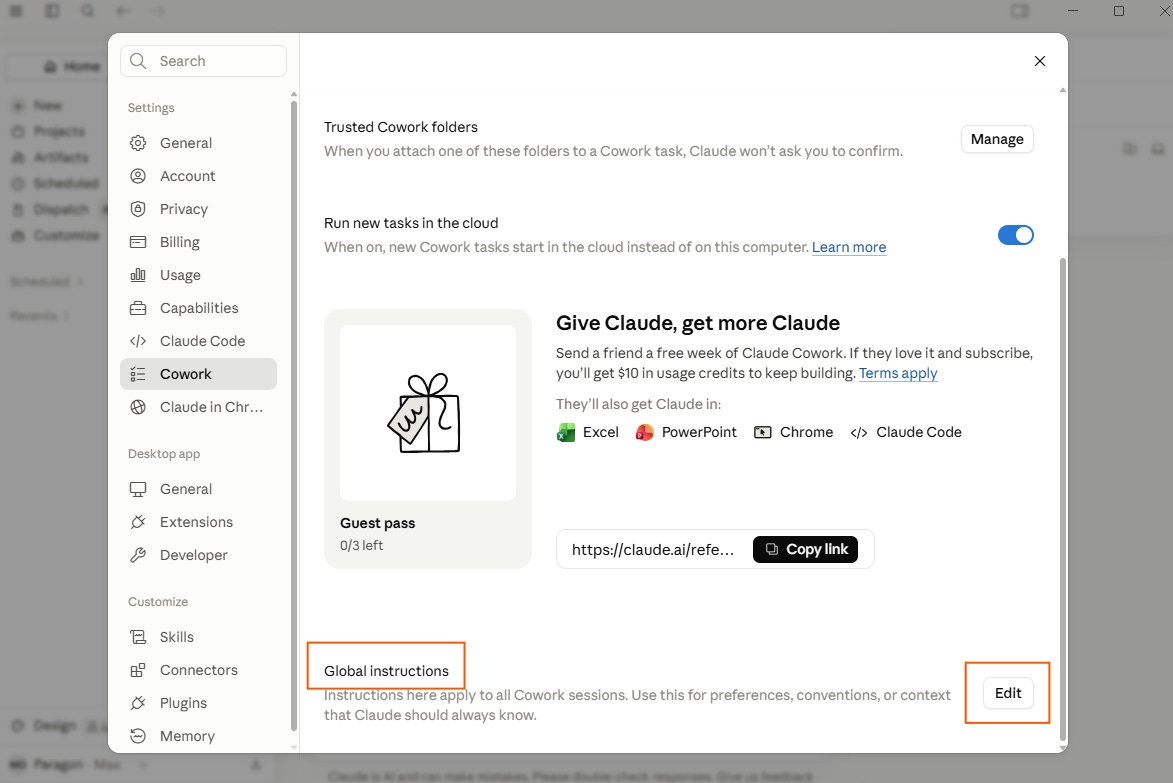
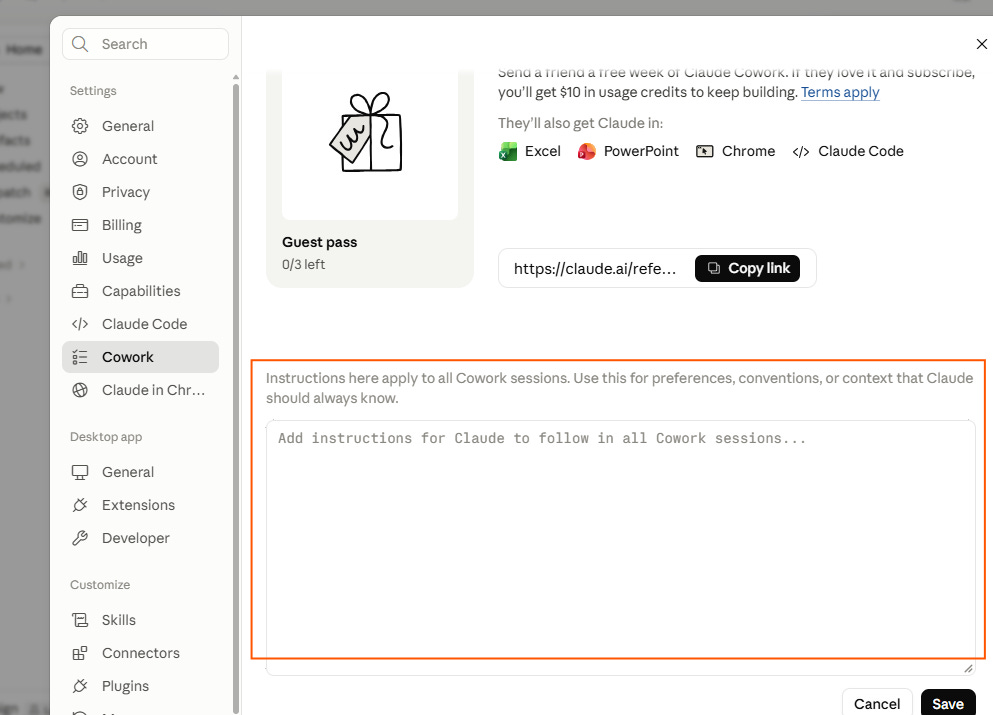
Go to Settings in the left sidebar, then click Cowork. You’ll see a text field for global instructions, context that loads into every Cowork session automatically.
Leave it mostly empty.
When you pile a lot of context in here, Claude uses all of it every single time, whether it’s relevant or not. A long “about me” paragraph means Claude re-reads your full work history just to answer a question about formatting a spreadsheet. It bloats the token count and makes the output less focused.
Two sentences max. “I run a business [URL]. Keep recommendations specific, direct, and humanize your text before it comes back to me.” That’s enough. The context that actually earns its token cost belongs in Projects, not here.
Every time you open a new Cowork chat, Claude starts from zero... it doesn’t know your business, your clients, your tone, or what you worked on last week. So you either re-explain everything or settle for generic output.
Projects fix that for good.
A Project is basically a workspace that holds onto whatever files and instructions you give it, so they’re there in every chat you have inside it. It’s like having a version of Claude that already gets one particular part of what you do. You open the Project, start a conversation, and the context is already there — the client background, your brand guidelines, the service description, whatever you put in. You’re not starting cold every time — you just get to work.
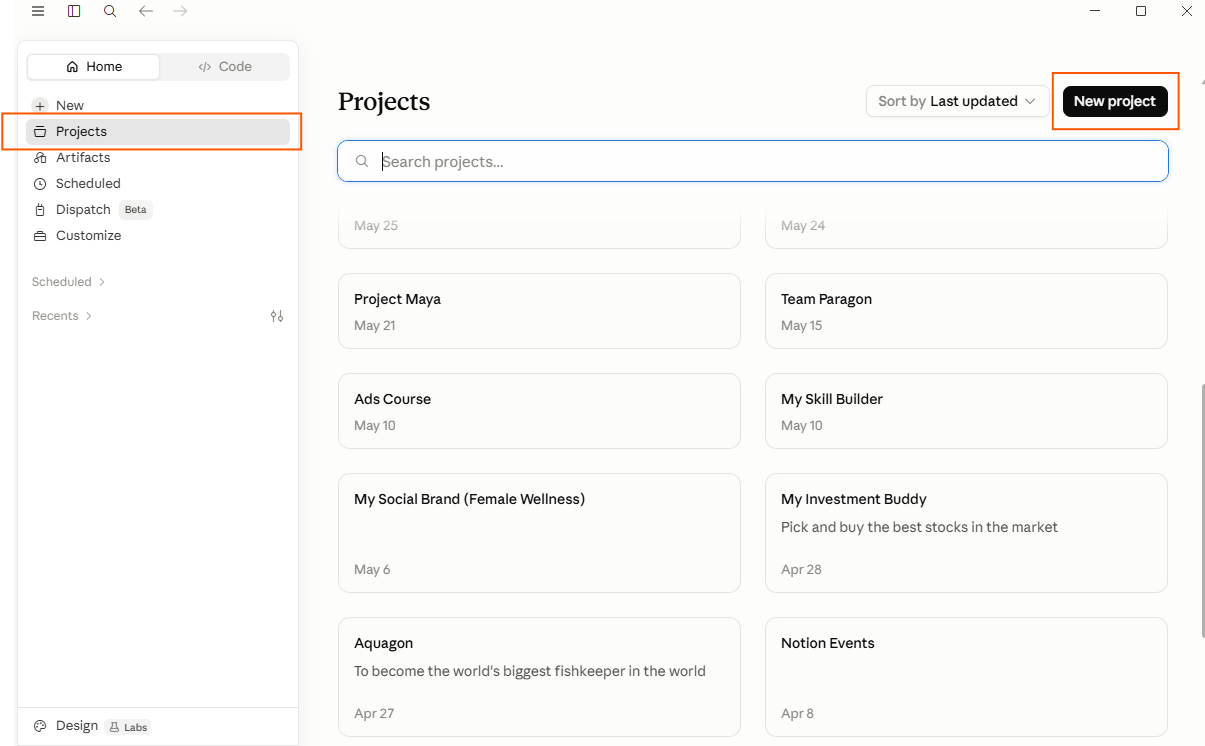
Go to the left sidebar, click Projects, then New Project. Name it after your main work area.
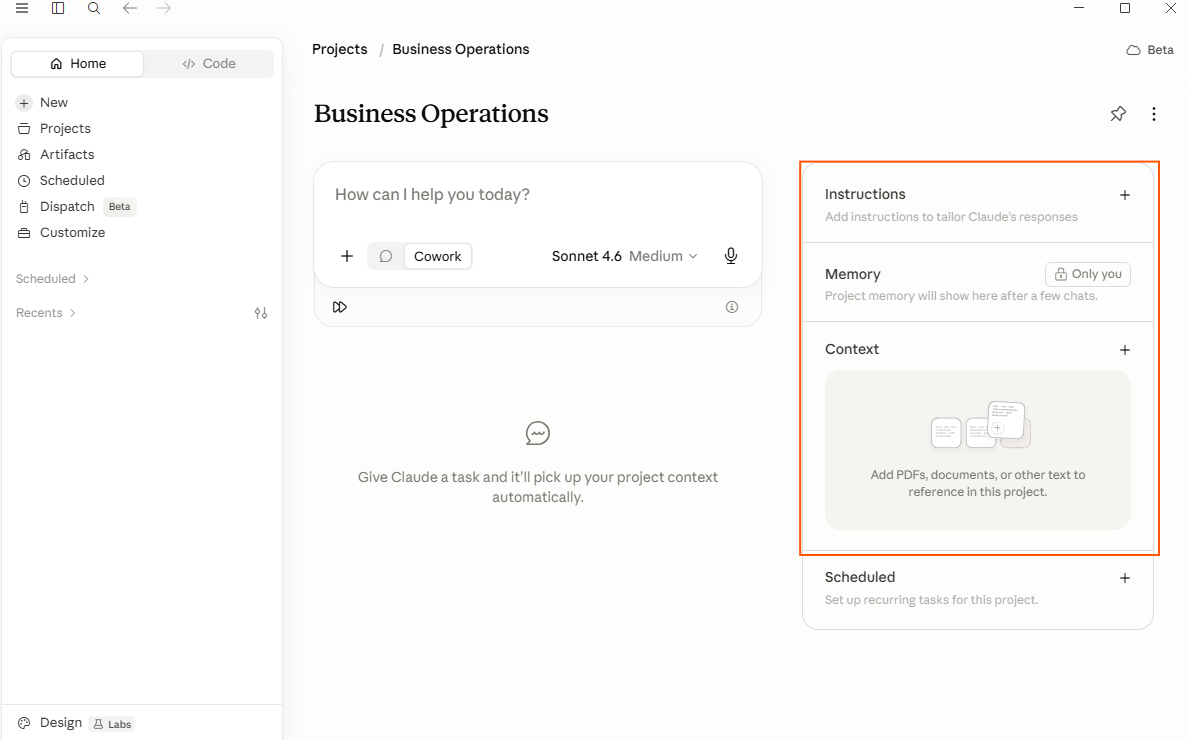
Open the Knowledge section and upload three to five files that give Claude context on how you work — a service description, a client intake template, brand guidelines, pricing. Whatever you reach for weekly.
Then write your project instruction. Two to three sentences. “You are helping me manage client projects. Be direct. Humanize the text. Flag anything that looks like a delay risk.” That’s all it needs.
Every conversation inside that Project opens with that context already loaded. You won’t have to explain your business from scratch again.
This is my favorite Claude feature by far… most people write the same prompt over and over.
A Skill takes that prompt you’re always retyping and turns it into a slash command — save it once and it’s yours from then on. You type /weekly-update or /client-email or /humanize and Claude already knows the format, the tone, and the output you want. You just fill in the specifics for that week.
To build your first one, type /skill-creator directly in Cowork. Claude asks you questions about what the skill should do, what triggers it, what it produces, what format it follows and builds it for you.
Once saved, it appears in your left sidebar under Skills. Call it inside any session, including inside a Project, with your uploaded files already in context. A skill called inside a client Project means Claude already knows the client before the command runs.
How do you decide when to make a skill?
A Scheduled Run is just a Cowork task you set up once and let run on a schedule. Monday at 8am. Every Friday at 4pm. Daily at noon. Whatever cadence fits the task. Cowork runs it, produces the output, and delivers it wherever you tell it — a Google Doc, a Drive folder, an email draft — without you opening the app or typing a single prompt.
THiS IS EVERYTHING FOR YOUR PRODUCTIVITY. If there’s something you keep doing by hand simply because automating it never made it to the top of your list, that’s exactly what a Scheduled Run is for.
HERE IS A PROMPT FOR YOU:
every Monday at 7 am, Cowork checks your Gmail for unread client emails from the weekend, pulls your top priorities from a pinned Drive file, and writes a one-paragraph focus recommendation. It saves everything to a Google Doc called Monday Pulse with that day’s date. You open your laptop and the brief is already there. No digging through email. No trying to remember where Friday ended.
To set one up: go to the left sidebar and find Scheduled Runs. Click New Run. Write the task exactly as you would prompt it manually, be specific about what to check, what to produce, and where to put it. Set the frequency. Save it.
The only requirement before you start: make sure the relevant Connectors are live. A run that reads Gmail needs Gmail connected. A run that saves to Drive needs Drive connected. Get those connected first, and the run will have what it needs to work.
Connect Gmail and Google Drive in the Cowork connector menu. Connect Slack!
Go to Settings and clear your global instructions down to two sentences.
Create one Project for your primary work area. One project for your personal life. One Project for your side hustle. Upload three files. Write instructions.
Run /skill-creator and build one skill for a task you do every week.
Set up one Scheduled Run for something you currently do manually on a recurring basis.
Leave any questions in the comments below and I’ll get started on a cowork ADVANCED tutorial in the next few weeks.
Talk soon,
Morgan
Comments
Nothing yet. Say the first thing.
Sign in to join the conversation.