
AI has made writing code incredibly easy, but launching apps remains daunting for people without coding skills. You can always do it with Replit or Loveable, but these are quite expensive (their free tiers are very limited). This is a tutorial for people who want to create their own apps for free.
I’ll focus on building Progressive Web Apps, or PWAs. These are basically websites that look and work almost exactly like traditional iOS or Android apps, but they are better because they work cross-platform, and can be downloaded directly, without going through the app stores. The latter is a huge benefit, because deploying apps to the app stores is a massive pain.
Go to Github and create an account.
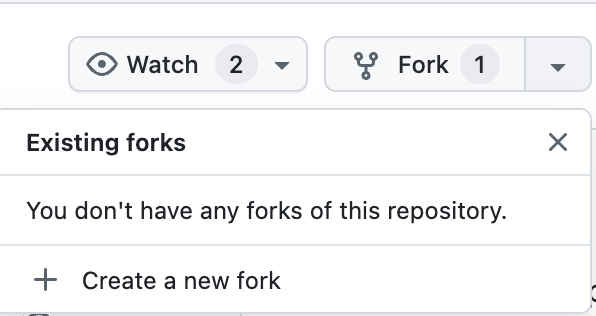
Go to Repositories (Github’s name for projects (though confusingly, Github uses ‘project’ in a different way — let’s not get into nomenclature right now)) and create a new project. Alternatively, you can copy the PWA Template I’ve created. Fork it (Github’s way of saying copy it) by tapping on Fork → Create a new fork at the top right-hand corner. Give a new name and description for your repo.
Go to Vercel and login using your Github account. Vercel is a service that deploys your github projects to the web.
Tap Add New… to create a new project:

And choose the new Github repo you created by copying the PWA Template:
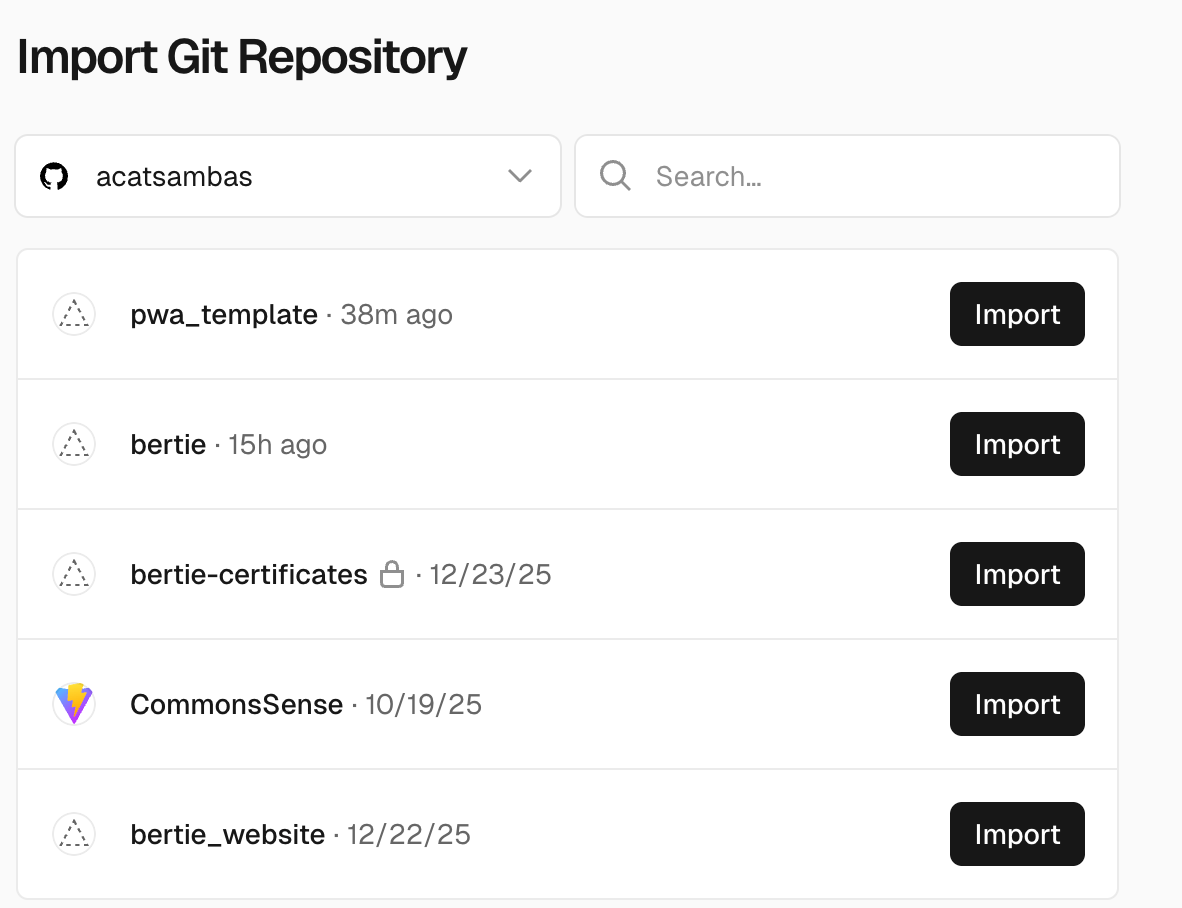
That should do it — you should see something like this:
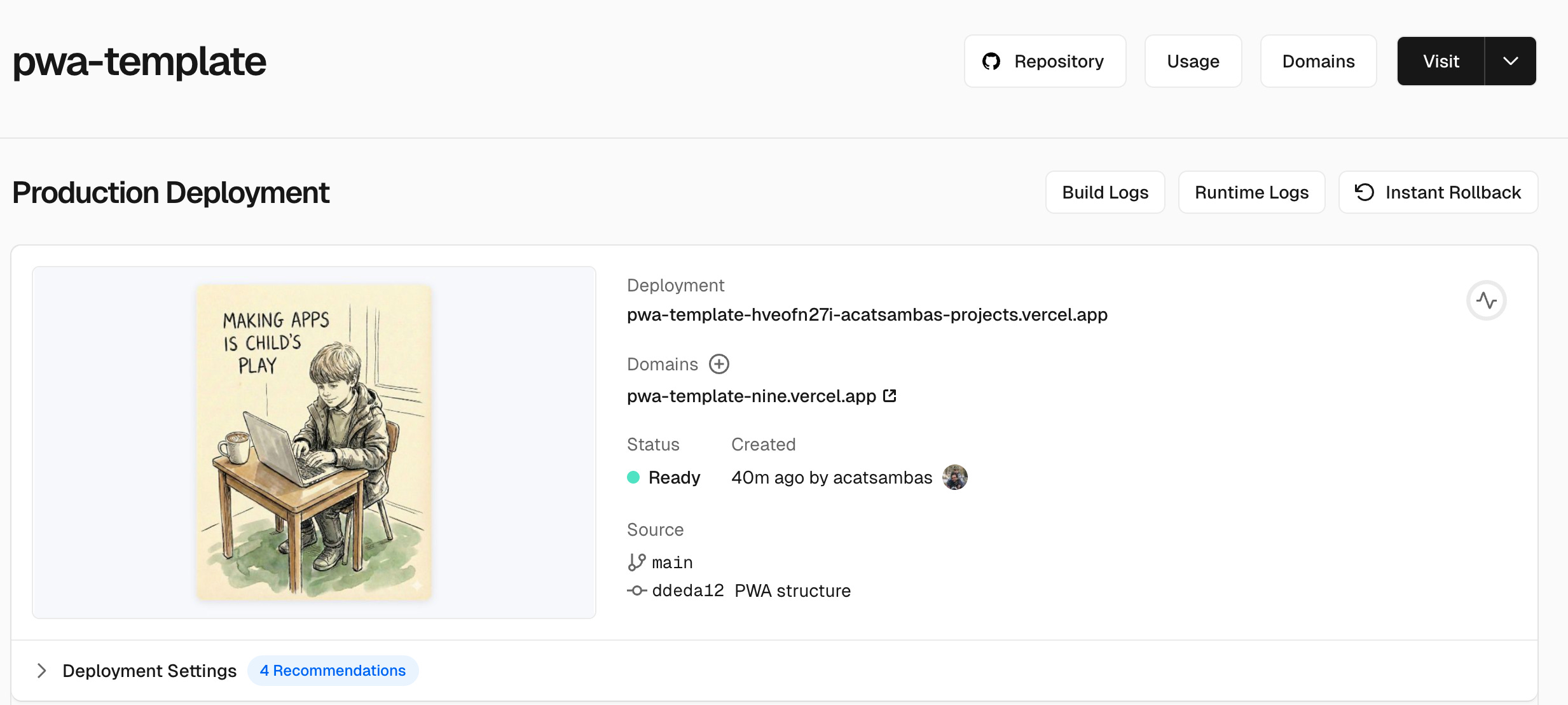
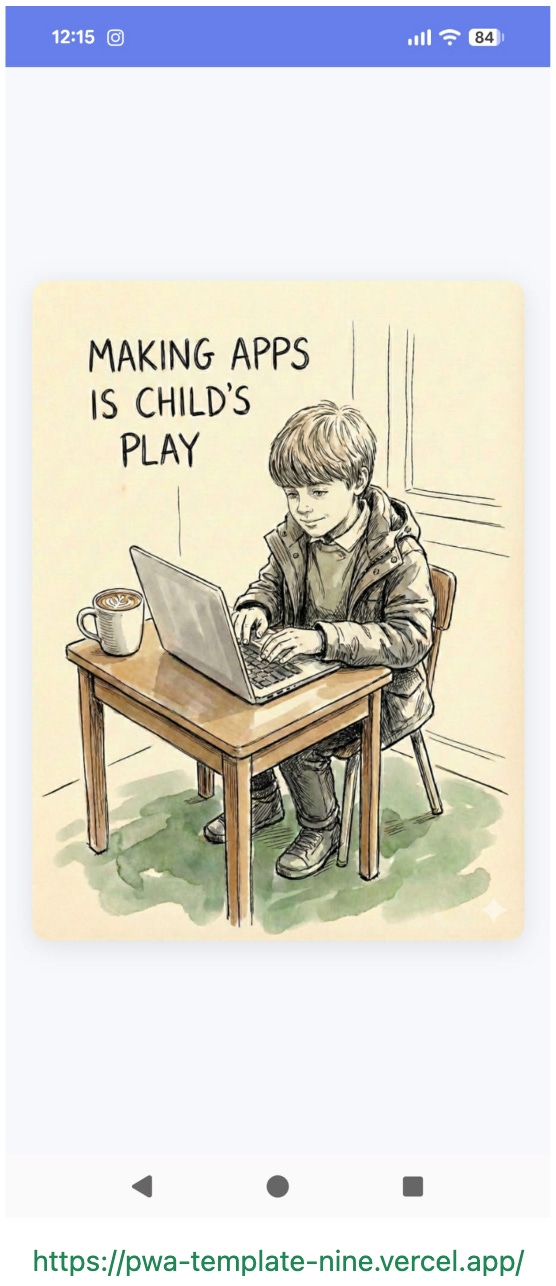
Tapping the Domain link will launch your app, which for now, will look just like the template app I created. Try it on your phone, you should see this:
Time to make your own app.
You’ll need to download an AI-powered IDE (Integrated Development Environment), which is a fancy name for a code editor. You’ve probably heard of Cursor, so you can try that; I use Google’s Antigravity, because it has a more generous free tier. Google is also more likely to offer you steep discounts on its Gemini plans, which give you access to Antigravity’s pro tier.
Once you’ve set up your account, ask the AI assistant (usually at the right) to help you get started: tell it you want to connect your Github account and work on your project. As part of the prompt, give it your Github user name and email, and the name of the repo you’ve created.
Once that’s done, you’re ready to go: describe what you want your app to do, and the AI will start doing it for you. Happy vibe-coding.
No posts
Comments
Nothing yet. Say the first thing.
Sign in to join the conversation.