
When selecting technology to incorporate into learning experiences, we are mindful of the ways that our choices will serve students over time. While there are many tech spaces designed specifically for young children, we have found that spreadsheets can provide great learning opportunities for everyone from kindergarten through adulthood. Intentional introduction and scaffolding for using a spreadsheet can inspire young learners to create, organize, and analyze information in ways that will support demonstration and communication of ideas over the course of a lifetime.
We first introduce our students to Google Sheets while we are working with the rhyme, Miss Mary Mack. In the rhyme, Mary is dressed in black. We play with oral language as our students change the color she is wearing and create different versions of the rhyme.
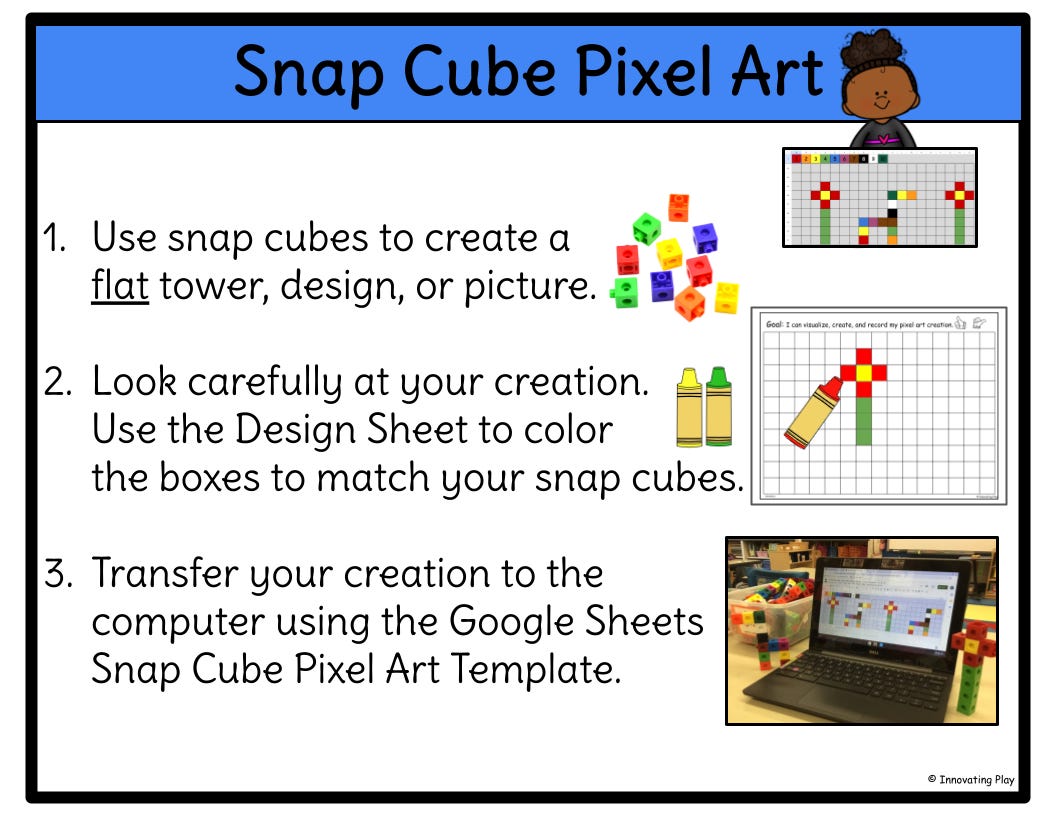
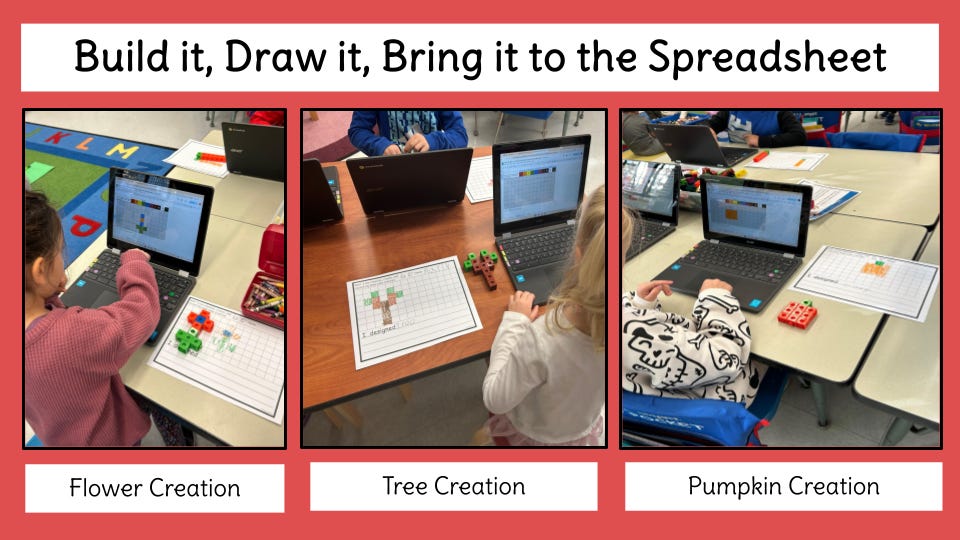
This is a perfect time to introduce more ways to play with colors as we engage in Snap Cube Pixel Art with Miss Mary Mack.
Where is the Elephant? Game: A Positional Words Activity
Who Jumped Over the Fence? Class Book Inspired By: Miss Mary Mack
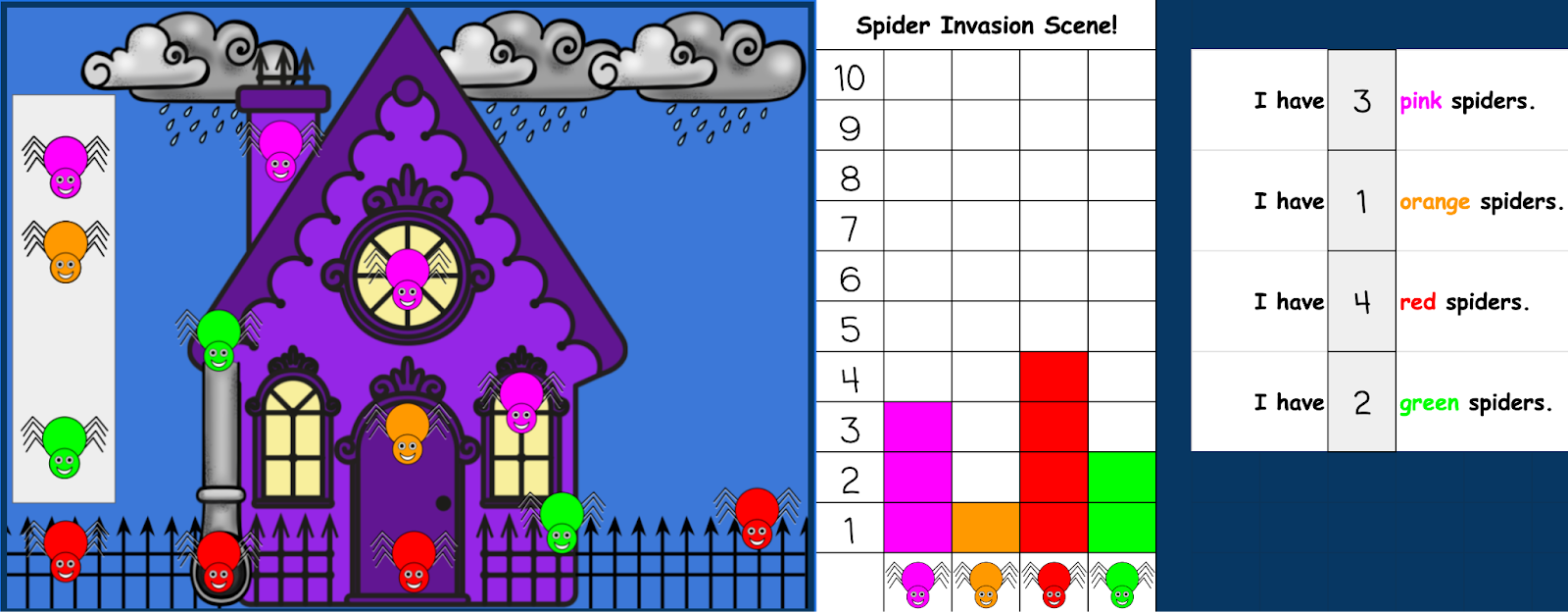
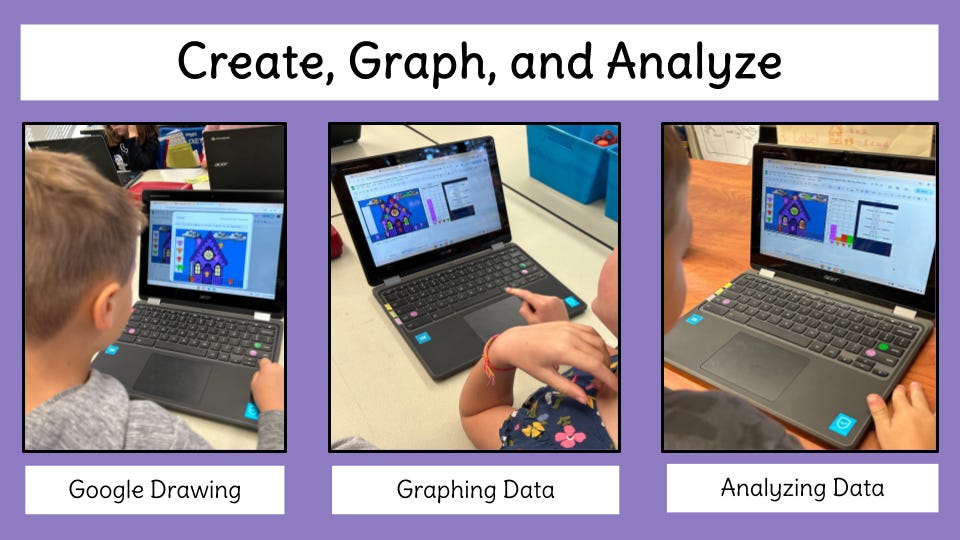
Once students are comfortable manipulating the cells of a spreadsheet to change the color, they are ready to explore the ways Google Sheets may be used to organize information. In the weeks prior to Halloween, we use the rhyme The Itsy Bitsy Spider as our focus text. In conjunction with a variety of multi-modal activities, students are invited to show their thinking by creating their own spider-themed Google Drawing, and analyze their spider data using the Google Sheets template: The Spider Invasion Scene.
If your students are learning with The Itsy Bitsy Spider, check out our Where is the Spider? Class Book.
Model the activity as a whole group so that children can see that selecting a cell on a spreadsheet puts a blue box around it. This shows that the cell is ready for information. Model moving to different cells/boxes around the screen by using the arrow keys.
Let the students know that if they try to type/edit in a space that would take away something that is not supposed to be deleted, that a note will appear, and they will need to choose Cancel.
Model and encourage tapping of the number on the keyboard gently one time so that only one digit is typed into the cell (rather than a string of numbers).
Reinforce that the undo icon, backspace, or delete buttons may be used to try again.
Be ready to engage in a conversation about conditional formatting if it arises naturally. We explain to the children that the computer only knows to follow the rules that have been given to it by a human. Our spreadsheet is set up so that the computer knows: “If we type a certain number, then this color will appear.” This is an excellent teachable moment for “If, then” statements as well as the idea of cause and effect relationships.
We place a green smiley face sticker on the Enter button so students can easily locate it on the keyboard. We explain that the computer will not know what to do until you tap the Enter key to “lock in” your idea.
No posts
Comments
Nothing yet. Say the first thing.
Sign in to join the conversation.