
Here's the thing about the Google Analytics 4 property settings.. They affect everything we see, but they're sooooo easy to overlook.
Maybe you set up your GA4 property three years ago when you first jumped on the bandwagon. Maybe it was auto-migrated from Universal Analytics. Or maybe, let's be honest, it was a rushed setup and you just didn’t put much thought into these seemingly lighthearted questions. 🤷♀️
Whatever the case, these settings matter more than you think.
If you get them wrong, you'll spend months trying to reconcile data discrepancies, wondering why your attribution is off, or missing out on valuable insights entirely. (Not to scare you or anything 🙃)
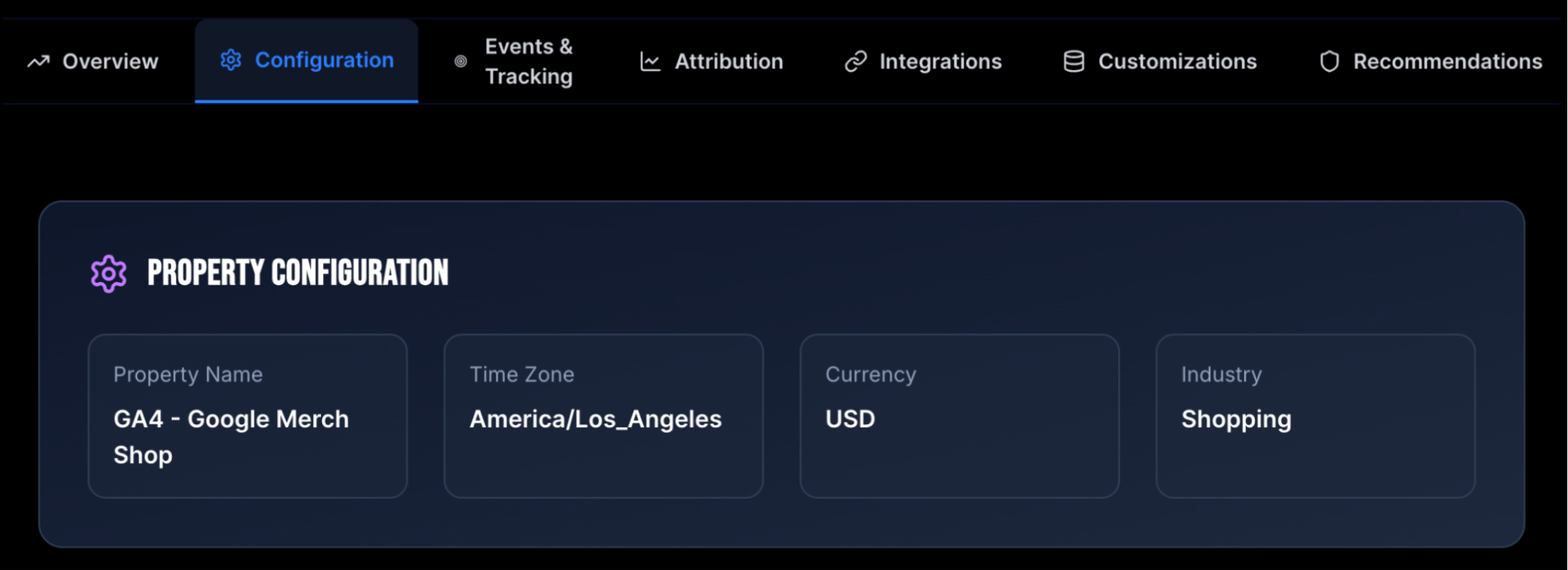
This might seem basic, but your reporting time zone is absolutely critical.
If you're comparing GA4 data with your CRM data, Meta Ads data, or any other marketing platform, you need consistent time zones across the board.
Oh, and if you're, ya know, making decisions based on your data?!
I've had MANY cases where the daily revenue just didn't add up between GA4 and the POS or Meta. So I'd do a manual transaction comparison just to find that the time was off by three hours, and all the orders from 9 pm to midnight were attributed to the next day. 🤦♀️
Best practice: Use the same time zone across all your marketing platforms. If your business operates in multiple time zones, pick your headquarters' time zone and stick with it everywhere.
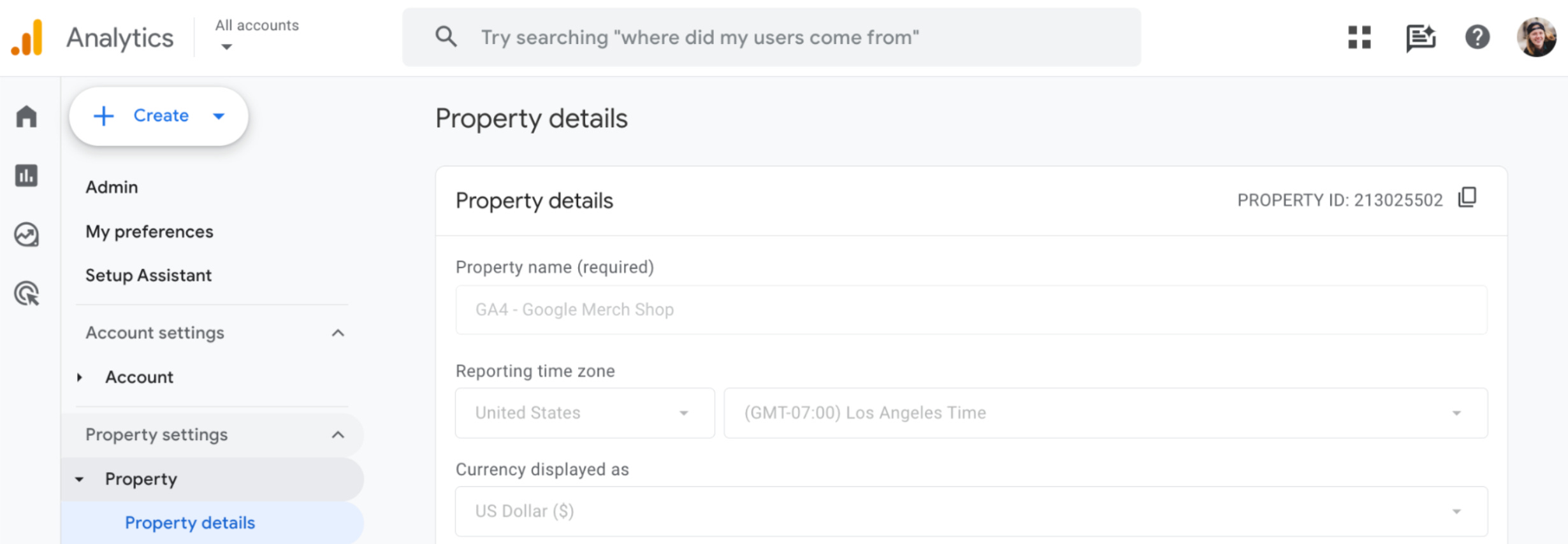
Navigate to Admin, then under "Property," click "Property details." Choose your operating region and the timezone you use across your other marketing platforms. Then save your changes.
Speaking of things that mess up your data...
GA4 only reports in a single currency in the Reports section.
If you accept multiple currencies (euros, pounds, yen), GA4 still captures those transactions. It just converts them to your chosen currency using the exchange rate for that day.
In the Admin section, under "Property," select "Property details." Find the heading "Currency displayed as," click the dropdown, and choose your primary currency. Save changes.
Best Practice: Choose the currency that represents the majority of your transactions.
Google made the industry category REQUIRED around late 2024/early 2025, and people are sick of the constant pop-up reminders. But here's the thing...
Google made this setting required for two reasons. First, they want your data (surprise!). Second, they use it to provide benchmarking insights that compare your analytics to other businesses in your industry.
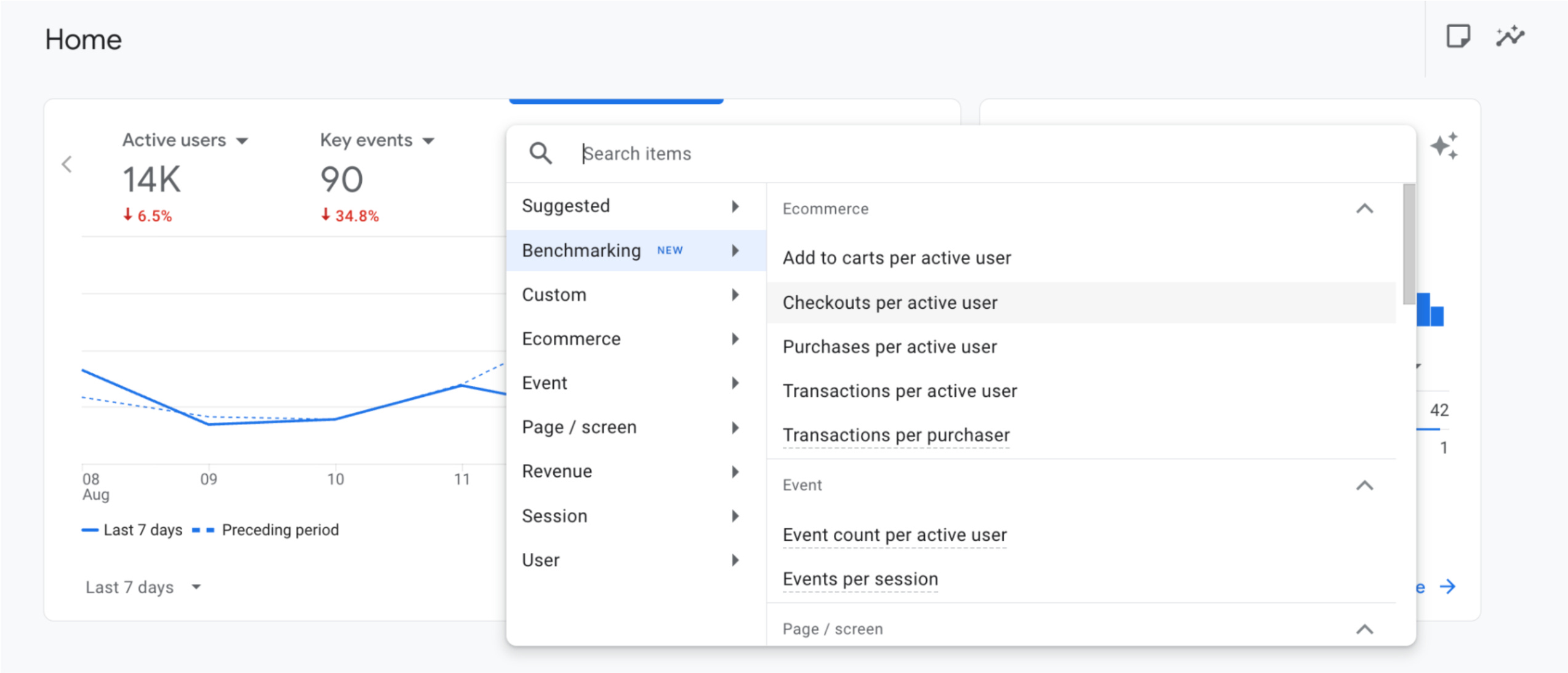
Why this actually matters: If you want to see how your key event rates stack up against competitors or get industry-specific insights, having this set up is required.
In the Admin section, under "Property," select "Property details." Scroll to the bottom of the page and find the "Business details" section.
You will see there are actually three required fields: industry, size, and objectives. Click on the dropdowns to see all of the options for each question. Choose the answers you feel best represent your business and save your changes.
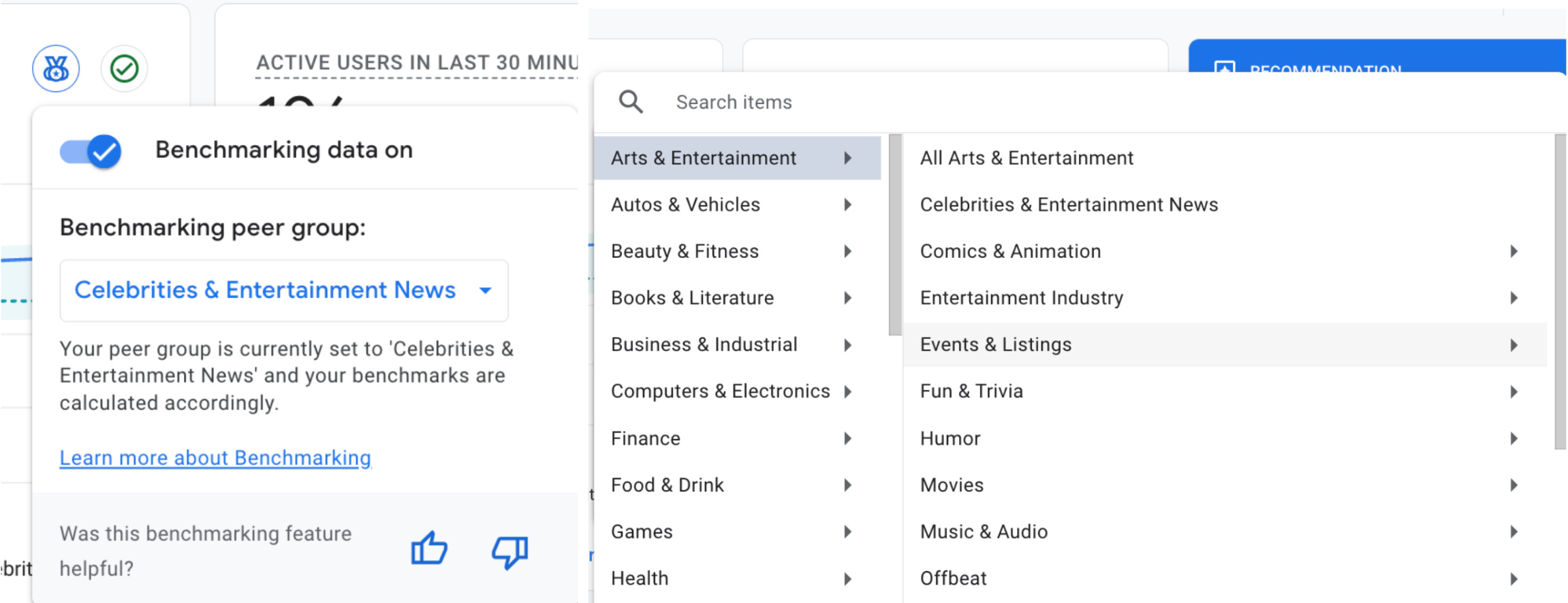
One more note on benchmarking: When you select a metric that has benchmarking available, you will be prompted to choose your peer group. You can change this selection WITHOUT affecting your property settings. So feel free to have some fun with it every once in a while! 😊
Right now, before you do anything else:
✅ Check your reporting time zone against your other marketing platforms
✅ Verify your currency setting matches your business needs
✅ Set your industry category if you haven't already
✅ Ask yourself: Do these settings still make sense for where the business is today?
No posts
Comments
Nothing yet. Say the first thing.
Sign in to join the conversation.