
You tend to misplace your iPhone around your home.
While using the Apple Find My app to ring is the best approach, it requires another device, such as an Apple Watch or iPad.
If you live alone, it may not be easy to find someone to call your iPhone to make it ring.
Add a Shortcut triggered by Siri
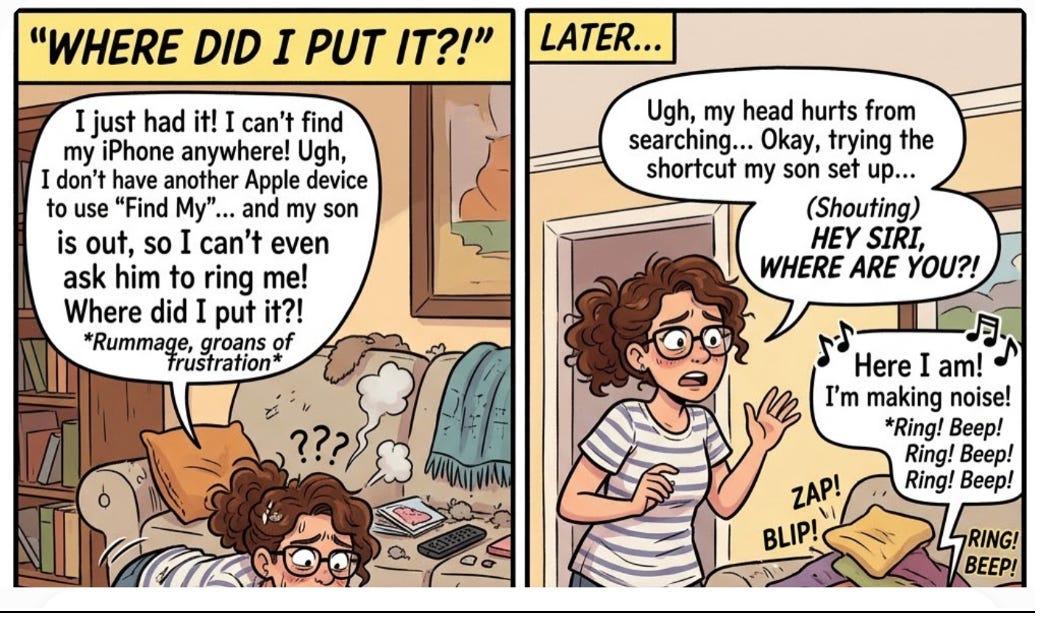
Here is a YouTube video of it in action
This works because Siri can run shortcuts when the shortcut name is spoken and runs even if the iPhone is set to “Silent”
Just by saying “Hey Siri, where are you?” …
· The Shortcut is launched
o Speaks messages using Siri
o Starts an audible timer
o Flashes a light
Kudos to “Geek Gizmo” as the basis for my enhancements
The Setup:
Step 1: Install the Shortcut… Click here to install this sample Shortcut
Just by saying “Hey Siri, where are you?” the Shortcut is launched, speaks a message, and starts an audible timer
Kudos to “Geek Gizmo” as the basis for my enhancements
The Setup:
Step 1: Install the Shortcut… Click here to install this sample Shortcut
Step 2: Add Shortcut
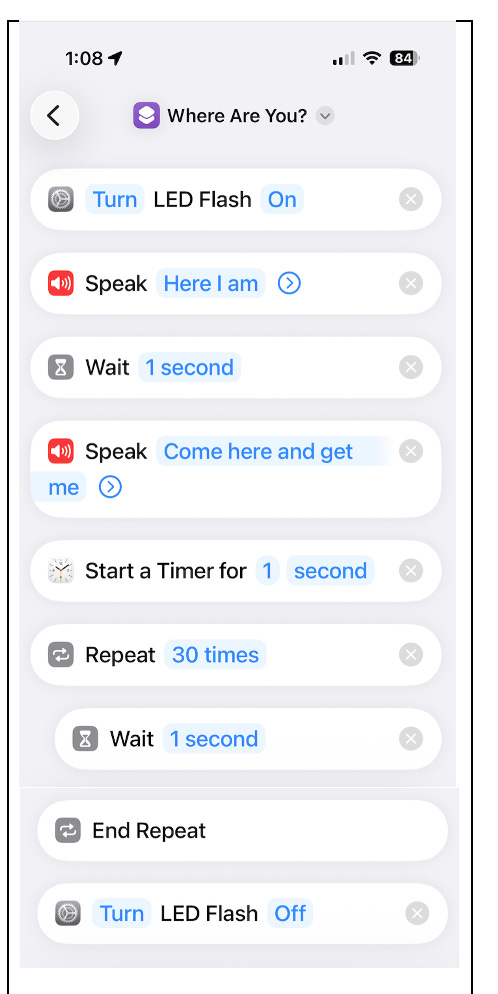
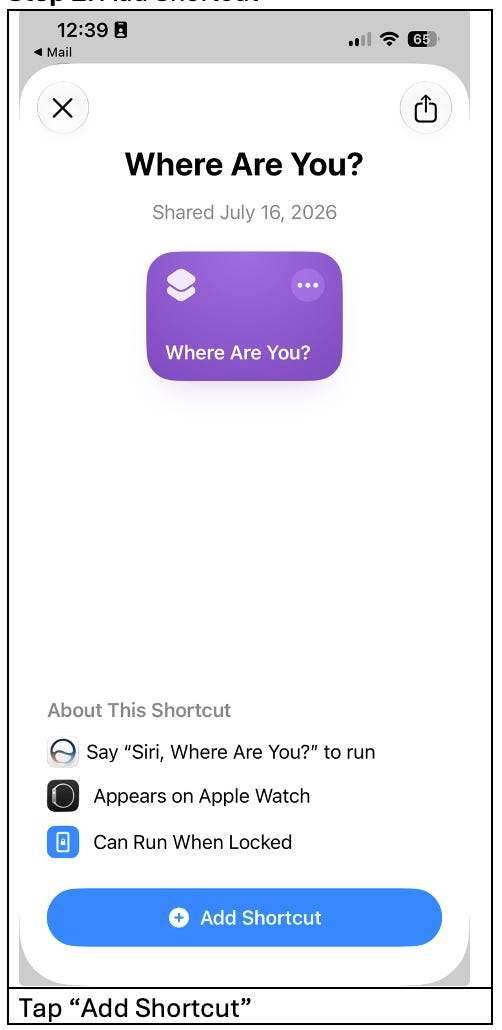
· Optional- Customize the spoken messages
· Optional- Change the name of the Shortcut to something you think would be easier to remember as a Siri spoken command
Step 3: Ensure Siri is enabled when the iPhone is locked
Settings-> Siri (Apple Intelligence & Siri- if enabled)-> Allow Siri When Locked (ON)
Step 4: Be sure to adjust Siri’s volume to something loud enough to hear if your iPhone is lost under something
Note: Siri’s volume control is different than the normal volume buttons on the iPhone. You can tell Siri to speak louder: “Hey Siri, speak louder”
Step 5: Be sure LED flashing is enabled
· Settings-> Accessibility-> Audio & Visual-> Flash for Alerts (ON)
o Both LED and Screen (ON)
o Flash While Unlocked (ON)
o Flash in Silent Mode (ON)
· Say “Hey Siri, where are you?”
· When you find your iPhone
o Say “Hey Siri, stop Timer”
Note: If you have several devices set to listen for Siri, Apple may choose your HomePod or watch instead of your iPhone for a Siri response. You may have to unplug your HomePod or move your watch to a different location.
No posts
Comments
Nothing yet. Say the first thing.
Sign in to join the conversation.