
Your mom loves watching her favorite shows on her Apple TV, but using the Apple TV Remote to navigate menus can get complicated, and she has problems speaking to Siri. You have already tried the method described in article #68 “How to Set Up One-Touch Launching of TV Shows on Your Apple TV Via Your iPhone,” but she has trouble seeing the Widgets and using her iPhone
Using the basic techniques described in the article above, this solution will use NFC cards instead of Widgets to trigger shortcuts to play Apple TV videos. Rather than repeating the steps to create the shortcuts already described in the article above, this solution will focus on adding NFC personal automation to launch those existing shortcuts.
This solution uses the “business card size” NFC tags in a business card Rolodex with pictures of Apple TV videos attached. This results in a simple “tap-to-play” video selection for your mom, who has issues finding her TV shows.
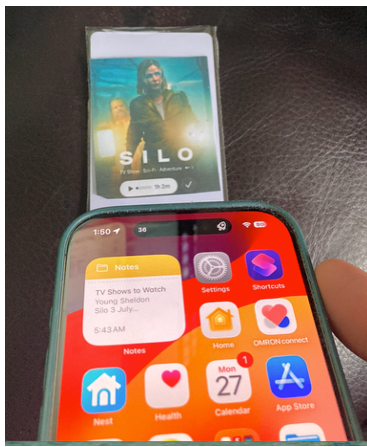
Here is a YouTube video of it in action
Note: NFC Personal Automation triggering can be affected by how you hold the iPhone and by other tasks that may be consuming processing time on your iPhone. You may have noticed this intermittent response when using Apple Pay at your coffee shop.
Here are some suggestions if you run into problems:
· Point the top of the iPhone at the NFC tag
· Disable the automatic AirPlay and AirDrop connections, as they reduce the available CPU time for NFC scanning
o Settings-> General-> AirPlay & Continuity-> Automatically AirPlay (NEVER)
o Settings-> General-> AirDrop-> Receiving (OFF)
· iPhone with NFC (iPhone 11 or newer)
o iPads don’t support NFC
o If you are not familiar with shortcuts, see article #28, “How to Create Simple Apple Shortcuts for Your Elderly Parent’s iPhone or iPad”
· Apple TV
o Card sleeves- trim to fit with scissors
· Optional- create some other means of organizing the NFC cards
§ If mounting NFC cards on a fixed surface, leave 1” space between cards to minimize NFC scanning confusion
§ Do NOT scan cards on a metal background- suppresses signal
Step 1: Create the shortcuts as shown in the article #68 “How to Set Up One-Touch Launching of TV Shows on Your Apple TV Via Your iPhone.”
Click here for a sample shortcut that you can modify
Step 2: Create a Personal Automation by scanning the NFC tag & and connecting to the existing shortcut using the shortcuts app
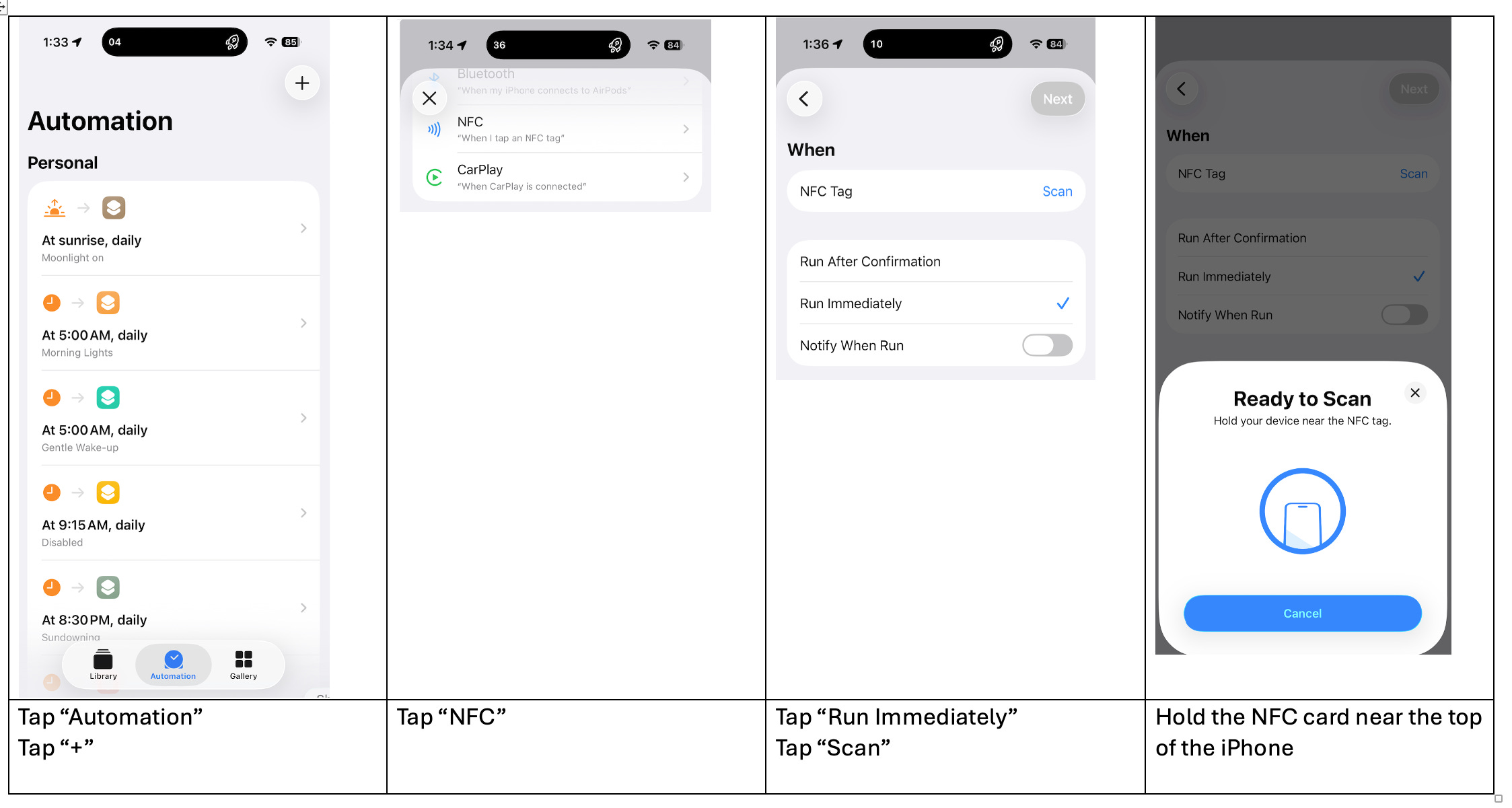
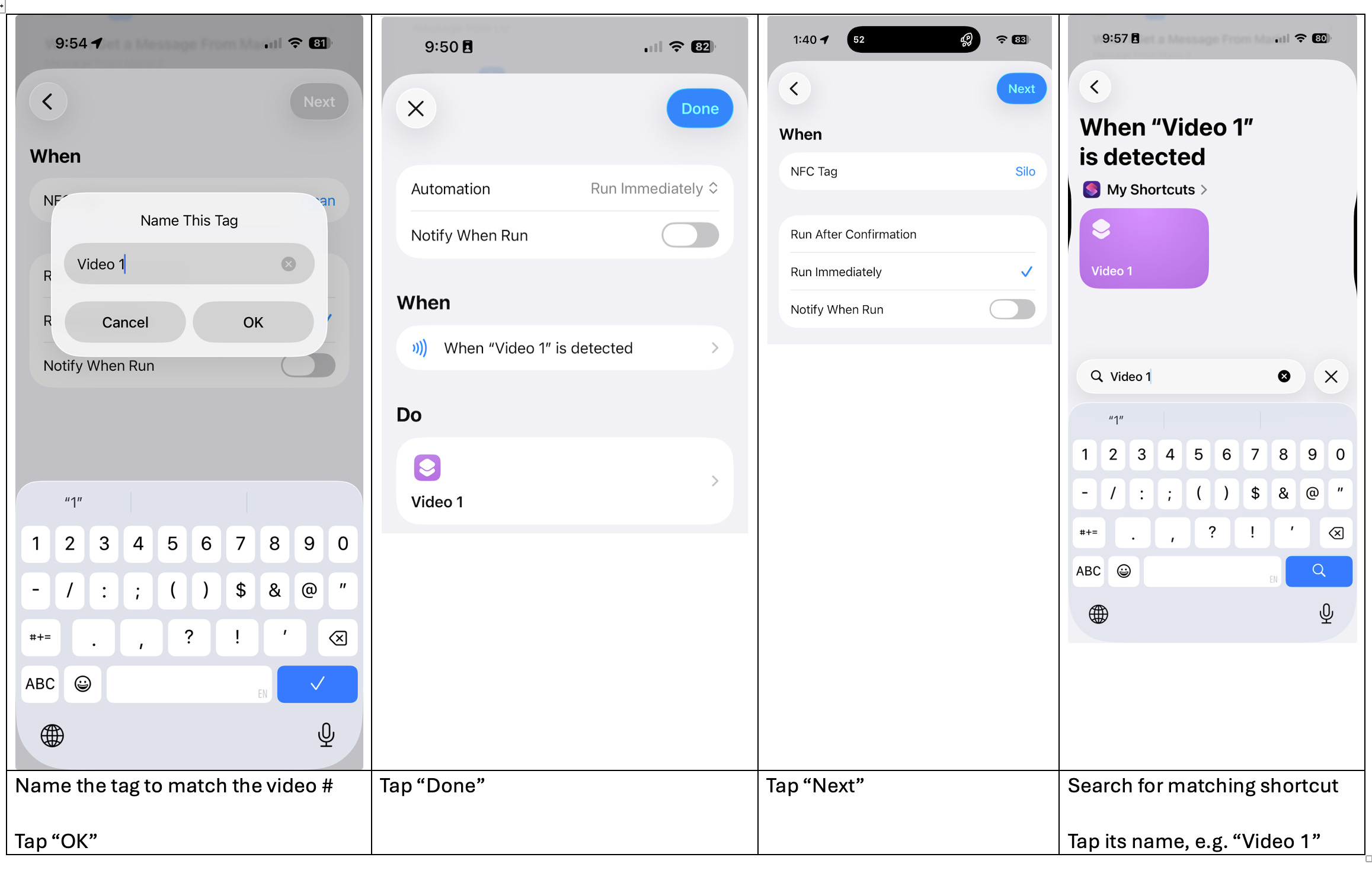
Repeat the above for each NFC tag and corresponding shortcut
Step 3: Create the overlay pictures for videos using the Apple TV website
· Go to the Apple TV website
· Search for the TV show you want to watch
· Click on the show to go to its main page.
· Print out the picture and cut to a business card shape
Step 4: Insert the NFC cards into sleeves with pictures into the slots- trim the sleeve to fit
· I suggest double-stick tape to fasten the picture to the NFC card
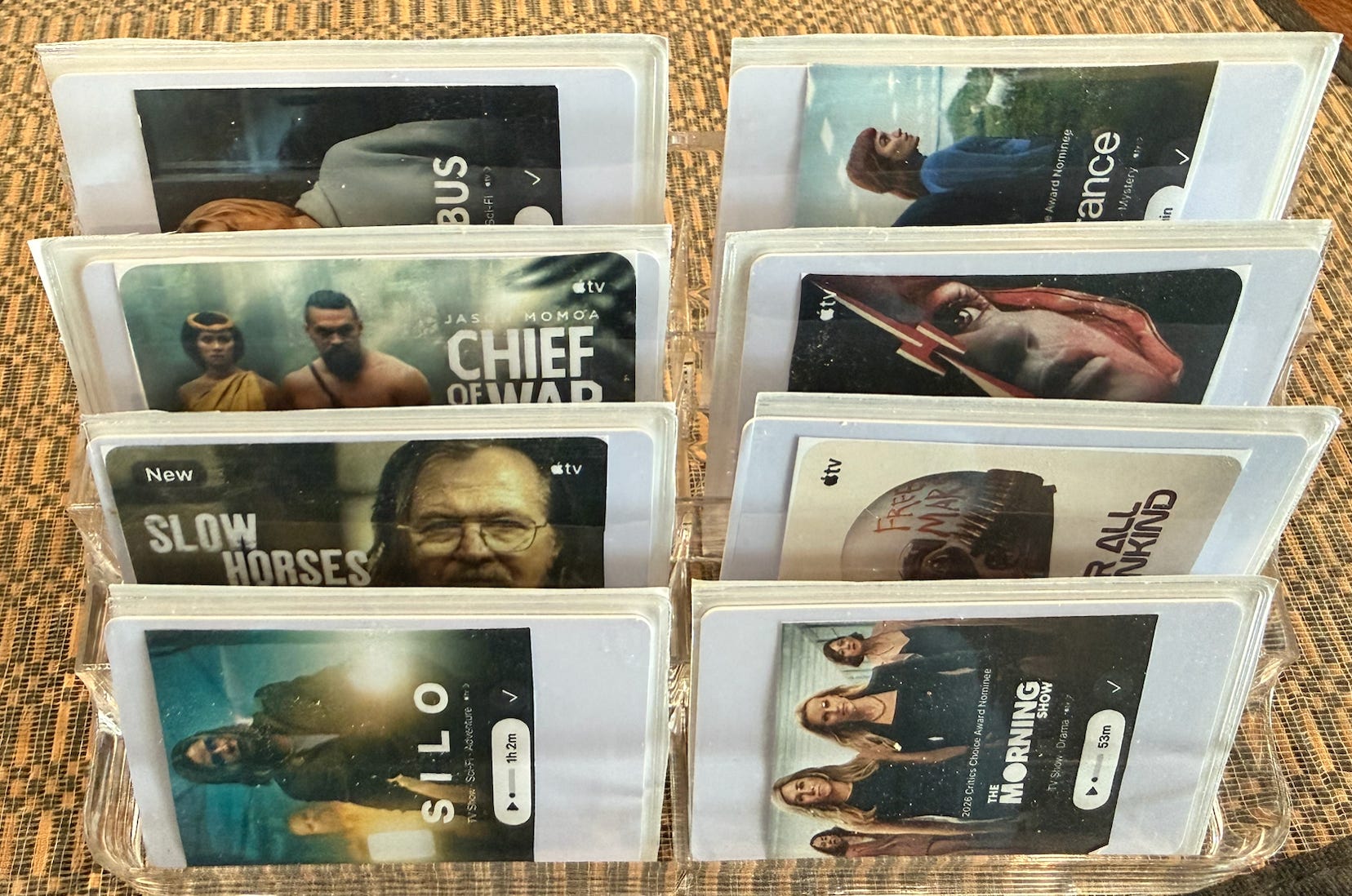
Remove a card from the holder and verify that tapping the NFC card to the iPhone starts the Apple TV playing the video.
· The iPhone must be unlocked
· You may need to adjust how you hold the iPhone to tap the NFC card near the iPhone’s back camera
· When you tap the card to the iPhone, if you don’t see a response, wait five seconds before you try again
· If the card is not detected, try these steps
o Lock and then unlock the iPhone
o Close all open apps- Double-click the home button (if you have one) or swipe up from the lower left of the screen and dismiss open apps
If you have an old iPhone or iPad, you can sign in to your mom’s Apple account and update the shortcuts you previously created for her to point to new videos.
When you are at your mom’s house, I suggest creating many shortcuts and assigning them to NFC cards, even if you haven’t chosen all the shows for her. For the shows you have chosen, you can leave the card with her and take the remaining cards home to add shows to later.
While you can modify her shortcuts remotely, you can’t add personal automation to launch those shortcuts remotely. If you plan to do this frequently, I suggest generic names for the shortcuts, such as “Video1, Video2…”
After you have chosen the new shows, edited the shortcuts, and printed out the pictures, you can then send them to your mom so that she will have additional selections
Comments
Nothing yet. Say the first thing.
Sign in to join the conversation.