
Your grandpa spends most of his day in his easy chair and has told you that he “doesn’t want a video camera looking at him all day long,” BUT he would appreciate a button near his chair that lets him initiate a video call to you.
You have tried placing an Amazon Echo Show on his side table, but he forgets the commands and would prefer a physical button.
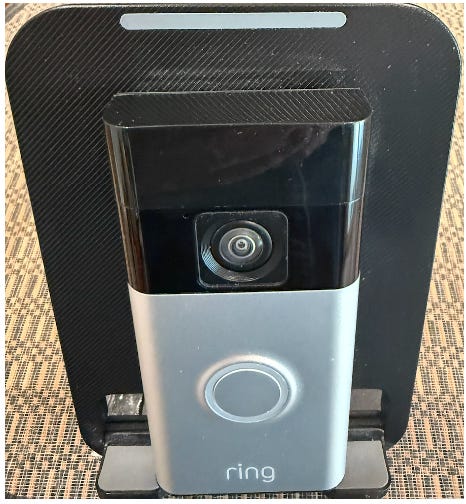
One interesting way for him to initiate a call to you without using an app or talking to a voice assistant is to place a video doorbell next to his chair on a side table. This is the same type of video doorbell typically installed at the front door.
It has a prominent call button that he can use to initiate a call. Just like the common use of a video doorbell, the person outside your door can’t see you, but you can see them. You could also use it to quickly check in on how your grandpa is doing, even if he is not calling.
In my solution, I chose a battery-operated Ring video doorbell, but you could also use a wired version.
I was unable to find a commercial table stand for a video doorbell, so you may have to attach it to something solid of your own design. In my solution, I used a tablet stand to hold the Ring doorbell.
This makes it a much more convenient way for Grandpa to instantly make a call and for you to see him. In the past, you’d have had to use one app to accept a button press, then launch another app to view him and talk to him
Here is a YouTube video of it in action
· Smart phone
· Optional- tablet stand to hold the doorbell on a side table
Setup steps: - This assumes you will be adding the doorbell to an Alexa app running on your smartphone
o Don’t add it to your grandpa’s Alexa account unless you use his Alexa account on your smartphone
Step 1: Install the Alexa app on your smartphone
· Use the standard app install instructions for your smartphone
Step 2: Install the Ring app on your smartphone
· Charge up the Ring doorbell and detect it in the Ring app
· Use the standard Ring app installation instructions
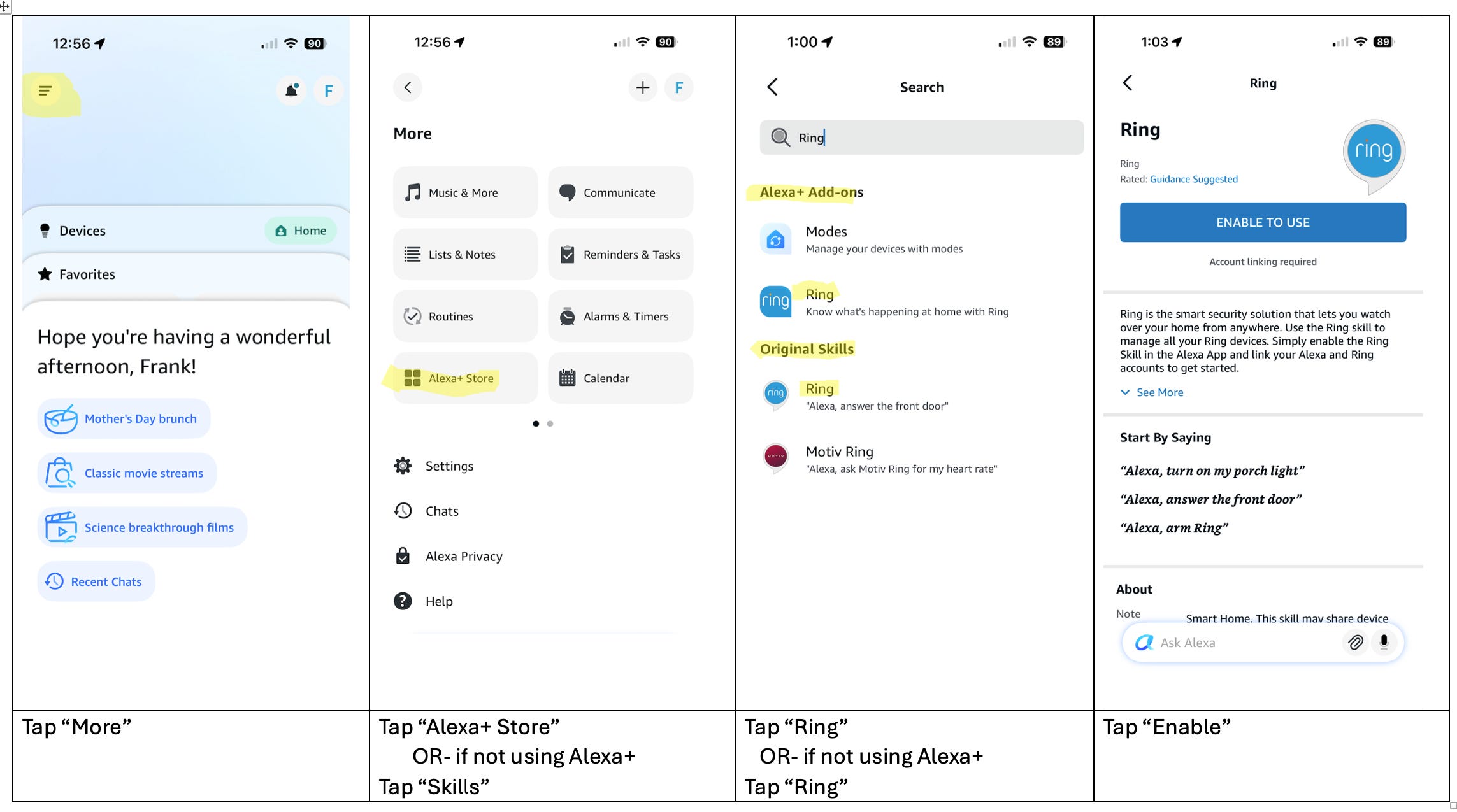
Step 3: Use the Alexa app to add the Ring Alexa Skill
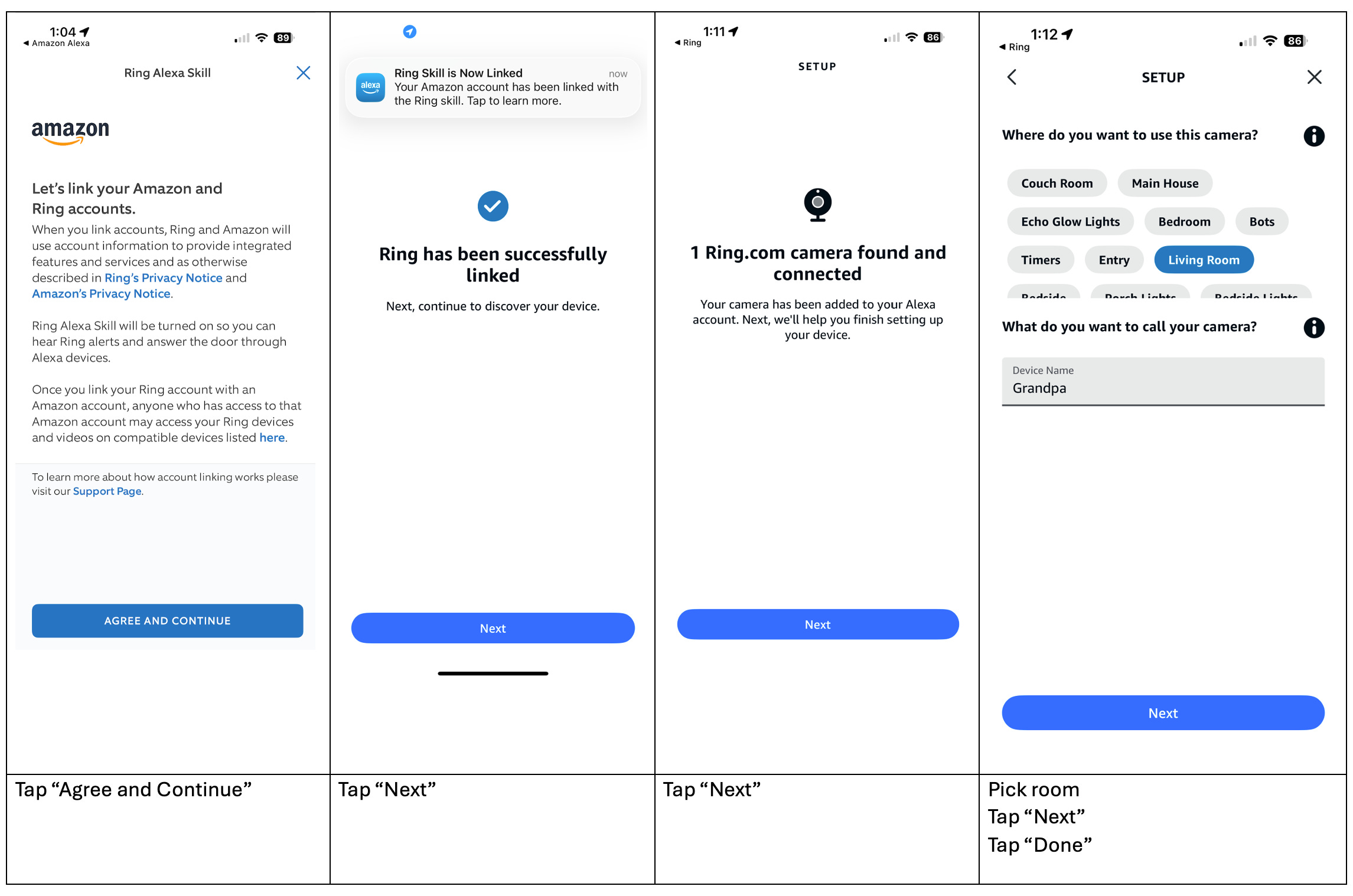
Step 4: Enable Amazon Alexa app notifications
· Apple Settings-> Notifications-> Amazon Alexa-> Allow Notifications (ON)
o Choose your preferred type of notification: Sounds, Persistent
· Android Settings-> Notifications-> App Notifications-> Amazon Alexa-> Allow Notifications (ON)
o Choose your preferred type of notification: Sounds, Persistent
Testing: (separate the doorbell and smartphone to prevent audio feedback)
· Press the button on the doorbell and check for a notification on your smartphone
· Check that the video and audio are shown on the smartphone
· Check that the audio is heard on the doorbell
· Check that the smartphone can view the doorbell camera without the need for the doorbell button to be pressed
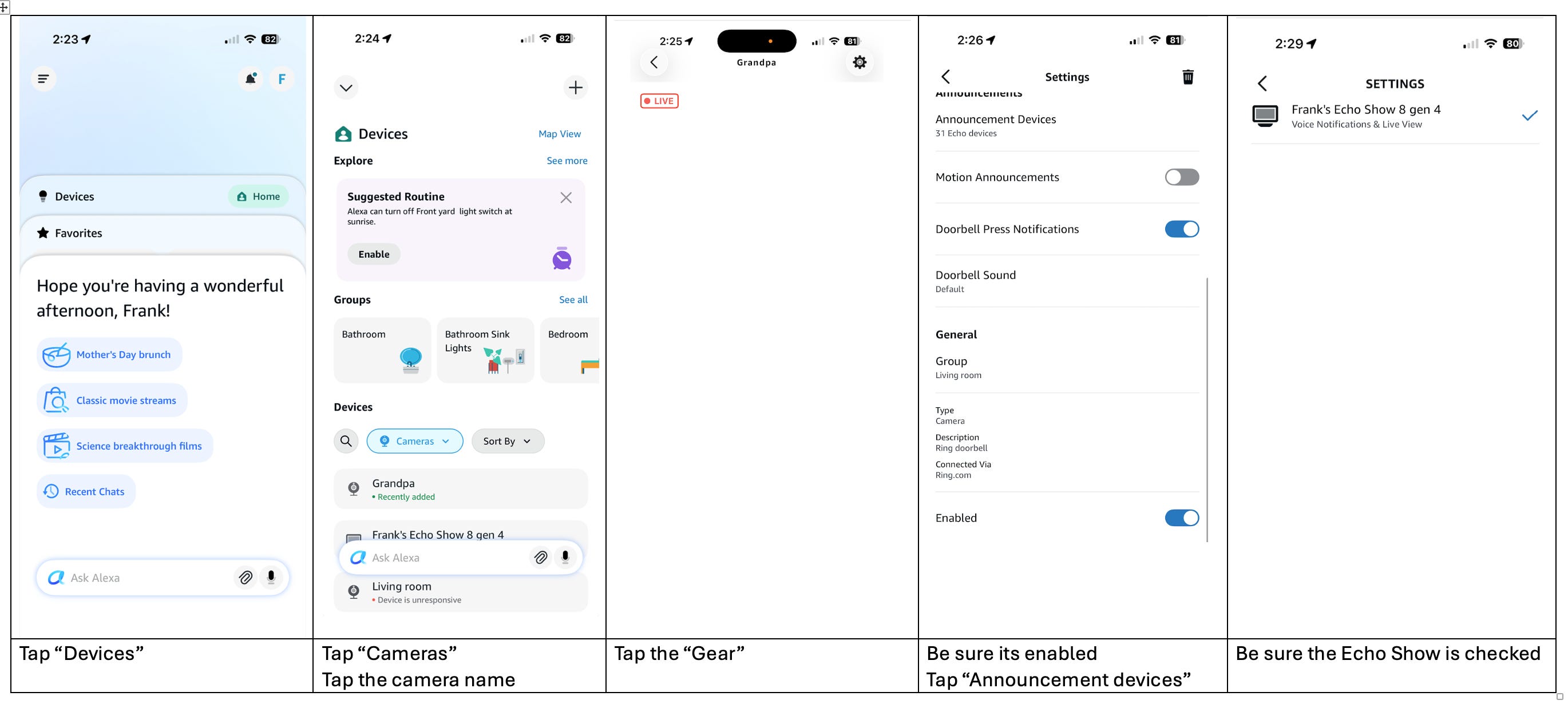
If you have an Amazon Echo Show on this Alexa account, the doorbell push will be announced, and the doorbell camera video will be automatically displayed if you have these settings on the Ring camera in the Alexa app
Comments
Nothing yet. Say the first thing.
Sign in to join the conversation.