
Your dad really enjoys YouTube videos on his ad-free plan, but sometimes he has problems finding content he likes. You have set up a YouTube Playlist of his favorites and are now looking for a way for him to easily launch it on his iPhone and iPad.
You have also seen my article #89, “Using Alexa To Control YouTube on Your TV,” which shows that there is no way to launch a YouTube Playlist in Alexa
Apple Shortcuts offers a way to play a YouTube playlist, and it can be started in various ways, using your dad’s iPhone or iPad. Your dad could also display it on his TV, if his TV supports AirPlay, as shown in article #78“ How to Display Mom’s iPhone or iPad on Her TV”
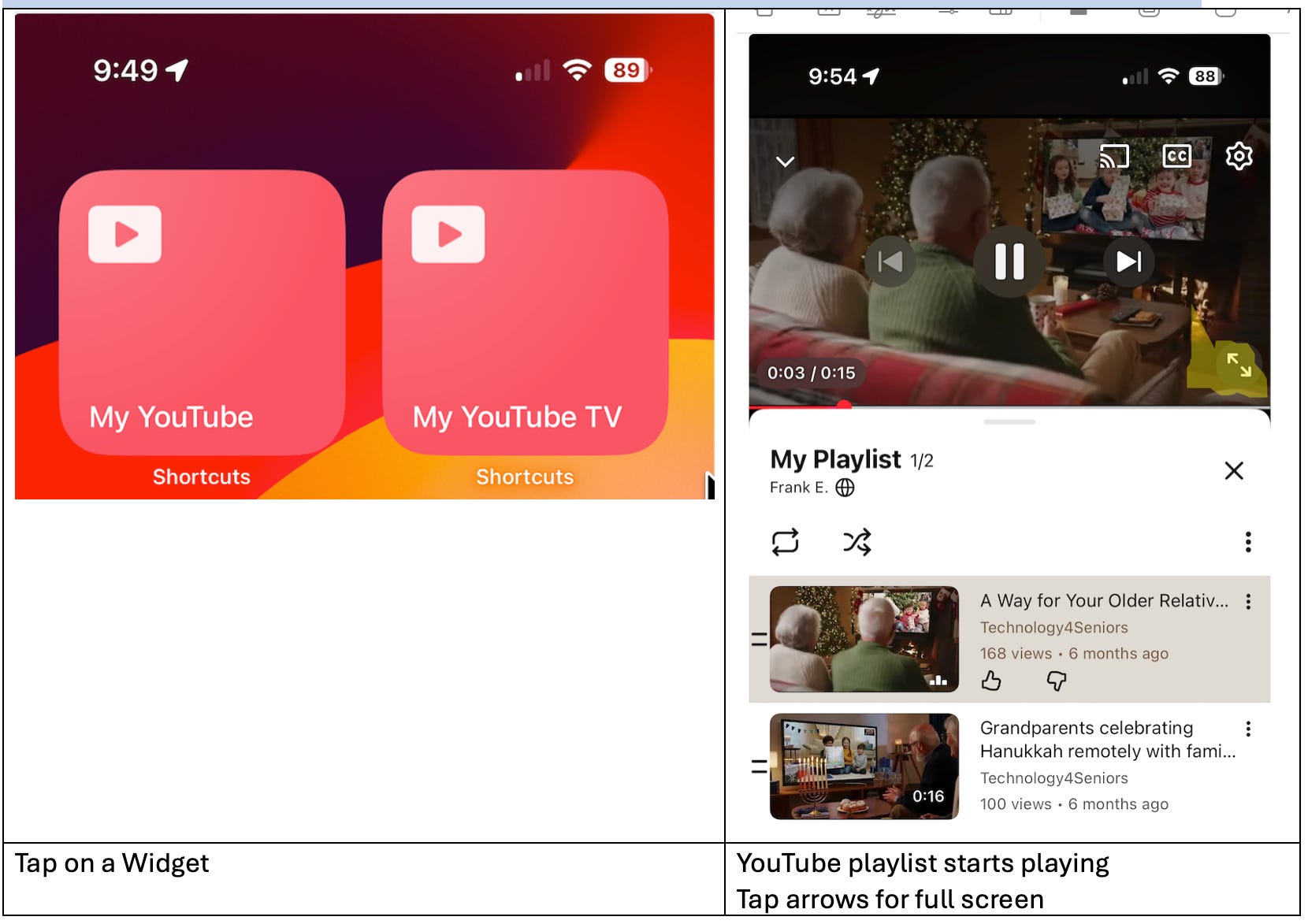
· Tap an icon on the screen
o The shortcut can be added as a Widget
· Speak the shortcut’s name to Siri
o e.g., “Hey Siri, My YouTube” (if you name the shortcut “My YouTube”)
· Tap the back of the iPhone
o iPhone only
· Add a physical button to trigger the shortcut
o e.g., using a Flic button that is Bluetooth-paired with the iPhone or iPad
§ Article #64 “How to Use a Physical Button to Pause Your Apple TV Via iPhone Shortcuts”
Note: If your dad cannot do any of these, you could create an Apple Personal Automation to launch the shortcut on a schedule
See article #28 “How to Create Simple Apple Shortcuts for Your Elderly Parent’s iPhone or iPad”
Here is a sample video of it in action
I used only short videos so that you could see it step through the playlist. You may want to choose much longer videos.
Step 1: Create the YouTube playlist
· Find a YouTube Video
· Add it to the playlist
· Repeat for other videos
· Using your browser, copy the address shown when viewing the playlist
Note: This is much easier to do in a web browser than the YouTube mobile app
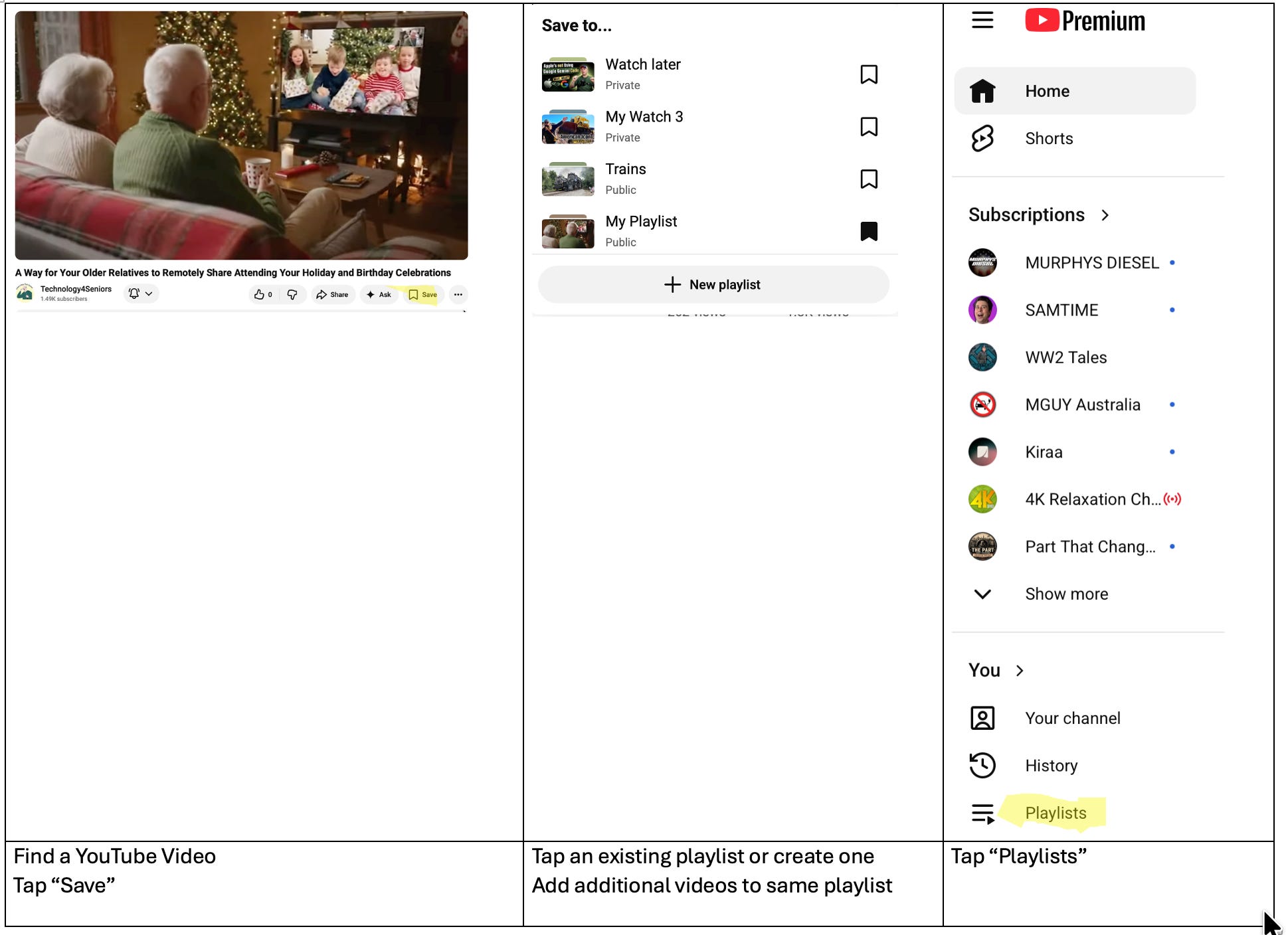
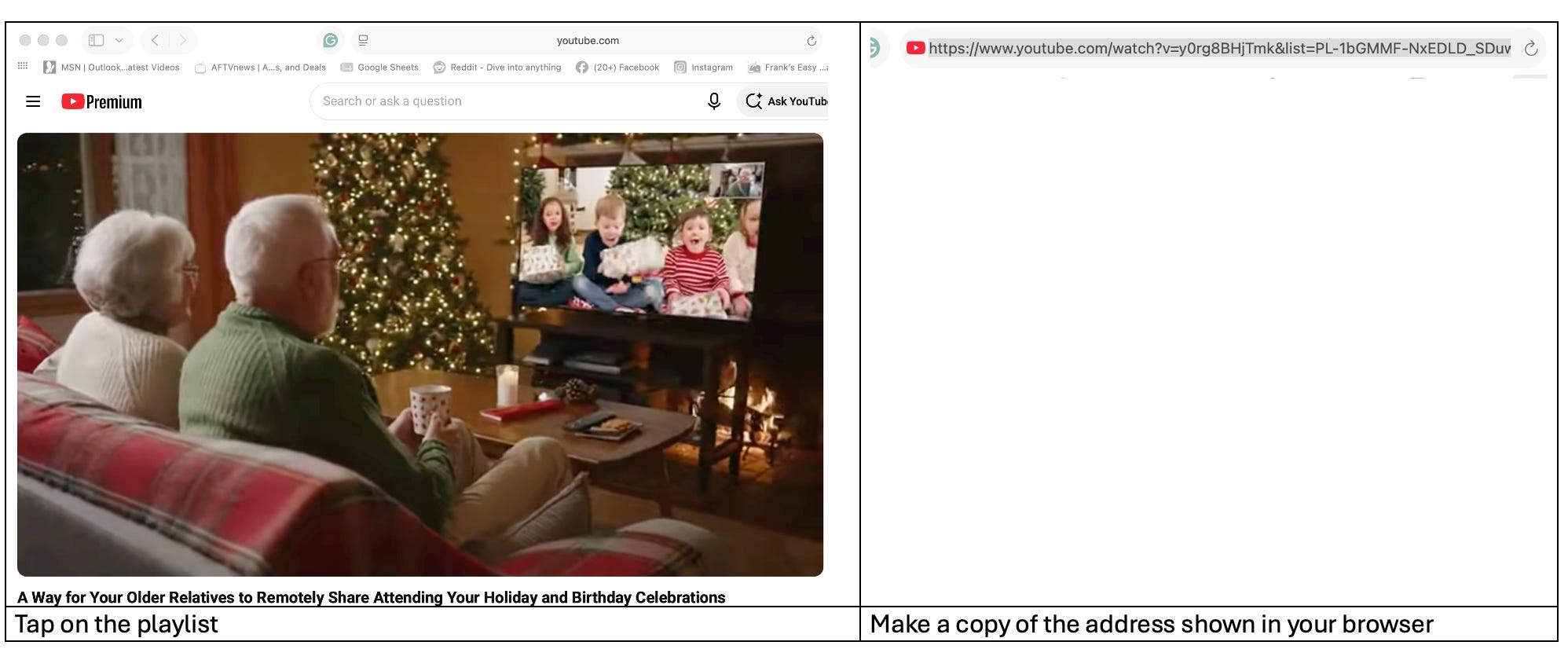
Note: This is much easier to do in a web browser than the YouTube mobile app
Step 2: Create the shortcut
Note: If you have no experience with Apple Shortcuts, see article #28 “How to Create Simple Apple Shortcuts for Your Elderly Parent’s iPhone or iPad”
Here is a sample shortcut that you can modify
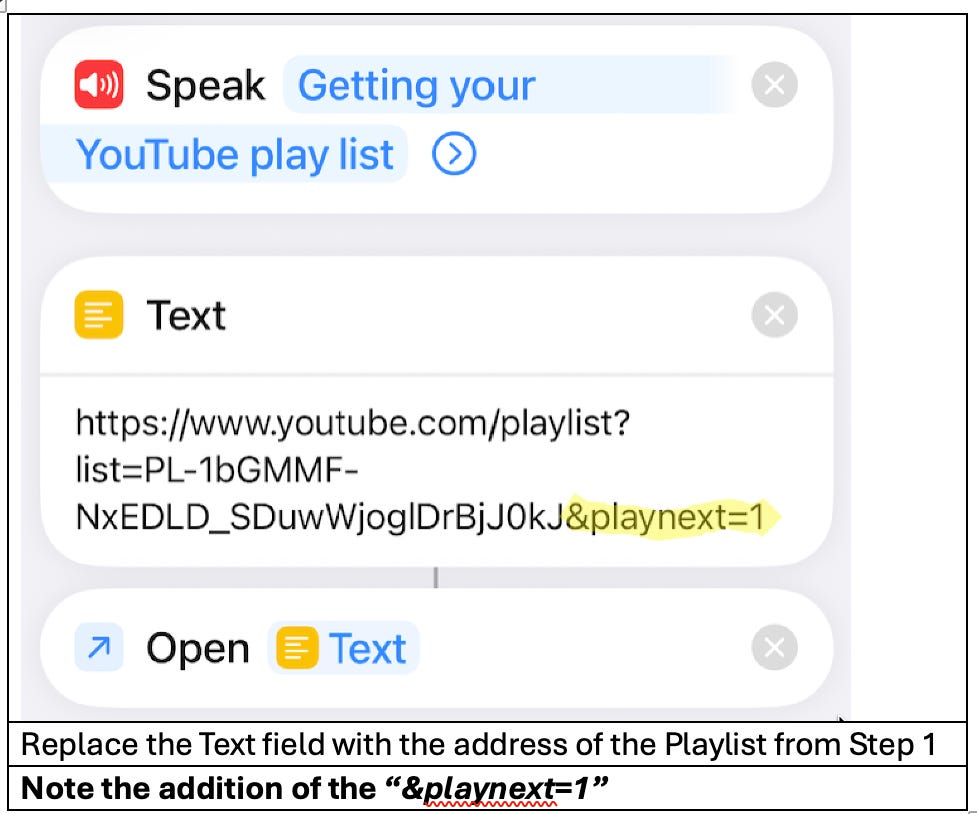
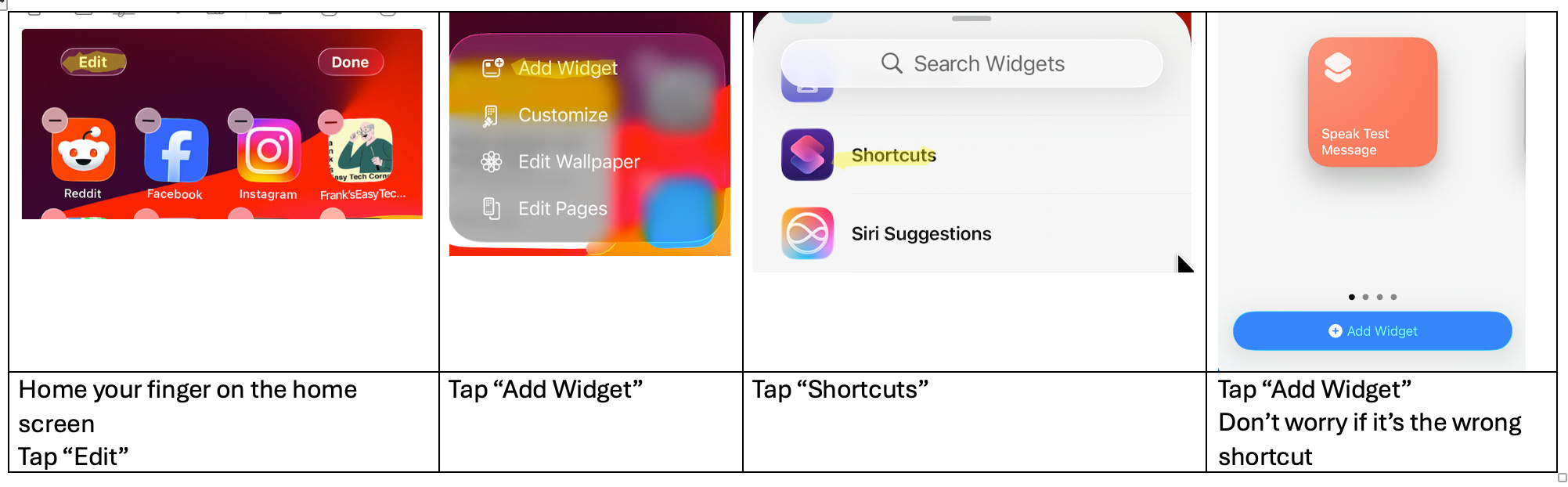
Step 3: Add a widget
Note: With just these three steps, your dad could either tap the widget or speak the shortcut’s name
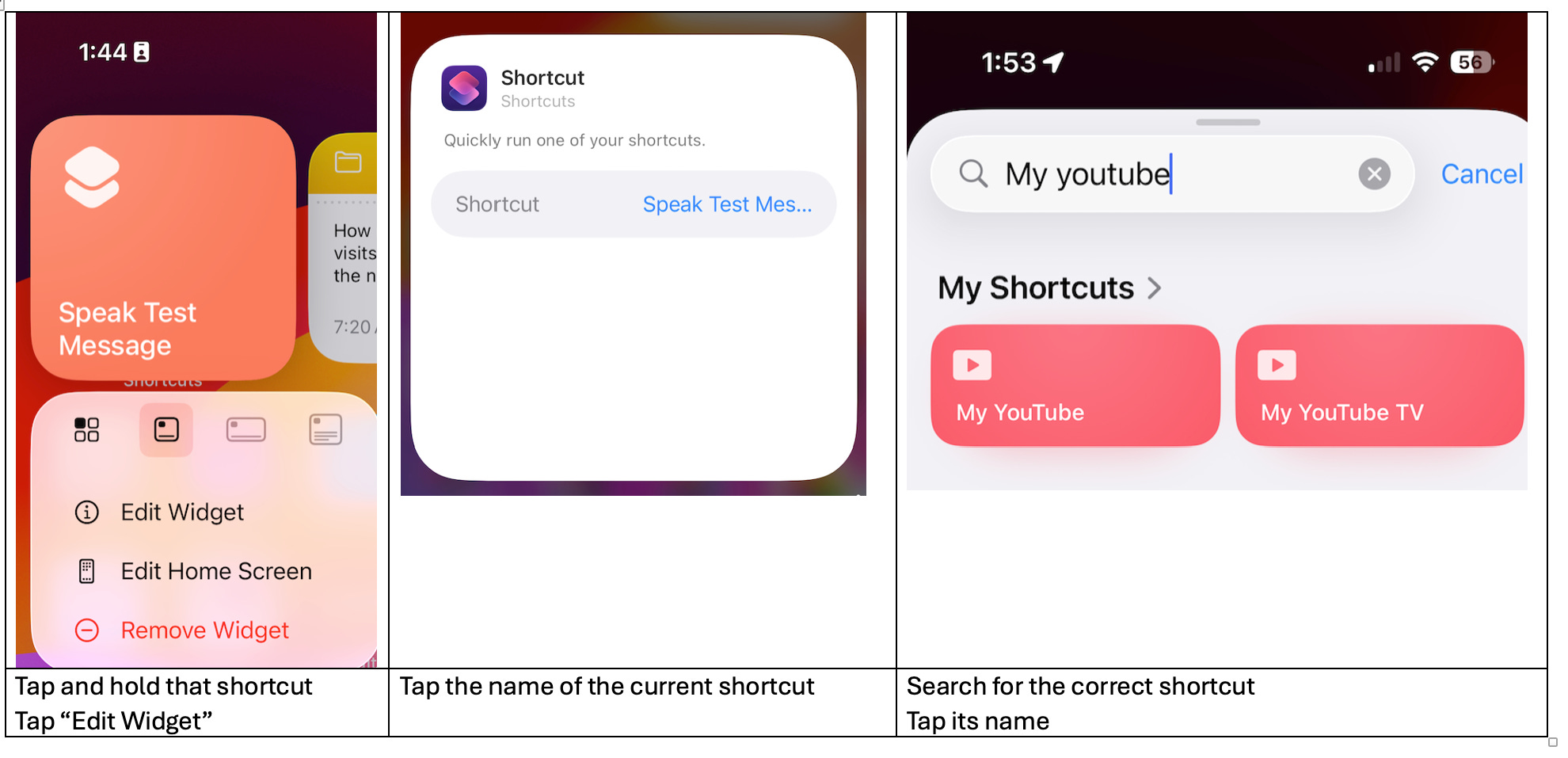
If the shortcut was not the correct one:
Step 4: Add a back-tap function (iPhone only)
· Settings-> Accessibility->Touch-> Back Tap (ON)
o Double Tap-> My YouTube
Step 5: Add a physical button
Note: This step is a bit complex. See this article for details on how to add a Flic button to an iPhone or iPad to trigger a shortcut
“How to Use a Physical Button to Pause Your Apple TV Via iPhone Shortcuts.”
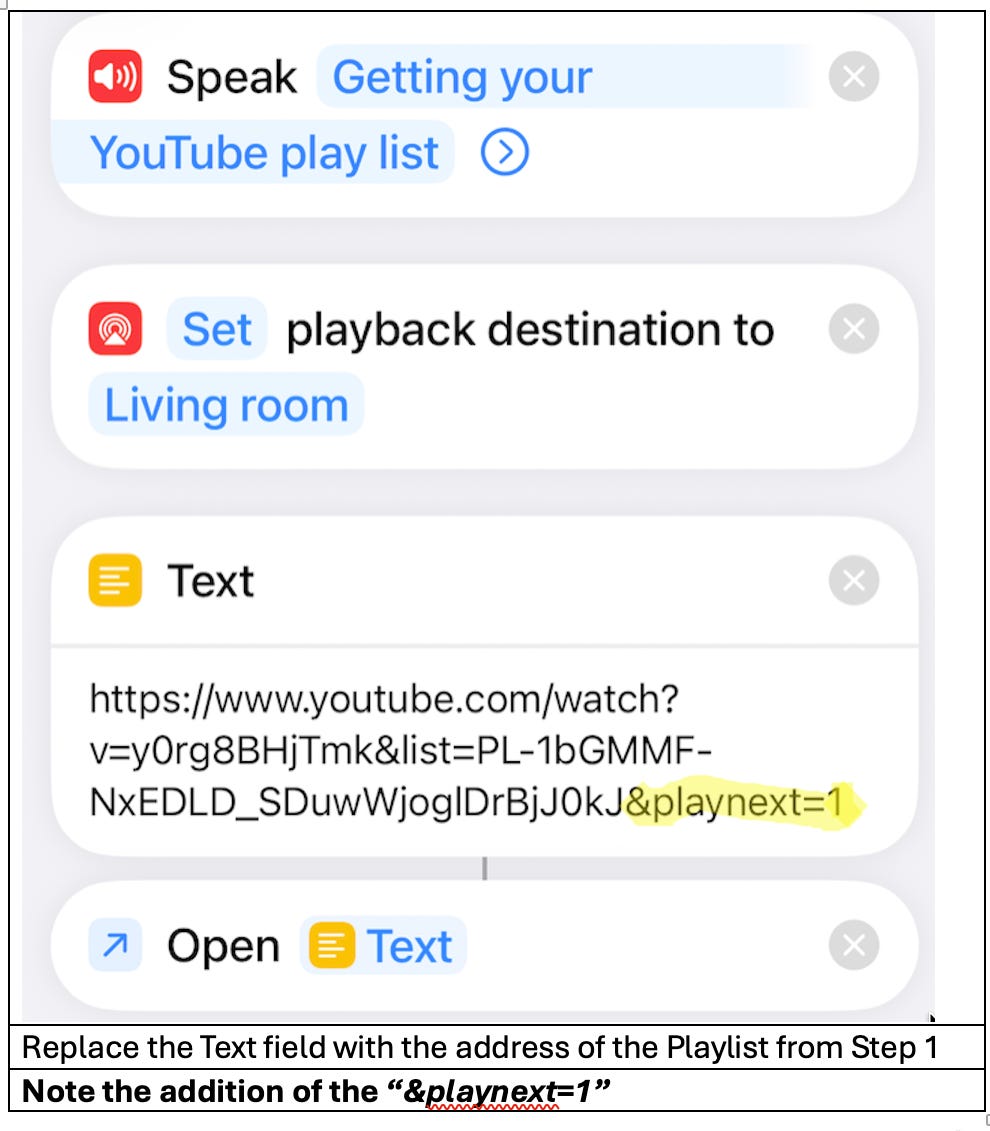
If your dad has an Apple TV, you can just add one instruction to the shortcut to change the playback destination to his Apple TV
Here is a sample shortcut that you can modify
If your dad doesn’t have an Apple TV, but his TV supports Apple AirPlay, take a look at article #78 “How to Display Mom’s iPhone or iPad on Her TV”
Use the trigger method you selected to test the shortcut to see that it plays the YouTube playlist
Comments
Nothing yet. Say the first thing.
Sign in to join the conversation.