
Monday, 8:47 AM.
Seven unread Slack DMs. Three of them are from your skip-level.
Your calendar has three 1:1s stacked before lunch. You still owe written feedback to the engineer in the second one, and the draft is half a sentence in a Google Doc you can’t find.
Two incident follow-ups from the weekend are sitting in a thread you archived by accident.
Promotion packets open in three browser tabs. You told yourself Friday you’d read them over the weekend. You didn’t.
And somewhere — you know it’s somewhere — there’s a Slack decision thread from last Tuesday where staff eng agreed on the migration approach. You need it for the 10 AM. You cannot find it.
This is the job now. Not the work. The scaffolding around the work.
Your brain is a terrible database.
Today, we build you a real one 🧠🤖
A Second Brain is the layer between your head and your tools. It’s where context goes to live so you can stop paying rent on it.
A "second brain" is a personal knowledge management (PKM) system - a digital repository for notes, ideas, and resources that augments human memory and boosts productivity — Tiago Forte
PARA is the organizing method underneath it. Four folders — Projects, Areas, Resources, Archive. Built for action, not archiving. Most note-taking systems optimize for filing things away neatly; PARA optimizes for what you can move on this week.
The stack is three parts, and each part has one job.
Obsidian is the vault. Claude Code is the librarian. Google Drive is the bridge.
Obsidian is where your notes live as plain markdown files on your disk. Claude Code is the AI that reads, writes, links, and sorts them for you from the terminal. Google Drive carries the whole thing to your phone and your second laptop so you’re never locked out of your own thinking.
Here’s the part that matters.
AI compressed the task layer. Drafting a doc, summarizing a thread, writing a status update — those are minutes now, not hours. Your job as an EM lives in the decision layer: who gets promoted, manage projects and priorities, how to unblock a team, when to escalate. The bottleneck isn’t producing output anymore. It’s carrying context between decisions without dropping it.
A Second Brain is how you stop losing context between decisions.
Everything that follows is how you build it.
By the end of today, this is what you’ll have:
┌────────────────────────────────────┐
│  Your Mac                          │
│  ┌─────────────────────────────┐   │
│  │  ~/brain  (Obsidian vault)  │◄──┼── Claude Code
│  │  0 - Inbox                  │   │   (runs from vault)
│  │  1 - Projects               │   │
│  │  2 - Areas                  │   │
│  │  3 - Resources              │   │
│  │  4 - Archive                │   │
│  └──────────────┬──────────────┘   │
└─────────────────┼──────────────────┘
                  │ rclone
                  ▼
          ┌────────────────┐
          │ Google Drive   │
          │ /brain         │
          └───────┬────────┘
                  │
     ┌────────────┴─────────────┐
     ▼                          ▼
   Phone                Second laptop
(Obsidian Mobile)       (Obsidian App)
Read it top to bottom. Everything lives locally in ~/brain on your Mac — that’s the Obsidian vault, five PARA folders, nothing fancy. Obsidian opens the folder as a vault and gives you a graph view, backlinks, and wiki-style linking on top of the plain files. Claude Code runs from inside the vault directory in your terminal and edits files in place, so it has full read-write access to every note, every template, and every tag. rclone mirrors the whole folder up to a Google Drive folder called /brain on a schedule, and your phone (via Obsidian Mobile) and your second laptop pull from there.
The key insight: your vault is local-first. Google Drive is a sync bridge, not a host. If Google goes down, your brain keeps working. If your laptop dies, your brain is on the next device in under ten minutes.
Before we start, a quick inventory. This setup assumes:
A Mac. Apple Silicon/Intel — either works. Nothing here is CPU-specific.
Homebrew installed. This is the macOS package manager every other install uses. If you don’t have it, run this in Terminal and follow the prompts:
/bin/bash -c "$(curl -fsSL https://raw.githubusercontent.com/Homebrew/install/HEAD/install.sh)"A Google account. The free 15 GB tier is more than enough — a markdown vault is tiny.
About 45 minutes of uninterrupted time. Block the calendar. Close Slack.
Zero prior experience with Obsidian, PARA, or Claude Code. This article assumes you’ve heard of them and nothing more.
That’s it. No paid tools to sign up for, no accounts to create in advance, no YAML to memorize. If you have a Mac and a terminal, you have everything you need.
We install four tools. Three one-liners and a directory. This is the only part of the article where you’ll type commands from memory — after this, you prompt.
Open Terminal (Spotlight, then type “terminal”) and keep it open for the rest of this section.
Step 1 — Install Obsidian
brew install --cask obsidianObsidian is a local markdown editor. Your notes stay on disk as plain .md text files you own forever, in a format that will still be readable on a laptop built in 2045. No database, no proprietary format, no lock-in. Verify: open it from Launchpad. It should launch without asking you to sign in or create an account — that’s the tell that your data lives on your machine, not theirs.
Step 2 — Install Claude Code
brew install --cask claude-codeClaude Code is the terminal-based AI assistant you’re about to hand the rest of the setup to. It can read any file in the directory you run it from, write new files, edit existing ones, and execute commands.
The first time you run claude from a terminal, it’ll walk you through signing in with your Anthropic account — one browser redirect and you’re done. You’ll need a paid Claude plan or API credits to run the full setup; the free tier will get you started but will hit limits before you finish.
Step 3 — Install rclone
brew install rclonerclone is the sync bridge between your Mac and Google Drive. It’s a command-line file sync tool that supports 70+ storage backends, open source, no account required. We’ll configure it in Part 4; for now we just need the binary on your system.
Step 4 — Create the vault directory
mkdir ~/brain && cd ~/brain && git initThis is where your Second Brain lives. The name doesn’t matter — brain is short and fits in muscle memory. git init gives you version history of your own thinking. It’s optional, but recommended. You’ll eventually want to know why you deleted that note three weeks ago, or recover a version of a doc from before you rewrote it. Verify:
pwd && git statusYou should see /Users/<you>/brain and a clean repo on the default branch.
Four tools, four minutes, zero decisions made so far. This is the last time you’ll type a command from memory. From here on, you prompt.
You now have four installed tools and an empty folder. The next move is where most tutorials lose people.
The old way to continue would be: follow a 40-step Obsidian configuration tutorial, copy-paste YAML templates from a GitHub gist, read three blog posts arguing about what PARA really means, and figure out the folder conventions on your own. Two hours minimum, and you’d still end up with something that doesn’t quite match what you meant.
The AI-native way is shorter. Paste one prompt. Let Claude build the rest.
Copy this prompt. From inside ~/brain, run claude to start an interactive session, then paste:
Build me a Second Brain using the PARA method in this directory.
Create the five top-level folders:
- 0 - Inbox
- 1 - Projects
- 2 - Areas
- 3 - Resources
- 4 - Archive
Add a Templates subfolder under "3 - Resources" containing these templates, each with YAML frontmatter (date, tags):
- Daily Note
- Note
- Project
- Area
- Resource
- Meeting
- Person
Add a Daily Notes subfolder under "3 - Resources".
Create a Home.md dashboard at the repo root linking to each PARA folder with a one-line description of each.
Create a CLAUDE.md at the repo root that explains the vault structure and conventions (PARA folders, YAML frontmatter with date + tags, wikilinks for internal links, kebab-case tags, Title Case filenames, new unsorted notes go to 0 - Inbox) to any future Claude Code session working in this vault.
After about 30 seconds, Claude will have built this:
~/brain/
├── 0 - Inbox/
├── 1 - Projects/
├── 2 - Areas/
├── 3 - Resources/
│   ├── Daily Notes/
│   └── Templates/
│       ├── Area.md
│       ├── Daily Note.md
│       ├── Meeting.md
│       ├── Note.md
│       ├── Person.md
│       ├── Project.md
│       └── Resource.md
├── 4 - Archive/
├── CLAUDE.md
└── Home.md
Seven folders, nine files, thirty seconds of work. You now have a functional PARA vault.
It’s not yet wired to Obsidian, it doesn’t sync across your devices, and Claude Code doesn’t yet know how to sort new notes for you. Those three things are what separate a nice folder from an operating system — and they’re in the next half of this article.
Open Obsidian. Click “Open folder as vault” and select ~/brain. You’ll see the PARA folders in the left sidebar — the file explorer, unconfigured, still on the default light theme. Before you touch a single settings panel, paste this prompt.
Copy this prompt.
Configure this vault for Obsidian. Create the .obsidian directory and generate the following config files:
1. app.json — set defaultViewMode to "preview", readableLineLength true, new files land in "0 - Inbox" (newFileLocation "folder", newFileFolderPath "0 - Inbox"), useMarkdownLinks false (we use wikilinks), attachmentFolderPath "3 - Resources/Attachments", foldHeading and foldIndent true, showFrontmatter true.
2. appearance.json — dark theme (theme "obsidian").
3. core-plugins.json — enable: file-explorer, global-search, switcher, graph, backlink, outgoing-link, tag-pane, page-preview, daily-notes, templates, note-composer, command-palette, outline, word-count, file-recovery.
4. daily-notes.json — folder "3 - Resources/Daily Notes", template "3 - Resources/Templates/Daily Note", format "YYYY-MM-DD".
5. templates.json — folder "3 - Resources/Templates", dateFormat "YYYY-MM-DD", timeFormat "HH:mm".
6. community-plugins.json — register the Dataview plugin (["dataview"]).
7. plugins/dataview/data.json — minimal Dataview config with sensible defaults.
Tell me at the end that I need to click "Enable" on Dataview in Obsidian's Community Plugins pane — this is the one manual step because plugin binary installation is safest done via Obsidian's own UI, which also handles future plugin updates.
Claude writes seven JSON files into .obsidian/. The theme flips to dark. The file explorer shows your PARA folders in the right order. New files auto-land in 0 - Inbox. Wikilinks are on, markdown links are off. Daily notes point at the template you made in Part 2. There’s exactly one manual step left: open Obsidian → Settings → Community Plugins → Enable Dataview. One click. We do it through the UI on purpose — Obsidian handles plugin updates there, and that’s cleaner than curl’ing plugin binaries from the terminal.
Verify it worked: press Cmd+P, type “Daily notes: Open today’s daily note”, hit Enter. A new file should land in 3 - Resources/Daily Notes/ with your Daily Note template pre-filled. If you see your template fire, the vault is wired. If you don’t — check that Dataview is enabled in Community Plugins; that’s usually the issue.
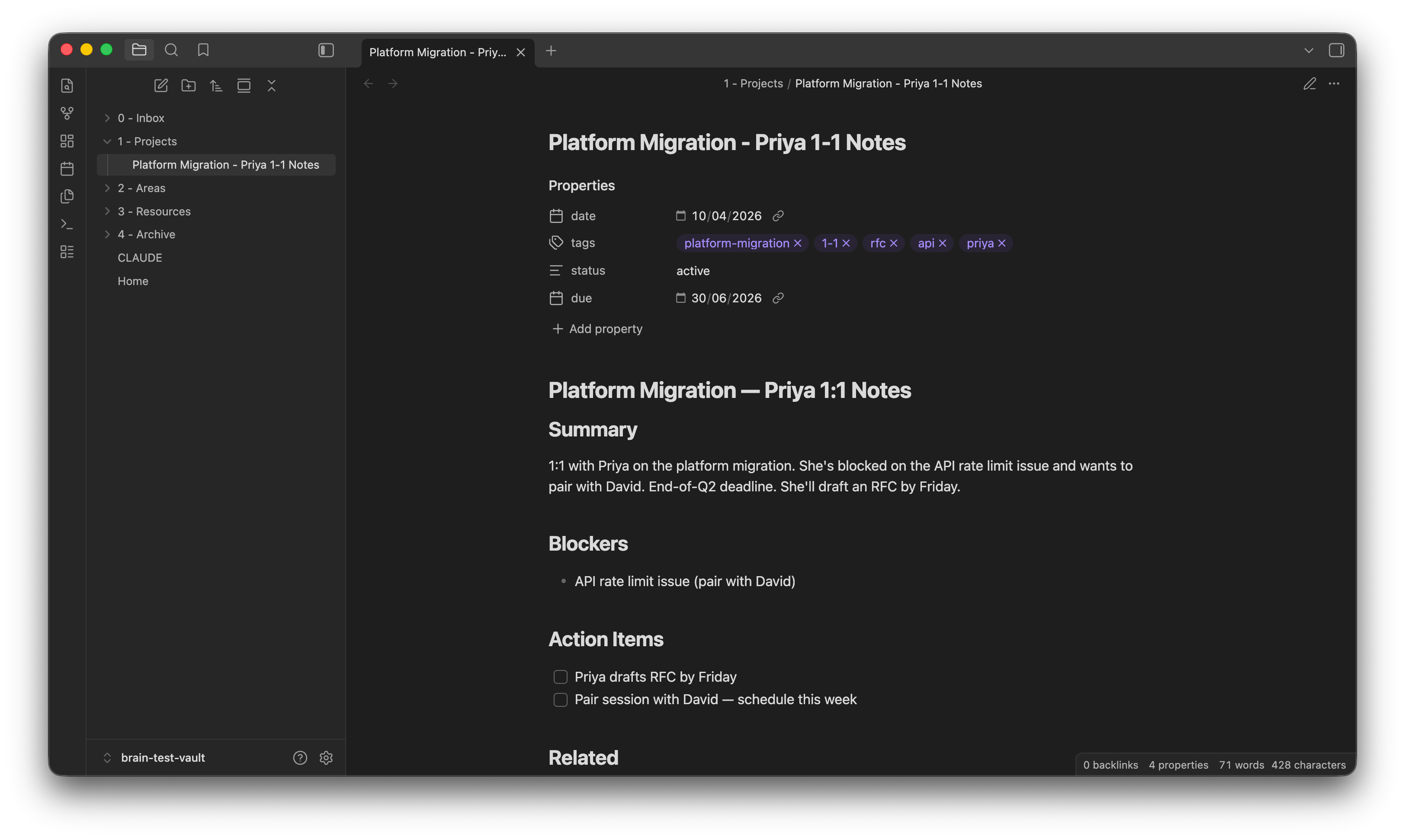
Three options get ruled out before we start.
iCloud sometimes corrupts Obsidian plugins. The cause is concurrent writes to .obsidian/plugins/ across devices — iCloud tries to merge, gets it wrong, and you find out three days later when Dataview stops loading. This is documented in the Obsidian forums and it’s the kind of bug that eats a Sunday afternoon. Dropbox is cloud-only storage — your files technically leave your Mac, and the app wants you to work through its interface instead of yours. Obsidian Sync works fine and costs $4/month for what rclone does for free.
The real reason we pick rclone is architectural. With rclone, your files stay on your Mac. Google Drive is a sync bridge, not a host. The vault is just as fast and just as local as it was five minutes ago — you can work offline, lose Wi-Fi, or cancel your Google account tomorrow. None of it matters. Your brain lives on your laptop. Drive is just the wire.
Copy this prompt.
Set up rclone to sync this directory to my Google Drive.
1. Walk me through creating a new rclone remote called "gdrive" pointing at Google Drive using OAuth. When the browser opens, I'll approve access.
2. The target on Google Drive should be a top-level folder called "brain".
3. Write a shell script at the repo root called sync-brain.sh that:
   - Syncs this directory to gdrive:brain using `rclone sync`
   - Excludes .git, .obsidian/plugins (community plugins are big and device-specific), .obsidian/workspace*, and .DS_Store files
   - Logs to a .sync.log file in the vault root
   - Prints a "Sync complete" message on success
   Make the script executable.
4. After creating the script, run it once to perform the initial sync. Show me the output.
5. Tell me how to verify the sync worked by listing files in the gdrive:brain folder.
This is the one unavoidable manual moment in the article. When Claude runs rclone config, a browser tab opens. Google asks which account to use, then shows a consent screen: rclone is requesting read, write, and delete access to your Drive. That’s Google asking on rclone’s behalf — approve it. The browser says “Success!” — close the tab and come back to the terminal. If the browser doesn’t open automatically, rclone prints a URL you can paste manually. Config saves to ~/.config/rclone/rclone.conf. This is standard OAuth. You’re not breaking anything.
Syncing once is not a system. Schedule it to run every 15 minutes in the background using launchd, the macOS equivalent of cron.
Copy this prompt.
Schedule sync-brain.sh to run every 15 minutes using launchd.
Create a plist at ~/Library/LaunchAgents/com.<username>.brain-sync.plist that runs ~/brain/sync-brain.sh every 900 seconds. Set RunAtLoad true. Add an EnvironmentVariables block with PATH set to /opt/homebrew/bin:/usr/local/bin:/usr/bin:/bin so rclone is found. Redirect stdout to /tmp/brain-sync.stdout and stderr to /tmp/brain-sync.stderr.
Validate the plist with plutil -lint, then load it with launchctl load. Verify it appears in launchctl list. Tell me the command to unload it when I want to stop.
On your phone: Obsidian Mobile + the Google Drive app handle this in about two minutes, and the Obsidian team documents it better than I can here. Point Obsidian Mobile at your synced brain folder inside Drive, and you’re reading and writing the same vault from your pocket.
You now have a local-first vault that syncs to your phone and any other Mac automatically, every 15 minutes, without a subscription and without giving up control of your files. The infrastructure is done. Next, we make Claude Code smart about your conventions.
You already have a CLAUDE.md in the repo root from Part 2. That file is passive — a reference Claude reads at the start of every session so it knows the vault’s rules. Useful, but it doesn’t do anything on its own.
A skill is different. A skill is an invokable procedure. You trigger it on demand and it executes a defined piece of work against the vault. Think of CLAUDE.md as the map and a skill as the employee who uses the map to do real work. For PARA, the most useful employee is the one that takes a rough braindump and files it correctly — meeting notes, 1:1 summaries, half-formed Slack rants, whatever hits your head between meetings. We’ll call it para-capture. You need both: the map for context, the skill for action.
Copy this prompt.
Create a Claude Code skill called para-capture for this vault.
The skill takes a rough text dump as input and does the following:
1. Classifies the input by PARA (Project, Area, Resource, or Inbox). Default to Inbox if unsure.
   Heuristics:
   - Project = specific deadline, deliverable, or named initiative with an end state
   - Area = ongoing responsibility, "getting better at X", no end state
   - Resource = reference material, book/article summary, person note, concept
   - Inbox = anything ambiguous or short
2. Writes a new .md note in the correct folder:
   - Project → 1 - Projects/<Title>.md
   - Area → 2 - Areas/<Title>.md
   - Resource → 3 - Resources/<Title>.md (or People subfolder for people)
   - Inbox → 0 - Inbox/YYYY-MM-DD - <Title>.md
3. YAML frontmatter on every note: date (today), tags (inferred, kebab-case). Project also gets status and due if extractable.
4. Scans the vault for related notes (ripgrep by keywords + tags), adds wikilinks under a "## Related" section. Max 5 related notes, most recent first.
5. Reports back: full path, PARA classification, one-sentence reason citing the driving phrase, list of related notes found.
Save as .claude/skills/para-capture/SKILL.md with proper YAML frontmatter (name + description). Tell me how to invoke it.
Claude writes a single file at .claude/skills/para-capture/SKILL.md with YAML frontmatter — name: para-capture and a description field that reads something like “files a rough text dump into the correct PARA folder with tags and wikilinks.” The description is the trigger: whenever Claude sees input that looks like a rough braindump needing a home, the skill auto-invokes. Inside the file are the classification heuristics, the output path rules, and the report format. You can also invoke it explicitly from the CLI with claude /para-capture "...".
Here’s what that looks like in practice.
You’ve just finished a 1:1 with Priya. You ran long, your next meeting is in three minutes, and you dictate your notes:
claude /para-capture "Had a 1:1 with Priya today about the platform migration. She's blocked on the API rate limit issue and wants to pair with David. Deadline is end of Q2. We agreed she'll draft an RFC by Friday."
Claude responds in under ten seconds:
📝 Filed: 1 - Projects/Platform Migration - Priya 1-1 Notes.md
🗂  PARA: Project
💡 Why: Named initiative "platform migration" + specific deliverable "RFC" + deadline "end of Q2"
🔗 Related: [[Platform Migration - Q1 Planning]], [[Priya - 1-1 Log]]
You close the terminal and walk to your next meeting. The note is filed, tagged, linked, and in the right folder. You did nothing.
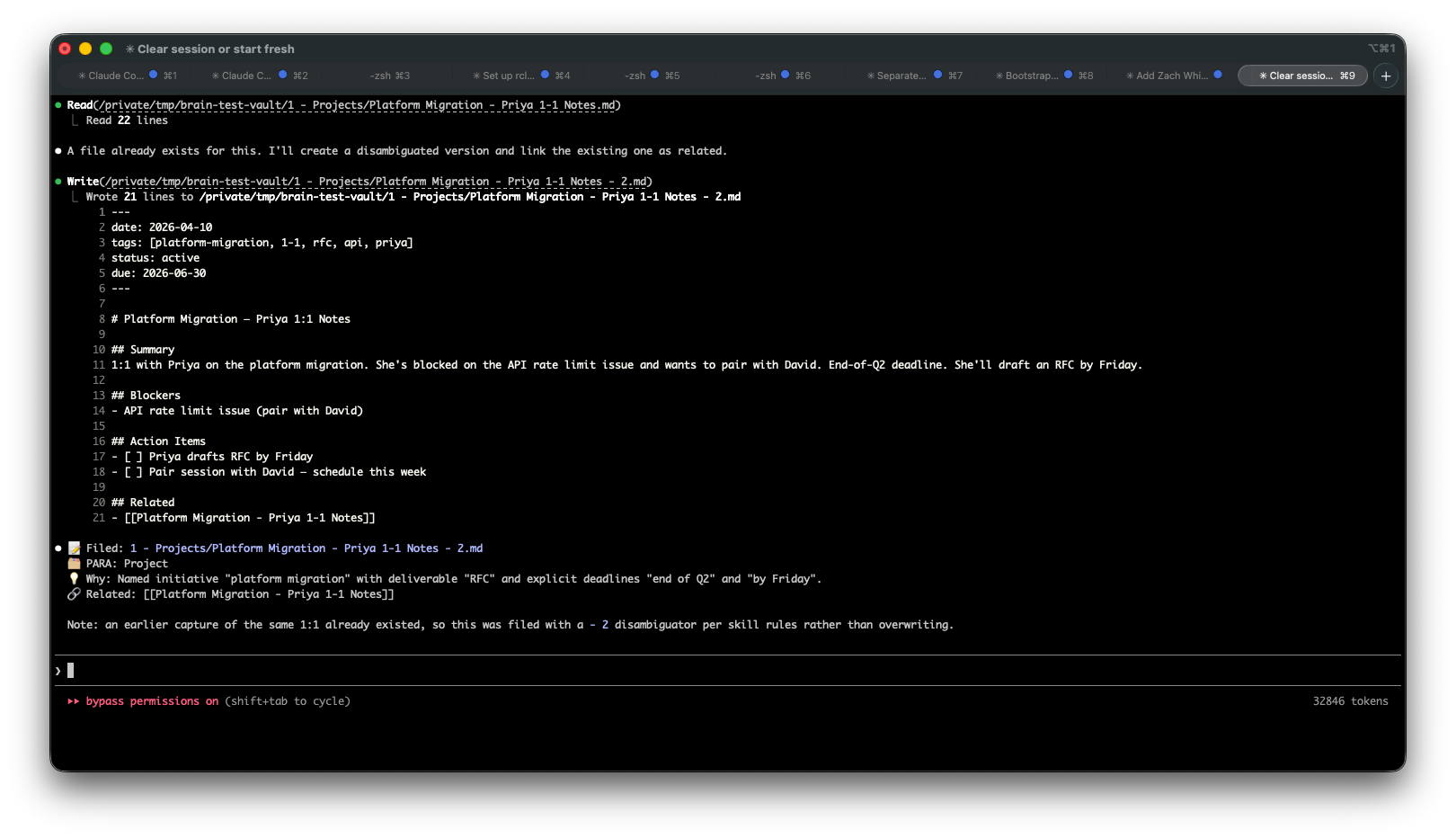
Up to now, you’ve built infrastructure. Folders, sync, config files — useful, but any organised person could do it without AI. This skill is the first thing in the stack you actively could not build without Claude Code. It’s the difference between a folder of markdown files and an operating system. From here on, every rough thought you dump — meeting notes, Slack summaries, half-formed ideas — gets classified, filed, and linked in seconds. Your job stops being “where do I put this?” and starts being “what do I do next?” That’s the decision layer. That’s why you built all of this.
Here’s what the week actually looks like once the system is in place. Four rituals, none longer than five minutes, all running on the stack you just built. Notice what’s missing: there’s no “organise my notes” ritual, no “catch up on the inbox” ritual, no Sunday-night anxiety tax. The system does that work in the background.
1. Morning — 30 seconds, coffee still hot. From anywhere on your Mac, run claude "create today's daily note with my calendar". The note lands in 3 - Resources/Daily Notes/ with today’s meetings pre-populated as a checklist. You’ve pre-committed to the day before you’ve opened Slack.
2. In a meeting — Cmd+N in Obsidian. Scribble notes in real time. Don’t classify, don’t tag, don’t think about folders. The file auto-lands in 0 - Inbox/. This is the moment the system earns its keep: you get to be present in the meeting instead of managing your notes about the meeting.
3. After a 1:1 — 30 seconds. Paste your rough notes into claude /para-capture "...". The skill classifies, files, links. Done. The cost of capture is now lower than the cost of forgetting.
4. Friday — 90 seconds. Run claude "summarise this week's inbox, surface unresolved threads, and suggest what to file". You get a one-page digest that would have taken you 45 minutes manually.
Here’s what Claude returns on a real Friday:
This week's inbox review:
📌 3 unresolved threads:
  - Rate limit debugging with David (waiting on SRE)
  - Q2 planning feedback owed to Mei
  - Promo packet for Jordan — draft 40% complete
📂 2 items ready to file:
  - "Notes on org health workshop" → Resources
  - "Staff+ career framework draft" → Projects
🗑  1 item to discard:
  - "?? follow up on the thing ??" — zero context, suggest deleting
You didn’t write that digest. You didn’t even remember it was Friday until the summary reminded you.
Skip these.
Obsidian Sync subscription. You have rclone. $48/year saved.
A full Notion migration. Don’t. Start fresh in Obsidian; leave Notion content in Notion. Migration is its own project and it steals the energy you should be spending on using the new system.
The Omnisearch plugin. Dataview + Claude Code cover this better and faster.
Dataview-JS queries. Tempting rabbit hole. Come back in three months, not today.
Add these later.
Voice capture via Whisper. Pocket-to-PARA for ideas on a walk.
Cross-vault search. If you end up running multiple vaults (work + personal).
The publishing pipeline. How this very newsletter is assembled from the vault — meta enough to write itself.
The AI-native weekly review. Replacing Friday’s scramble with a 10-minute ritual.
Subscribers get these next, in that order.
AI compressed the task layer. Your job as an engineering manager lives in the decision layer. This stack is how you stop losing context between decisions.
You didn’t build scaffolding today. You built the thing that lets you stop maintaining scaffolding — and get back to the work.
The work is the decisions. Everything else is overhead.
What’s holding your EM brain together right now — and what breaks first when you’re under load? Reply to this email or drop it in the comments.
PS: Next week: the voice capture pipeline. Subscribe so you don’t miss it.
No posts
Comments
Nothing yet. Say the first thing.
Sign in to join the conversation.