
In this post, you will learn what actually happens to a running script when you close your laptop or lose your connection to a server, and the three ways to keep it alive on purpose. This is one of those things every beginner discovers by accident, usually at the worst possible time.
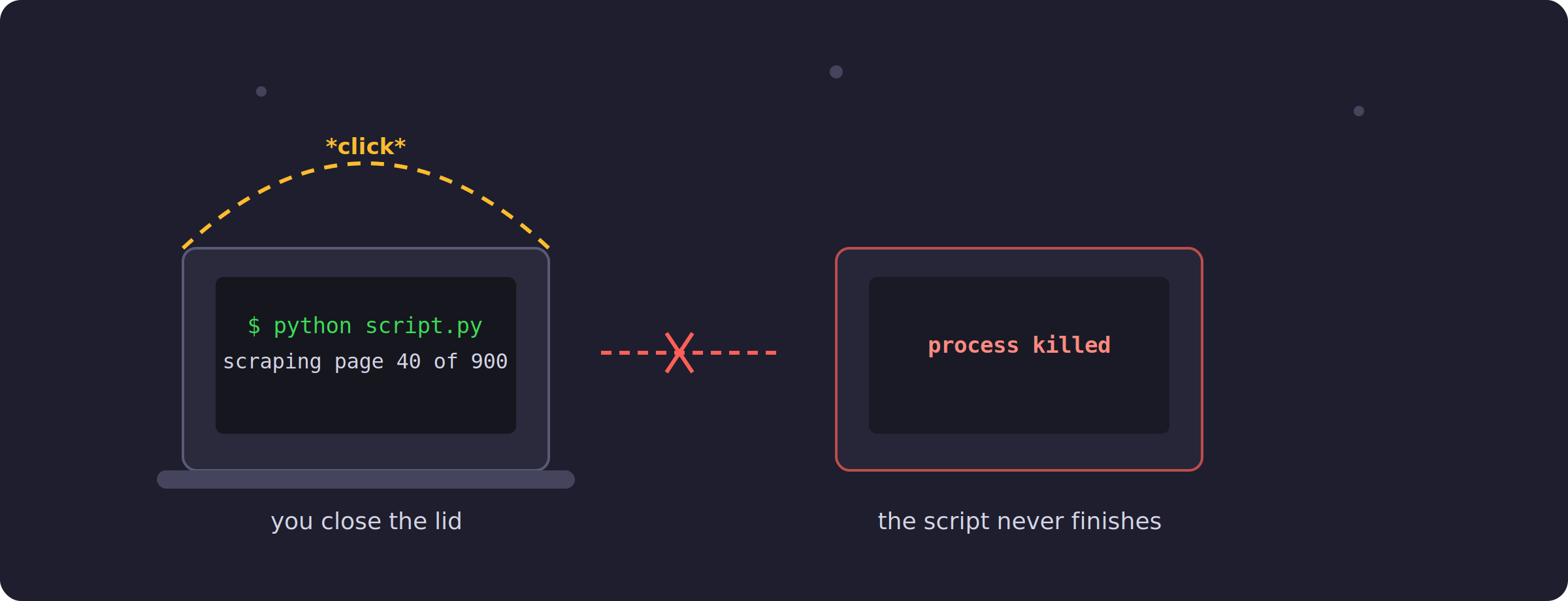
Picture this. You start a script that scrapes 900 pages. It is going to take an hour, so you close the laptop and go make coffee. When you come back, the script is gone. Not paused, not resumed. Gone, with maybe forty pages scraped instead of nine hundred.
Here is the part almost nobody explains. Your script has no idea what a laptop is. It does not know about lids, or WiFi, or coffee breaks. What it does understand is signals, small messages the operating system sends to processes. And when your terminal session ends, the OS sends every process under it a specific signal called SIGHUP, which literally stands for “hangup”, a name left over from the days terminals were connected by phone lines.
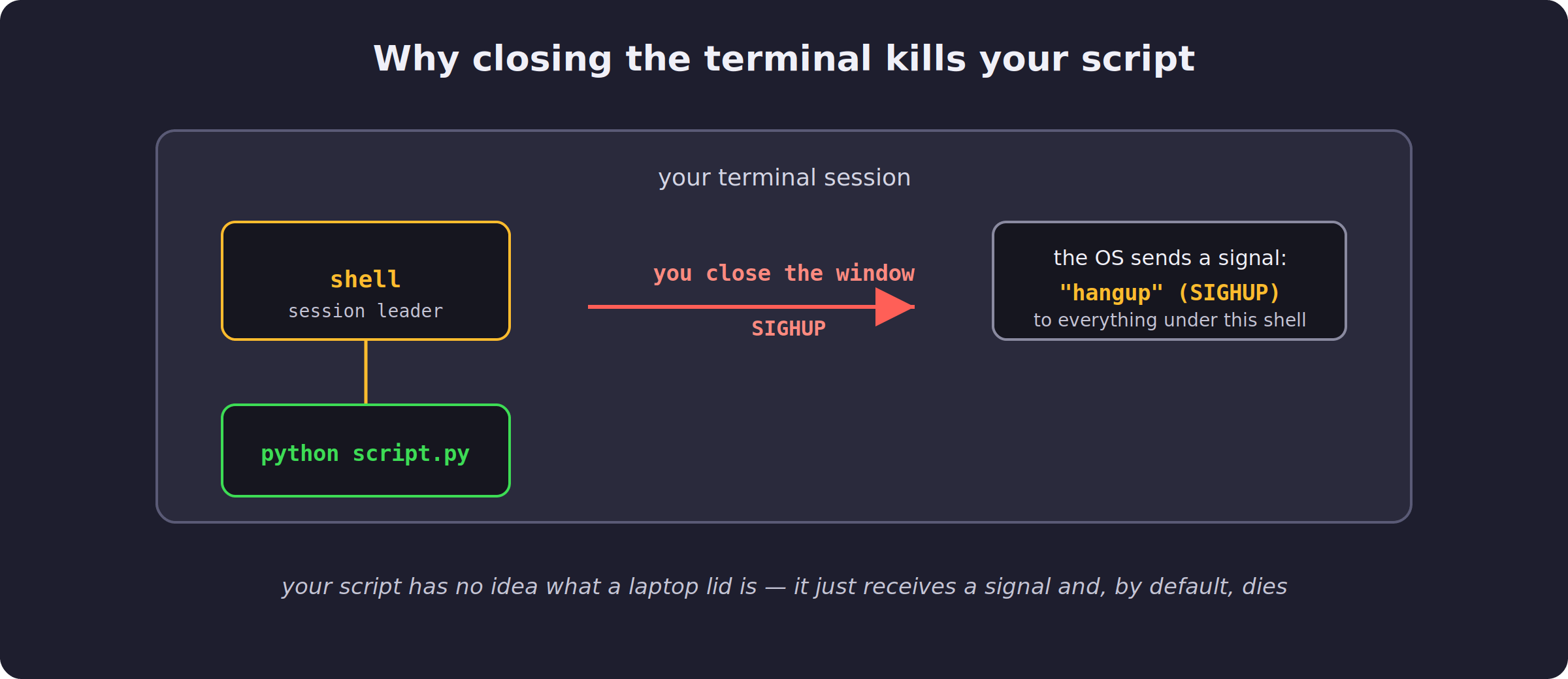
By default, a process that receives SIGHUP simply exits. So your script was not killed by your laptop. It was killed by a decades-old convention, faithfully followed by your operating system, because nobody told your script to ignore it.
The simplest fix is a command called nohup, and the name tells you exactly what it does: no hangup.
nohup python3 script.py &I actually ran this on a small test script that logs a line every couple of seconds. Here is the real terminal output:
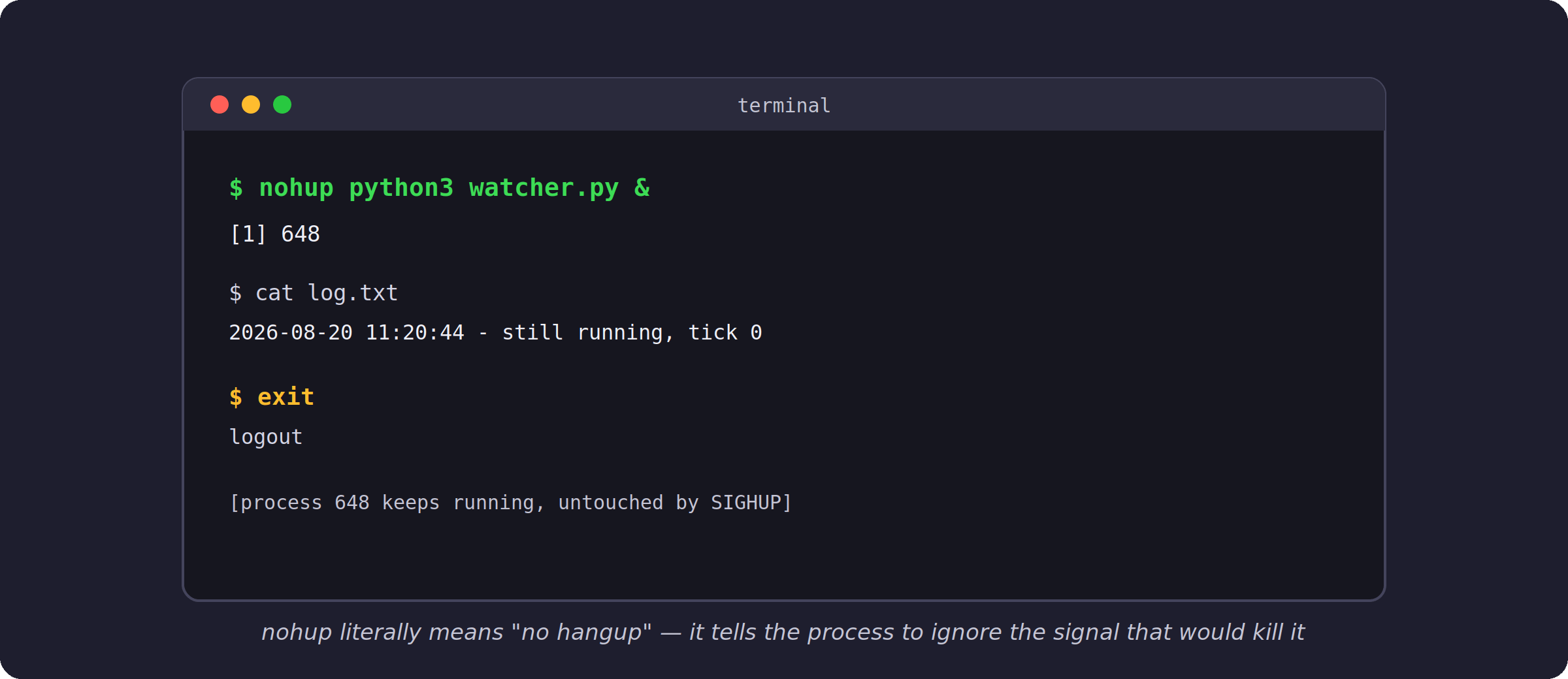
Notice the process ID printed right after starting, 648 in this case. That number is how you would check on it or stop it later. And notice that even after the session ends, the log keeps growing, because the process ignored the signal that would normally have ended it. nohup also redirects anything your script would print into a file called nohup.out, so you do not lose your output either.
Here is a question worth asking before you trust nohup completely: does it survive your laptop actually going to sleep, not just the terminal closing? The honest answer is no, and it is a different problem entirely.
Closing your terminal sends a signal, SIGHUP, which nohup tells your script to ignore. Sleep is not a signal at all. When your laptop sleeps, the whole operating system pauses, your script included, mid-instruction, exactly where it was. Nothing crashes. Time simply stops passing for your script until the laptop wakes up again, at which point it continues from that exact line as if no time had gone by.
That sounds harmless, and for a pure calculation it usually is. But most scripts worth leaving running involve a network connection, and that is where sleep quietly breaks things. Your WiFi disconnects during sleep, and when the laptop wakes, your script tries to keep talking to a connection that no longer exists. You will not see a dramatic crash. You will see it die on a random request twenty minutes after you opened the laptop again, and it will look like a completely unrelated bug.
So the honest rule is this: nohup protects you from closing the terminal, not from closing the laptop. If your script needs to survive actual sleep, either turn sleep off for that session, a checkbox in every operating system’s power settings, or accept that you are really back to the same answer as before: put the script on a server that never sleeps in the first place.
nohup is the boring, always-available option, and I use it constantly for that exact reason. But there are two more tools worth having in your pocket, depending on the situation.
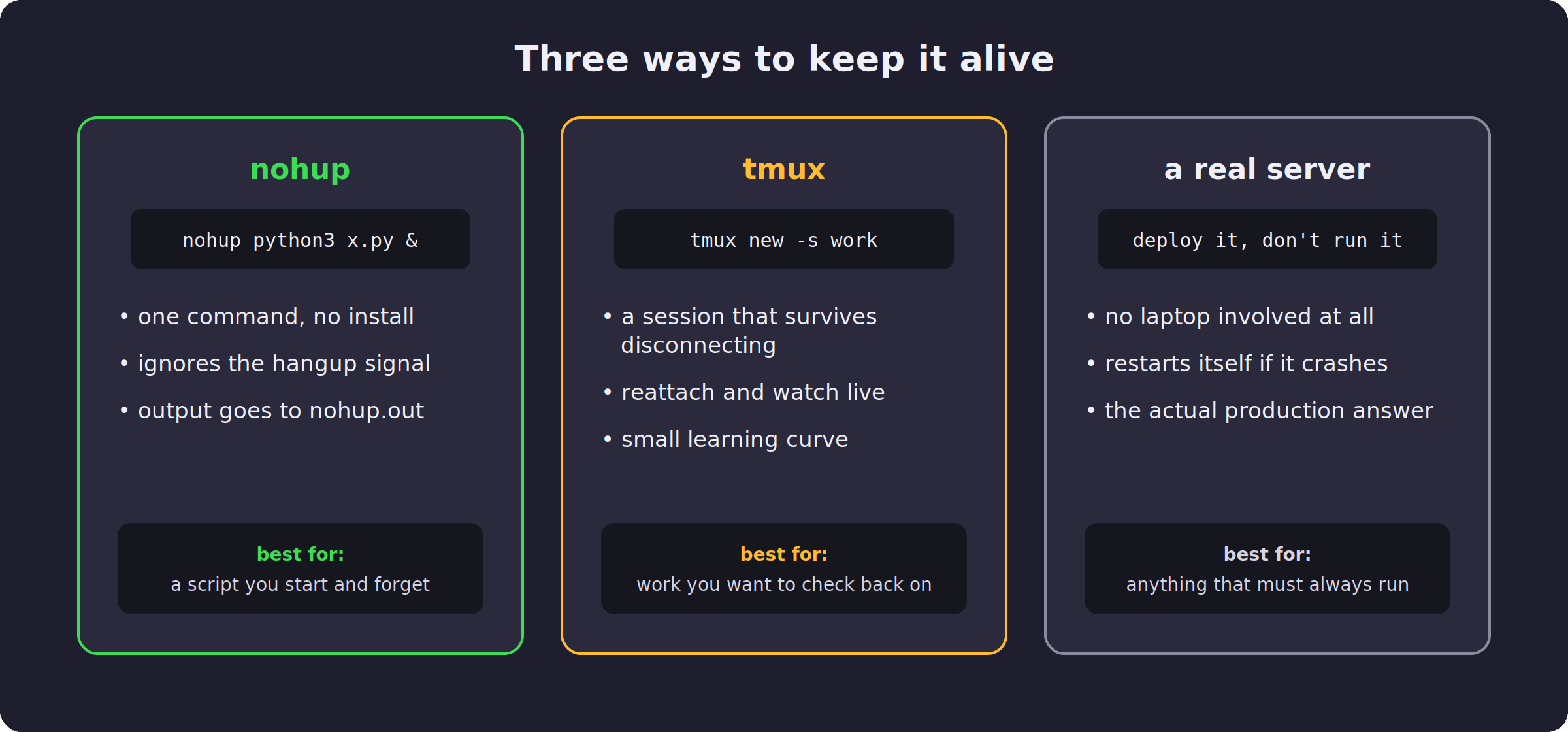
tmux creates a session you can detach from and reattach to later, from the same machine or a different one entirely. Instead of just letting a script survive in the background, you can walk away and come back to literally the same terminal, scrollback and all, as if you never left. It takes a bit longer to learn than nohup, but if you are the kind of person who likes checking on things, it is worth the twenty minutes.
And then there is the real answer for anything that truly needs to run forever: stop running it from your laptop at all. Deploy it to a server, a computer that stays on by design, and let a process manager restart it automatically if it ever crashes. Your laptop was never meant to be the thing holding your app up, and once you deploy, this entire problem disappears, because there is no lid to close.
Everything above assumes Mac or Linux, and the good news is that assumption barely matters, because both are built on Unix underneath. nohup, tmux, and SIGHUP itself behave identically on both. If you develop on a Mac, the exact commands in this post already work on your machine.
Windows is the exception, and it is a real one, not a small syntax difference. Windows does not use SIGHUP at all, closing a window sends a completely different kind of signal, and neither nohup nor tmux exist natively there. My honest advice, and what I use myself when I have to touch Windows, is to install WSL, the Windows Subsystem for Linux. It gives you a real Linux environment inside Windows, and once you are inside it, every command in this post works exactly as written. Trying to find native PowerShell equivalents for all of this is possible, but it is a rabbit hole not worth the time when WSL gets you the real thing in ten minutes.
If a script just needs to survive one afternoon while your terminal closes but the laptop stays awake, nohup is enough, and it costs you nothing to learn. If you find yourself wanting to check progress and jump back in, tmux earns its place, though it has the same blind spot as nohup the moment the laptop itself sleeps. And the moment something needs to run every single day, laptop open, asleep, or on the other side of the room, that is your sign it belongs on a server, not on your desk.
I used to just leave my laptop open and pray, for years, before I had a name for any of this. If that is you right now, you are in good company, and at least now you have three better options.
If you learned something from this today, consider upgrading for the full experience: every weekly project with full source code, plus the complete archive. Since you read this far, I’d like to offer you 35% off the annual plan as a token of appreciation. Click below to get the discount:
Comments
Nothing yet. Say the first thing.
Sign in to join the conversation.