

In my last post, I discussed how I used Perplexity.ai and GitHub Copilot to build a proof-of-concept for a photo gallery/slideshow web app. The tools processed my specific natural language prompts and provided sample code that I could use as a starting point, saving me tons of time searching forums and code libraries myself.
Within an hour, I had a basic app with a web page for viewers, client-side scripts that requested a list of images and then displayed them, and a server-side script that read a file system and served the files to the client-side script. I think I spent more time fiddling with the CSS layout than enhancing the inner workings of the app.
CAUTION: This post is not as organized as I would like, since I’m journalling my process after the fact. Also, the content might change as I detail my working process of building this app from proof-of-concept to something manageable.
Last updated: 2025-06-05 06:30h
If you have already read the platypix code that I linked from my last post, you would have seen that the slides.js file kicks off three things when the page loads:
Request the image file list for the first time.
Set a controllable timer to rotate the images in the gallery.
Set a repeat timer to refresh the image list.

The first thing I realized is that none of the functions required the passing of parameters. This is because the required variables were globally scoped at the top:

The next part of the magic is the fetchImages() function holds the option to reset the slideshow by checking when the current image counter reaches last image.
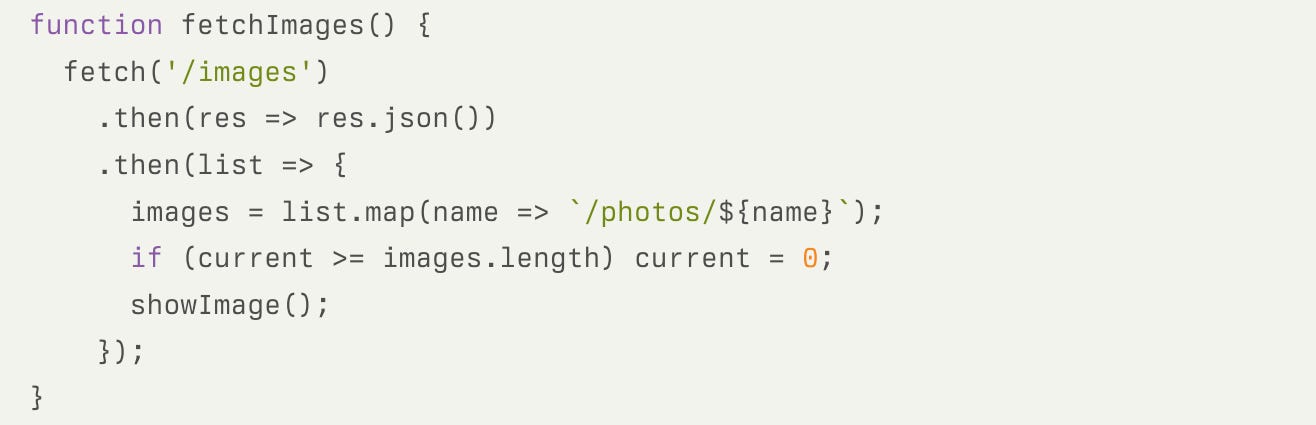
Restart the slideshow counter after the last image (by Perplexity.ai) With the server-side script watching for new images, and the client-side code managing the slideshow, the final step was to address the end of my original prompt:
The app should occasionally refresh the folder list to account for new photos that might have been uploaded recently
I realized that in my prompt, I didn’t explicitly state that I wanted a live upload feature. Shouldn’t it have been obvious? I mean, which party goer wouldn’t want to see their photos instantly appear on the slideshow? But, the tools only built the facility to check for new and changed images. The code wasn’t concerned how the images got there!
While the existing scripts took care of displaying the images in the slideshow, the app would need another custom service to receive user uploads to save into the /images folder. I went back to VS Code project and tested another feature of GitHub Copilot: processing prompts written in code comments.
I opened a new file, slideupload.php, and introduced the file with <?php.
Then I typed the following prompts as comments:
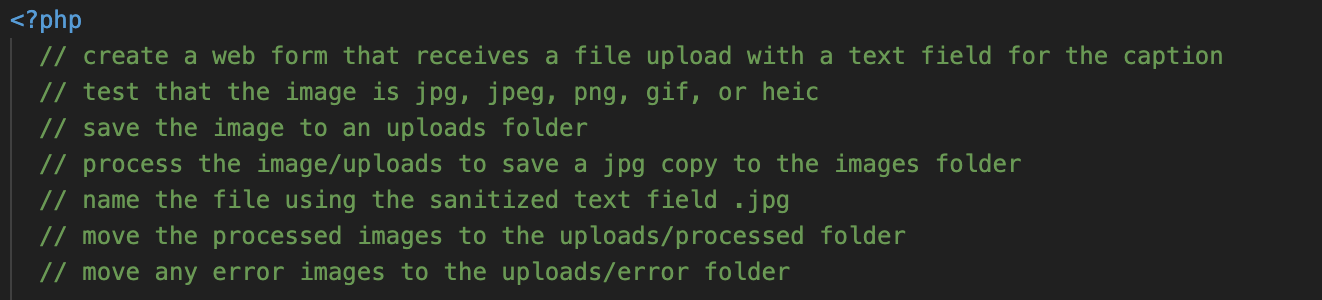
I’m used to seeing code suggestions appear after I start each new line, but this time the code generation waited until I paused after the last instruction. Then Copilot suggested an incomplete block of code that started the server processing. I pressed <Tab> to accept the first block. Then came another suggestion. I kept tabbing through until the code suggestions stopped.
The result was a script that when opened, it showed a form. When a file is uploaded, the script used the GD image processing library. The Five Server that I used to test the PHP code can’t process form submissions. So, after reviewing the code to ensure nothing ominous would happen, I uploaded it to my shared web host.
After all, where’s the harm in testing code for the first time on a production server?
I just realized: In my last post, I didn’t explain why I chose Five Server by yandeu over Microsoft’s official Live Preview. Live Preview is great for serving HTML pages. But Five Server also processes and renders PHP scripts to help developers design with the rendered pages. However, Five Server doesn’t include an actual PHP server. While it could process the backend service that retrieved the image file list, it couldn’t support the upload form. So, I chose early to test the app on my shared web host (affiliate link) to see if the scripts were supported and would run.
I had already added a few photos to the /images folder when I tested the app on my local machine. Then, just like the good old days, I used FileZilla to copy the files to my shared web host server. Just like on my local machine, a browser pointed to the main index.html page looped through the slideshow perfectly. Next, I opened the slideupload.php page and uploaded a few images.
Joy filled my heart when I saw the newly-uploaded images work their way into the slideshow. But something was off. Some of the uploaded JPG files weren’t rotated correctly.
I gave Copilot Chat a description of the problem. The response explained how the app wasn’t honouring the rotation setting in the EXIF data, and provided a sample function and instructions for calling it when JPG files are being processed:
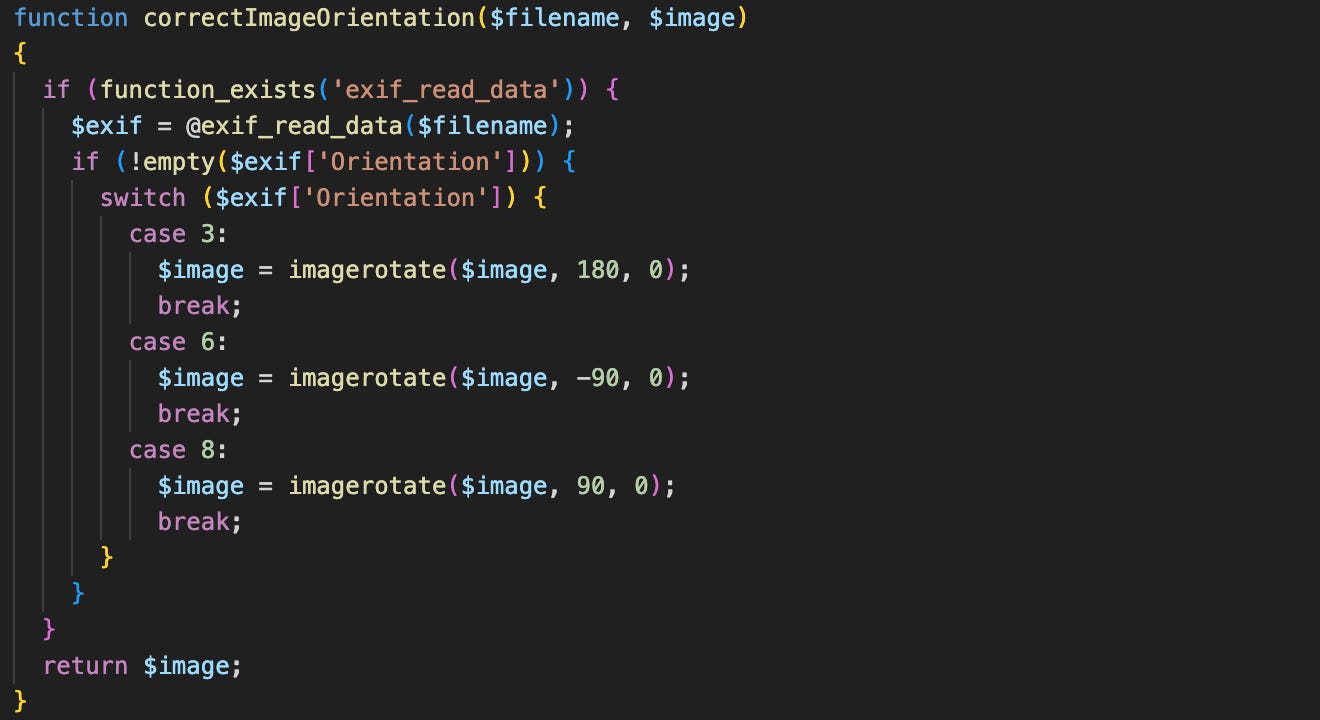
Inside the loop, the following conditional checks if the uploaded file is a JPG, then update the orientation data. After adding these code snippets, newly-uploaded files retained their proper orientation.

Also, the first version of the code also conveniently skipped processing HEIC-format files. Considering that most of my friends use Apple devices, I figured it would be a good idea to replace the conditional block that threw an error with another Copilot Chat-generated snippet that used ImageMagick to process what the default GD processor could not.
So the following block:

Became:
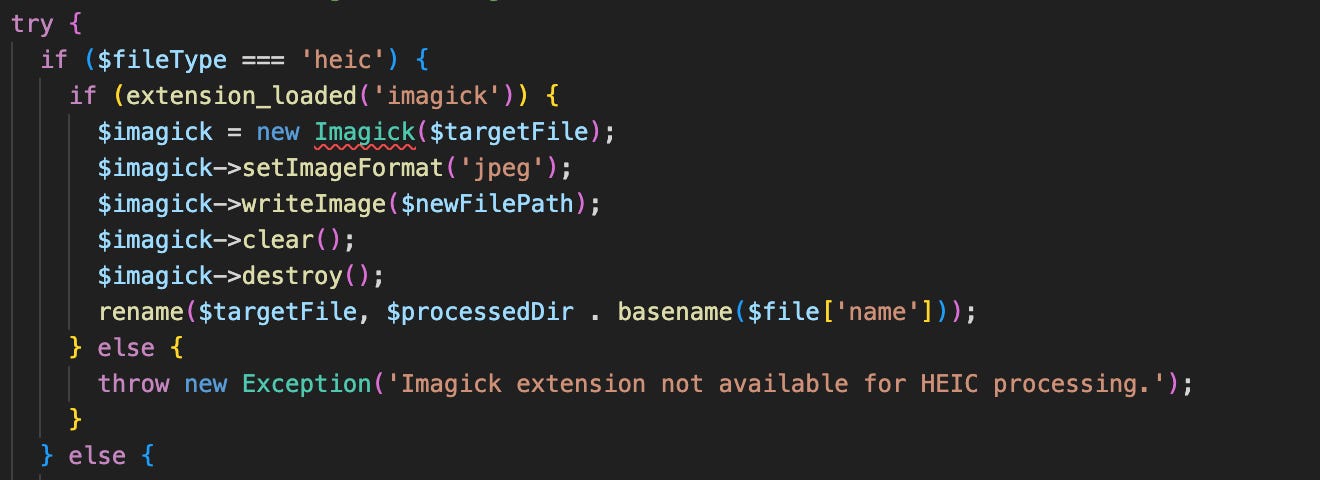
When images are uploaded to the server, I asked to manage the files a certain way:
Create the new file in the
imagesfolder.Move the original file into a processed folder called
uploads/processed.Move any files that failed into an error folder called
uploads/errors.
The generated scripts used the move_uploaded_file() function to create the new file and move the error file. But it was missing the instruction to move the file after processing. I prompted Copilot Chat, and generated the code to use the rename() function. While technically this function works, it has the potential to move any file to anywhere. Another Copilot Chat explained that when processing uploaded files, move_uploaded_file(), performs other security checks.
I added other ease-of-use enhancements before I released the project to the world. Read about those in my next post.
Visit the GitHub project to test platypix yourself on your own web server!

Available for iOS and Android
Next: Ease-of-use enhancements and the MVP
Comments
Nothing yet. Say the first thing.
Sign in to join the conversation.