
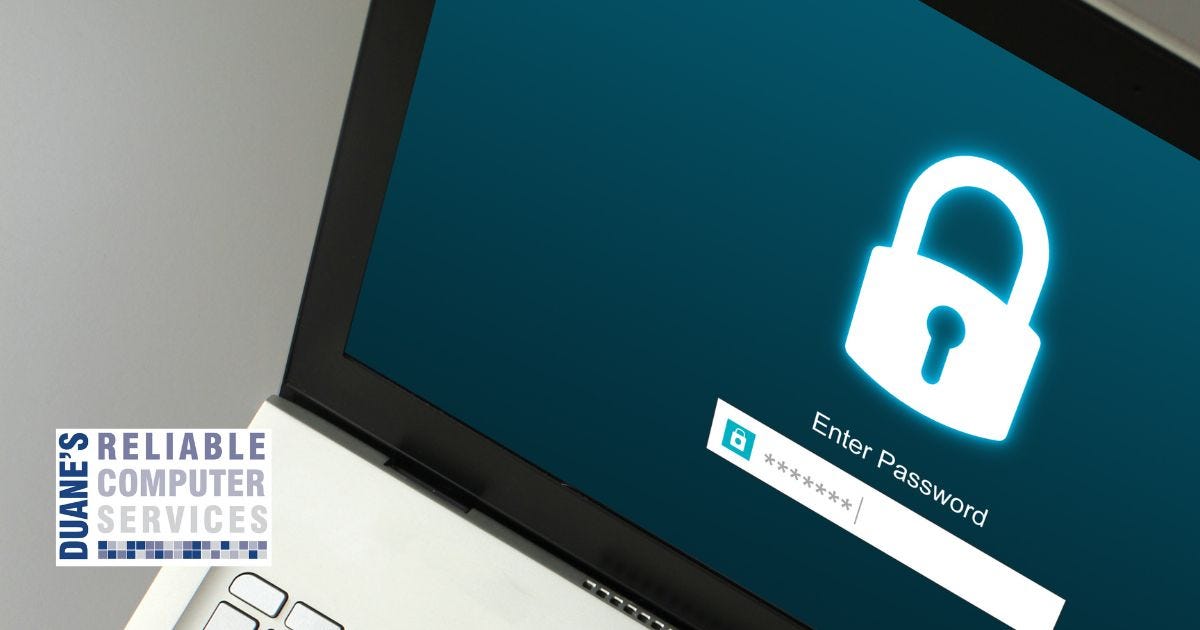
I have written about passwords quite a bit but the issue with passwords keeps coming up. Whether it is while setting up a new computer, setting up a new phone, or due to some changes made by a company or site, passwords keep being a major issue for many of us. How can anyone keep track of all of them? Then you need to add all of the multi-factor authentication, and it can get very confusing. Here are my latest recommendations about passwords.
Password Managers – They are still the best way to keep all of those passwords straight and safe. Whether you import all passwords from a browser or input them one by one as you need them, a password manager will keep all of your passwords safe and even help you change passwords when needed. If you are not familiar with how they work, they store all of your passwords on your devices, but you still need to input your main password into the manager to access all other passwords. It is much easier to remember one password than trying to keep fifty passwords unique and safe. Most require a small subscription for use across multiple devices, but it is well worth it.
Browser built-in password managers – All browsers will offer to save your passwords to make it easier to login to all of your accounts. The important thing to remember about these built-in password managers is that they don’t require any password before they can be accessed. This means if someone can get into your computer and open your browser, they will have access to all of your passwords. There have even been cases where someone was able to steal the login credentials for a browser account and then set that account up on another computer and now, they have access to all of that person’s passwords in an environment where they would never be seen. This type of password manager is great for convenience but not for safety.
Using an Encrypted Spreadsheet – I have known many people that keep all of their passwords on their computer, but they are in a password encrypted spreadsheet. This is fairly easy to set up, and it will keep your passwords safe, but what happens if your computer crashes and the hard drive fails? Unless you keep another copy of that spreadsheet on another drive you might be out of luck. I even know people that keep this spreadsheet on a thumb drive to make sure it is available if their computer dies. Just remember that thumb drives can also fail.
Notebook, printed spreadsheet or address book – This is the way many of us kept our passwords for years. You have a small book where you keep all usernames and passwords, and you erase or cross out old passwords and write in the new ones. Some people even write the date of the change to try to make it as understandable as possible. I have helped set up computers for many people who use this method. It is not fool proof. It is too easy to update a password on the fly and forget to update on your sheet. Another issue with this is not having the list available when you are on your phone and not at home. Also, if you print this from your computer and then make changes you can end up with multiple copies or worse lose your copies. This method is set up to fail.
Out of all methods listed, only the actual password managers can keep you connected and safe in this modern world where each of us has dozens of accounts and we need access to those accounts on more than one device. If you are using methods 2,3, and 4 above I would love to help you get organized and catch up with the best option for your passwords. They are not going away and the longer you wait to adopt this method the worse it will get.
One more thing about all of these passwords and keeping access to your accounts, if you are offered multifactor authentication for any account, I suggest you set that up also and use every authentication method they allow you to use. Set up their authenticator app, use your phone number, and use your email address. Having more than one way to access your account will keep you from permanently losing access to an important account.
Speaking of authenticator apps, just know that when you get a new phone you will need to reset most of those connections. This is why it is important to have other ways to authenticate. Usually once you get into the account you can easily reset the authenticator.
As always, I am available to help with this type of issue.
This comes up so often. I get a message from someone that says their laptop battery is only holding a charge for a couple minutes, or worse, not at all. Sometimes they think they need a new computer.
This is what happens when you treat your laptop like a desktop computer. By that I mean they always leave it plugged in and they are constantly charging it. All laptop batteries are designed to be used for maximum life. That means you should plug it in and charge it 100% and then you should unplug it and use it until it is down to 10% or less. A good rule is to plug it in when the screen starts to dim. This is caused by the built-in battery saver.
This doesn’t mean you can’t leave it plugged in if you are doing something very important and you want to make sure it doesn’t die. You just need to regularly use your battery as much as possible. They sort of have muscle memory and if you only use the top 10% and constantly charge it eventually that 10% is all you will have.
Another issue with leaving your laptop plugged in all the time is THERMAL RUNAWAY. Your battery can actually become damaged and begin to swell. In extreme cases the battery can even explode. Here is a picture of a couple batteries, one brand new battery on the right and one that has begun to experience thermal runaway.
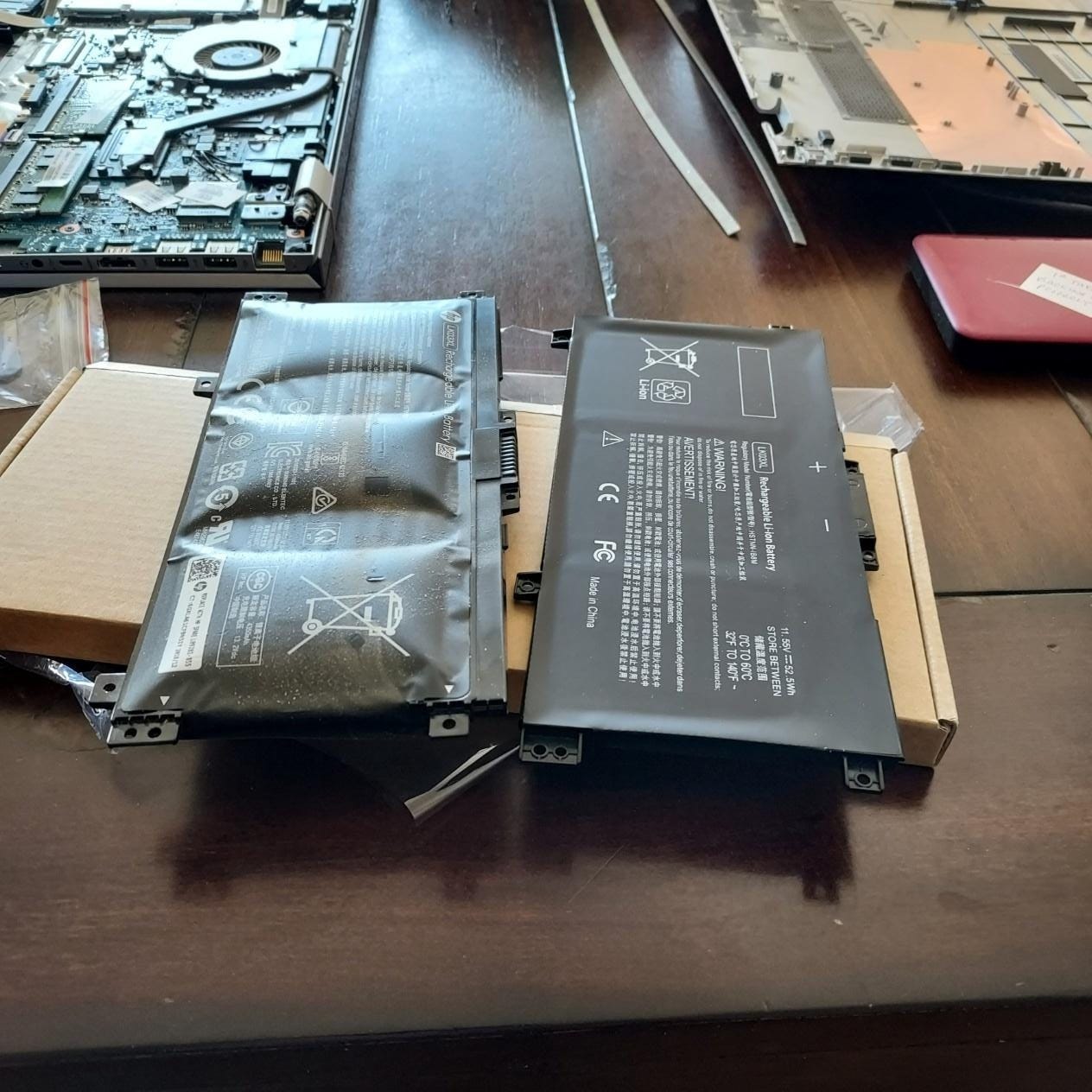
The laptop keyboard and trackpad were not working any longer due to the bulging battery.
So, if you have been in the habit of always leaving your laptop plugged in, you might want to start using your battery to preserve its life. If it is too late and your battery is almost dead, I can help you replace it.



The talk about how to avoid becoming a victim of scams. Email Scam Busters is your monthly resource to let you and your parents in on the latest scams they should look out fo
No posts
Comments
Nothing yet. Say the first thing.
Sign in to join the conversation.