
Hey All,
Ever waste way too much time on a simple PDF?
I’ve been there.
You get a detail or pplan sent over but all you get is a df file and no CAD.
Suddenly you’re redrawing everything, trying to trace lines, double-checking dimensions… a pain and huge waste of time simply because the original CAD file went missing…
What should take 5–10 minutes turns into 30+.
The biggest issue?
Most people are using PDFs the hard way.
These things happen, but they don’t need to take us forever to digitize or setup in our drawings..
Once you understand a few simple workflows, they actually become one of the fastest parts of your process.
Quick Tip: Stop Importing Everything
Before you jump to PDFIMPORT…
Try this instead:
Use PDFATTACH (underlay) first.
Lightweight
Clean
Perfect for tracing or referencing
Only import geometry if you actually need to edit it.
Most of the time:
Attach → Scale → Trace what you need → Done
3 AutoCAD PDF Tips & Tricks That Save Hours
This week’s video is a quick breakdown of simple but powerful PDF workflows:
How to create clean, professional PDFs
How to attach or import/convert PDFs (and avoid messy conversions)
How to work faster with markups, tracing, and revisions
And More!
If you work with PDFs daily (and most of us do)…
this will save you a ton of time.
👉 Watch the video here: 3 AutoCAD PDF Tips & Tricks That Save Hours!
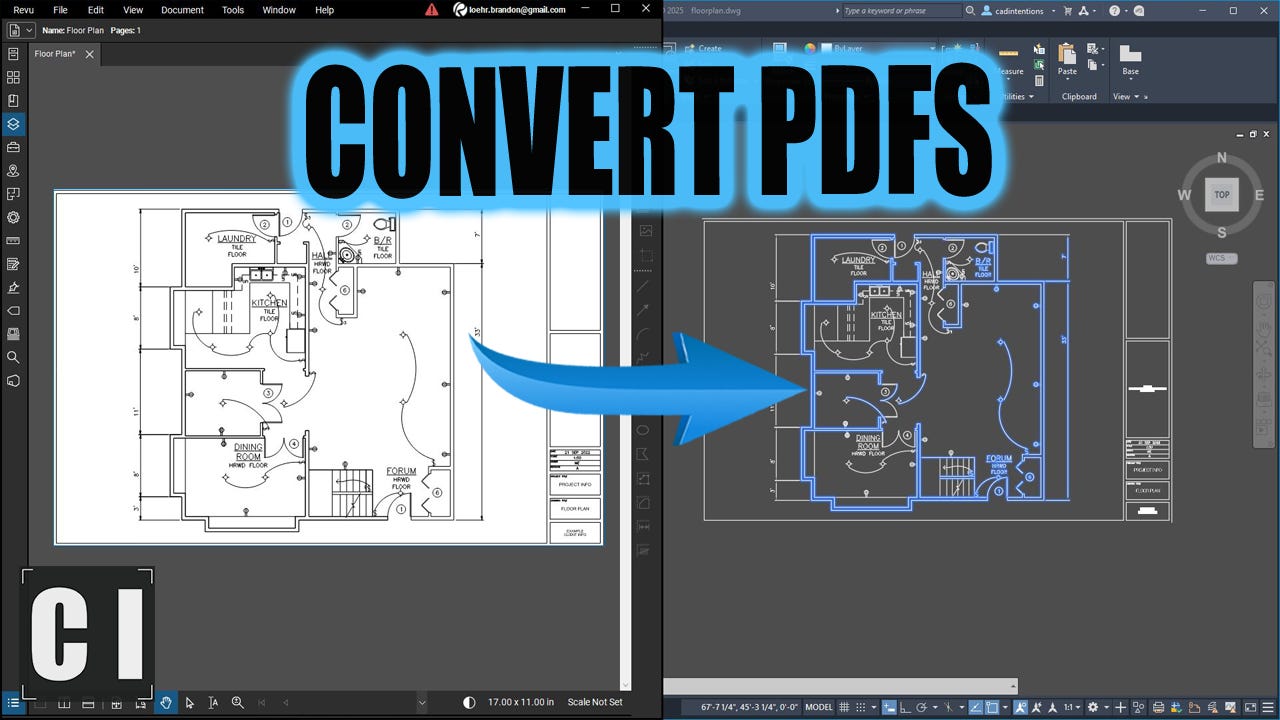
Tech Tool of the Week: Bluebeam
If you’re marking up PDFs, reviewing drawings, or doing quick takeoffs…
Bluebeam Revu is one of the best tools you can add to your workflow.
Fast, clean markups
Easy collaboration with teams/PMs
Built-in measurements & quantities
Simple way to track revisions and changes
I use it constantly for:
Reviewing checkplots
Tracking completed markups
Coordinating changes without reopening CAD
And even as my AutoCAD PDF Plotter for printing!
It’s a huge time-saver alongside AutoCAD.
Try Bluebeam For Free Now: https://cadintentions.com/bluebeam
Your Turn:
I’m curious what your workflow looks like.
That’s it for this week!
I hope you learned a few useful PDF tricks, and as always thanks for reading :) Have a great weekend
Cheers and happy drafting,
Brandon
P.S. If you’ve got a colleague always struggling with their PDFs, be sure to forward them this email or send them a link!
Design x Technology is a reader-supported publication. To receive new posts and support my work, consider becoming a free or paid subscriber.
They’ll thank you later.
Comments
Nothing yet. Say the first thing.
Sign in to join the conversation.