

Physical security matters enormously. The locks on your doors, the quality of your alarm system, the lighting around your property and the habits you build around access are all genuinely important, and they are things I think about and work with every day. But physical security is something most people have at least considered. The digital side of the home is where things get quietly forgotten, and in my experience it is where the most significant gaps tend to live.
When I work alongside our cyber partners to assess a client’s household, we find the same vulnerabilities repeatedly. Not because people are careless, but because nobody has ever shown them where to look or explained why it matters in plain terms.
So here are some things you can do in your own home today, without hiring anyone, without any technical background and without spending anything at all.
A Few Words You Will Need
Before we get into it, here are the terms that come up in this piece and what they actually mean.
Router: the box your internet provider installed, usually sitting in your hallway or living room with a blinking light on the front. Everything in your home connects to the internet through it. It is the gateway between your household and the outside world.
Firmware: the built-in software that runs your router, in the same way that an operating system runs your phone. It needs updating periodically, and most people never update it.
Default credentials: the username and password your router was set up with when it left the factory. These are identical across every device that manufacturer has ever made, and they are publicly listed online.
Guest network: a separate, sealed-off WiFi network you can create within your existing router. Visitors and smart devices go on this network. Your personal devices stay on the main one.
Something We Found Recently
During a recent household assessment, we logged into a client’s router using the username admin and the password admin. Those were the factory default credentials the device had shipped with, the same ones listed publicly on the manufacturer’s website for anyone to find. The client had owned the router for two years and had simply never thought to change them.
From inside that router we could see every device connected to their home network, observe their internet activity and monitor traffic without leaving any trace. This is one of the most common things we find, and it is one of the simplest things to fix.
How to Get Into Your Router Settings
Most of the steps below require you to log into your router. To do this, open a browser on any device connected to your home WiFi and type in the address printed on the sticker on the underside of your router. Use the username and password also shown on that sticker to log in. Once you are in, you will find settings menus that cover everything mentioned.
1. Change Your Router’s Default Password
What it is: your router arrived with a preset username and password. On older routers this is often something as simple as admin or password, identical across every device that manufacturer has ever produced. Newer routers from UK providers sometimes ship with a unique password printed on the device, which is better, but still worth changing.
Why it matters: default credentials, whether generic or unique, are a known entry point. Once someone is inside your router they have full control of your home network.
What could happen if you don’t: a person with basic knowledge and access to your WiFi can see every website you visit, intercept your banking details, redirect you to fake websites without your knowledge and monitor everything that passes through your home network. You would have no way of knowing it was happening.
What to do: log into your router, find the admin password section and change it to something long and unique. Write it down and keep it somewhere safe.
2. Update Your Router’s Software
What it is: your router runs software that keeps it functioning, and that software develops flaws over time. Manufacturers release updates to fix those flaws, but the updates only work if you install them.
Why it matters: criminals actively scan for routers running outdated software because the weaknesses in older versions are publicly documented. An unpatched router is a known, published vulnerability, in the same way that a broken lock on a back gate is a known entry point to anyone paying attention.
What could happen if you don’t: someone can exploit a known flaw in your router’s software to access your network silently, without needing your WiFi password at all.
What to do: log into your router and look for a section called Firmware Update or Software Update. Install anything available and check back every few months.
3. Rename Your WiFi Network
What it is: the name your WiFi broadcasts to nearby devices. Most routers come set up with a default name that includes the manufacturer or your internet provider alongside a short code, something like BTHub6-A2B3 or SKY-X4Y5Z. Many people also rename their network to something personal like SmithFamilyWifi or their house number.
Why it matters: a default name tells anyone within range exactly which router model you are running, which makes it straightforward to look up known vulnerabilities for that device. A personal name adds your identity on top of that.
What could happen if you don’t: you are advertising the specific tool a criminal needs to find a way in, and potentially your identity alongside it.
What to do: log into your router, find the WiFi settings and change the network name to something completely neutral that reveals nothing about you, your address or your equipment.

4. Create a Separate Network for Smart Devices
What it is: most modern routers allow you to run two separate WiFi networks at the same time. One for your personal devices and one for everything else.
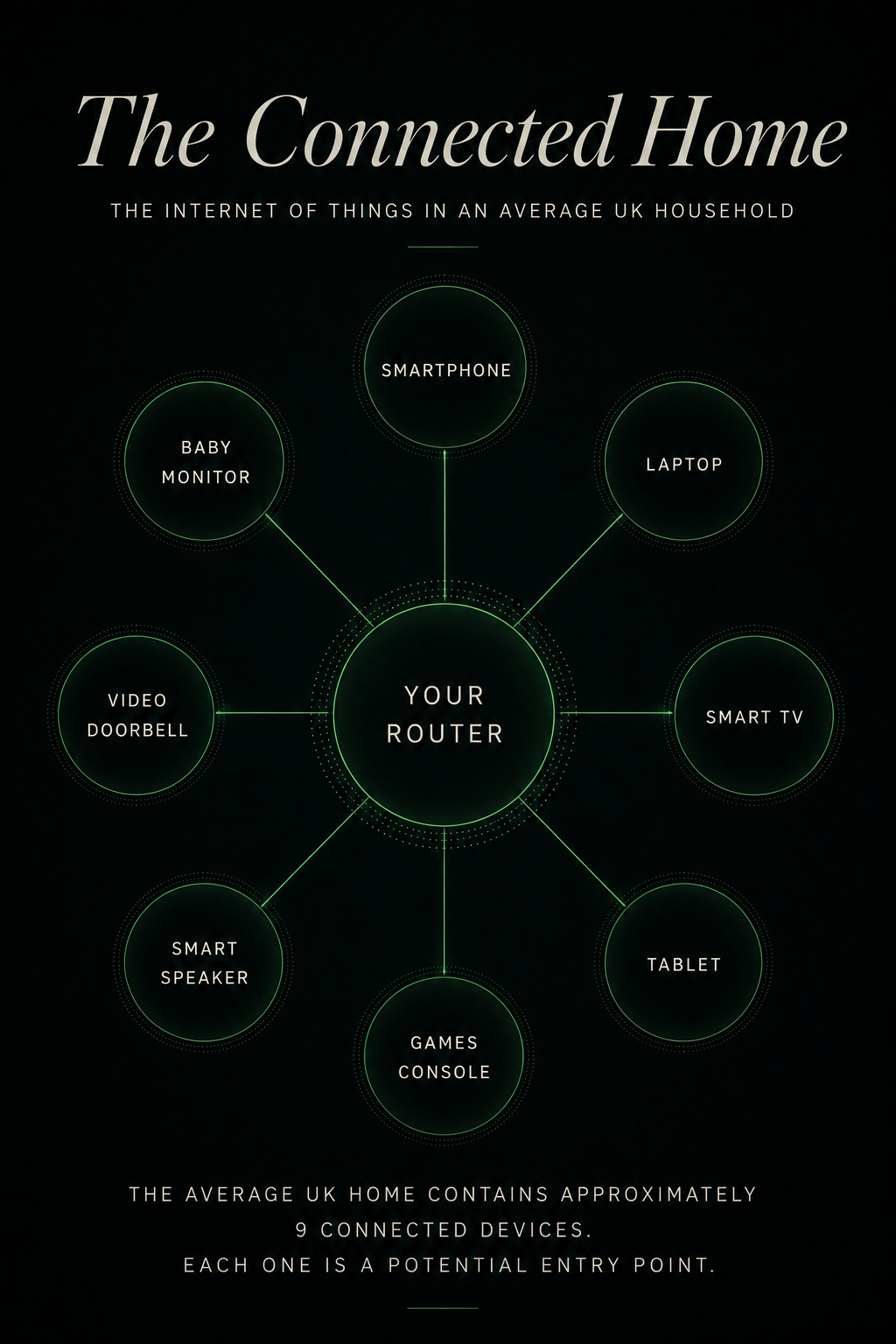
Why it matters: your smart TV, your video doorbell, your voice assistant and your baby monitor all carry weaker security than your phone or laptop. If any one of them is compromised, it can be used as a bridge to reach every other device on the same network.
What could happen if you don’t: a criminal who gets into your smart TV can use it as a stepping stone to access your laptop, your phone and anything sensitive stored on either of them.
What to do: log into your router and look for a Guest Network option in the WiFi settings. Create one and move every smart device onto it. Keep your main network for your phone, your laptop and anything that holds personal or financial information.
Your devices are only as secure as the weakest thing they share a network with.
5. Check What Is Connected to Your Network
What it is: your router keeps a list of every device currently connected to your home network. Most people have never looked at it.
Why it matters: in our assessments, clients regularly find devices they do not recognise. An old phone they forgot about, a previous visitor’s tablet that never disconnected or occasionally something they cannot account for at all.
You cannot protect a network if you do not know what is on it.
What could happen if you don’t: someone may already be connected to your home network and observing your activity. Without checking, you have no way of knowing.
What to do: log into your router and find the section showing connected devices. Go through the list carefully. If something does not belong, disconnect it and change your WiFi password.
None of the above should require professional help. It requires around twenty minutes, a willingness to look at something most people never look at and the understanding that physical security and digital security are not two separate things. They are two sides of the same door.
The clients who ask us to assess their home are not the ones who think they have a problem. They are the ones who understand that assuming you don’t is the most common vulnerability of all.
Safety and Security. From someone hired to protect.

If you would like to know more about what a full household security assessment covers, you can find us at blackwidowsecurity.co.uk
No posts
Comments
Nothing yet. Say the first thing.
Sign in to join the conversation.