
I am going to start with the part that is hardest to admit.
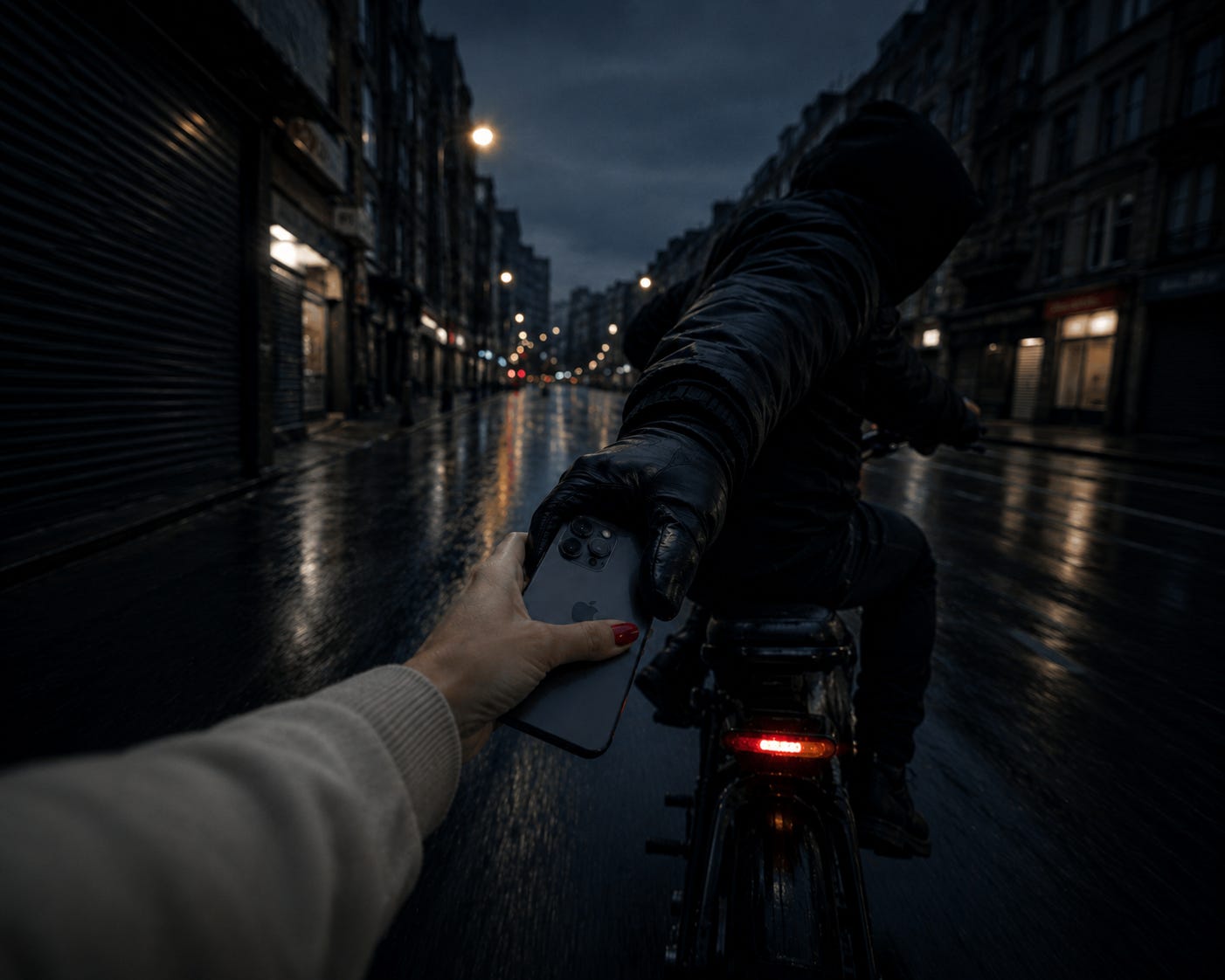
I work in personal security. I have spent years advising people on how to protect themselves, their assets and their data. I have worked in environments where situational awareness was not a professional courtesy but a necessity. And on an early morning in a quiet suburb of London, someone reached over my shoulder and snatched my phone out of my hand before I knew they were there.
This Substack is reader-supported. To receive new posts and support my work, consider becoming a free or paid subscriber.
I am not telling you this to perform humility. I am telling you because if it happened to me, it will happen to anyone, and I want you to take this seriously.
It was before six in the morning. I was heading to the airport for a weekend of rugby in Scotland, wheeling a suitcase along what I thought was an empty pavement. The suitcase was loud on the concrete. That matters, because I could not hear the electric bike come up behind me. There was no warning, no footsteps, no sense of anyone close. A black gloved hand came over my shoulder, tugged the phone cleanly out of my grip and had accelorated before I could process what had happened.
News reports have since documented that some snatch thieves use sticky gloves specifically to improve their grip on phones. One motion, one second, and the phone does not slip.
What followed was a lesson I did not expect to need. I had to get myself to an airport and onto a flight to Scotland with no phone, no boarding pass, no maps, no Apple Pay and no way to contact anyone. I managed it, but I spent that entire journey thinking about every mistake I had made and every setting I had not turned on.
I tracked the phone, and gave the police every address it pinged - officers were sent to those addresses and phones were recovered, mine was not one of them. My phones final destination before going offline was Shenzhen, China.

I took it as a steep learning curve. This guide is everything I put in place afterwards, updated for iPhone users on iOS 17.3 and above. Some features require iOS 18. An Android version is coming soon.
The Scale of the Problem
Phone theft in London is not a niche crime, it is one of the most common crimes in the capital.
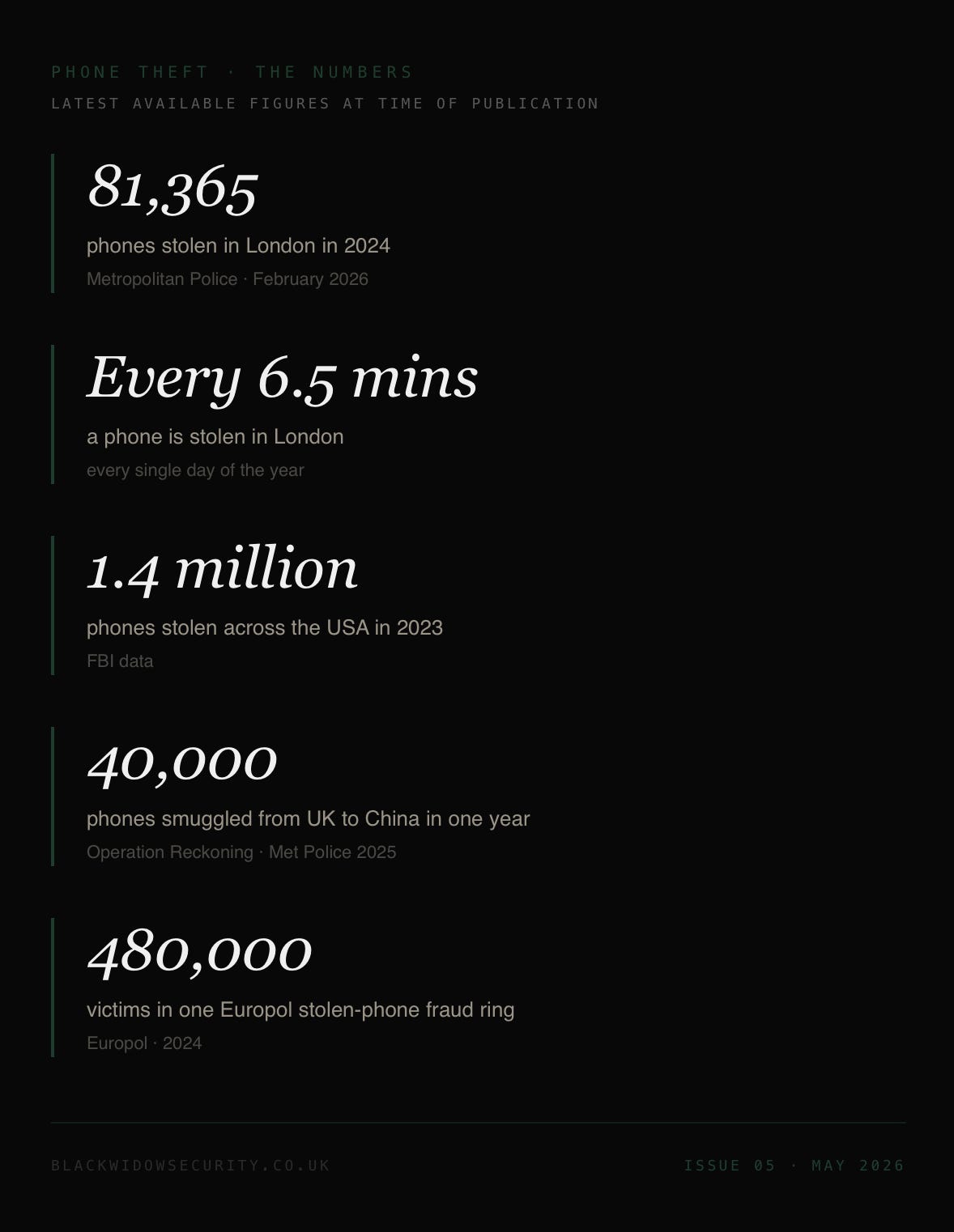
81,365 phones were stolen in London in 2024. That is roughly one every six and a half minutes, every single day of the year.
The Metropolitan Police confirmed those figures in an official press release in February 2026. In the same statement they reported that thefts fell to around 71,391 in 2025 following a year of targeted operations including Operation Swipe in the City of London, which saw a 40 per cent reduction in phone thefts in the Square Mile. During one week of action in February 2025 the Met seized 1,000 stolen phones and arrested 230 people.
That reduction is welcome. But over 70,000 phones stolen in a single city in a single year is not a solved problem. The House of Commons held a full parliamentary debate on mobile phone theft in July 2025. Members described it as a crisis.
London is the epicentre but it is not alone. Around 1.4 million phones were stolen across the United States in 2023. Latin America saw a 30 per cent increase in stolen device crime between early 2024 and early 2025, with Peru reporting over 1.7 million stolen phones in a single year. In 2024, Europol dismantled a phishing network affecting 480,000 victims worldwide that was built entirely on stolen devices.
The phones do not stay local. Operation Reckoning, the Metropolitan Police’s intelligence-led operation, disrupted a criminal network suspected of smuggling up to 40,000 stolen phones from the UK to China. The networks are international. The destination, as I can confirm from personal experience, is often Shenzhen.
What They Know That You Don’t
Snatch thieves are not opportunists in the casual sense. Many are operating as part of organised networks with specific knowledge of how iPhones work, what they are worth and how to neutralise your ability to track or lock them.
The first thing a professional phone thief will do is put your phone into Airplane Mode or power it off entirely. This cuts ‘Find My’ immediately. If your phone was unlocked when it was taken, they have a narrow window to make changes before they lose signal and they know exactly how to use it.
If your phone was locked, you may have been the victim of shoulder surfing before the snatch. A thief follows you, watches you enter your passcode, then makes the grab. With your passcode, a determined thief can access your Apple ID, disable Find My, change your account password and lock you out permanently before you have reached the next street corner.
Understanding this changes everything about how you approach the steps below. The goal is not just to lock your phone. The goal is to make it so that even with your passcode, a thief cannot access anything that matters.
Before It Happens
These settings take less than twenty minutes to configure. Most people will never do them until it is too late. Do them now, before you finish reading this.
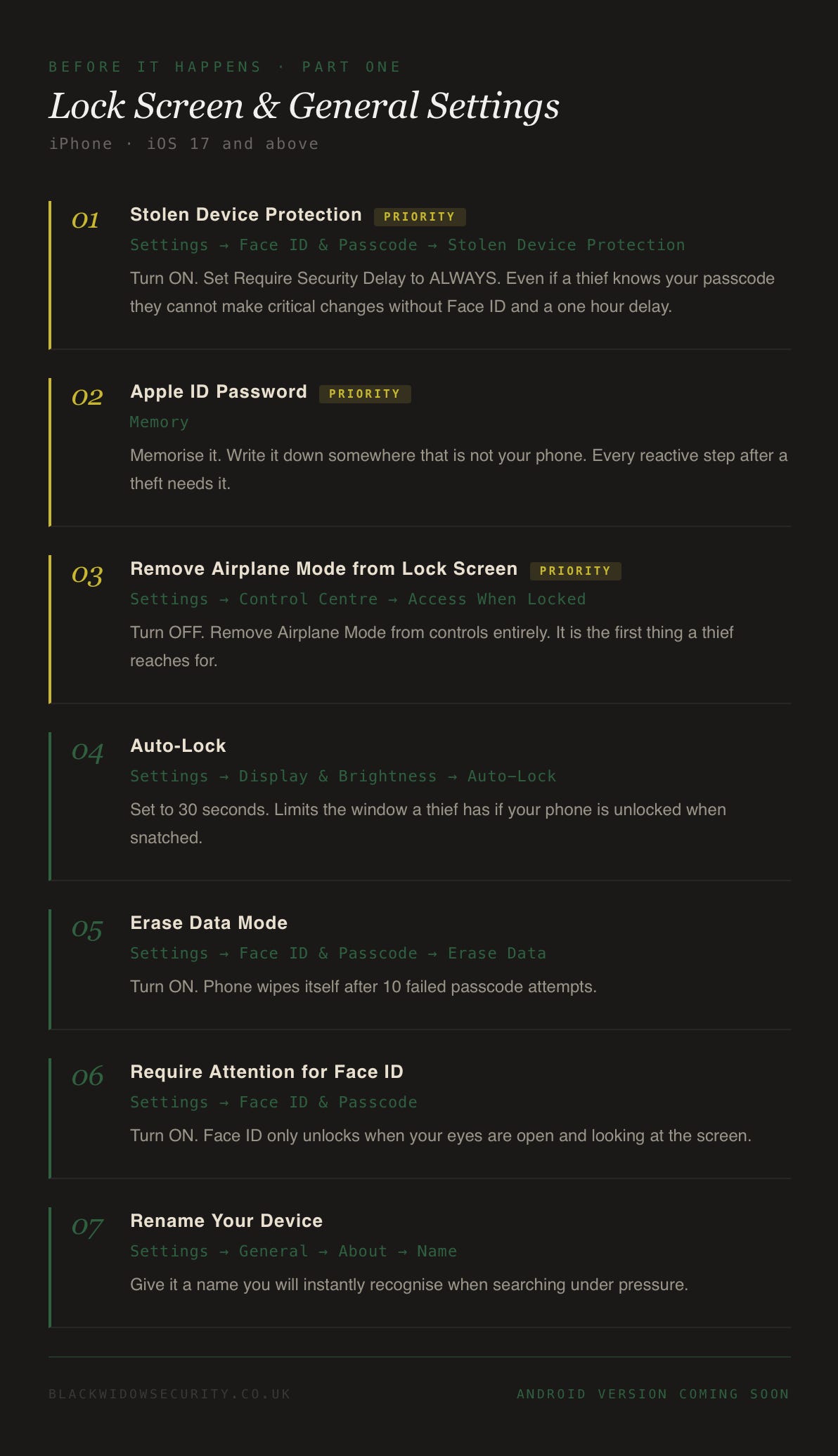
Know your Apple ID password off by heart. Every reactive step after a theft requires logging into iCloud from another device. If you do not know it, write it down somewhere that is not your phone.
Have a secondary device available. An old iPhone in a drawer, an iPad, a laptop — anything that can access icloud.com. When your phone is gone you need to act immediately from something else.
Rename your device to something obvious. Go to Settings, General, About and give it a name you will instantly recognise. When a phone is stolen you may have to search through a list of old devices in Find My under pressure.
Turn on Stolen Device Protection and set it to Always. Go to Settings, Face ID and Passcode, Stolen Device Protection and turn it on. Then change the Require Security Delay setting to Always. This is the single most important setting on this list. Even if a thief knows your passcode they cannot change your Apple ID password, disable Find My or access your saved passwords without Face ID and a mandatory one hour delay. There is no passcode fallback. Available on iOS 17.3 and above.
Disable Control Centre access from the lock screen. Go to Settings, Face ID and Passcode, scroll down to Allow Access When Locked and toggle off Control Centre. This prevents anyone from accessing Airplane Mode or any other Control Centre setting without first unlocking the phone with Face ID. This works on all current iOS versions.
Set Auto-Lock to 30 seconds. Go to Settings, Display and Brightness, Auto-Lock. If your phone is unlocked when it is snatched this limits the window the thief has before it locks itself.
Enable Erase Data Mode. Go to Settings, Face ID and Passcode, Erase Data and turn it on. After ten consecutive failed passcode attempts the phone wipes itself. A wiped phone that cannot be set up without your Apple ID credentials is worth very little to anyone.
Turn on Require Attention for Face ID. Go to Settings, Face ID and Passcode and enable Require Attention for Face ID. Face ID will only unlock when your eyes are open and looking at the screen.
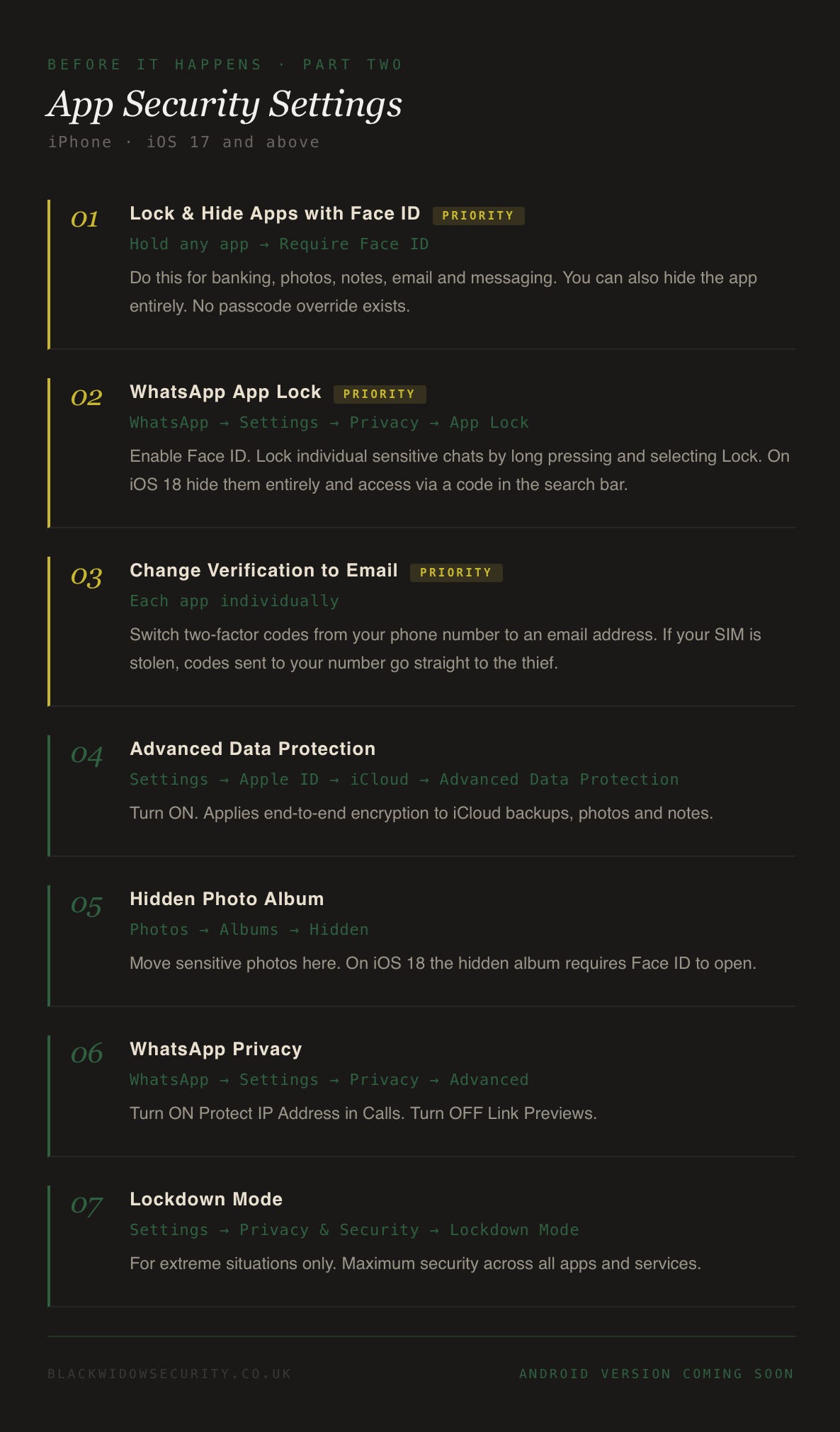
Lock apps with Face ID. On iOS 18, press and hold any app on your home screen and select Require Face ID. Do this for banking apps, photos, notes, email and messaging. Even if a thief knows your passcode they cannot open these apps. Note that you can lock all apps, but you can only fully hide third-party apps from your home screen — native Apple apps like Photos and Notes can be locked but will remain visible.
Change verification methods to email. For every app where possible change two-factor authentication codes to be sent to an email address rather than your phone number. When your SIM is in someone else’s hands any codes sent to your number go straight to them.
Lock WhatsApp. Open WhatsApp, go to Settings, Privacy, App Lock and enable Face ID. Lock individual sensitive chats by long pressing and selecting Lock. On iOS 18 you can also hide locked chats entirely, accessed by typing a code in the WhatsApp search bar. Also go to Settings, Privacy, Advanced and turn on Protect IP Address in Calls and disable link previews.
Move sensitive photos to the Hidden Album. On iOS 18 the hidden album requires Face ID to open regardless of whether the rest of Photos is accessible.
Enable Advanced Data Protection for iCloud. Go to Settings, your Apple ID, iCloud, Advanced Data Protection and turn it on. This applies end-to-end encryption to your iCloud backups, photos and notes. Even if someone accesses your iCloud account from another device the data is encrypted and unusable without your device credentials.
If It Happens - Act Fast
Speed matters here. Every step below should happen within the first hour if possible.
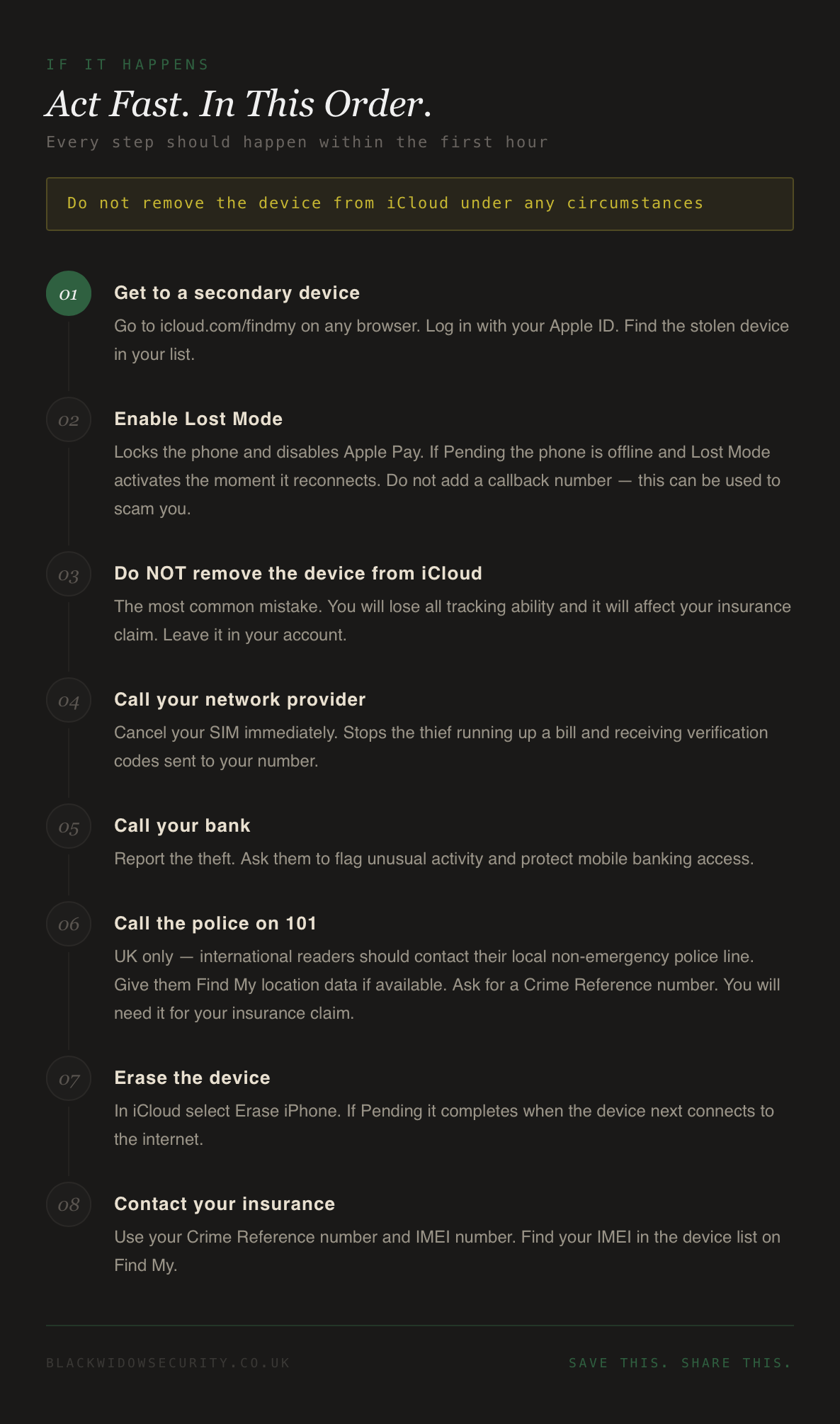
01 - Get to a secondary device and open iCloud. Go to icloud.com/findmy on any browser. Log in with your Apple ID. Go to Devices and locate your stolen phone.
02 - Enable Lost Mode. Click the stolen device and select Enable Lost Mode. This locks the phone and disables Apple Pay. If it shows as Pending the phone is offline and Lost Mode will activate the moment it reconnects. Do not add a callback number to the message. This can be used to scam you.
03 - Do not remove the device from iCloud. This is the most common mistake people make. Removing the device means you lose all ability to track it and it will affect your insurance claim.
04 - Call your network provider. Report the theft and ask them to cancel your SIM immediately. This stops the thief running up a bill and prevents them receiving verification codes sent to your number.
05 - Inform your bank. Call your bank, report the theft and ask them to flag any unusual activity.
06 - Call the police on 101 (UK only — international readers should contact their local non-emergency police line). Report the theft and give them any location data from Find My if the device is still pinging. Ask for a Crime Reference number. You will need this for your insurance claim.
07 - Erase the device. Once you have your Crime Reference number and have accepted that the phone is unlikely to be recovered go back to iCloud and select Erase iPhone. If it shows Pending the erase will complete the next time the device connects to the internet.
08 - Contact your insurance. Start the claims process with your Crime Reference number, your IMEI number and any screenshots of Find My tracking you may have saved.
The Scam Window
In the hours after a phone theft, while your emotions are running high, you are also a target. If you receive a call from someone claiming to have found your phone, a text with a link to track your device, or a call claiming to be from your bank, think before you do anything. These are well-documented scams that follow phone theft specifically. Your bank will not call you out of the blue. Apple will not text you a tracking link. Hang up and call the organisation directly on a number you find yourself.
What Changed in iOS 18
If you had read this guide in late 2024 it would have looked different. Three improvements are worth highlighting.
Stolen Device Protection is stronger. When set to Always there is no scenario in which a thief with your passcode can bypass Face ID to access sensitive settings, passwords or account details. The one hour security delay applies everywhere, not just when the phone is away from familiar locations.
Parts Activation Lock is new in iOS 18 for iPhone 12 and later. Apple has linked the components of iPhones including the display, battery and cameras to the original owner’s Apple Account by their individual serial numbers. When a repair shop installs a part from a stolen iPhone the device flags it and the part cannot be calibrated without the original owner’s credentials. This reduces the black market value of stolen phone components and the financial incentive to steal in the first place.
App locking and hiding is new in iOS 18. In previous versions there was no system-level way to lock individual apps behind Face ID. In iOS 18 you can lock any app so it requires Face ID to open, and third-party apps can be hidden entirely from your home screen and app library.
One More Thing
Not every stolen phone makes it to Shenzhen.
If a thief grabs a phone and realises quickly that they cannot get past the lock screen, or that Lost Mode has already kicked in, they will often throw it. Phones also get dropped in the snatch itself, particularly when the grab does not go cleanly. Either way the result tends to be the same. A phone that survived the theft does not always survive landing on the pavement at speed.
In my experience a cracked or smashed screen is frequently what finishes a phone off after a theft, not the theft itself. This is part of why I built the BWS shop.
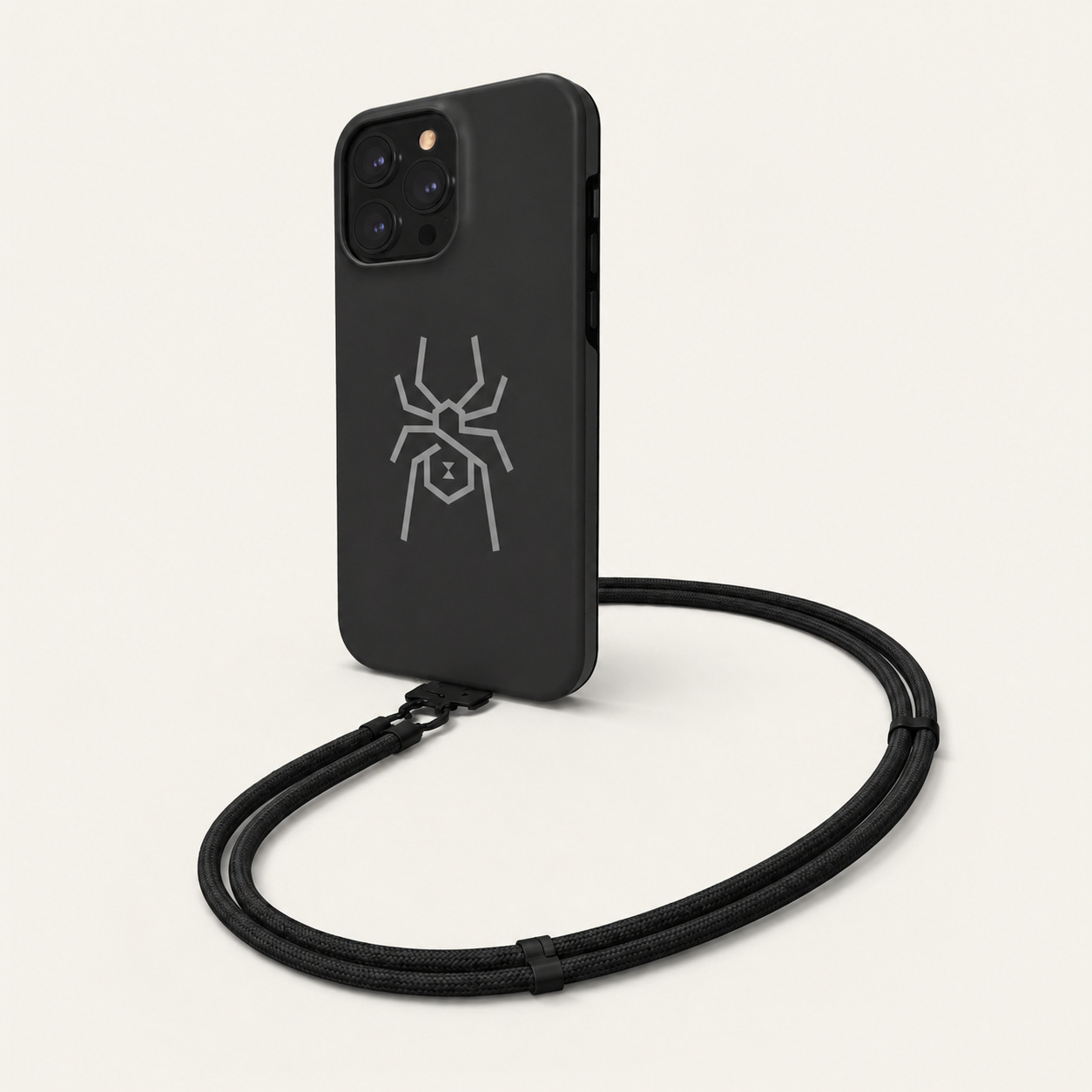
The Bodyguard Case is a hardened case designed to take real impact. It will not stop someone grabbing your phone but it gives the device a much better chance of being in one piece if it is dropped, thrown or recovered.
The Field Strap keeps your phone tethered to your body. A grab on a moving bike depends on a clean, unobstructed pull. A strap changes that equation and buys you a moment to react.
Both are available in the collection at blackwidowsecurity.co.uk
This guide is based on personal experience and independent research. Settings may vary by device and iOS version.
Always verify steps with Apple Support if you are unsure.
Safety and Security. From someone hired to protect.
This Substack is reader-supported. To receive new posts and support my work, consider becoming a free or paid subscriber.

Comments
Nothing yet. Say the first thing.
Sign in to join the conversation.