
To ensure your AI-generated logos are versatile and scalable for various applications, converting them to vector format is essential. Let's explore how to create stunning AI logos and transform them into high-quality vector graphics.
AI logo generators have democratized design, allowing entrepreneurs, small business owners, and creators to bypass expensive design services. These tools use machine learning algorithms to understand design principles and create logos based on simple prompts or parameters you provide.
The benefits include:
Cost-effectiveness compared to hiring professional designers
Quick turnaround times (often within minutes)
Multiple design options to choose from
Customization capabilities without design skills
Unique results that avoid template-based limitations
Several platforms offer AI-powered logo creation, each with unique strengths:
Midjourney: Known for artistic and creative outputs with high aesthetic quality
Ideogram: Excellent for unique and text based designs
Logo Diffusion: Great for customizable and detailed logo generation
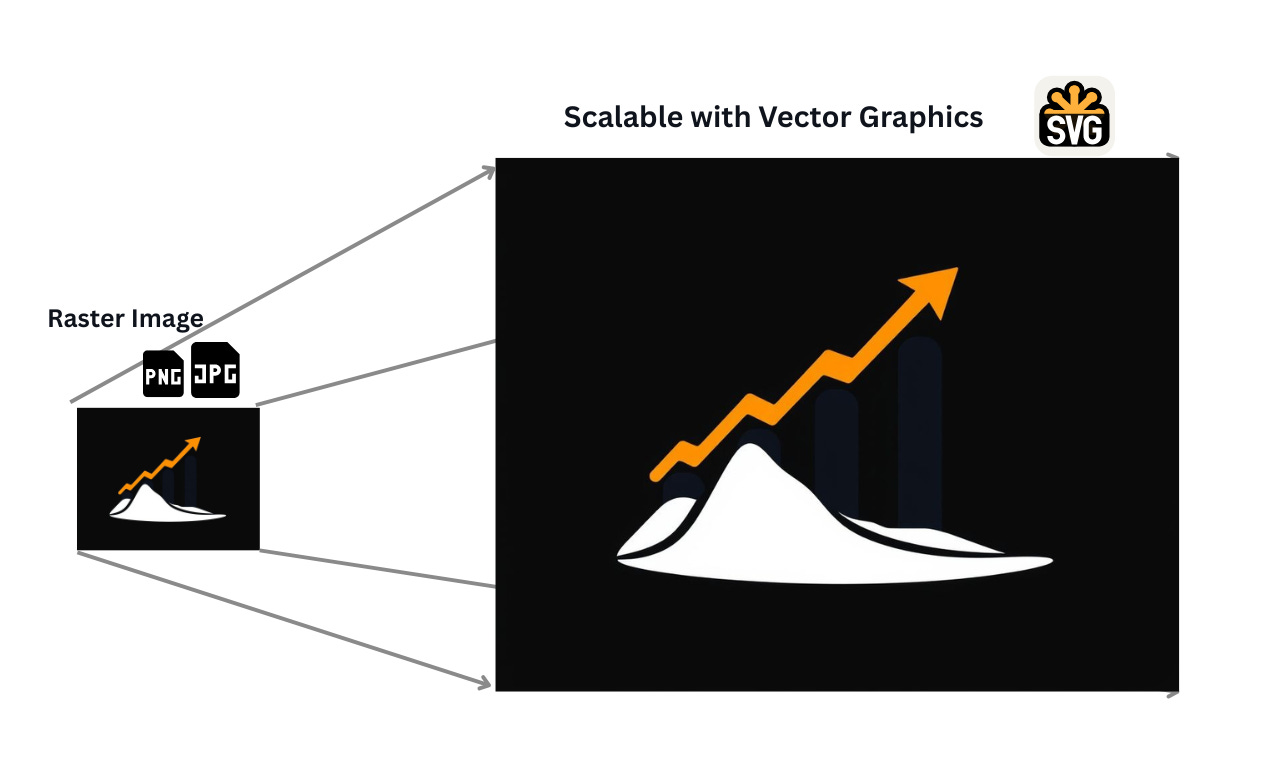
While AI tools typically generate raster images (like JPGs or PNGs), vector graphics offer significant advantages:
Infinite scalability: Vector images can be enlarged without losing quality
Smaller file sizes: Vector files are often more compact than high-resolution rasters
Easy editing: Individual elements can be modified without affecting the whole design
Versatility: One vector file works for business cards, billboards, and everything in between
Print-ready: Professional printers require vector formats for best results
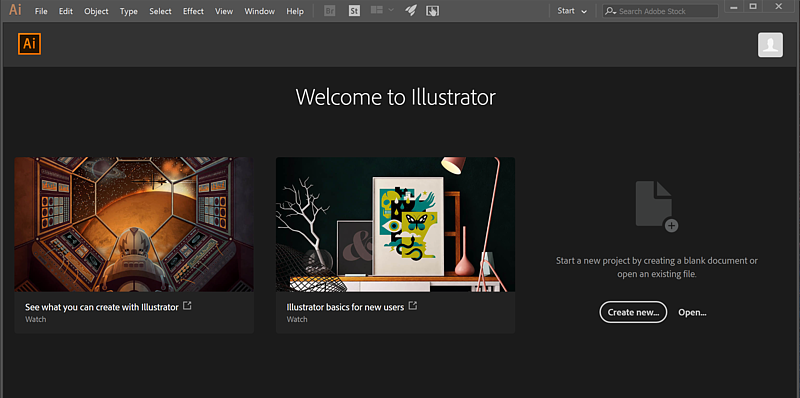
Adobe Illustrator is the industry standard for vector work:
Open your AI-generated logo in Illustrator
Use the Image Trace function (Object > Image Trace)
Adjust settings for optimal results (try "Shades of Gray" for simple logos)
Click "Expand" to convert to vector paths
Clean up unnecessary points or paths
Save as .AI, .EPS, or .SVG file
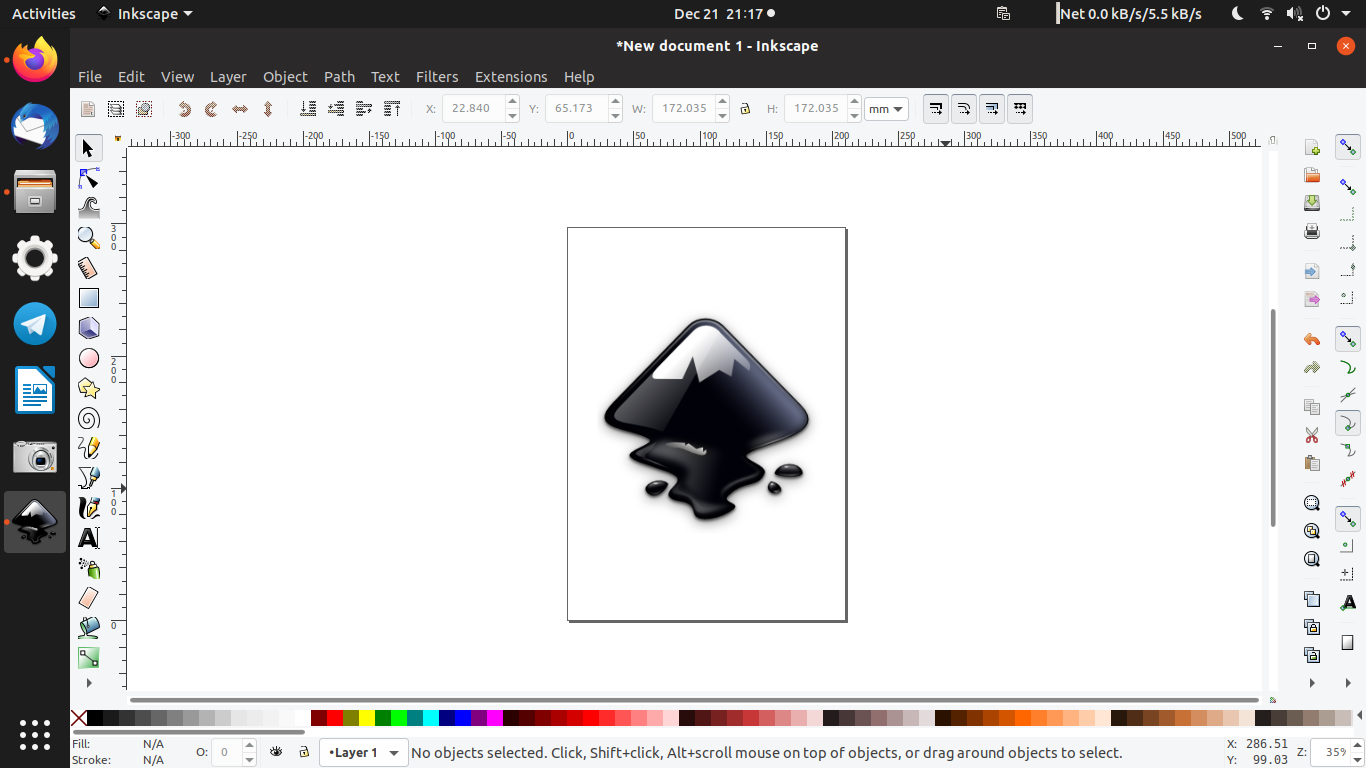
Inkscape offers a free solution for vector conversion:
Import your logo into Inkscape
Select the image and use Path > Trace Bitmap
Experiment with different trace options
Click "OK" to generate vector paths
Refine the results as needed
Export as .SVG file
For quick conversions, consider these online tools, Most of them are paid but it ultimately comes down to that quote “you get what you pay for“:
Vectorizer.ai(Most accurate): Offers AI-powered conversion with adjustable settings
Svgconverter.app: Simple interface with multiple export options
Adobe Express Online Raster to SVG converter: Provides quality conversions with attention to detail.
To ensure the best results when converting AI logos to vector format:
Start with high-resolution images: The clearer your original logo, the better the vector conversion
Simplify complex designs: Logos with fewer details convert more cleanly
Use solid colors: Gradients and shadows can be challenging to vectorize
Adjust tolerance settings: Higher settings capture fewer details but create smoother paths
Manually refine: After automatic conversion, clean up paths and anchor points manually in tools like illustrator, inkscape or online tool like photopea.
AI-generated logos represent an exciting development in design accessibility, but converting them to vector format is what truly unlocks their professional potential. By following the methods outlined above, you can ensure your AI-created branding assets are ready for any application, from digital platforms to physical merchandise.
Remember that while AI tools can generate impressive designs, the human touch in refining and vectorizing these logos often makes the difference between an average result and a truly professional brand asset.
Whether you're a solopreneur launching a new venture or a designer looking to streamline your workflow, mastering the process of converting AI-generated logos to vector format will serve you well in today's visually-driven business landscape.
Comments
Nothing yet. Say the first thing.
Sign in to join the conversation.