

Several weeks ago, while I’m working on a side project that required some specific system packages, I listened to an old episode of “Tranches de Tech” (a French Podcast) in which they quickly talked about Dev Containers.
In my side project I use a docker container to test my developments to avoid to install specific system packages on my local machine.
When I listened this podcast, it was not the first time I heard about Dev Container, but it spark in my brain that was the moment to try it out in my side project.
In this post, I will first describe my usual dev environment, next I will resume what is Dev Container and to finish I will explain how I replicate my dev environment using Dev Container.
Depending on the language I’m using, I primarily work with two IDE : VSCode and Intellij. In this post, I focus on VSCode.
First of all, a quick word about how I organise my projects on my laptop. Out of habit, I store my “devs” into a ~/dev folder. Inside this folder I organise projects like they are on the remote git server using the url hostname of the server as root folder.
So the pattern is : ~/dev/<remote server url hostname>/<path>/<to>/<repository>
“<path>/<to>” is mainly the organisation with a depth of one but if you use projects, the depth could be deeper.
For example:
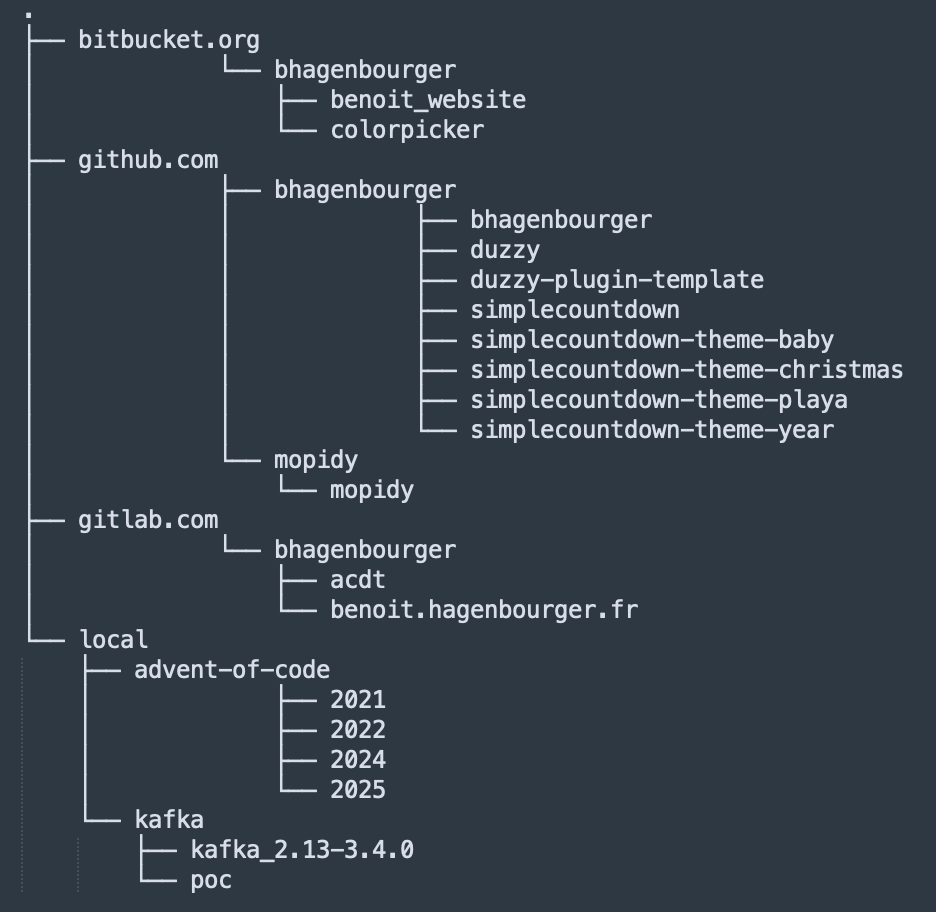
The “local” folder is the place for POC, tests or scripts that are not synchronised with a remote repository.
Now that my projects are properly organised, let’s speak about customising my terminal.
I have my habits with zsh (https://www.zsh.org), oh-my-zsh (https://ohmyz.sh) and the Powerlevel10k (https://github.com/romkatv/powerlevel10k).
I use the terminal in the IDE and outside (using iTerm) so I like to have the same configuration in both.

First of all I use a global gitignore file named “~/.gitignore_global“ in which I specify files to exclude for all my projects. This is mainly files related to the system or the IDE.
The content of my “.gitignore_global” file is :
.DS_Store
.idea/*
.vscode/*
To add this global gitignore file to your git configuration you can use the command “git config --global core.excludesfile ~/.gitignore_global“.
In my .gitconfig, I also setup my name, my email address, commit signing settings and the editor to use for modifying commit messages (vim). So my “~/.gitconfig” file looks like that:
[user]
	name = my_name
	email = my_email@address.com
	signingkey = XXXXXXXXXXXXXXXX
[core]
	editor = vim
	excludesfile = ~/.gitignore_global
[commit]
	gpgsign = true
[credential]
	helper = osxkeychain
In addition to git, I use “tig” which is a “git interface” directly into the terminal. (https://jonas.github.io/tig)
Year after year, IDE after IDE, language after language I ended up creating a custom keymap. By reflex, my fingers press certain shortcuts and when I haven’t configured any, I realise how important habits are for productivity.
So now, I use the same keymap accross all my IDE (mainly Intellij and VSCode) and for all the languages I use.
Here are some shortcuts I typically use (with an AZERTY keyboard on mac):
Comment all or line: cmd+:
Toggle column selection: cmd+shift+!
Format: cmd+shift+l
Organize imports: alt+shift+o
Navigate back: alt+cmd+left
Navigate forward: alt+cmd+right
To improve code completion, bug fixing and chat within the IDE I primarily use the Github Copilot extension.
I use Gemini CLI, not within my IDE but directly into the terminal with iTerm, to generate boilerplate code or to bootstrap a feature.
I also use Gemini chat, directly into the browser, to ask some questions.
Dev Container as a configurable, configurable and reproducible development environment that lives inside a Docker container but feels like your local machine.
Instead of installing some specific packages on your own machine, you define your entire development environment in a few configuration files located in your project folder, then everything runs within a container.
Your VSCode runs on your local machine but connects to the container. Your files are synchronised, your extensions are installed in the container, and your terminal runs in that environment.
The official documentation of Dev Container can be found here : https://containers.dev/overview
To enable that, you need to install the Dev Container Extension in VSCode. You can do it using the Extension Marketplace or using this command in your terminal:
code --install-extension ms-vscode-remote.remote-containersNow you know my habits regarding my dev environment and what is Dev Container I will explain how I reproduce it using Dev Container and VSCode.
By default, your workspace folder is mounted and synchronised within the container.
You are able to customise the workspace folder within the container with the “workspaceFolder“ variable, by default is “/workspace”.
You are able to customise the local workspace to mount with “workspaceMount“ variable.
So, the default configuration suits me perfectly is enough for me and I’m able to keep my local hard drive organised as I want to.
First I need to install “zsh”, “oh-my-zsh” and some zsh plugins into my container. I’m using Dev Container Features to do that:
  "features": {
    "ghcr.io/devcontainers/features/common-utils:2.5.6": {
      "installZsh": true,
      "installOhMyZsh": true,
      "installOhMyZshConfig": true,
      "configureZshAsDefaultShell": true,
      "username": "vscode"
    },
    "ghcr.io/devcontainers-extra/features/zsh-plugins:0": {
        "plugins": "zsh-autosuggestions zsh-syntax-highlighting",
        "omzPlugins": "https://github.com/zsh-users/zsh-autosuggestions.git https://github.com/zsh-users/zsh-syntax-highlighting.git"
    }
  }
Next, I need to install powerlevel10k. I decided to use a custom script to do that. In my “devcontainer.json” file I have configured the link to the custom script:
"postCreateCommand": ".devcontainer/scripts/post-create.sh",In this custom script I installed powerline fonts, powerlevel10k theme, copied my zsh config (.zshrc) into the container and copied my powerlevel10k (.p10k.zsh) into the container. The content of “.devcontainer/scripts/post-create.sh” is:
#!/bin/bash
##################################################
# Config ZSH
##################################################
# powerline fonts for zsh theme
git clone https://github.com/powerline/fonts.git
cd fonts
./install.sh
cd .. && rm -rf fonts
# oh-my-zsh plugins
zsh -c 'git clone --depth=1 https://github.com/romkatv/powerlevel10k.git ${ZSH_CUSTOM:-~/.oh-my-zsh/custom}/themes/powerlevel10k'
cp .devcontainer/dotfiles/.zshrc ~
cp .devcontainer/dotfiles/.p10k.zsh ~
To finish I need to customise the terminal within the container :
"customizations": {
    "vscode": {
      "settings": {
        "terminal.integrated.fontFamily": "MesloLGS NF",
        "terminal.integrated.fontLigatures.enabled": true,
        "terminal.integrated.defaultProfile.linux": "zsh",
        "terminal.integrated.profiles.linux": {
            "zsh": {
                "path": "/bin/zsh"
            }
        }
      }
    }
  }
Because I used to work with a highly customised terminal, I think is the part that took me the longest to setup. But by the end, I managed to reproduce my local terminal experience into the container.
By default, the “~/.gitconfig“ file is mounted into the container.
But if you remember, I use a global gitignore file. This file is not mounted into the container by default, so I need to add it into my “devcontainer.json“ file configuration like that:
"mounts": [
"source=${localEnv:HOME}/.gitignore_global,target=/home/vscode/.gitignore_global,type=bind,consistency=cached",
]
Another important point, you must defined the relative path (and not the absolute one because it could be different between your host and the container) to your gitignore global file into the “.gitconfig” file : “excludesfile = ~/.gitignore_global“.
For “tig” and “vim”, I installed them into the container using this configuration into the “devcontainer.json” file:
  "features": {
    "ghcr.io/devcontainers-extra/features/apt-get-packages:1": {
        "packages": ["tig", "vim"]
    }
  }
Next, I configured my local SSH Agent to be able to share my SSH key with the container.
To do that, first I uncommented the line “AllowAgentForwardin yes“ in my “/etc/ssh/sshd_config“ and restarted sshd service using this command “sudo launchctl kickstart -k system/com.openssh.sshd“.
After I started the agent because was not running: “eval “$(ssh-agent -s)”“ and added my key “ssh-add --apple-use-keychain ~/.ssh/id_rsa“.
If you want to persist this configuration, you can add the content below into your “~/.zprofile” file:
if [ -z "$SSH_AUTH_SOCK" ]; then
   # Check for a currently running instance of the agent
   RUNNING_AGENT="`ps -ax | grep 'ssh-agent -s' | grep -v grep | wc -l | tr -d '[:space:]'`"
   if [ "$RUNNING_AGENT" = "0" ]; then
        # Launch a new instance of the agent
        ssh-agent -s &> $HOME/.ssh/ssh-agent
   fi
   eval `cat $HOME/.ssh/ssh-agent` > /dev/null
   ssh-add --apple-use-keychain ~/.ssh/id_rsa 2> /dev/null
fi
You can find more documentation about the SSH key here: https://code.visualstudio.com/remote/advancedcontainers/sharing-git-credentials#_using-ssh-keys
Using this configuration, git works into the container like on my local machine.
As the “front” VSCode is the same with Dev Container than without Dev Container I have kept my custom keymap without doing anything.
For my usage of Gemini chat directly into the browser, it’s not a topic for Dev Container : I continue to use it into the browser.
For my usage of Gemini CLI into my Terminal (iTerm), everything works fine as source code is automatically synchronised between my local machine and the container.
For the Github Copilot extension, I needed to setup it into my “devcontainer.json“ file configuration by adding this section :
"customizations": {
    "vscode": {
      "extensions": [
        "github.copilot-chat",
      ]
}
With this configuration, it’s ok, I can use AI Coding assistants with Dev Container like on my local machine.
Let’s recap, here the full content of my “devcontainer.json“ file is:
{
  "name": "Example Dev Container",
  "build": {
    "dockerfile": "docker/Dockerfile"
  },
  "remoteUser": "vscode",
  "mounts": [ "source=${localEnv:HOME}/.gitignore_global,target=/home/vscode/.gitignore_global,type=bind,consistency=cached"
  ],
  "features": {
    "ghcr.io/devcontainers/features/common-utils:2.5.6": {
      "installZsh": true,
      "installOhMyZsh": true,
      "installOhMyZshConfig": true,
      "configureZshAsDefaultShell": true,
      "username": "vscode"
    },
    "ghcr.io/devcontainers-extra/features/zsh-plugins:0": {
        "plugins": "zsh-autosuggestions zsh-syntax-highlighting",
        "omzPlugins": "https://github.com/zsh-users/zsh-autosuggestions.git https://github.com/zsh-users/zsh-syntax-highlighting.git"
    },
    "ghcr.io/devcontainers-extra/features/apt-get-packages:1": {
        "packages": ["tig"]
    }
  },
  "postCreateCommand": ".devcontainer/scripts/post-create.sh",
  "customizations": {
    "vscode": {
      "extensions": [
        "github.copilot-chat",
        "ms-python.python",
        "ms-python.debugpy",
        "ms-python.vscode-python-envs",
        "ms-python.vscode-pylance"
      ],
      "settings": {
        "terminal.integrated.fontFamily": "MesloLGS NF",
        "terminal.integrated.fontLigatures.enabled": true,
        "terminal.integrated.defaultProfile.linux": "zsh",
        "terminal.integrated.profiles.linux": {
            "zsh": {
                "path": "/bin/zsh"
            }
        }
      }
    }
  }
}
I believe I have explained most of the sections of this file in this article, but there are still a few points to clarify:
“build”: I use a custom DockerFile to create the container in which I installed some specific packages needed by my project to keep my “devcontainer.json“ file as generic as possible, but you can use a “standard image” and installed your dependencies by configuring your “devcontainer.json“ file. You can also use a Docker Compose file, it could be useful if your project need several services like a webserver, a database, a cache, …
“remoteUser“: I use a specific user inside the container to avoid to use “root”, you are free to choose the name of this user.
You can also notice I added some Python extensions in my VSCode.
In addition to my favorite LLM, I read some articles about Dev Containers to help me to configure my environment.
I share with you these links:
The official Dev Container website: https://containers.dev
The list of official Dev Container features: https://containers.dev/features
A very good article (in French) to understand the concept of dev container: https://blog.stephane-robert.info/docs/developper/autres-outils/ide/visual-studio-code/devcontainers
A nice article to setup powerlevel10k theme into a Dev Container : https://www.josephguadagno.net/2025/03/27/add-and-customize-oh-my-zsh-in-a-linux-development-container
Documentation to configure your SSH key: https://code.visualstudio.com/remote/advancedcontainers/sharing-git-credentials#_using-ssh-keys
The side project that inspired this article is on my GitHub; you will find my entire Dev Container setup there: https://github.com/bhagenbourger/mopidy-jugobox
To conclude, I’m happy with my Dev Container setup. It’s easy to understand and setup, fully customisable and I’m able to work on a project requiring specific system packages without impacting my local machine.
But for now, I’m only using it for a side project. In order to be able to work as a team on the same configuration, I need to find a way to provide a generic configuration with the minimum project requirements, while still allowing each developer to customise it.
I hope this article has taught you something and inspired you to use Dev Container. Give it a try!
No posts
Comments
Nothing yet. Say the first thing.
Sign in to join the conversation.