
You open Substack for the first time and wonder if you missed the meeting.
When you land on Substack.com (desktop), it looks like a mix of:
a feed of posts from other writers
a menu on the left
a big orange button telling you to start already, dammit
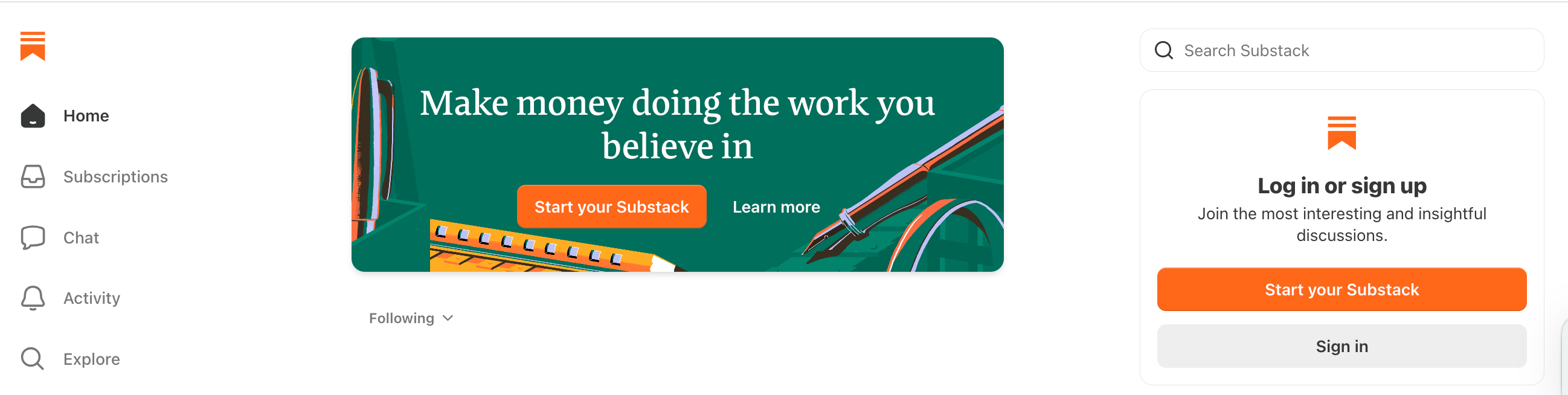
Here’s what matters:
Left sidebar:
Home → your feed
Subscriptions → what you’re subscribed to
Chat → messages (ignore for now)
Activity → notifications
Explore → find new writers
Profile → your account
And the most important button: 👉 Create (orange button on the left, once you’re inside). The good news is you don’t need to use everything, so breathe.
💥 Shout-out to my exclusive advertising sponsor, the always-free Booklinker (universal book links—so helpful!), and the paid tool, GeniusLink. I love both💥 (affiliate link).
Substack is fairly easy to use once you understand what everything means. Getting to that point can be another story. Before we start setting things up, let’s translate Substack speak into regular talk.
Profile: Your personal identity on Substack. Includes your name, photo, bio, Notes, followers, and activity. NOT your publication.
Publication: Your newsletter and website. It contains your Articles, About page, archive, subscriber list, and publication settings. You create your own publication, nested inside of Substack’s larger ecosystem.
Article: A longer post published on your publication website that can also be emailed to your subscribers and delivered to their Substack app inbox. Also considered a newsletter or a post, just for funsies.
Note: A short, public post that appears in the Substack feed. Think of it as Substack’s version of a social media post.
Chat: A more private conversation space connected to your publication where you can communicate with subscribers; not publicly visible.
Comment: A response someone leaves beneath one of your Articles.
Follower: Someone who follows your Substack activity but has not joined your email list.
Free subscriber: Someone who has opted in with an email address and joined your publication free.
Paid subscriber: Someone who pays to support your work, receive benefits, access paid content, or some combination of the three.
Section: A separate newsletter inside your main publication.
I’ll explain several of these in more detail below. For now, the most important distinction is this: your profile is you, while your publication is the newsletter and website you create.
They’re connected, but they aren’t the same thing, because apparently one online identity per person is no longer enough.
Go to Substack.com and click Create account. Enter your email address and follow the instructions. You’ll be asked to add your name, profile photo, and a short bio. This creates your personal Substack profile.
Your Profile name: Jane Smith
Once you have an account, you can create a publication where your longer Articles will live. Substack walks you through the current process in its guide to creating your first publication.
Your publication name is the name readers will see in your newsletter and on your Substack website. You can use your own name, business name, book series, or something related to your main subject. Mine is BadRedhead Media’s All Things Book Marketing, so you know what I’m about right away.
Choose something that gives people some idea of what you write about. Your publication name and web address are also different:
Publication name: Jane Smith’s Mystery Book Corner
Web address: janesmithssmysterybookcorner.substack.com
Once you’ve created your publication, go to your Publisher Dashboard and open Settings. You’ll manage most of your publication from here.
Add one or two sentences explaining what you write about, who you write for, and why someone might want to subscribe. For example: Book recs, author interviews, and behind-the-scenes stories for readers who can never have too many books.
Don’t try to squeeze your entire life, career, book catalog, and personal philosophy into this little space. You can say more on your About page. Your description only needs to help someone understand where they’ve landed and whether to stay.
In Settings, look for the category choices under Basics. Select the category that most closely matches the main focus of your publication. You can also choose a secondary category. As of this writing, Substack allows you to choose from 31 categories.
(Most writers end up in Fiction, Literature, Education, Business, or Culture.)
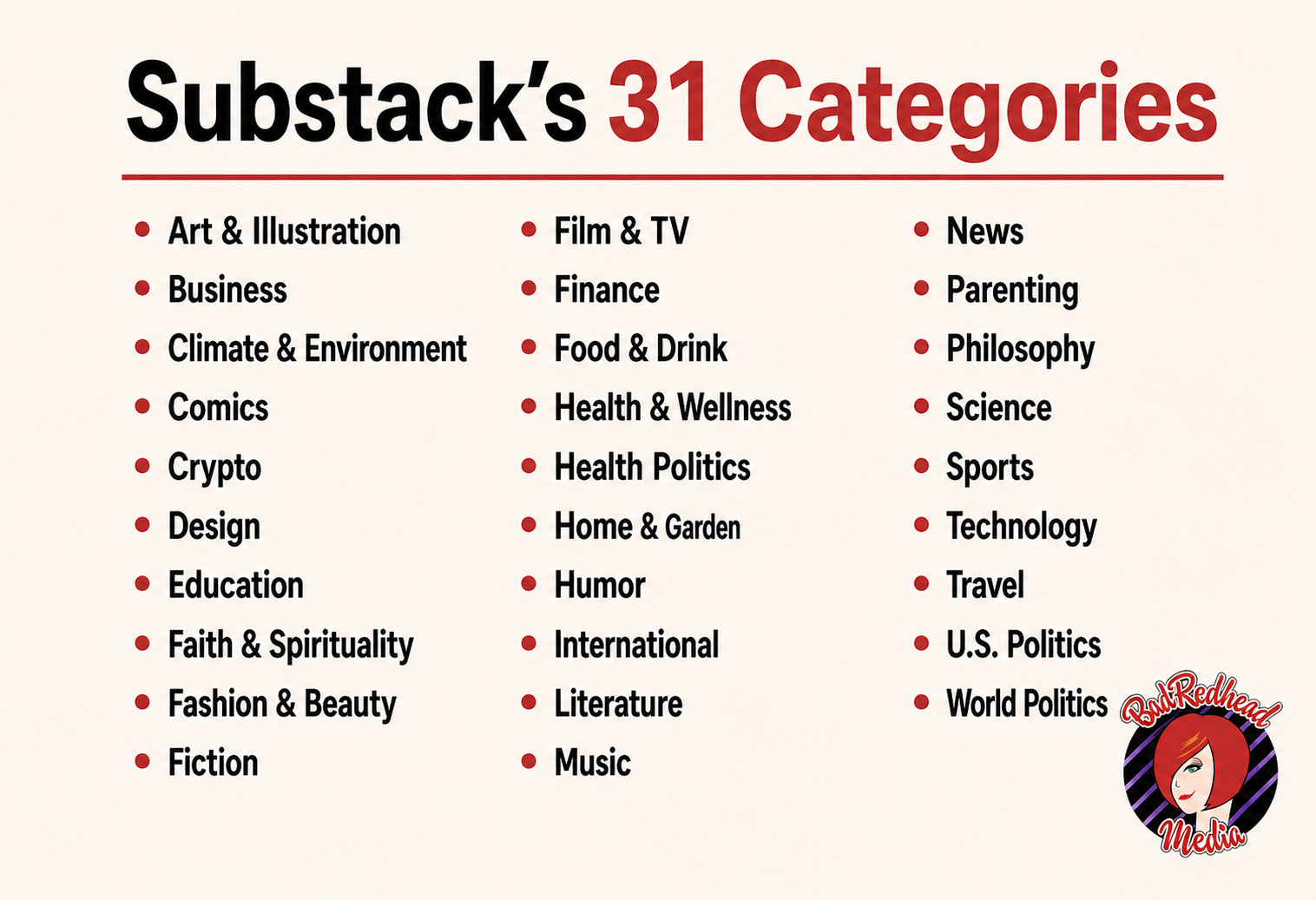
Your two category choices help Substack understand what you write about and may help readers find you through search and discovery areas on the platform.
You don’t need a category for every subject you occasionally mention. If you mainly write about books but sometimes discuss your cat, choose the appropriate book-related category. (Pip wants to know why there’s no Cat category. Dude, no clue.)
Your primary category is the more important choice. If your publication qualifies for a category leaderboard, it will be listed only under that primary category.
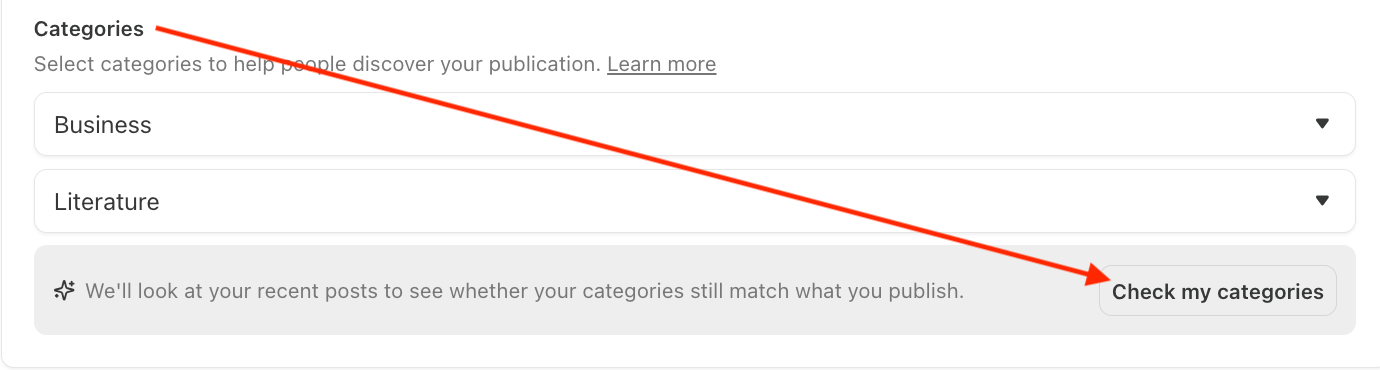
NEW Category Checker: You can read Substack’s current instructions for choosing your publication categories. New category checker in settings:
Only everything. Substack’s category leaderboards currently include two lists:
Top 100 Rising in Category: Publications experiencing the fastest paid-subscription growth in that category
Top 100 Category Bestsellers: The highest-earning publications in the category, ranked by annual recurring revenue
A publication can appear on both lists, but only under one category at a time. The Rising rankings update every few hours, while the Top Bestseller rankings update daily.
👉 Here’s the part many writers miss: category leaderboards are based on paid subscriptions, not the size of your free subscriber list.
You can have thousands of free subscribers and a thriving publication without ever appearing on a category leaderboard. To become eligible, you need to enable paid subscriptions and gain paying subscribers. Rankings are automated, and Substack notifies you if your publication appears in the rankings. Official guide to Substack leaderboards.
No. You can publish on Substack and build or import a free email list without ever enabling payments.
‼️ Turning on paid does not mean you must place your Articles behind a paywall. Paid subs and paywalls are two different things. You can enable paid subscriptions while leaving all your content free, as I do.
Paid subs can also make you eligible for other Substack features—Substack’s Creator Kit is currently available to Bestseller publications and those with at least 100 paid subscribers. Don’t turn on paid solely because of leaderboards and badges, though, but because you want to (or don’t).
Upload a clear image that represents your publication, like a headshot, biz logo, or book cover. I find the Facebook Page banner size fits nicely here.
You don’t need a branding package, a photo shoot, or emotional-support goldfish to start. Substack explains here customizing your publication’s theme.
Your About page tells people who you are, what you write about, and what they’ll receive if they subscribe. Go to: Settings → Website → About page → Edit.
Your About page should sound like you’re welcoming readers, not a 30-minute CV. Substack has instructions for editing your About page.
Your navigation bar is the menu at the top of your publication’s website (not viewable on mobile because that makes sense). Default tabs:
Home
Archive
About

Those are enough when you’re starting. Add sections, custom pages, podcasts, outside links, or Chat later. People need to find your Articles and learn who you are. You aren’t building the Library of Congress. Yet.
Substack explains how to organize your navigation bar. One important annoyance: your navigation bar is much easier to see and use on your desktop website. Just for fun, readers using the Substack mobile app won’t experience your publication website or its menu the same way.
Your welcome email is sent automatically when someone subscribes. Please don’t ignore it and leave whatever generic language is sitting there. This is the first email a new subscriber receives from you.
Go to Settings, find the Emails section, and choose the welcome email you want to edit. Substack may show separate welcome emails for free, paid, imported, and founding subscribers, depending on how you set up your publication.
Your first free-subscriber welcome email can be simple:
Thank you for subscribing! I write about [your topic] and usually publish [how often]. I’m glad you’re here.
But, ya know, with jazz hands. Later, you can add links to your books, website, services, or favorite Articles. For now, make sure the information is accurate and sounds like you, as this is your first intro to subscribers.
Substack explains how to set up your welcome emails.
Now that you know the basic definitions, here’s how these features work and when you might use them.
An Article is a longer piece published on your Substack website. You can send it directly to subscribers by email and through the Substack app inbox.
Articles work well for essays, newsletters, book updates, interviews, announcements, educational content, and anything else you want readers to find later.
These are the posts that live in your publication’s archive. They’re also the content you’ll usually spend more time formatting, optimizing, and checking before you hit Publish. Articles are also sent as newsletters to opt-in email subscribers.
A Note is a short, public post. It’s the closest thing Substack has to social media.
Notes can include text, photos, videos, links, quotes, and other Substack posts. People can like, reply to, and restack them.
Notes appear in the Substack Home, Activity feed, and on your profile.
Chat is a conversation space connected to your publication. Unlike public Notes, Chat is intended for conversations with your subscribers. Use it to ask a question, share an update, start a book discussion, or let readers talk with one another.
You don’t need to use Chat when you begin. It’s an optional community feature, not another content baby chick demanding to be fed. Substack explains the difference between Notes and Chat.
Comments are responses people leave beneath a particular Article or Note. You can choose who is allowed to comment when you publish. You also now create and post your own reply rules.
Comments stay attached to that Article or Note.
A follower may see your Notes, likes, and some of your other activity in the Substack Home feed. Following you does not put that person on your email list because, by law, a reader must be able to opt in (and out) easily.
A free subscriber has given you an email address and joined your publication. They can receive your free Articles by email, through the Substack app, or both. This distinction matters, because followers can help you become more visible on Substack, but subscribers are the people who have joined your email list.
Substack provides a more detailed explanation of how following works.
You can keep your publication completely free or enable paid subscriptions. Substack’s standard paid options are:
Monthly subscriptions (can’t be less than $5/month), annual subscriptions, and founding memberships let readers pay a higher annual amount to support your work
Give yourself time to publish, attract readers, and decide what you’re willing to offer before promising twelve benefits a month and accidentally creating a second job you hate.
Here’s Substack’s current guide to setting up paid subscriptions.
Sections are additional newsletters within your main publication. An author might have one for writing advice, another for book news, and another for personal essays. I created a Substack Tips Section here.
Substack explains how to create sections within a publication.
A Note is the easiest thing to publish:
Log in to Substack.
Go to the Home tab.
Click Create.
Select Note.
Type or paste your message.
Add a photo, video, link, or shared Substack post if you want.
Click Post.
Your Note will appear in the Substack Activity feed and on your profile. It will not be delivered as a regular newsletter email, nor is it indexable by Google/AI Search (as of this writing, anyway). You can also schedule them in.
Substack has additional instructions for publishing and managing Notes.
An Article is a longer post that appears on your publication website and can be emailed to your subscribers.
Log in to Substack and go to your publication’s Dashboard.
Click Create and select Article.
Add your title.
Type or paste your Article into the editor.
Add a subtitle and featured image if you have them (or choose from the provided royalty-free Unsplash.com option on the toolbar).
Preview your Article and check the formatting.
Click Continue.
Choose your audience. Select Everyone if the Article should be available to everyone for free.
Choose who can comment.
Add relevant tags.
Make sure Send via email and Substack app inbox are selected if you want subscribers to receive it.
Publish immediately or schedule for later.
Neat tip: Substack automatically saves your Article as a draft while you work.
Before publishing, I recommend sending yourself a test email. Something can look lovely in the editor and then arrive in your inbox wearing one shoe. Substack instructions for publishing an Article.
Before publishing your first Article, make sure you’ve:
Added your name, bio, and profile photo
Created and named your publication
Written a short publication description
Selected your primary and secondary categories
Uploaded your publication images
Completed your About page
Checked your website menu
Updated your welcome email
Set your Article for Everyone if it should be free
Previewed the Article and checked its delivery settings
Set up the basics, publish your first Article, and learn the rest when you need it. Substack will still have plenty of buttons waiting to confuse you another day.
How does this all land for you? Thoughts and comments welcome.
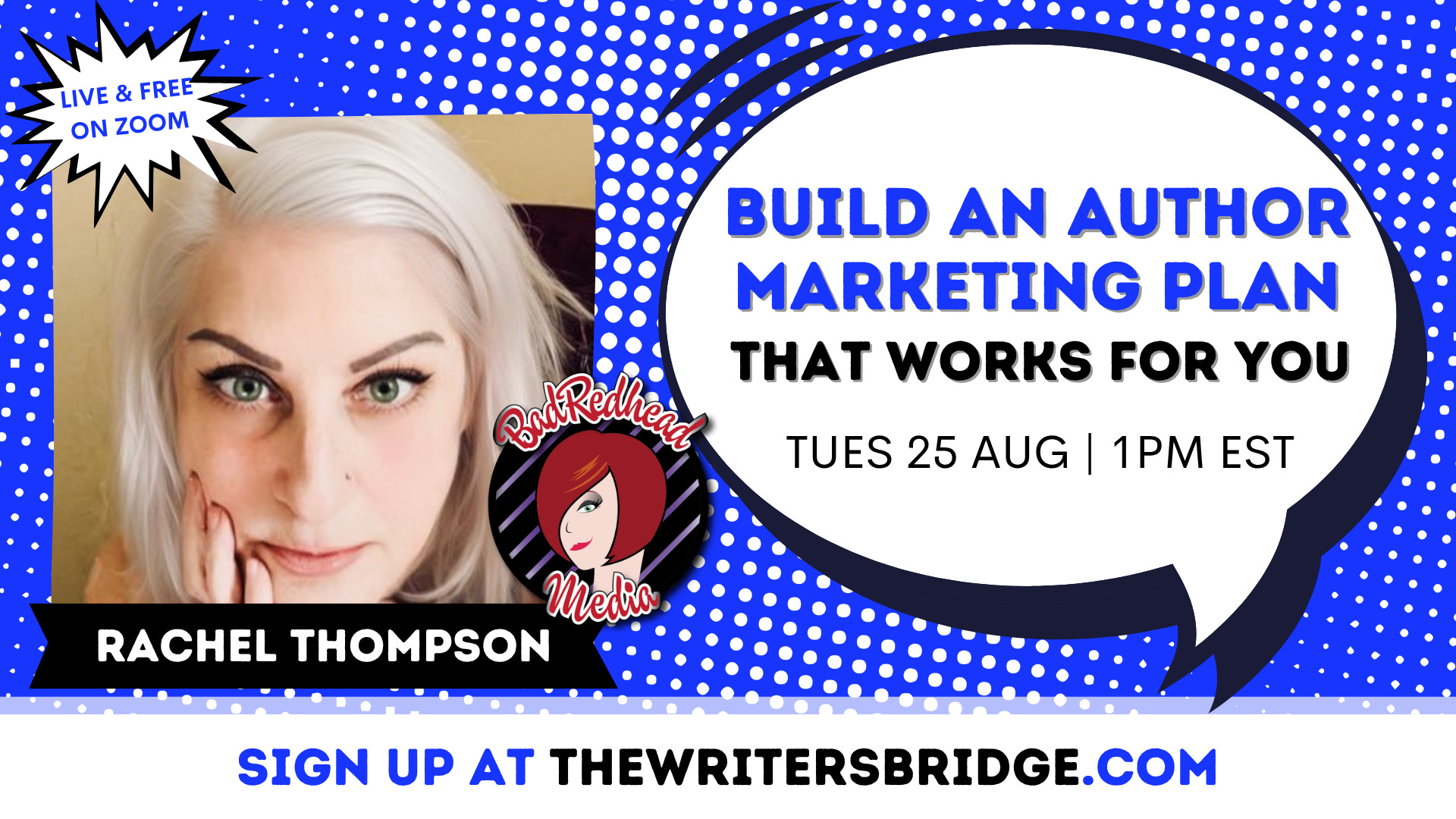
🥳 TOMORROW, 8/25, 1 pm ET/10 am PT, and free for all writers: So excited to be the featured guest speaker for The Writers’ Bridge this month! Hundreds of writers attend this free monthly Zoom series, so no pressure or anything.
Please sign up (totally free, on Zoom, and nothing fancy required). Thanks to Allison K Williams for inviting me!
Comments
Nothing yet. Say the first thing.
Sign in to join the conversation.