
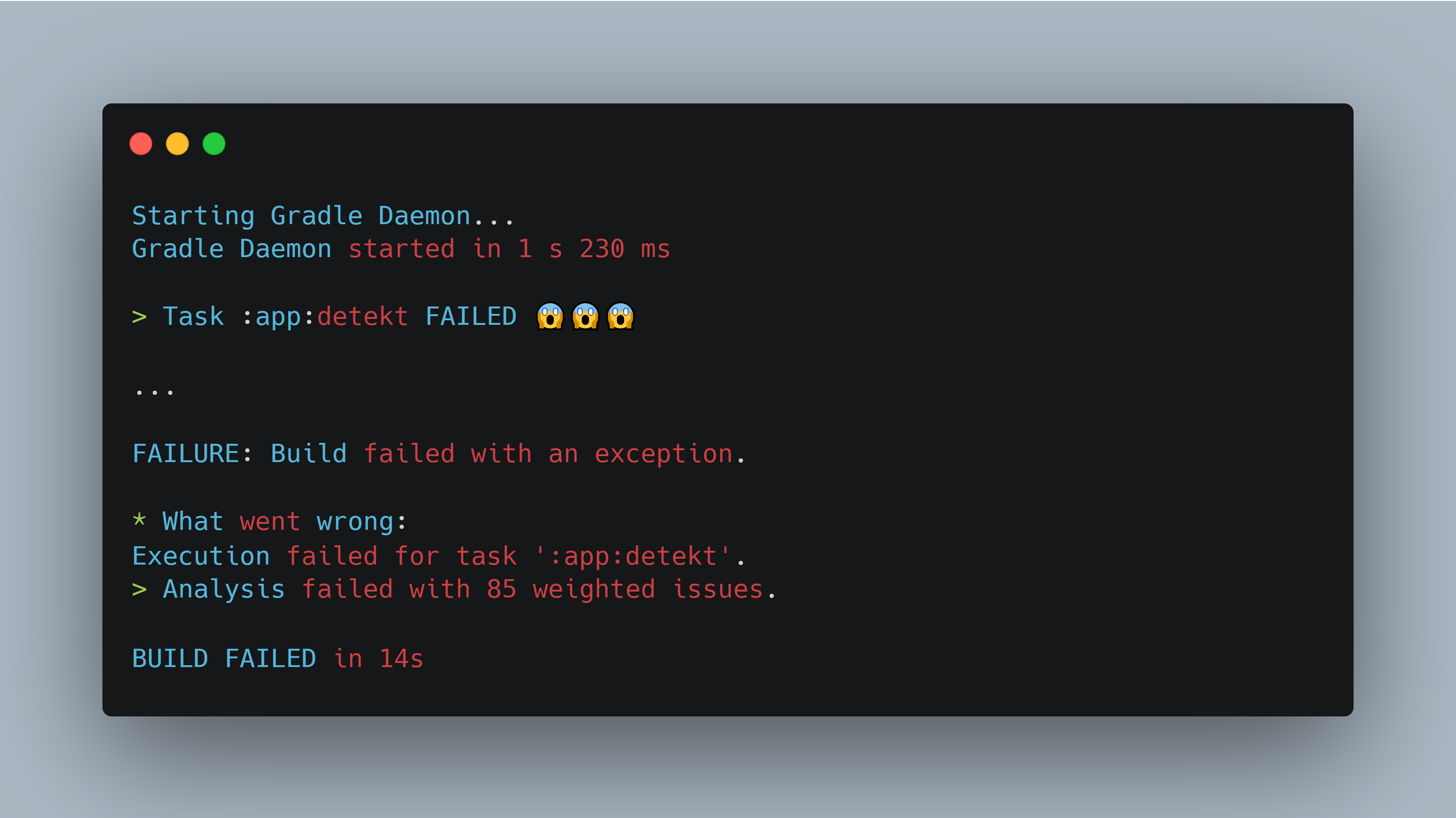
If you want to skip to the technical parts, I suggest going to the “Adding the Detekt Plugin” section.
Whenever I start a new project, I immediately get an itch to keep everything clean and tidy—the calm before the storm, where the chaos starts to set in. I would find myself implementing a class, only to be mutated and disfigured with a bunch of code copied from the internet to fix a bug or make something work. Over time, the mutated code will become too messy and complicated to be maintained. Now imagine that over a rapid development cycle of a developer team, where multiple developers are contributing to the project. This can cause headaches when something goes wrong or even present a challenge to understand the code when implementing new features. Even when I am at an early stage of my project, I like adding a linter. This ensures that all of my code adheres to a standard and that I keep an eye on my code quality when adding new code.
A linter is a tool that scans the project and informs whether any piece of code could lead to bugs, performance issues, formatting inconsistency, or undesired complexity. It pinpoints the exact code line in the project causing the issue. A report is generated to provide additional details. I must admit that adding a linter to an early-stage project might be overkill. However, it is an excellent time to put a structure before the issues accumulate in large numbers. Adding a linter to a project with hundreds or thousands of lines of code can be an overwhelming experience and a challenging task when trying to reduce technical debt. To prevent adding complexity to the development process, I add a linter as a feedback tool rather than a barrier. By that, I mean that I would run the lint command every so often to discover issues and fix them as I go. Over time, you want to be confident in everything you ship, adhere to a standard, and be free of issues. In that case, I would enforce a barrier that would block the CI pipeline and prevent any code that contains lint issues from merging. Regardless of what I am working on, it is best always to keep my workspace clean.
For smaller projects, you can get away without using a linter. But I found it helpful in my development. Most organizations I have worked at usually have a linter running on the CI pipeline as part of their process. Not only does this prevent lint issues from being merged, but it also speeds up the development cycle. Having it as part of the automated pipeline structure, problems are automatically reported, and developers usually fix them earlier to prevent future development costs and context switching. You also do not want to be that person who gets the blame for nit-picking at someone’s work due to their strange use of code formatting styles. Let a tool do that for you instead (psst, you can even write your own lint rules). In my case, with smaller projects, I wish to maintain them for a long time, so I want to keep them in the best shape. Here is why I like using a linter on those projects:
Everything becomes a standard. The code looks familiar, making it easier to pick up and develop where I left off. It forces me to write better code and keep my workspace clean.
Learn why potential lint issues can have consequences. This provides feedback that my changes could introduce potential performance issues in the future. It helps reduce my cognitive workload, and I can be confident in what I am building.
There is a bit of validation on the current state of things. Until this point of development, everything follows best practices and is done correctly (bonus if this feedback is grouped with unit testing as well).
The linter I use for Android projects is Detekt. It is an open-source static code analyzer for Kotlin. After integrating the plugin, you can scan your project and generate a report showing all the issues. It is highly configurable, so you can change the threshold or modify the ruleset. They have an internal marketplace highlighting other open-source plugins that integrate with Detekt. More about this later.
Add the Detekt plugin, and remember to sync the project after each change.
libs.versions.toml
# Replace the version to the latest version
detekt = "1.23.7"
detekt-plugin = { id = "io.gitlab.arturbosch.detekt", version.ref = "detekt" }
build.gradle.kts
alias(libs.plugins.detekt.plugin) apply falsebuild.gradle.kts (app)
alias(libs.plugins.detekt.plugin)
detekt {
    toolVersion = "1.23.7"
    config.setFrom(file("../config/detekt/detekt.yml"))
    buildUponDefaultConfig = true
    autoCorrect = true
}
To verify the detekt is working, run the detekt Gradle task either through Android Studio or the command line.
$ ./gradlew detektOnce the Gradle task is completed, you should be able to see the results in the console. Alternatively, you can access the HTML report in the app/build/reports/detekt folder. I recommend spending some time going through the report to understand the issues at hand. Congratulations, you have successfully added the Detekt plugin.
The plugin scans the codebase using a default set of rules. To have complete control over which rules to use, Detekt lets you add a configuration file that you can modify based on your needs. To do this, auto-generate the config file through one of Detekt’s Gradle tasks.
$ ./gradlew detektGenerateConfigThis will create a detekt.yml config file in the config/detekt folder at the project's root.
In my case, I have updated the detekt.yml file to include all reporting listeners in the console-report tag and excluded the txt, XML, and serif output files in the output-report tag. This allows me to get more metrics in my report and skip the generation of some specific file extensions that I will not be using. You can go ahead and modify the ruleset based on your needs.
I keep all the rules as default and change them as the project grows. Over time, I will enable more rules or modify the threshold of such rules to avoid slowing down the development cycle. When I integrated the plugin into my current project, I found 93 issues.
If you look into the report, you might get flagged for issues like using Magic Numbers, Wildcard Imports, and Long Methods. These issues ensure we properly define our constants, remove any imports that might add additional components, and warn us to keep our class files as lean as possible. There are a lot of rules that come with Detekt. To get a better idea, you can check out their documentation at https://detekt.dev/docs/rules/comments
One of the great things about Detekt is that it has a wrapper around another popular linter called ktlint. Ktlint is an open-source linter that primarily focuses on code styles. In this section, we will update the plugin to have access to additional formatting rules to run against our project.
libs.versions.toml
detekt-formatting = { group = "io.gitlab.arturbosch.detekt", name = "detekt-formatting", version.ref = "detekt" }build.gradle.kts (app)
detektPlugins(libs.detekt.formatting)We have successfully expanded the Detekt integration to include the formatting plugin. Rules within this category include maximum line length, import ordering, and code indention. The documentation is available on the Detekt website. More plugins like this can be found on the Detekt marketplace (we will add one more in this blog).
Detekt also has an auto-correct feature, which can be enabled in the build.gradle.kt file. When I ran the Detekt Gradle task, the number of issues in my project went from 93 to 58 with the auto-correct feature.
Continuing to expand the Detekt integration, it would be helpful to include rules regarding Compose. Since all the UI is in Compose, following best practices when building views will be a great step forward. We can do this the way we did for the formatting rules through the Detekt marketplace.
libs.versions.toml
detektCompose = "0.4.12"
detekt-compose = { group = "io.nlopez.compose.rules", name = "detekt", version.ref = "detektCompose"}
build.gradle.kts (app)
detektPlugins(libs.detekt.compose)Initially, I came across the Compose rules at a conference that the Twitter team was presenting at. They used this to standardize their adoption of Jetpack Compose. Since that open-source project is not maintained anymore, other contributors have forked the project and started to create plugins. One of those plugins can be found on the Detekt marketplace. I have learned a lot from this plugin; it has helped me understand Compose better. Rules in this category include missing modifiers, parameter ordering, and potential issues that may cause recompositions.
If you are using the plugin from mrmans0n, you will have to add the Compose rules manually. Copy and paste the rules from https://mrmans0n.github.io/compose-rules/detekt/ and add them to the detekt.yml file. Once the setup was done, I ran the Detekt Gradle task, and the issues jumped back to 85.
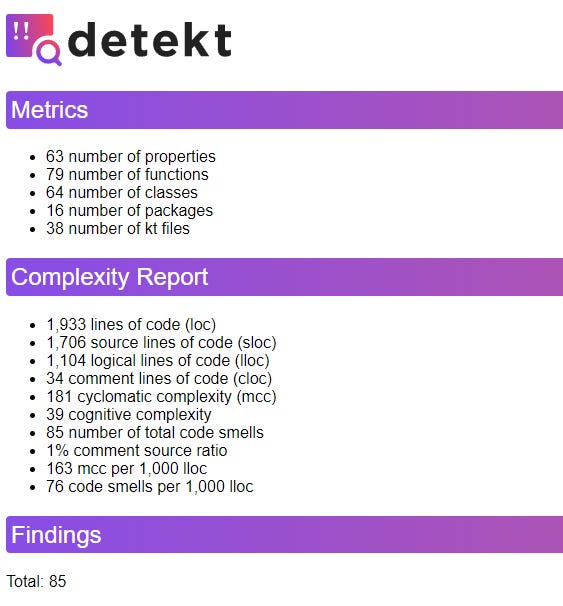
We now have a better idea of the potential lint issues in the project. This is a great time to revise the config file and make changes accordingly. If a rule does not make sense or we are okay with accepting it as it is, it is perfectly fine to turn it off for now. This moment can be an overwhelming process. My simple app has about 85 issues. Do I go all out and resolve everything? Should I take a more passive approach? Can I ignore it for now? The answer to these depends on you. I will share a few strategies on how you can go about approaching this:
Strategy 1: Ignore for now and focus on the future. This is known as adding a “baseline.” A baseline will ignore the existing issues and only alert you to new code changes. This is a good way to continue moving forward and tackling problems as they pop up. If you have some downtime, you can clean up the baseline.
Strategy 2 - Do it one at a time. You can turn off all the rules and tackle them one by one. You can truly understand the issue and standardize that code throughout the project. Slowly, you can enable the other rules.
Strategy 3—Go all out. It's a bit aggressive, but you can resolve all the issues in one go, although that would be a pretty interesting PR review (or series of PRs). I would not keep the lint failing for a long time because the project could add more issues, and it would be easy to ignore those thinking that the lint command is alerting on different issues. You want to stop creating new issues.
That’s all for this post. Here is a quick summary of what I have been working on. If you want to follow my Android development journey, consider subscribing and sharing this newsletter. Thanks!
No posts
Comments
Nothing yet. Say the first thing.
Sign in to join the conversation.