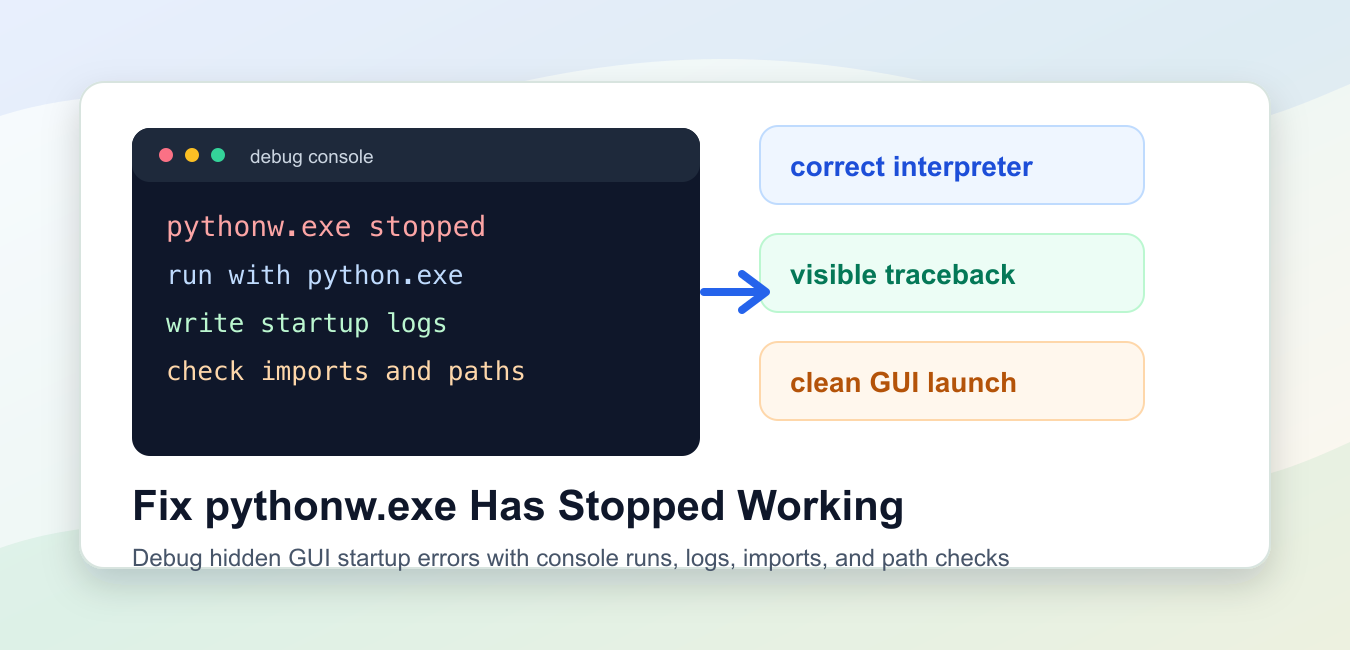
Quick answer: pythonw.exe hides the console for Windows GUI programs, so a startup exception can look like a generic crash. Run the same script with python.exe first, capture the traceback, verify sys.executable and the working directory, and only then repair packages or the installation.
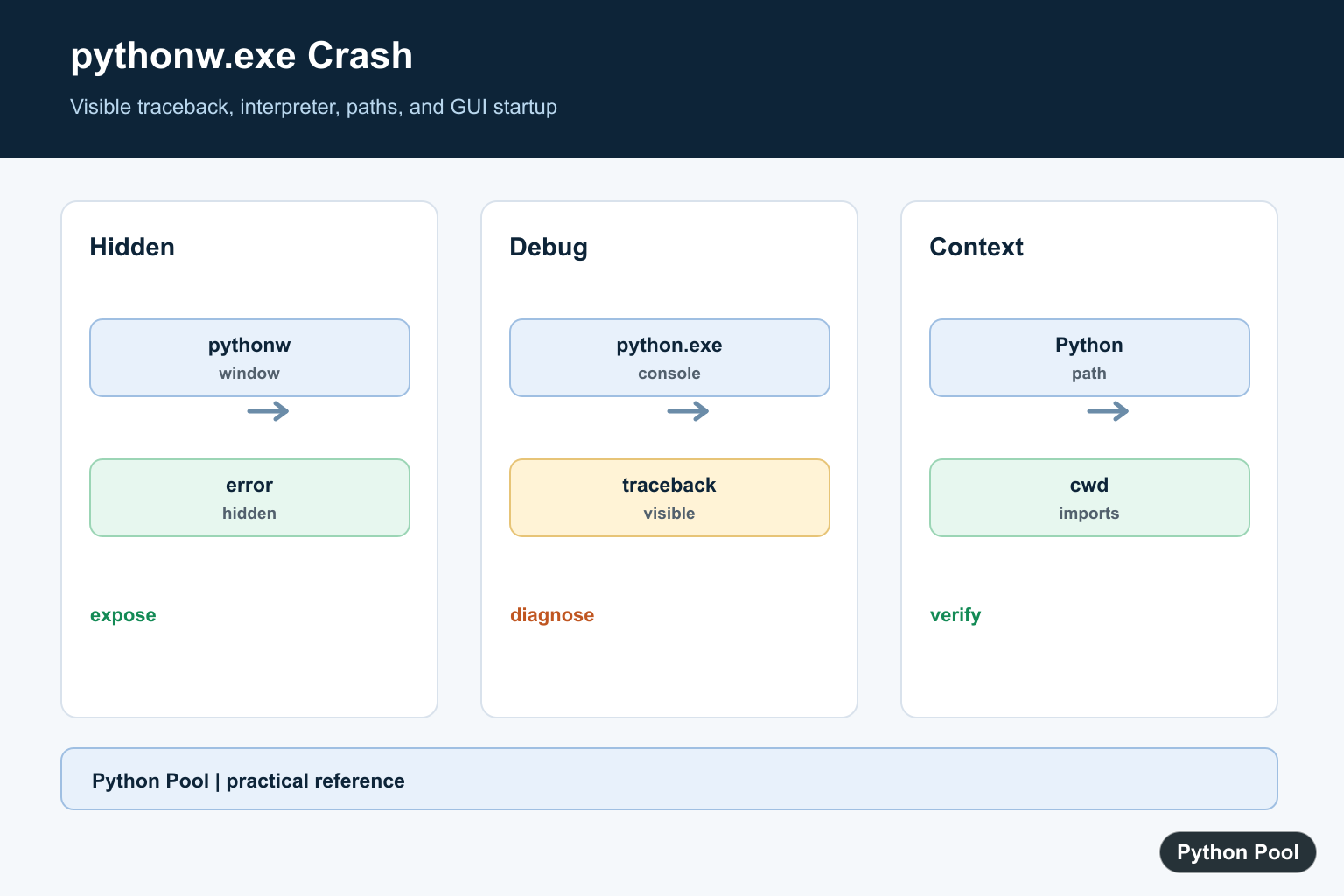
pythonw.exe has stopped working usually means a Windows GUI Python program crashed before it could show a useful message. The pythonw.exe launcher is designed for windowed apps, so it does not keep a console open for normal output. That is convenient for Tkinter, PyQt, wxPython, and other desktop apps, but it can hide startup errors.
The practical fix is to make the failure visible. Run the same file with python.exe while debugging, write startup logs, check imports, confirm the current working folder, and repair the Python install if the crash happens before your script starts. Once the cause is known, you can switch back to pythonw.exe for a cleaner desktop launch.
The official Python documentation covers using Python on Windows, Tkinter, logging, and faulthandler.
Do not start by reinstalling every package. First separate three cases: the wrong interpreter is launching the app, your script raises an exception during startup, or the Python installation itself is damaged. Each case leaves a different trail.
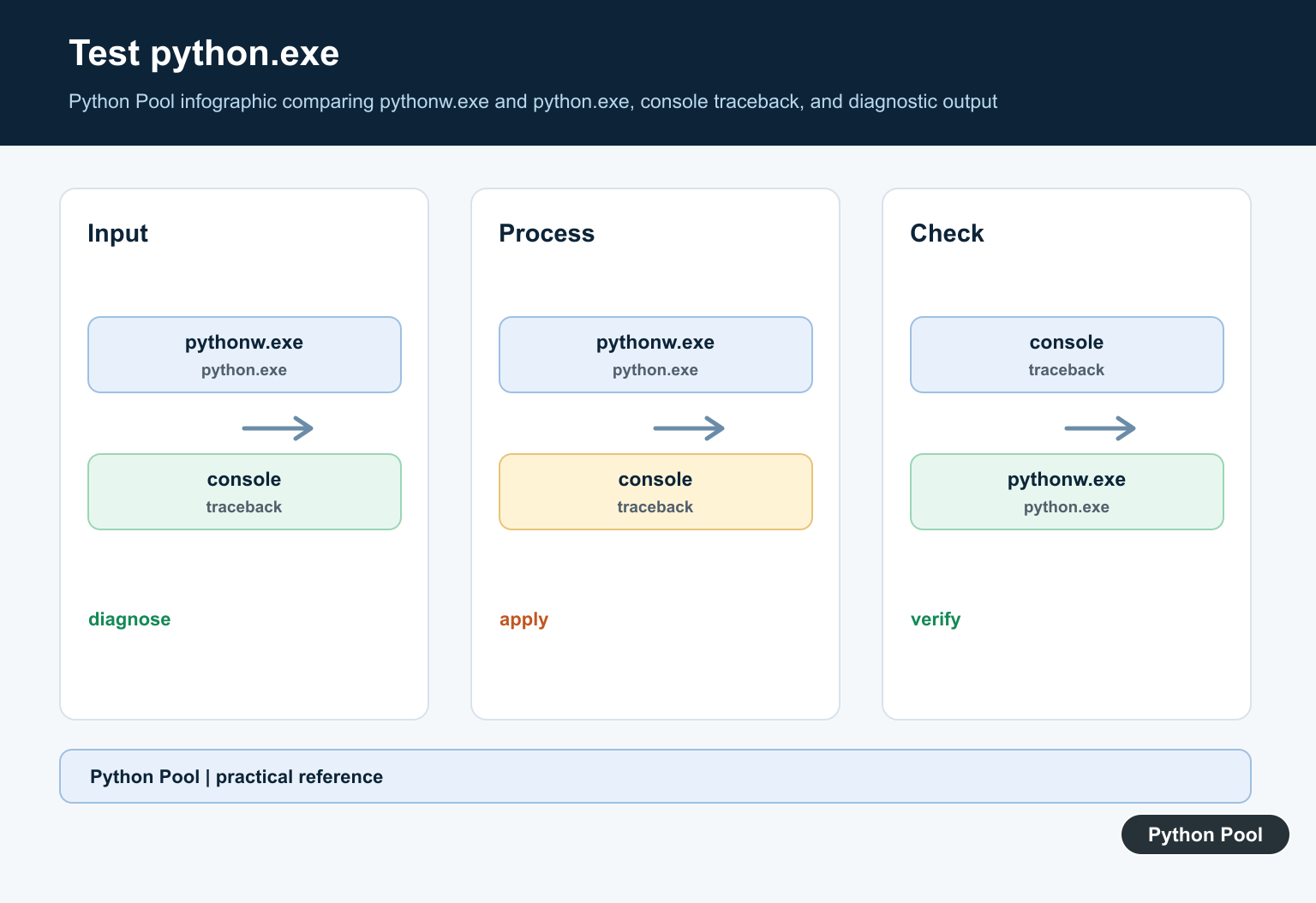
If a double-clicked .pyw file fails, open a terminal and run the same script with normal Python. A console run can show import errors, missing files, permission problems, bad paths, or framework messages that pythonw.exe would hide. That one change often turns a vague Windows dialog into a specific traceback.
Check Which Python Is Running
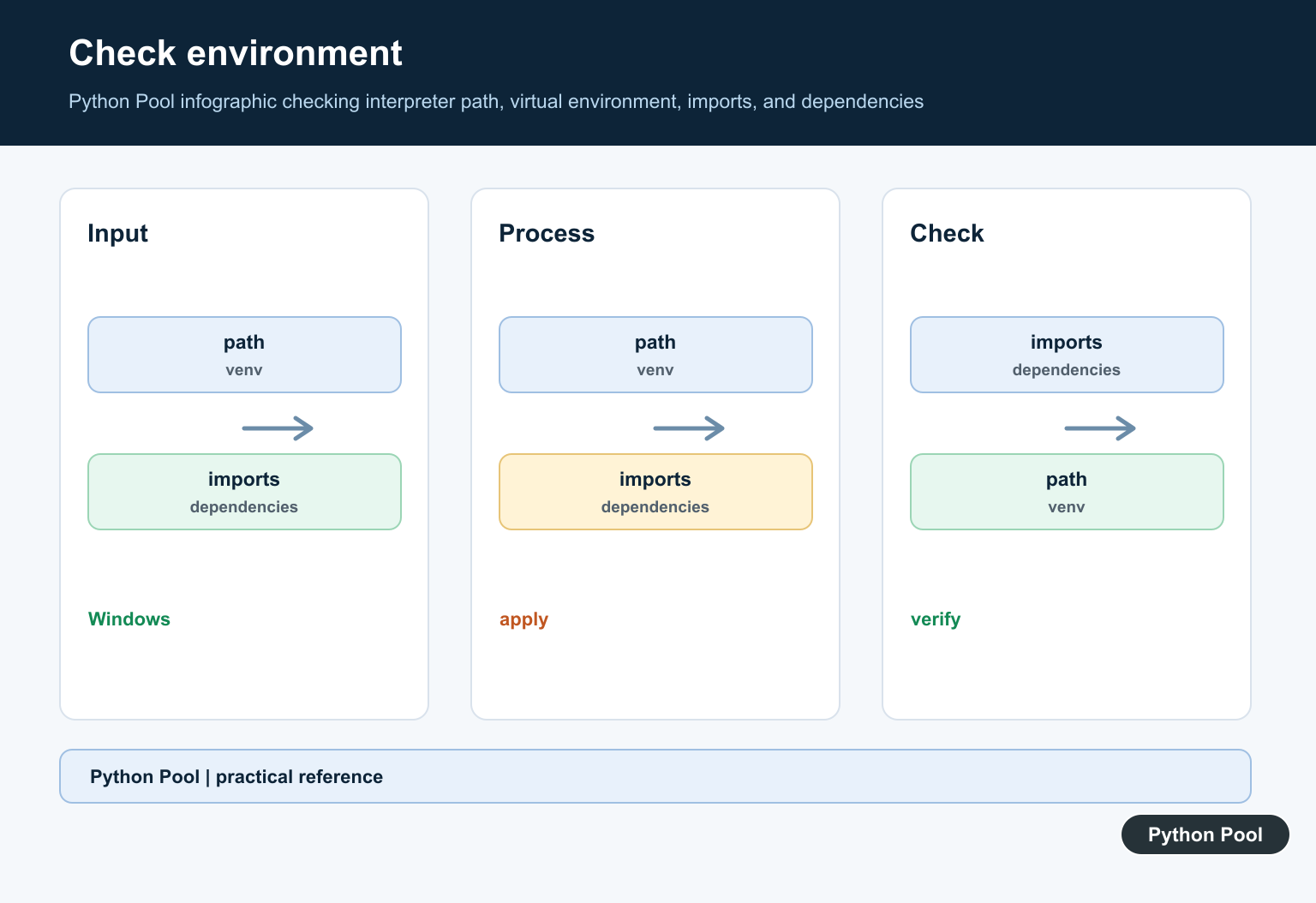
Start by printing the interpreter path and platform. This is useful when several Python versions or virtual environments are installed.
import platform
import sys

print("python executable:", sys.executable)
print("platform:", platform.system())
print("windowless launcher:", sys.executable.lower().endswith("pythonw.exe"))
On Windows, the path should match the Python install or virtual environment you expect. If the app opens with an old interpreter, fix the file association, shortcut, or launcher command before changing application code.
On macOS or Linux this snippet will simply report a non-Windows platform. It is still safe for local checks because it only reads interpreter metadata.
Add Startup Logging
Because pythonw.exe does not leave a visible console behind, a small log file can show how far startup reached. During development, log before importing heavy GUI modules and before opening the main window.
import logging
from pathlib import Path
from tempfile import TemporaryDirectory

with TemporaryDirectory() as folder:
    log_path = Path(folder) / "pythonw-startup.log"
    logging.basicConfig(filename=log_path, level=logging.INFO, format="%(levelname)s:%(message)s")

    def main():
        logging.info("GUI startup reached")
        return "started"

    print(main())
    print(log_path.read_text().strip())
In a real Windows app, write the log beside user data or a temporary folder, not necessarily beside the program. The important part is that the log path is predictable and writable.
If the log is never created, the crash may happen before your script reaches the logging setup. Check the shortcut target, file association, shebang, virtual environment, and Python installation.
Capture Hidden Exceptions
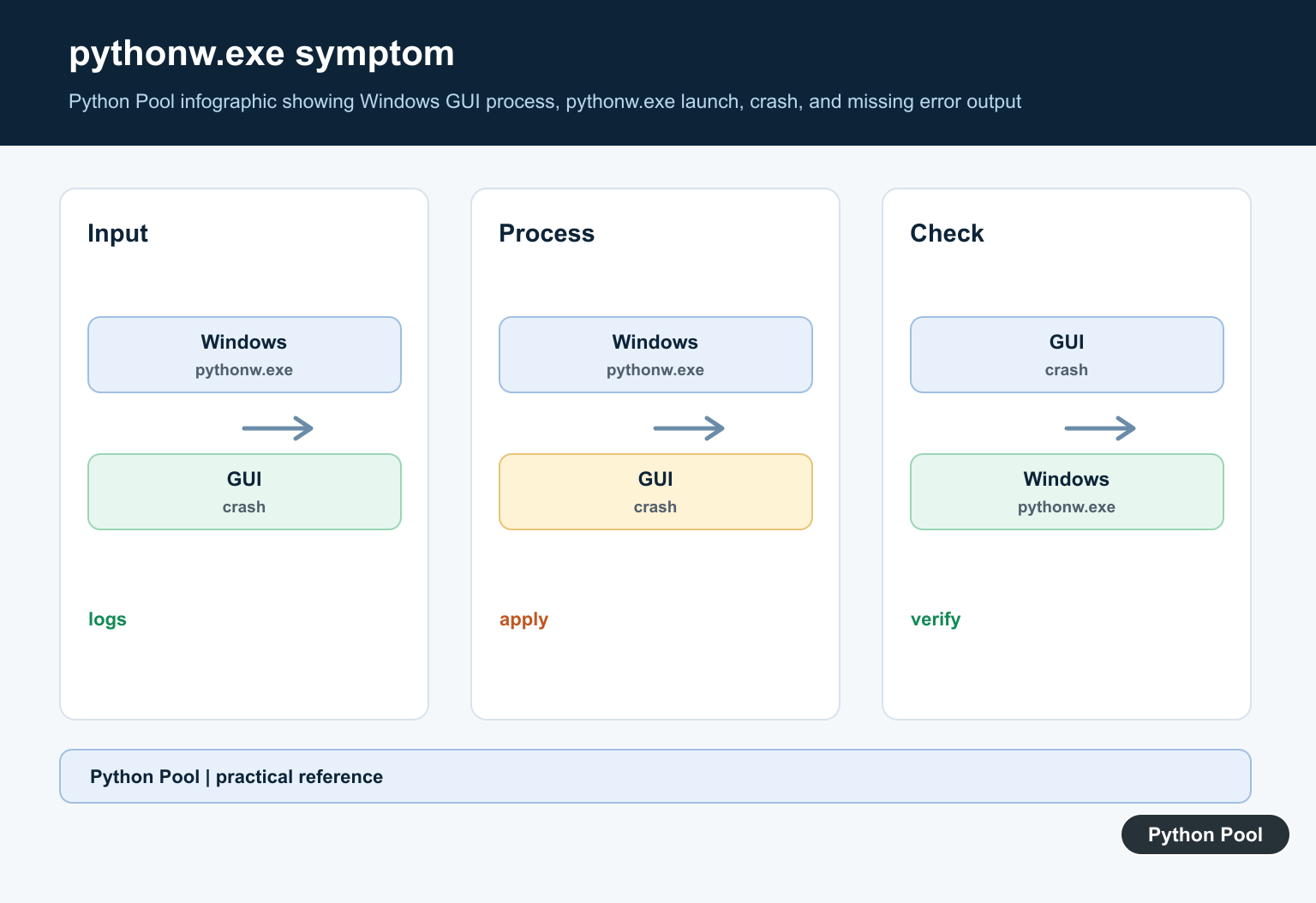
A GUI app can fail before the main loop starts. Wrap the startup function while debugging so an exception is written somewhere you can inspect.
import traceback

def start_gui():
    raise RuntimeError("demo startup failure")

try:
    start_gui()
except Exception as error:
    details = "".join(traceback.format_exception(error))
    print(details.splitlines()[-1])
This example catches a deliberate error and prints the last traceback line. In a desktop app, write details to a log file and show a small error dialog only after the logging step works.
Do not leave broad exception handling as a way to ignore failures. Use it to capture diagnostics, then fix the import, path, permission, or package issue that caused the startup crash.
Check The Working Folder
Double-clicked apps may not start in the folder you expect. Code that opens a relative data file can work from a terminal and fail from a shortcut.
from pathlib import Path

project_root = Path.cwd()
expected_files = [project_root / "app.py", project_root / "main.py", project_root / "ui.py"]

print("current folder:", project_root)
print([path.name for path in expected_files])
print(all(path.suffix == ".py" for path in expected_files))
When the current folder is the problem, build paths from __file__, a configuration folder, or a known project root instead of assuming the process starts in the script directory.
This is especially common when an app loads icons, templates, database files, or settings during startup. A missing local file can make the GUI exit immediately.
Verify Imports Before The GUI Opens
Import errors are a frequent cause of early failure. Test the modules your startup path needs before the first window is created.
import importlib.util

for module_name in ["tkinter", "logging", "pathlib"]:
    spec = importlib.util.find_spec(module_name)
    status = "available" if spec else "missing"
    print(f"{module_name}: {status}")
For third-party GUI frameworks, check the package inside the same virtual environment used by the shortcut. Installing a package into one Python version will not help if the app launches another version.
If a standard library import fails, the installation may be incomplete or broken. For startup failures that mention encodings or path initialization, see the PythonPool guide to fatal Python Py_Initialize errors.
Use A Calm Restart Checklist
Once logging reveals the real failure, restart the app in a controlled order. Avoid force-stopping unrelated Python processes unless you know which one belongs to your app.
steps = [
    "close the app from its normal menu",
    "run the same script with console Python",
    "read the startup log",
    "repair the failing import or file path",
    "start the GUI launcher again",
]

for number, step in enumerate(steps, start=1):
    print(f"{number}. {step}")
If the app stays in the background after a crash, use Task Manager to identify the exact process before ending it. Killing every Python process can interrupt notebooks, servers, build jobs, or other tools that are unrelated to the GUI.
Reinstallation is the last step, not the first. Try it only after you have checked the interpreter path, current folder, imports, logs, and virtual environment. If Python itself is corrupted, uninstall the broken version, install a current supported release from the official source, and recreate the virtual environment instead of copying old site-packages folders across installs.
In short, pythonw.exe is not usually the root cause. It is a windowless launcher that makes failures harder to see. Make the error visible with console runs and logging, confirm the correct interpreter and folder, repair the failing import or path, and then return to pythonw.exe when the GUI starts cleanly.
Make The Failure Visible
Run the .py or .pyw file from a terminal with python.exe. Import errors, missing files, permissions, and framework tracebacks that pythonw.exe hides usually identify the real fix immediately.
Confirm The Interpreter
Print sys.executable and compare it with the interpreter configured in the file association, shortcut, IDE, or virtual environment. A package installed into another Python cannot fix the launcher that is actually running.
Check Startup Context
GUI launches can use a different current working directory, environment, user, or permission set from a terminal. Replace fragile relative paths with deliberate paths and log the startup context.
Separate Script And Installation Failures
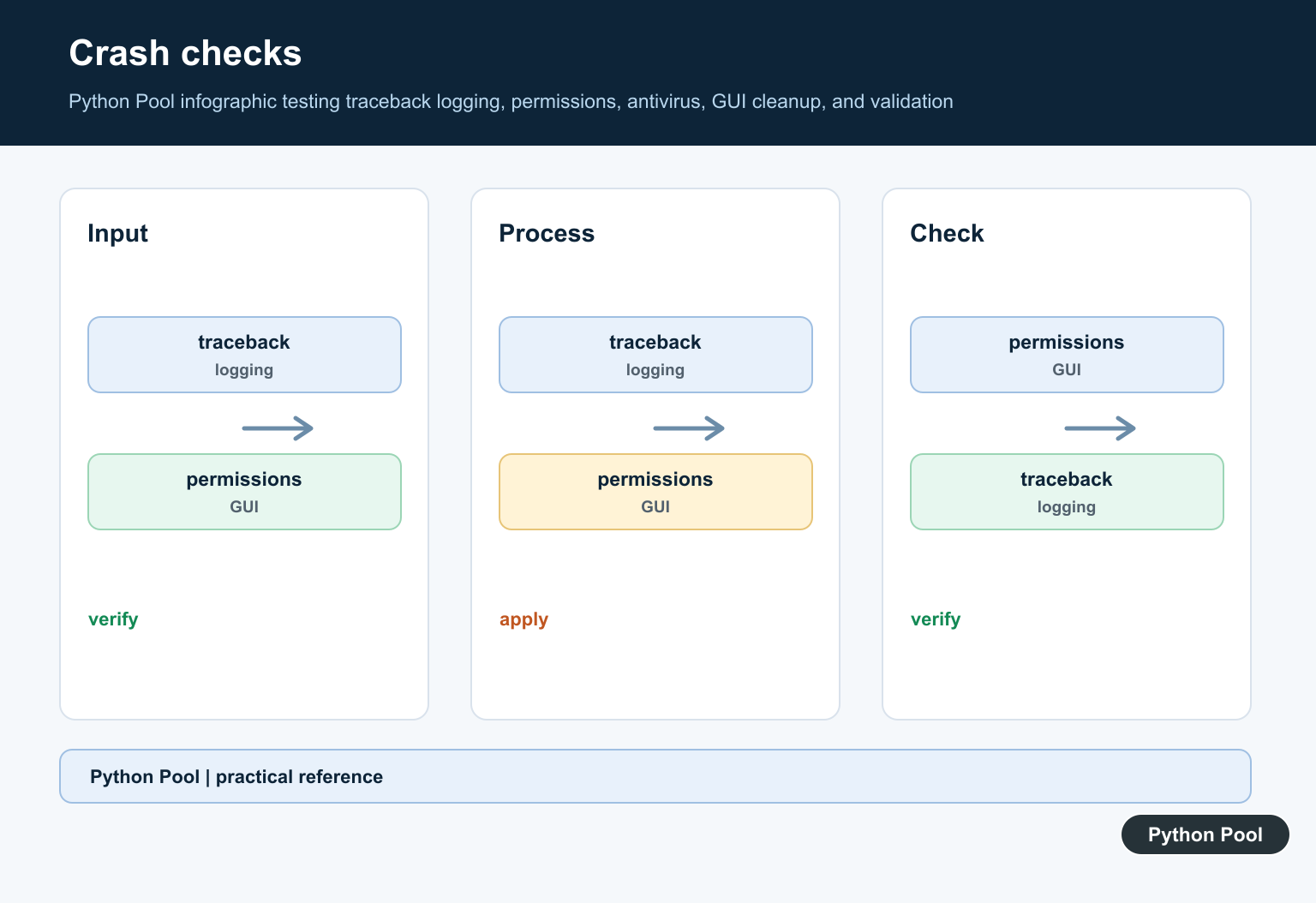
If python.exe shows a traceback, fix the script or dependency first. If even a minimal GUI or import test fails, check architecture, framework installation, PATH, and the Python installation itself.
Return To Windowed Launch Carefully
After the cause is fixed, keep startup logging or a crash-report path for production GUI users. A clean window should not mean that failures disappear without evidence.
Python’s Windows usage documentation, logging, and faulthandler support diagnosis. Related references include version checks, environment dependencies, and startup tests.
For related Windows debugging, compare version checks, environment dependencies, and startup tests when exposing a hidden GUI failure.
Frequently Asked Questions
What is pythonw.exe used for?
It launches Python Windows applications without keeping a console window visible, which suits GUI programs but can hide tracebacks.
How do I see the real pythonw.exe error?
Run the same script with python.exe from a terminal and capture the traceback or startup output.
Could the wrong Python installation be launching?
Yes. Print sys.executable, check the file association, and compare the interpreter’s installed packages.
Should I reinstall Python immediately?
No. First separate a script exception, wrong working directory, missing dependency, permissions issue, and damaged installation.