Installing Hermes On OpalStack
Moving Hermes Agent from local Podman to Opalstack.
Ran Hermes Agent locally first — Podman, OpenRouter, Slack. A MacBook that sleeps isn't a great home for something meant to stay on, so this post covers moving it to Opalstack, where I already run n8n the same way (Podman, no Docker Desktop).
# Subdomain Not Needed On Opalstack
Every other app I've hosted on Opalstack has had a subdomain, so this one initially confused me. Hermes doesn't need one. Slack's Socket Mode is outbound-only — Hermes dials out to Slack and holds the connection open; Slack never calls back in. No inbound traffic, no reason for DNS to point anywhere at it. On Opalstack, a "site" (the piece that maps a domain to a port through their proxy) is a separate, optional step from creating the app itself. I skipped it.
# Picking an app stack
Opalstack's app-creation flow offers a grid of one-click stacks — Next.js, Django, WordPress, Ghost, n8n, Gitea, and so on.
What I needed for this was simpler: something listening on a port, with no framework assumptions. "Proxied Port" is built for exactly that, a precise match for a Podman container. Picking it gets you an assigned directory and port; nothing is publicly reachable through it unless I separately create a site and point a domain at it, which I didn't.
# Transferring config from the local setup
Rather than redo the interactive setup wizard, I moved over what I already had working locally — .env, config.yaml, and the two memory files, USER.md and MEMORY.md:
scp ~/.hermes/.env <user>@<opalstack-server>:~/apps/hermes-agent/data/.env
scp ~/.hermes/config.yaml <user>@<opalstack-server>:~/apps/hermes-agent/data/config.yaml
scp ~/.hermes/memories/USER.md <user>@<opalstack-server>:~/apps/hermes-agent/data/memories/USER.md
scp ~/.hermes/memories/MEMORY.md <user>@<opalstack-server>:~/apps/hermes-agent/data/memories/MEMORY.md
That brought over the OpenRouter key, Slack bot/app tokens, model choice, gateway settings, and whatever Hermes had already learned about me — no re-entering tokens, no re-running the setup wizard, no starting memory from zero.
# Starting the gateway
podman run -d \
  --name hermes \
  --restart unless-stopped \
  -v ~/apps/hermes-agent/data:/opt/data \
  -p 127.0.0.1:<assigned-port>:8642 \
  nousresearch/hermes-agent gateway run
Binding to 127.0.0.1 keeps the port answering only from inside the server itself — nothing public to scan, consistent with skipping the subdomain entirely.
# File access on the data folder — this is different from local
On the Mac, ~/.hermes was just a normal folder I could cd into, cat, and edit directly. On Opalstack that broke, and it's worth understanding why rather than fighting it file by file.
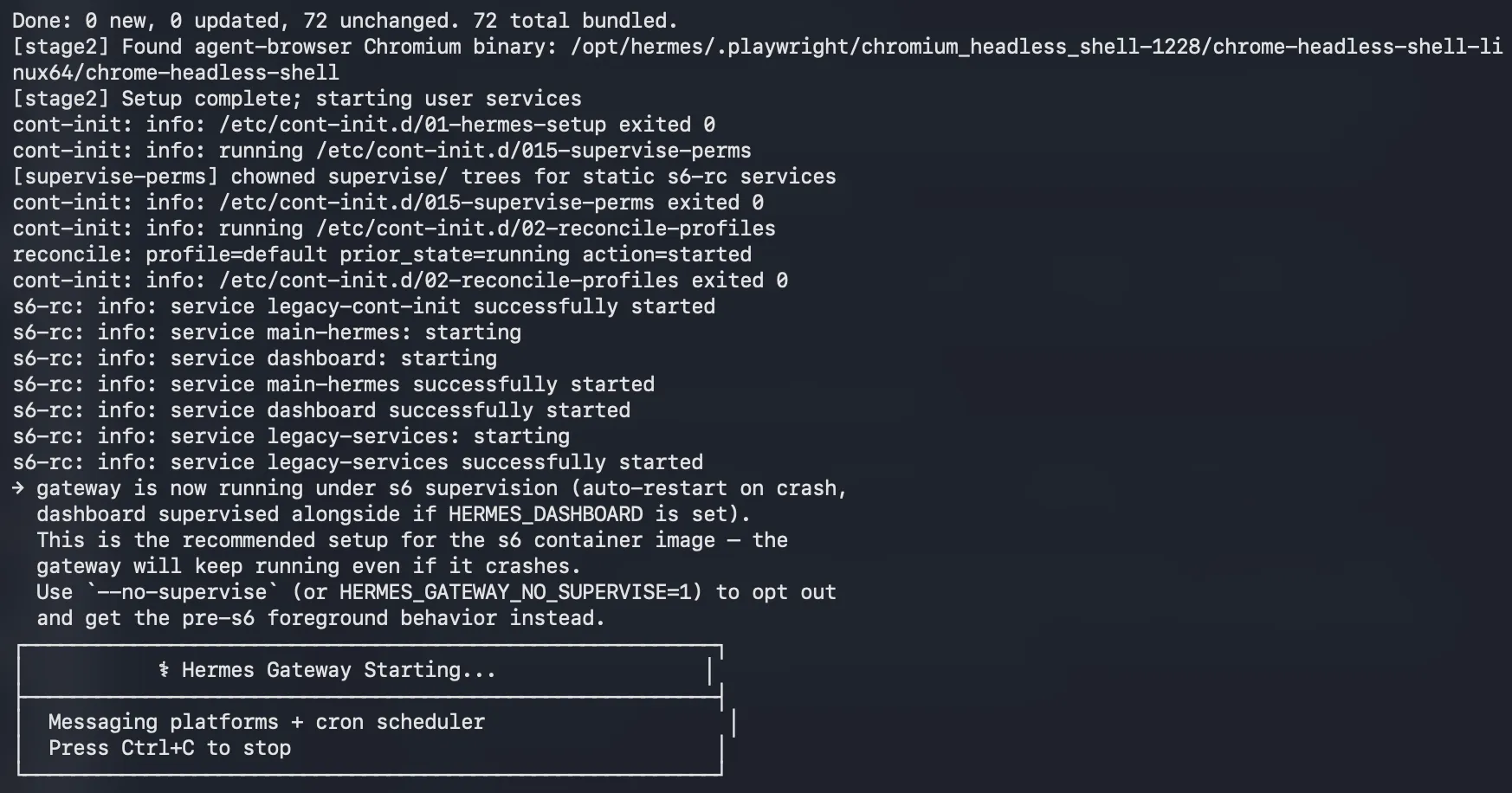
Hermes's container runs its own internal user, UID 10000 — visible right in the first-run setup log: Fixing ownership of /opt/data (targeted) to hermes (10000). On the Mac this was invisible, because Podman runs inside a Linux VM there and the UID translation happens under the hood. On Opalstack, Podman runs natively on Linux, and that UID is a real, literal one on the host filesystem — one that my own shell user doesn't own. The result: the container can read and write its own files fine, but my shell user gets Permission denied trying to cd, cat, or ls the same directory.
I tried a few things that didn't hold up:
chownto my own UID — got overwritten the next time the container's init script ranpodman unshare chown -R 0:0— worked for existing files, but anything the container created afterward (new files, like Slack's pairing state) reverted to UID 10000 againsetfacl— not permitted on Opalstack's filesystem at all
I confirmed this is unconditional image behavior, not something caused by the transfer method, by wiping the data folder and re-running the setup wizard completely fresh with nothing carried over — same issue happened again.
What actually works: stop treating the host shell as the way in, and go through the container instead.
podman exec -it hermes ls -la /opt/data
podman exec -it hermes cat /opt/data/config.yaml
For editing a file, pull it out, edit locally, push it back — podman cp writes through the container's own user, so it doesn't fight the ownership:
podman cp hermes:/opt/data/config.yaml ~/config.yaml.tmp
nano ~/config.yaml.tmp
podman cp ~/config.yaml.tmp hermes:/opt/data/config.yaml
rm ~/config.yaml.tmp
Two aliases could make this less tedious (I didn't do it yet since I don't see repeating this):
echo "alias hcat='podman exec -it hermes cat'" >> ~/.bashrc
echo "alias hls='podman exec -it hermes ls -la'" >> ~/.bashrc
source ~/.bashrc
# One networking quirk on restart
podman restart hermes occasionally failed with:
Error: pasta failed with exit code 1:
Failed to bind port ... (Address already in use)
podman restart tears down and rebuilds the network namespace back-to-back fast enough that the old port binding doesn't always release in time on Podman's userspace networking backend. Splitting it into two separate commands avoids the race:
podman stop hermes
podman start hermes
This is now just my default instead of restart.
# Hermes version
If you want to know the version of the Hermes agent you are running:
podman exec -it hermes hermes --version
It will return you something like:
Hermes Agent v0.20.0 (2026.8.3)
Install directory: /opt/hermes
Python: 3.13.5
OpenAI SDK: 2.24.0
Run 'hermes version' for update status.
# Surviving a reboot, not just a stop/start
--restart unless-stopped looks like it should cover reboots, but Podman is daemonless — there's no background process watching the container the way Docker's daemon does. The restart flag only fires when something invokes Podman again. Stop/start on the same session, fine. An actual server reboot, no.
I already run n8n on this server the same way — Podman, managed by a systemd user unit — so I generated one for Hermes to match (run this command while the hermes container is running):
podman generate systemd --new --name hermes --files --restart-policy=always
This throws a deprecation notice pointing at Quadlets as the newer way to do this, but it still works and produces a normal .service file — container-hermes.service, dropped into the current directory. I moved it where systemd expects user units to live:
mkdir -p ~/.config/systemd/user
mv container-hermes.service ~/.config/systemd/user/
Then stopped and removed the manually-started container, since --new mode has systemd recreate it from the image each time rather than reusing the running instance:
podman stop hermes
podman rm hermes
And enabled it:
systemctl --user daemon-reload
systemctl --user enable --now container-hermes.service
One thing worth checking if you're doing this on your own Opalstack account: systemctl --user only survives an actual reboot if lingering is enabled for your user (loginctl show-user $(whoami) --property=Linger). Without it, the user systemd instance itself doesn't start until you log in — which defeats the point. Mine was already on from setting up n8n the same way; if yours isn't, that's a support ticket, not something you can flip yourself.
# Where this leaves things
Same Slack bot, same OpenRouter setup, same accumulated memory — running on a server that stays on, with no public port and no subdomain. The one real adjustment from local: /opt/data is the container's territory now, not mine, so I go through podman exec/podman cp rather than the shell directly. Obsidian sync and hledger — next post.
# Next
- I used this to reconcile bank statements
- Used this to create LLM Wiki
- I am using this to distribute blog content
And the experiment continues
If you have questions or comments, please ping me on x or bluesky or mastodon.
Under: #tech , #tools , #aieconomy , #hermes