
Usage data for data sources and templates
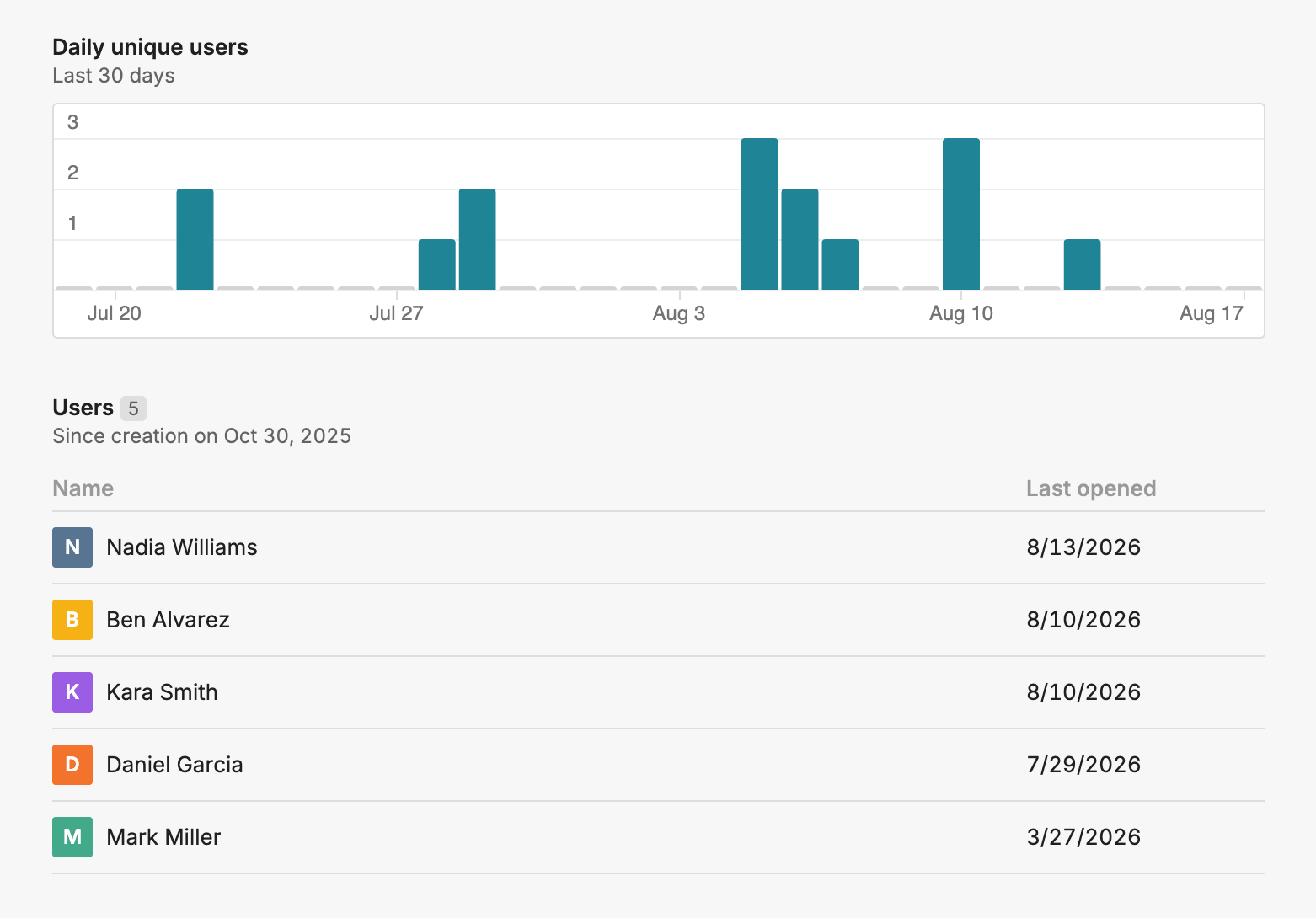
Creators of data sources and templates can now track adoption. Detail pages show daily usage over the last 30 days and a list of users who have ever accessed the data source or template.
Webinar: How Enterprise Teams Are Replacing SAP BusinessObjects With a Connected Spreadsheet
Explore the latest updates from Row Zero.
Aggregations and filters for data sources
Drop-down filters for any column in a data source, allowing users to filter beyond predefined query variables. Users will also be able to aggregate data by selecting a column and choosing functions like sum or average.
Scheduled email reports
Generate scheduled email reports from Row Zero workbooks.
Granular writeback
Support for input table use cases, including saved write back configurations and UPDATE/UPSERT operations.
Creators of data sources and templates can now track adoption. Detail pages show daily usage over the last 30 days and a list of users who have ever accessed the data source or template.
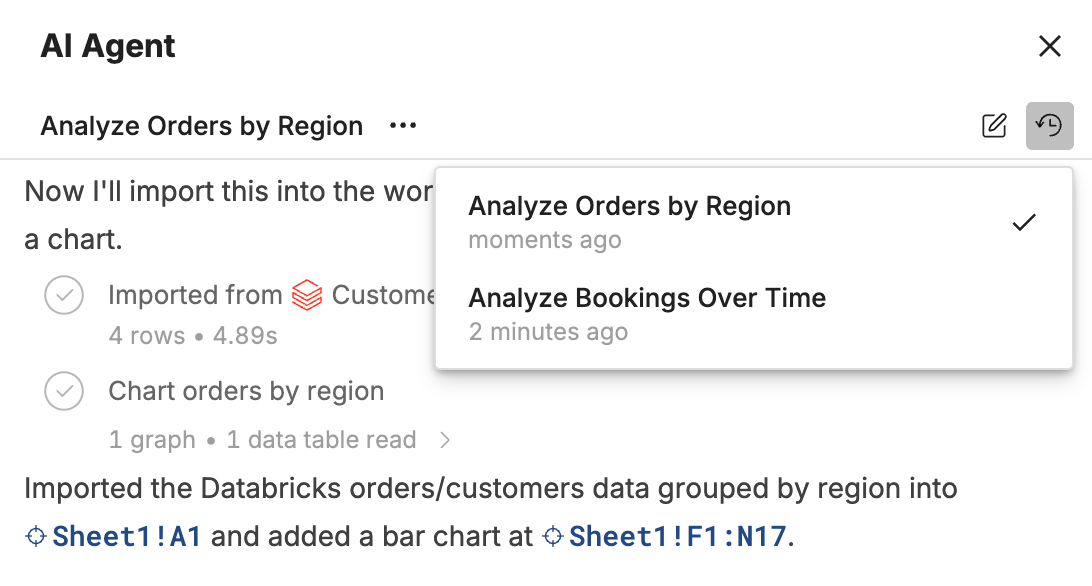
AI Agent conversations are now threads you can leave and come back to.
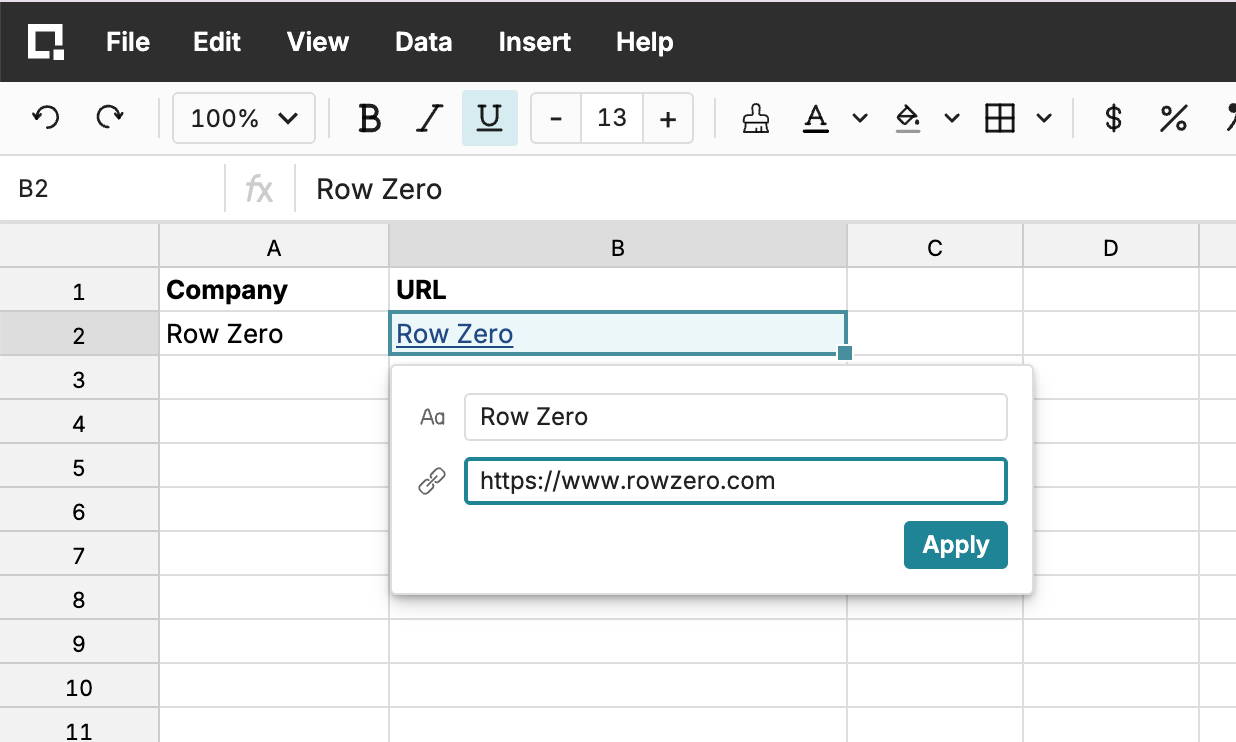
Row Zero now supports hyperlinks so you can add clickable links to your workbooks.
Use the HYPERLINK built-in function to create links with formulas, or use the hyperlink toolbar button to add a link directly to a cell.
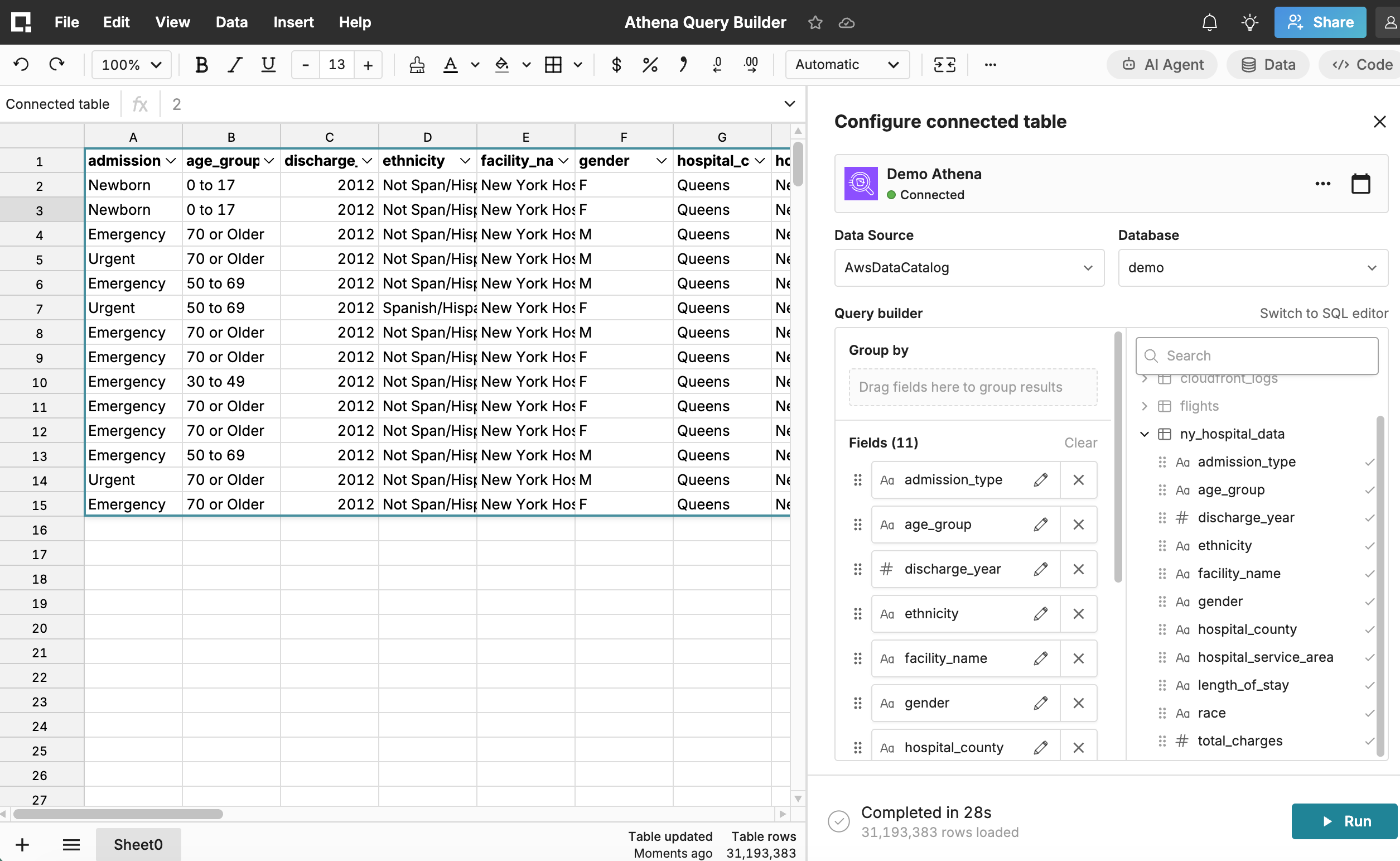
Query Builder now works with Athena connections in Row Zero.
Build queries against your Athena data using Row Zero's point-and-click query builder. Select the tables and columns you need, apply filters or groups, and import your data without writing SQL.
Query Builder makes it easier to explore and work with Athena data directly in Row Zero.
We've introduced new ways to organize and find your content in Row Zero:
We've also added search so that you can quickly find content within your workspace. Search results are ranked by relevance, and you can use the Type filter to narrow your results.
Learn more in the Folders and organization documentation.
Named ranges make formulas easier to read, write, and maintain.
Instead of referencing cells directly (e.g. A2:A100), you can assign a descriptive name to a range (e.g. Order_number or Order_revenue) and use that name anywhere in your workbook. Named ranges automatically point to the correct cells, making formulas easier to understand and reducing errors as your workbook evolves.
To create a named range, select the cells you want to name and give the range a descriptive name in the name box in the upper left corner. You can view, edit, and manage all of your named ranges from the Named Ranges sidebar.
Use Row Zero’s new Google Slides add-on to insert Row Zero charts and tables directly into your presentations, and then keep them synced with your Row Zero workbook in a single click.
When your data changes, refresh an individual chart or table, or update all linked objects in your presentation at once. No re-exporting, no copying and pasting screenshots, and no wondering which slide has the latest numbers.
Install the Row Zero add-on to get started, or read our documentation to learn more.
You can now convert a data source-backed table into an editable table. This detaches the table from its data source while preserving its SQL or query builder configuration, giving you an editable starting point.
This makes updating an existing data source much easier: insert it into any workbook, convert it to an editable table, modify and test the query, then republish your changes to the same data source.
You can also use data sources as reusable starting points for new queries. If you frequently begin with the same base query and make a few small changes, save the base query as a data source and convert it whenever you need a customized version.
Note: Converting a table removes its scheduled refresh and column selection settings. You must have access to both the data source and its backing connection to convert it.
Enterprise customers can now select Databricks as their AI Provider in Row Zero. Row Zero uses a dedicated Databricks service principal and OAuth machine-to-machine (M2M) credentials to send AI inference requests through Databricks Unity AI Gateway.
Learn how to configure your AI Provider here.
Query builder now supports checkbox filters for columns with numeric or text values. Instead of typing filter values manually, you can select one or more values from a searchable list populated from your data. To add a filter, drag the column you’d like to filter into the Filters section, choose “is one of”, and then check the values you want to include. This makes it faster and easier to build filters while reducing typos and invalid values.
Get started with Row Zero