

Comparing Secrets
Compare secret values across configs and projects to find differences, gaps, and drift.
The Compare view places secrets from multiple configs side by side so you can see where their values agree, where they differ, and where they are missing. You can compare a few configs in one project or every config across every project in your workplace.
Opening the compare view
Select Compare in the left sidebar of your workplace to open the view.
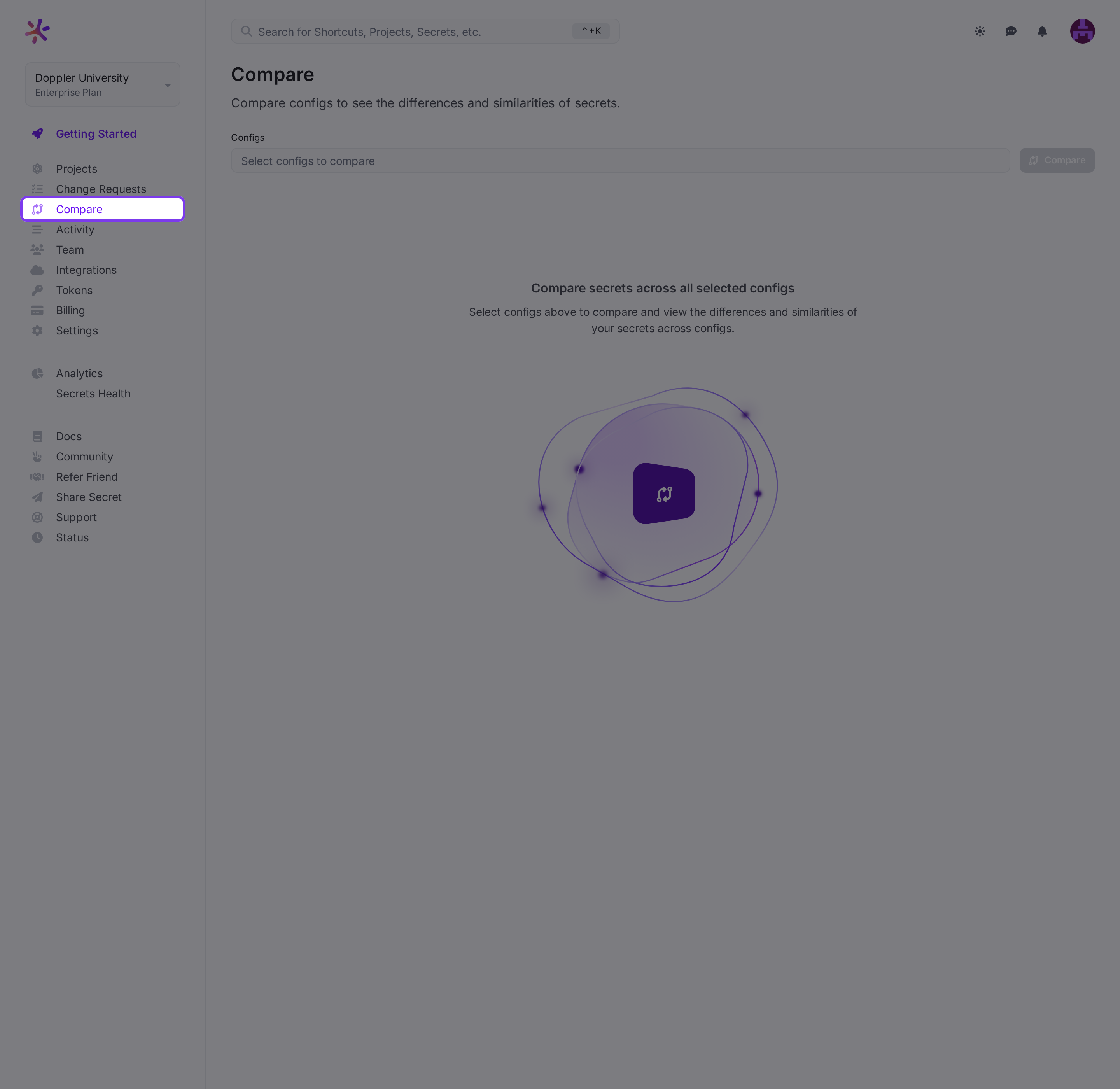
Selecting configs to compare
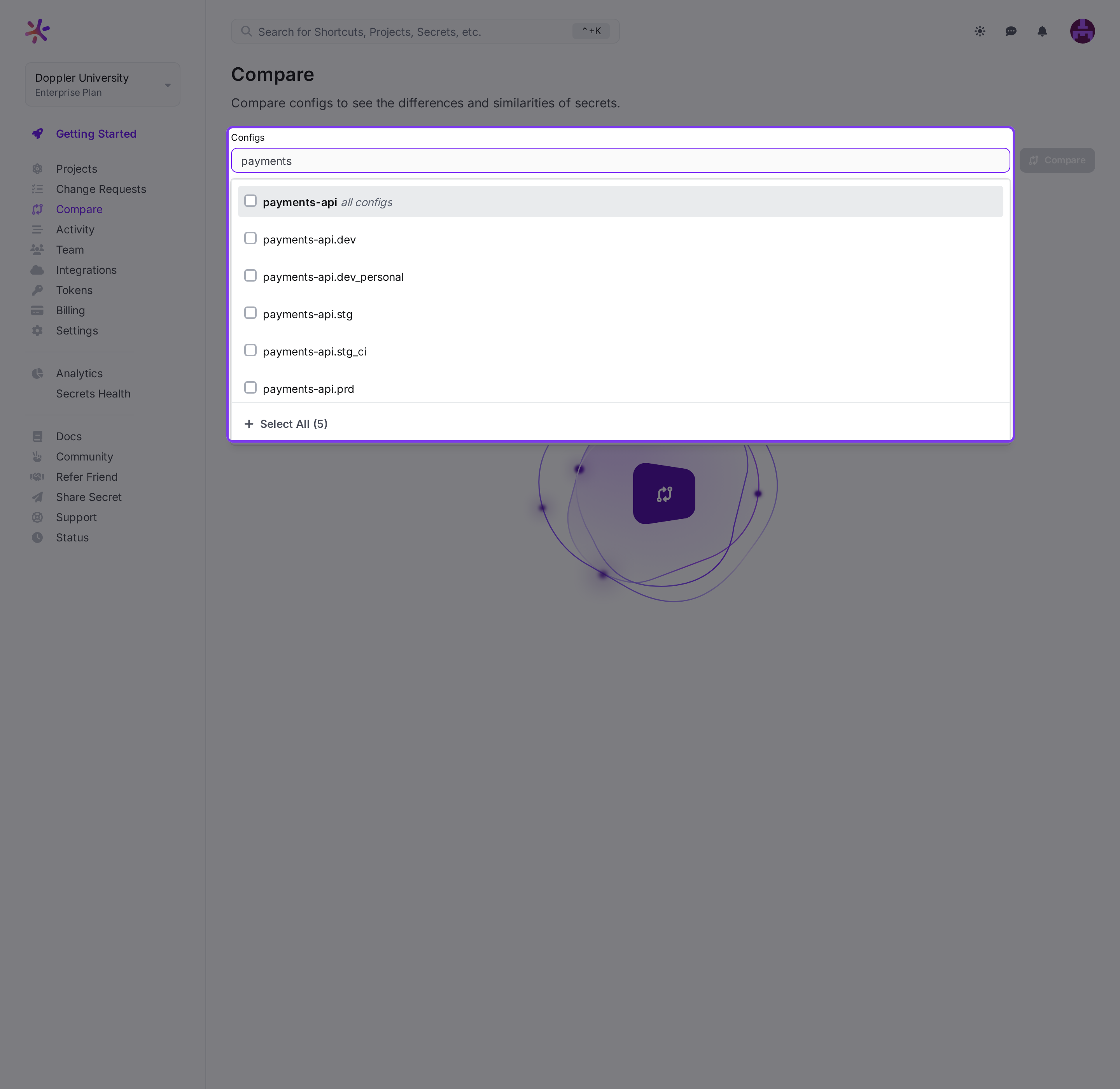
Use the Configs picker to choose what to compare, then click Compare:
- Select individual configs from any project by searching by project or config name.
- Select an entire project by choosing its all configs option, which adds every config in that project.
- Compare across your whole workplace as configs from any project can be added to the same comparison.
You can compare many configs across your workplace in a single comparison. When a search is active, use Select All to add every matching config at once.
Reading the results
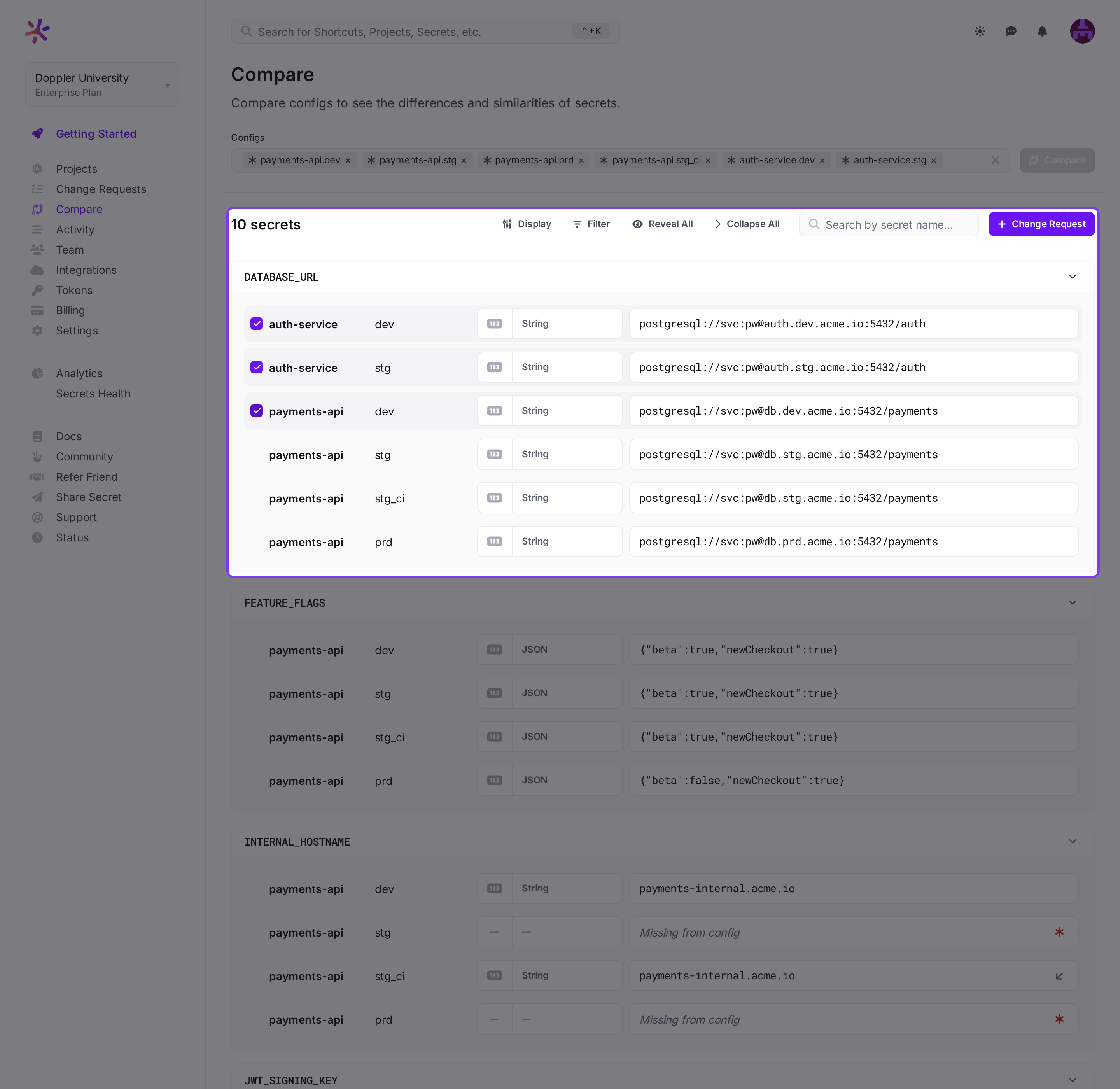
Each secret appears as a container, and within it each selected config is shown on its own row with its project, config, visibility, value type, and value. The project and config names are links that open the secret in its config.
The header shows how many secrets are in the comparison, and the toolbar holds the display, filter, reveal, expand/collapse, search, and change request controls.
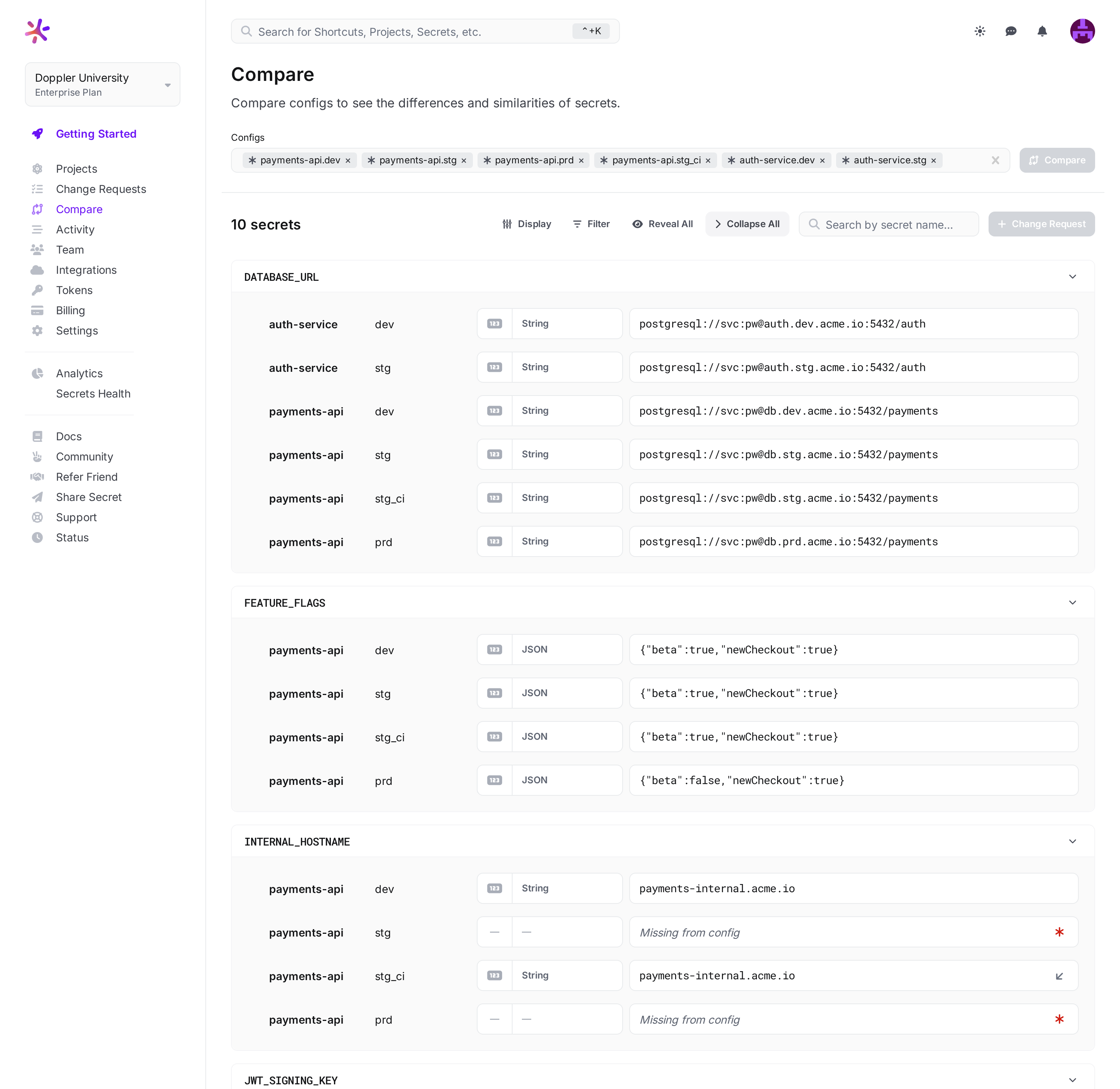
- Collapse containers: click a secret's header, or use Collapse All / Expand All, to hide or show its config rows.
- Search by secret name: type in the search box to narrow the results to matching secrets.
Grouping exact matches
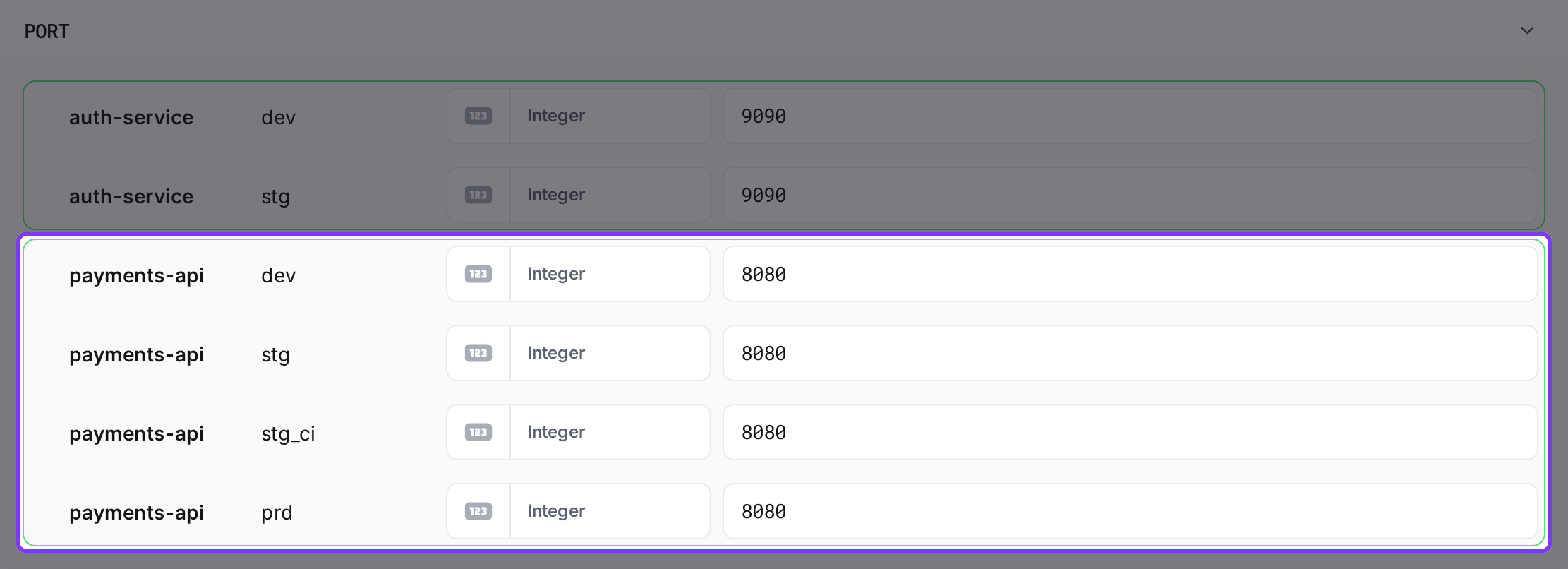
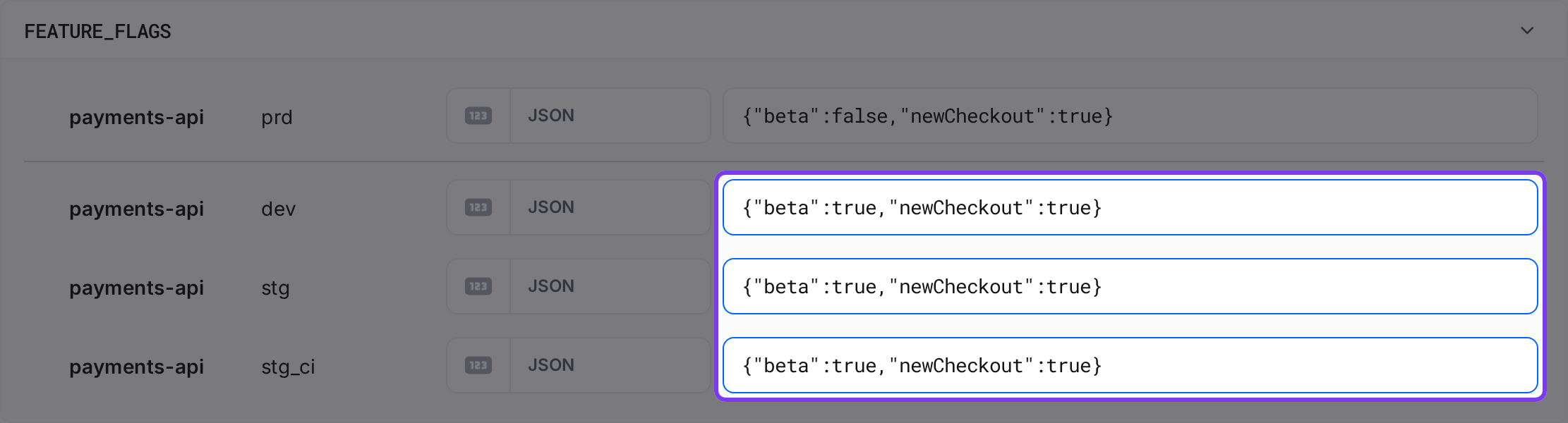
Turn on Group by value in the Display menu to outline configs whose values match exactly. This makes it easy to spot which environments share a value and which have drifted.
Comparing against a reference config
Open the Display menu and use Show diff to to choose the reference config.
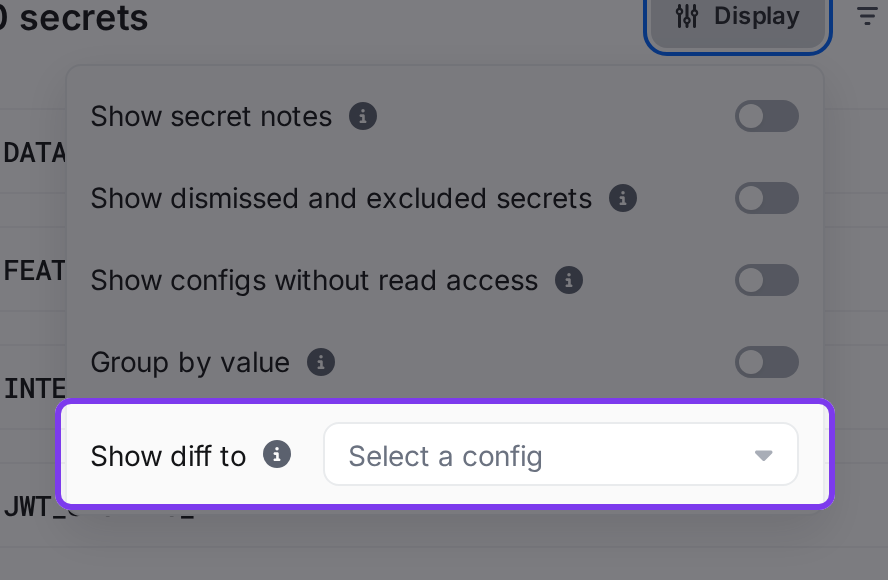
Doppler pins that config to the top of every secret, and any config whose value, visibility, or value type differs from the reference is highlighted, letting you compare each environment against a baseline.
Secret states
The comparison shows each secret's value along with how it got that value, or why it's absent.
Inherited
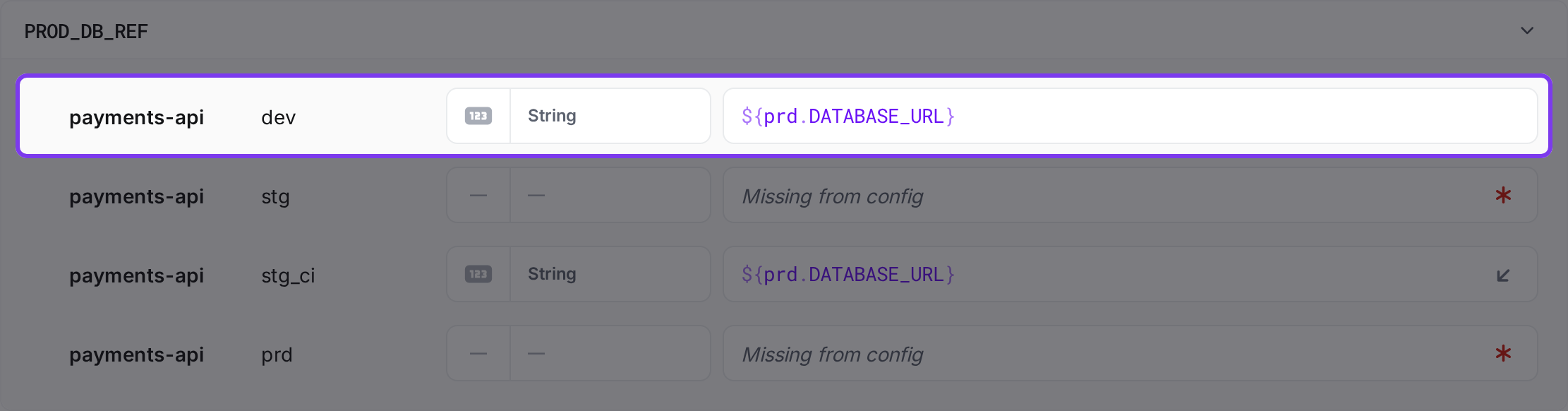
When a config inherits a secret's value from another config, the row shows an inherited indicator that names the source config.

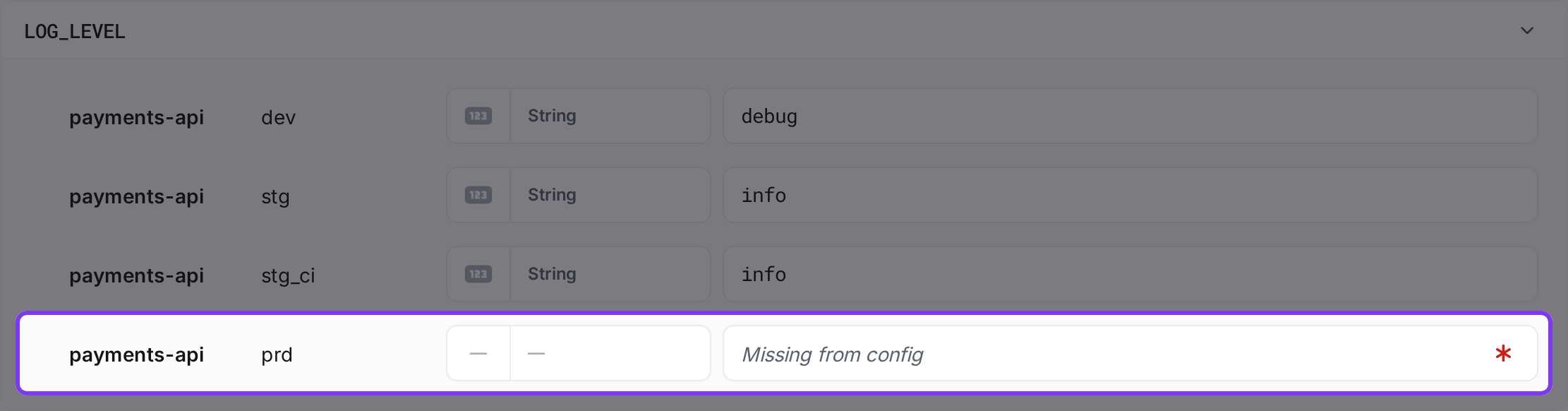
Missing from a config
When a secret is defined in one config of a project but absent from another config of that same project, the row is marked Missing from config with a red asterisk that links to a config where the secret is defined.
Dismissed and excluded
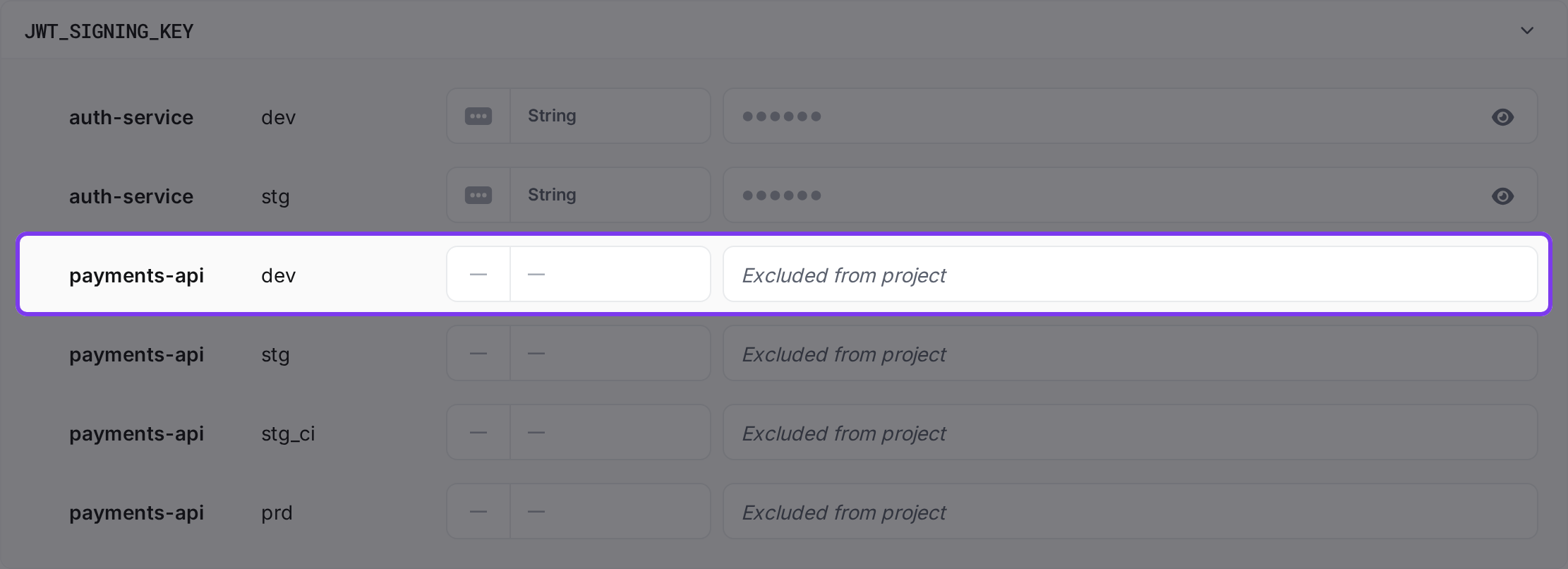
Turn on Show dismissed and excluded secrets in the Display menu to reveal two more states:
- Excluded from project: the secret is not defined anywhere in this config's project, but exists in another project in the comparison.
- Dismissed from config: the secret is missing from this config and has been explicitly dismissed.
Notes and references
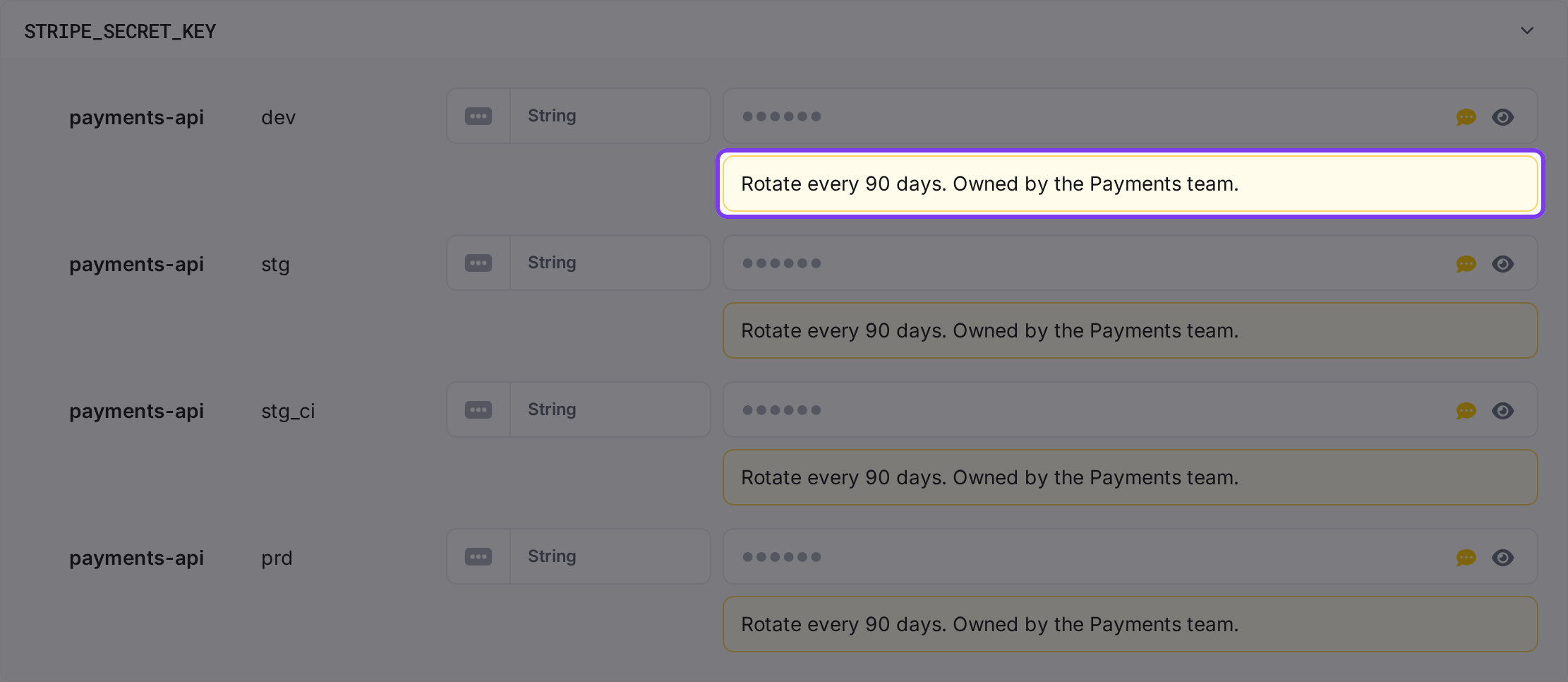
- Secret notes: turn on Show secret notes in the Display menu (or use the note icon on a row) to show each secret's note beneath its value.
- References: when a value references another secret, the reference is rendered with links to the referenced project, config, and secret so you can trace where the value comes from.
Filtering results
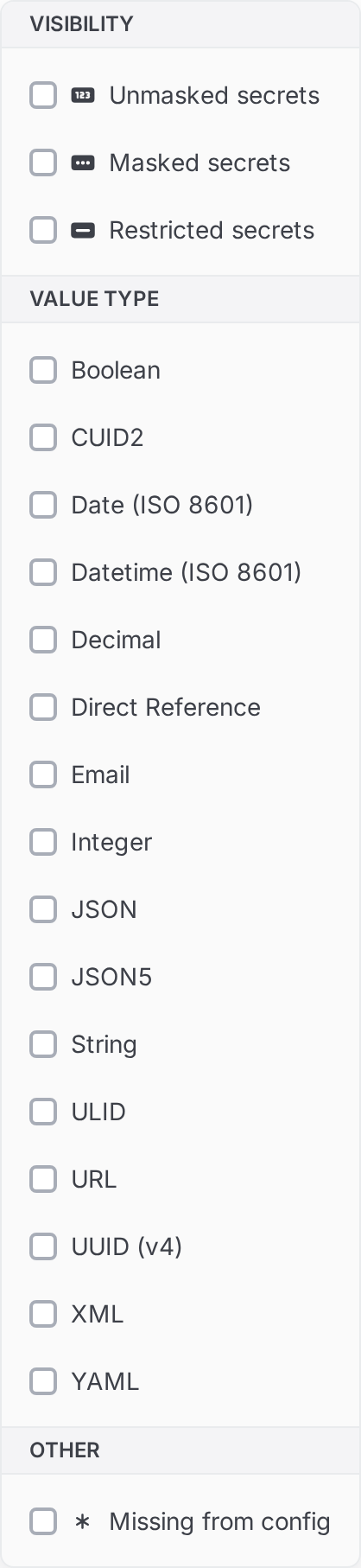
Click Filter to narrow the comparison. Active filters appear as dismissible pills, with a Clear All option. You can filter by:
- Visibility: unmasked, masked, or restricted.
- Value type: such as string, integer, JSON, email, or URL.
- Missing from config: show only secrets that are missing from one or more of the compared configs.
Display options
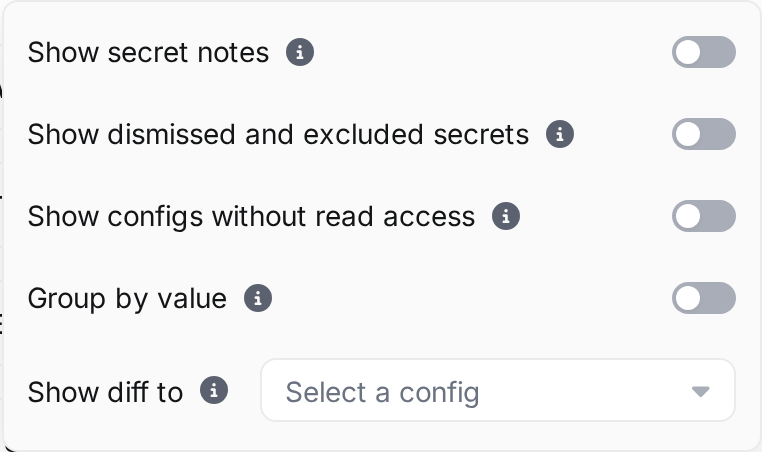
The Display menu collects the toggles that change what the results show: Show secret notes, Show dismissed and excluded secrets, Show configs without read access, Group by value, and Show diff to.
Masked values stay hidden until you reveal them. Use Reveal All to reveal every masked value in view, or the eye icon on an individual row, and Hide All to mask them again.
Sharing a comparison
The full state of a comparison: the selected configs, filters, grouping, reference config, and search are stored in the page URL. Copy the URL to share an exact comparison with a teammate; when they open it, they see the same configs, filters, and view.
Creating a change request
Requires an upgraded subscriptionThis feature is available with our Team and Enterprise plans. View our plans or book a demo for more details.
Select one or more rows using their checkboxes, then click Change Request. Doppler opens a new change request pre-filled with the selected secrets, so you can turn a difference you found in a comparison into a reviewable change. (Personal configs can't be included in a change request.)
Updated 12 days ago