
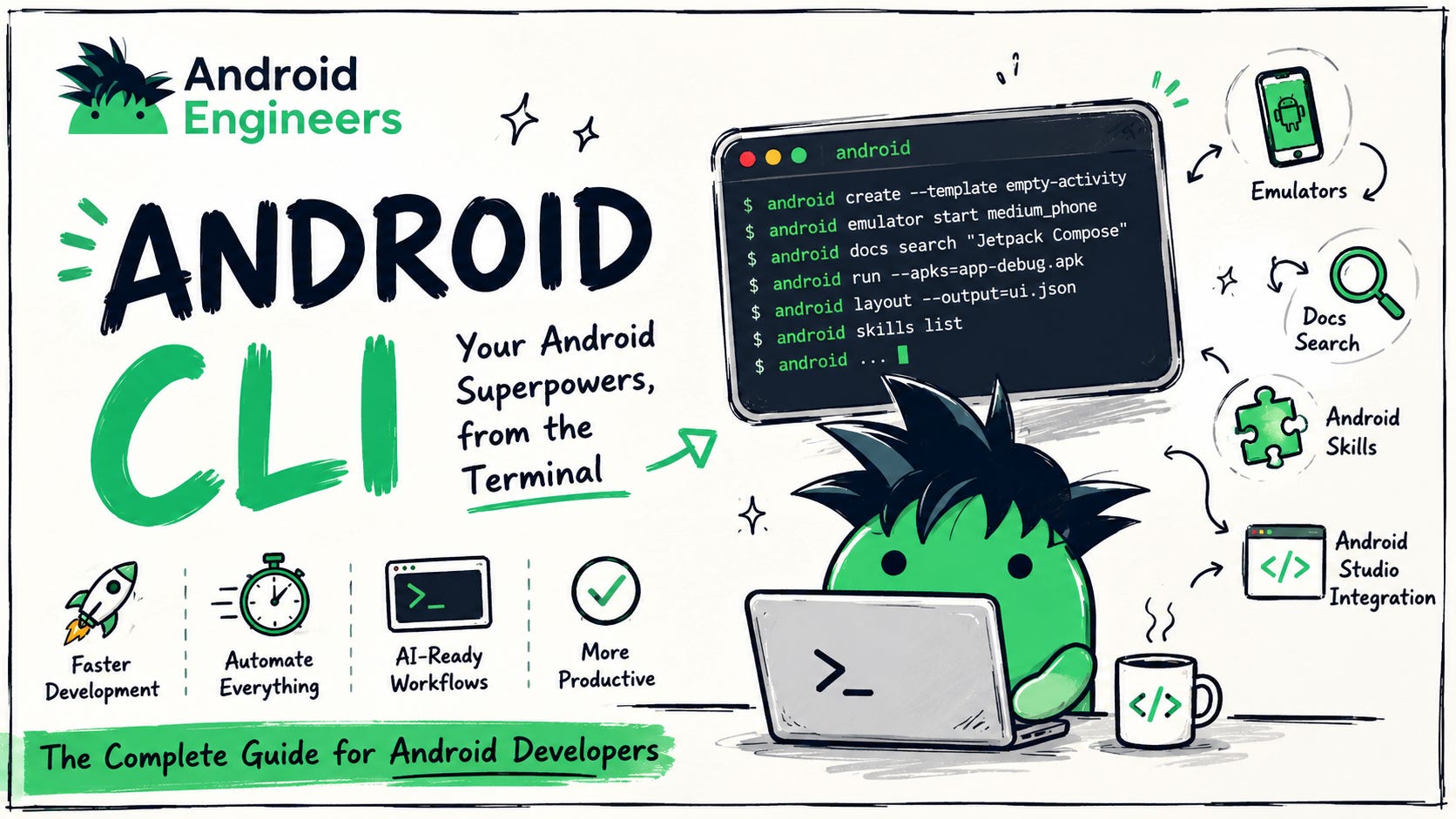
Android development has traditionally revolved around Android Studio.
Open the IDE. Click Build. Launch the emulator. Search documentation in the browser. Install SDKs through SDK Manager.
But Google is changing that.
The new Android CLI brings many of these capabilities directly into your terminal. It isn’t just another command-line tool—it’s becoming an interface that developers and AI coding agents can use to understand, build, debug, and automate Android projects.
If you’re using AI coding assistants like Gemini CLI, Claude Code, Cursor, Codex, or other terminal-based agents, this tool is especially interesting because it gives AI structured access to Android development workflows.
In this article, we’ll explore what Android CLI is, the most useful commands, and why it could become an essential part of every Android developer’s toolkit.
Modern software development is becoming increasingly terminal-first.
Developers are spending more time with:
Git
Docker
AI coding assistants
CI/CD pipelines
Remote development
SSH sessions
Android development has historically lagged behind because many tasks required Android Studio.
Android CLI begins to bridge that gap.
Instead of jumping between multiple tools, you can now perform many Android-specific tasks directly from your terminal.
After installing Android CLI, initialize your environment:
android initThis prepares the CLI and installs the Android CLI skill used by AI agents.
Creating projects becomes straightforward.
android createYou can even preview what will happen without creating files.
android create --dry-runNeed to see available templates?
android create listThis makes experimenting with templates much easier than repeatedly creating and deleting projects.
One of my favorite features is built-in documentation search.
Instead of opening a browser and searching Google:
android docs search "Jetpack Compose Navigation"After finding the documentation:
android docs fetch kb://...This allows developers—and AI agents—to retrieve official Android documentation directly from the terminal.
Forget opening Device Manager every time.
List available emulators:
android emulator listCreate one:
android emulator createLaunch it:
android emulator start medium_phoneStop it:
android emulator stop emulator-5554Perfect for automation scripts and CI environments.
Already have an APK?
Deploy it directly:
android run --apks=app-debug.apkYou can also:
choose a specific device
launch a particular Activity
start background services
deploy multiple APK splits
This saves time when testing builds.
Instead of navigating through SDK Manager:
List packages:
android sdk listInstall:
android sdk installUpdate:
android sdk updateRemove:
android sdk removeEverything becomes scriptable.
This is especially useful for automated build environments.
Need screenshots for documentation?
android screen captureEven better:
android screen capture --annotateThe CLI can annotate UI elements, making them easier to reference programmatically.
Want to inspect the current screen?
android layoutPretty-print it:
android layout --prettyExport to JSON:
android layout --output hierarchy.jsonThis is incredibly useful for:
UI debugging
Accessibility testing
Automation
AI-assisted UI understanding
Perhaps the most exciting feature is Android Skills.
Skills provide AI agents with Android-specific knowledge and workflows.
List available skills:
android skills listSearch:
android skills find performanceInstall:
android skills addUpdate all:
android skills add --allRather than relying on generic AI knowledge, Android Skills help agents follow Android best practices.
This is where Android CLI becomes truly powerful.
It can communicate directly with a running Android Studio instance.
Check the connection:
android studio checkAnalyze a file:
android studio analyze-fileFind declarations:
android studio find-declarationFind usages:
android studio find-usagesOpen a file:
android studio open-fileRender Compose Preview:
android studio render-compose-previewCheck dependency versions:
android studio version-lookupInstead of manually navigating your IDE, these capabilities become available programmatically.
The biggest story isn’t the commands.
It’s what they enable.
Imagine asking an AI assistant:
“Find every place this composable is used.”
or
“Render my Compose preview.”
or
“Search the official Android docs for Navigation Compose.”
or
“Check if my dependencies are outdated.”
Instead of guessing, the assistant can use Android CLI to retrieve structured information directly from your project and tooling.
That means:
fewer hallucinations
better context
more reliable Android-specific answers
faster development workflows
If you’re just getting started, I’d begin with:
android docs search
android emulator start
android layout
android run
android studio check
android studio find-usages
android studio render-compose-preview
android skills add
These provide immediate value in day-to-day development.
Android CLI feels like the foundation for a new way of building Android apps.
As AI becomes part of every developer’s workflow, tools need to expose structured capabilities—not just text.
Android CLI does exactly that.
It enables developers and AI agents to interact with Android projects through well-defined commands instead of relying solely on IDE interactions.
We’re moving toward a future where Android Studio, AI assistants, and the terminal work together seamlessly.
Android CLI is much more than a convenience tool.
It’s an important step toward AI-native Android development.
Whether you’re:
building apps professionally,
experimenting with AI coding assistants,
automating workflows,
or improving your development productivity,
it’s worth exploring.
The terminal is becoming a first-class interface for Android development—and Android CLI is leading that transition.
In upcoming articles, I’ll dive deeper into:
Building Android apps with AI coding agents
Android Skills in practice
AI-assisted debugging workflows
Using Android CLI with Gemini CLI and other coding assistants
Automating Android development pipelines
If you’d like to see those, follow me on LinkedIn, subscribe to Android Engineers on Substack, and keep experimenting.
Happy coding! 🚀
References
Android CLI command reference and usage guide.
Comments
Nothing yet. Say the first thing.
Sign in to join the conversation.