
On September 28, 2023 local time, Amazon Bedrock, a service dedicated to generative AI apps, is now generally available on AWS! Exploding with joy!
Amazon Bedrock
Serverless service for easily building and scaling generative AI applications using foundational models (FM)
https://aws.amazon.com/jp/bedrock/
I will be demonstrating a chat interaction with Anthropic's latest model, ClaudeV2.
Amazon's investment in Anthropic has been a hot topic of discussion.
Amazon's up to $4 billion investment in Anthropic to boost AI competition.
Here is Anthropic's Claude's documentation if you want to learn more about the model!
https://docs.anthropic.com/claude/docs/your-first-chat-with-claude
Below is the process of setting up to be able to use ClaudeV2 and chat with Mo ClaudeV2!
We will proceed on the assumption that you have already created your AWS account!
In the management console, set the region to **Northern Virginia** where Amazon Bedrock is released and search for "Bedrock".
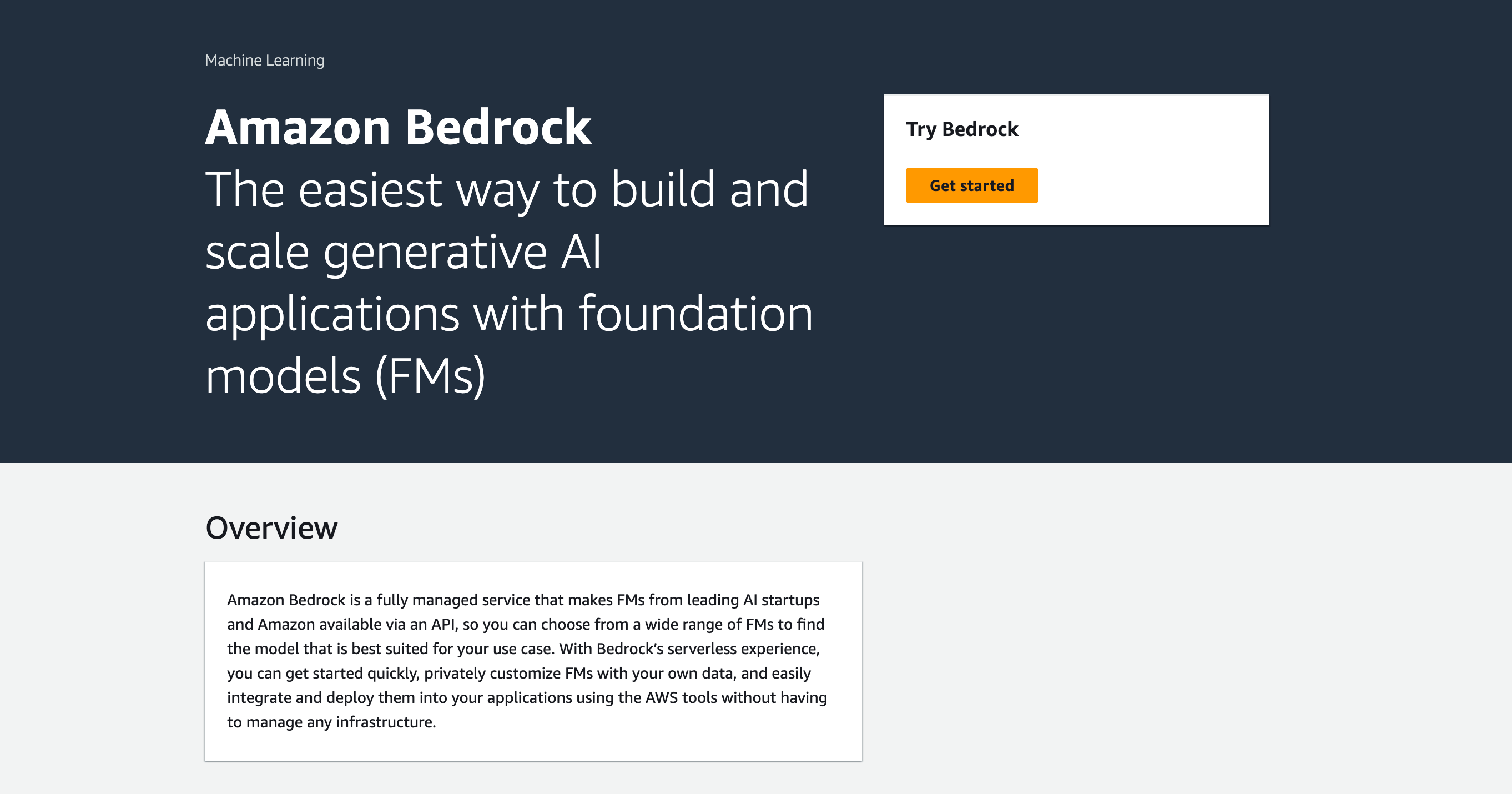
Click on GetStarted on the right to get started!
To start Bedrock, you will need to do some initial setup to access your model.
- Select the model you want to access -> Save
- After a while, you will receive an email and be able to use the model.
- To use Anthropic's models, you need to answer some more questions
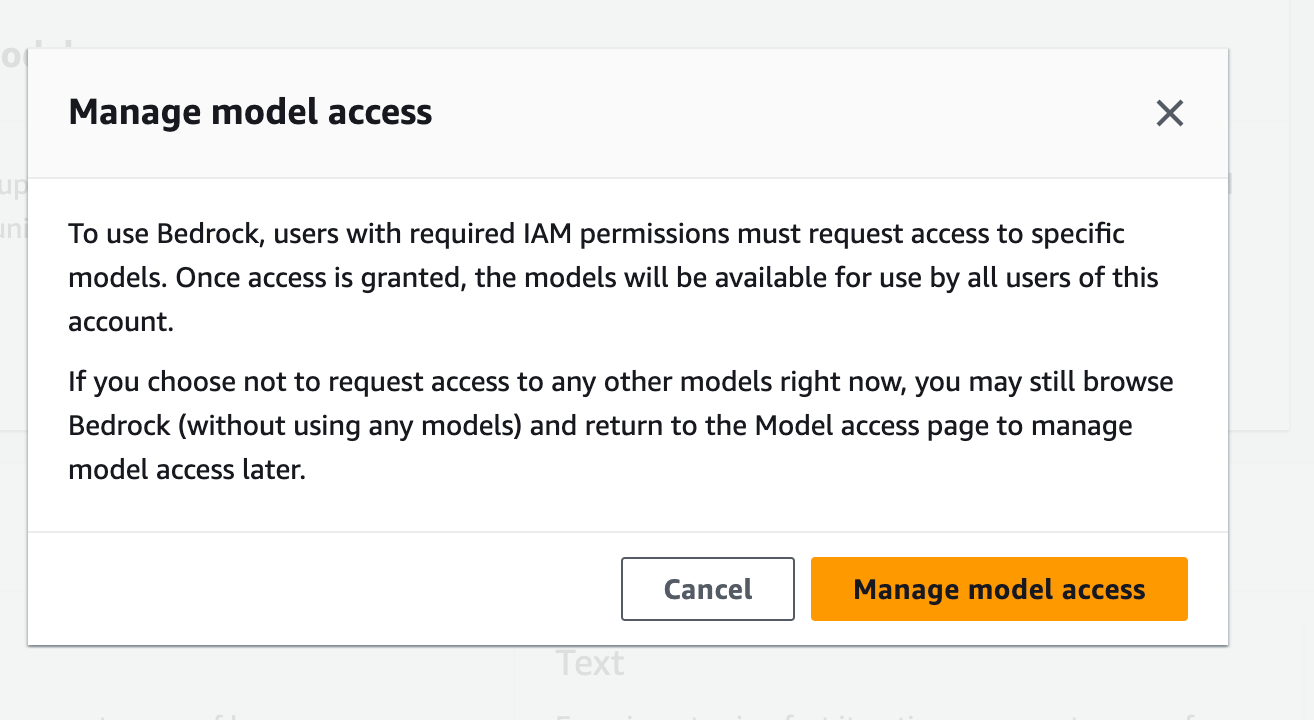
You will immediately get a pop-up screen.
We will set up to access the model, so click "Manage Model Access".
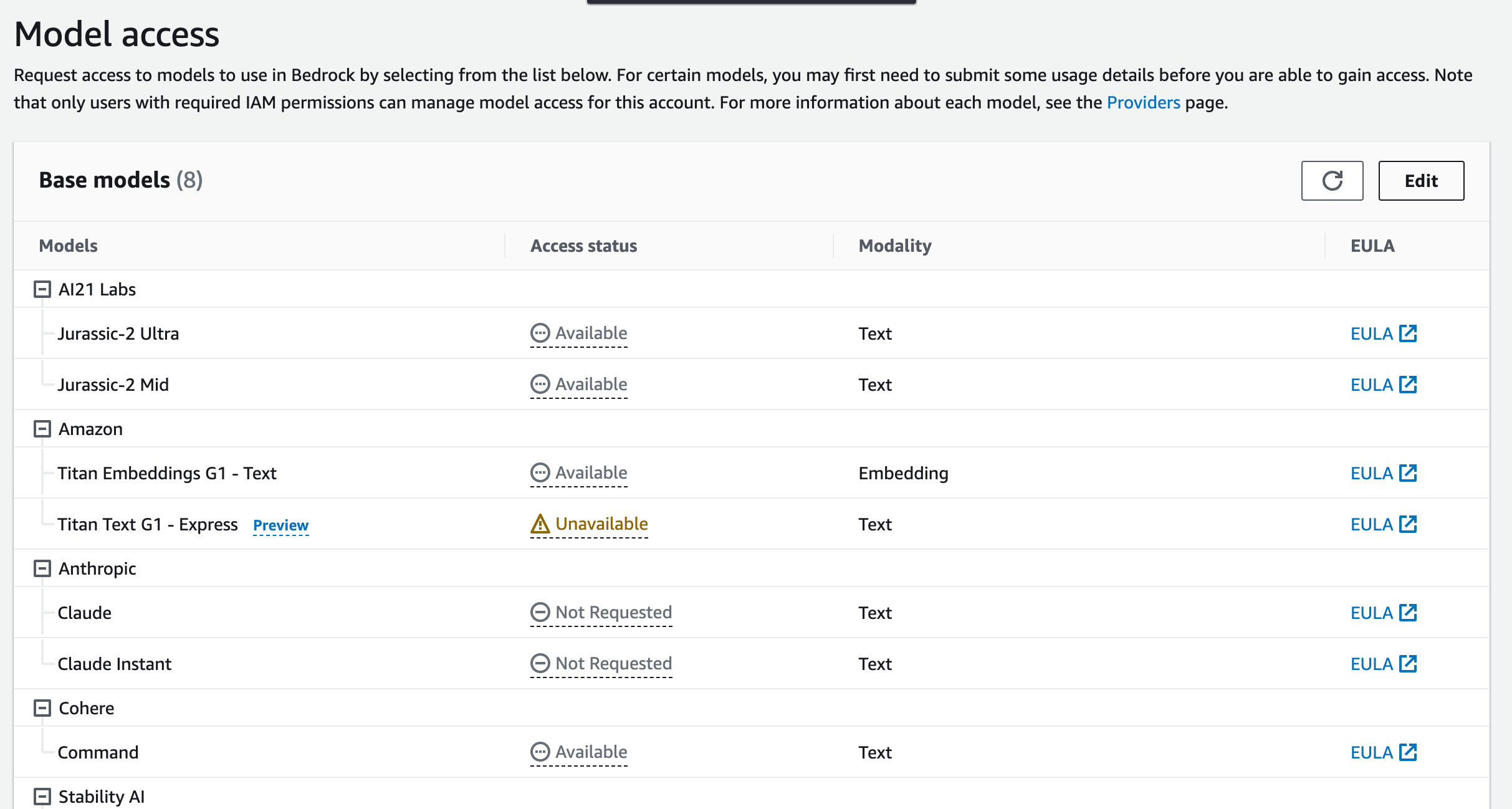
A list of models is now displayed. To make the model available, click Edit in the upper right corner.
Check the models you want to use and click "Save changes".
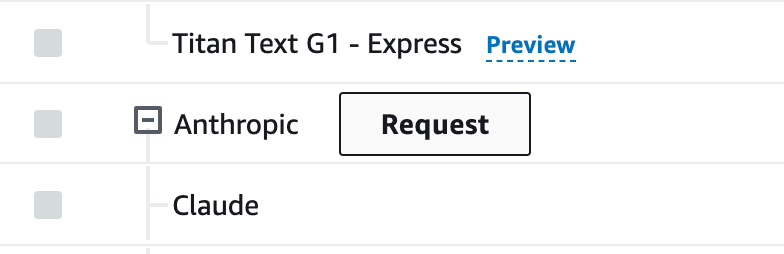
To use Anthropic's model, click on "Request".
Answer the items below. When you are done, click "Request".
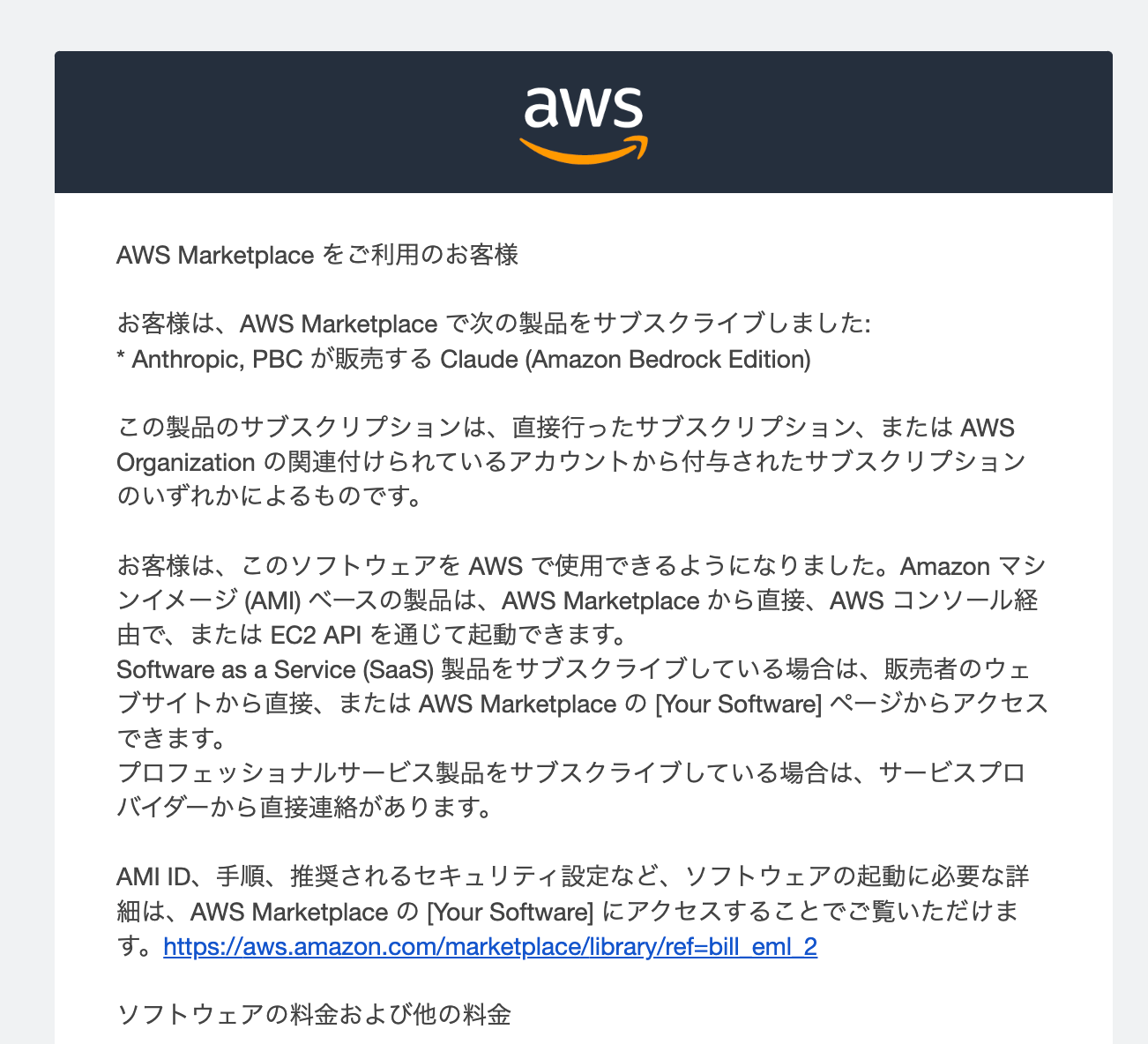
After a while, you will receive a message to the e-mail address registered in your AWS account.
Reload the Model access page and you will see that the Access status is now Access granted and the model is ready to use!

This completes the initial setup for using the model.
Next, we can move the model from the UI with PlayGround, so let's give it a try!
Once you have set up access to your model,
You can try out the model from the UI named PlayGround on the left sidebar.
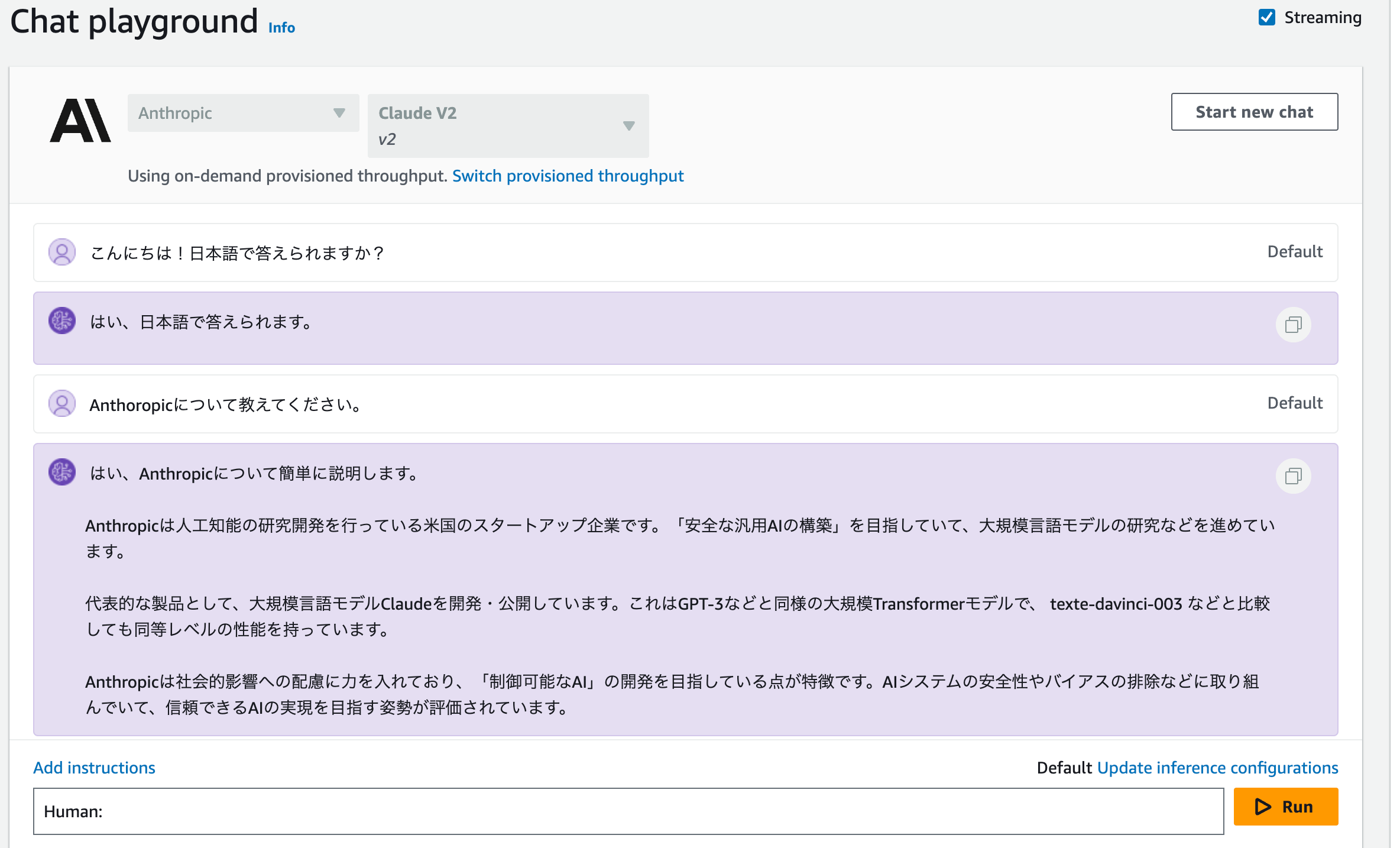
He answered me very crisply!
I'm impressed that you can move models so easily within AWS.
I did everything from the initial setup of Amazon Bedrock to actually running the models.
I was able to run the models as easily as starting up EC2.
I would like to get to know Bedrock better!
No posts
Comments
Nothing yet. Say the first thing.
Sign in to join the conversation.