

Jeff's been involved in the IT industry since before the Internet and spent more than 20 years working in technical support, system administration, network administration, and consulting roles. He holds an undergraduate degree in English, a Master's degree in English with a focus on professional writing and editing, and another Master's degree in Computing & Information Systems.
After teaching university English and computer science for a few years, Jeff launched his writing career. He's written for Macworld, Tom's Hardware, groovyPost, The Mac Observer, and more before beginning here at XDA.
For a long time, I assumed keeping several Linux PCs consistent meant keeping the installations themselves consistent. That usually meant cloning drives, restoring full-system images, or repeating the same setup routine, hoping I remembered everything I’d changed last time. Eventually, I realized that wasn’t the part I cared about. I don’t need three identical Linux installations; I need the parts I actually interact with every day to follow me from one machine to the next.
My configuration matters more than the Linux installation itself
Most of what feels familiar lives above the operating system
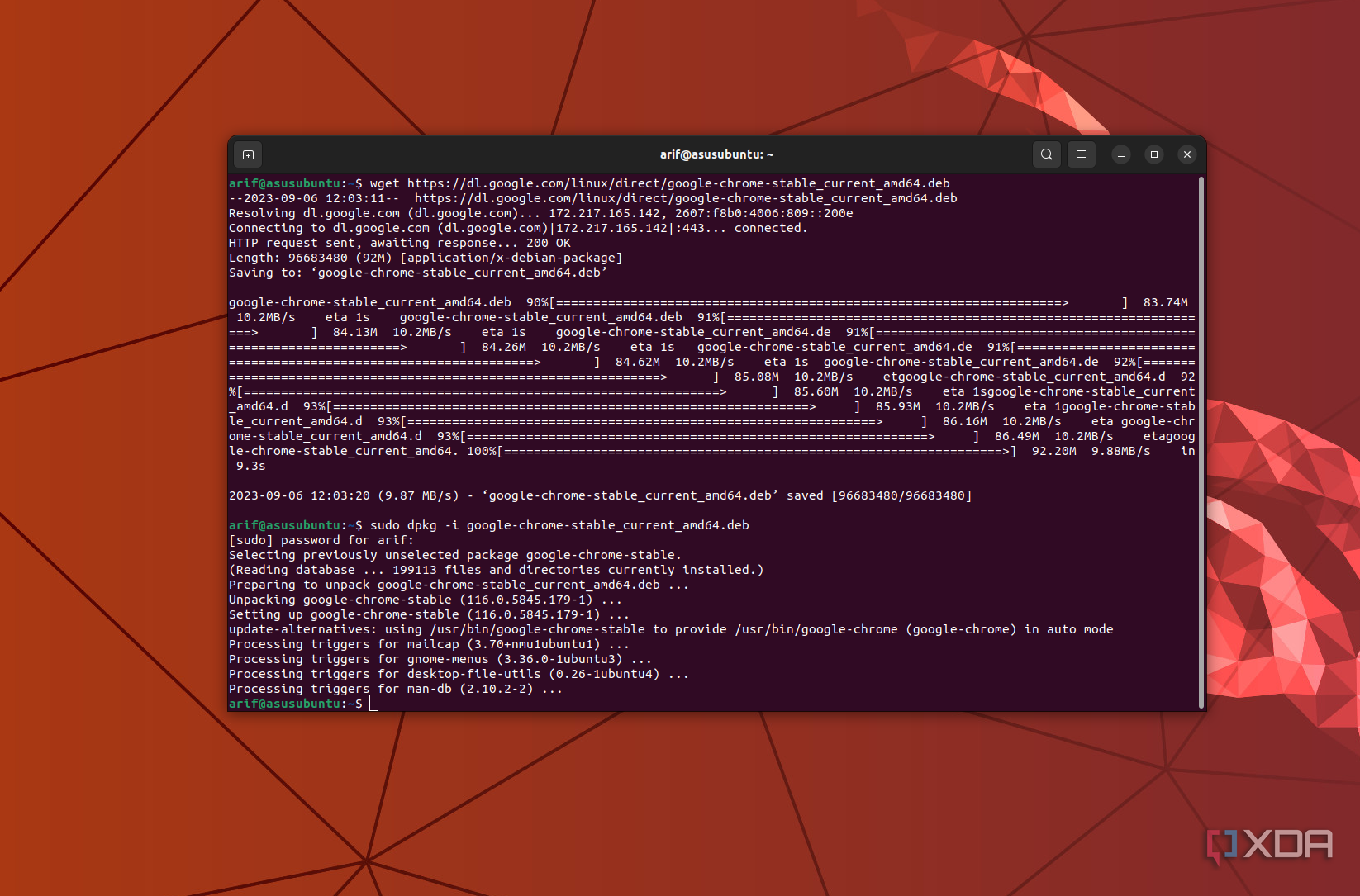
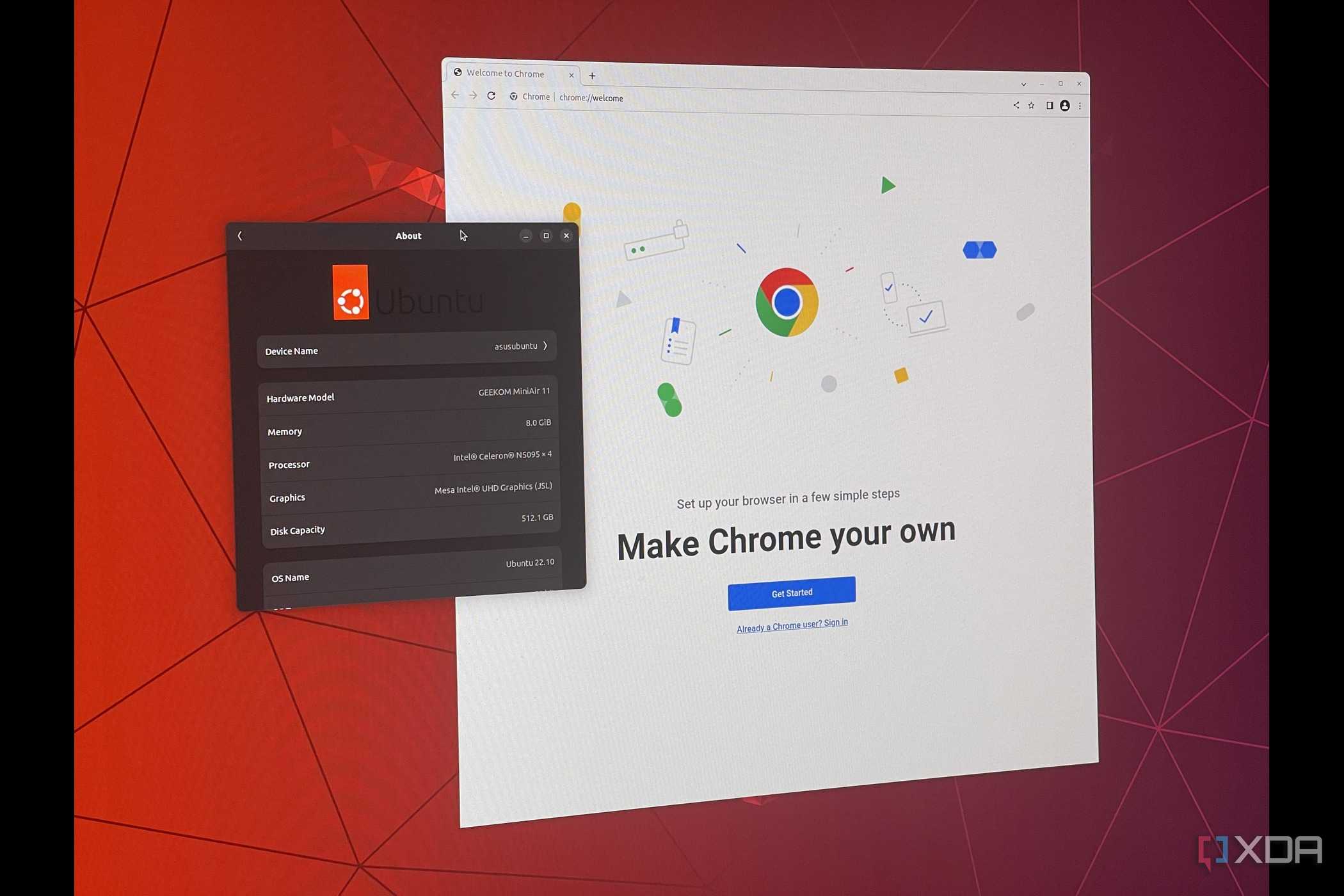
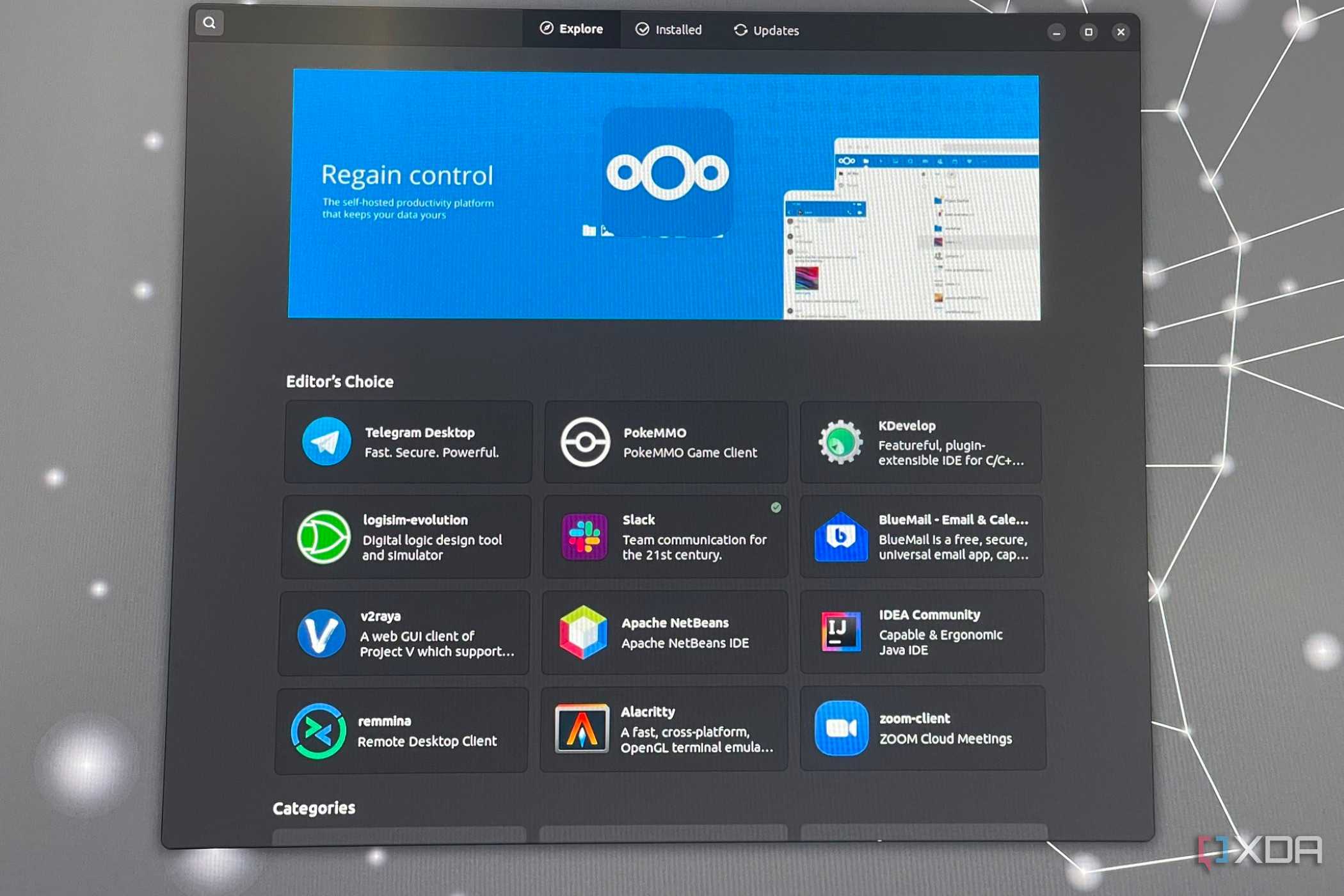
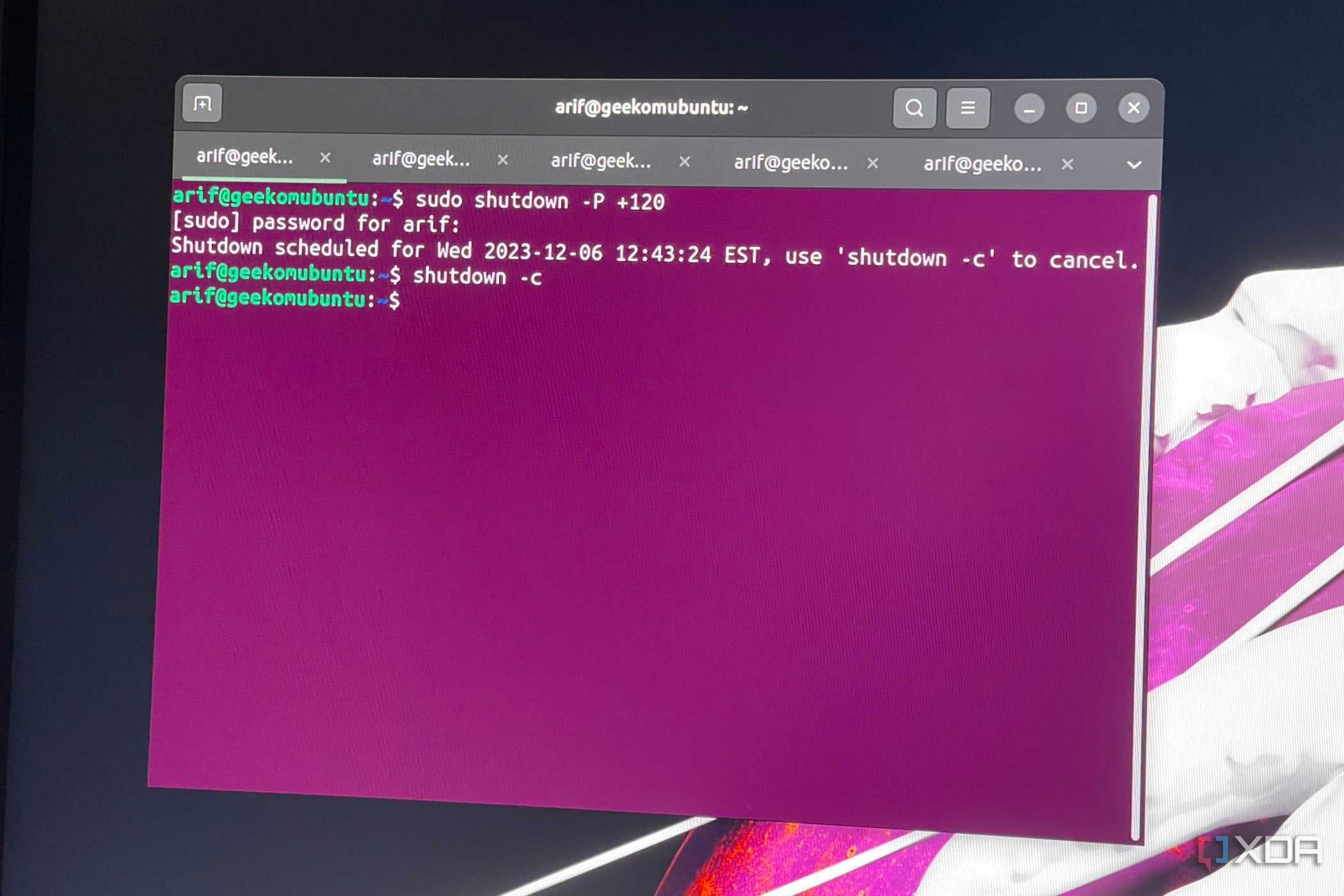
A fresh Linux install isn’t the annoying part for me anymore. What throws me off is opening a terminal and realizing my shell doesn’t behave as I expect, my aliases are missing, or an application I use all the time has reverted to its defaults. Those little things add up surprisingly fast. They’re also a much bigger part of whether a machine feels familiar than the underlying installation ever was.
That changed how I think about dotfiles. I used to treat them as background clutter that happened to live in my home directory, even though much of my workflow depended on them. Once I started treating the important ones as actual configuration worth preserving, moving between machines became much less irritating. I wasn’t trying to copy Linux anymore; I was trying to carry over the handful of decisions I’d already made and didn’t want to make again.
Git works well for that because most of this stuff is just text. I can keep the files I care about in a repository, make changes on one system, and bring those changes over to another when I’m ready. The version history is useful too, especially when I change something that seemed sensible at the time and later wonder why a tool suddenly behaves differently. I’d rather look at what I changed than stare at a config file trying to reconstruct my own reasoning.
I can reinstall my applications without rebuilding everything manually
Package lists turn reinstalling software into a predictable routine

Configuration only gets me so far because those files still expect the right software to be present underneath them. I don’t want to install Linux on another machine and then spend the next hour remembering which utilities I always end up adding. That process is especially annoying because I invariably remember one package only after I try to use it. Keeping a package list turns that scavenger hunt into something much more deliberate.
I don’t need every PC to have the same software, either. There’s a useful distinction between the packages I consider part of my baseline and those that only make sense on a particular machine. Keeping those separate prevents the shared setup from filling up with things I installed once for a specific task and never touched again. That’s already better than cloning a drive and inheriting years of software baggage simply because it happened to be there.
I also like that the software still comes from the distribution’s normal package management system. I’m not preserving old binaries or restoring any versions that existed when I made the image. The new machine installs what its repositories currently provide, while my list reminds me what I actually want installed. It feels cleaner, and it’s much easier to understand than dragging an old system forward indefinitely.
My files stay separate from the machines running Linux
Keeping data separate makes each computer much easier to replace

The key to making this workable is keeping my files separate from the operating system. Documents, projects, media, and other working data don’t need to be tied to a single Linux install. If those files are synchronized or stored where all three PCs can reach them, I can sit down at any of them without first checking which machine has the current copy. That matters far more to me than having three byte-for-byte identical drives.
I don’t need three identical Linux installations; I need the parts I actually interact with every day to follow me.
It also makes reinstalling Linux much less of an event. I can wipe a system, try another distribution, or replace a drive without turning the whole thing into a recovery weekend. Once Linux is back, I restore the configuration I care about, install the applications I need, and reconnect the data. There are still a few loose ends to handle, because there always are, but I’m not rebuilding my entire working environment from memory.
Not everything has to live everywhere, either. Some folders make sense to keep readily available on all three PCs, while larger files or machine-specific data can stay on shared storage instead. That distinction matters because I’m not chasing perfect synchronization for its own sake. I want to know that the things I need are available where I expect them to be.
There are good reasons not to make every PC identical
Different hardware still deserves its own configuration and software choices
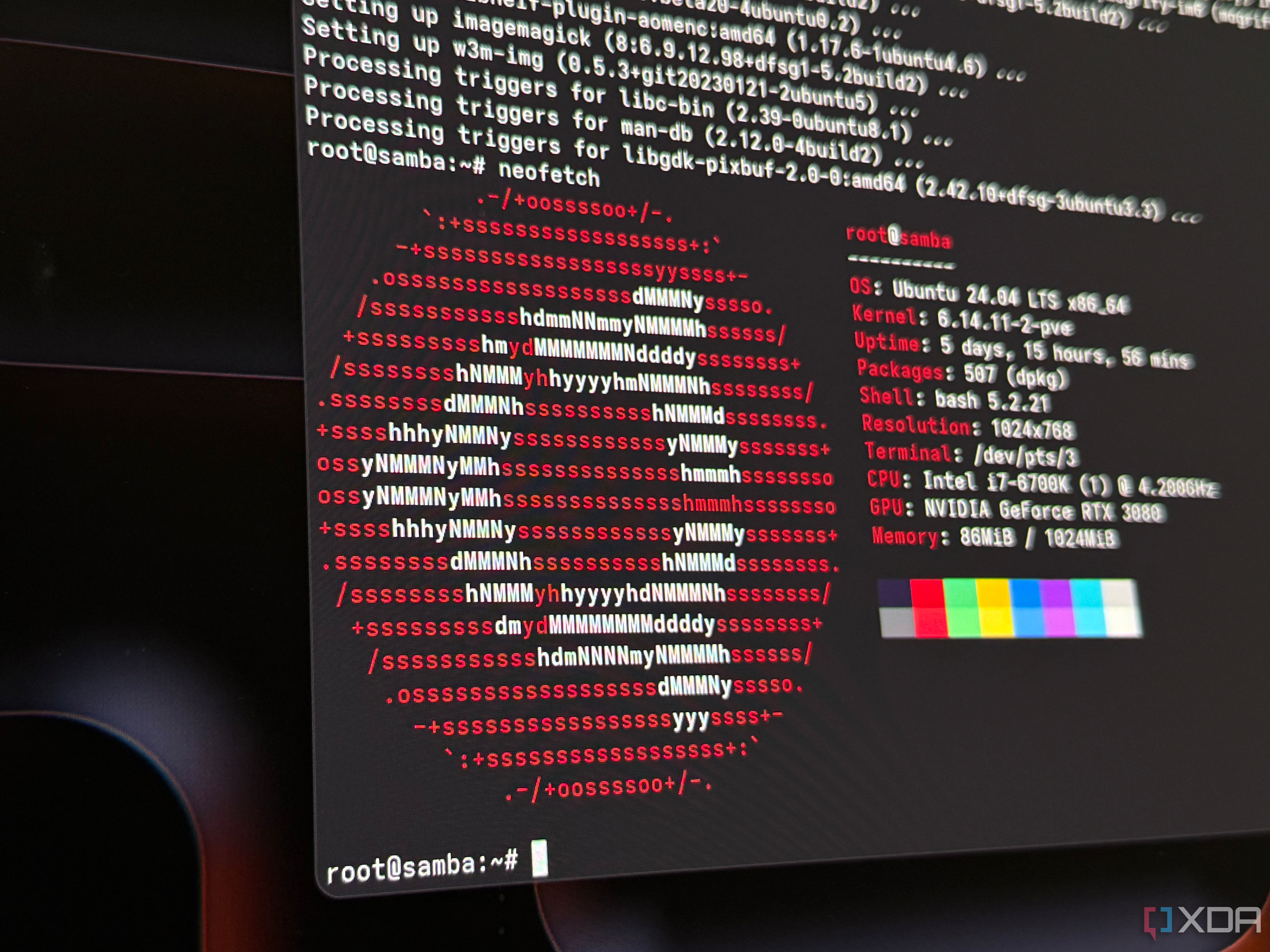
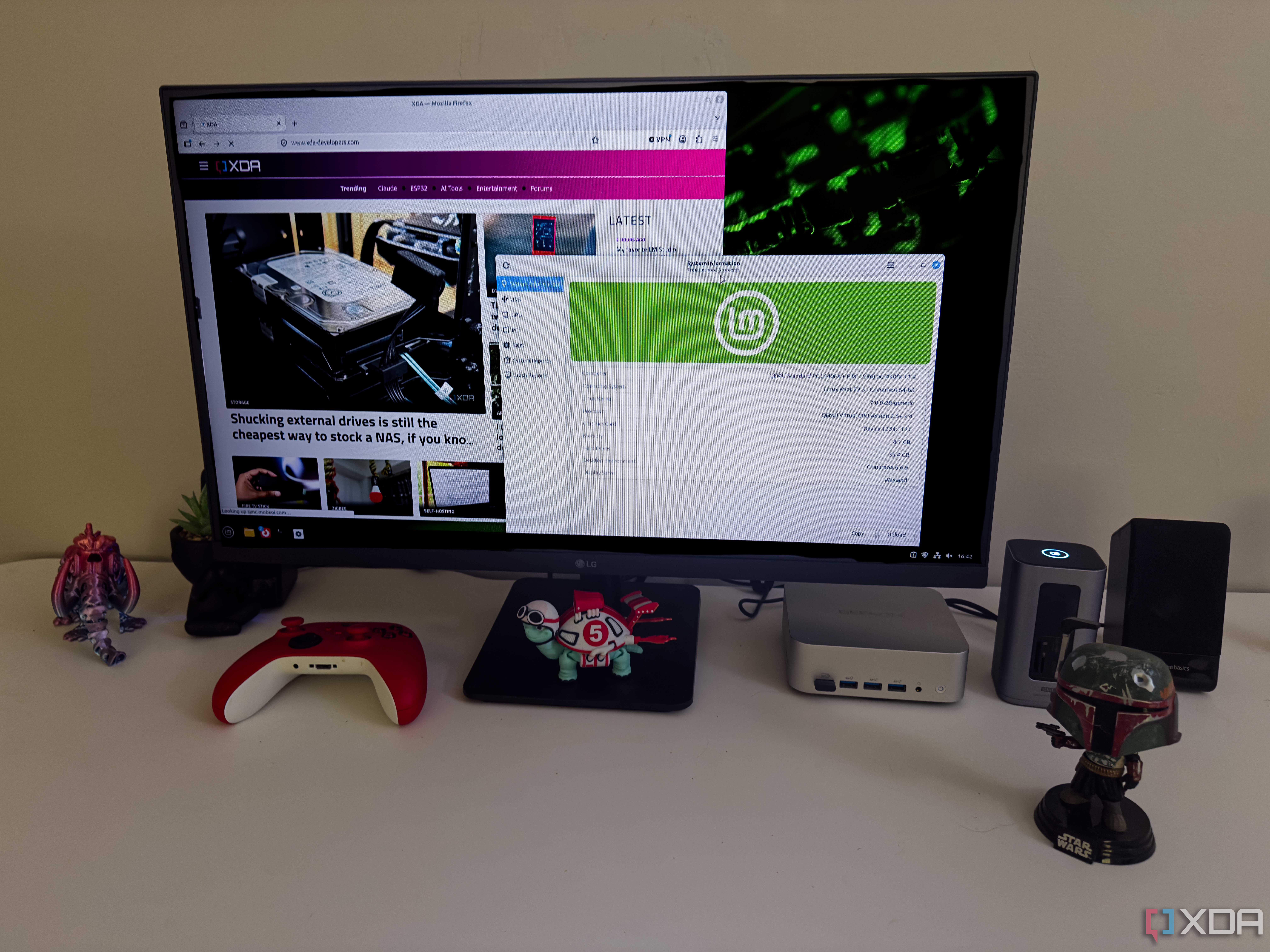
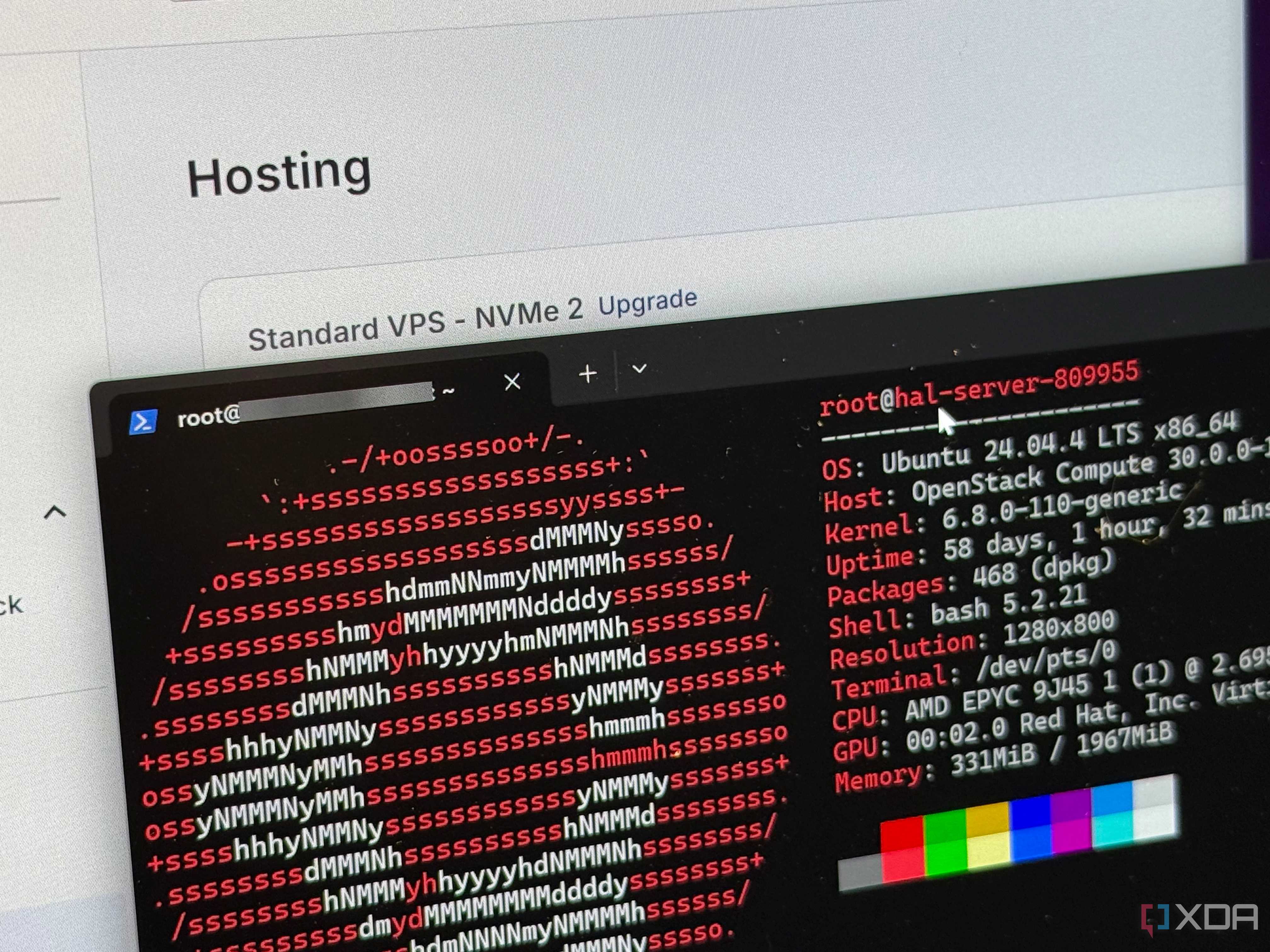
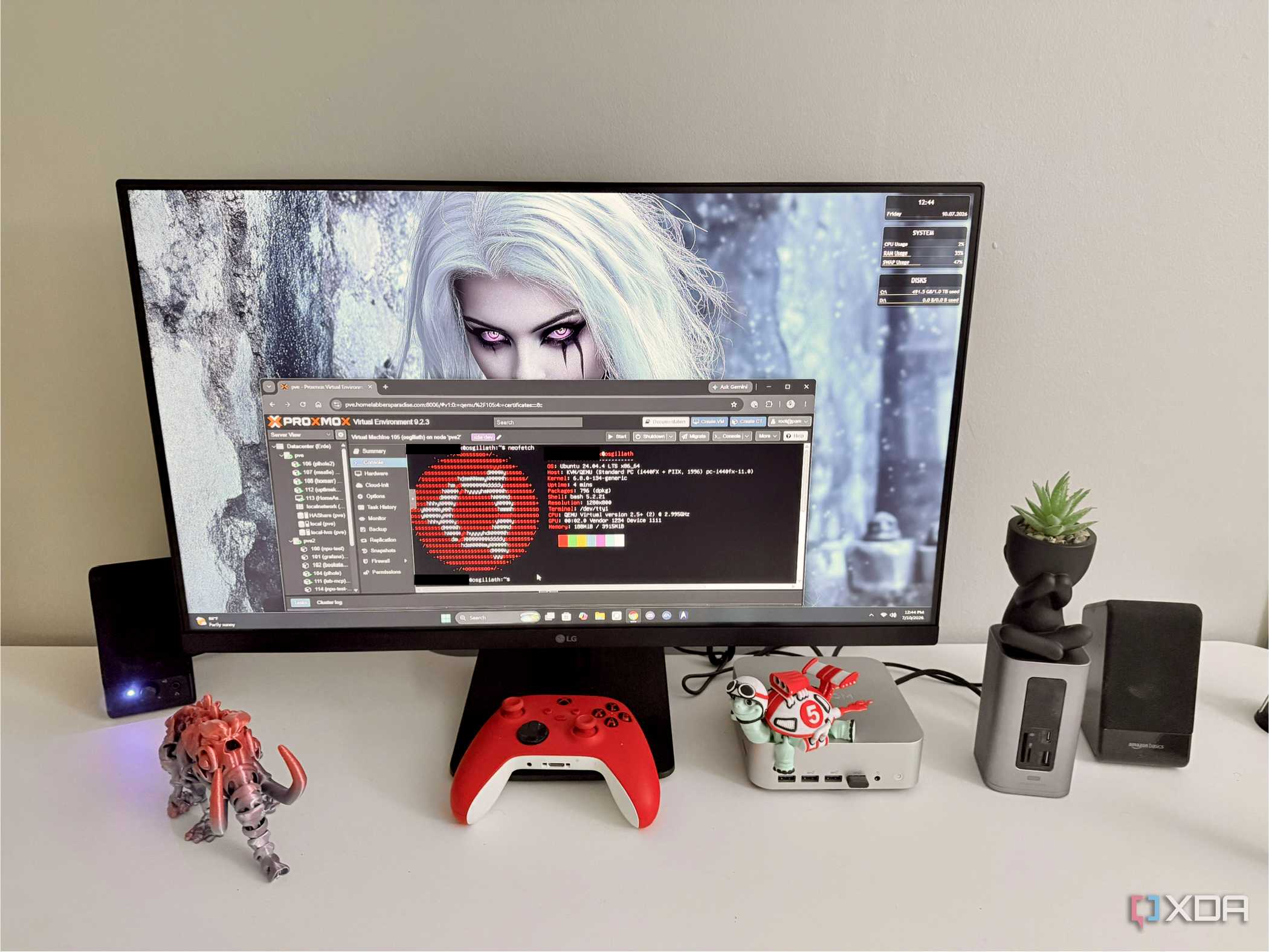
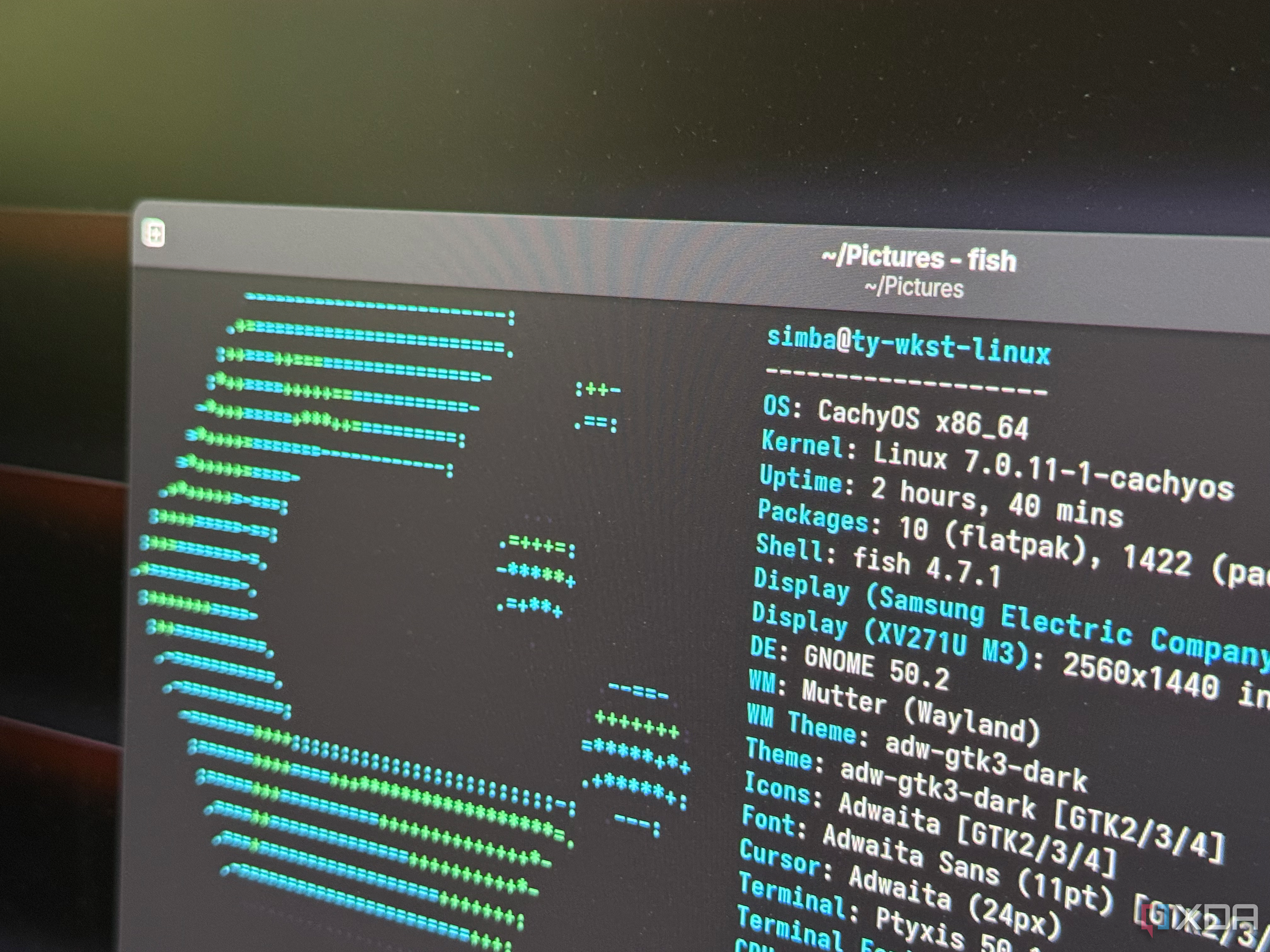
Forcing three Linux PCs to be identical would create its own set of problems. Different graphics hardware, network adapters, storage layouts, displays, and peripherals can require different drivers or settings. One computer may also have a job the others don’t, so installing everything everywhere would be pointless. The shared setup has to stop somewhere, or it becomes another thing I have to babysit.
There’s maintenance on the configuration side, too. A dotfiles repository can get messy, package names can differ across distributions, and an application update can break an old configuration. Synchronizing settings doesn’t make those problems disappear. In some cases, it means I can propagate a bad decision to multiple systems if I’m careless about what I commit.
And for a single computer, this whole approach can be more work than it’s worth. A good backup and a full system image may be simpler if the only goal is to get one machine back exactly as it was. Cloning also makes sense when exact preservation matters more than flexibility. I still use the same basic idea here: pick the recovery method that best matches the problem, rather than assuming a single method can handle everything.
I want consistency where it helps, not identical computers everywhere
The shared foundation can stay portable without becoming restrictive

That’s why I don’t try to make the three PCs match perfectly. I want the common pieces that affect how I work to stay consistent, while hardware-specific pieces remain local to each machine. My terminal behaves the same way everywhere, even though the systems don’t share the same graphics configuration or storage setup. That’s enough consistency to make switching machines feel normal without turning the setup into a rigid template.
You don’t need to sync everything. Keep the configuration files, package lists, and folders that directly affect your day-to-day workflow portable, while leaving hardware-specific settings and one-off software on the machines that need them.
It also gives me room to test changes before spreading them around. I can adjust a configuration on one machine, use it for a while, and commit it only after I decide I prefer it. I’ve found that useful because not every change deserves to become permanent just because it worked for five minutes. Keeping that extra step between experimentation and synchronization saves me from having to undo the same mistake in several places.
This arrangement also means failures stay relatively contained. If one Linux installation breaks, I haven’t lost the configuration, the package list, and the only copy of my files at the same time. Replacing a machine doesn’t mean rebuilding my habits from scratch, either. The PC itself becomes replaceable in a way that feels much more practical than preserving one SSD forever.
A portable Linux environment is more useful than a clone
I’ve gradually stopped thinking of the Linux installation itself as the thing I need to protect. What I actually want to preserve is the collection of choices that make Linux comfortable for me to use. Once I separate those choices from the operating system, moving between computers becomes much less disruptive. Each machine can still be different where it needs to be, but I don’t have to relearn my setup every time I sit down somewhere else.
Drive cloning still has a place, especially when I want an exact snapshot or the fastest possible recovery of a particular computer. It just isn’t how I want to keep several Linux machines consistent anymore. A reproducible configuration, a known software list, and data that isn’t trapped within a single installation give me the portability I was after in the first place. I can change hardware, reinstall Linux, or move to another PC, and the parts I actually care about can come with me.
Comments
Nothing yet. Say the first thing.
Sign in to join the conversation.