
Folks, let’s talk about “computer use” for a second.
It’s a feature that lets AI agents take over your screen to find and kill Sarah Connor interact with UI elements in apps or websites, just as you would.
Anthropic and OpenAI each have their versions of this:
Polished demos make computer use feel like a magic silver bullet that can do anything.

In reality, computer use is still quite clunky and can chew through tokens faster than you can say “Supercalifragilisticexpialidocious”:
So let’s look at how computer use works and when it actually makes sense.
Normally, when you ask local agents like Claude Code to do stuff for you, they’ll use backend tools, scripts, and other behind-the-scenes shenanigans to do the job:

But in some cases, you may want an AI agent to work with an app, website, or other visual interface the way you would.
That’s where “computer use” comes in.
Computer use hands your agent a mouse and keyboard and lets them navigate your screen visually, clicking buttons, typing, scrolling, and so on.
Here’s Claude kicking off the same “cats in hats” task, but via computer use:
As you can see, in this instance, the AI agent views your screen, identifies relevant elements, and takes actions directly.
On the upside, this means you can easily follow exactly what the agent is doing.
On the downside, it’s usually way slower and less efficient. Claude spent more time finding and downloading the three cat images using “computer use” than it took to complete the entire task using backend tools.
Note that Claude’s “computer use” requires at least the Pro plan.
ChatGPT might let you use it for free, but it’ll likely burn through your limited free quota quickly.1
In both cases, you’ll have to enable “computer use” first if you haven’t done so before.
Click on your account in the lower-left and go to Settings:

Navigate to Desktop app > General, and toggle “Enable computer use”:

You’re all set!
With ChatGPT, you’ll first have to go to Plugins and install “Computer Use”:

Then click on your account in the lower-left and go to Settings:
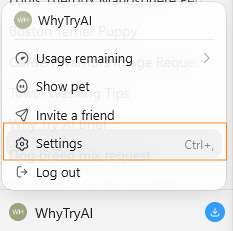
Navigate to Integrations > Computer use and enable all relevant controls, especially “Any App” if you want broad access to your desktop apps:
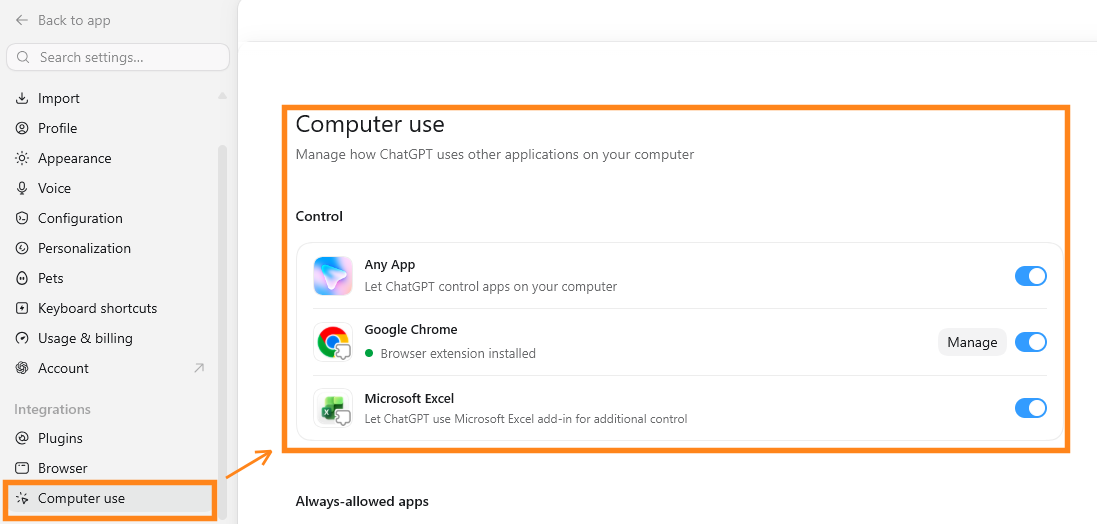
That’s it!
From here on out, Claude and ChatGPT will automatically use your computer to accomplish tasks when they think it’s relevant.
But you can also ask them to do so explicitly.
It’s usually enough to state that you want the agent to use your computer:

In ChatGPT, you can also use the dedicated @Computer command:

Here’s the process in action:
Get this, though: The video is sped up 10x!
Yes, it took ChatGPT almost 5 minutes to rename three cat photos via “computer use.”
Using backend commands and tools, a fancier “haiku” renaming takes just one minute:

Computer use is rarely the more efficient choice.
This brings us conveniently to…
I recommend treating computer use as a niche, UI-focused feature.
In most cases, letting your agents handle the work behind the scenes via scripts, connectors, MCPs, and other existing tools is faster and more token efficient.
This means computer use is not a good fit for any of these:
Tasks that only touch tools that already have native connectors, plugins, or MCPs
Large batch jobs with predictable and repeatable outcomes (e.g. data entry or spreadsheet work)
Short, simple one-off tasks. You’re better off doing those manually.
Reading and summarizing web content (especially at scale)
So reach for computer use as the last resort and follow this order:
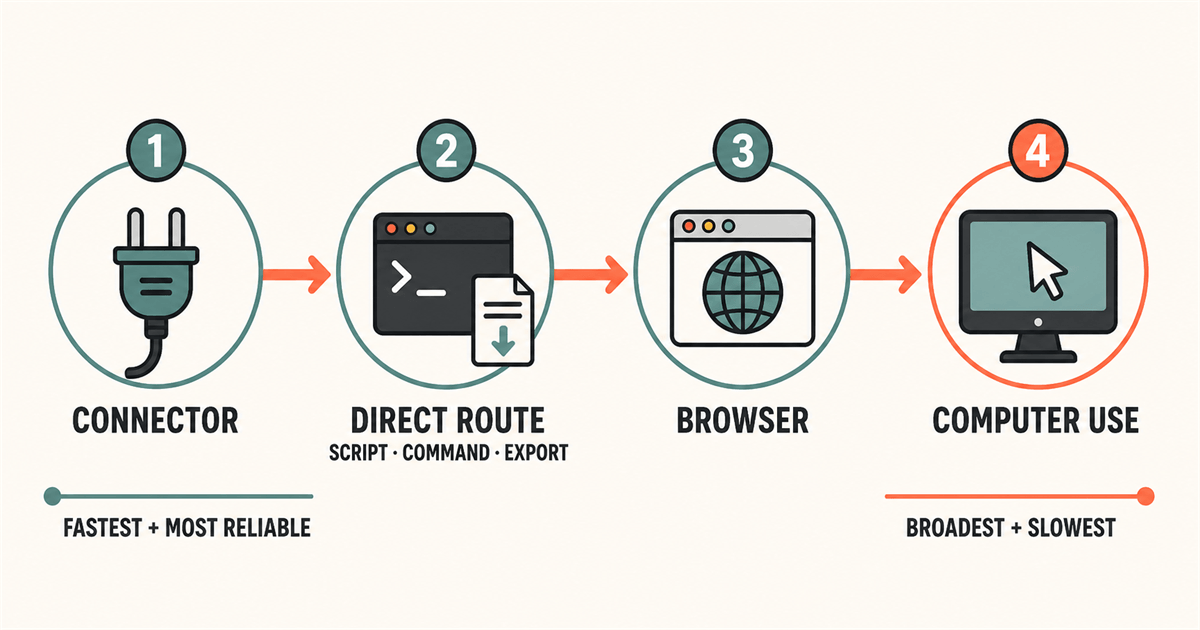
But there are situations where “computer use” is exactly what you need.
Here are a few examples where computer use makes the most sense:

In short, if the task depends heavily on what’s on the screen, computer use is the way to go. To get a quick taste, try this open-ended prompt in Claude or ChatGPT:
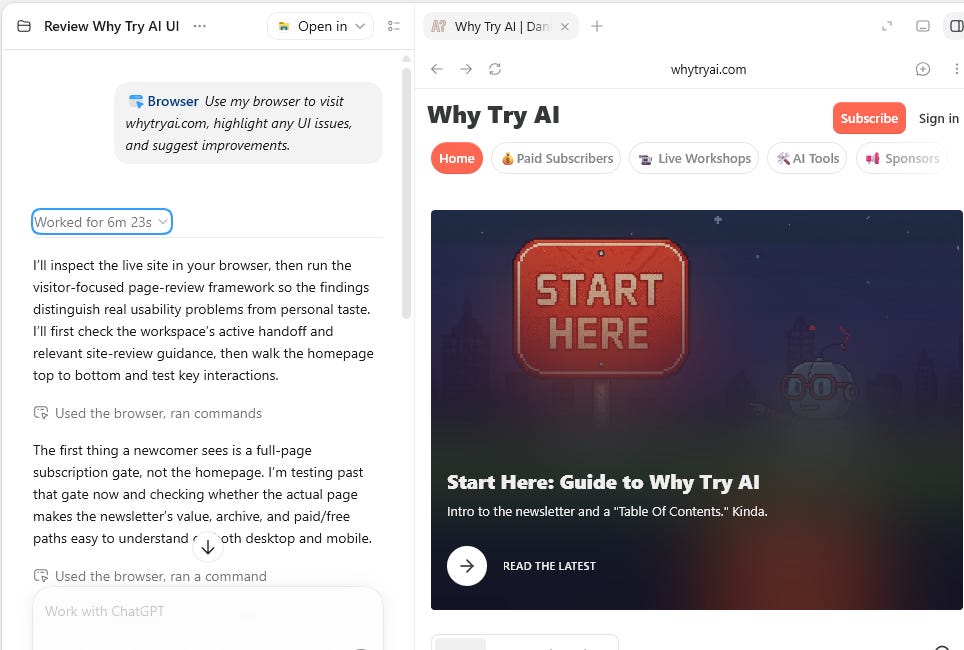
Use my browser to visit [site], highlight any UI issues, and suggest improvements.
Here’s how that might look for WhyTryAI.com:
Your Friendly “Safety First” Box
Computer use can expose your entire screen and desktop to the AI agent, so stick to these ground rules:
Keep sensitive stuff off screen: passwords, payment details, IDs, financial records, healthcare info, etc.
Check what you approve: Claude and ChatGPT usually ask for permission before taking a new type of action, so review it carefully before accepting.
Stop at the final click: stay in control of any potentially damaging or irreversible actions like form submissions, deletions, purchases, etc.
To give you a better idea of which tasks are especially well-suited for “computer use,” I put together a swipe file with 50+ use cases and copy-paste prompts:

Each prompt has fill-in-the-blank fields so you can customize it for your tasks and needs. The prompts and use cases are agent-agnostic, so try them in Claude Code, ChatGPT, or any other agent that offers computer use.
I suggest picking a simple and harmless task first and watching the agent closely to get a feel for what it can do and what you’re comfortable with.
Access the “Computer Use Swipe File” here:

If you enjoy my work, here’s how you can help:
❤️Like this post if it resonates with you.
🔄Share it to help others discover this newsletter.
🗣️Comment below. I love hearing from my readers.
🔓Support me and unlock cool perks by going paid:
Free ChatGPT users: Sound off in the comments if you’ve tried this and can verify.
Comments
Nothing yet. Say the first thing.
Sign in to join the conversation.