
May 27th, 2025 by Brigit Murtaugh, Christof Marti, Josh Spicer, Olivia Guzzardo McVicker
One of the features that makes VS Code so flexible and powerful is Remote Development. Whether you're connecting to a secure VM from your local desktop, a hugely powerful computer from your tablet, or a containerized environment with all the dependencies your project needs – VS Code's ability to develop anything from anywhere can help in just about any setup.
Now combine those capabilities with the flexibility and power of AI in VS Code, and you have an incredibly versatile dev environment. You can ensure chat conversations have context about your remote workspace, get AI help in setting up and debugging remote connections, and provide a more isolated space for agent mode to work autonomously.
In this blog, we'll explore how your existing remote setups can be enhanced to "just work" with AI, along with some more customized AI + remote workflows that include custom instructions, chat participants, and agent auto-approvals.
What is Remote Development?
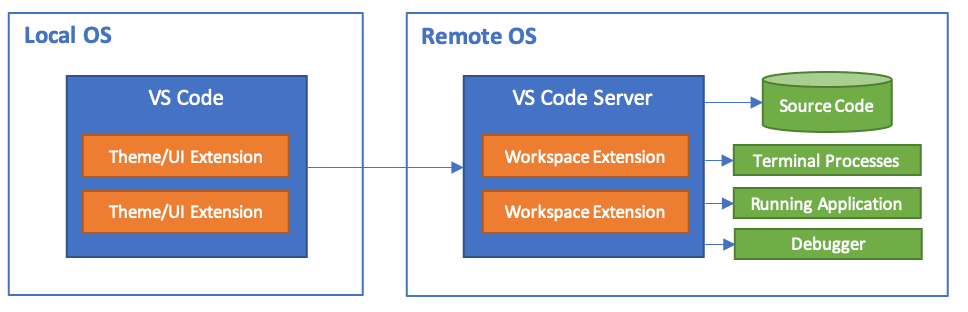
When we describe VS Code Remote Development, we refer to five main experiences:
- Remote - SSH - Connect to any location by opening folders on a remote machine/VM using SSH.
- Dev Containers - Work with a separate toolchain or container-based application inside (or mounted into) a container.
- WSL - Get a Linux-powered development experience in the Windows Subsystem for Linux.
- Remote - Tunnels - Connect to a remote machine via a secure tunnel, without configuring SSH.
- GitHub Codespaces - Remote environments that are managed for you.
How can you use AI in a remote environment?
We want to make the AI coding experience in VS Code as seamless as possible, whether you're working on your local machine or connected to a remote environment. If you're already using GitHub Copilot locally, we'll automatically install it remotely. And GitHub Codespaces has it configured too!
While using AI in a remote environment will just work, there are additional AI features that can make your remote workflow even more powerful:
- Custom instructions - Tailor your AI experience for your remote environment
- Chat participants - Use chat to set up and troubleshoot your remote environment
- Tool approvals - Run autonomous coding sessions safely in remote environments
Tailor your AI experience for your remote environment
One of the top requests we hear from users when working with an LLM is: How can I help the LLM better understand my code and coding practices? You can achieve this via custom instructions, which describe common guidelines or rules to get responses that match your specific coding practices and tech stack. Instead of manually including this context in every AI chat query, custom instructions automatically incorporate this information with every chat request (learn more in our recent blog post).
In our team's recent self-hosting, we found it helpful to use custom instructions to not only tell Copilot about our code and coding practices, but to also provide more information about the type of remote environment we're connected to, such as:
- What kind of remote environment is this (i.e. a dev container vs a VM)?
- What languages or toolchains are installed? What's their purpose?
- Where are toolchains installed (i.e. are they available on the
PATH)?
Here's an example instruction our team found helpful:
"github.copilot.chat.codeGeneration.instructions": [
    {
        "text": "This dev container includes `python3` and `pip3` pre-installed and available on the `PATH`, along with the Python language extensions for Python development."
    }
],
Use chat to set up and troubleshoot your remote environment
Chat participants enhance your chat experience by providing domain-specific knowledge, such as how to interact with a database or a specific API. Type @ in the chat input field to view and select from the list of available participants - they'll be available in Ask mode. There are several built-in chat participants like @workspace, @vscode, and @terminal. Extensions can also contribute chat participants.
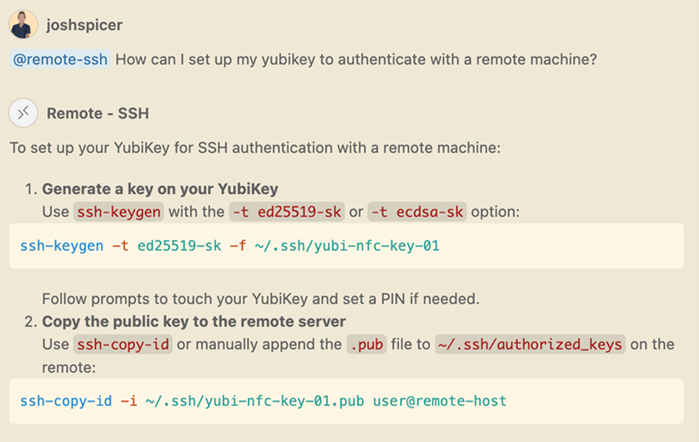
The Remote - SSH extension includes a Copilot chat participant. Ask @remote-ssh for help configuring or troubleshooting elements of your remote environment:

The participant is also knowledgeable about general SSH and remote development topics:
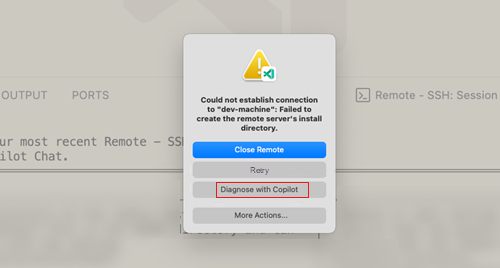
If a connection failure occurs, the Diagnose with Copilot feature provides a quick way to understand the problem:
Copilot will investigate the issue and provide actionable insights:
Run autonomous coding sessions safely in remote environments
As part of completing the tasks for a user prompt, agent mode can run tools and terminal commands. Agent mode is powerful because it not only proposes code changes but can also run terminal commands and tools. For example, it can install project dependencies or run tests. However, some of these actions might be destructive, such as deleting files, modifying local configuration, and more. Therefore, you need to approve the use of tools and terminal commands in agent mode.

In case you want to auto-approve all tools, you can now use the experimental chat.tools.autoApprove setting. To give you some level of protection against inadvertent terminal commands or tool calls, you can choose to only set this in a dev container or remote machine to prevent your local dev machine from getting affected:
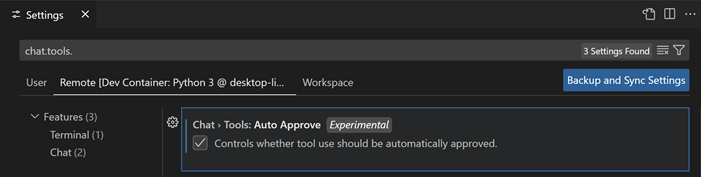
This will auto-approve all tools, and VS Code will not ask for confirmation when a language model wishes to run tools. This can help save time by giving more autonomy to agent mode, but bear in mind that with this setting enabled, you will not have the opportunity to cancel potentially destructive actions a model wants to take.
Note that remote environments that are part of your local machine (like dev containers) or that have access to your credentials will pose different levels of risk.
What's Next
We're excited about the future of Remote Development and AI in VS Code. Our monthly releases are packed with exciting new features, and we're constantly looking ahead to what's next, like supporting Copilot Chat in the web (vscode.dev, github.dev).
Happy (smart and remote) coding! Brigit, Christof, Josh, and Olivia
Comments
Nothing yet. Say the first thing.
Sign in to join the conversation.