
This webpage provides steps for installing and configuring the OpenAI Codex CLI on macOS using AI API Gateway model aliases.
1. Prerequisites
Required Software
| Software | Minimum Version | Download/Source |
|---|---|---|
| OpenAI Codex CLI | Latest (0.96+) | https://learn.chatgpt.com/docs/codex/cli |
| Node.js | 18+ (LTS) | https://nodejs.org/en/download |
| VS Code (optional) | 1.93+ | https://code.visualstudio.com/download |
System requirements
| Requirement | OpenAI Codex CLI |
|---|---|
| OS | macOS (Linux also supported; on Windows use WSL) |
| RAM | 4GB+ recommended |
| Disk Space | Minimal |
| Internet | Required for API calls |
| AI API Key | Required |
AI API Gateway Details / API Key
- Base URL: https://aiapi-prod.stanford.edu/v1
- API Key: Your own AI API key (sent via secure channel)
- Model alias: Must match the gateway alias exactly (example used throughout this doc: gpt-5.4)
2. Installation Steps (macOS)
Step 1- Check if Codex CLI already exists
Run:
shell
codex --versionExpected result: a version string is returned (0.96 or later recommended). If you get command not found, proceed to Step 2.
Step 2 — Install Node.js (if needed)
Codex runs on Node.js. Check whether it is installed:
shell
node --versionIf it is missing, install it with Homebrew:
brew install nodeStep 3- Install OpenAI Codex CLI
Homebrew (recommended on macOS):
brew install codexOr via npm:
npm install -g @openai/codexIf the install location is not on your PATH (zsh):
echo 'export PATH="$HOME/.npm-global/bin:$PATH"' >> ~/.zshrc
source ~/.zshrc
Re-check:
codex --version
3. Configuration Steps
Codex reads gateway configuration from ~/.codex/config.toml - a TOML file.
Step 4 — Create the Codex config directory (if needed)
mkdir -p ~/.codexStep 5 — Create/update the config file
Write the config in one step (this overwrites any previous, partially-edited file with a known-good version):
[model_providers.stanford]
name = "Stanford AI API"
base_url = "https://aiapi-prod.stanford.edu/v1"
env_key = "STANFORD_AI_API_KEY"
wire_api = "responses"
requires_openai_auth = false
EOF
Confirm it wrote correctly:
cat ~/.codex/config.tomlPlease note: — env_key is a variable NAME, not the key. The env_key value must be the name of an environment variable (here, STANFORD_AI_API_KEY). Do not paste your actual API key here. If you do, Codex looks for a variable literally named after your key, finds nothing, and silently falls back to the ChatGPT sign-in. The key itself is set in Step 6.
Step 6 — Set the API key as an environment variable
Codex reads the key from the variable named in env_key. Add it to your shell profile (zsh). Replace YOUR_AIAPI_KEY with your real key:
echo 'export STANFORD_AI_API_KEY="YOUR_AIAPI_KEY"' >> ~/.zshrc
source ~/.zshrc
Confirm the variable is set (it should print your key back):
echo $STANFORD_AI_API_KEYStep 7 — Clear any existing ChatGPT sign-in
If Codex was ever opened before, it may hold a ChatGPT session that overrides the gateway and defaults to model gpt-5.6-sol. Clear it so Codex uses your gateway provider:
codex logout
Step 8 — Add a launch alias (ensures Codex always uses the gateway)
A bare codex command may still fall back to the ChatGPT sign-in screen. This alias forces the gateway provider and model on every launch. Add the line below to the end of ~/.zshrc (open it with: nano ~/.zshrc):
alias codex='codex -c model_provider="stanford" -c model="gpt-5.4"'Save (Ctrl+O, Enter, Ctrl+X), then reload:
source ~/.zshrcConfirm the alias registered (it should print the alias definition back):
alias codexConfiguration Fields Explained
| Field | Description |
|---|---|
| model | Default model to use. Must match the gateway alias exactly (e.g. gpt-5.4). |
| model_provider | The id of the provider block Codex should use. Must match the [model_providers.<id>] name below (here, "stanford"). |
| name | Cosmetic display label for the provider. |
| base_url | Root gateway URL for the OpenAI-compatible endpoint. Include /v1 (the opposite of Claude Code, which omits it). |
| env_key | NAME of the environment variable that holds your API key — not the key itself. The key is set separately (Step 6). |
| wire_api | API protocol Codex uses. Must be "responses" — Codex removed "chat" support in early 2026. The gateway must expose /v1/responses. |
| requires_openai_auth | Set to false so Codex accepts the gateway key format instead of requiring an OpenAI "sk-" key. |
4. Validation
Launch Codex
With the alias in place, simply run:
codex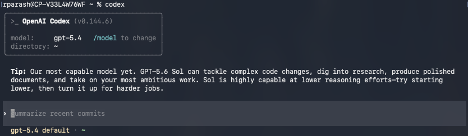
Confirm routing (authoritative check)
In the session, type /status. Confirm it shows model gpt-5.4 and base URL https://aiapi-prod.stanford.edu/v1. This is the reliable way to verify routing.
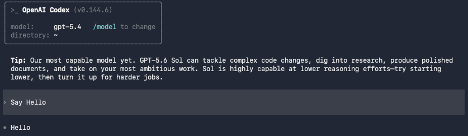
Test Case 1 — Basic response
In the session, enter:
Say OK/HelloExpected result: Codex responds normally. Validation is complete when /status shows the gateway, and you receive a response without errors.
Test Case 2 — Code Generation Test (Python)
Ask:
Write a simple Python program that prints Hello World.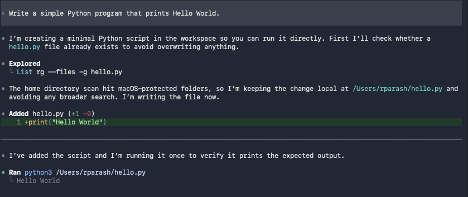
Test Case 3 — Web Application
Ask:
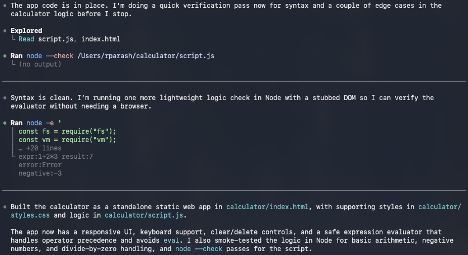
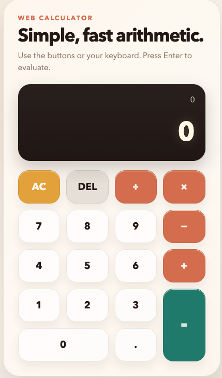
Generate a web application for a simple calculator.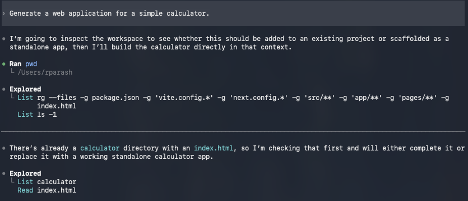
5. Troubleshooting / Common Errors
5.1 Config file is TOML, not JSON
- Codex uses
~/.codex/config.toml(TOML syntax) — do not paste JSON. Use straight quotes only; smart / curly quotes break the parse. - Every section header needs square brackets:
[model_providers.stanford]on a single line. A split or unbracketed header causes:key with no value, expected `=`.
5.2 Base URL must include /v1
- Correct:
https://aiapi-prod.stanford.edu/v1 - Wrong:
https://aiapi-prod.stanford.edu
5.3 env_key holds the variable NAME, not the key
- Set
env_key = "STANFORD_AI_API_KEY"and export the key separately (Step 6). Pasting the raw key intoenv_keymakes Codex look for a variable named after your key, fail to find it, and drop to the sign-in screen. - Alternative (less secure): keep the key in the file with
experimental_bearer_token = "YOUR_KEY"and removeenv_key— the two cannot coexist.
5.4 API key must be exported in the same shell
A 401 / 403, or an unexpected sign-in prompt, usually means STANFORD_AI_API_KEY is not set in the terminal that launched Codex.
Check with:
echo $STANFORD_AI_API_KEYIf it prints nothing: run source ~/.zshrc (or open a new terminal), confirm the export went into ~/.zshrc (not ~/.bashrc), and check the name matches env_key exactly.
5.5 Model name must match the gateway alias exactly
If you get "model not found" / "invalid model", confirm the available aliases:
curl -s https://aiapi-prod.stanford.edu/v1/models \
  -H "Authorization: Bearer YOUR_AIAPI_KEY"
Then update the model value in config.toml (and the alias in the launch alias). See Available Models.
5.6 Codex shows the sign-in screen or uses gpt-5.6-sol
If /status shows gpt-5.6-sol (Codex's built-in default) or you keep landing on the three sign-in options, Codex is not using your gateway provider. In order:
- Run
codex logoutto clear any ChatGPT session. - Make sure the launch alias (Step 8) is active — check with
alias codex. Plaincodexcan ignore the config's default provider; the alias forces it. - On the "Sign in with ChatGPT / Provide your own API key" screen, do not paste your key — that field targets Codex's built-in OpenAI provider, not your gateway. Press Esc and launch via the alias instead.
5.7 "profile ... cannot be used" / legacy profile error
Newer Codex versions reject profile = "..." and [profiles.x] inside config.toml. If you see this error, remove both from config.toml. Either use the launch alias (Step 8), or put profile overrides in a separate file ~/.codex/<name>.config.toml and launch with codex --profile <name>.
5.8 Verifying which model/endpoint is actually in use
- Authoritative:
/statusin-session shows the resolved model and base URL. - Independent proof: the gateway team's dashboard should log the request against your key, or tail
~/.codex/log/to see the outboundaiapi-prod.stanford.edu/v1/responsescalls. - Not reliable: the model's answer to "what model are you using?" — it cannot see your config or the endpoint and will give a generic family name.
Comments
Nothing yet. Say the first thing.
Sign in to join the conversation.